
You are on a tight deadline, you launch Adobe Photoshop 2025 (v26.x) on your Windows 11 machine, and disaster strikes: the entire interface is greyed out. Your toolbars are unresponsive, floating windows are locked in place, and the dreaded color picker glitch prevents you from selecting accurate hex codes.
This UI bug is a massive workflow killer. Fortunately, it is not a permanent corruption of your software. This specific error stems from a direct conflict between Windows 11 High DPI scaling protocols and Photoshop’s updated GPU rendering engine.
In this guide, we will walk you through the exact steps to restore your workspace, tweak your technology previews, and get back to editing in under five minutes.
Why is the Photoshop 2025 Interface Greyed Out?
The recent updates to Photoshop 2025 introduced a heavy reliance on a new rendering engine known as Native Canvas. While this engine is designed to leverage modern GPU acceleration and optimize VRAM allocation for smoother panning and zooming, it frequently clashes with how Windows 11 handles screen resolution scaling.
When Windows forces high DPI scaling on the application, it disrupts Photoshop’s OpenGL rendering pipeline. The result? A completely frozen, greyed-out UI, missing panels, and an unresponsive canvas.
Here are the three most effective methods to resolve this conflict.
How to Fix the Photoshop 2025 Greyed Out Interface
Method 1: Reset Workspace Preferences (The Quick Fix)
Before diving into system settings, start by ruling out corrupted workspace preferences. Sometimes, the UI simply fails to load its layout cache properly.
- Open Photoshop 2025.
- Navigate to the top menu bar.
- Click on Window > Workspace > Reset Essentials (or reset whichever custom workspace you are currently using).
- If the interface remains locked, close Photoshop.
- Relaunch the application while holding down Ctrl + Alt + Shift. A prompt will appear asking if you want to delete the Adobe Photoshop Settings file. Click Yes to force a factory reset of your preferences.
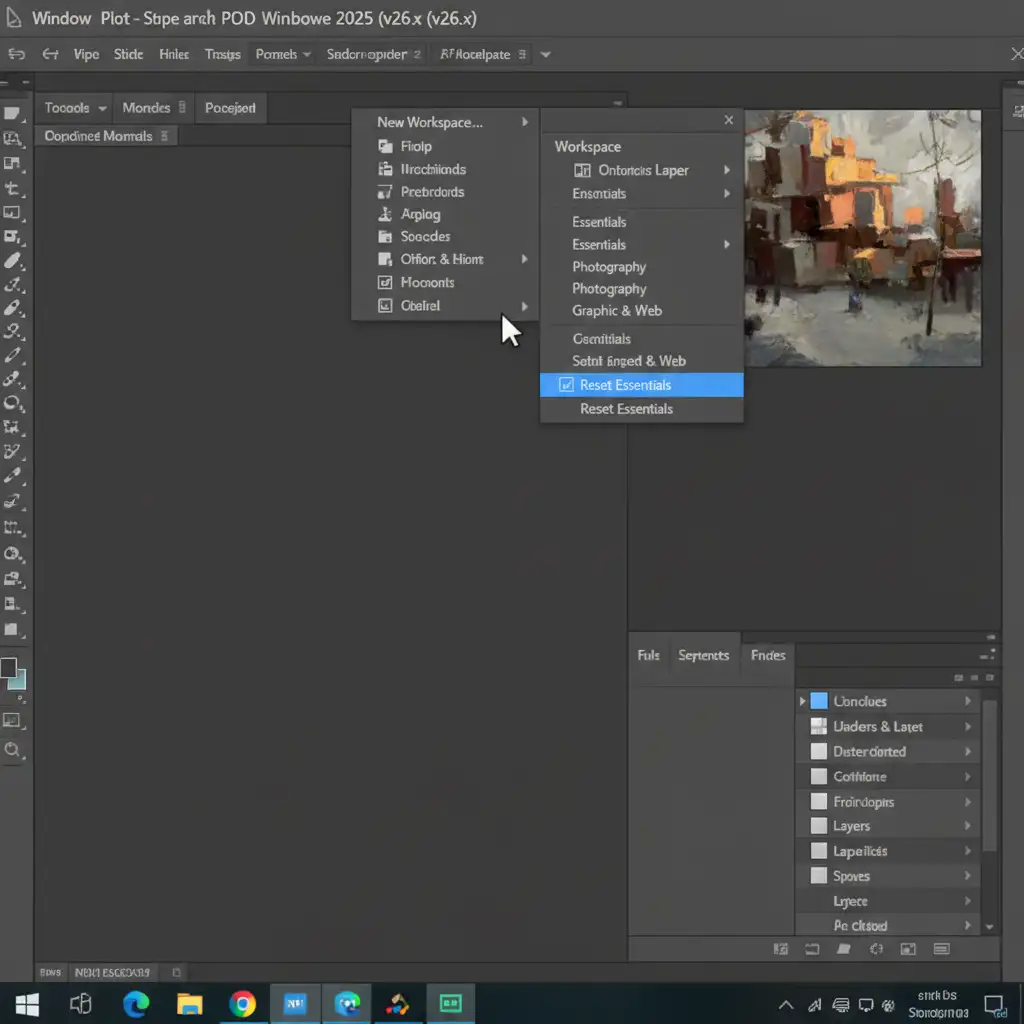
Method 2: Override Windows 11 High DPI Scaling (The Pro Workaround)
If a workspace reset fails, you need to stop Windows 11 from interfering with Photoshop’s interface scaling.
- Completely close Adobe Photoshop 2025.
- Locate your Photoshop executable file. By default, this is found at C:\Program Files\Adobe\Adobe Photoshop 2025\Photoshop.exe.
- Right-click on Photoshop.exe and select Properties.
- Navigate to the Compatibility tab.
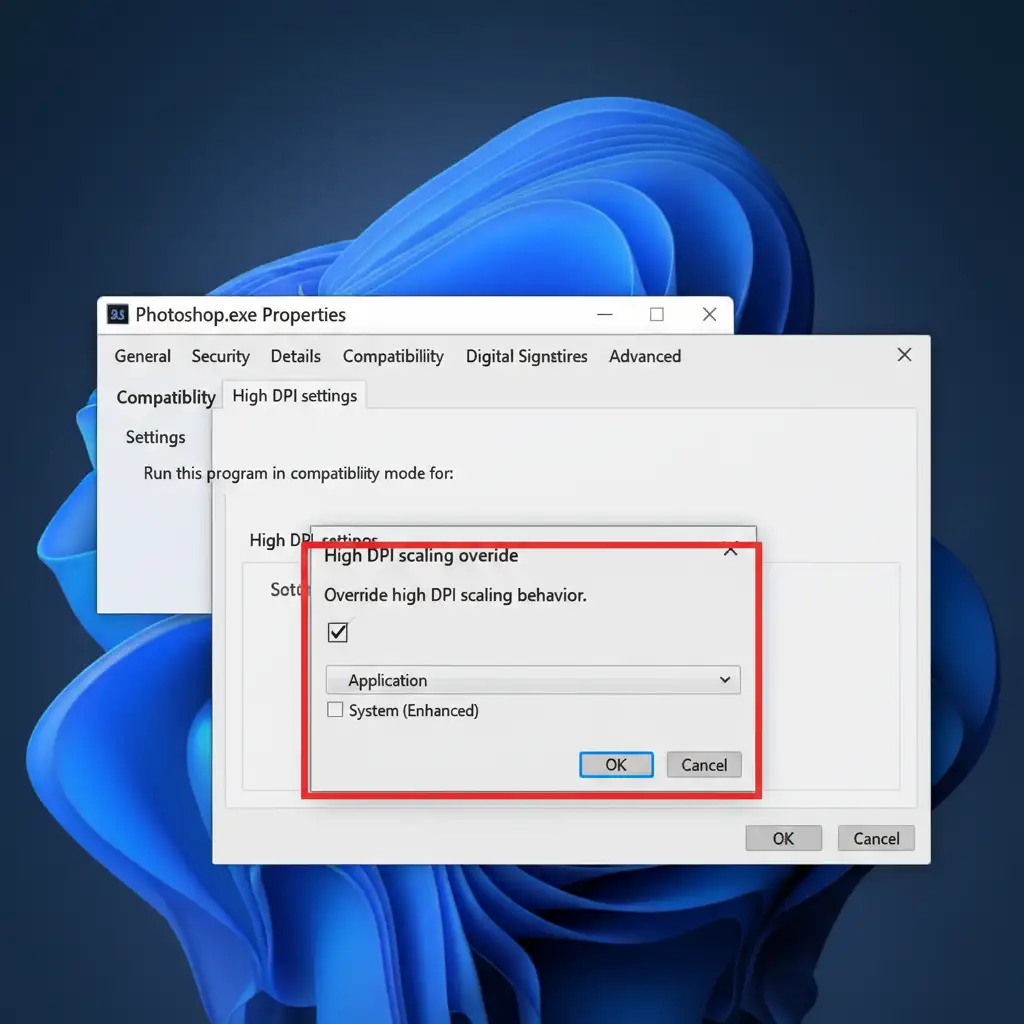
- Click the button labeled Change high DPI settings.
- In the new window, check the box at the bottom that says Override high DPI scaling behavior.
- In the dropdown menu under “Scaling performed by:”, select System (Enhanced).
- Click OK, then Apply, and restart Photoshop.
Method 3: Deactivate Native Canvas and GPU Acceleration (The Technical Deep-Dive)
If the UI and color picker are still glitching, the issue lies directly within Photoshop’s technology previews and how it interacts with your graphics processor.
- Open Photoshop 2025.
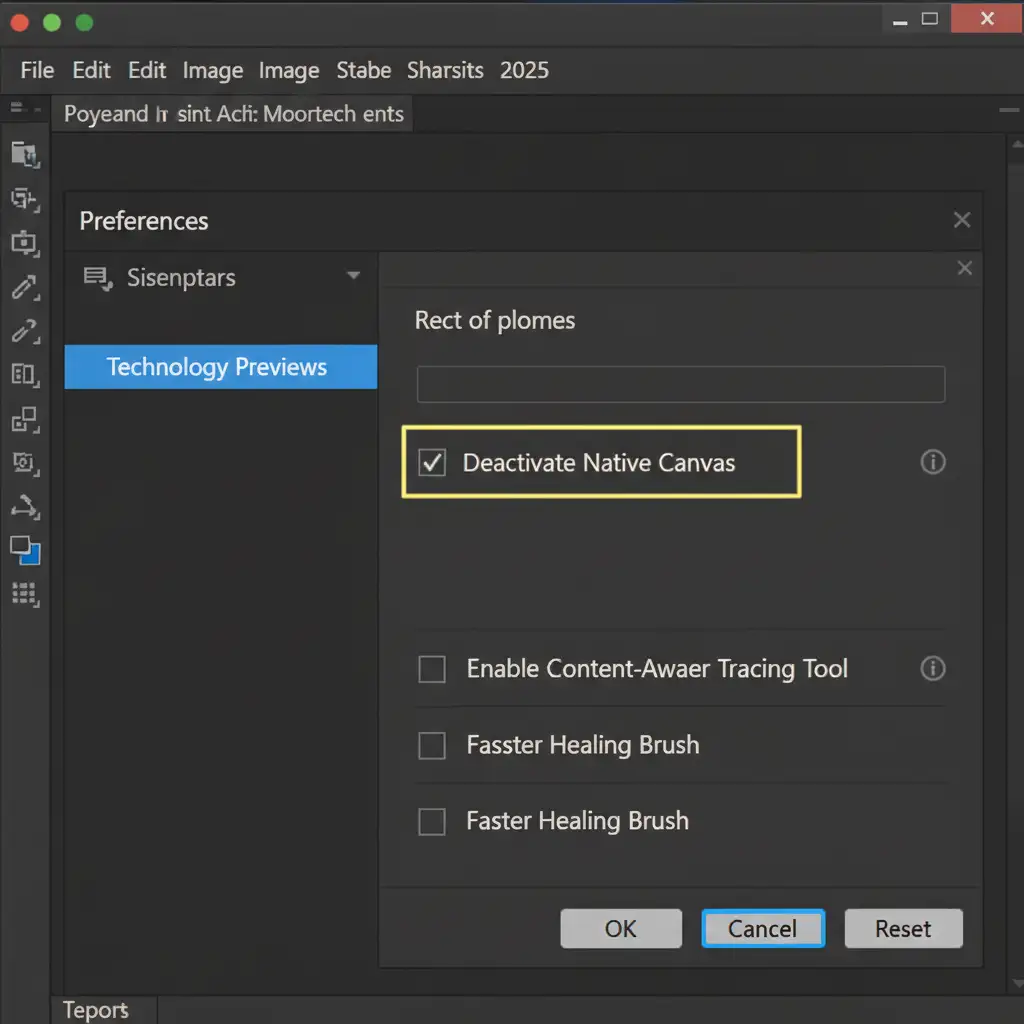
- Go to Edit > Preferences > Technology Previews.
- Locate the checkbox labeled Deactivate Native Canvas and check it. This forces Photoshop to use its legacy rendering engine, bypassing the Windows 11 UI conflict.
- Click OK and restart Photoshop to see if the issue is resolved.
If the interface is still greyed out, your graphics driver might be failing to communicate with the software entirely.
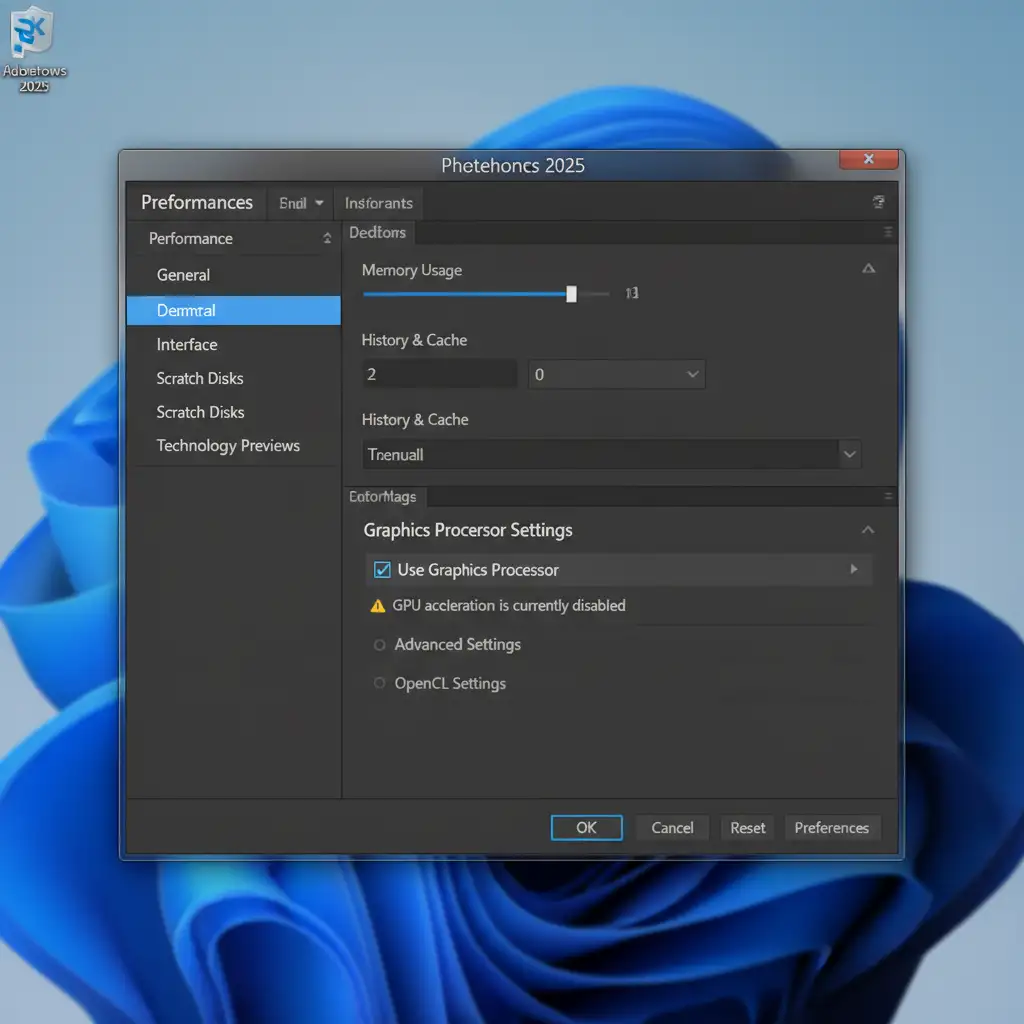
- Go back to Edit > Preferences > Performance.
- Under the Graphics Processor Settings section, temporarily uncheck Use Graphics Processor.
- Click OK and restart the software.
Note: Disabling the GPU will slow down certain rendering tasks and disable features like smooth zooming. Ensure your graphics drivers are fully updated, and check that your scratch disk has ample free space before re-enabling this feature.
Stop Battling Software Bugs: Let Image Work India Handle the Edits
Troubleshooting a “Photoshop 2025 interface greyed out” error eats into your valuable production time. When you are managing high-volume e-commerce shoots, complex compositing, or strict client deadlines, you cannot afford to lose hours to software glitches, GPU conflicts, or UI bugs.
Focus on your creative vision and let the experts handle the heavy lifting. Image Work India and Cloud Retouch provide world-class, high-volume image editing, precise clipping path services, and professional retouching. Our dedicated teams use highly optimized workstations to deliver flawless results with rapid turnaround times.
Don’t let software updates slow down your business. Contact Image Work India today and scale your post-production workflow effortlessly.



