
You just dropped thousands of dollars on a brand-new Apple Silicon Mac with an M3 & M4 chip. You expected blazing-fast performance, but instead, you’re dealing with severe brush lag, canvas flickering, and Neural Filters that constantly crash or hang on “Downloading.” It is incredibly frustrating when your high-end hardware feels slower than a five-year-old laptop.
If your workflow is grinding to a halt, you aren’t alone. The issue isn’t your hardware—it’s a conflict between how Photoshop v25.x and v26.x interact with macOS Sonoma and Sequoia. Here is your definitive guide to the Photoshop M3 Max performance lag fix.
Why Does Photoshop Lag on Apple Silicon?
When transitioning from Intel-based architecture to Apple Silicon, Adobe optimized Photoshop to run natively, completely bypassing the need for Rosetta 2 emulation. However, this transition hasn’t been flawless for the newest M3 and M4 chips.
The root cause of your Photoshop lag stems from a clash between Adobe’s experimental Native Canvas rendering engine and Apple’s Unified Memory Architecture (UMA). Because Apple Silicon shares memory dynamically between the CPU and the GPU, improper VRAM allocation within Photoshop’s settings causes intense UI flickering and brush lag. Furthermore, strict macOS privacy sandboxing in Sonoma and Sequoia often restricts Photoshop’s access to temporary cache folders, which is the primary reason your Neural Filters are crashing with an “Error: Processing canceled” message.
Follow these three methods to configure your system for maximum stability.
Method 1: The Quick Fix – Optimize Memory and Cache Settings
The first step is to correctly configure how Photoshop utilizes your Mac’s Unified Memory. Out of the box, Photoshop may not be allocating enough resources for heavy retouching tasks.
- Open Photoshop.
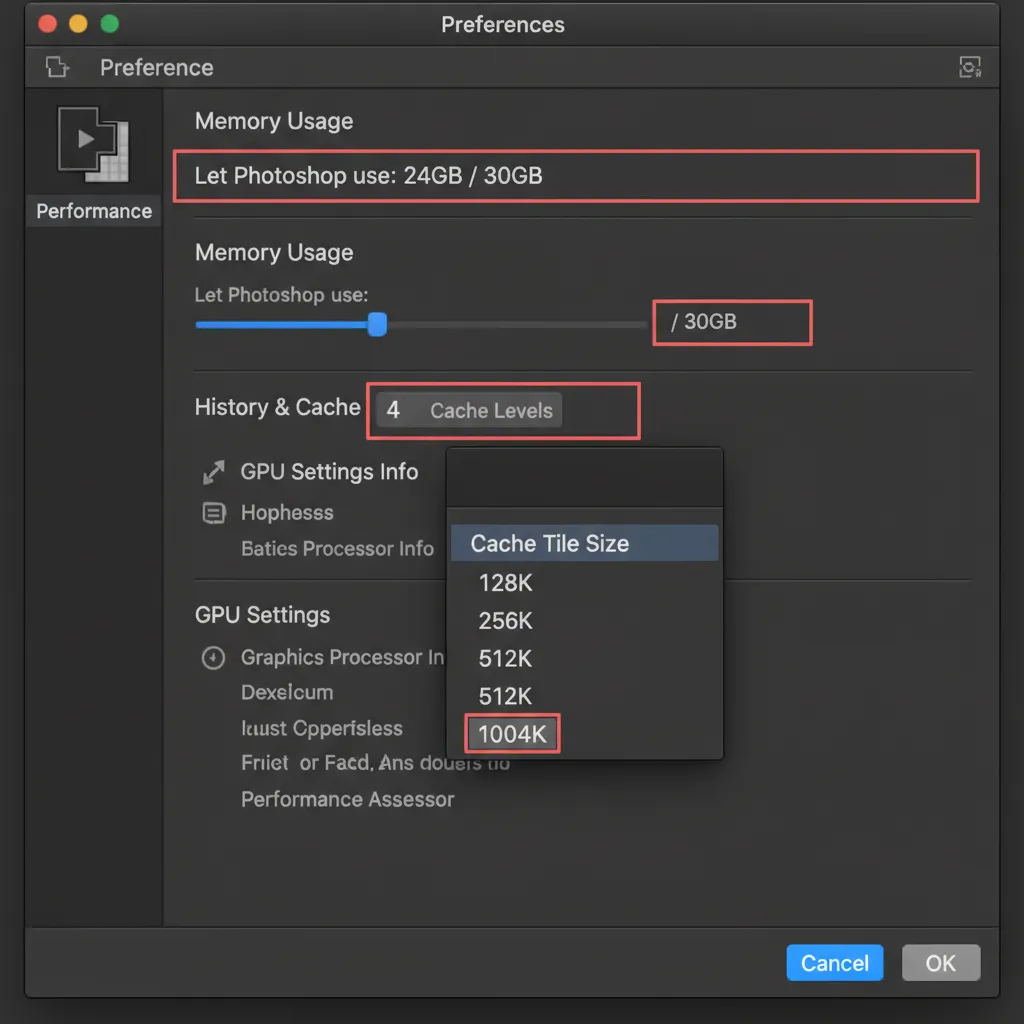
- Navigate to Photoshop > Settings > Performance (on macOS).
- Under the Memory Usage section, increase the allocation to 75-80 percent.
- In the History & Cache section, set Cache Levels to 4.
- Set the Cache Tile Size to 1024K.
- Click OK and restart Photoshop.
Method 2: The Pro Workaround – Tweak GPU and Native Canvas
If you are still experiencing canvas flickering or stuttering when zooming and panning, the issue lies with GPU acceleration conflicts. Disabling Adobe’s experimental rendering engine usually forces the software to stabilize.
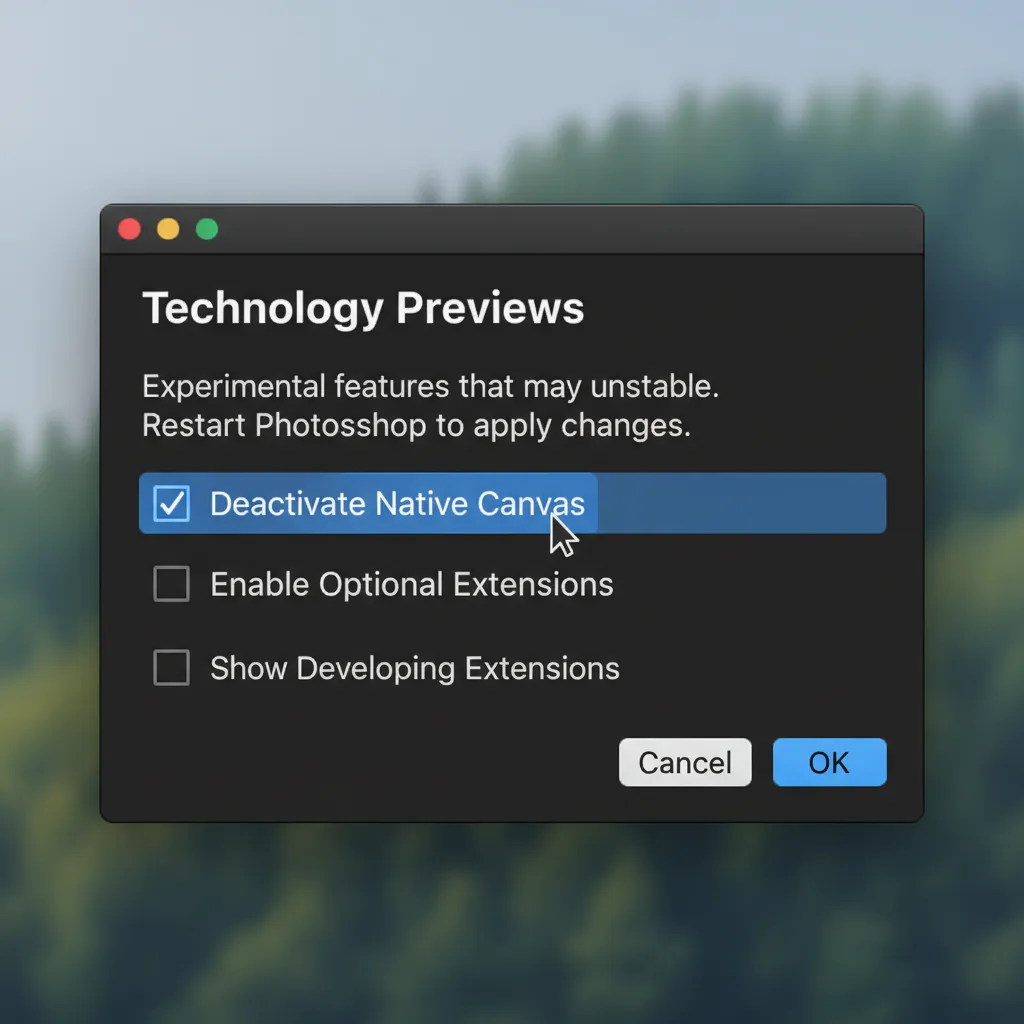
- Navigate to Photoshop > Settings > Technology Previews.
- Check the box labeled Deactivate Native Canvas.
- Uncheck Enable Optional Extensions (this prevents outdated CEP extensions from causing background memory leaks).
- Go back to the Performance tab.
- Under Graphics Processor Settings, click Advanced Settings.
- Check the box for Older GPU mode (pre-2016).
- Restart Photoshop.
Method 3: The Technical Deep-Dive – Reset UXP Caches and Fix macOS Permissions
If your Neural Filters are endlessly hanging on “Downloading” or crashing immediately, macOS is blocking Photoshop from writing to its own temporary folders. You need to grant the software proper permissions and clear out the corrupted UXP cache.
Step A: Grant Full Disk Access
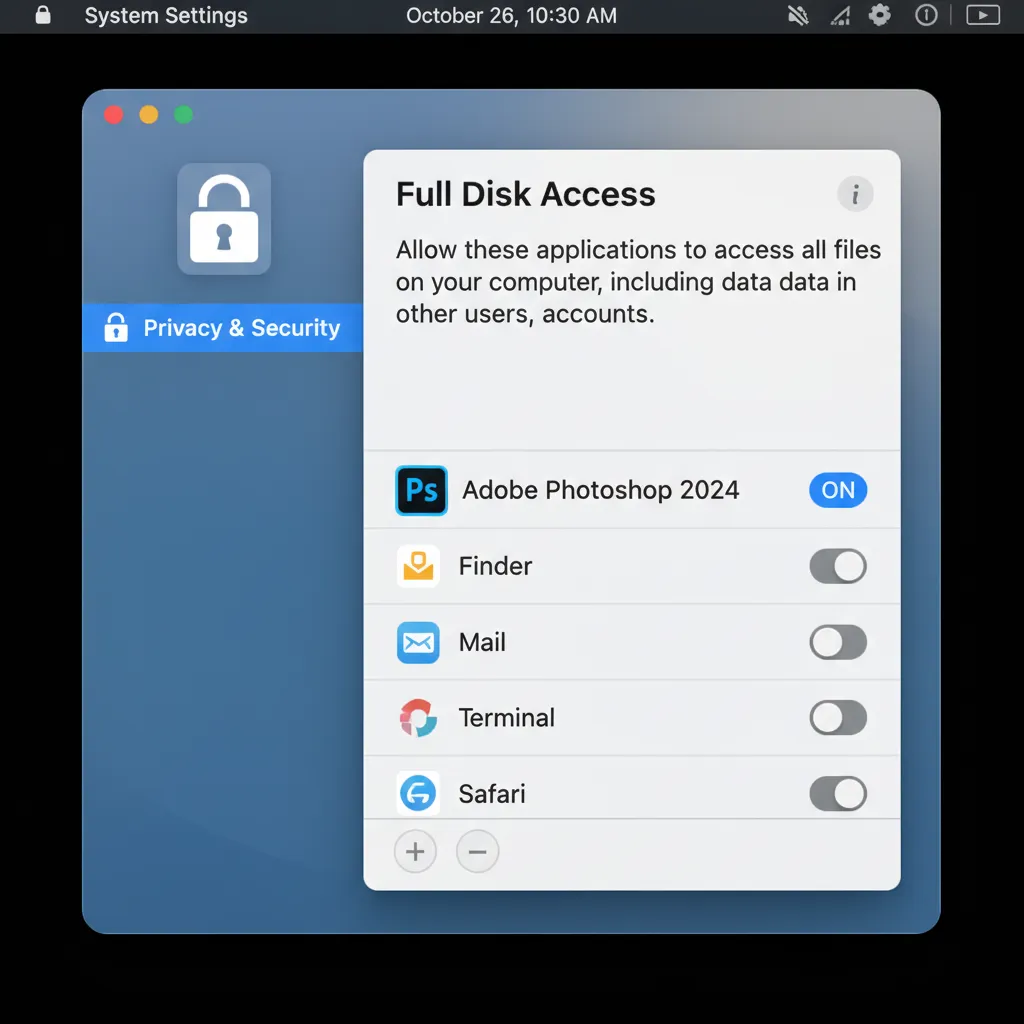
- Open macOS System Settings.
- Navigate to Privacy & Security > Full Disk Access.
- Locate Adobe Photoshop in the list and toggle the switch to ON. (If it isn’t listed, click the “+” icon at the bottom to add it from your Applications folder).
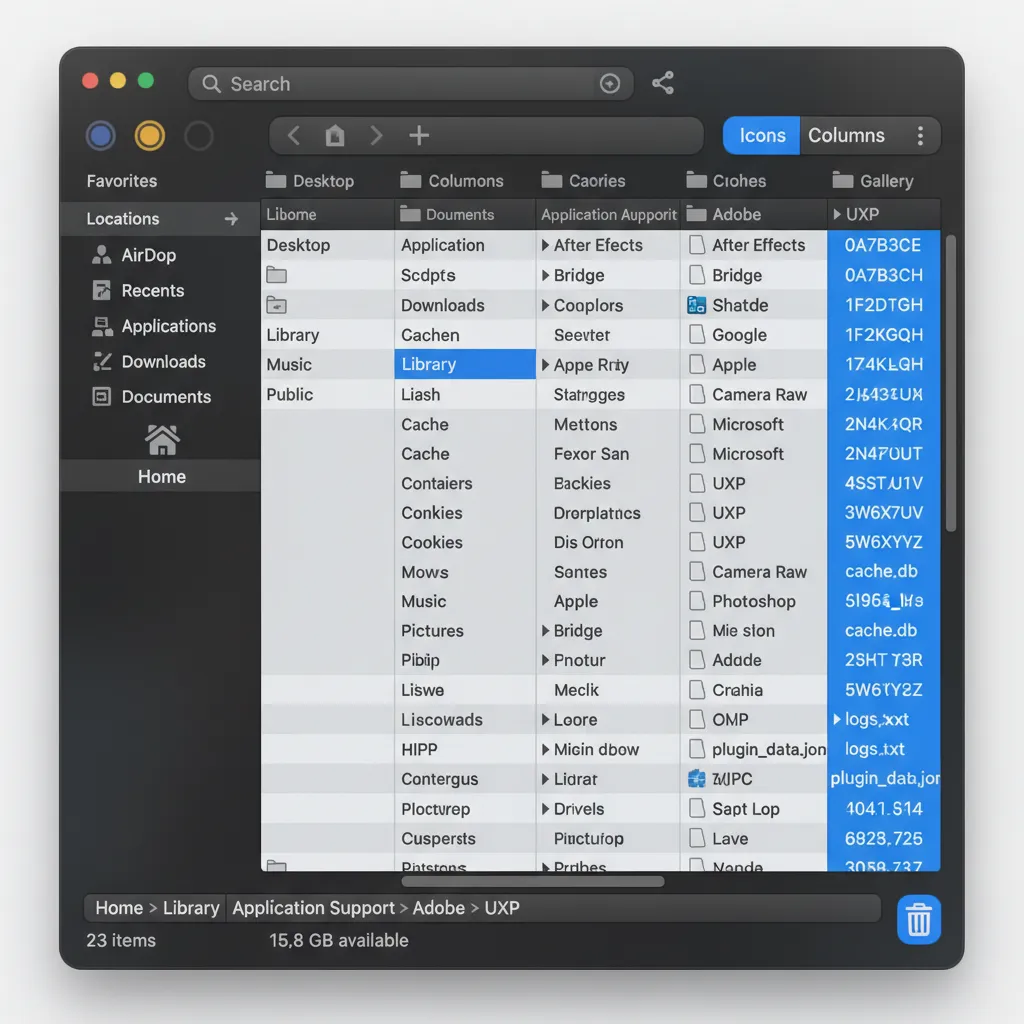
Step B: Clear the UXP Cache Folder
- Open a new Finder window.
- In the top menu bar, click Go > Go to Folder…
- Paste the following exact file path and hit Return: ~/Library/Application Support/Adobe/UXP
- Select all the folders and files inside this UXP directory and move them to the Trash.
- Empty the Trash and restart your Mac.
Upon relaunching Photoshop, your Neural Filters will download properly and function without crashing.
Stop Fighting Software—Scale Your Business with Image Work India
Troubleshooting a Photoshop M3 Max performance lag fix takes time away from what actually matters: delivering stunning visuals to your clients and growing your business.
If you are exhausted by constant software updates, volume editing bottlenecks, and the tedious nature of batch processing, let the experts take over. At Image Work India and Cloud Retouch, we specialize in high-end retouching, complex masking, and bulk image processing for professional photographers and e-commerce brands.
Stop wrestling with cache settings and let our dedicated team of professional retouchers handle the heavy lifting. [Contact Image Work India today] to streamline your post-production workflow and get your time back.



