
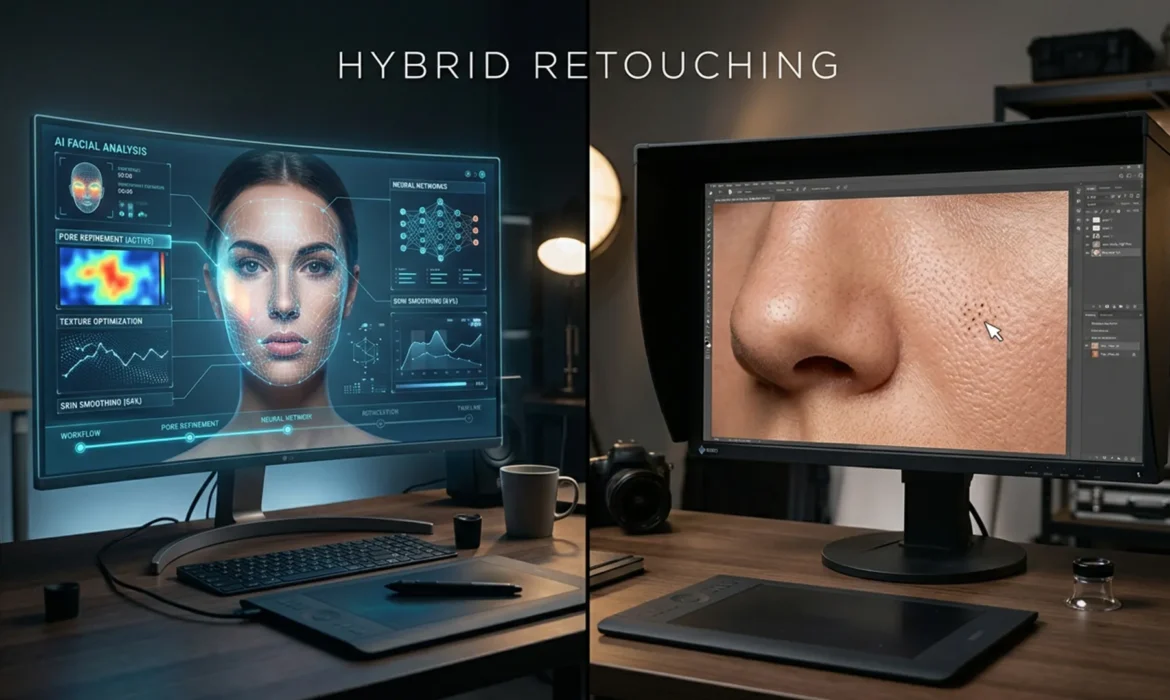
Are you tired of AI retouching tools turning your subjects into plastic mannequins? While Adobe Photoshop v25.0+ introduced game-changing features, professional retouchers face a massive bottleneck. AI tools are incredibly fast at fixing harsh shadows and blotchy colors, but they consistently hallucinate or completely destroy frequency separation data—the delicate micro-texture of natural skin. Conversely, traditional manual dodging, burning, and cloning take hours per image, killing your commercial turnaround times.
It’s time to stop compromising. Welcome to the Hybrid AI Frequency Separation workflow, the ultimate technique to merge AI computational speed with gallery-quality texture preservation.
The Problem: Why AI Fails High-End Retouching
When you use Generative Fill or the Remove Tool directly on a flattened image, the AI model (like Firefly Image 2) attempts to replace both the color and the texture simultaneously. Because AI models struggle to replicate exact, localized pore structures, the result is a smoothed, artificial look.
To achieve true high-end retouching, we must decouple structural texture from AI tone generation.
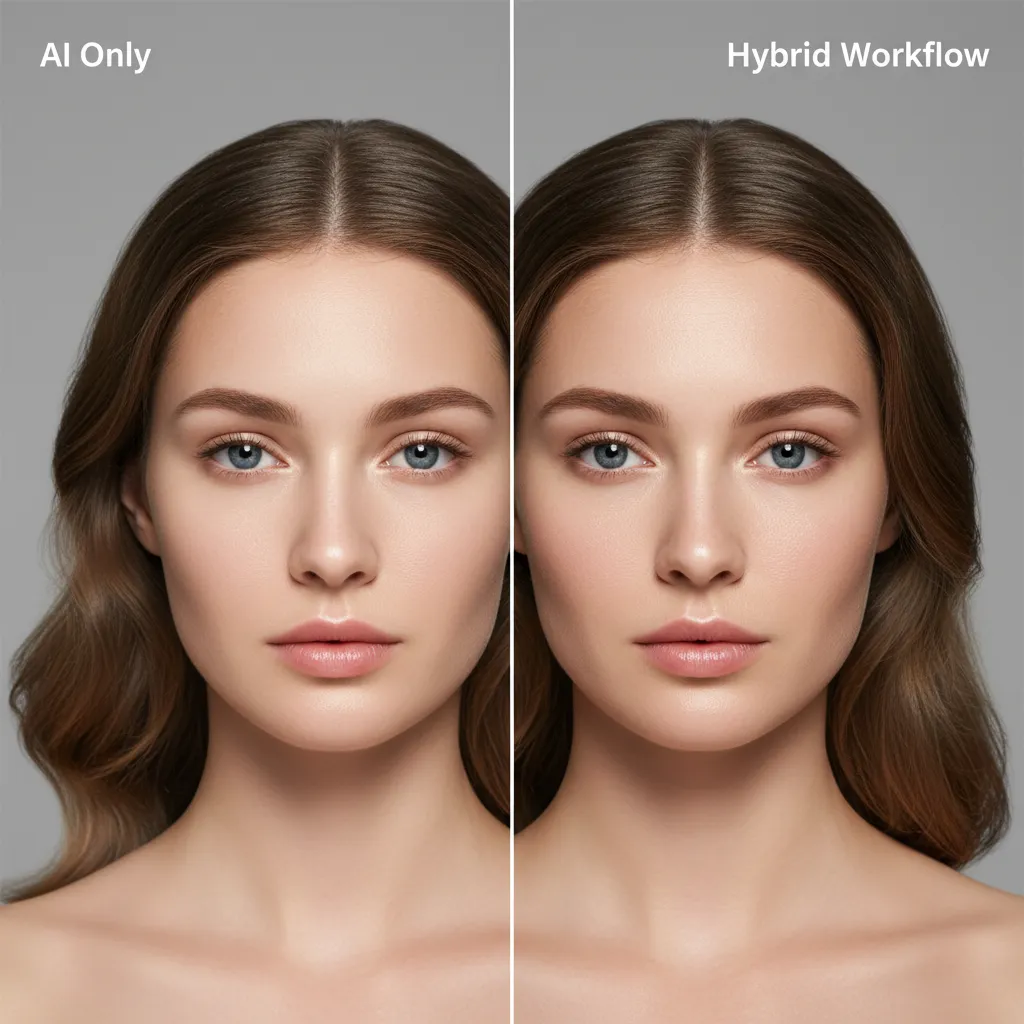
Mastering the Hybrid AI Frequency Separation Workflow
By separating your image into a Low Frequency Layer (color and tone) and a High Frequency Layer (texture), you can restrict AI generation strictly to the low-spatial-frequency domain. This means the AI handles the heavy lifting of color correction, while your original texture remains untouched on top.
Here are the three methods to implement this workflow, ranging from quick commercial fixes to technical, non-destructive masterpieces.
Method A: The Quick Fix (Pre-Cleaning)
If you need a rapid turnaround for e-commerce or high-volume portraits, use the AI tools to prep the image before running your frequency separation action.
- Create a new blank layer above your background layer.
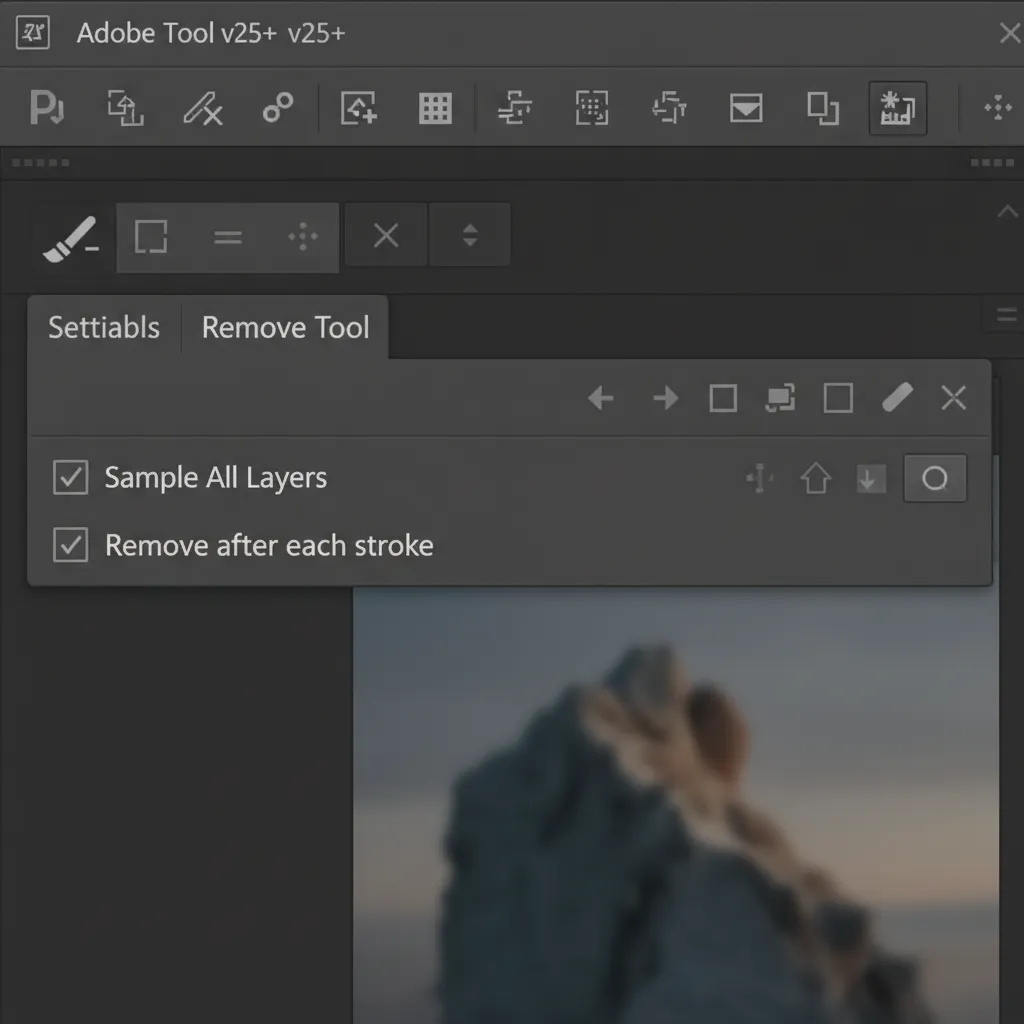
- Select the Remove Tool.
- In the top options bar, ensure Sample All Layers and Remove after each stroke are checked.
- Instantly eliminate major blemishes, stray hairs, and background distractions.
- Once the major distractions are gone, flatten or merge visible, and run a standard 8-bit or 16-bit Frequency Separation action. Use the Mixer Brush Tool on the Low Frequency layer for fine tonal blending.
Method B: The Pro Workaround (AI on the Low Frequency Layer)
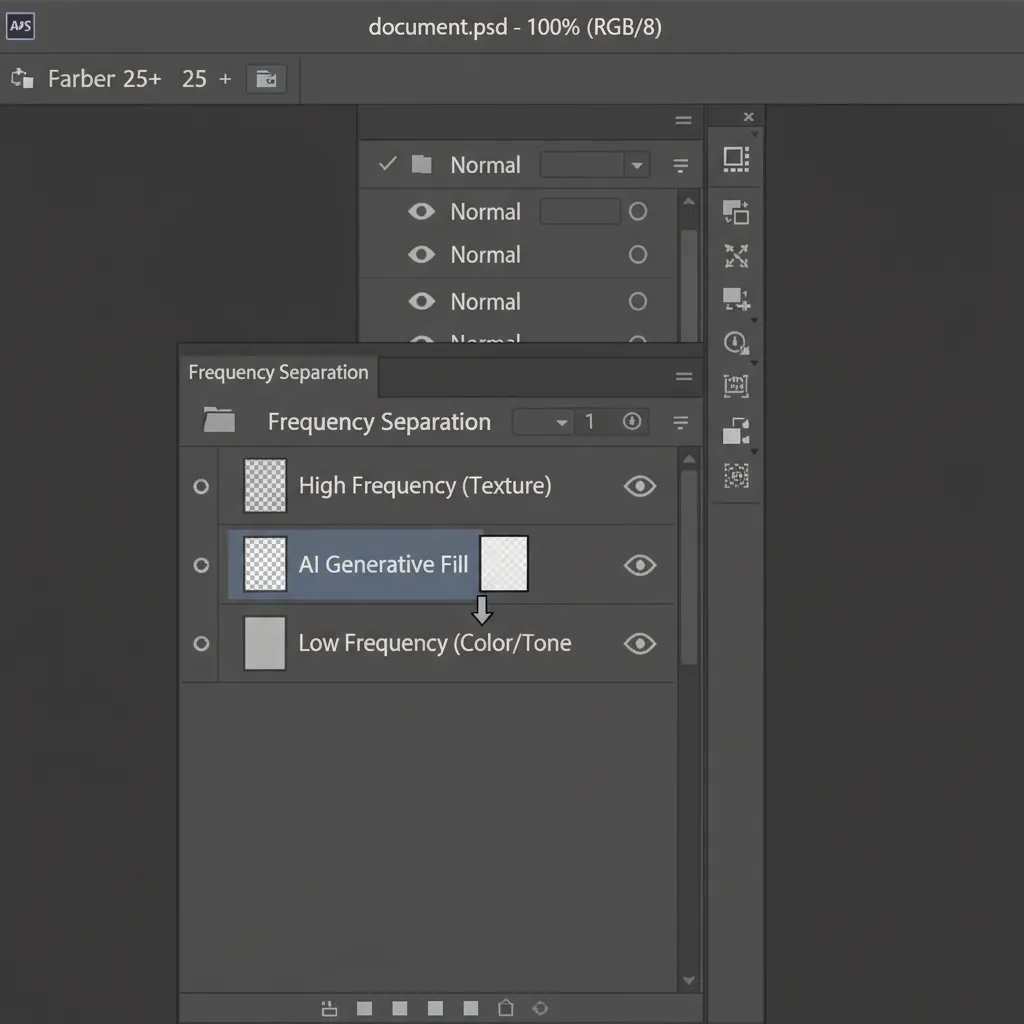
For more stubborn issues like large blotchy skin patches, harsh shadows, or clothing wrinkles, you can apply AI directly inside your frequency separation stack.
- Run your standard Frequency Separation action first.
- Target the Low Frequency Layer.
- Make a loose selection around the harsh shadow or blotchy skin.
- Use Generative Fill (leaving the prompt blank) or the Remove Tool.
- Because the High Frequency layer sits safely above your AI edits, the newly generated tonal shifts perfectly inherit the original, unblemished skin texture.
Method C: The Technical Deep-Dive (Non-Destructive Smart Objects)
For the ultimate gallery-quality result, you need a purely non-destructive editing approach that mathematically matches the spatial frequency separation to the AI edge blending.
- Convert your raw image to Smart Objects.
- Open the Smart Object in Camera Raw and apply AI Denoise to ensure a clean base.
- Duplicate the Smart Object twice to create your stack.
- Apply a Gaussian Blur to the Low Frequency layer. Pro Tip: Calculate your blur radius based on the megapixel count of the image to ensure accurate spatial frequency math.
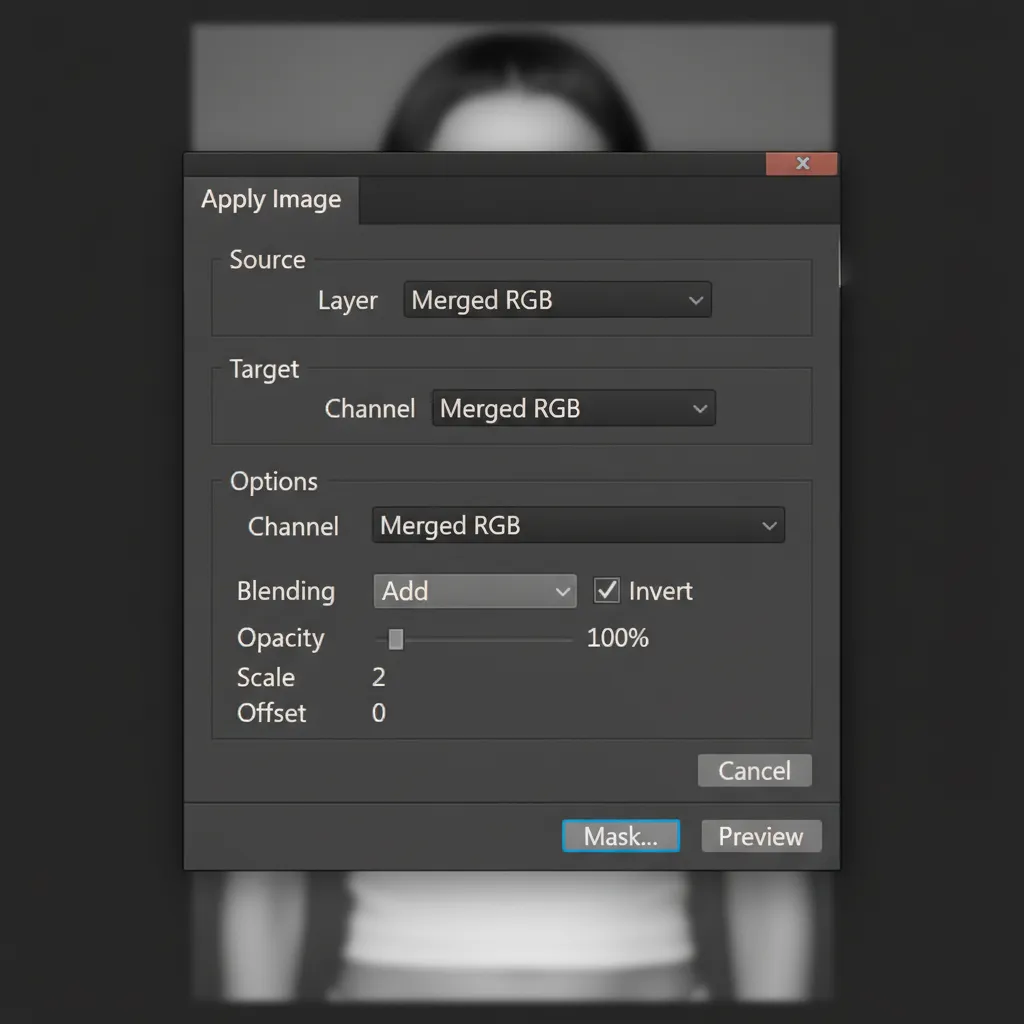
- Select the High Frequency layer and open the Apply Image dialog.
- For 16-bit images, use these exact settings: Layer: Low Frequency, Blending: Add, Scale: 2, Offset: 0, and ensure Invert is checked. Change the layer blend mode to Linear Light.
- Finally, create your AI Generative layers and clip them strictly to the Low Frequency layer.
Scale Your Retouching with Image Work India & Cloud Retouch
Mastering the Hybrid AI Frequency Separation workflow guarantees unparalleled texture preservation, but implementing it across hundreds or thousands of campaign images requires immense time and resources.
Struggling to balance retouching speed with high-end quality? You don’t have to do it alone.
Hire Image Work India and Cloud Retouch. Our expert teams of professional retouchers utilize cutting-edge hybrid AI workflows to deliver flawless, gallery-quality images at scale. Whether you need high-volume e-commerce editing or meticulous editorial beauty retouching, we preserve the natural details that make your images stand out.
Contact Image Work India and Cloud Retouch today to elevate your visual content and get your time back.



