
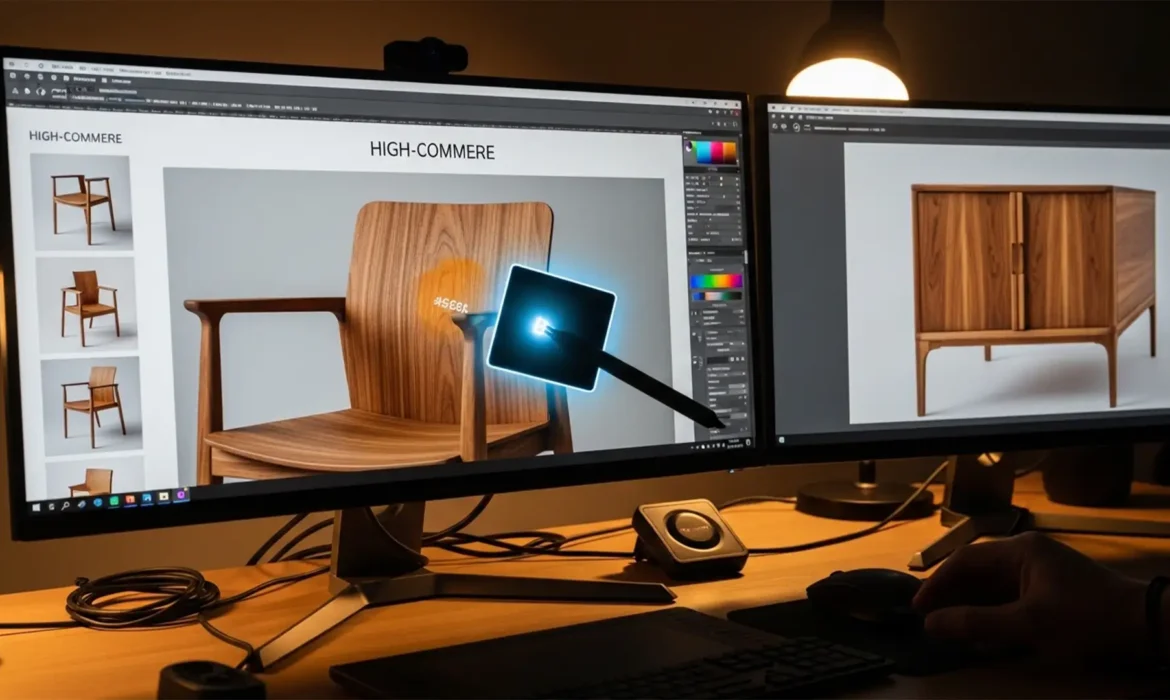
If you manage an e-commerce furniture store, you know the nightmare of inconsistent wood finishes. A customer expects the walnut dining chair to perfectly match the walnut dining table, but varying studio lighting, different wood batches, and multiple camera setups can wreak havoc on your imagery. Suddenly, your cohesive collection looks like a mismatched garage sale. Ensuring that reds, yellows, and browns remain identical across your entire inventory without losing natural texture is critical.
In this guide, we will show you exactly how to master matching wood grain tones in product catalogs using Photoshop v25.x and above, ensuring absolute brand consistency across your SKUs.
Why Inconsistent Wood Tones Kill E-Commerce Sales
When shopping for furniture online, customers rely entirely on your product photography to make high-ticket purchasing decisions. An unwanted color cast—where a supposedly neutral oak appears too green or a warm cherry looks overly magenta—creates immediate distrust.
The core challenge for e-commerce retouchers is standardizing the hex values of wood undertones without destroying the micro-contrast of the wood grain itself. Below are three proven workflows to achieve perfect standardization.
3 Ways to Match Wood Grain Tones in Product Catalogs
Whether you need a rapid adjustment or a pixel-perfect color grade, Photoshop v25.x offers specialized tools for the job.
Method 1: The Quick Fix Using the Match Color Tool
For rapid catalog standardization, Photoshop’s automated tools provide an excellent starting point.
- Open both your target image (the correct wood tone) and your source image (the mismatched product).
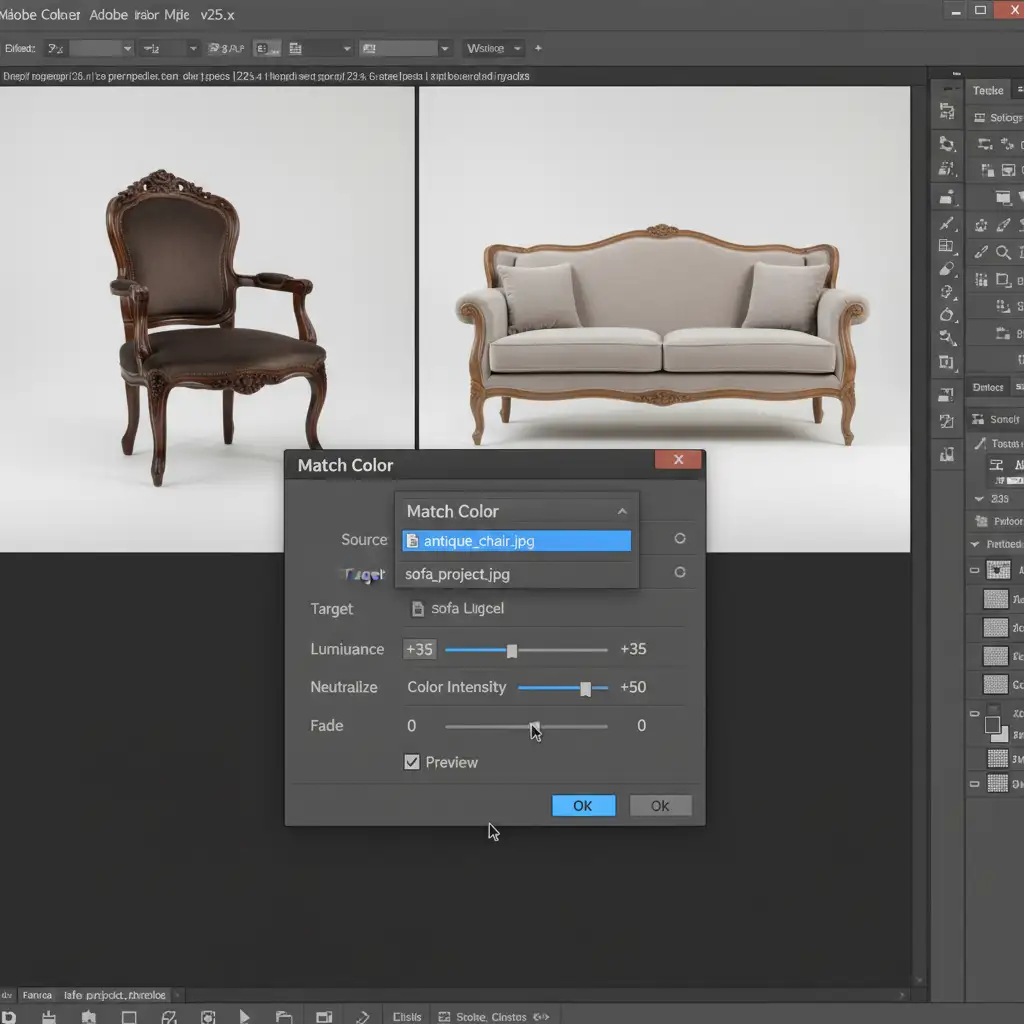
- On your source image, navigate to Image > Adjustments > Match Color.
- In the dialog box, select your target image from the ‘Source’ drop-down menu at the bottom.
- Carefully adjust the Luminance and Color Intensity sliders until the source image adopts the correct undertones.
Method 2: The Pro Workaround with Selective Color
When automated tools fail to preserve the natural feel of the wood, manual adjustment layers are required. This method allows you to shift specific hues without affecting the entire image.
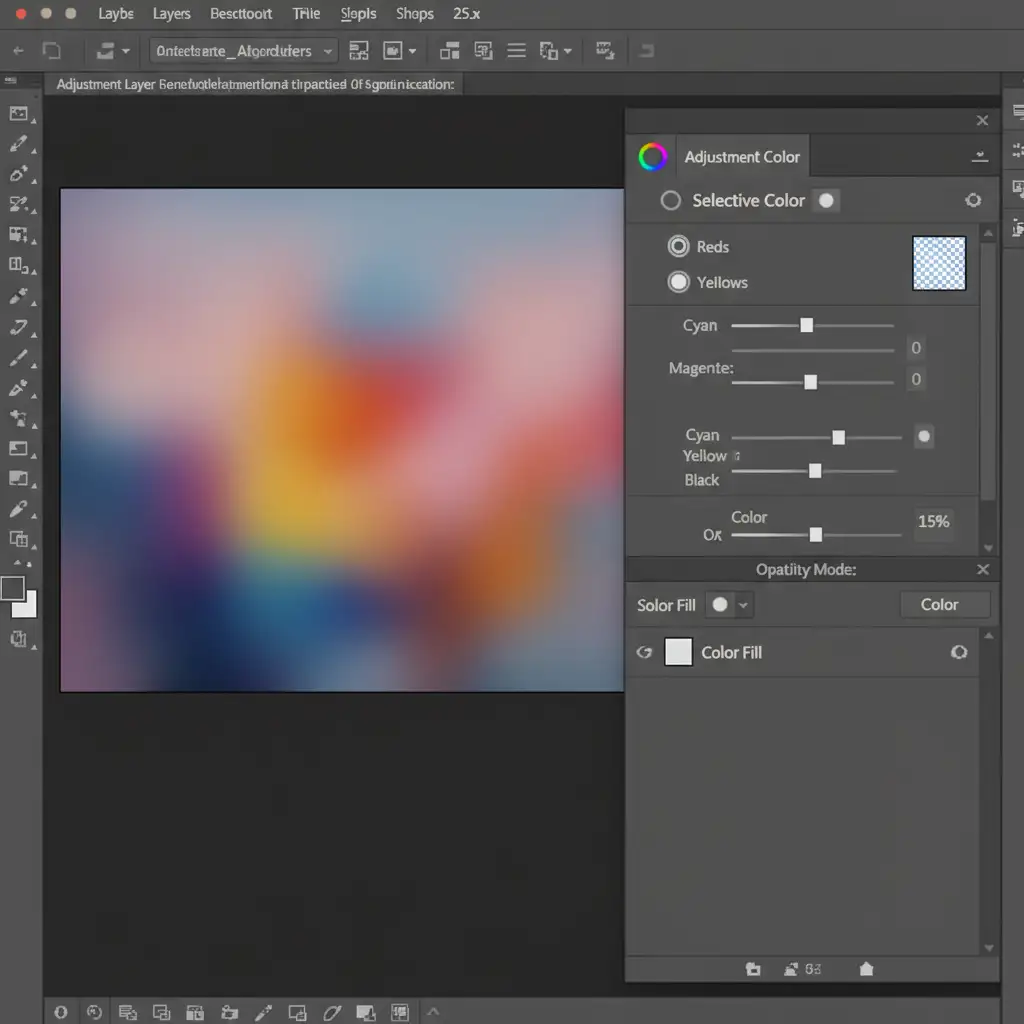
- Create a Selective Color adjustment layer above your product layer.
- Target the Reds and Yellows (the primary components of wood finishes) and adjust the Cyan, Magenta, and Yellow sliders to manually align the undertones with your reference image.
- To unify the final finish, add a Solid Color Fill layer using the exact hex code of your target wood.
- Change this layer’s Blending mode to ‘Color’ and drop the opacity to 10-15%. This acts as a gentle color wash that unifies the finish while keeping the grain texture intact.
Method 3: The Technical Deep-Dive (Curves & Color Sampler)
For absolute perfection—especially when dealing with strict brand guidelines—you must rely on numerical data rather than your naked eye.
- Select the Color Sampler tool (nested under the Eyedropper).
- Place three sample points on your target image: one on the highlights, one on the midtones, and one on the shadows of the wood grain.
- Place three corresponding sample points on the mismatched source image.
- Open the Info panel to view the exact RGB values of all your points.
- Apply a Curves adjustment layer to your source image. Go into the individual Red, Green, and Blue channels, and adjust the curve points until the numerical RGB values of your source image identically match the target image.

Scale Your E-commerce Image Editing with the Experts
Matching wood grain tones in product catalogs is a meticulous, time-consuming process. While mastering the Match Color tool and Curves adjustments is great for a handful of images, standardizing hundreds or thousands of SKUs requires a dedicated team.
If you need absolute color consistency across your entire furniture line but don’t have the hours to spend tweaking RGB values, let the professionals handle it. Image Work India and Cloud Retouch specialize in high-volume, pixel-perfect e-commerce image editing. Our expert retouchers ensure your product catalogs are visually flawless, color-accurate, and ready to convert browsers into buyers.
Contact Image Work India and Cloud Retouch today to streamline your post-production workflow and elevate your brand’s visual identity.



