
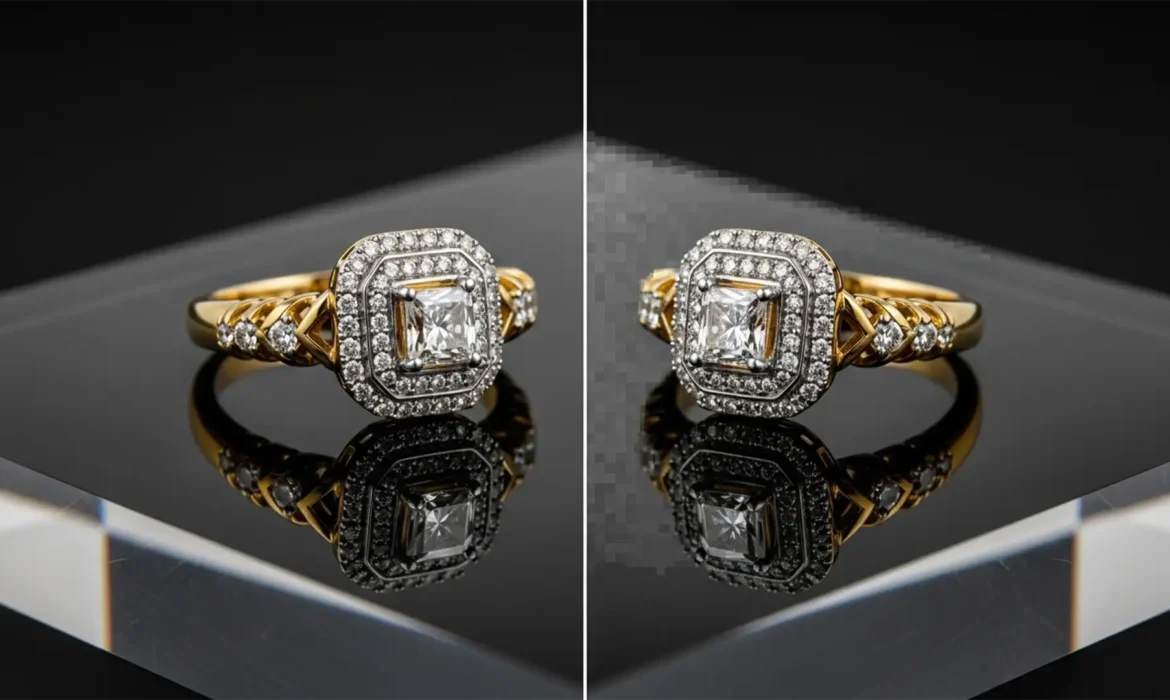
You just used Photoshop to extend the background on a stunning, high-end diamond ring photograph. The background looks great, but when you zoom in on the base, the metallic reflection is a muddy, warped mess.
If you are dealing with Generative Fill jewelry reflection artifacts, you are not alone. While Adobe’s AI tools are incredible for general photo manipulation, they routinely fail when tasked with rendering the precise physics of luxury product photography.
In this guide, we will break down exactly why Photoshop v25.0+ struggles with these specific textures and show you three professional methods to clean up AI-generated errors, ensuring your jewelry imagery remains flawless.
Why Photoshop’s AI Struggles with Jewelry Reflections
The core issue with Adobe Firefly-powered Generative Fill lies in its training data. The AI model has a strong bias toward standard, organic textures (like grass, sky, or skin). It does not natively understand the complex physics of refractive materials or how light bounces to create specular highlights.
When you ask the AI to extend a background or remove a prop near a metallic surface, it attempts to “guess” the reflection. Because it lacks the context of the 3D geometry of the jewelry, it generates low-resolution, physically inaccurate pixels. These artifacts ruin the crisp edges of gold and muddy the clarity of gemstones, making a $10,000 piece of jewelry look like cheap plastic.
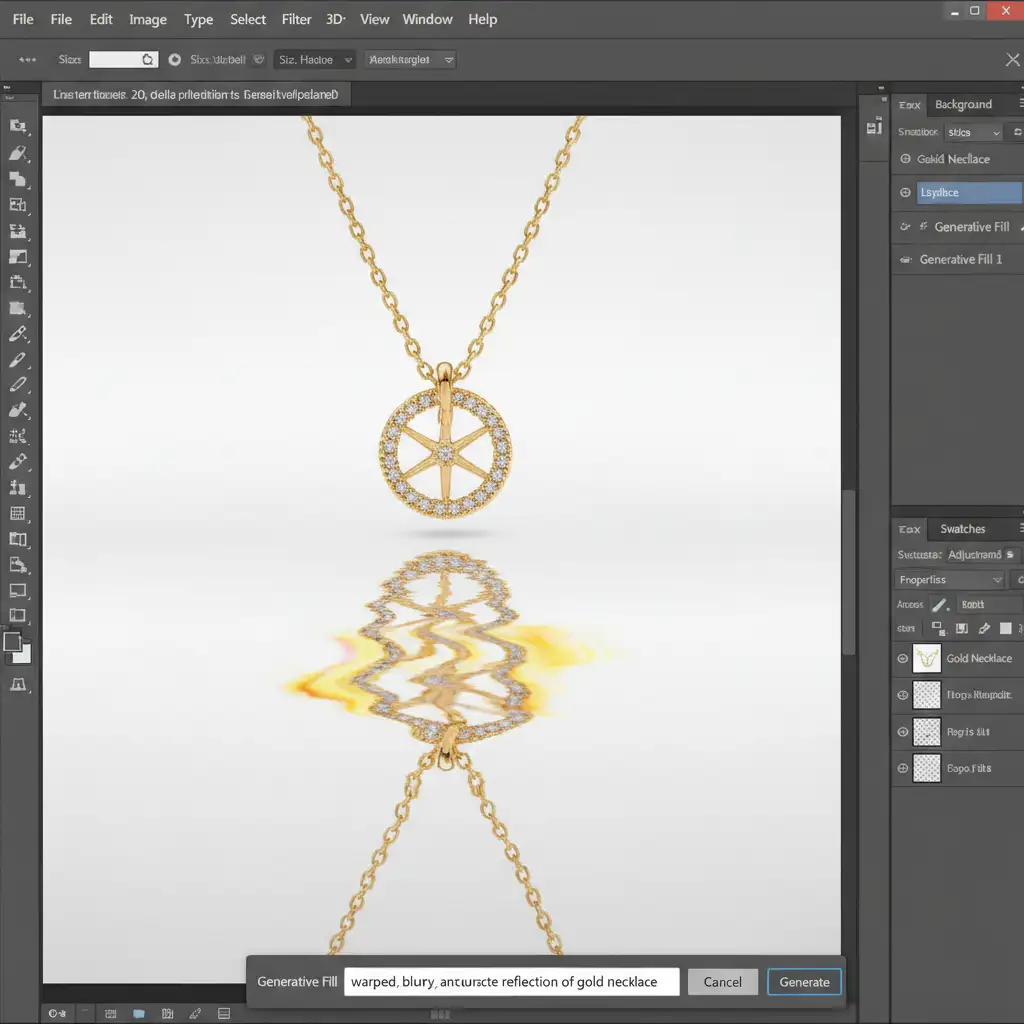
3 Ways to Fix Generative Fill Jewelry Reflection Artifacts
To maintain the high-end precision required for commercial jewelry photography, you cannot rely on AI alone. Here are three techniques, ranging from a quick patch to a high-end technical workflow, to eliminate these errors.
Method 1: The Quick Fix Using the Remove Tool
If the artifacts are minor and isolated to a small area of the reflection, you can force Photoshop to recalculate the pixels using the immediate surrounding texture.
- Select the Remove Tool from your toolbar.
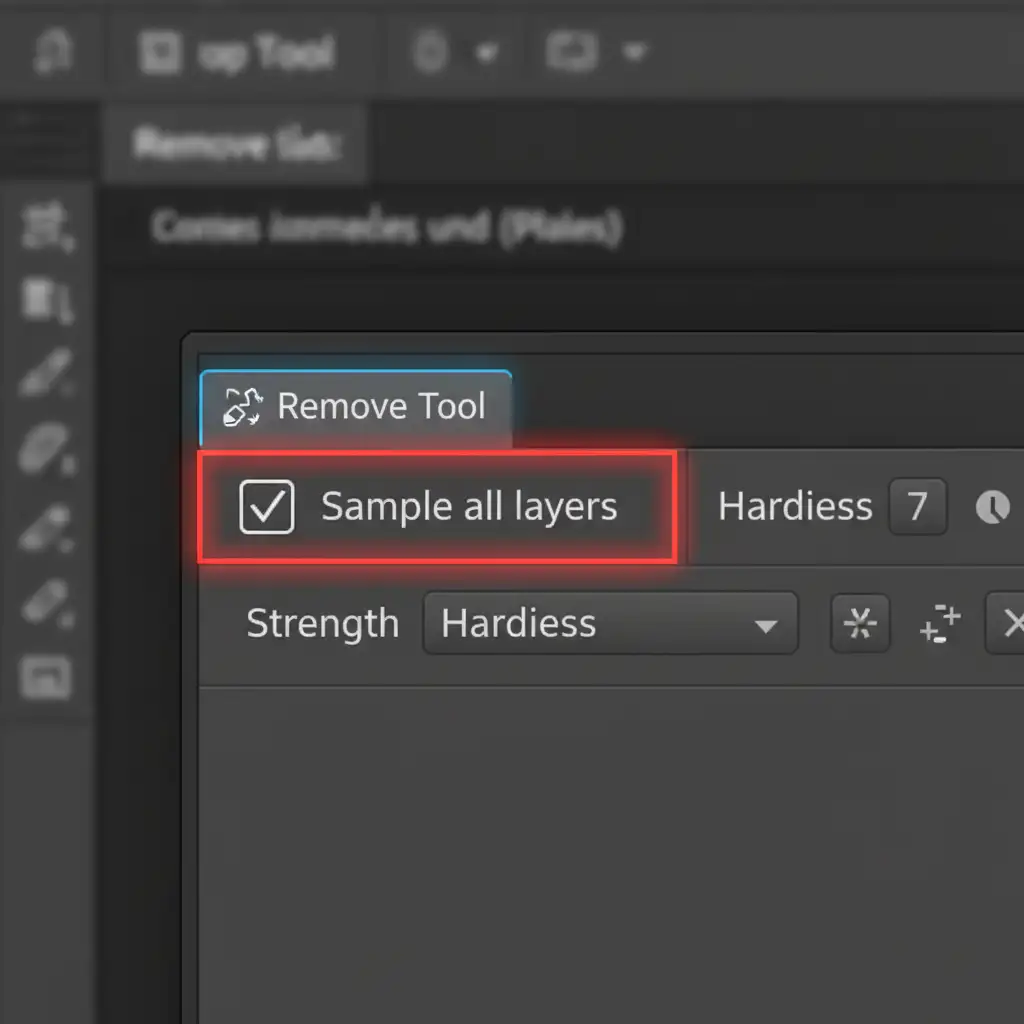
- In the top options bar, ensure Sample all layers are checked.
- Carefully paint over the warped Generative Fill artifacts.
By doing this, the Remove Tool bypasses the Firefly generation model and instead uses traditional content-aware algorithms to sample the pristine metallic edges nearby, blending the error out.
Method 2: The Pro Workaround (Manual Reflection Creation)
For severe artifacts where the AI has completely destroyed the reflection, the best approach is to bypass the AI entirely using manual Layer Masking and transformations.
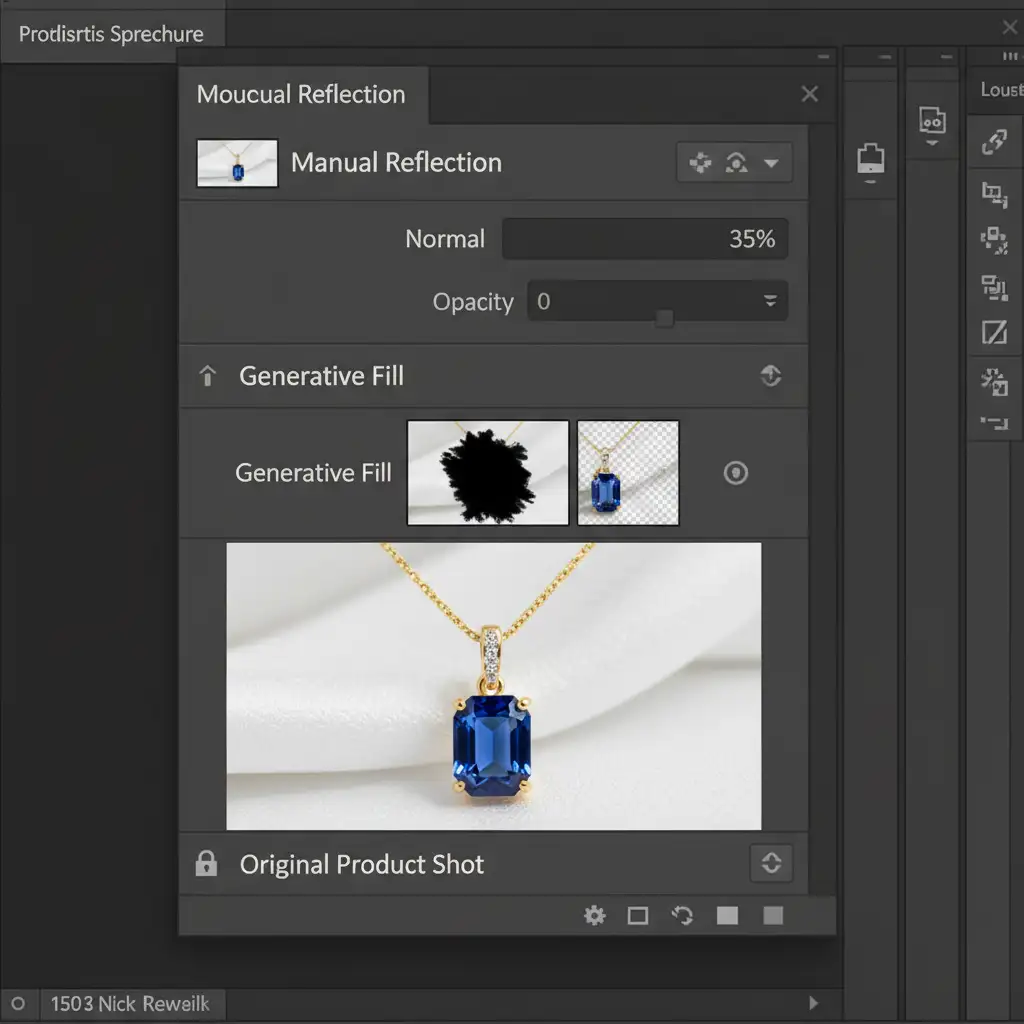
- Use Generative Fill to create your background extension, but ignore the terrible reflection it generates.
- Apply a Layer Mask to the Generative Fill layer and paint with a black brush to hide the AI-generated reflection.
- Duplicate your original, unedited jewelry layer.
- Flip the duplicated layer vertically (Edit > Transform > Flip Vertical) and align it beneath the jewelry to act as the new reflection.
- Lower the opacity of this flipped layer to 30-40%.
- Apply a slight Gaussian Blur (Filter > Blur > Gaussian Blur) to mimic the natural falloff of a studio surface reflection.
This guarantees a 100% physically accurate reflection because you are using the actual photographic data, not an AI hallucination.
Method 3: The Technical Deep-Dive (Frequency Separation)
Sometimes the AI gets the overall shape of the reflection right, but introduces heavy color banding or muddy textures. In these cases, Frequency Separation is the ultimate weapon to isolate and fix the artifacts without destroying the underlying pixels.
- Convert your Generative Fill layer into a Smart Object to protect the data.
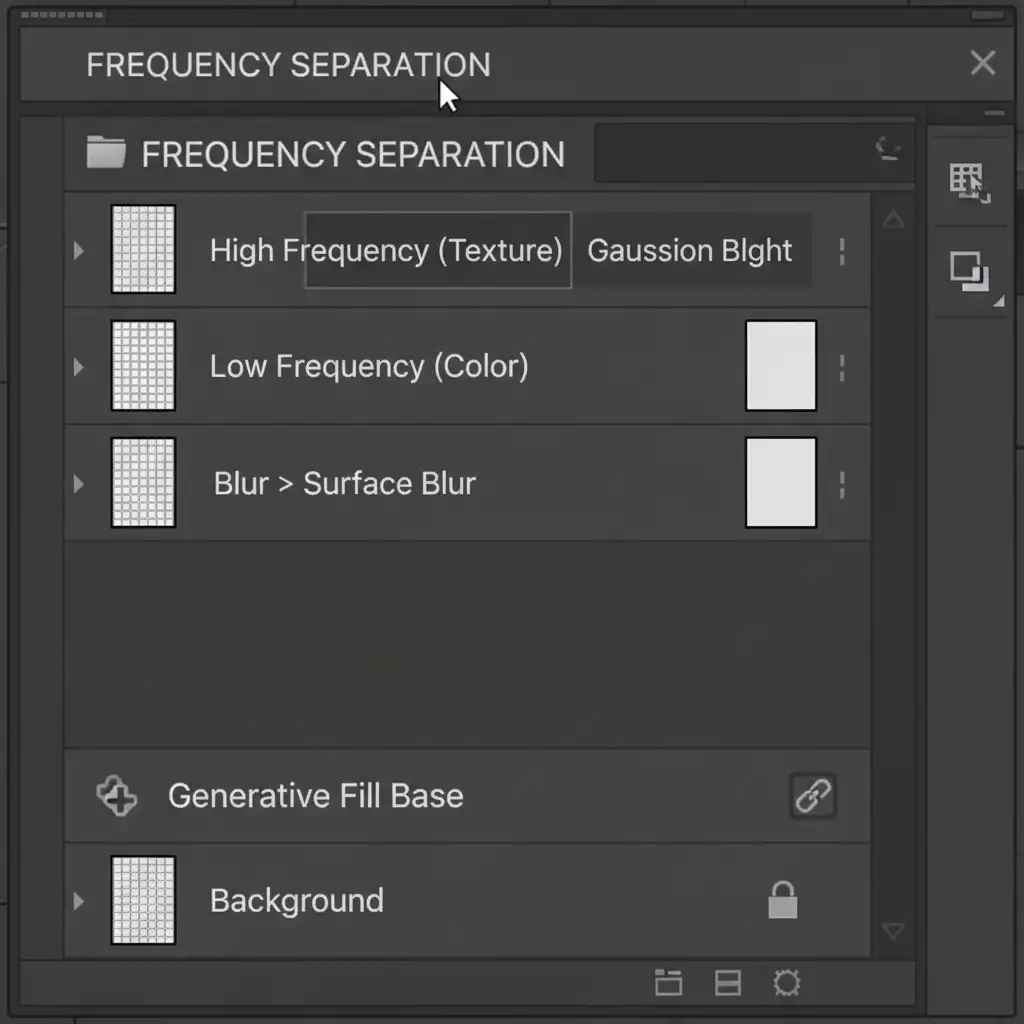
- Run your standard Frequency Separation action (separating the image into a Low-Frequency color layer and a High-Frequency texture layer).
- Select the Low-Frequency layer. Use the Clone Stamp Tool with a soft brush (opacity 20%) to smooth out the color banding and muddy gradients introduced by the AI.
- Select the High-frequency layer. Use the Healing Brush Tool to sample clean, sharp metallic textures from the original jewelry and paint them over the blurry AI edges.
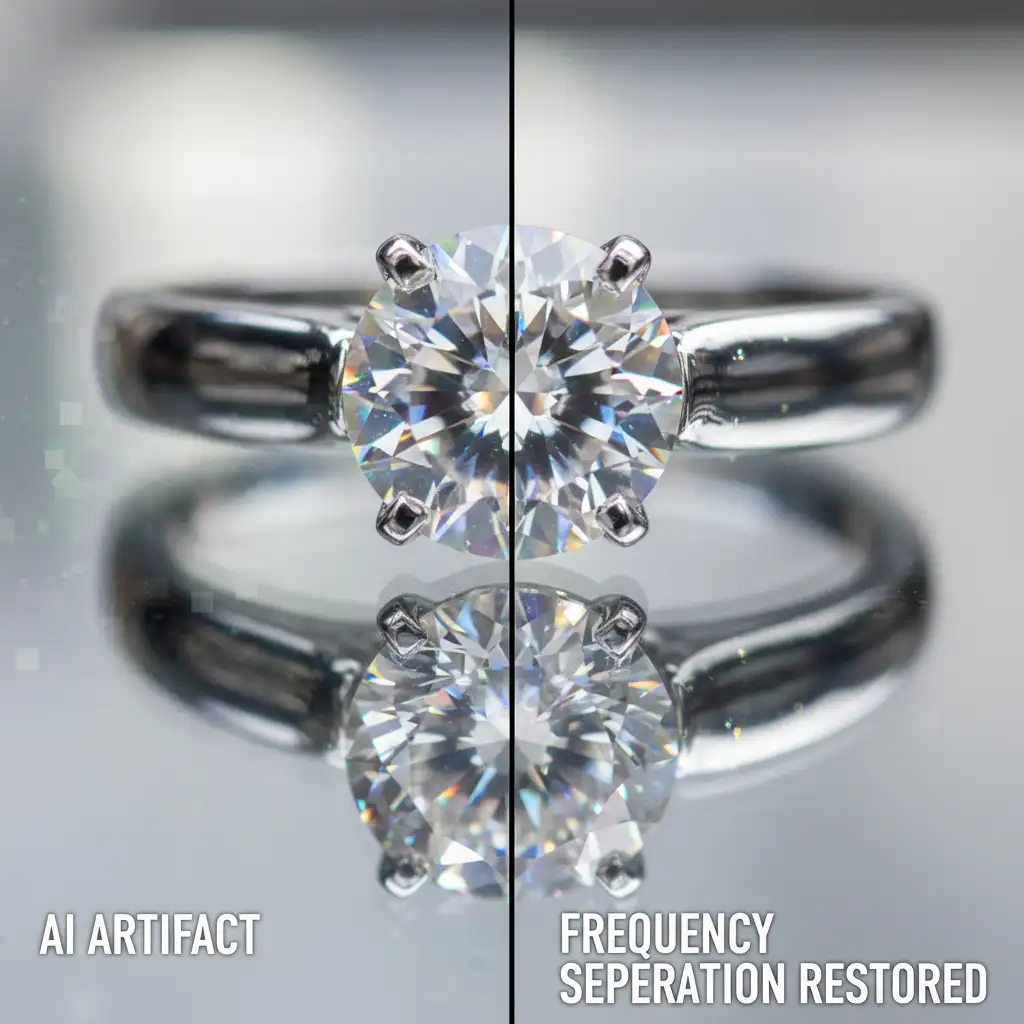
By separating the texture from the color, you can restore the crisp metallic edges of the jewelry while fixing the muddy gradients the AI left behind.
Stop Fighting the Algorithm: Get Pixel-Perfect Results Today
Generative AI is a powerful tool, but as you can see, it is not flawless yet. When dealing with complex refractive materials and specular highlights, relying on automated tools often creates more work than it saves.
If you need pixel-perfect product photos but don’t have the time to manually mask, blur, and run frequency separation on hundreds of images, let the experts handle it.
At Image Work India and Cloud Retouch, our seasoned retouching professionals specialize in high-end jewelry editing. We don’t rely on quick AI fixes; we deliver meticulous, artifact-free imagery that elevates your brand and drives sales.
Contact Image Work India today to get a custom quote for your next high-end jewelry retouching project. Let us perfect your product shots while you focus on growing your business.



