
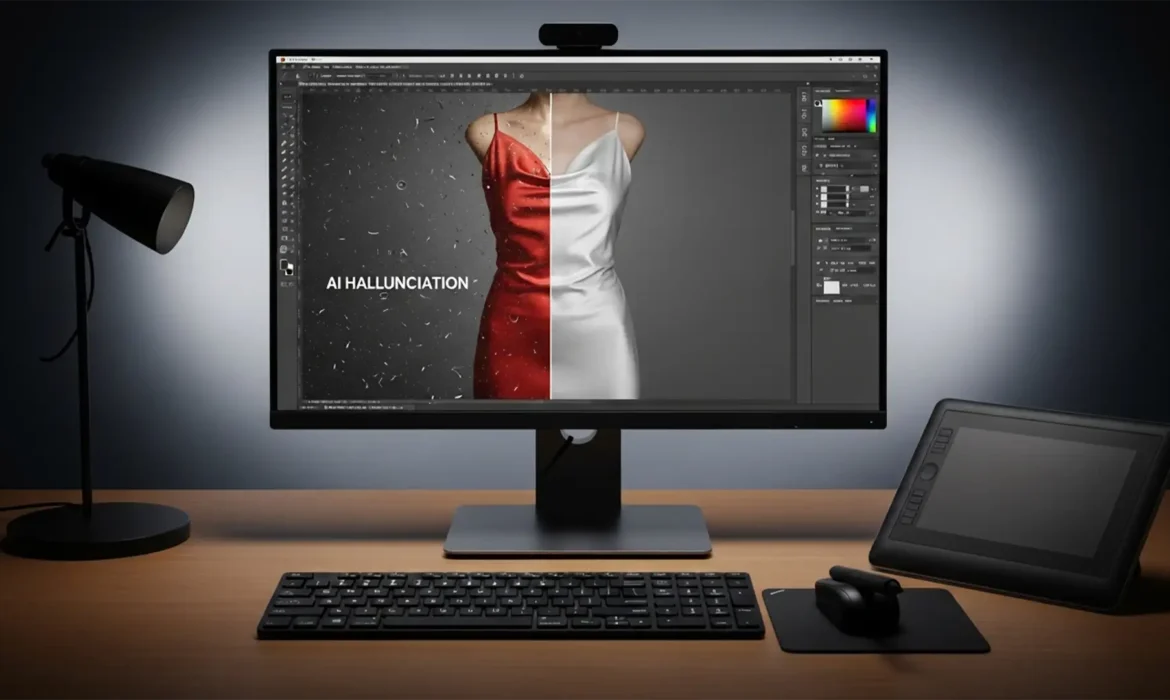
You are trying to smooth out a high-end apparel shot in Photoshop v25.0+, but the AI just ruined the garment clothes wrinkle. Instead of removing a simple crease, Generative Fill hallucinated an entirely new pocket, altered the fashion designer’s cut, or completely destroyed the delicate fabric grain.
These hallucination artifacts happen because the Firefly Image Model misinterprets your selection as a command to replace rather than retouch. If you are tired of AI rewriting your fashion campaigns, here is the exact, step-by-step workflow to fix generative fill clothes wrinkle removal artifacts without changing the clothing’s physical design.
Why Generative Fill Destroys Clothing Patterns
To fix the problem, you must understand how the algorithm thinks. Adobe’s Firefly Image Models (versions 1, 2, and 3) reconstruct the structural integrity of a selected area based on the surrounding pixels.
When you select a large portion of a garment using standard tools at 100% selection density, the AI assumes a major element is missing or needs total replacement. It overwrites the fabric’s physical design to “fill” the void, resulting in bizarre structural anomalies. The secret to flawless, non-destructive editing lies in restricting the AI’s influence.
3 Pro Methods to Remove Wrinkles Without Hallucinations
Method 1: The Quick Fix (Tight Selections & Blank Prompts)
The most common mistake retouchers make is selecting the entire wrinkled area at once. To prevent the AI from generating new clothing designs, you must limit its canvas.
- Select the Lasso Tool.
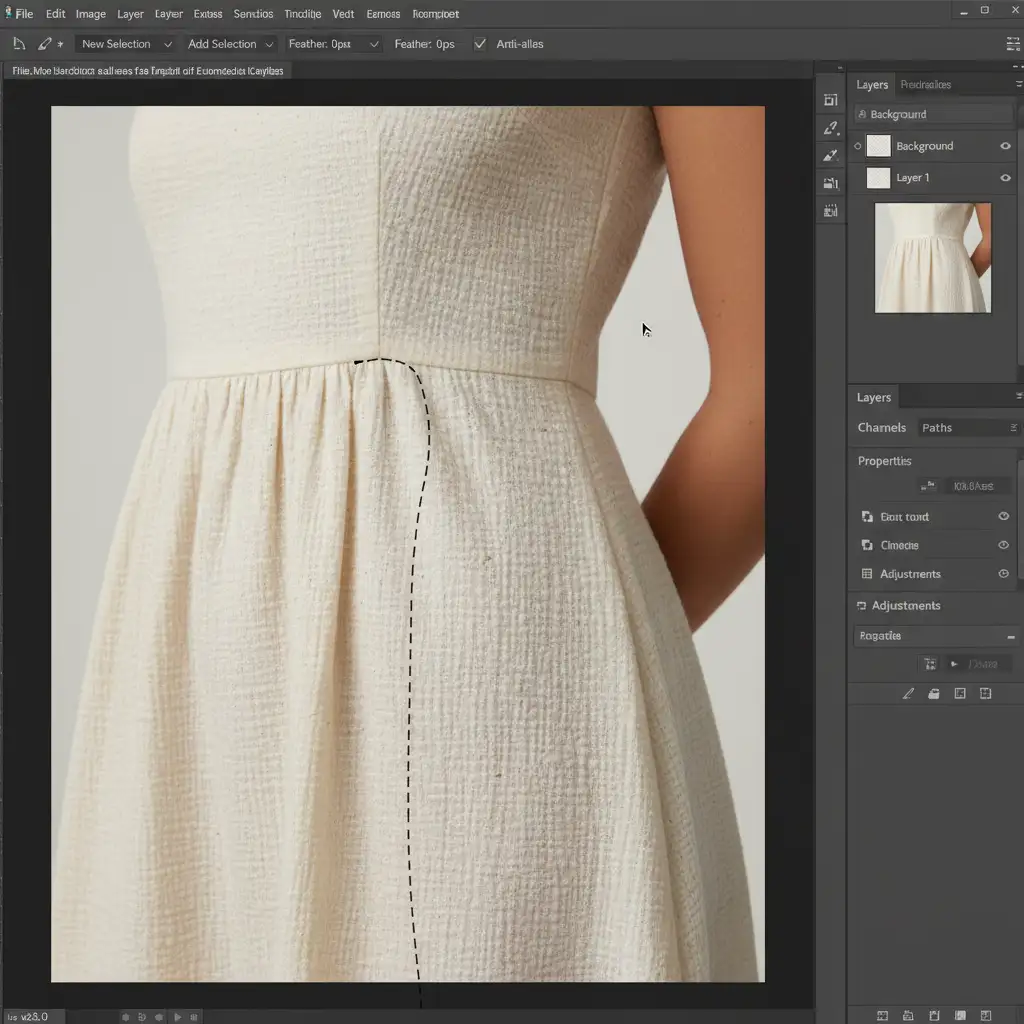
- Draw tight, minimalist selections around individual wrinkles rather than the whole garment. The marching ants should barely hug the crease.
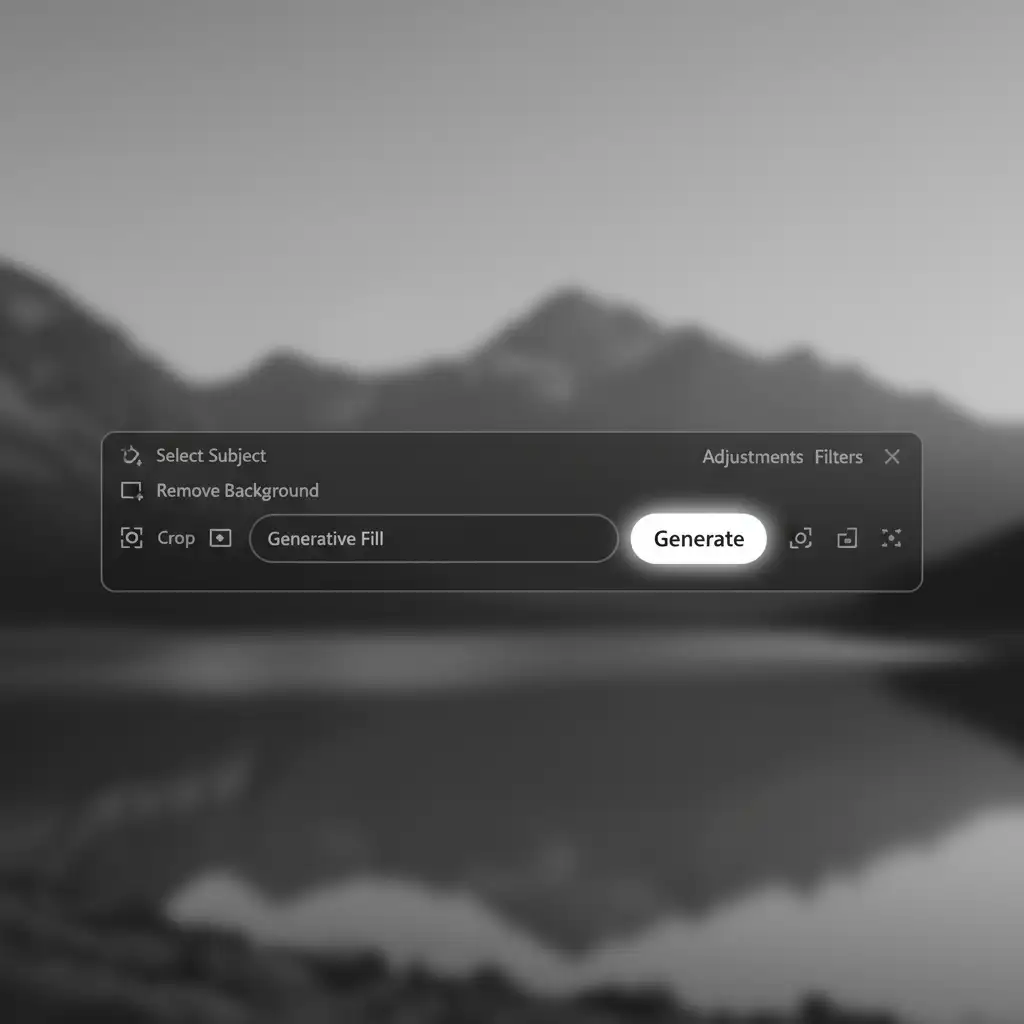
- On the Contextual Task Bar, click Generative Fill.
- Leave the prompt completely blank. Hitting generate with a blank prompt forces the AI to rely entirely on the immediate surrounding context, treating it like an advanced Content-Aware Fill.
Method 2: The Pro Workaround (Layer Masking for Fabric Grain)
Sometimes, even with a blank prompt, the AI produces a result that looks too smooth or “plastic,” stripping away the natural texture of the apparel.
- Generate your smooth fabric using Method 1.
- Select the newly created Generative Layer.
- Add a Layer Mask.
- Select a soft, round brush, set the color to black, and reduce the brush opacity to 30%.
- Gently paint over the generated area. This blends the AI-generated smoothness with the original highlights and fabric grain underneath, eliminating the artificial look.
Method 3: The Technical Deep-Dive (Mastering Selection Density)
For absolute control over the Firefly engine, you must manipulate selection density. This mathematical approach forces the AI to blend generated pixels with the original garment pixels, preventing structural artifacts entirely.
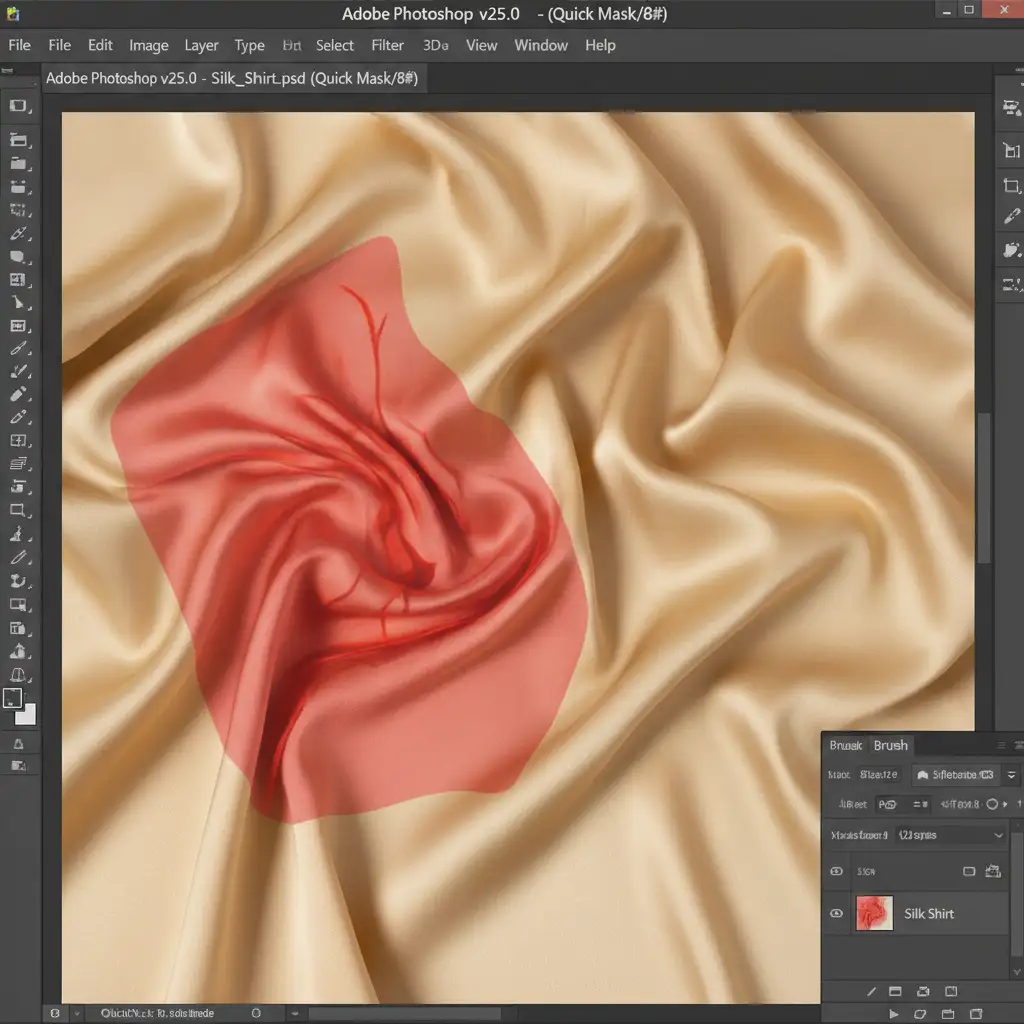
- Press Q on your keyboard to enter Quick Mask mode.
- Select the Brush tool and lower your brush opacity to 30-50%.
- Paint directly over the wrinkles. You will see a semi-transparent red overlay indicating a partial selection.
- Press Q again to exit Quick Mask mode. (Note: The marching ants may not appear if the density is below 50%, but the selection is active).
- Apply Generative Fill with a blank prompt.
Because the selection density is only 30-50%, the AI is mathematically restricted. It can only replace 30-50% of the pixels, forcing it to retain the original garment’s cut, pattern, and texture.
Stop Fighting AI—Scale Your Apparel Retouching
Generative AI is a powerful tool, but it is notoriously unpredictable for high-end fashion campaigns where preserving the exact physical design of a garment is non-negotiable. If you are spending hours battling generative fill clothes wrinkle removal artifacts, it’s time to streamline your workflow.
At Image Work India and Cloud Retouch, our expert retouching teams specialize in pixel-perfect, commercial-grade apparel editing. We combine industry-leading AI tools with meticulous manual masking techniques to deliver flawless e-commerce and editorial imagery that honors your brand’s actual garment designs.
Stop letting algorithms dictate your fashion photography. [Contact Image Work India and Cloud Retouch today] to scale your post-production with guaranteed, commercial-grade precision.



