
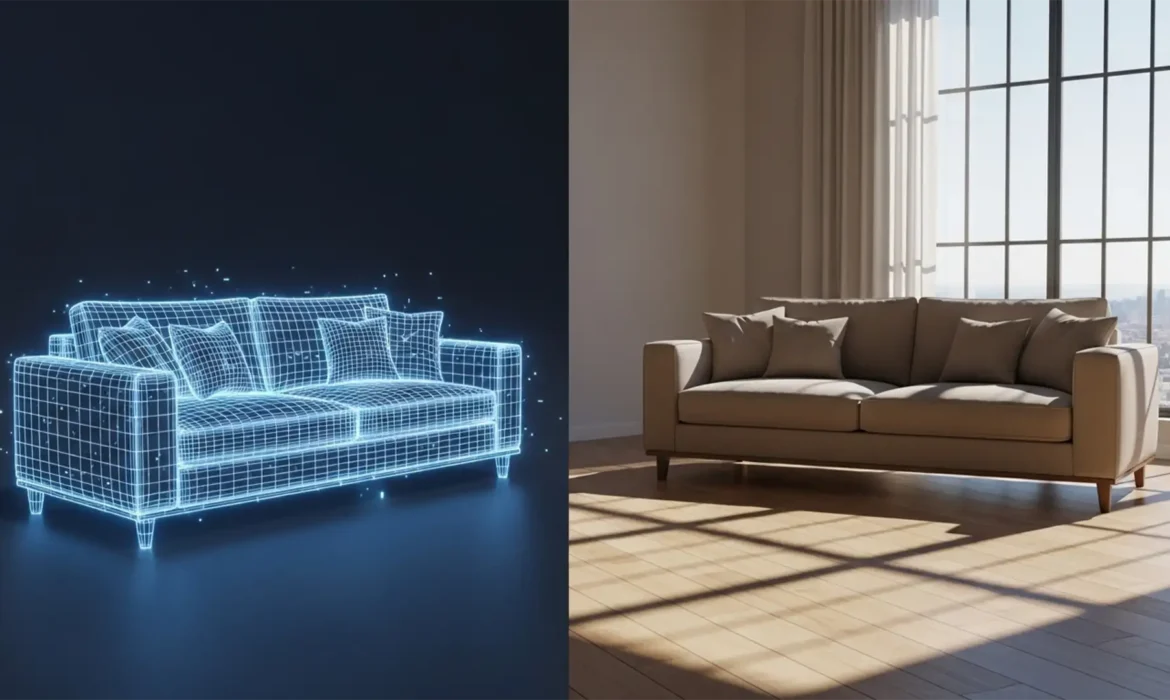
You just generated a stunning modern sofa for an empty living room using Adobe Photoshop Generative Fill, but something is glaringly wrong. The sofa looks like it’s hovering three inches off the floor.
This “floating furniture” effect is a classic AI furniture staging shadow mismatch. When AI models miscalculate 3D space lighting physics, they generate shadows with contradictory angles, incorrect opacity, or entirely missing ambient occlusion relative to the background plate. If your virtual staging looks fake, potential buyers will immediately scroll past your real estate listing.
Here is exactly how professionals manually override AI errors to construct mathematically correct shadows that anchor virtual furniture seamlessly into physical spaces.
Why AI Struggles with Spatial Lighting Physics
When utilizing AI image generation models like Stable Diffusion or Adobe Photoshop Generative Fill v25.x and above, the algorithm analyzes pixel data but often fails to comprehend the room’s Global Lighting.
The AI frequently misidentifies the primary light source directionality. This results in the shadow mismatch error: generated furniture casting shadows that conflict with the natural window light, featuring harsh edges where they should be soft, or lacking the subtle grounding effect of Ambient Occlusion. Resolving this requires a multi-pass shadow construction approach.
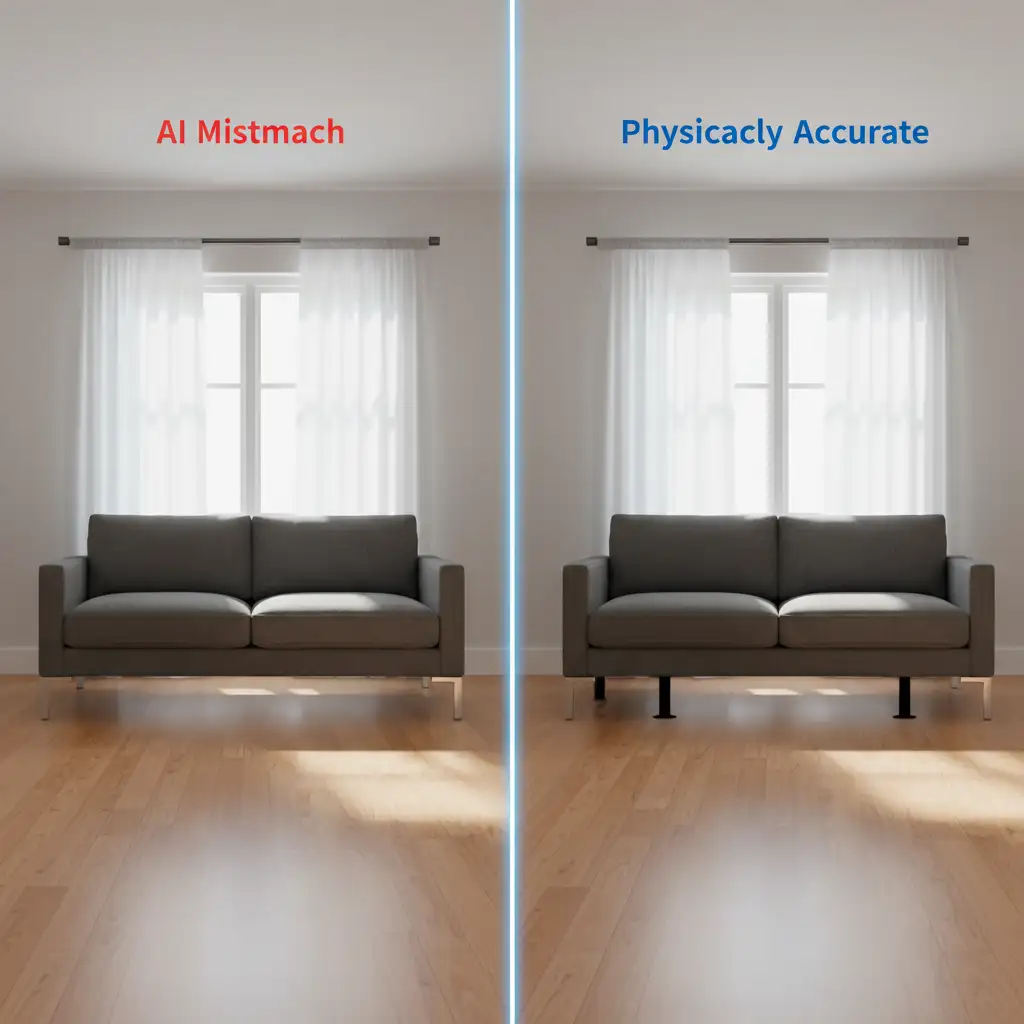
3 Ways to Fix the AI Furniture Staging Shadow Mismatch
Depending on your timeline and required level of realism, there are three proven methods to re-anchor your virtual objects.
Method A: The Quick Fix (AI Prompting Refinement)
If you are working quickly within Photoshop and the AI shadow is only slightly off, you can force the algorithm to recalculate the lighting.
- Select the Lasso Tool and loosely draw a selection around the offending AI shadow.
- Open the Generative Fill prompt bar.
- Type the exact phrase: “realistic soft cast shadow matching window lighting”.
- Generate the variations and select the most physically accurate one.
- Use the layer’s opacity slider to blend the variation seamlessly into the original floor plate.
Method B: The Pro Workaround (Manual Shadow Distortion)
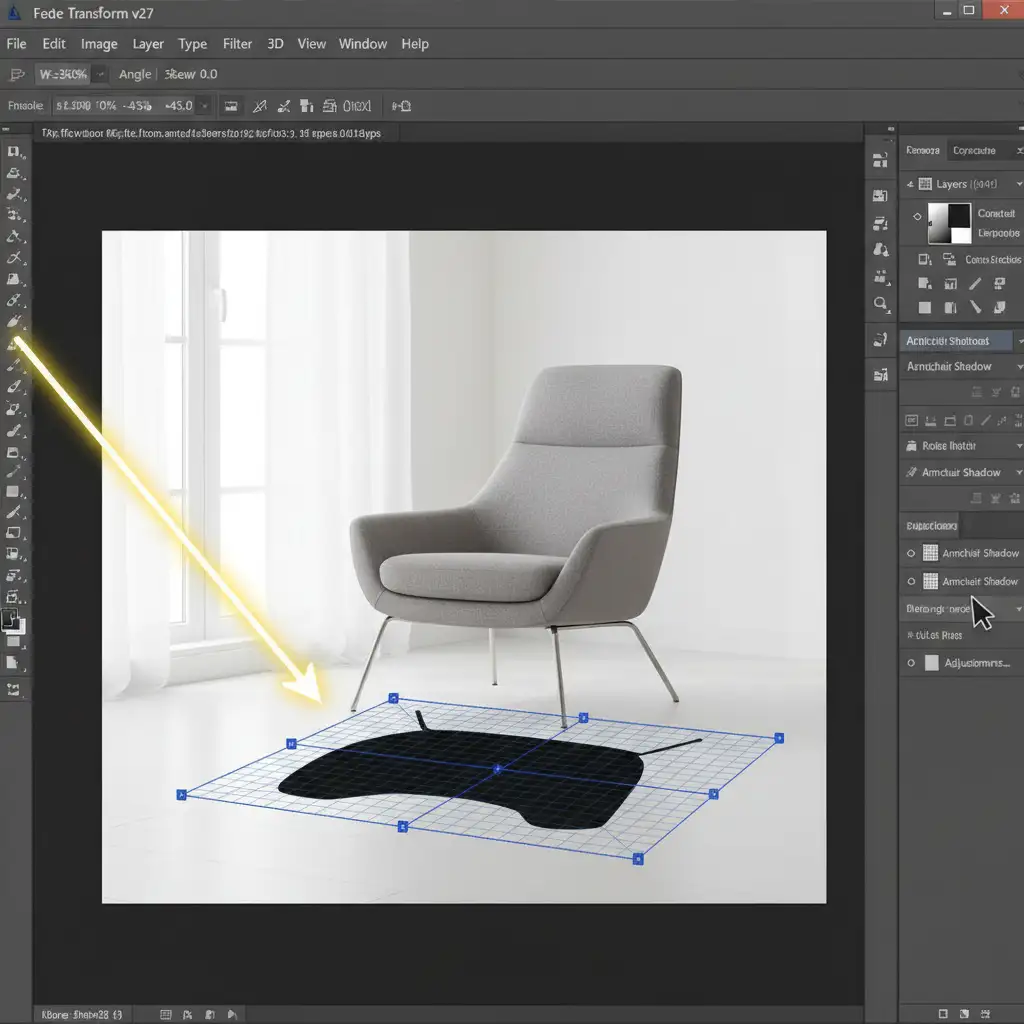
When Generative Fill fails to understand the room’s physics, you must construct a shadow manually using a Perspective Transform.
- Isolate your virtual furniture onto its own transparent layer.
- Duplicate the furniture layer, fill the duplicate entirely with solid black, and place it beneath the main furniture layer.
- Navigate to Edit > Free Transform > Distort. Grab the top bounding box handles and pull the black shadow flat against the floor, aligning it exactly with the angle of the room’s primary light source.
- Apply a Gaussian Blur (usually between 15px to 35px, depending on image resolution) to soften the harsh edges.
- Lower the layer opacity to roughly 40 percent to allow the floor texture to show through.
Method C: The Technical Deep-Dive (Multi-Layer Physics Matching)
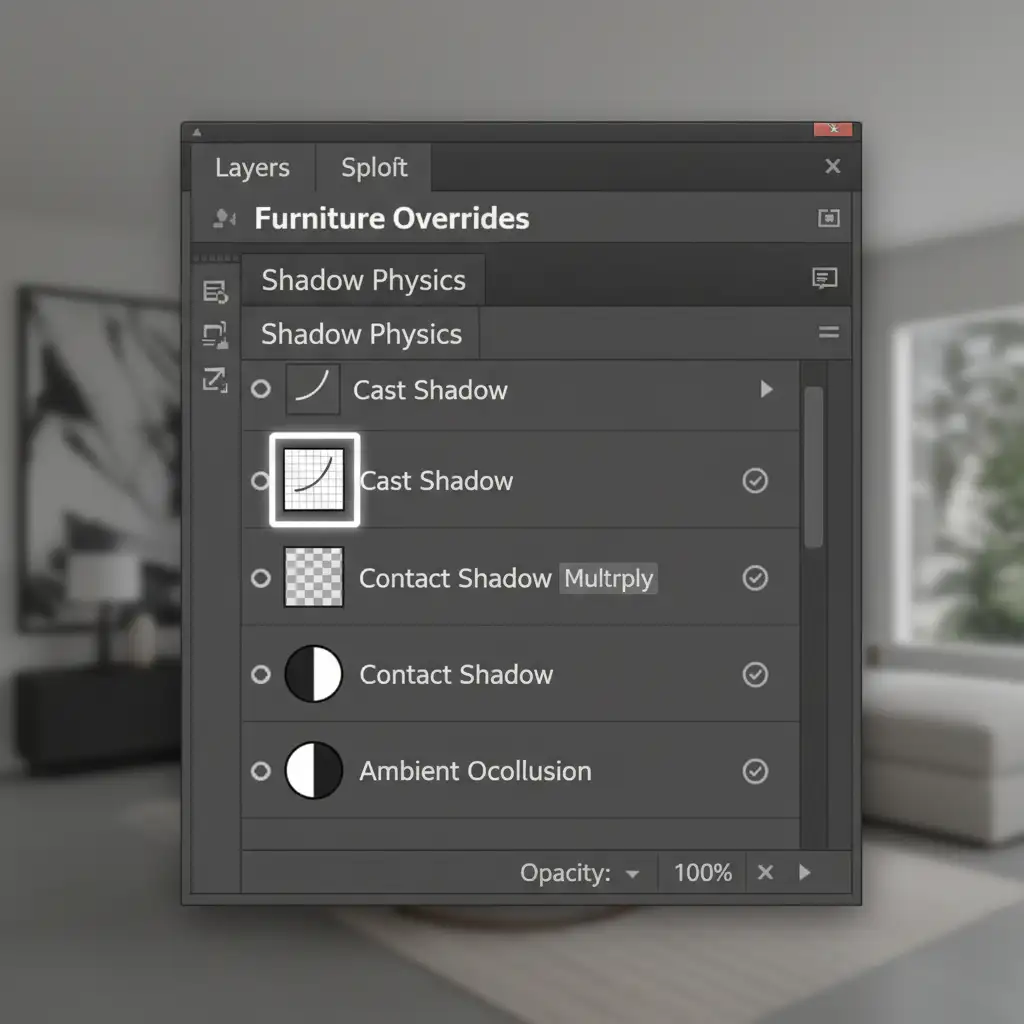
For high-end catalog finishes, a single shadow layer is never enough. Real-world shadows are complex and require separating the lighting into three distinct components: Contact, Cast, and Ambient shadows.
1. The Contact Shadow
This is the darkest part of the shadow where the furniture physically touches the floor. Create a new layer directly under your furniture. Use a soft black brush set to the Multiply blend mode and paint small, dark spots directly under the furniture legs. Keep the opacity high (80-90%).
2. The Cast Shadow
Instead of a solid black shape, use a Curves Adjustment Layer for the cast shadow.
- Create the adjustment layer and darken the midtones significantly.
- Invert the layer mask to black.
- Paint with a white brush on the mask to reveal the darkened floor area where the shadow should fall.
- Blur the mask to soften the edges. This method preserves the underlying floor texture perfectly.
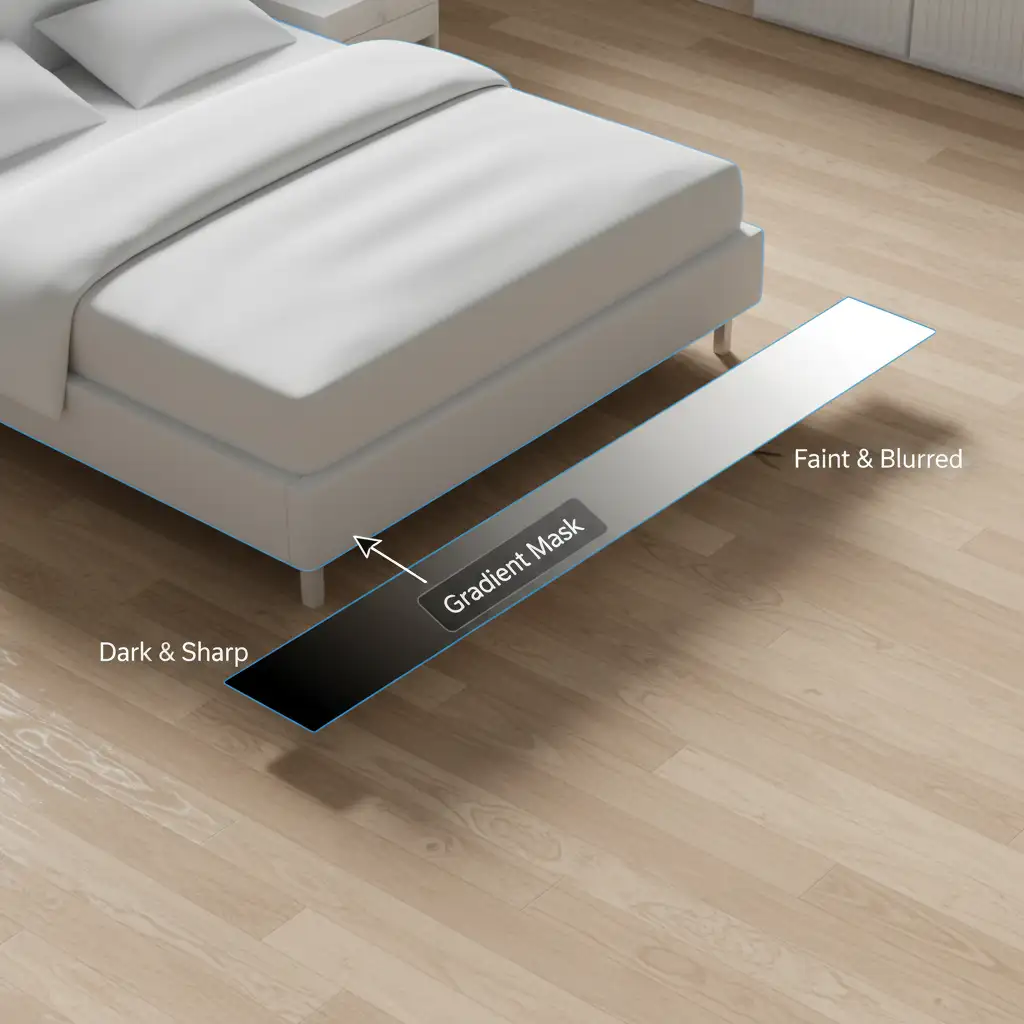
3. Simulating Shadow Falloff
In reality, the further a shadow stretches from the object, the lighter and softer it becomes. To mimic this real-world Shadow Falloff, apply a Gradient Mask to your Cast Shadow layer. Drag the gradient from the base of the furniture (solid black/visible shadow) fading outward (transparent/no shadow). This creates a flawless, gradual fade that tricks the eye into accepting the object as real.
Stop Losing Buyers to Floating Furniture
Correcting an AI furniture staging shadow mismatch requires a deep understanding of light directionality, perspective transforms, and advanced masking. While AI is an incredible tool for generating concepts, it still requires a human expert to finalize the physics for a photorealistic result.
Don’t let floating furniture ruin your real estate listings or damage your brand’s credibility. If you want flawless, high-end virtual staging without spending hours wrestling with Photoshop adjustment layers, partner with Image Work India and Cloud Retouch. Our team of professional retouchers specializes in expert shadow correction, ambient occlusion matching, and photorealistic virtual staging services.
Transform your empty properties into stunning, physically accurate homes today. Contact Cloud Retouch to elevate your real estate imagery.



