
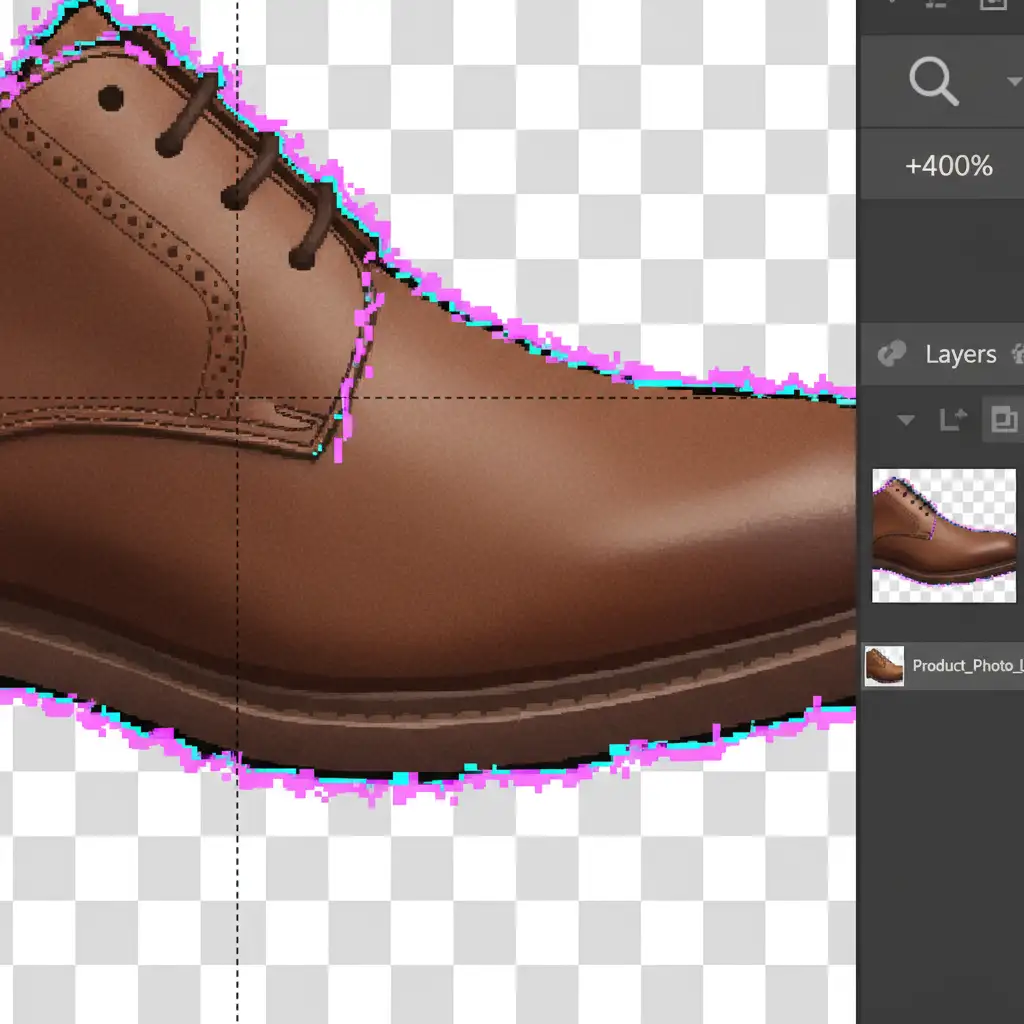
You click the AI “Remove Background” button, expecting a flawless product image ready for your e-commerce catalog. Instead, you zoom in and find a disaster: jagged edges, missing chunks of the product, and a glowing fringe of pixels around the subject.
While automated masking in tools like Photoshop (v24.x through v27.x), Midjourney, and Stable Diffusion has evolved rapidly, machine learning still fundamentally struggles with anti-aliasing, transparent objects, and low-contrast boundaries. When commercial catalog standards demand vector-sharp precision, relying solely on automation will cost you sales.
To achieve commercial-grade perfection, you need AI image clipping path refinement. Here is the technical breakdown of why AI fails at edges, and the exact manual workflows required to fix them.
Why AI Background Removal Fails on Complex Edges
AI models use predictive algorithms to detect subject boundaries, but they frequently miscalculate the alpha channel gradient. This results in two major pain points for e-commerce vendors:
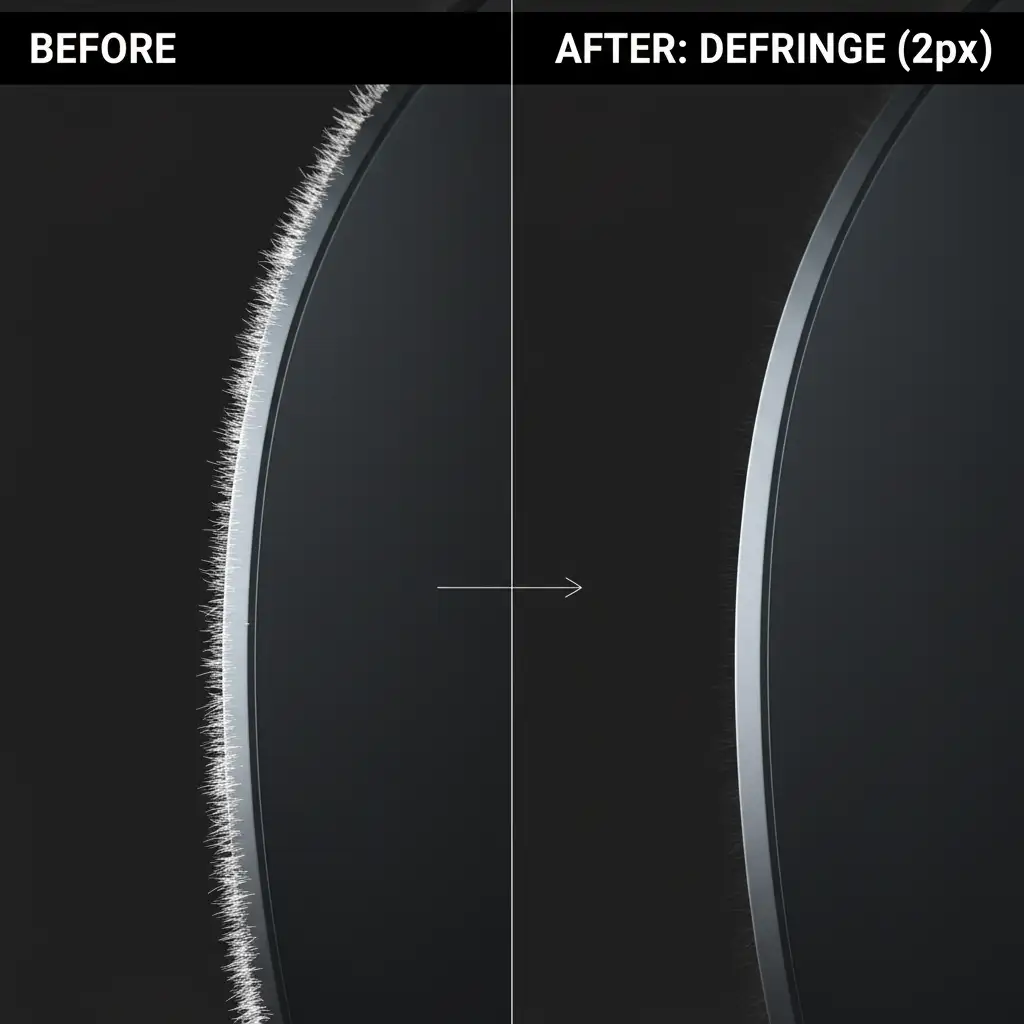
- Edge Halos: Also known as color bleed or fringe pixels, where the background color bleeds into the subject’s edge.
- Stepped Edges: Jagged, stair-step pixelation where the AI fails to apply proper anti-aliasing, completely destroying smooth curves.
To fix this, professional retouchers combine automated initial masking with manual refinement techniques.
3 Methods for Perfect AI Image Clipping Path Refinement
Depending on the complexity of your product, ranging from hard-edged electronics to soft-edged apparel, you can use the following professional workflows to clean up AI artifacts.
Method 1: The Quick Fix (Select and Mask)
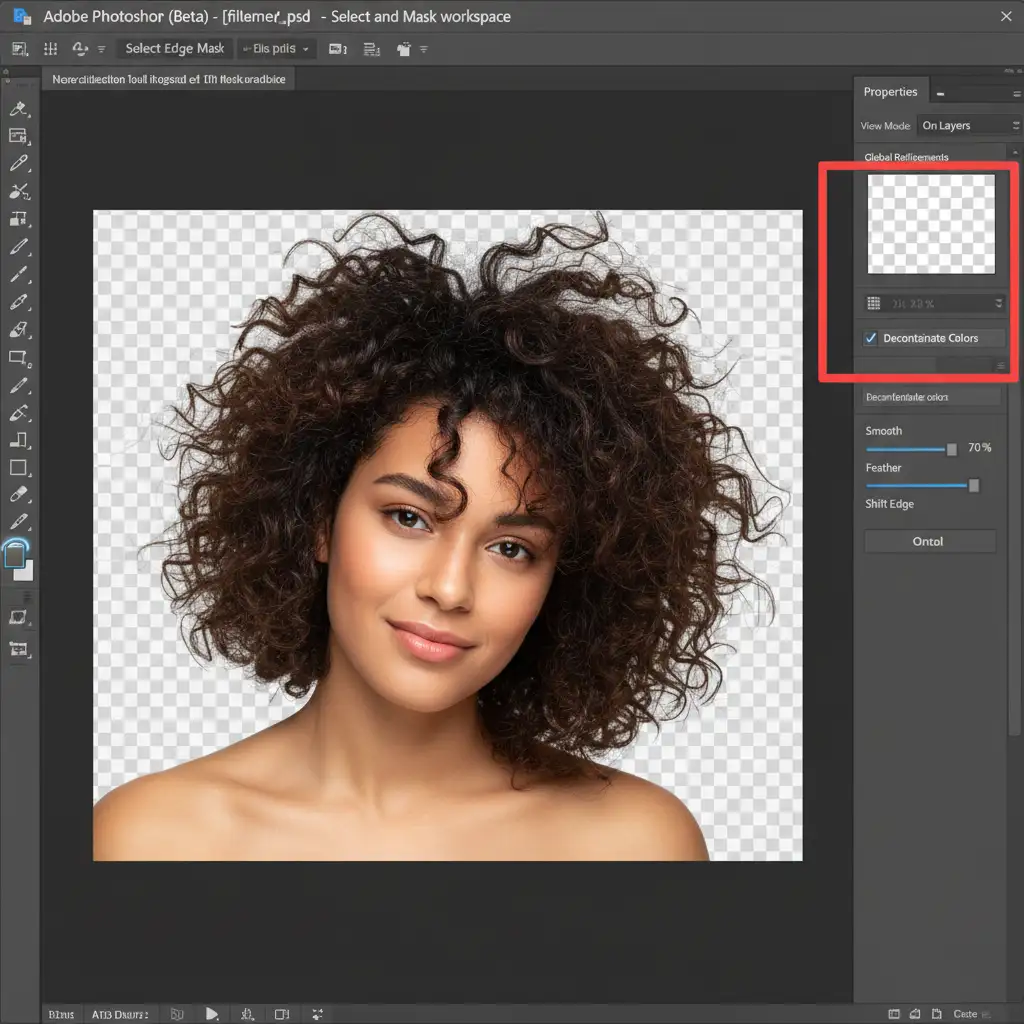
When dealing with complex organic boundaries like fur, hair, or frayed fabric, a rigid vector path won’t work. In these cases, you must refine the AI’s initial raster mask.
- Generate your initial AI background mask.
- With the mask selected, open the Select and Mask workspace.
- Select the Refine Edge Brush Tool (R) from the left toolbar.
- Paint carefully over complex boundaries where the AI left edge halos or trapped background colors.
- In the right-hand Properties panel, scroll down to Output Settings and check Decontaminate Colors. This forces Photoshop to replace fringe pixels with the color of the adjacent subject pixels.
Method 2: The Pro Workaround (Pen Tool & Bezier Curves)
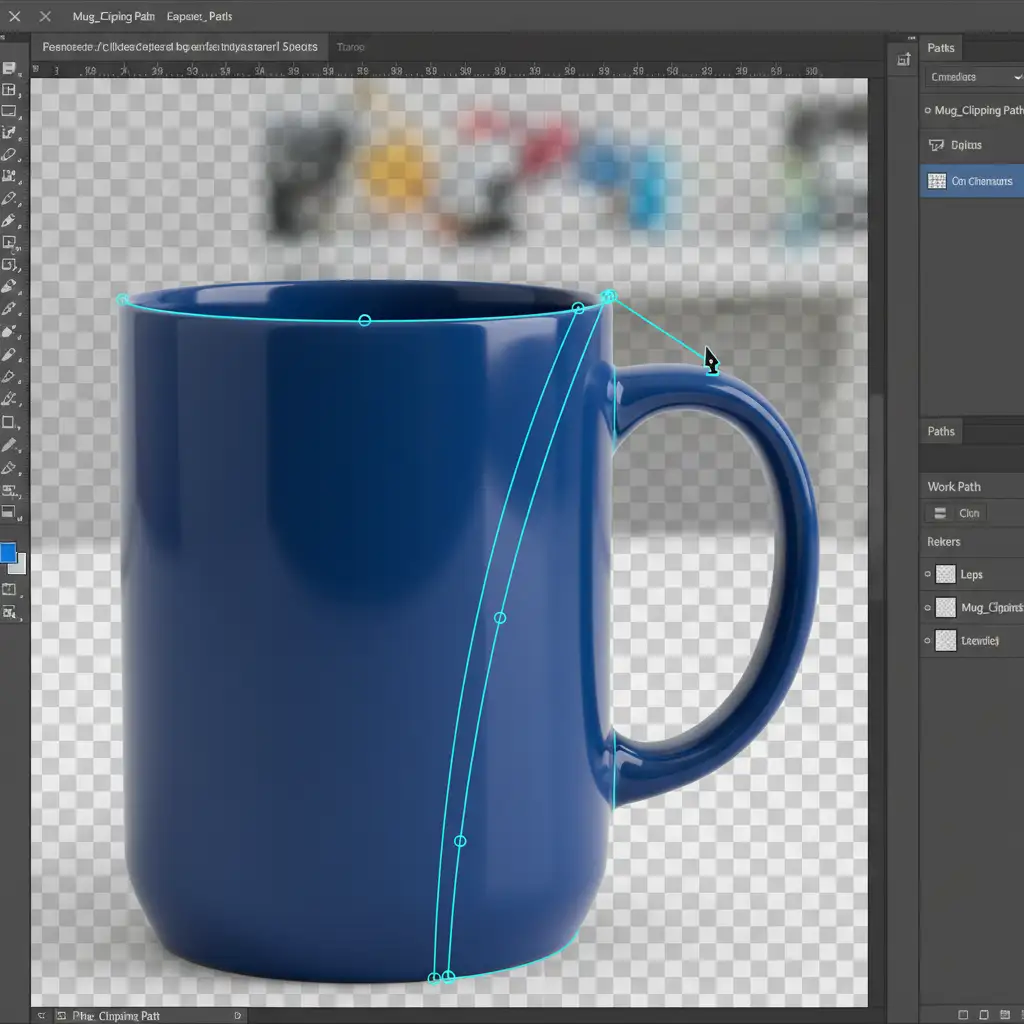
For hard products like jewelry, furniture, and cosmetics, AI-generated raster masks are unacceptable for high-end catalogs. You must manually create a vector mask.
- Ignore the AI mask entirely for the hard edges. Select the Pen Tool (P).
- Draw precise Bezier curves 1-2 pixels inside the actual product boundary to avoid any background color bleed.
- Once the path is closed, right-click and choose Make Selection.
- Apply a 0.5 pixel feather to ensure the edge doesn’t look artificially sharp (anti-aliasing).
- Apply this selection to a Layer Mask.
This guarantees crisp, commercial-ready boundaries that can be scaled or placed on any background without artifacting.
Method 3: The Technical Deep-Dive (Defringing & Channel Masking)
When you are forced to work with an AI-generated image that has already been rasterized (such as an output directly from Midjourney or Stable Diffusion with a baked-in background), you need advanced extraction techniques.
For Severe Edge Halos:
- Isolate the subject as best as possible.
- Navigate to Layer > Matting > Defringe.
- Set the pixel width to 1-2 pixels. This command systematically strips away the outer edge of pixels, effectively deleting the background color bleed.
For Complex Transparencies (Glass/Liquids):
- Open the Channels panel.
- Inspect the Red, Green, and Blue channels to find the one with the highest contrast between the transparent product and the background.
- Duplicate that channel.
- Press Ctrl/Cmd + L to open a Levels adjustment. Crush the blacks and push the whites to create a stark silhouette.
- Ctrl/Cmd-click the duplicated channel to load it as a flawless selection mask.
Don’t Let AI Artifacts Ruin Your Product Catalog
Mastering AI image clipping path refinement requires a deep understanding of vector masks, alpha channels, and pixel-level editing. While AI can speed up the conceptual phase, e-commerce success relies on the flawless, commercial-grade presentation that only manual refinement can provide.
If you are processing hundreds or thousands of SKUs, doing this manually is a massive drain on your internal resources.
Image Work India and Cloud Retouch specialize in high-volume, pixel-perfect manual clipping paths and flawless e-commerce image refinement. We combine cutting-edge technology with expert human precision to ensure your product images meet the strictest catalog standards—no jagged edges, no halos, just perfection.



