

You’ve just spent ten minutes meticulously drawing a complex clipping path around a product. You right-click with the Pen Tool, expecting to hit “Make Selection,” but instead, your tool suddenly jumps to the Eyedropper. Or worse, the context menu simply refuses to appear.
If this sounds familiar, you’ve just encountered the frustrating Photoshop 2025 path selection bug.
For professional retouchers and designers, a broken pathing workflow means lost time and missed deadlines. Fortunately, this glitch in Adobe Photoshop v26.x is entirely fixable. In this guide, we will break down exactly why this error is happening and provide three proven methods to get your Pen Tool behaving normally again.
Understanding the Photoshop 2025 Path to Selection Bug
The inability to trigger the “Make Selection” command via right-click is not user error; it is a documented conflict within the Photoshop 2025 (v26.x) architecture.
When you finish plotting a working path, the software relies on specific UI triggers to open the context menu. However, the recent update introduced aggressive Spring-Loaded Tools behavior alongside a brand-new GPU Compositing engine. When these two features interact during a rigorous clipping path workflow, the software misinterprets the right-click command. Instead of showing your path options, it defaults to the Eyedropper tool or freezes the menu entirely.
Here is how to resolve the conflict and get your marching ants back on screen.
How to Fix the “Make Selection” Context Menu Error
Depending on your workflow preferences, you can either disable the conflicting features or bypass the bug using professional shortcuts.
Method 1: Disable Spring-Loaded Tool Shortcuts (The Quick Fix)
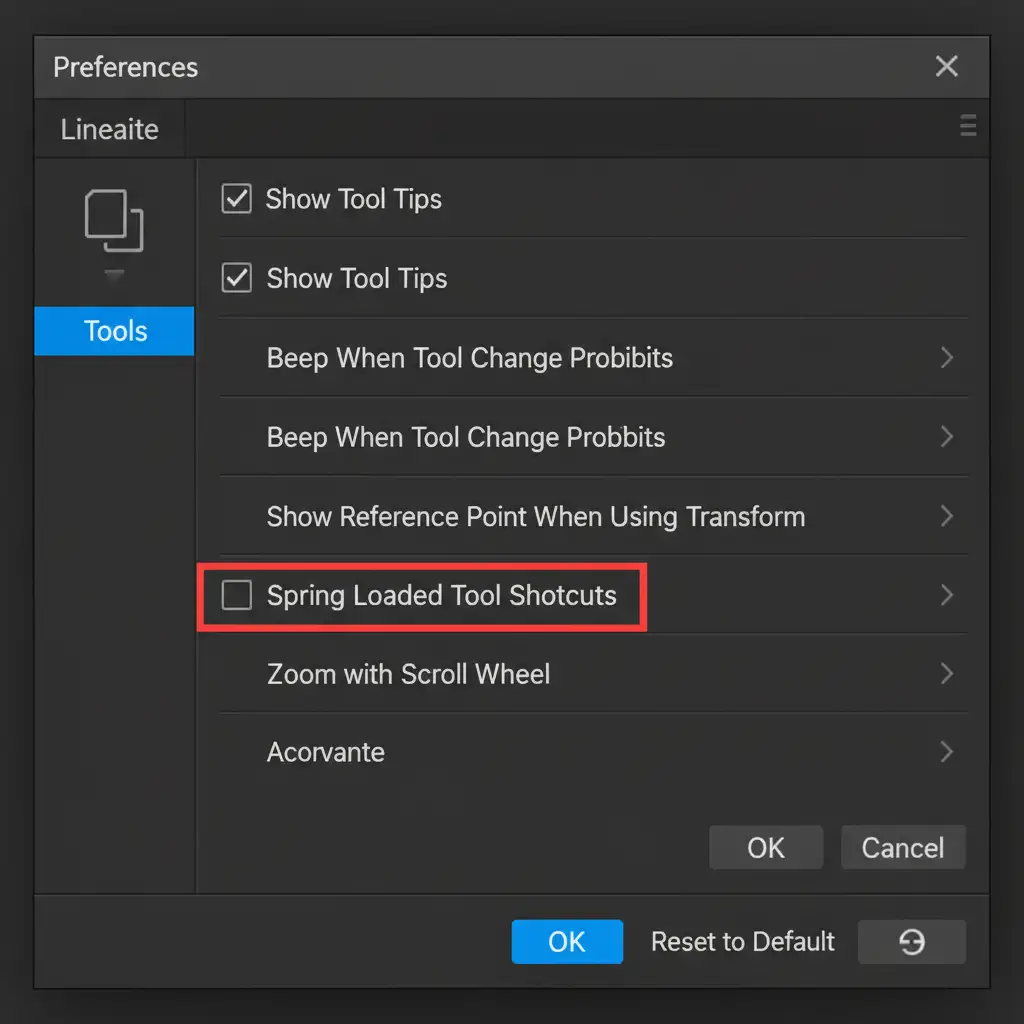
The fastest way to stop the Pen Tool from jumping to the Eyedropper is to disable the spring-loaded behavior. This prevents Photoshop from temporarily switching tools based on pen pressure or click duration.
- Open Photoshop 2025.
- Navigate to Edit > Preferences > Tools (Windows) or Photoshop > Settings > Tools (Mac).
- Locate the checkbox labeled Spring Loaded Tool Shortcuts.
- Uncheck the box and click OK.
- Restart Photoshop to ensure the changes take effect.
Method 2: Master the Keyboard Shortcuts (The Pro Workaround)
If you prefer to leave spring-loaded tools active for other brushes, you can bypass the right-click context menu entirely. Professional retouchers rarely use the right-click menu anyway, opting instead for faster keyboard shortcuts to convert a working path into a selection.
- The Keyboard Shortcut: Once your path is closed, simply press Ctrl + Enter (Windows) or Cmd + Return (Mac). Your path will instantly convert into active marching ants, ready for a vector mask or background removal.
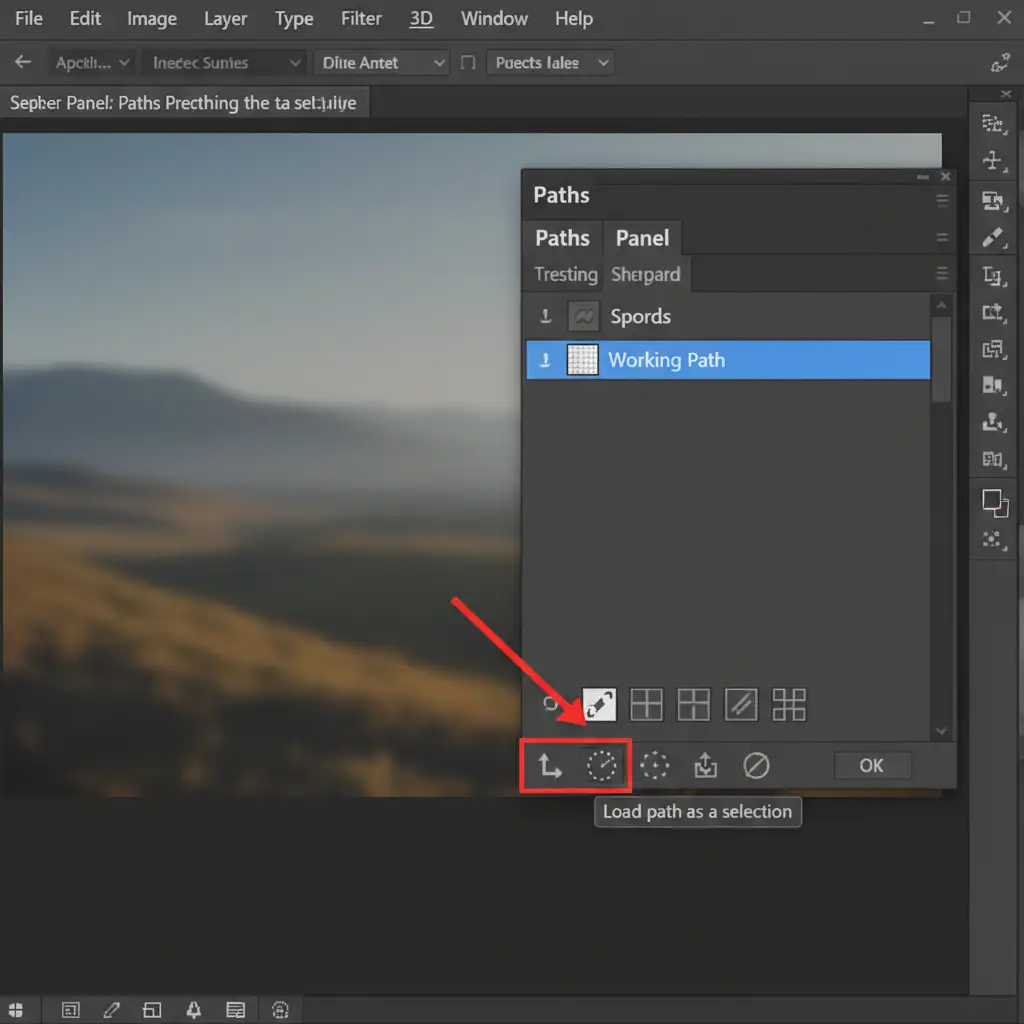
- The Paths Panel Method: Alternatively, open your Paths Panel. At the bottom of the panel, click the Load path as a selection icon (the dotted circle).
Method 3: Tweak Graphics Processor Settings (The Technical Deep-Dive)
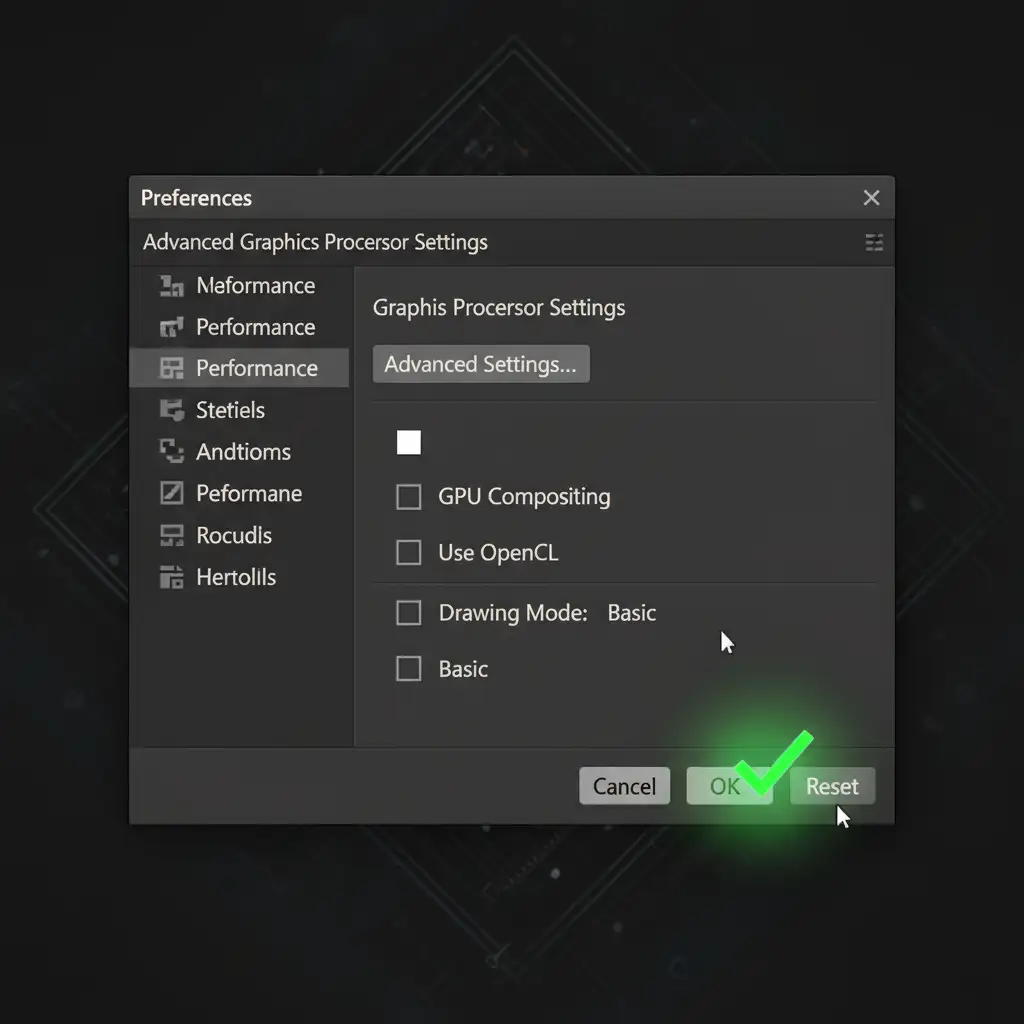
If the bug persists even after tweaking your tool preferences, the issue lies deeper within the new GPU rendering engine. Disabling GPU Compositing forces Photoshop to use a more stable rendering method for UI elements.
- Go to Edit > Preferences > Performance (Windows) or Photoshop > Settings > Performance (Mac).
- Under the Graphics Processor Settings block, click on Advanced Settings.
- Uncheck the box for GPU Compositing.
- Click OK on both windows.
- To clear out any corrupted memory causing the glitch, go to Edit > Purge > All.
- Restart Photoshop.
(Note: Ensure your graphics drivers are fully updated, as NVIDIA and AMD frequently release patches to address these specific Adobe rendering conflicts).
Video Tutorial: Resolving the Photoshop v26 Pathing Bug
For a visual walkthrough of these three methods, watch our quick fix video below:
Stop Fighting Software Bugs. Let the Experts Handle Your Edits.
Troubleshooting the Photoshop 2025 path to selection bug is just one of the many technical hurdles that can slow down your creative pipeline. When you have hundreds of e-commerce product photos waiting for flawless clipping paths, vector masks, and high-end retouching, you shouldn’t have to waste hours fighting software glitches.
Image Work India and Cloud Retouch provide pixel-perfect, hand-drawn clipping paths and professional image editing services for brands, photographers, and agencies worldwide. We handle the tedious, technical bulk editing so you can focus on scaling your business.
Struggling with Photoshop bugs slowing down your bulk image editing? Contact Image Work India today for a free trial, and experience flawless retouching with zero hassle.



