
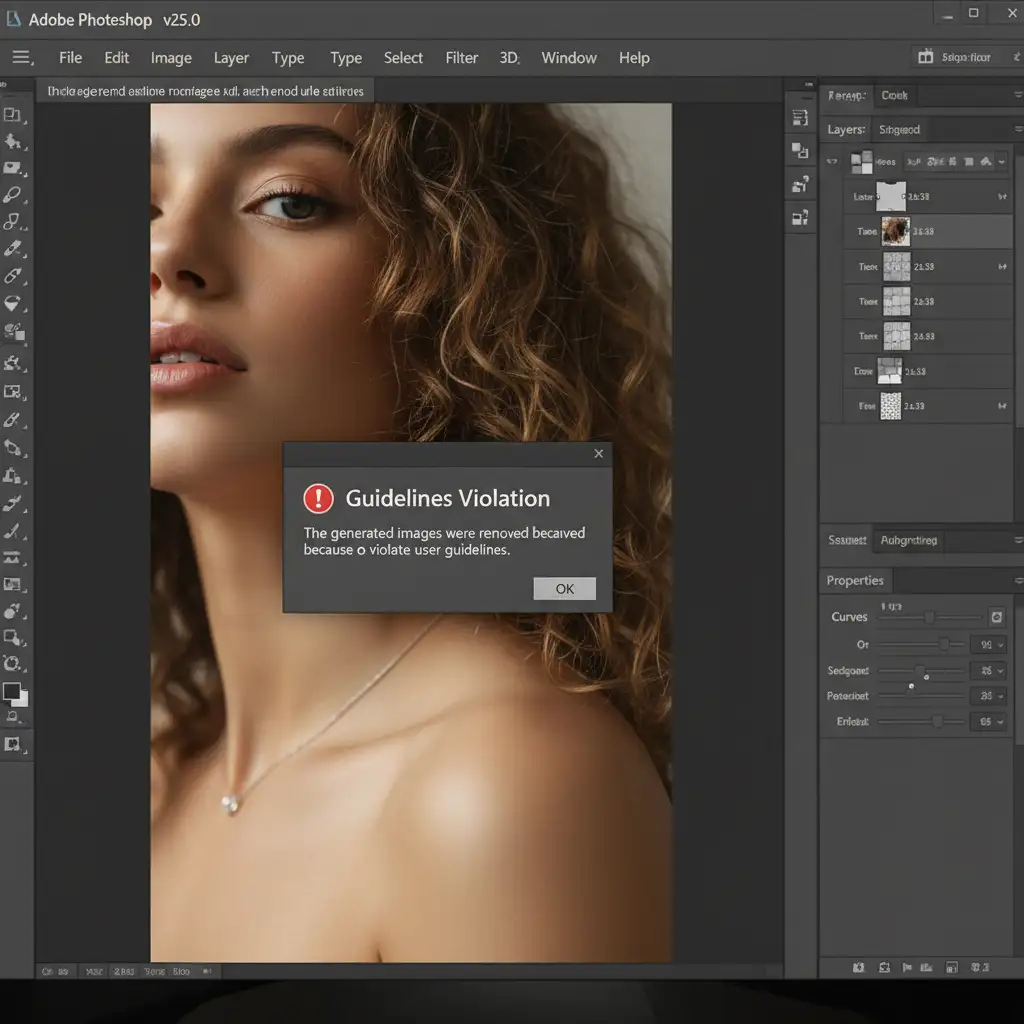
You are in the middle of a high-end portrait edit, trying to remove a simple stray hair or a minor blemish on a subject’s shoulder. You make your selection, hit generate, and suddenly-a glaring red error box pops up. “Guidelines Violation.”
If Adobe’s Generative Fill is flagging your standard skin retouching workflow as inappropriate, you are not alone. Since the integration of Generative AI into Photoshop v25.0, retouchers have been battling overly aggressive safety filters.
In this guide, we will break down exactly why you are getting a Photoshop Generative Fill guidelines violation during skin retouching and provide three professional workflows to bypass these false positives without compromising your final image.
Why Does Photoshop Flag Skin Retouching?
To understand the fix, you need to understand the engine. Photoshop’s Generative Fill is powered by Adobe Firefly. Because Firefly operates on Adobe’s servers, it is subjected to strict cloud-based content moderation algorithms designed to prevent the generation of NSFW, violent, or inappropriate imagery.
When you are working on portraits-especially those involving bare shoulders, cleavage, or high-contrast shadows on skin-the AI often produces a false positive. If your lasso selection intersects with what the algorithm misinterprets as sensitive anatomy, the system immediately halts the process. This forces the prompt to fail entirely, creating a massive bottleneck in professional retouching workflows.
How to Fix Photoshop Generative Fill Guidelines Violations
When prompt engineering fails to bypass the filter, you need to adjust your technical approach. Here are the three best methods to get past the error.
Method 1: Optimize Selections and Blank Prompts (The Quick Fix)
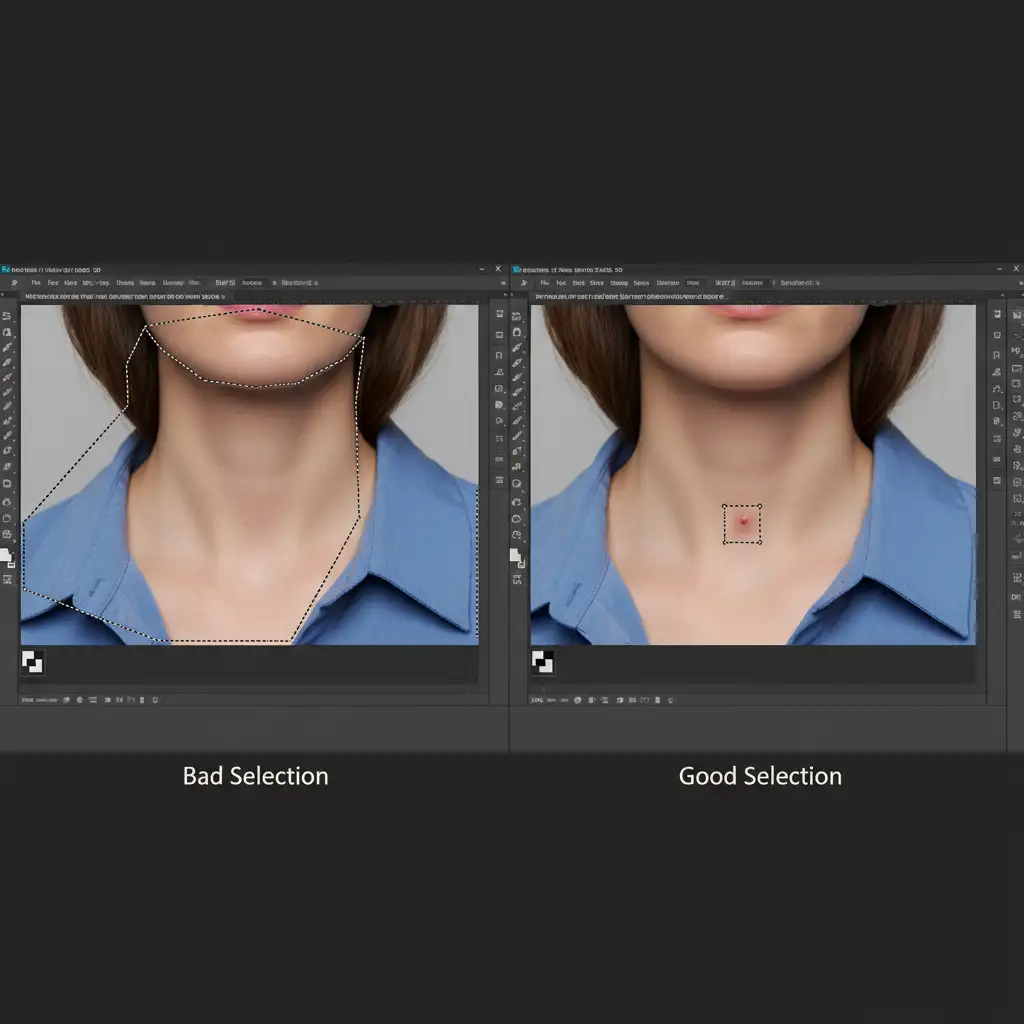
The most common reason for a guidelines violation is a sloppy selection. When retouchers make large lasso selections that encompass edges of clothing, deep shadows, and skin, the AI has too much data to interpret, triggering the safety filter.
The Fix:
- Switch to the Lasso Tool (L).
- Instead of selecting a wide area, make micro-selections strictly around the specific blemish or stray hair.
- Leave the text prompt entirely blank.
By leaving the prompt blank, you force Adobe Firefly to infer the surrounding pixels strictly for healing purposes, heavily reducing the chance of tripping the text-based or contextual filter.
Method 2: Switch to the AI Remove Tool (The Pro Workaround)
If Generative Fill outright refuses to work on a specific patch of skin, it is time to abandon the cloud. The Remove Tool is the ultimate workaround for sensitive portrait areas.
Unlike Generative Fill, the Remove Tool uses on-device machine learning. Because it does not send data to the cloud-based Firefly model, it completely bypasses the strict moderation guidelines while still providing incredible, AI-driven pixel healing.
The Fix:
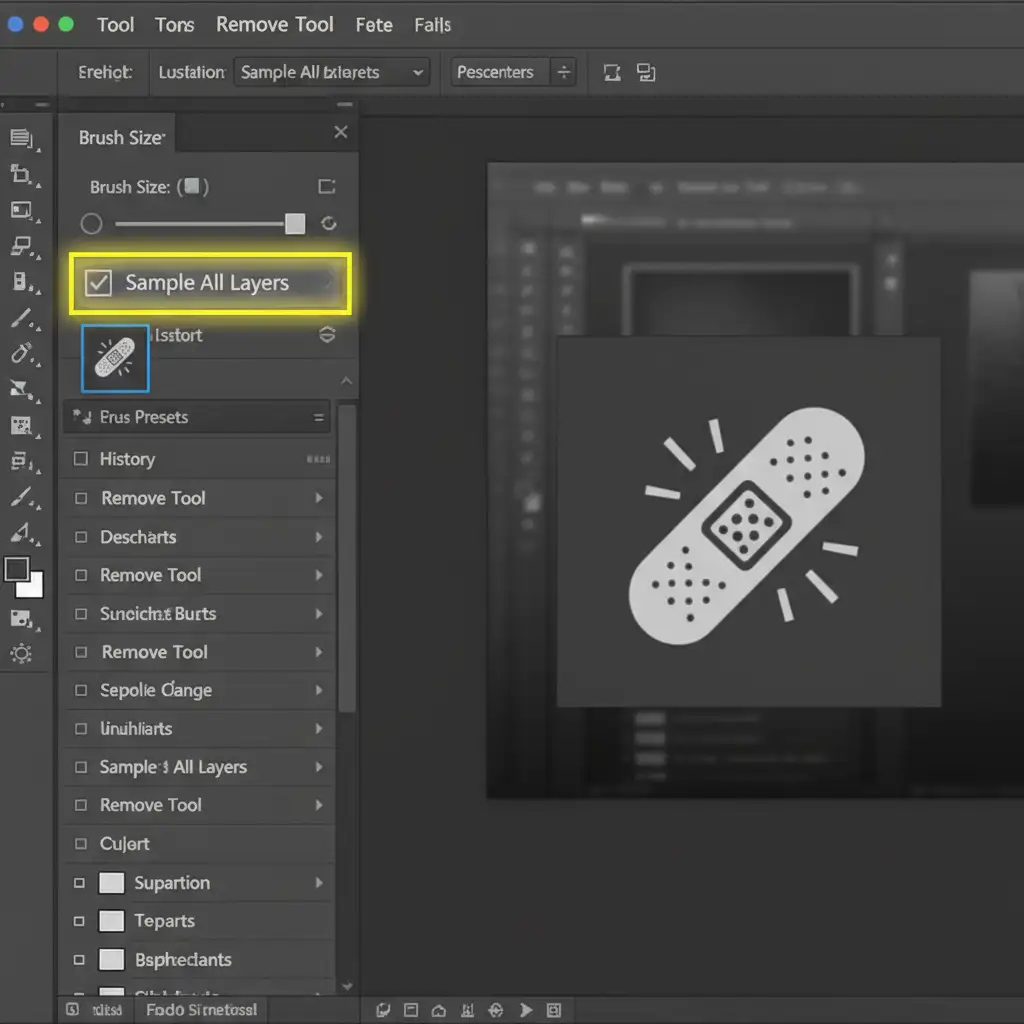
- Select the Remove Tool (J) from your toolbar.
- Look at the top options bar and ensure Sample all layers is checked.
- Create a new blank layer above your image.
- Simply brush over the blemishes. The on-device AI will seamlessly replace the pixels without any risk of a violation.
Method 3: The Frequency Separation Hybrid (Technical Deep-Dive)
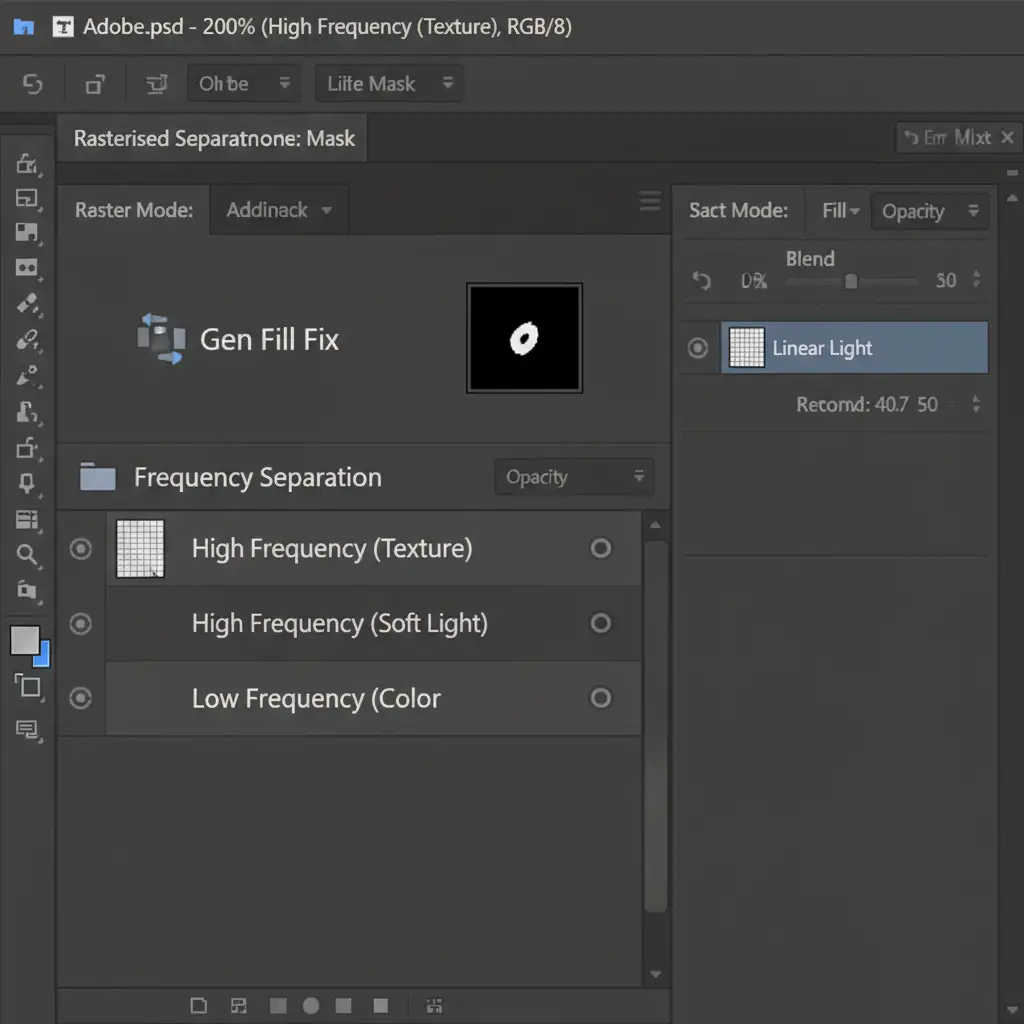
When you need to perform heavy skin retouching and AI tools are consistently failing, falling back on a hybrid traditional method is the most reliable choice. Frequency Separation allows you to split your image into high-frequency (texture) and low-frequency (color/tone) layers.
By isolating the texture, you can bypass AI entirely for the most sensitive areas.
The Fix:
- Run your standard Frequency Separation action.
- Select the high-frequency (texture) layer.
- Use the traditional Healing Brush or Clone Stamp to fix the skin texture manually. These tools do not use Generative AI and will never trigger a violation.
- If you absolutely need Generative Fill to fix a complex lighting issue, apply it to a duplicate merged layer (Ctrl/Cmd + Alt/Opt + Shift + E).
- If the AI generates a safe result but messes up surrounding areas, apply a Layer Mask. Invert the mask to black, and use a soft white brush to paint the generated pixels only where you need them.
Stop Fighting AI Errors-Let the Experts Handle It
Dealing with a Photoshop Generative Fill guidelines violation during skin retouching is frustrating, especially when you have tight client deadlines. While these workarounds are highly effective, they still require extra steps, technical troubleshooting, and valuable time.
You don’t have to fight with Adobe’s safety filters. At Image Work India and Cloud Retouch, our team of professional retouchers specializes in high-end portrait and beauty editing. We utilize industry-leading techniques-from advanced Frequency Separation to precise AI integration-to deliver flawless, natural skin retouching without the headache.
Stop wasting hours on false positives. [Contact Image Work India and Cloud Retouch today] to outsource your portrait editing and get perfect, high-end results delivered on time, every time.



