
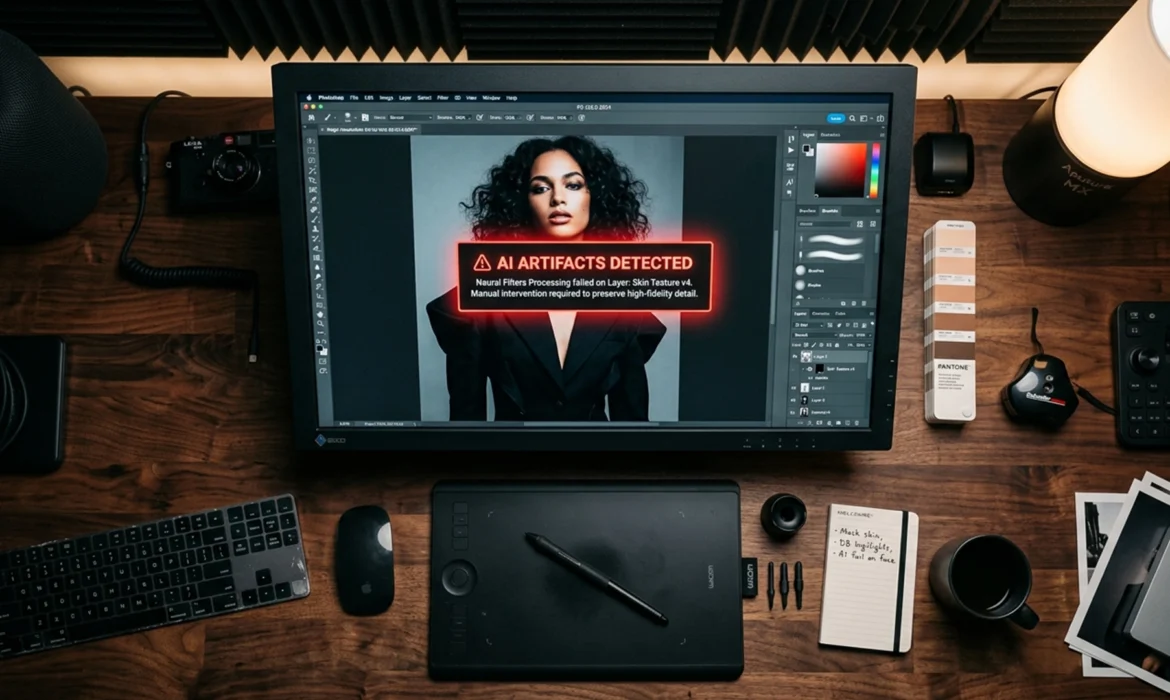
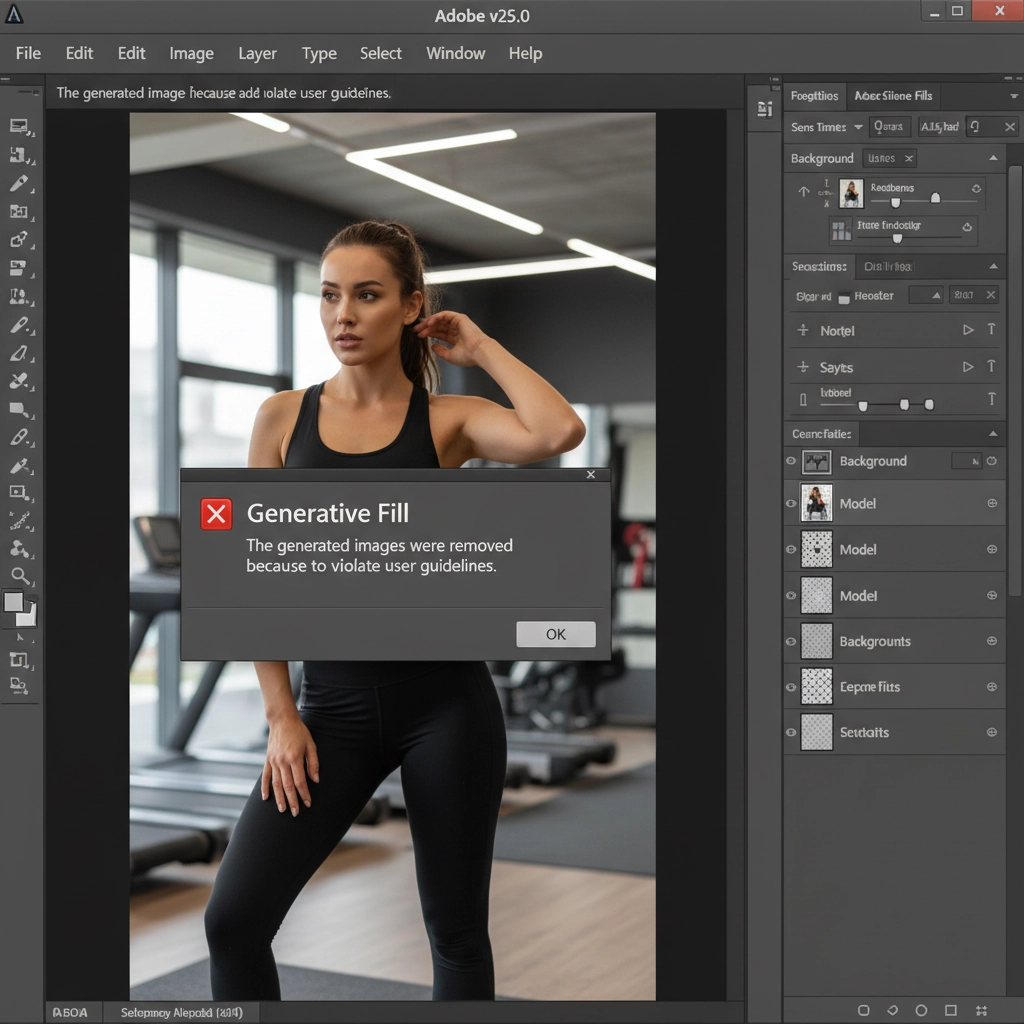
You are on a tight deadline, retouching a high-end swimwear or fitness shoot, when Photoshop suddenly throws up a roadblock. You highlight a stray hair or a wardrobe malfunction, hit generate, and receive this frustrating alert: “The generated images were removed because they violate user guidelines.”
Your workflow instantly halts. For photographers handling boudoir retouching, fashion edits, or fitness campaigns, overzealous AI safety filters are a massive bottleneck. If you are struggling to bypass generative fill restricted content error professional retouching hurdles, you are not alone.
In this guide, we will break down exactly why Adobe Firefly is flagging your legitimate edits and provide three proven, technical workflows to get your images finalized without the cloud-based interruptions.
Why Photoshop Flags Legitimate Professional Retouching
In Adobe Photoshop v25.0 and newer, the Generative Fill tool is powered by Adobe Firefly. Because Firefly relies on cloud processing, it is bound by strict Generative AI Safety Guidelines.
The cloud-based AI safety filter aggressively scans both your text prompt and the visual context of your selection. If it detects high ratios of bare skin, swimwear, or fitness apparel, it assumes the prompt might lead to NSFW generation and blocks the action entirely. While designed to prevent abuse, this system lacks the nuance to distinguish between malicious intent and standard professional retouching, forcing editors to find workarounds.
How to Bypass Generative Fill Restricted Content Errors
When the AI refuses to cooperate, you have to change how you communicate with the software. Here are three technical methods to bypass the restrictions.
Method 1: The Blank Prompt Technique (Prompt Scrubbing)
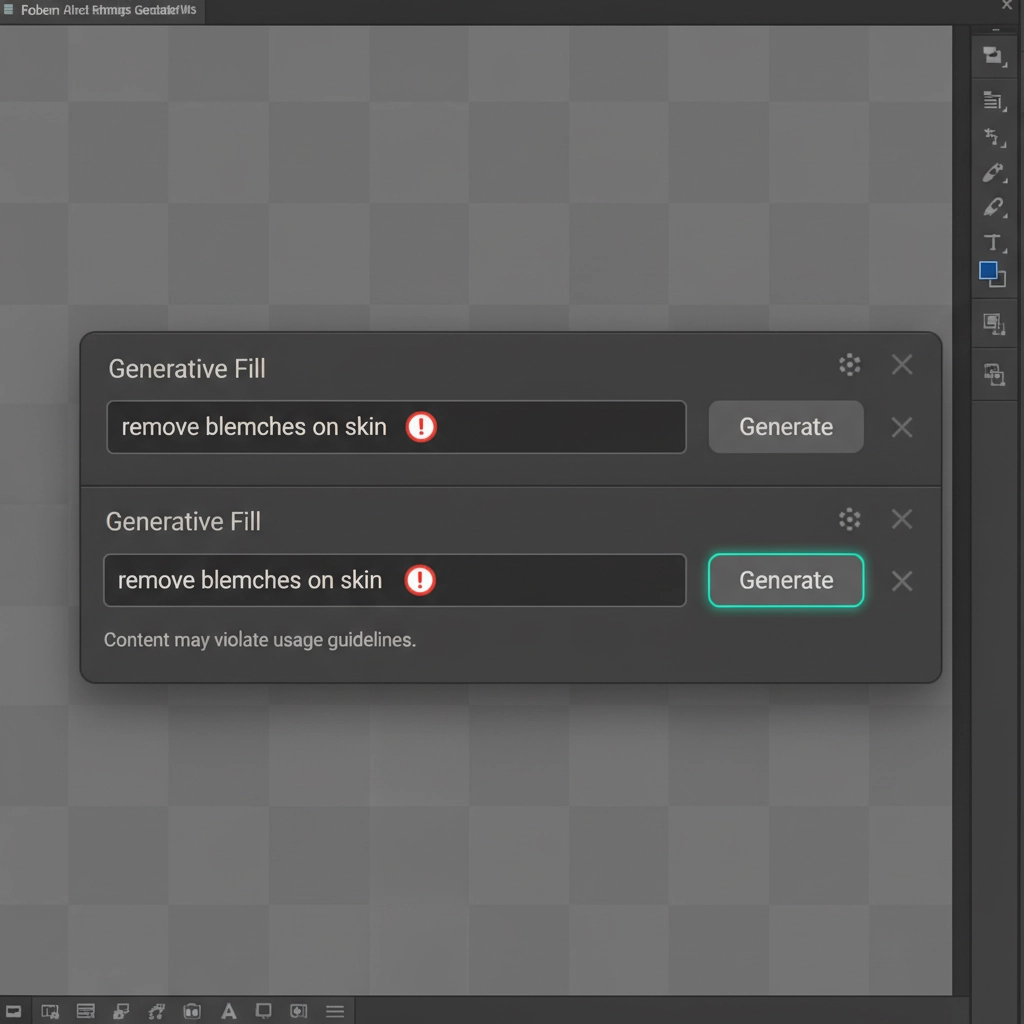
The most common trigger for a restricted content error is the combination of skin-heavy visual context and anatomical text prompts. Words like “skin,” “arm,” “chest,” or even “remove blemish” can trigger the filter.
The Fix: Omit text entirely. Instead of typing instructions into the Generative Fill bar, leave the prompt completely blank and hit Generate. A blank prompt forces Firefly to rely solely on the surrounding pixels to seamlessly blend the selection. By removing prompt engineering from the equation, you bypass the text-based safety check entirely.
Method 2: Localized Micro-Selections
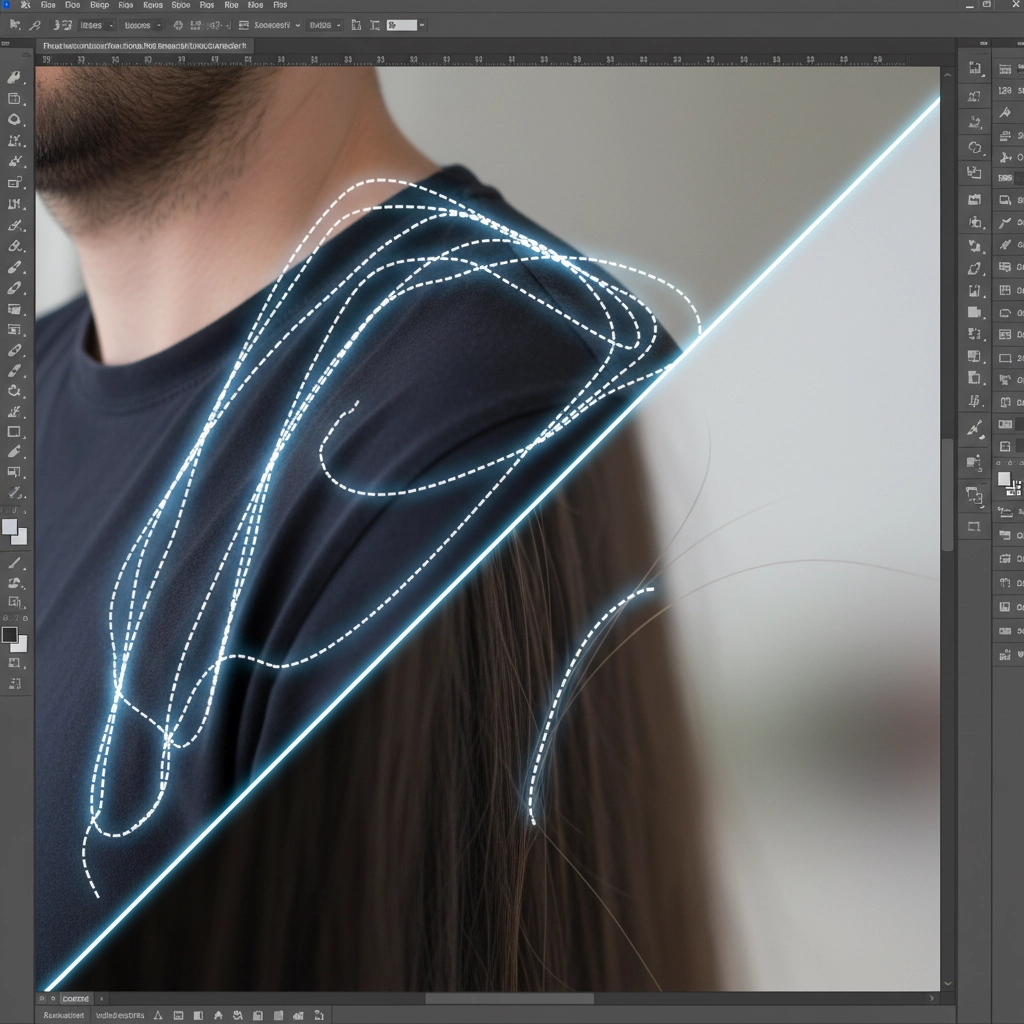
If a blank prompt still triggers a block, the issue is the visual context. When you make a large selection, the AI scans the entire area. If you select half of a model’s torso to fix a tiny clothing wrinkle, the AI registers too much skin and shuts down.
The Fix: Shrink your marching ants. Instead of macro-selections, use the Lasso Tool to create localized micro-selections. Zoom in closely and draw your selection only around the exact distracting element (e.g., a single stray hair or a minor fabric pull). By restricting the pixel data sent for cloud processing, the AI cannot read the broader context of the image, allowing the edit to pass through the filter.
Method 3: Hybrid Pre-Painting and Advanced Local Tools
If Firefly’s cloud filters absolutely refuse to process the area regardless of your selection size, you must abandon Generative Fill and utilize local, non-destructive editing tools.
The Fix:
- Pre-Painting + Content-Aware Fill: Create a new blank layer. Use the Brush tool to manually paint the base colors and rough textures over the area you need to fix. Merge this layer down, select the painted area, and run a traditional Content-Aware Fill. Because Content-Aware Fill processes locally on your machine rather than in the cloud, it ignores Generative AI Safety Guidelines completely.
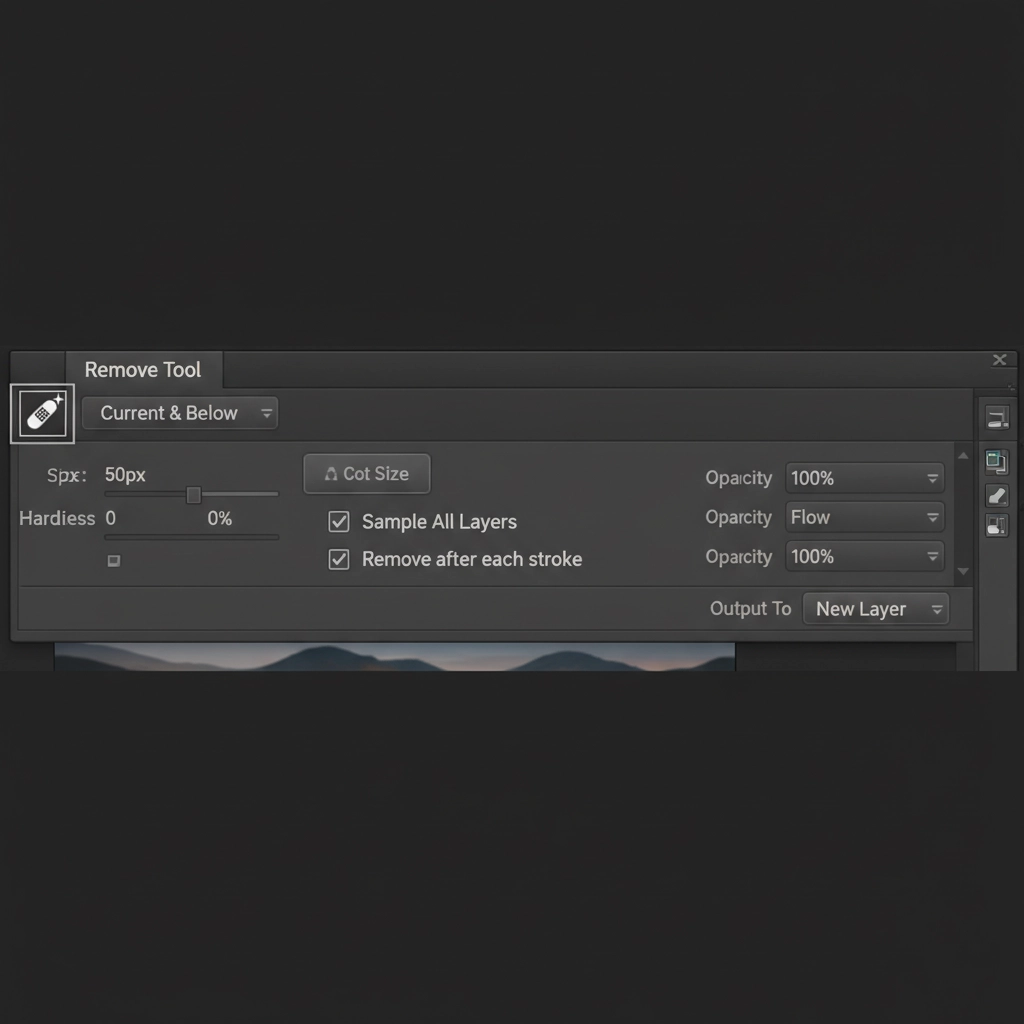
- The AI Remove Tool: Select the Remove Tool from your toolbar. Ensure that ‘Sample All Layers’ is checked in the top settings panel. This tool uses local AI assistance to intelligently patch areas without sending data to Adobe’s strict cloud servers, making it perfect for boudoir retouching and heavy skin edits.
Scale Your Workflow Without AI Limitations
Navigating Photoshop’s evolving AI restrictions is time-consuming. When you are managing high-volume studio shoots, spending five minutes fighting a “violates user guidelines” error on a single image destroys your profitability.
If you want to bypass these technical headaches entirely, partner with the experts. At Image Work India and Cloud Retouch, our dedicated teams specialize in high-end, non-destructive editing for fashion, fitness, and boudoir photographers. We utilize advanced manual techniques and proprietary workflows that never rely on restrictive cloud filters.
Stop fighting your software. Let Image Work India and Cloud Retouch handle your post-production so you can get back behind the camera. Contact us today to scale your professional retouching workflow.



