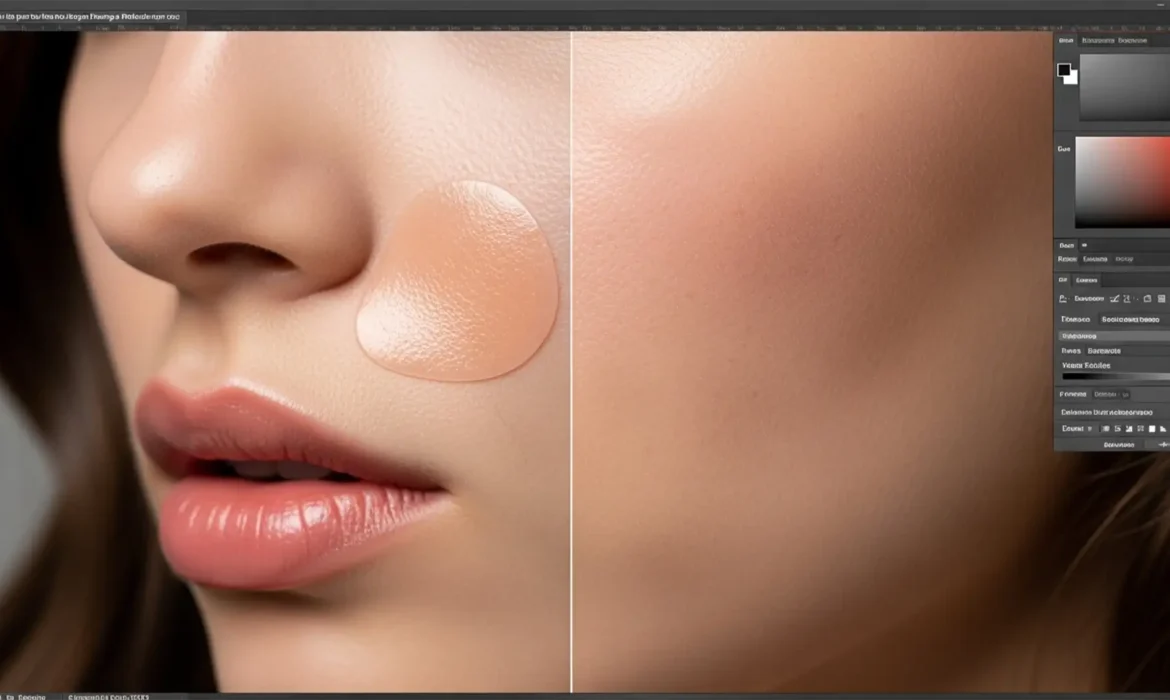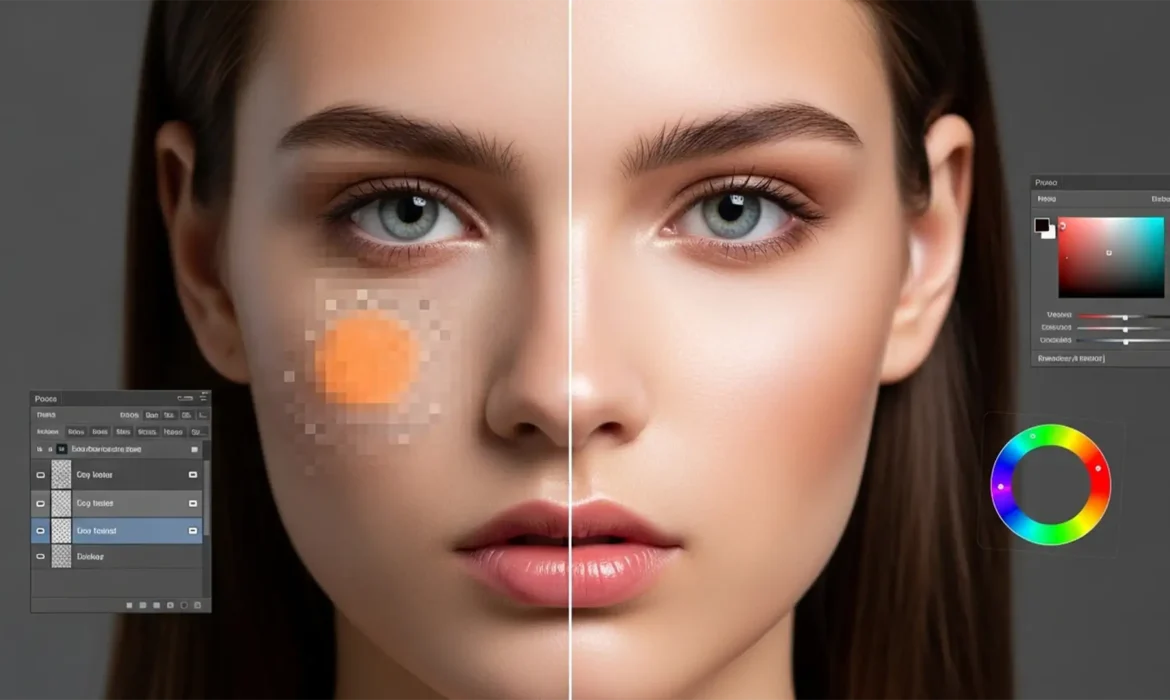
Solving the Generative Fill Skin Tone Mismatch: Seamless Portrait Extensions
You’ve just framed the perfect portrait, but the crop is too tight. You hit “Generative Fill” in Photoshop to expand the background and shoulders, expecting magic. Instead? You get a patchy, muddy, grayish-orange discoloration that ruins the entire image. If you are desperately searching for a generative fill skin tone mismatch fix, you aren’t alone. While Adobe’s...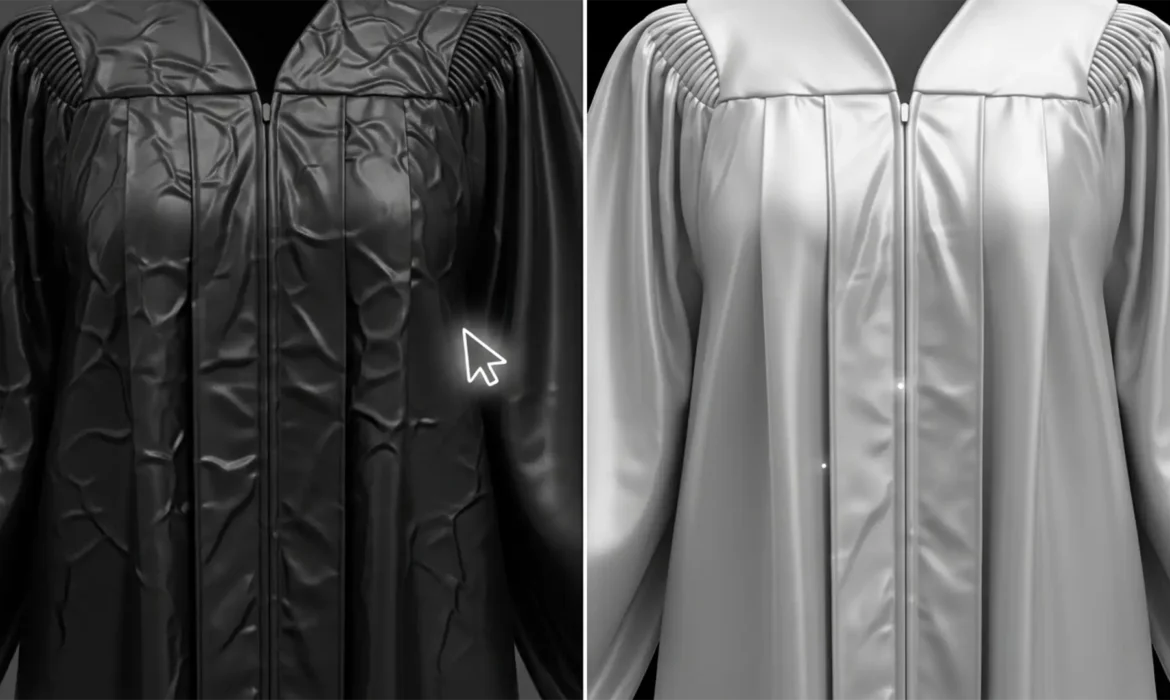
Perfect Grad Photos: Removing Graduation Gown Wrinkles Without Losing Fabric Detail
You’ve captured the perfect graduation portrait, but there’s a glaring issue: the gown looks like it was pulled straight out of a cramped duffel bag. Removing graduation gown wrinkles in Photoshop is notoriously tricky because most academic regalia is made of shiny polyester. When amateur editors try to fix these creases using standard cloning tools, they often create muddy, blurred...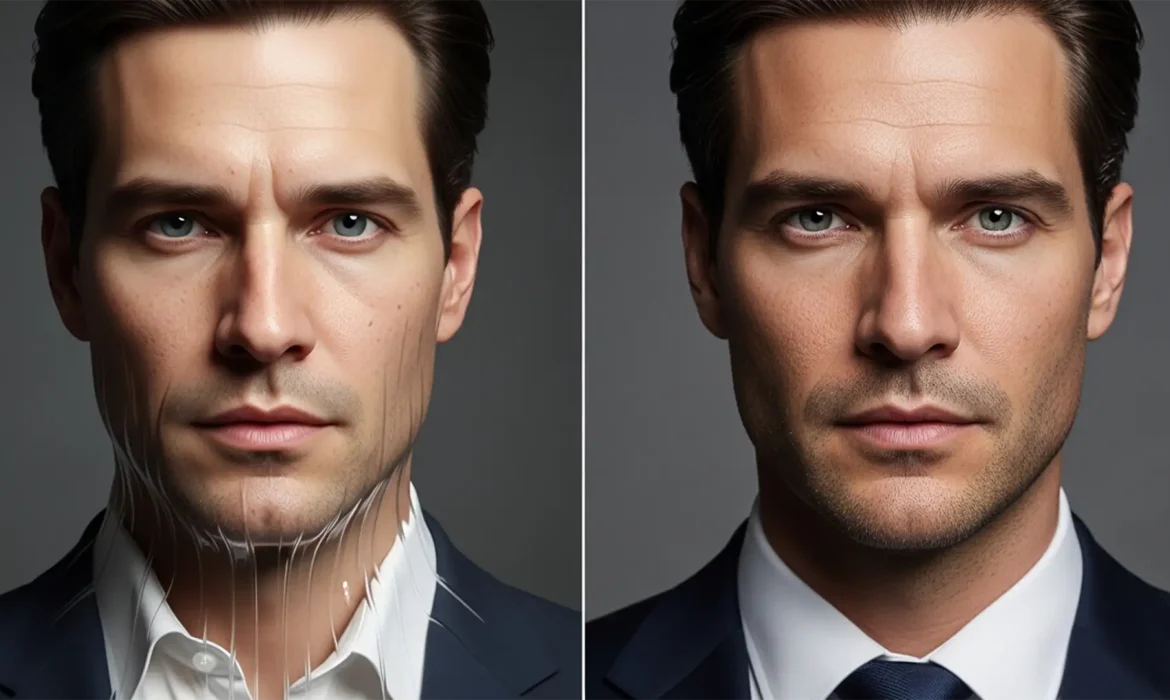
How to Fix AI Headshot Distortions in Photoshop
You generated a batch of professional portraits using Midjourney or Lensa, but something feels slightly off. The eyes are mismatched, the teeth look warped, and the skin resembles a smooth plastic mannequin rather than a real human being. Welcome to the “Uncanny Valley.” While artificial intelligence is incredible at generating base images, it frequently struggles with precise...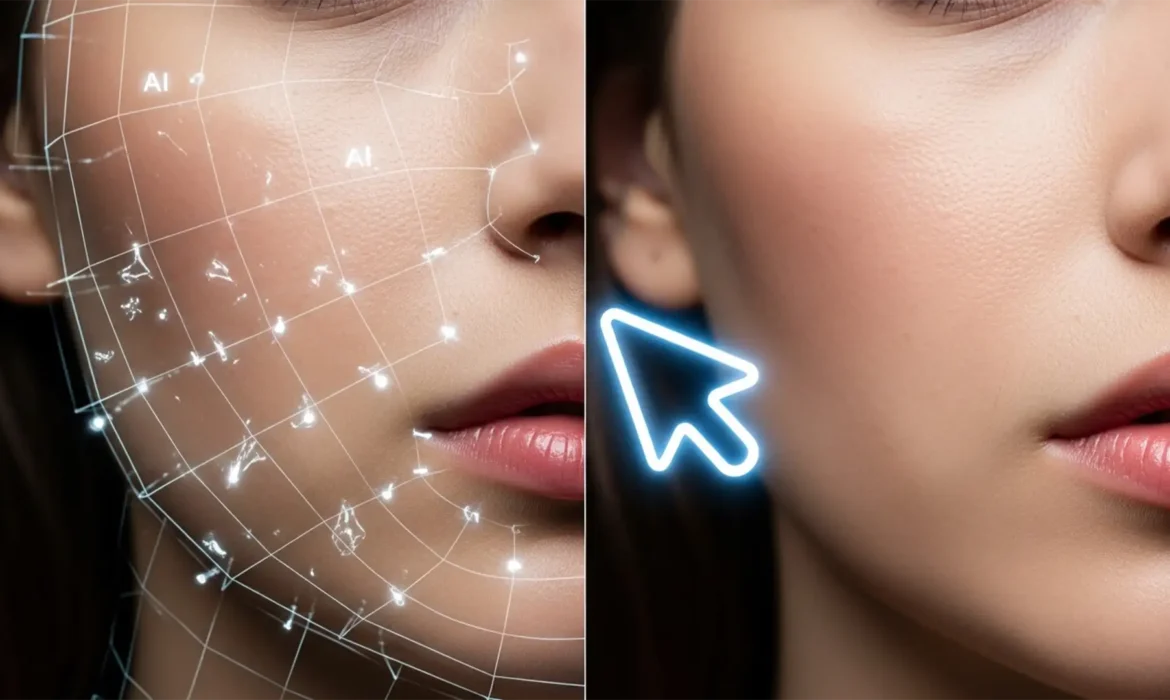
Fix AI Artifacts on High-Fashion Skin in Photoshop
You use Generative Fill to clean up stray hair on a high-fashion skin portrait, and suddenly, the model’s cheek looks like melting plastic. Photoshop v25.0+ and its Firefly Image Model 3 are powerful, but when forced to replicate high-frequency details like skin texture, they frequently fail. These “AI hallucinations” leave you with mismatched pores, nonsensical geometric...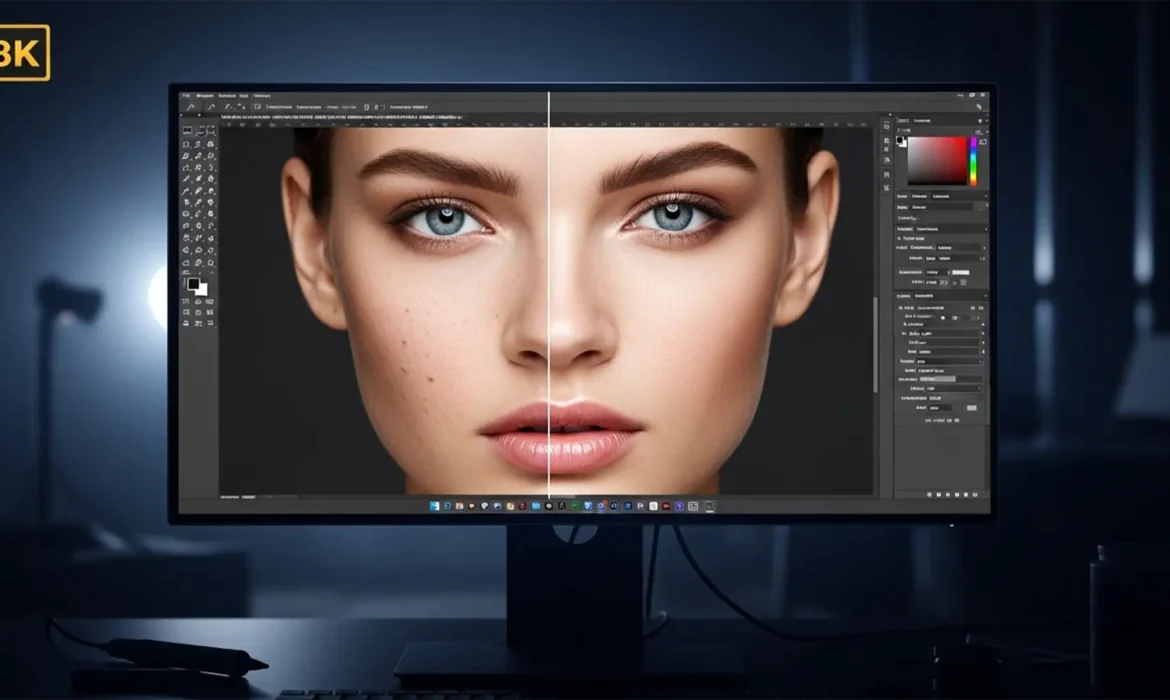
8K Glamour Retouching: The Ultimate Ultra-HD Workflow
Ultra-high-definition displays are ruthless. At 7680×4320 pixels—roughly 33.1 megapixels—modern 8K monitors expose every micro-flaw and heavy-handed 8K glamour retouching stroke in your glamour photography. If you are still using standard blurring techniques or quick blemish removal tools in Adobe Photoshop, you are actively destroying essential skin micro-texture. The result is a...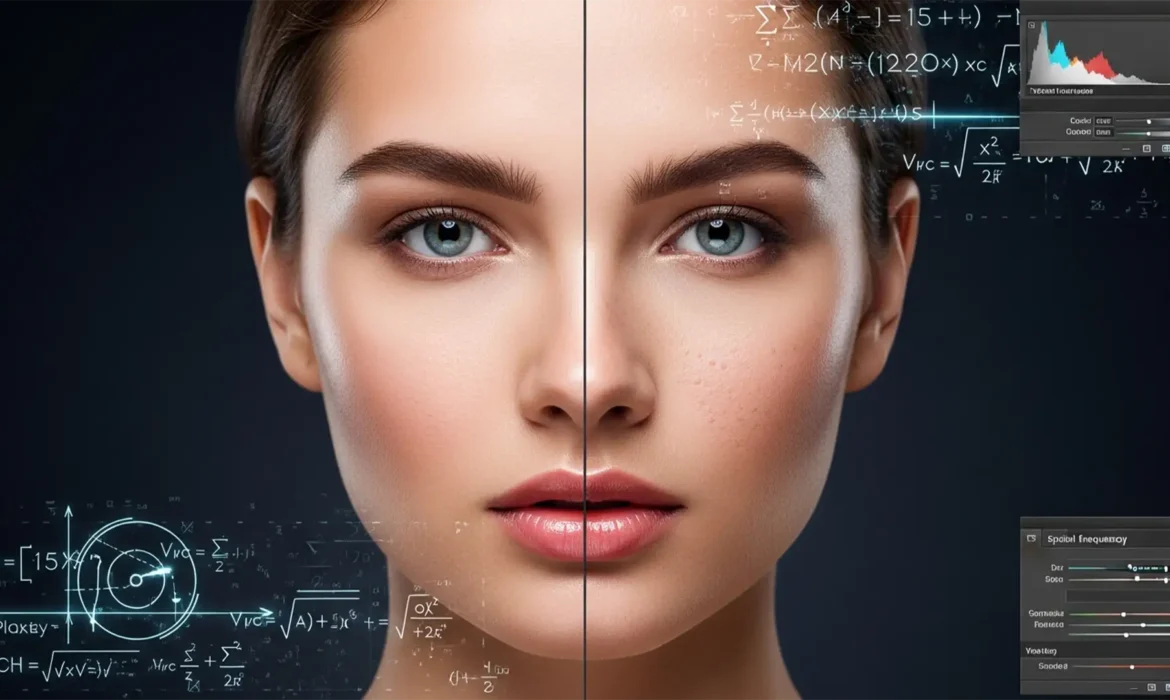
AI Smoothing vs. Manual Frequency Separation: The Luxury Standard
Ever spent hours retouching a beauty portrait only to have the client reject it for looking “too plastic”? You are not alone. In high-end retouching, Adobe Sensei Neural Filters might seem like a magic bullet, but they indiscriminately merge tone and detail. This destroys the micro-contrast and natural pores that luxury brands demand. The ongoing debate of high-end frequency...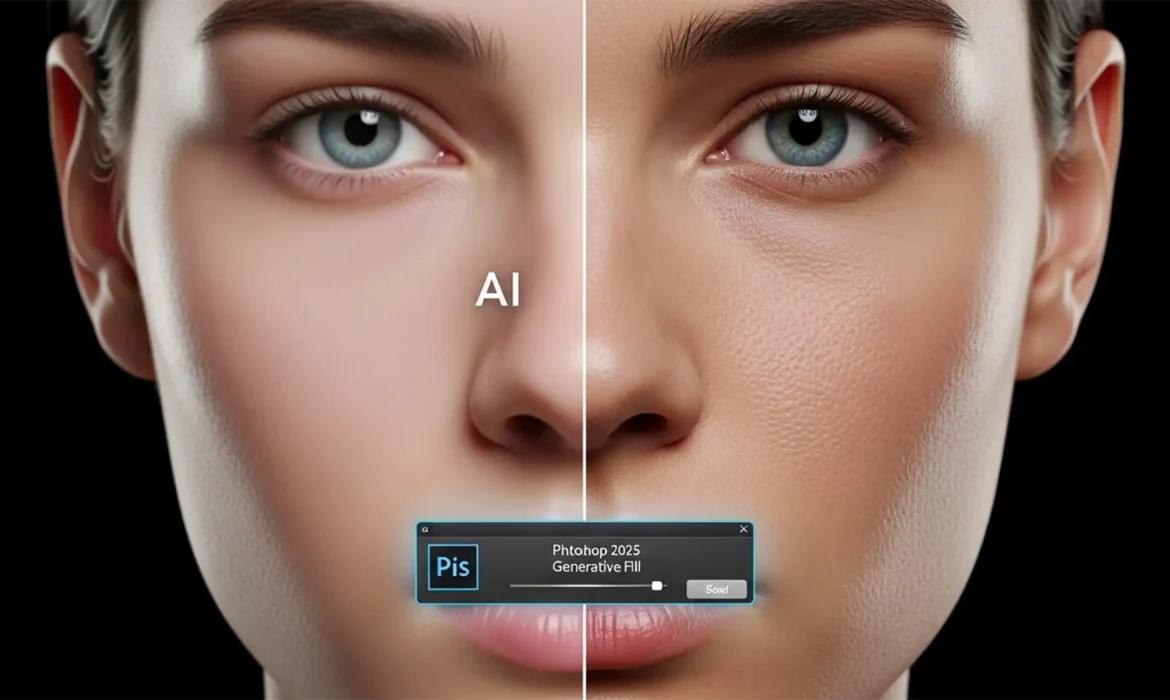
How to Fix Smudged and Muddy Skin Textures in Photoshop 2025 Generative Fill
You’ve just used Photoshop 2025’s Generative Fill to extend a beauty portrait or remove a complex blemish. The composition looks phenomenal from a distance, but when you zoom in to 100%—disaster. The AI has replaced your subject’s crisp, high-end raw details with a blurry, plastic-looking patch. If you are struggling with fixing muddy skin in Photoshop Generative Fill, you aren’t...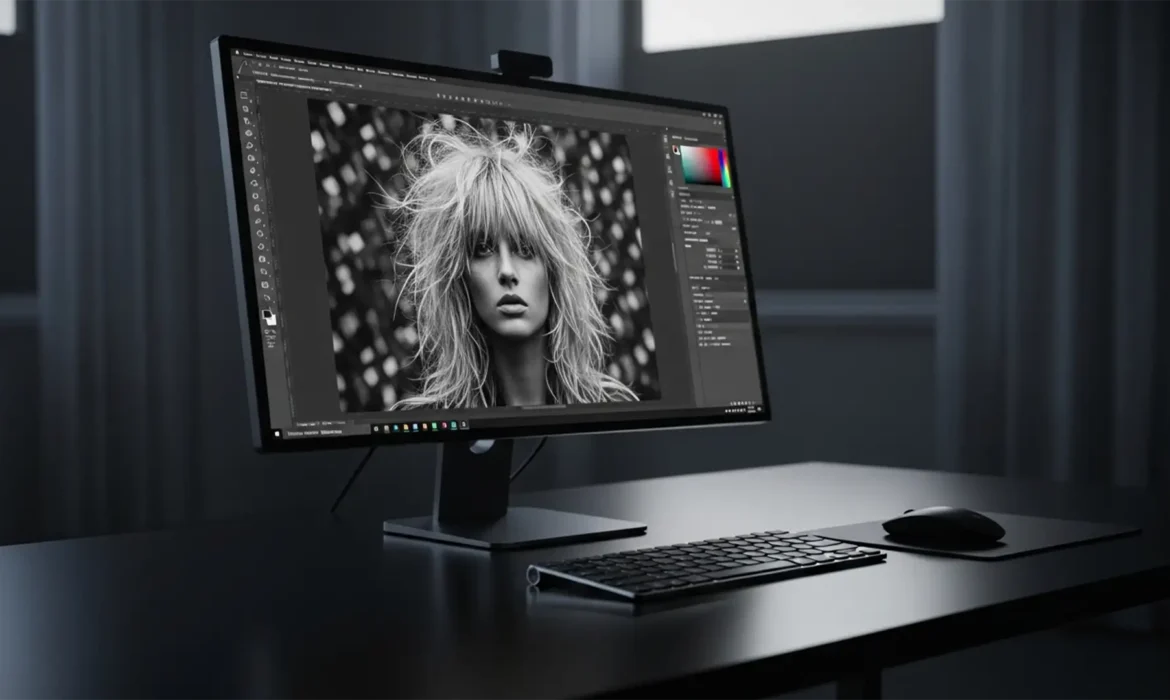
Fix Hair Artifacts from the Photoshop Remove Tool
You’ve just finished masking a stunning portrait in Photoshop v25.x, but there’s a glaring problem. When you tried to clean up a distracting background element near the model’s head, the AI left behind a blurry, smudged mess. This AI ghosting ruins the crisp realism of stray hairs, turning a high-end image into an obvious digital manipulation. If you are struggling with removing hair...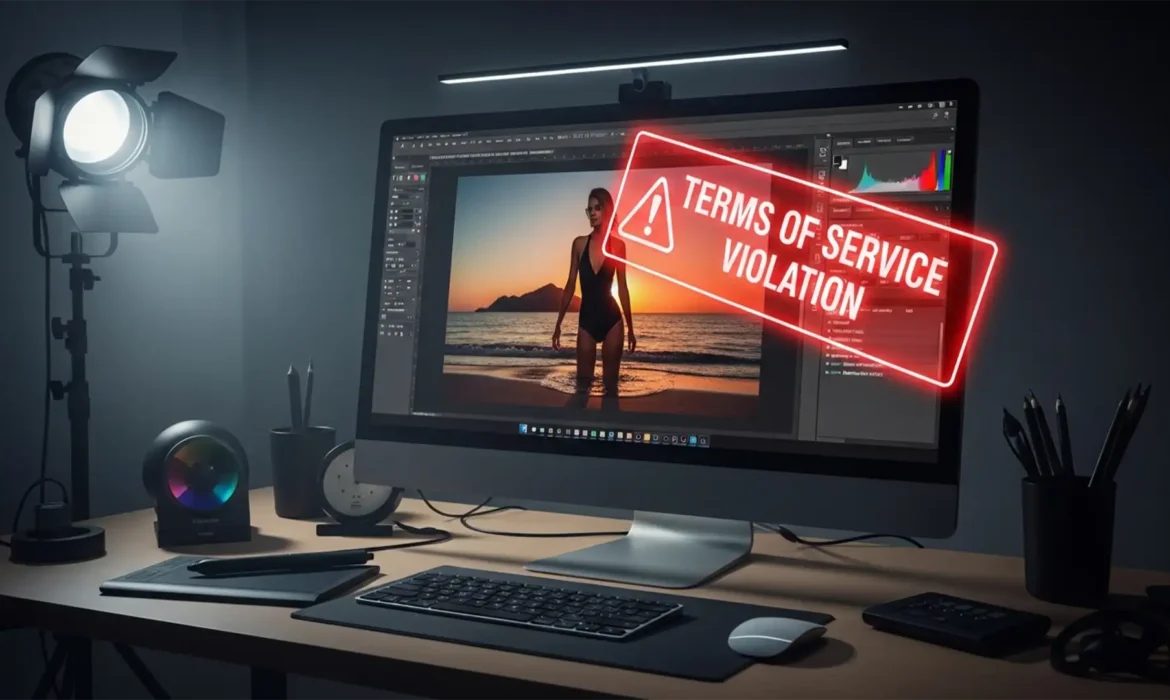
Fix Generative Fill NSFW False Positives in Fashion Edits
You are on a tight deadline for a high-end commercial campaign. You make a precise selection around a model’s swimwear to remove a stray wrinkle, hit “Generate,” and—bam. A glowing red “Terms of Use violation” error stops you in your tracks. If this workflow bottleneck sounds familiar, you aren’t alone. Adobe Firefly’s strict AI guardrails...