
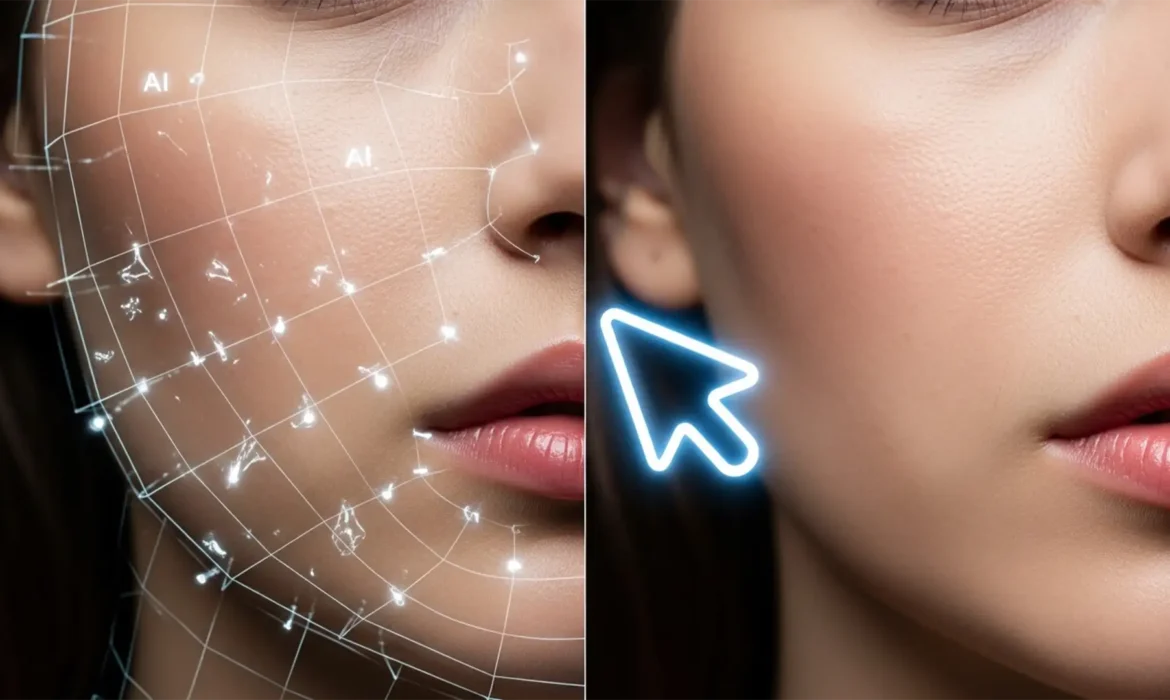
You use Generative Fill to clean up stray hair on a high-fashion skin portrait, and suddenly, the model’s cheek looks like melting plastic. Photoshop v25.0+ and its Firefly Image Model 3 are powerful, but when forced to replicate high-frequency details like skin texture, they frequently fail. These “AI hallucinations” leave you with mismatched pores, nonsensical geometric smudges, and a glaring mismatch in native sensor noise.
If you are struggling with correcting AI artifacts on high fashion skin, you are not alone. Commercial retouching requires pixel-perfect, non-destructive editing. Here is exactly how to fix these nonsensical textures and restore commercial-grade perfection to your glamour shots.
Why Photoshop’s AI Struggles with High-Fashion Skin
The Firefly Image Model is trained on massive datasets to understand general shapes, lighting, and colors. However, high-end skin retouching is a micro-level discipline. When the AI attempts to reconstruct skin, it often generates a smoothed-out, plastic-looking patch that lacks the organic, high-frequency details of the surrounding area. Furthermore, the generated pixels do not contain the original camera’s sensor noise, creating a visual disconnect that ruins the image upon close inspection.
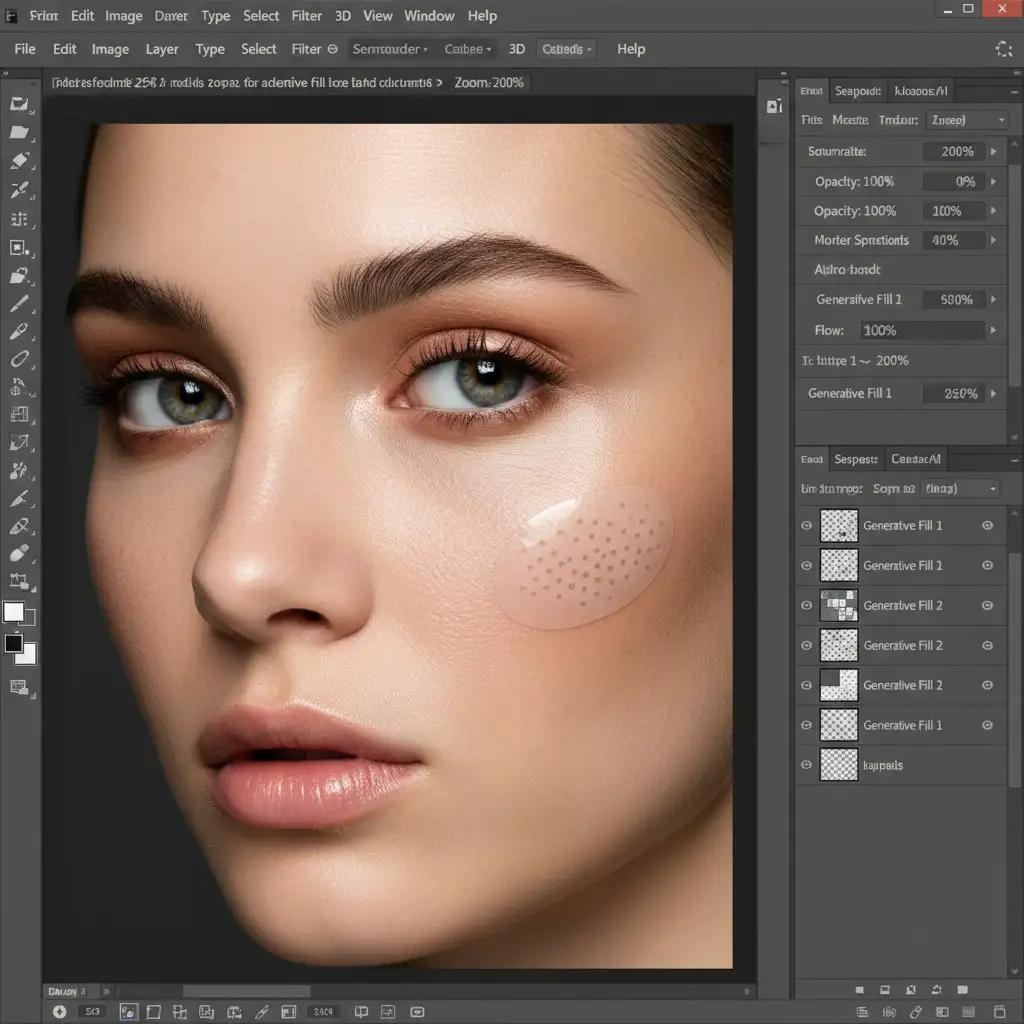
3 Methods for Correcting AI Artifacts on High Fashion Skin
Depending on the severity of the AI hallucinations, you can resolve these issues using a quick spot-healing technique, an advanced layer structure, or a technical noise-matching workflow.
Method 1: The Quick Fix Using the Remove Tool
For minor micro-artifacts or tiny nonsensical shapes generated by the AI, the Remove Tool is your fastest option. It is significantly smarter than the older Spot Healing Brush and excels at blending small irregularities.
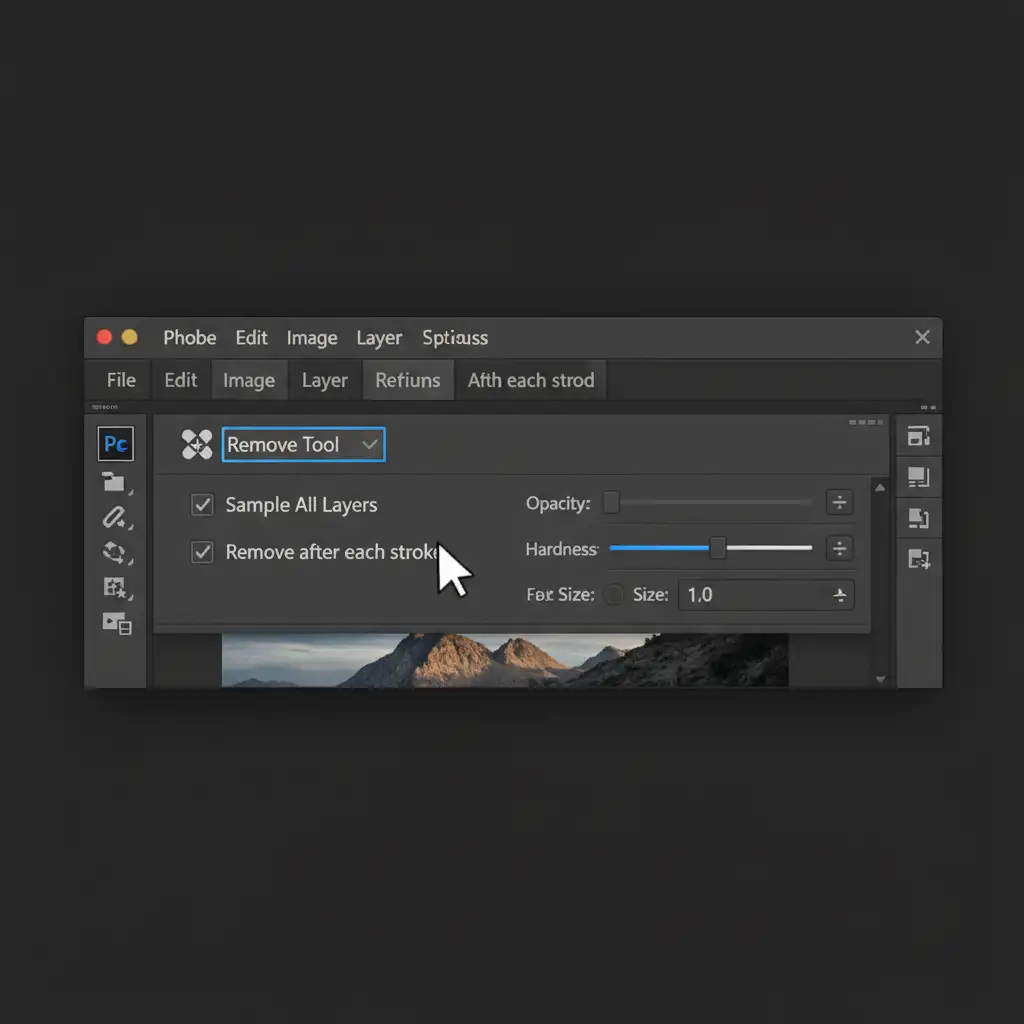
- Select the Remove Tool from the toolbar (Keyboard Shortcut: J).
- Look at the top options bar and ensure Remove after each stroke is checked. This allows for rapid, continuous spot-healing without waiting for the tool to process multiple strokes at once.
- Paint directly over the small AI-generated artifacts to blend them into the surrounding skin texture.
Method 2: The Pro Workaround with Frequency Separation
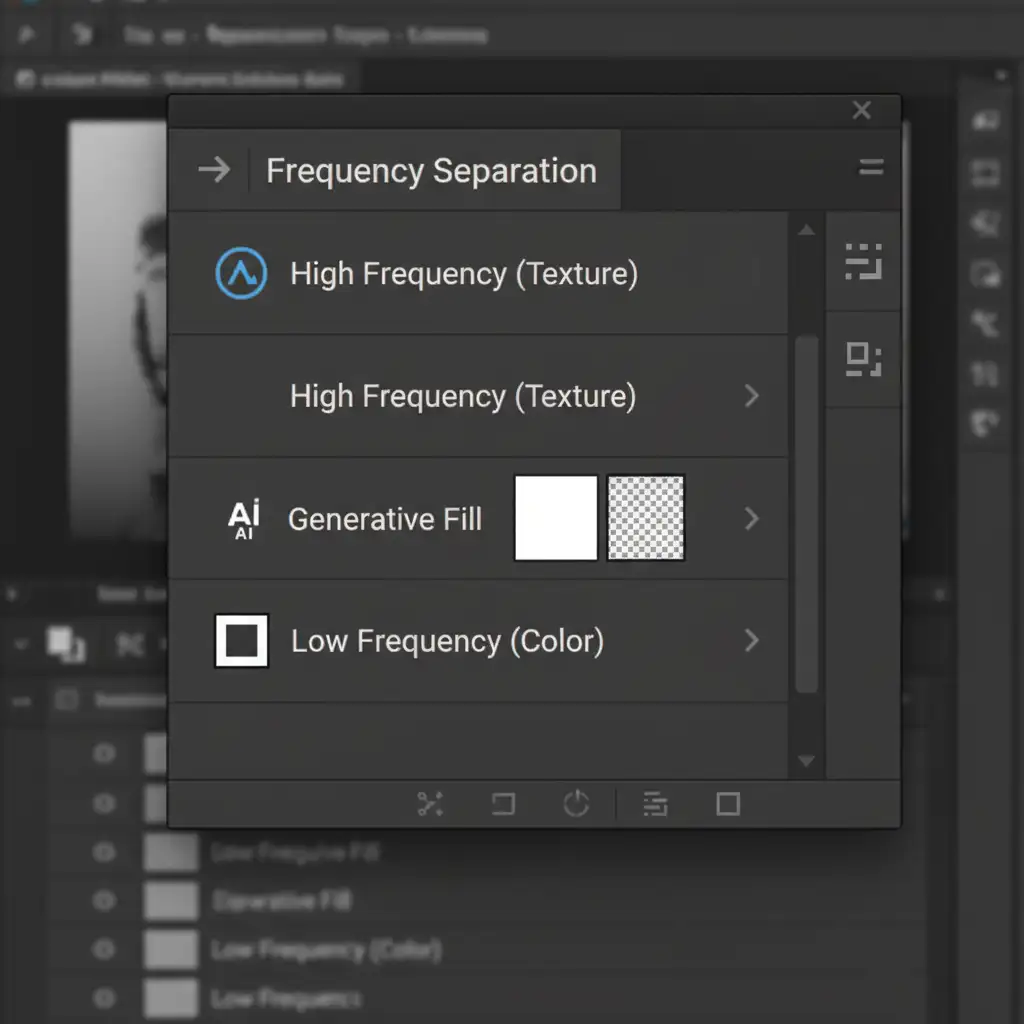
High-fashion retouching relies on Frequency Separation to edit color and texture independently. You can use this exact concept to hide AI mistakes. By placing the AI generation underneath your texture layer, you keep the original skin pores intact.
- Run your standard Frequency Separation action to split your image into a Low-Frequency (Color/Tone) layer and a High-Frequency (Texture) layer.
- Select the Low-Frequency layer and use Generative Fill to make your necessary color or structural changes.
- Ensure the AI-generated layer remains positioned below the High-Frequency texture layer in your Layers panel.
- Mask out any unwanted color shifts. Because the original skin texture sits on top, the plastic AI look is completely hidden beneath the authentic pores.
Method 3: The Technical Deep-Dive (Mask Feathering & Sensor Noise)
When you must use Generative Fill on a merged or flat layer, you need to manually blend the edges and introduce artificial sensor noise to match the camera’s native file.
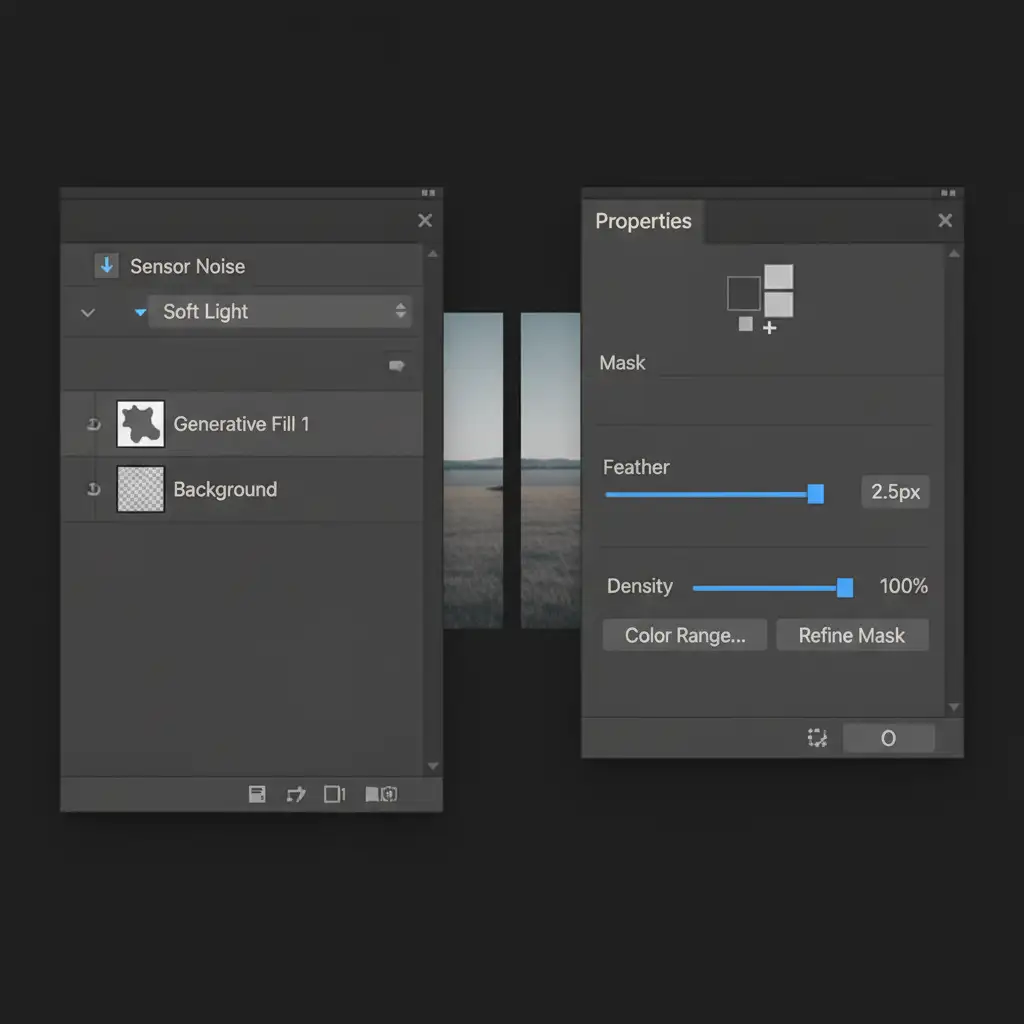
- Apply Mask Feathering: Select the layer mask attached to your Generative Fill layer. Open the Properties Panel and apply a slight feather (usually 1 to 3 pixels). This softens the hard edges of the AI generation, blending the generated pixels seamlessly into the original skin.
- Recreate Sensor Noise: Create a new blank layer above your AI layer.
- Fill it with 50 percent gray (Edit > Fill > 50% Gray).
- Change the layer blend mode to Soft Light.
- Go to Filter > Noise > Add Noise. Select ‘Uniform’ and adjust the amount until it perfectly matches the native sensor grain of the photograph.
- Right-click the noise layer and select Create Clipping Mask so the noise only applies to the AI-generated patch, eliminating the overly smooth, plastic appearance.
Stop Fighting AI—Let the Experts Handle It
Correcting AI artifacts on high fashion skin requires a deep understanding of non-destructive editing, texture retention, and advanced masking. While Photoshop’s Firefly Image Model is a great starting point, achieving flawless, commercial-ready results still requires the meticulous eye of a professional retoucher.
Tired of spending hours fixing Photoshop’s AI mistakes? Let the experts take over. At Image Work India and Cloud Retouch, our team of industry-leading human retouchers specializes in pixel-perfect high-fashion image editing. We ensure your model’s skin retains its natural texture, flawless tone, and high-end editorial finish—no plastic AI hallucinations included.
Contact Image Work India and Cloud Retouch today to elevate your high-fashion photography to the highest commercial standard.



