

You are in the middle of a complex, high-end composite. You navigate to your Channels panel to paint a precise luminosity mask, hit ‘G’ for the Gradient Tool, and—nothing. The controls are completely grayed out, or worse, you are hit with that frustrating prohibited circle cursor.
If this sounds familiar, you are not alone. For high-end retouchers who rely on painting gradients directly into alpha channels for depth maps and precise extractions, this bug in Photoshop 2024 and 2025 is a major workflow killer.
Fortunately, the solution is simple once you understand the underlying mechanics of the software. Here is the definitive guide to the Photoshop 2024 Alpha Channel Gradient Bug Fix and how to get your toolset back to normal.
Why is the Gradient Tool Grayed Out in Alpha Channels?
To fix the problem, we first need to look at the architectural conflict introduced in recent updates.
In Photoshop 2024 (v25.x) and 2025 (v26.x), Adobe completely overhauled the Gradient Tool to function as a Live Gradient by default. This new tool creates a proprietary, non-destructive adjustment layer object.
However, an Alpha Channel operates by a different set of rules than standard layers. Alpha Channels strictly require raw 8-bit or 16-bit grayscale pixel data to define transparency and selections. They cannot house vector objects or live adjustment layers.
Because the new Live Gradient tool attempts to force a proprietary adjustment object inside a strict raster-only channel space, Photoshop panics. The result? The gradient controls gray out, display a prohibited cursor, or fail to render the transition correctly inside the Channels panel.
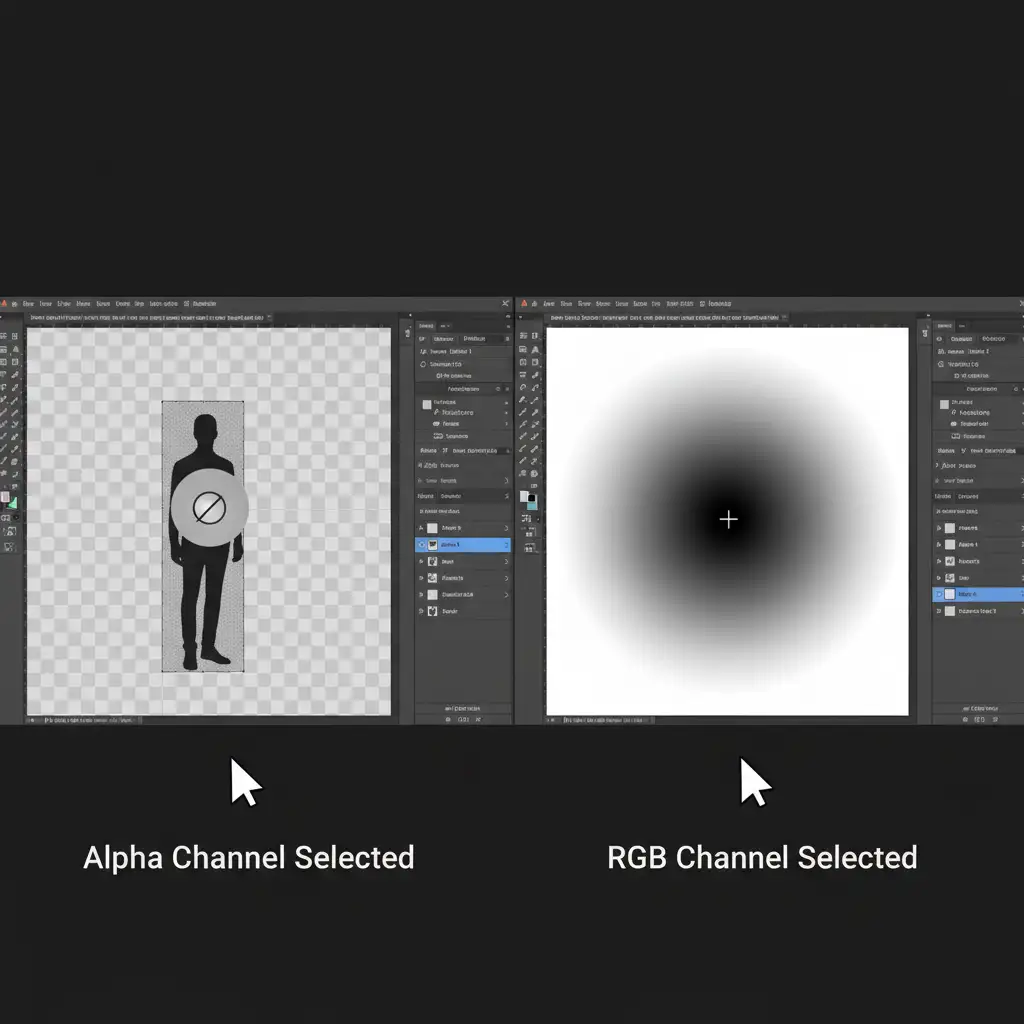
3 Ways to Fix the Photoshop Alpha Channel Gradient Bug
Whether you need a rapid fix to keep a project moving or a robust workaround to maintain non-destructive editing, here are the three proven methods to resolve this issue.
Method 1: The Quick Fix (Revert to Classic Gradient)
The fastest way to restore functionality is to force Photoshop to bypass the Live Gradient adjustment layer conflict and write raw grayscale pixels instead.
- Select the Gradient Tool by pressing (G) on your keyboard.
- Look at the top Options Bar.
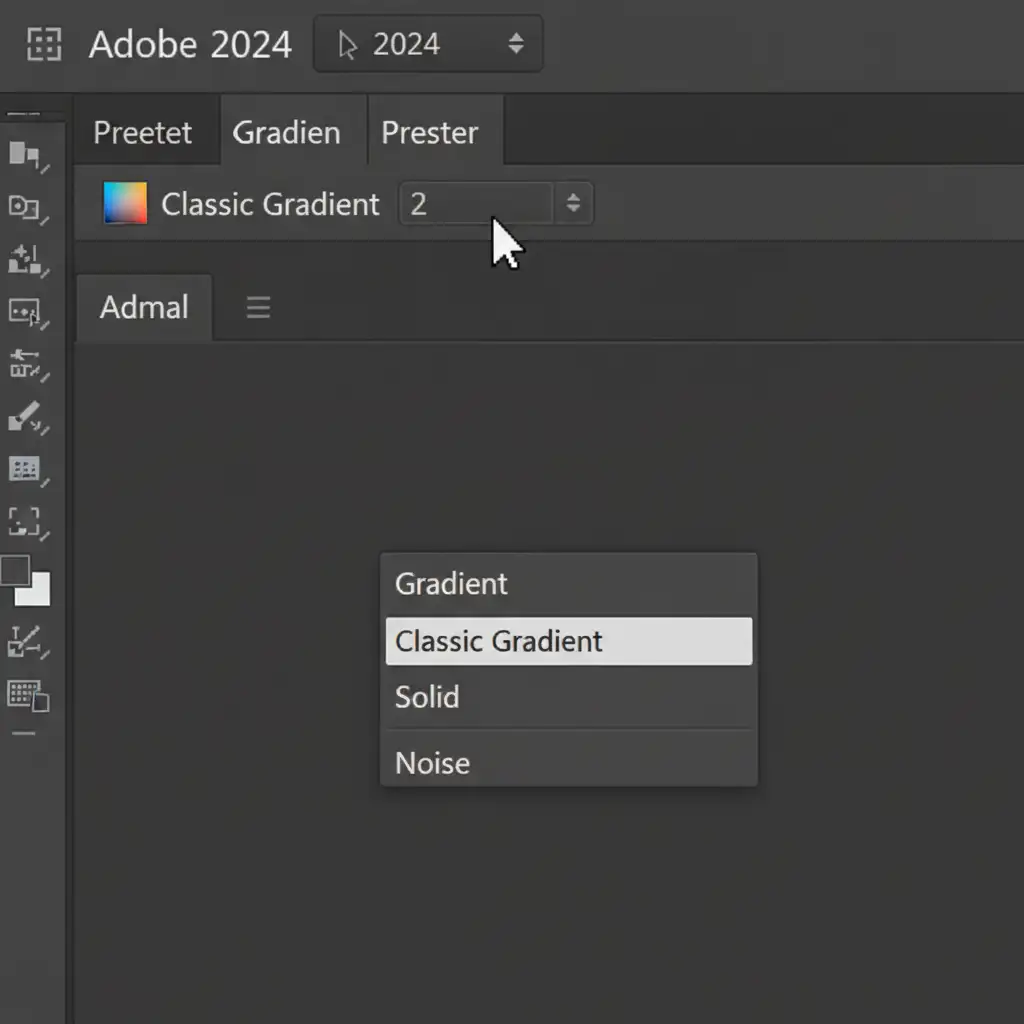
- Locate the tool mode dropdown menu (it will likely say “Gradient”).
- Click the dropdown and change it from Gradient to Classic Gradient.
This instantly reverts the tool to its traditional, raster-based behavior, allowing you to paint directly into the channel.
Method 2: The Pro Workaround (Non-Destructive Layer Masks)
If you love the flexibility of Live Gradients and want to keep your workflow strictly non-destructive editing, you can build your gradient on a standard layer and port it over to your channels.
- Create a new Solid Color adjustment layer in your standard Layers Panel.
- Select the Layer Mask attached to that Solid Color layer.
- Apply a Live Gradient directly to the mask. Because it is a layer mask and not an isolated channel, the Live Gradient will work perfectly.
- Adjust your gradient until the transition is flawless.
- Ctrl-click (Windows) or Cmd-click (Mac) the mask thumbnail to load it as an active selection.
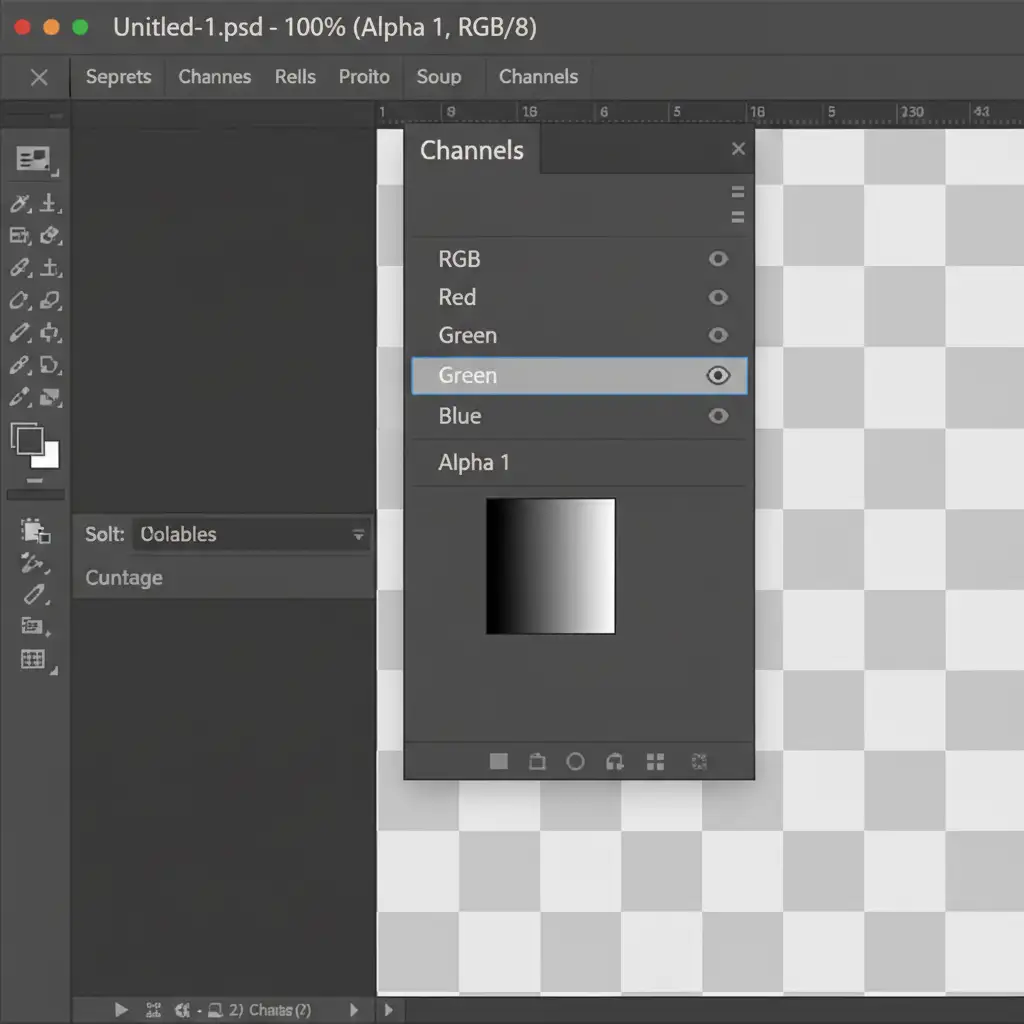
- Navigate to the Channels panel and click the Save selection as channel icon at the bottom.
Method 3: The Technical Deep-Dive (GPU & Workspace Reset)
Occasionally, the tool lock isn’t just an architectural conflict—it is tied to workspace corruption or rendering engine glitches. If the Classic Gradient fix doesn’t work, follow these technical troubleshooting steps:
- Check Color Depth: Ensure your document is strictly in 8-bit or 16-bit RGB/CMYK. Go to Image > Mode and verify your settings. 32-bit images often restrict certain gradient functions.
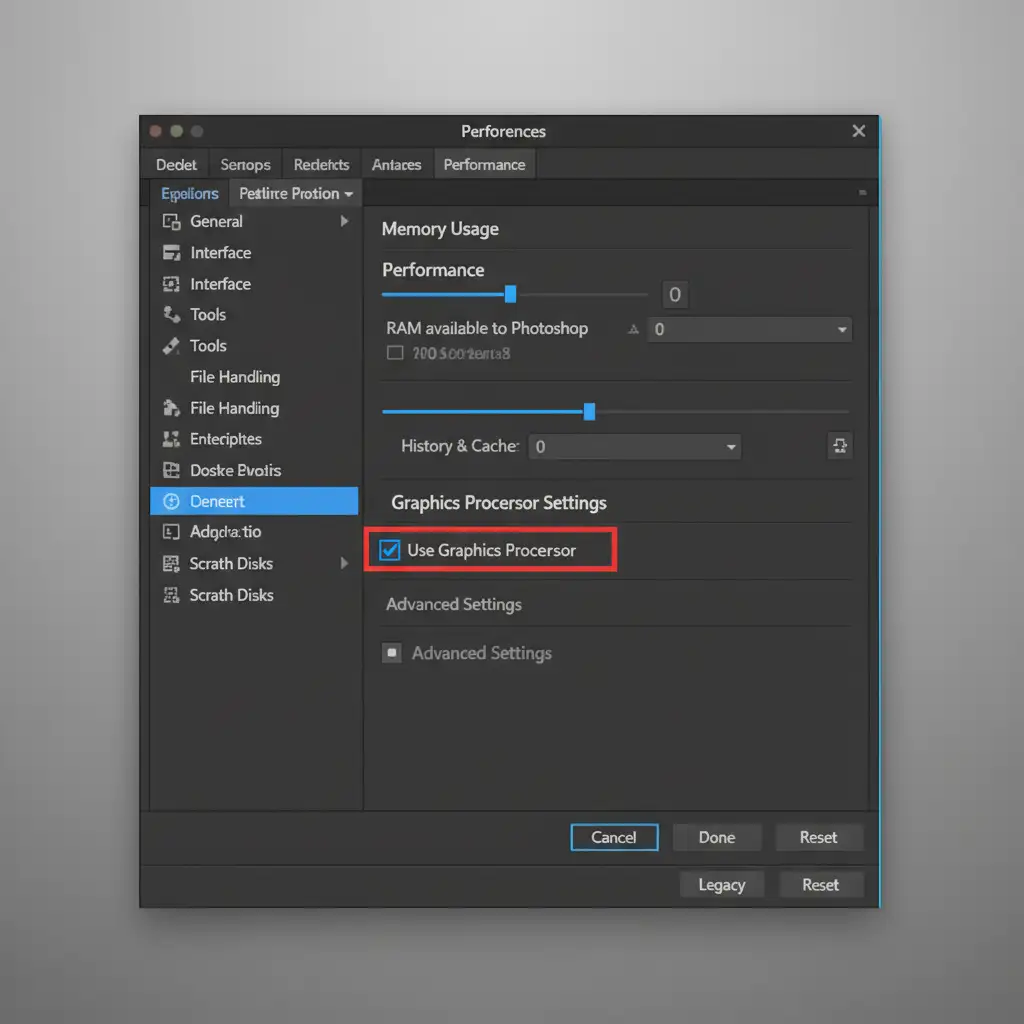
- Verify GPU Acceleration: Go to Edit > Preferences > Performance. Ensure that Use Graphics Processor is checked. If Photoshop cannot access your GPU, it will often lock up rendering-heavy tools like gradients.
- Clear Tool Cache: Right-click the Gradient Tool icon on the far left side of the top Options Bar and select Reset Tool. This clears any corrupted localized tool cache that might be forcing the prohibited cursor.
Stop Wrestling with Software Bugs. Let the Experts Handle It.
Mastering luminosity masks and managing complex alpha channels are essential skills for professional retouching. But when software updates introduce bugs that force you to spend hours troubleshooting instead of creating, your bottom line suffers.
Need pixel-perfect extractions and flawless compositing without wrestling with software bugs? Outsource your complex masking and high-end retouching to the experts.
At Image Work India and Cloud Retouch, our dedicated teams of professional retouchers handle the heavy lifting of high-end image editing. From intricate channel masking and complex pathing to luxury product compositing, we deliver flawless results on time, every time.
Focus on your creative vision. Let us handle the pixels. [Contact Image Work India today to start your free trial.]



