
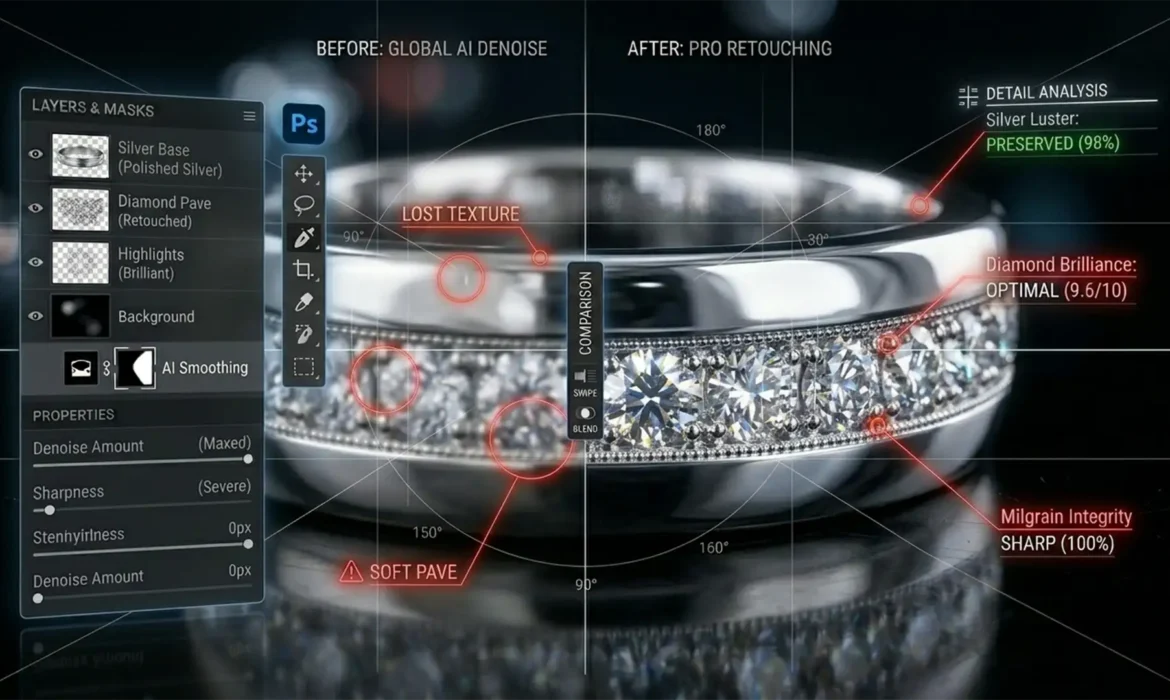
You are deep into a high-volume retouching workflow, cleaning up a stunning diamond ring. You select a distracting reflection on the band, hit generate, and suddenly your process grinds to a halt. A red “User Guidelines Violation” error pops up.
Why is Photoshop flagging a simple piece of jewelry?
If you are dealing with a Generative Fill jewelry guidelines violation, you are not alone. Adobe’s AI frequently misinterprets the complex reflections of shiny metals as prohibited content. In this guide, we will break down exactly why this false-positive happens and show you the professional workarounds to fix jewelry reflections flawlessly.
Why Does Photoshop Generative Fill Flag Jewelry?
In Adobe Photoshop v25.0 and newer, the Firefly AI algorithm powers the Generative Fill tool. This AI is bound by strict safety and ethics guidelines designed to block NSFW content, gore, or Personally Identifiable Information (PII).
Unfortunately, jewelry photography creates the perfect storm for algorithmic confusion. Editors routinely deal with extreme macro close-ups of human skin, highly distorted reflections in shiny metals, and extreme contrast. The AI frequently misinterprets these specular highlights and curved metallic gradients as prohibited visual patterns.
Because the AI cannot differentiate between a curved silver ring reflecting a studio room and a genuine violation, it triggers a frustrating false-positive, completely halting your retouching workflow.
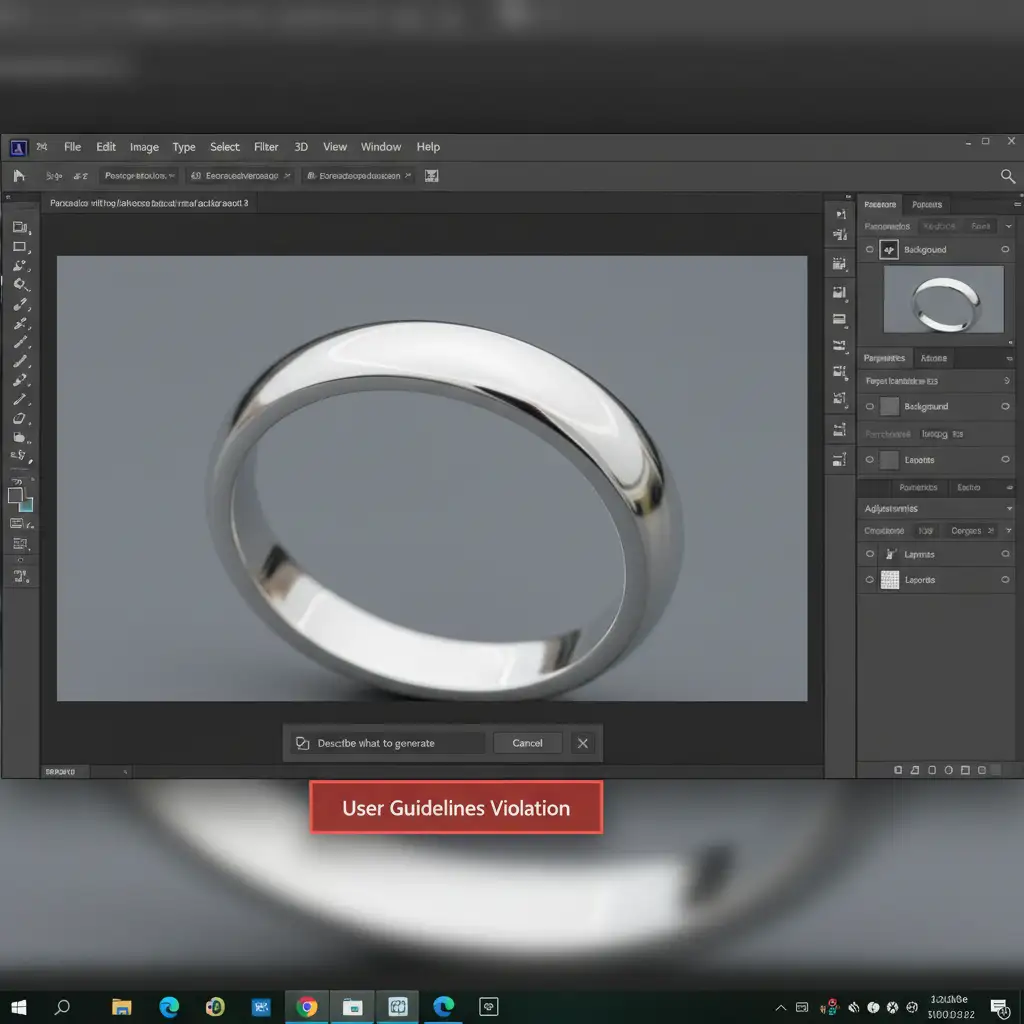
How to Fix a Generative Fill Jewelry Guidelines Violation
When the AI filter blocks your progress, you have two options: coax the AI into understanding the image, or abandon it for traditional, high-end manual retouching techniques.
Method 1: The Quick AI Fix (Modify Prompts & Expand Selection)
If you want to stick with Generative Fill, you need to give the AI better context. Often, editors leave the text prompt blank, which forces the AI to guess what it is looking at based solely on the selected pixels.
- Alter the Text Prompt: Instead of leaving it empty, type neutral, descriptive terms like “smooth metallic surface” or “silver gradient”. This guides the AI away from interpreting the pixels as skin or prohibited content.
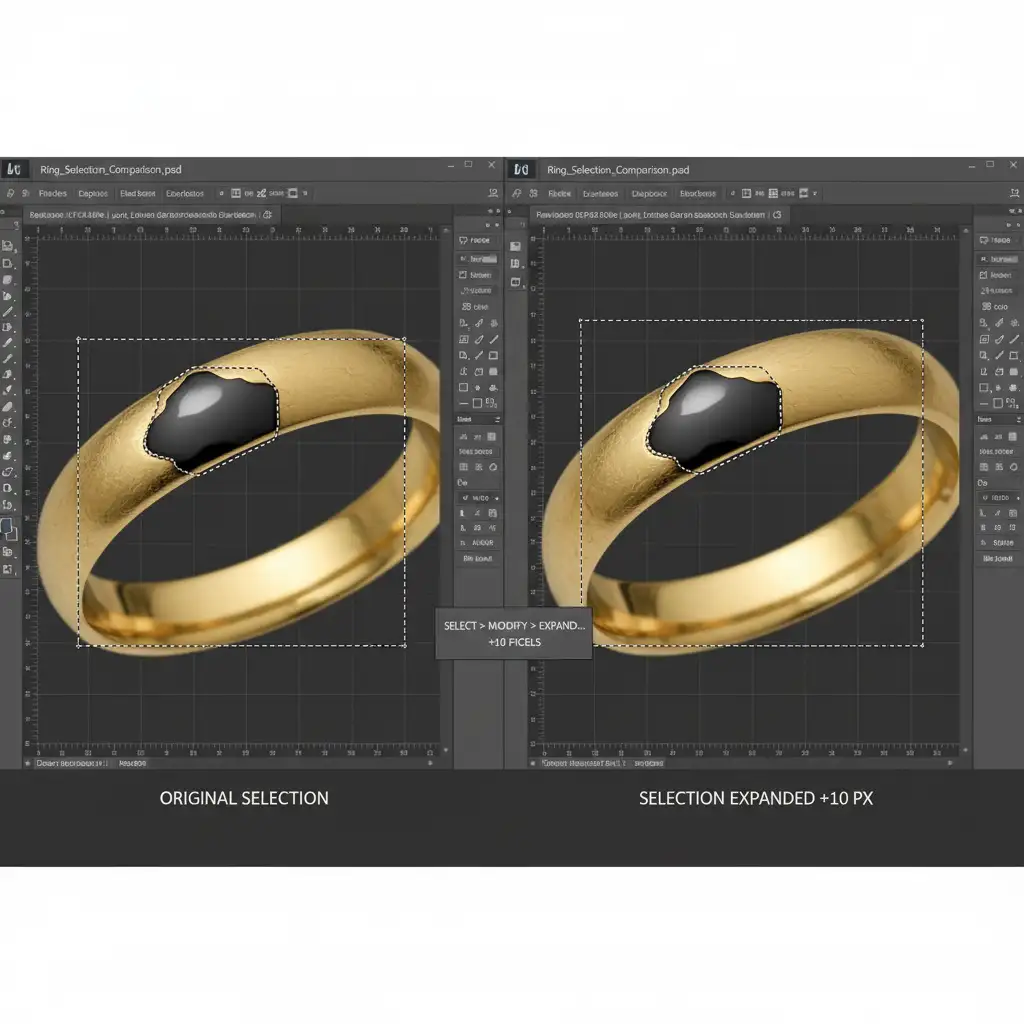
- Expand the Marching Ants: The AI needs contextual data. Go to Select > Modify > Expand and expand your selection by 5 to 10 pixels. By including more of the surrounding metal, the algorithm can better process the geometry, which often clears the false-positive.
Method 2: The Pro Workaround (Advanced Clone Stamping)
When AI fails, professional retouchers rely on manual precision. The Clone Stamp Tool (S) is perfect for neutralizing distracting reflections without destroying the underlying metallic shine.
- Select the Clone Stamp Tool.
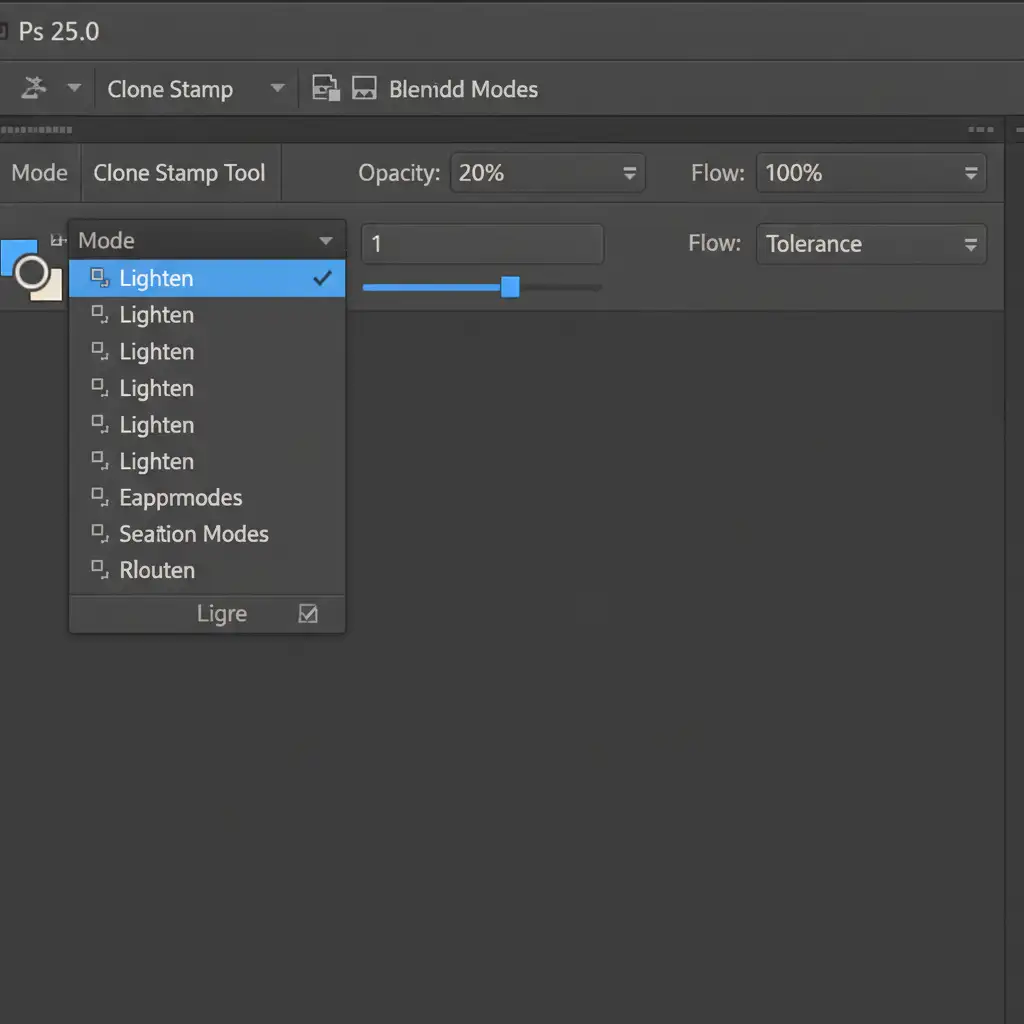
- Navigate to the top options bar and change the Blend Modes drop-down to either Lighten (to remove dark reflections) or Darken (to tone down blown-out highlights).
- Set your Opacity slider to 15-20%.
- Carefully sample a clean area of the metal and paint over the offending reflection. The blend mode ensures you only affect the specific tonal range you are targeting, preserving the specular highlights.
Method 3: The Technical Deep-Dive (Frequency Separation)
For flawless, high-end commercial metal retouching, Frequency Separation is the ultimate solution. This technique separates the texture of the jewelry from its color and tone, allowing you to fix harsh reflection gradients without blurring the metal’s micro-scratches.
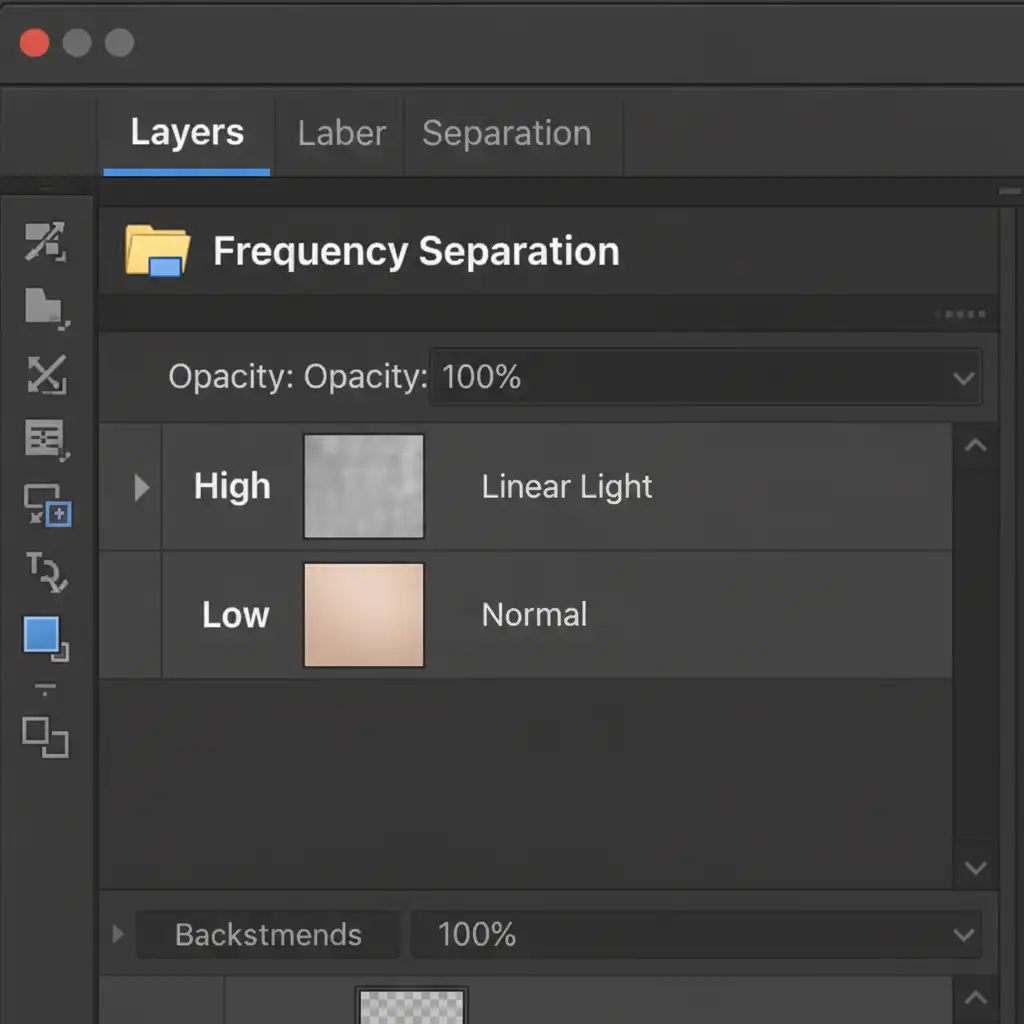
- Duplicate your base layer twice. Name the top layer “High” (for texture) and the middle layer “Low” (for color/tone). Group them into a folder.
- Hide the High layer and apply a Gaussian Blur to the Low layer until the harsh color gradients and reflections smooth out.
- Select the High layer, go to Image > Apply Image, and subtract the Low layer (settings vary based on 8-bit or 16-bit images). Change the High layer’s blend mode to Linear Light.
- Use the Healing Brush Tool on the High layer to remove dust and micro-scratches, or paint with a soft brush on the Low layer to completely rebuild the metallic gradient.
Stop Battling AI False-Positives
Dealing with a Generative Fill jewelry guidelines violation is a massive drain on productivity, especially when you are managing hundreds of e-commerce product photos. While expanding your marching ants or setting up Frequency Separation works, it takes time and technical expertise.
Tired of AI false-positives slowing down your high-volume jewelry editing? Outsource your post-production to the manual retouching experts at Image Work India or Cloud Retouch. Our dedicated team specializes in high-end, pixel-perfect commercial jewelry editing. We bypass the algorithmic hassle entirely, delivering flawless specular highlights, perfect color accuracy, and pristine metallic textures—on time, every time.
Focus on growing your photography business or e-commerce brand, and let us handle the pixels. Contact Image Work India today for a custom retouching quote!



