
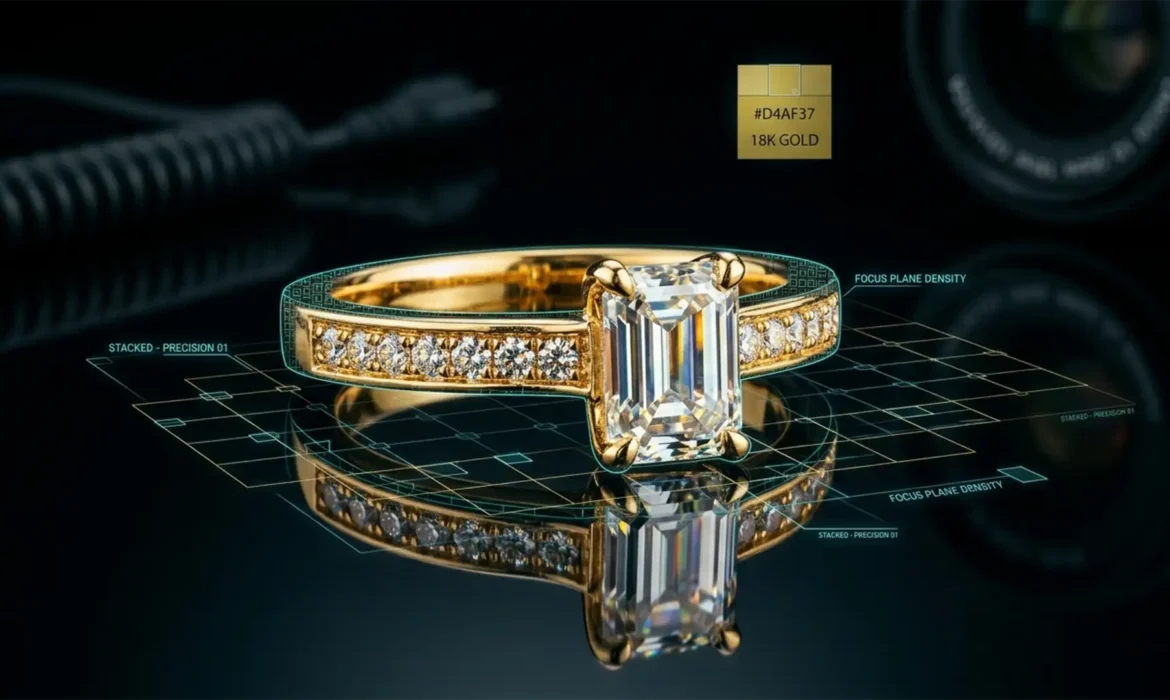
If you shoot commercial jewelry, you know the frustration. You meticulously capture 40 frames on your focus rail, load them into Photoshop 2024, and run the stacking algorithm—only to find blurry halos and ghosting around your diamond facets and metallic prongs. Dealing with focus stacking artifacts in jewelry photography 2024 is a massive pain point for commercial retouchers. This optical nightmare, caused by focus breathing changing your magnification slightly between frames, forces you into hours of tedious manual cloning that degrades the final image. Stop pixel peeping and wasting time. In this guide, we will show you exactly how to fix these soft edges and achieve pin-sharp macro photography results every single time.
Why Photoshop 2024 Struggles with Macro Jewelry Stacking
When shooting macro photography, achieving an infinite depth of field is physically impossible in a single frame. To compensate, photographers use a focus rail to take dozens of photos at varying focal points.
However, as you adjust the focus, the lens experiences focus breathing—a phenomenon where the actual magnification of the subject changes slightly. When you feed these images into Photoshop 2024 (v25.x), the alignment algorithm attempts to scale and warp the images to match. Around high-contrast edges, like the sharp cut of a diamond facet or the curved edge of a metallic prong, this scaling confuses the software. The result? Frustrating haloing and ghosting artifacts.
Fortunately, by combining optimized Auto-Blend parameters, RAW pre-processing, and advanced layer masking, you can completely eliminate these errors.
Step-by-Step Fixes for Jewelry Focus Stacking Artifacts
Method 1: The Quick Fix (Optimizing Auto-Blend Layers)
The most common mistake photographers make in Photoshop 2024 is leaving default settings checked during the blending process. The software’s generative AI features can actually hallucinate pixels around transparent edges if you aren’t careful.
- Select all of your aligned layers in the Layers panel.
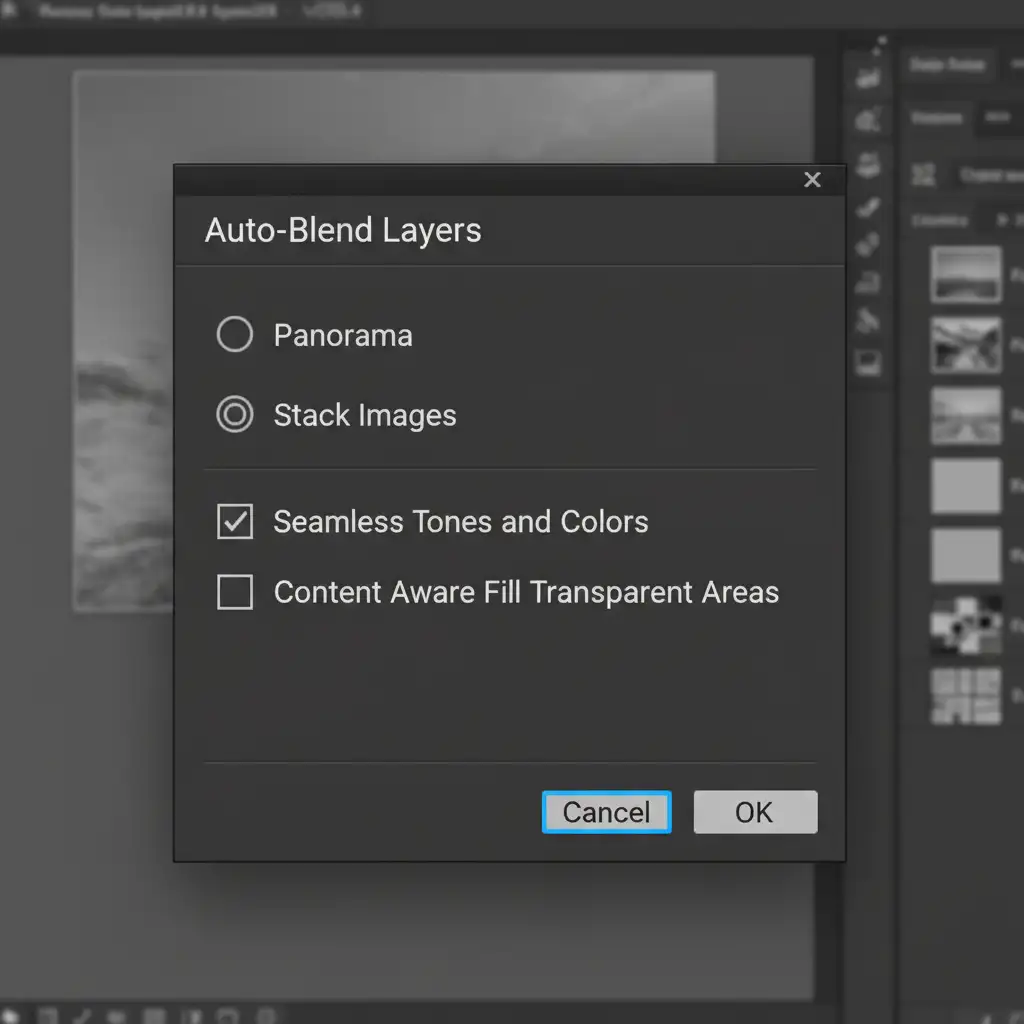
- Navigate to Edit > Auto-Blend Layers.
- Select Stack Images.
- CRITICAL: Ensure Seamless Tones and Colors are CHECKED.
- CRITICAL: Ensure Content Aware Fill Transparent Areas is UNCHECKED. Leaving this on forces Photoshop to guess edge details, which exacerbates ghosting around metallic prongs.
Method 2: The Technical Deep-Dive (RAW Pre-processing & GPU Acceleration)
Sometimes, the artifacts aren’t just caused by focus breathing, but by optical distortions and software bottlenecks.
Step A: Fix Chromatic Aberration in ACR
Before even bringing your images into Photoshop, open the RAW files in Adobe Camera Raw (ACR). Apply Lens Profile Corrections to all frames. This eliminates chromatic aberration (color fringing) and geometric distortion, giving the Auto-Blend algorithm much cleaner pixel data to work with.
Step B: Enable GPU Compositing
If Photoshop relies too heavily on your CPU, the alignment algorithm can fail to process dense pixel data accurately, leading to subtle alignment shifts.
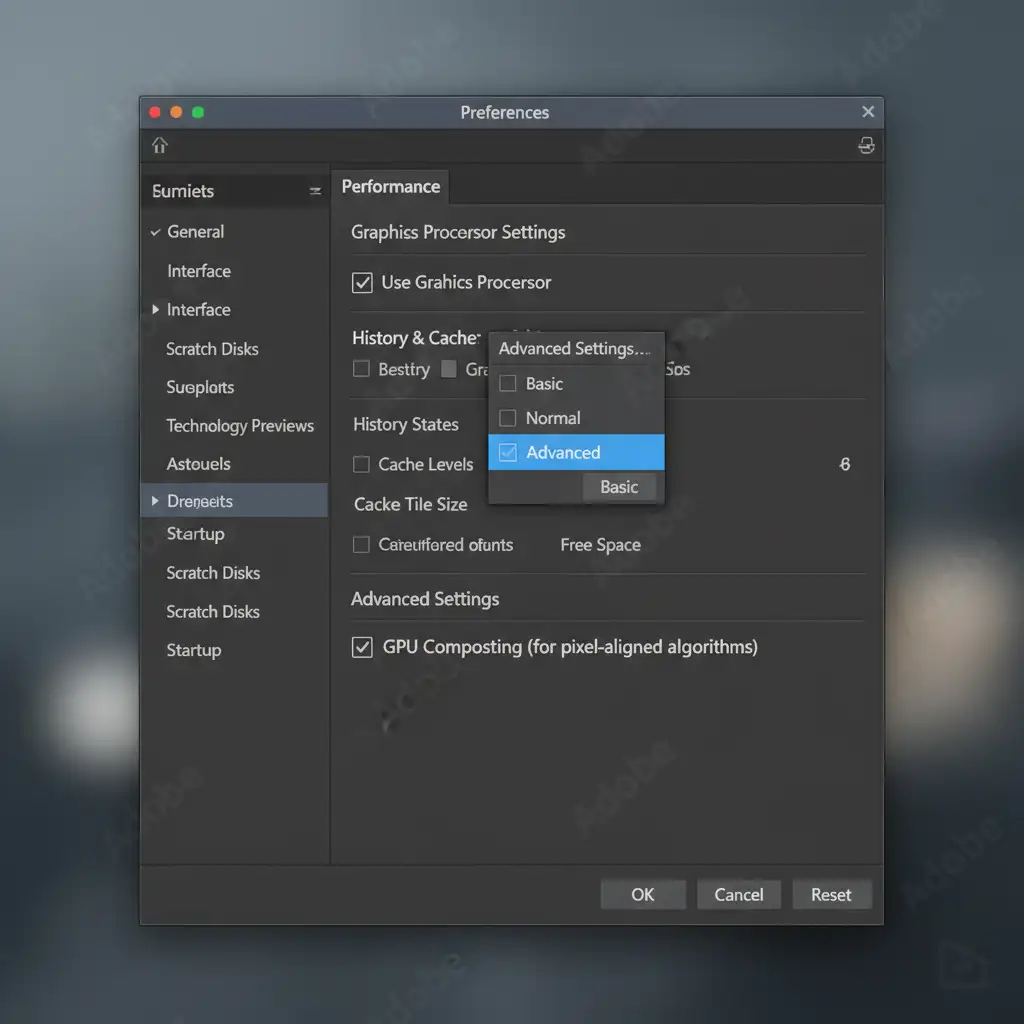
- Go to Edit > Preferences > Performance.
- Ensure Use Graphics Processor is enabled.
- Click on Advanced Settings and verify that GPU Compositing is checked. This forces hardware-level GPU acceleration for complex layer blending.
Method 3: The Pro Workaround (Manual Layer Masking)
Even with perfect settings, complex jewelry pieces may still exhibit minor haloing. The ultimate professional fix is to manually rescue the sharpest details using non-destructive layer masking.
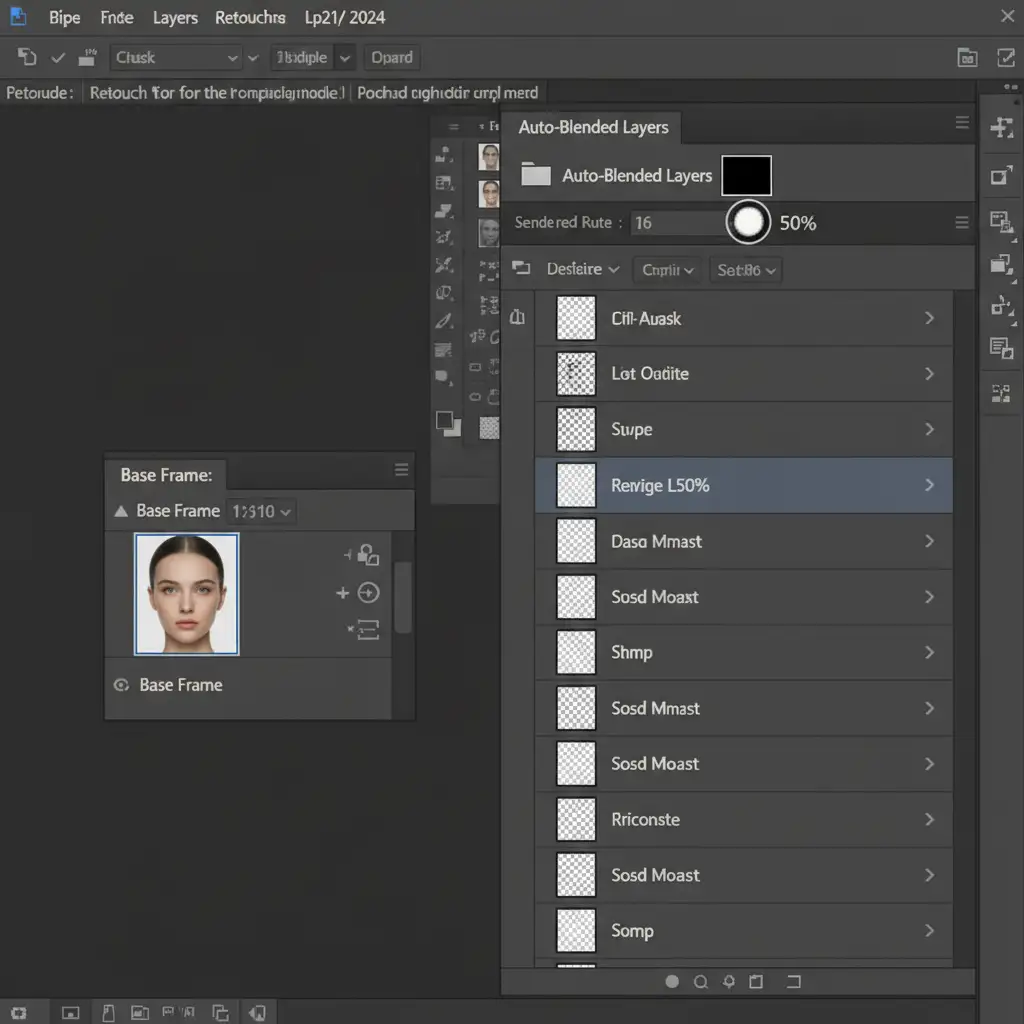
- Once your images are stacked, select all the auto-blended layers and group them (Ctrl/Cmd + G).
- Add a black layer mask to this new group to hide the blended result.
- Scroll through your original unblended frames and find the single base frame where the problematic area (e.g., the front diamond prong) is the absolute sharpest.
- Place this sharp base frame at the very bottom of your layer stack.
- Select the black layer mask on your blended group. Using a soft white brush set to 50 percent opacity, carefully paint back the sharpest details from the blended group only where the blend was successful, allowing the flawless, un-artifacted base frame to show through the problem areas.
Flawless Jewelry Retouching Without the Hassle
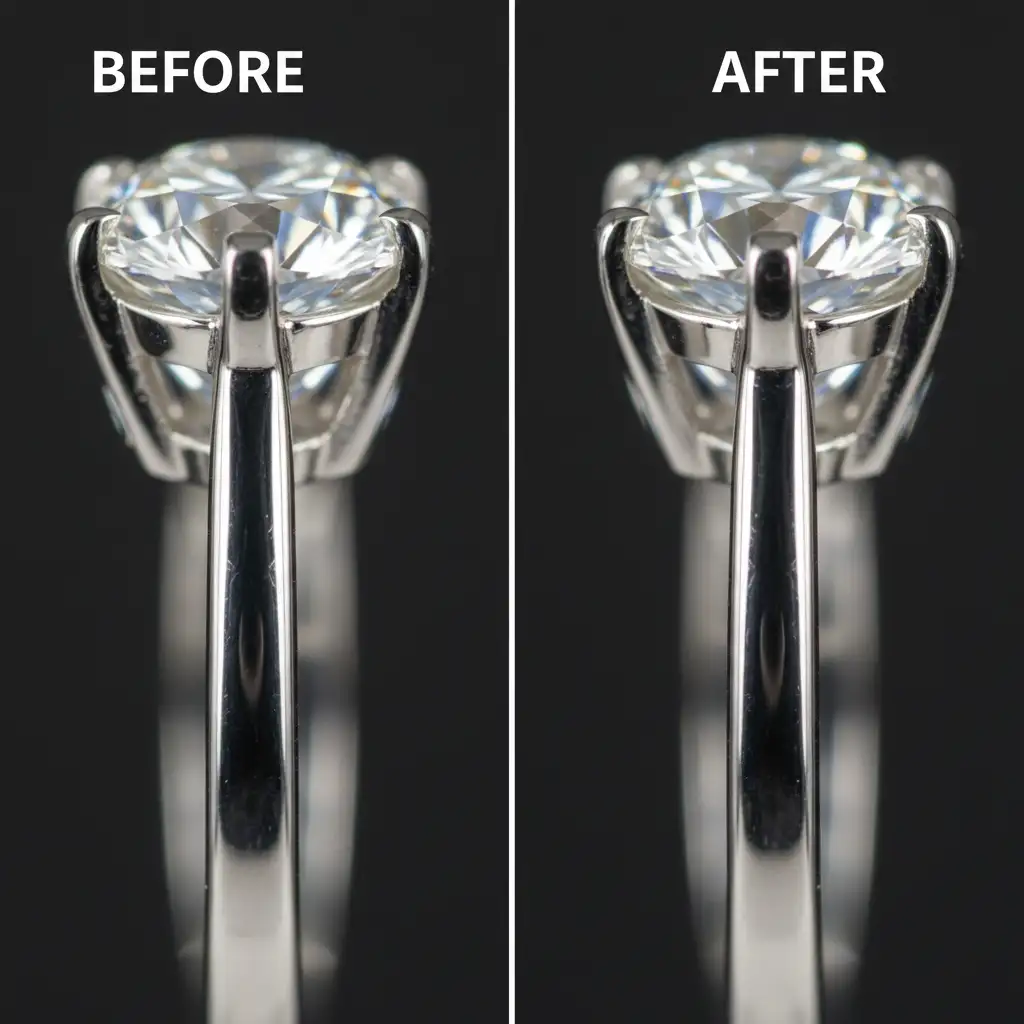
Mastering focus stacking artifacts in jewelry photography 2024 takes immense patience, technical skill, and hours of tedious manual labor. When you have a massive e-commerce catalog to process, spending 45 minutes masking a single ring simply isn’t scalable.
That’s where we come in. At Image Work India or Cloud Retouch, our team of professional retouchers specializes in high-end commercial jewelry editing. From flawless focus stacking and complex layer masking to color correction and diamond enhancement, we deliver pixel-perfect results that elevate your brand.
Stop fighting with Photoshop algorithms. Focus on shooting, and let us handle the retouching. Contact Image Work India and Cloud Retouch today for a free trial and see the difference professional retouching makes.



