
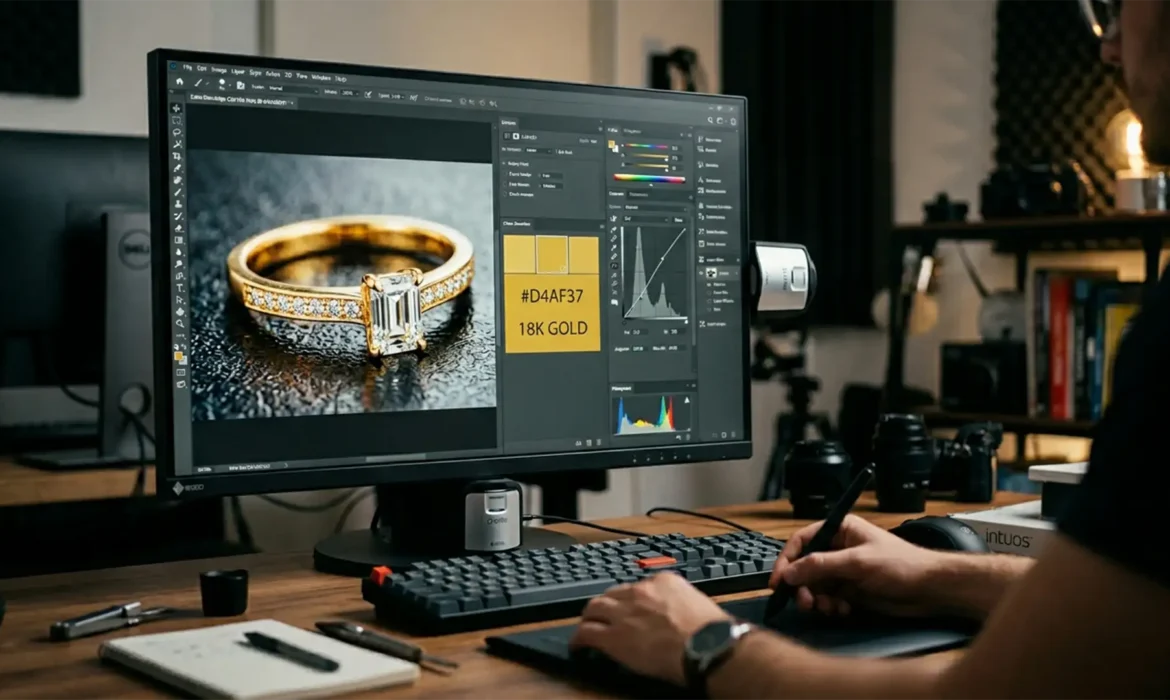
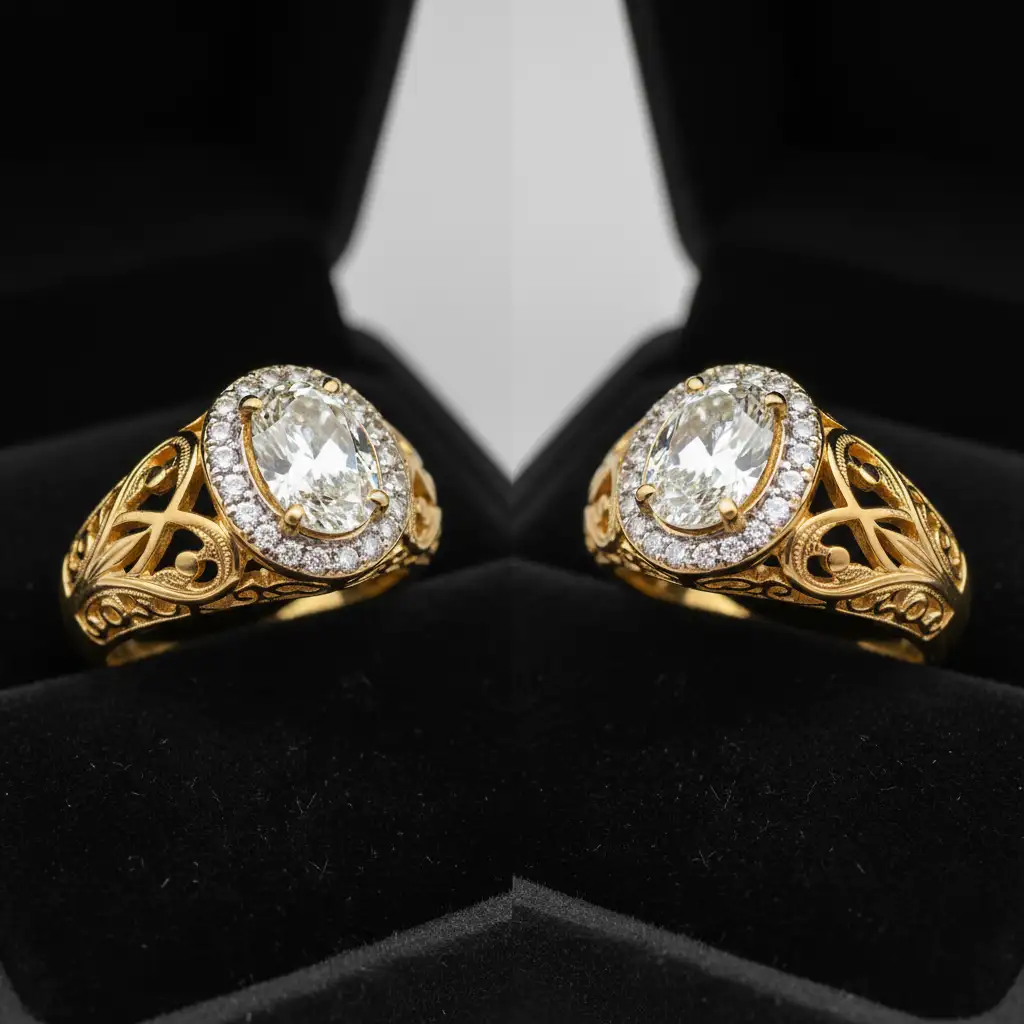
You have spent hours perfecting a high-end jewelry image, only to view the final export on a modern mobile device and realize your stunning 18k gold looks sickly green or brassy orange. It is a frustrating, conversion-killing problem. The culprit? Mismatched color management and gamut clipping.
Matching 18k gold color profiles for HDR (High Dynamic Range) workflows is notoriously difficult because 18k gold relies on highly specific reflectance values (typically HEX #E5C37A to #D4AF37). When these files are pushed to wider color gamut displays without proper HDR tone mapping, the colors break down.
In this technical guide, we will walk you through the exact settings and workflows required in Photoshop to stabilize your gold tones and guarantee absolute color accuracy across every screen.
Why 18k Gold Shifts Green on Modern Displays
The primary issue stems from how modern editing software (like Photoshop v24.x and v25.x) handles extreme highlights in an HDR workspace, such as Rec. 2100 PQ.
When you are retouching highly reflective surfaces like jewelry, the specular highlights on the gold easily exceed standard SDR (Standard Dynamic Range) limits. If your color profile is not perfectly mapped during export, wider screens like the Display P3 monitors found on modern smartphones will attempt to guess the color values. This results in gamut clipping. Because the red channel clips first in these intense highlights, the remaining color data skews heavily toward green and cyan, instantly ruining the luxurious feel of 18k gold.
To fix this, you must control the color space from the moment you open the file to the second you hit export.
How to Fix 18k Gold Color Shifts in Photoshop
Here are three proven methods to ensure your 18k gold retains its accurate, rich tone.
Method 1: The Quick Fix (Color Settings and Embedding)
The most common reason for color shifting is failing to embed the correct working space. If a mobile browser receives an un-profiled image, it assigns a default profile that almost always distorts yellows.
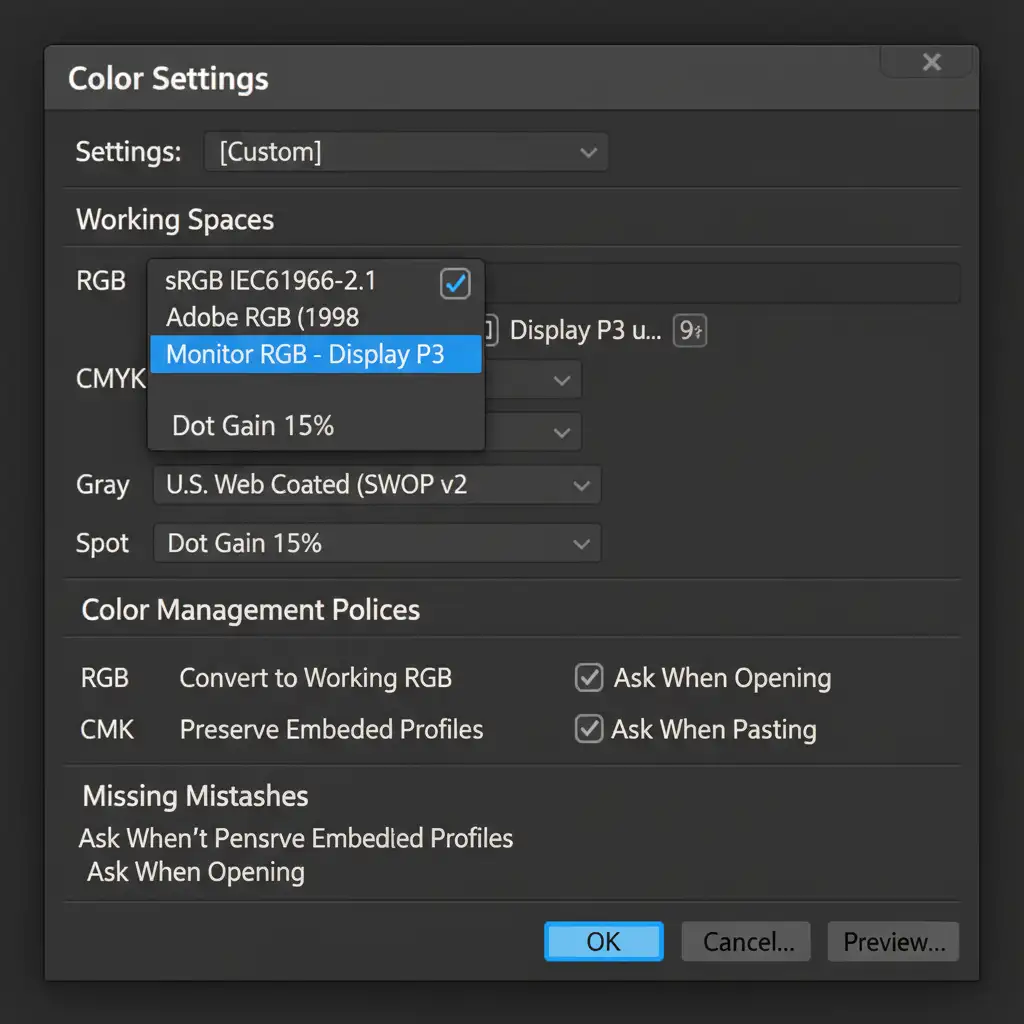
- Navigate to Edit > Color Settings.
- Under Working Spaces, set your RGB to Display P3 (or sRGB if your specific client requires standard web delivery).
- Under Color Management Policies, ensure Convert to Working RGB is checked.
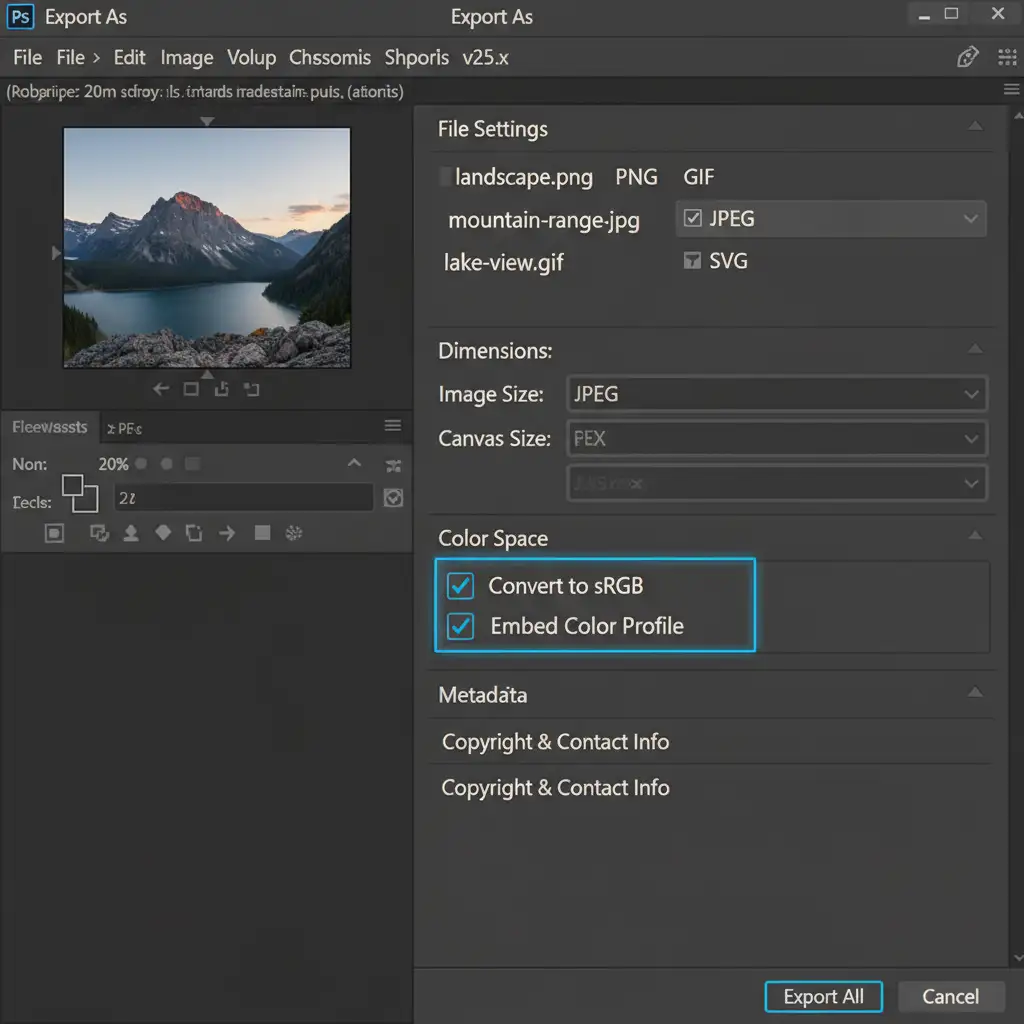
- When saving your final file, use File > Export As. You must check Embed Color Profile and Convert to sRGB (if delivering for standard web) to lock in those gold values.
Method 2: The Pro Workaround (Selective Color and LUTs)
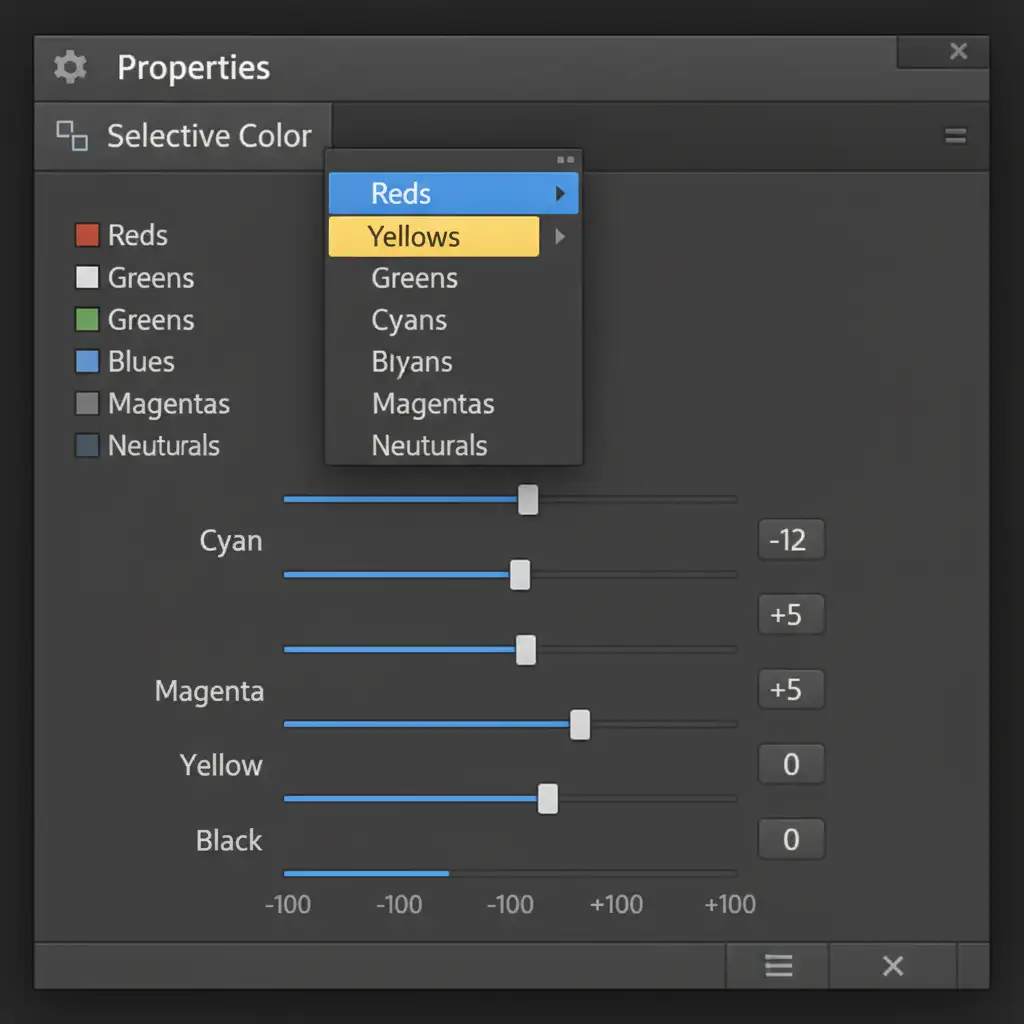
If your workflow requires aggressive HDR-to-SDR tone mapping, you need to manually counter the green shift using a Selective Color Adjustment Layer. This method stabilizes the specific hues of 18k gold.
- Add a Selective Color adjustment layer.
- In the Properties panel, target the Yellows channel.
- Decrease the Cyan slider to between -10 and -15.
- Boost the Magenta slider to +5.
- Apply similar, subtle tweaks to the Neutrals channel if the midtones feel brassy.
- Once perfected, export these adjustments as a custom Color Lookup Table (LUT). You can apply this LUT to all future jewelry batches to guarantee consistent 18k gold tones regardless of the display’s peak brightness.
Method 3: The Technical Deep-Dive (32-Bit HDR Toning)
For high-end commercial retouching, managing specular highlights requires a full 32-bit workflow. This prevents the red channel from clipping and preserves the exact luminosity of the metal.
- Convert your image by navigating to Image > Mode > 32 Bits/Channel.
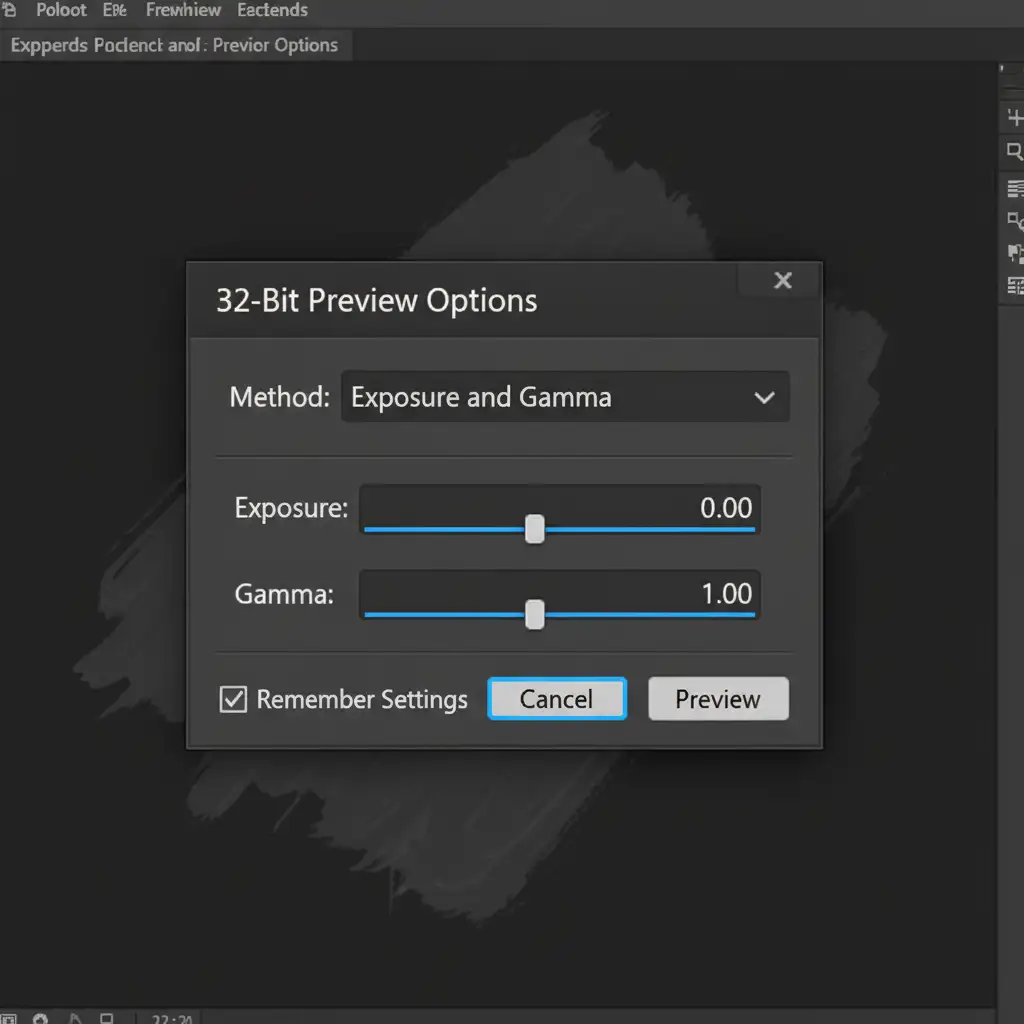
- Go to View > 32-Bit Preview Options. Here, you can manually set the correct exposure and gamma to view the file accurately on your monitor.
- When stepping back down to 16-bit or 8-bit for delivery, utilize Photoshop’s HDR Toning adjustments.
- Carefully compress the dynamic range, mapping the highlights safely into the Rec.709 or Display P3 gamut. This mathematical compression keeps the red channel intact, completely eliminating the green hue shift.
Stop Guessing Your Gold Tones
Managing color gamuts, building custom LUTs, and navigating 32-bit workflows takes time—time you could be spending shooting new campaigns or scaling your business. Matching 18k gold color profiles for HDR doesn’t have to be a trial-and-error process.
Struggling to get your jewelry colors to look identical across all devices? Outsource to the experts at Image Work India or Cloud Retouch. Our specialized retouching teams utilize strict, monitor-calibrated color management workflows to deliver pixel-perfect, color-accurate jewelry imagery every single time.
Contact us today to ensure your jewelry always looks its absolute best, no matter where your customers are shopping.



