
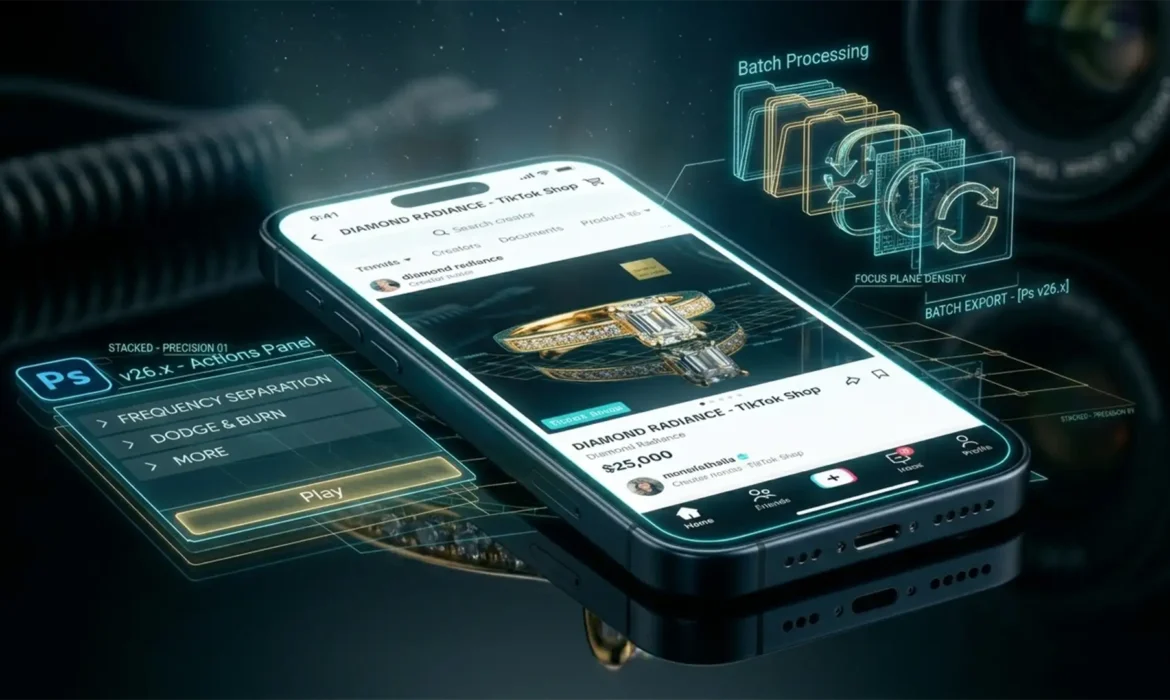
E-commerce moves fast, but TikTok Shop moves at the speed of light. If you sell rings, necklaces, or watches on the platform, you already know the algorithm rewards fresh, frequent listing updates. But here is the massive bottleneck: high-volume jewelry retouching. Manually removing dust, fixing harsh reflections, and color-correcting complex metal surfaces in Photoshop v25.x or v26.x can drain hours from your day. You need premium sparkle to stop the scroll, but you need automated speed to stay profitable. If manual macro photography editing is killing your time-to-market, it is time to build a rapid-fire retouching workflow.
Here is exactly how to balance speed and sparkle to dominate the TikTok Shop feed.
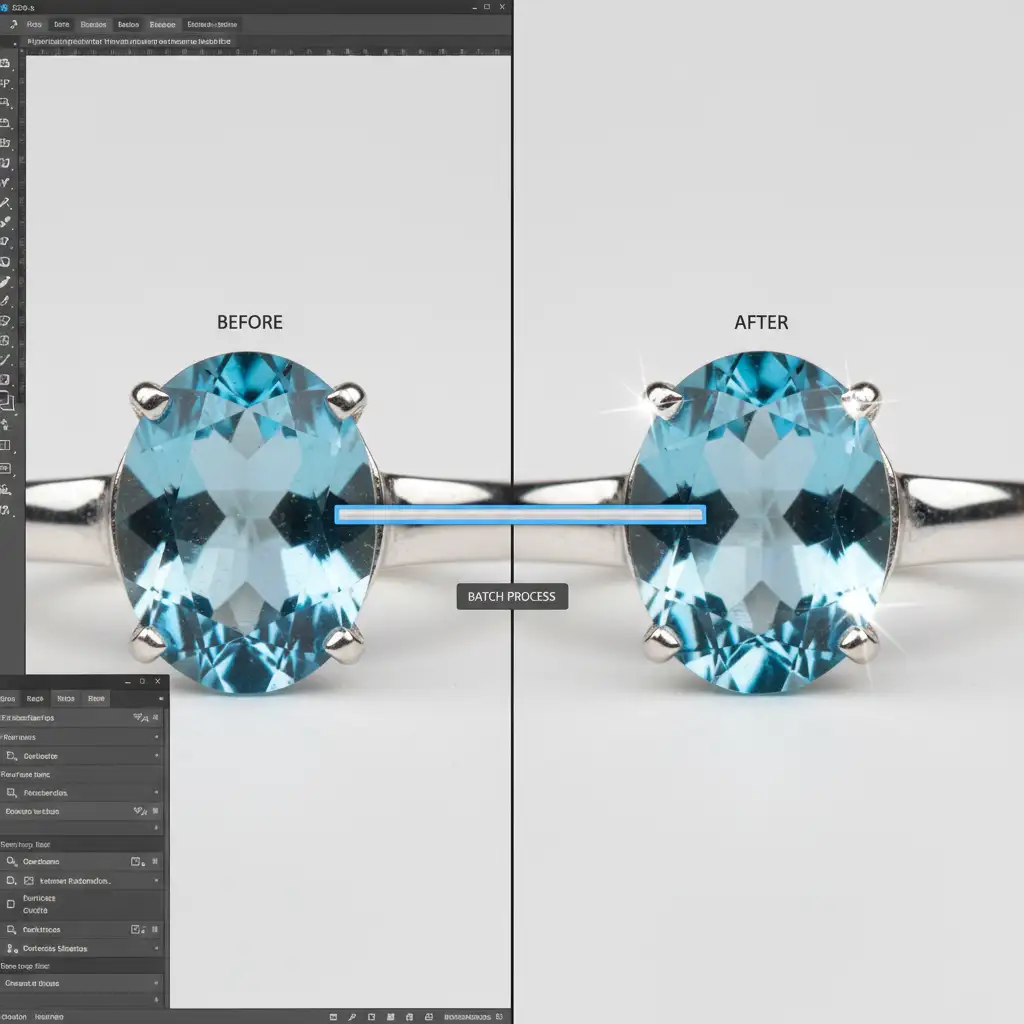
The TikTok Shop Dilemma: Speed vs. Sparkle
Jewelry is notoriously difficult to photograph and edit. Every curve of a metal band acts like a tiny mirror, capturing unwanted reflections. Gemstones require precise sharpening to look premium on small mobile screens.
When processing hundreds of SKUs for a seasonal TikTok drop, manual editing is not an option. You need a systematized approach that leverages Photoshop Actions and Batch processing to reduce your edit time per image from minutes to mere seconds.
Method 1: The Quick Fix – Mastering Photoshop Actions
The foundation of high-volume jewelry retouching is recording a master action that handles your baseline adjustments. Instead of tweaking every single image, let Photoshop do the heavy lifting.
Building Your Master Jewelry Action
- Open a representative jewelry image in Photoshop v26.x.
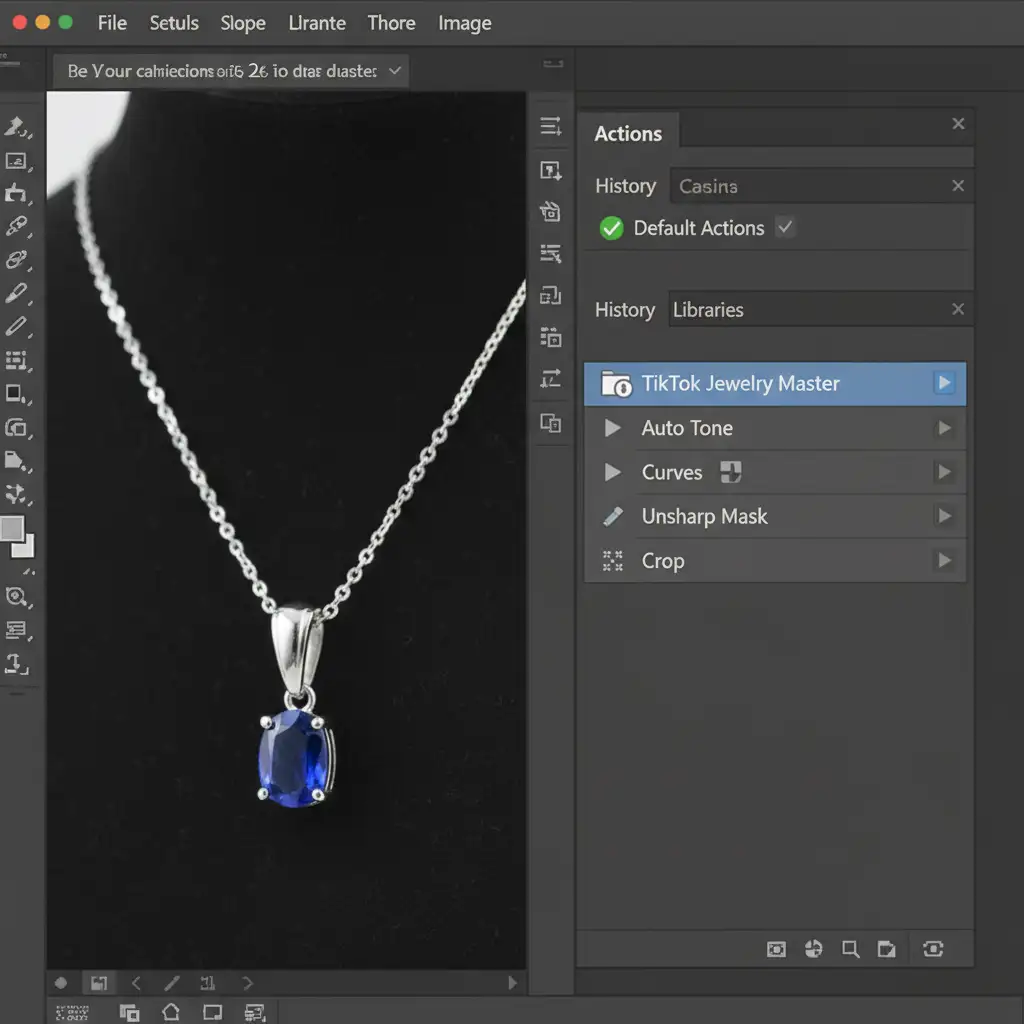
- Open the Actions Panel (Window > Actions) and create a new action named “TikTok Jewelry Master”.
- Auto Tone: Apply Image > Auto Tone to instantly fix basic white balance issues.
- Metal Contrast: Add a Curves adjustment layer. Create a subtle “S” curve to deepen the shadows on the metal while popping the highlights. This color grading step is crucial for making gold and silver look expensive.
- Gemstone Clarity: Apply an Unsharp Mask filter (Filter > Sharpen > Unsharp Mask). Set the Amount to 120%, Radius to 1.5px, and Threshold to 0. This gives diamonds and crystals the necessary crispness for mobile displays.
- Aspect Ratio: Crop the image to TikTok Shop’s preferred 1:1 (square) or 9:16 (vertical) ratios.
- Stop recording.
Method 2: The Pro Workaround – AI Dust Removal & Frequency Separation
Baseline exposure and cropping can be fully automated, but what about dust, scratches, and fingerprints? This is where sellers lose the most time.
Leveraging the Remove Tool
For quick fixes, utilize the AI-powered Remove Tool introduced in recent Photoshop updates. Create a blank layer above your image, select the Remove Tool, check “Sample All Layers”, and quickly brush over prominent dust spots.
Advanced Metal Cleanup: Frequency Separation
When dealing with deep scratches on smooth metal bands, standard cloning looks muddy. You need Frequency Separation.
- Create an action that duplicates your image twice.
- Blur the bottom layer (Color/Tone) and apply Image > Apply Image to the top layer (Texture).
- This isolates the color gradients from the physical scratches. You can now use the Clone Stamp on the texture layer to remove scratches rapidly without ruining the smooth metal gradient beneath it.
Method 3: The Technical Deep-Dive – Droplets & Batch Processing
Once your actions are recorded, it is time to scale. Applying an action one by one is still too slow for true high-volume jewelry retouching. You need to utilize Droplets and Batch processing.
Setting Up the Batch Dialog
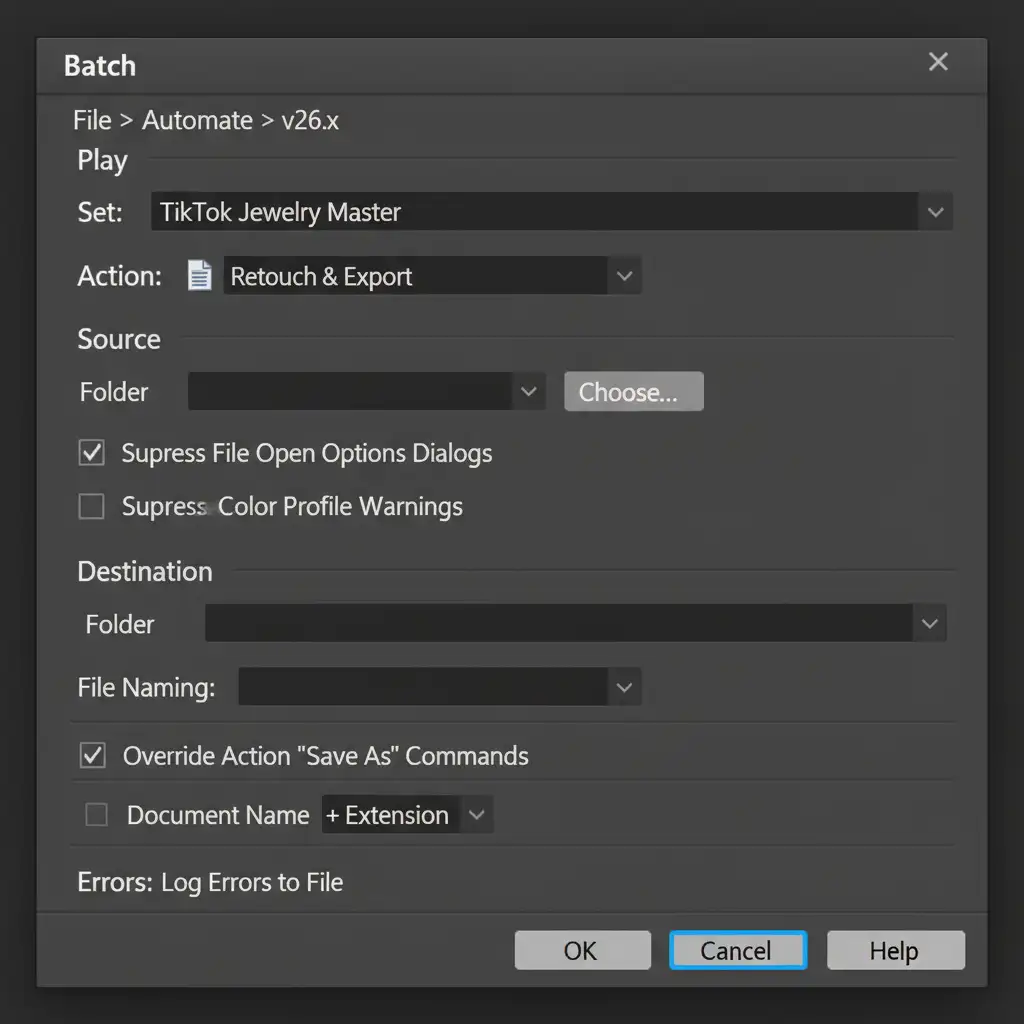
Navigate to File > Automate > Batch. This powerful tool allows you to point Photoshop to a folder of 500 raw jewelry photos, select your “TikTok Jewelry Master” action, and let the software process the entire folder while you step away from the desk.
Creating Drag-and-Drop Droplets
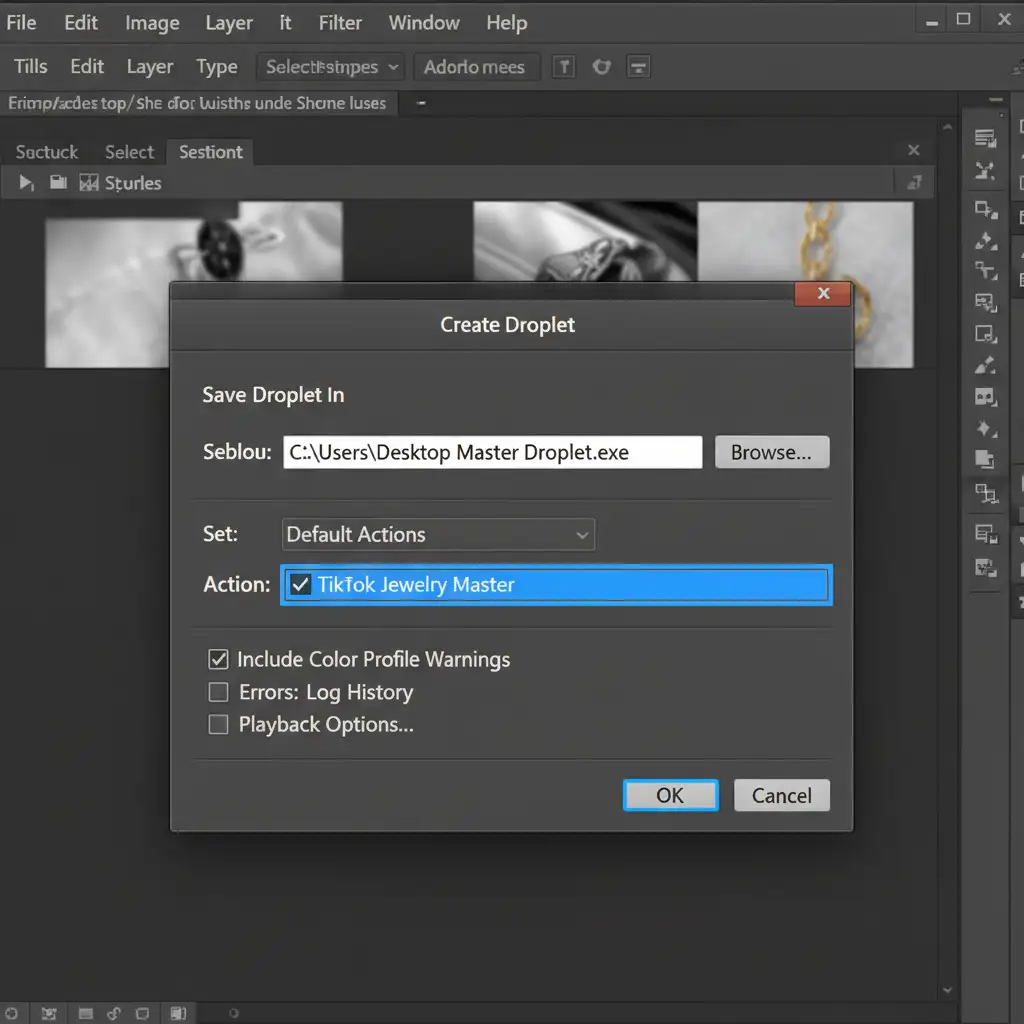
For the ultimate workflow hack, create a Droplet.
- Go to File > Automate > Create Droplet.
- Choose a save destination (like your Desktop) and name it “TikTok Jewelry Processor”.
- Select your master action.
- Set the destination to save as web-optimized JPEGs using the Image Processor Pro script (or standard save commands) to ensure fast load times for mobile shoppers.
Now, you have a standalone app icon on your desktop. Simply drag and drop a folder of raw jewelry images directly onto the Droplet icon, and Photoshop will launch and process them automatically in the background.
Scale Your TikTok Shop with Image Work India & Cloud Retouch
Mastering Batch processing, Frequency separation, and Droplets will drastically reduce your editing bottlenecks. However, even with an automated workflow, ensuring every clipping path is perfect and every gemstone sparkles flawlessly still requires a trained eye and dedicated time—time you could spend sourcing new products and scaling your TikTok Shop campaigns.
Struggling to keep up with TikTok Shop demands? You don’t have to do it alone. Let Image Work India or Cloud Retouch handle your high-volume jewelry retouching. Our expert teams specialize in premium, high-speed e-commerce editing, ensuring your products arrive market-ready, perfectly optimized, and guaranteed to stop the scroll.
Focus on scaling your sales; let us handle the sparkle. Contact Image Work India and Cloud Retouch today to streamline your visual content pipeline.



