
You’ve meticulously cut out your product image, set up your background, and double-clicked the layer to add that final touch of realism. But when you apply the effect, nothing happens. Your drop shadow is completely invisible. If you are desperately searching for a photoshop drop shadow invisible glitch fix, you are not alone.
Adobe Photoshop v25.5 has introduced a frustrating bug where shadows fail to render on the canvas despite being active in the Layer Style dialogue box. Whether this pain point stems from a corrupted cache, a GPU rendering conflict, or a stubborn global light setting, we have the exact technical steps to force your shadows back into existence so you can get back to work.
Why is My Drop Shadow Not Showing Up in Photoshop?
Before diving into the solutions, it helps to understand why this is happening. In Photoshop v25.x updates, rendering engines sometimes miscommunicate with your computer’s hardware. The most common culprits for an invisible drop shadow include:
- Conflicting Use Global Light Settings: The shadow angle is being pushed entirely off the canvas.
- Improper Blend Modes: Your shadow is set to Multiply on a pure black background, rendering it invisible.
- GPU Hardware Acceleration Bugs: Your graphics card driver is failing to render live Layer Styles.
- Corrupted Caching: Photoshop’s temporary memory is holding onto a blank visual state.
Here is how to troubleshoot and fix the issue, ranging from quick settings tweaks to deep-dive preference resets.
Method 1: The Quick Fix (Blend Modes & Global Light)
Often, the drop shadow isn’t broken; it’s just mathematically invisible due to layer settings or pushed out of frame by global lighting.
Step-by-Step Settings Check
1. Verify Your Blend Mode and Opacity
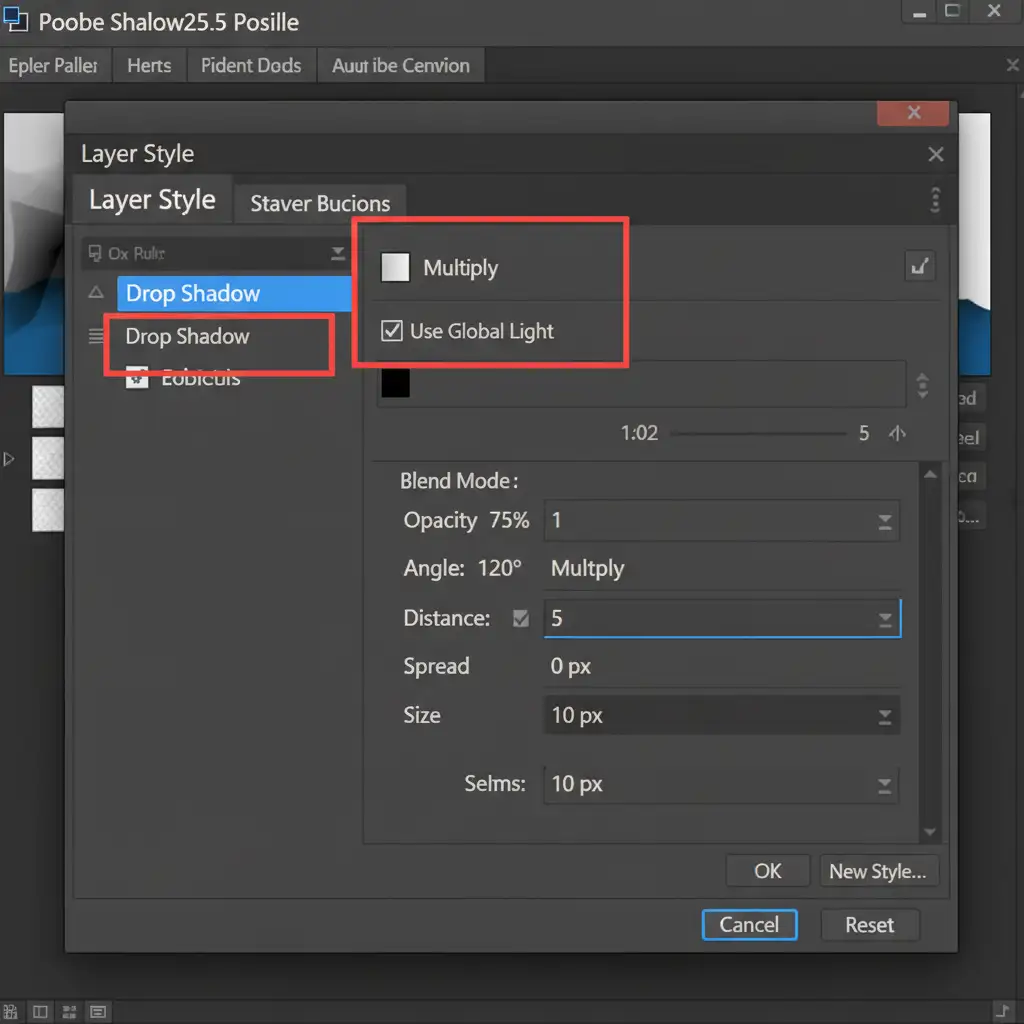
Double-click your target layer to open the Layer Style dialogue. Ensure your Blend Mode is set to Multiply. If your background is dark or black, a Multiply blend mode will make the shadow invisible. Change it to Normal temporarily to see if the shadow appears. Additionally, verify that your Opacity slider is set greater than 0%.
2. Disable Use Global Light
If your shadow is still missing, the global lighting angle might be pushing the shadow’s distance off your active canvas area. Uncheck the Use Global Light box. Manually adjust the angle and distance dials to bring the shadow back behind your subject.
Method 2: The Pro Workaround (Smart Objects & Manual Shadows)
If tweaking the Layer Style dialogue fails, you can force Photoshop to render the effect by encapsulating the layer data.
Step-by-Step Smart Object Conversion
1. Convert to Smart Object
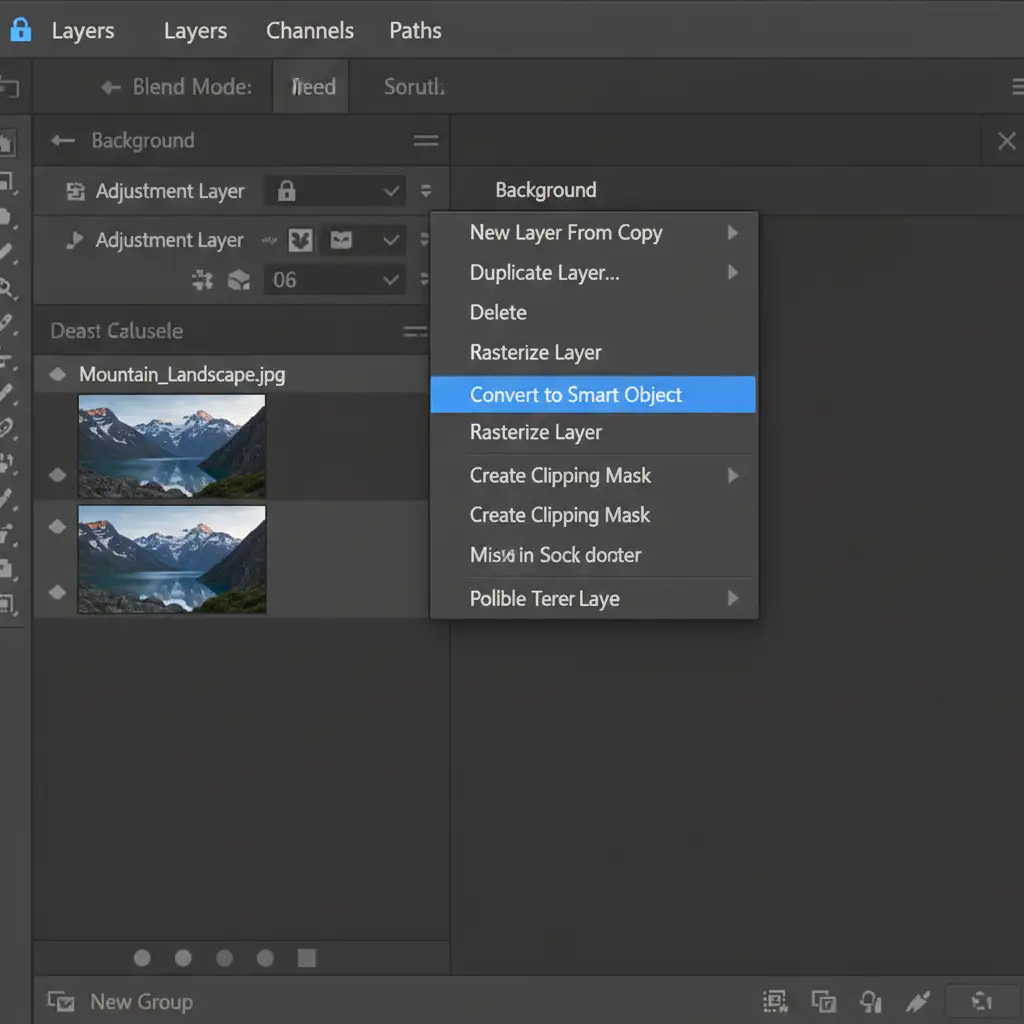
Right-click your problematic layer in the Layers Panel and select Convert to Smart Object. This packages your pixel data. Now, double-click the new Smart Object and apply your Drop Shadow. This often bypasses the v25.5 rendering glitch entirely.
2. The Manual Shadow Method
If the Layer Style engine is completely broken, build the shadow manually:
- Duplicate your subject layer.
- Select the bottom duplicate and fill it completely with black (or your desired shadow color).
- Go to Filter > Blur > Gaussian Blur and adjust the radius to soften the edges.
- Drop the layer opacity to 30-50% in the layers panel.
- Use the Transform tool (Ctrl/Cmd + T) to offset the shadow.
Method 3: The Technical Deep-Dive (GPU Acceleration & Cache Purge)
When Smart Objects and manual tweaks don’t work, the issue lies deeper within your system’s hardware communication or Photoshop’s memory.
Step-by-Step System Reset
1. Disable GPU Acceleration
Photoshop relies heavily on your graphics card to render live effects. A driver mismatch can cause invisible styles.
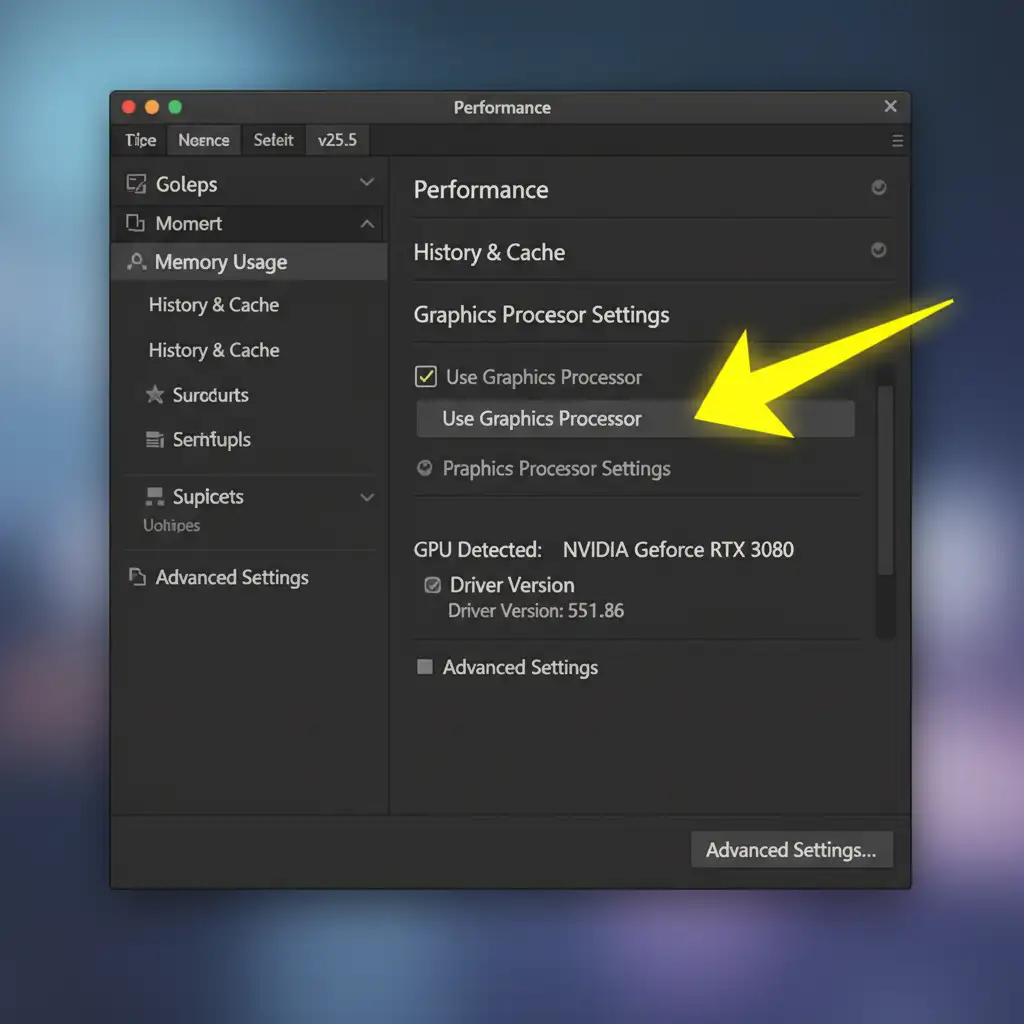
- Navigate to Edit > Preferences > Performance (Windows) or Photoshop > Settings > Performance (Mac).
- Under the Graphics Processor Settings section, uncheck Use Graphics Processor.
- Click OK and restart Photoshop. If your shadow appears upon restart, you need to update your graphics card drivers before re-enabling this feature.
2. Execute a Cache Purge
If Photoshop is holding onto a corrupted visual state, clearing the memory can force a refresh.
- Navigate to Edit > Purge > All.
- Click OK to clear your history states and clipboard.
- Note: This cannot be undone, so ensure you don’t need to step backward in your history panel before doing this.
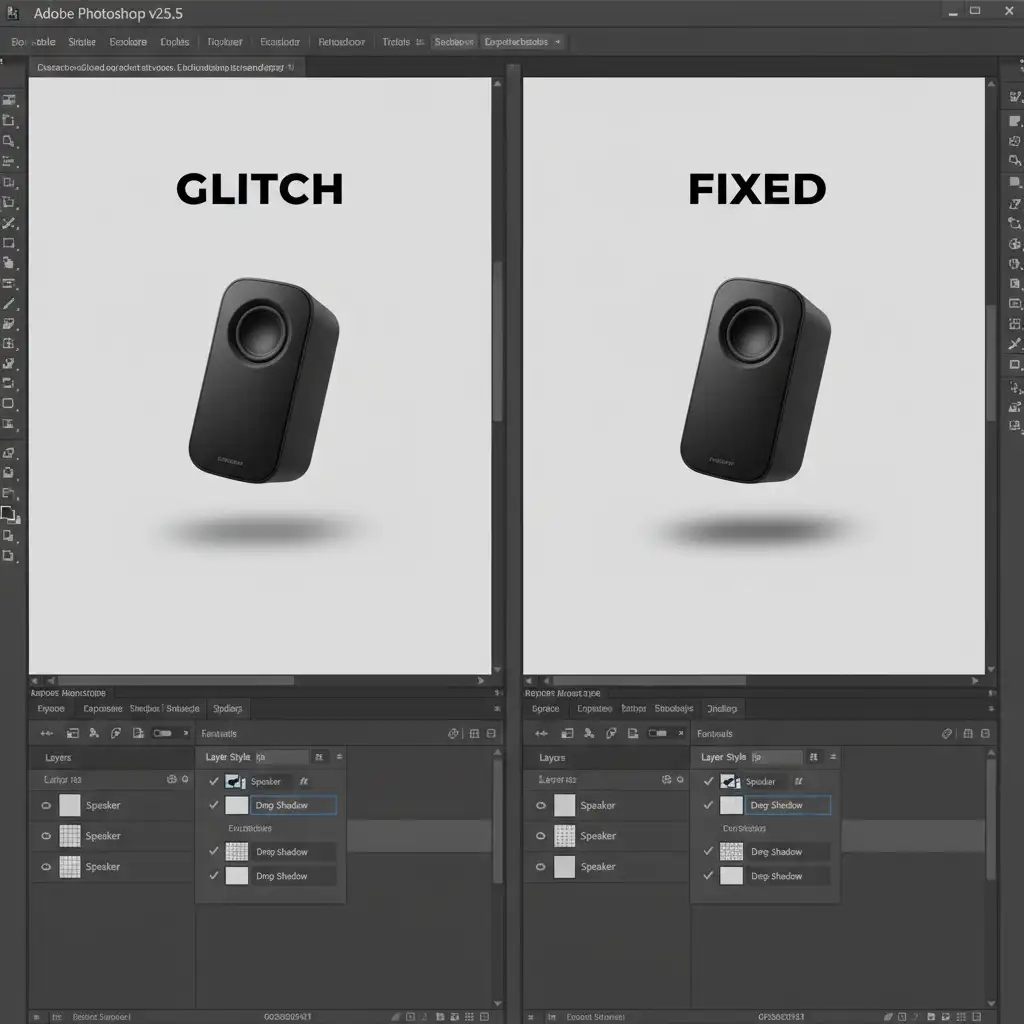
Before & After: The Fixed Drop Shadow
Once you’ve applied these fixes, your canvas should accurately reflect your Layer Style inputs.
Stop Fighting Photoshop Glitches—Let the Experts Handle Your Edits
Troubleshooting a photoshop drop shadow invisible glitch fix takes valuable time away from what you do best: growing your business. When you need pixel-perfect shadows for your e-commerce products, fashion catalogs, or commercial photography, you shouldn’t have to fight with software bugs, rasterize layers unnecessarily, or compromise on quality.
At Image Work India and Cloud Retouch, our team of professional photo editors handles the technical heavy lifting for you. From flawless natural drop shadows and reflection creation to complex clipping paths and high-end retouching, we deliver pristine, ready-to-publish images at scale.
Don’t let software glitches slow down your workflow. Contact Image Work India and Cloud Retouch today to get flawless, professional photo editing services tailored to your exact specifications.



