
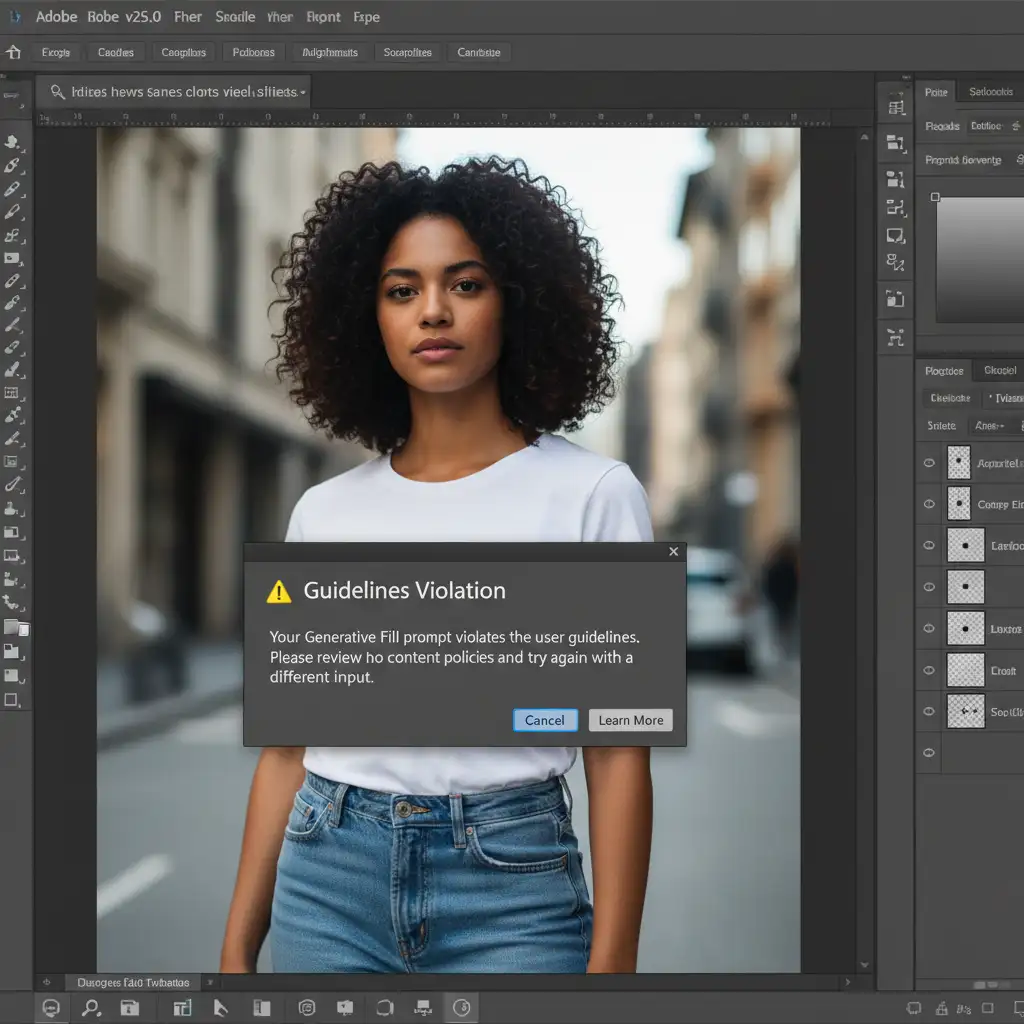
You are on a tight deadline, processing a batch of apparel photos. You isolate a model’s t-shirt in Photoshop 2024, type “change shirt to red” into the Generative Fill prompt, and hit enter. Instead of a seamless color change, you are hit with a frustrating roadblock: a Guidelines Violation error.
If Adobe Firefly is blocking your basic edits due to overactive safety filters, you are not alone. This is one of the most common pain points for designers using the latest Photoshop updates.
In this guide, we will break down exactly why this false positive occurs and provide three professional workflows to bypass the AI restrictions, ensuring your color changes work flawlessly every time.
Why Does Photoshop Flag Basic Color Changes?
In Adobe Photoshop v25.0 and later, the Adobe Firefly engine powers the Generative Fill feature. To maintain strict safety standards, Adobe implemented aggressive filters tied to their Content Credentials system.
When you ask the AI to “change” a garment on a human subject, the system often misinterprets the prompt. Because Generative Fill attempts to generate entirely new pixels rather than just applying a color blend, the AI’s safety filters worry that it might be generating inappropriate content or nudity. The result? A frustrating guidelines violation for a simple t-shirt color swap.
How to Fix the Photoshop Generative Fill Color Change Violation
Fortunately, you do not have to abandon AI entirely. By adjusting how you communicate with the software—or by utilizing traditional non-destructive techniques—you can easily bypass these restrictions.
Method 1: Prompt Engineering (The Quick Fix)
The most common trigger for a guidelines violation is the use of verbs. When you use command phrases like “change color to red” or “make this shirt blue,” the AI assumes it needs to fundamentally alter the subject.
The Fix: Use descriptive material nouns instead.
- Make your selection.
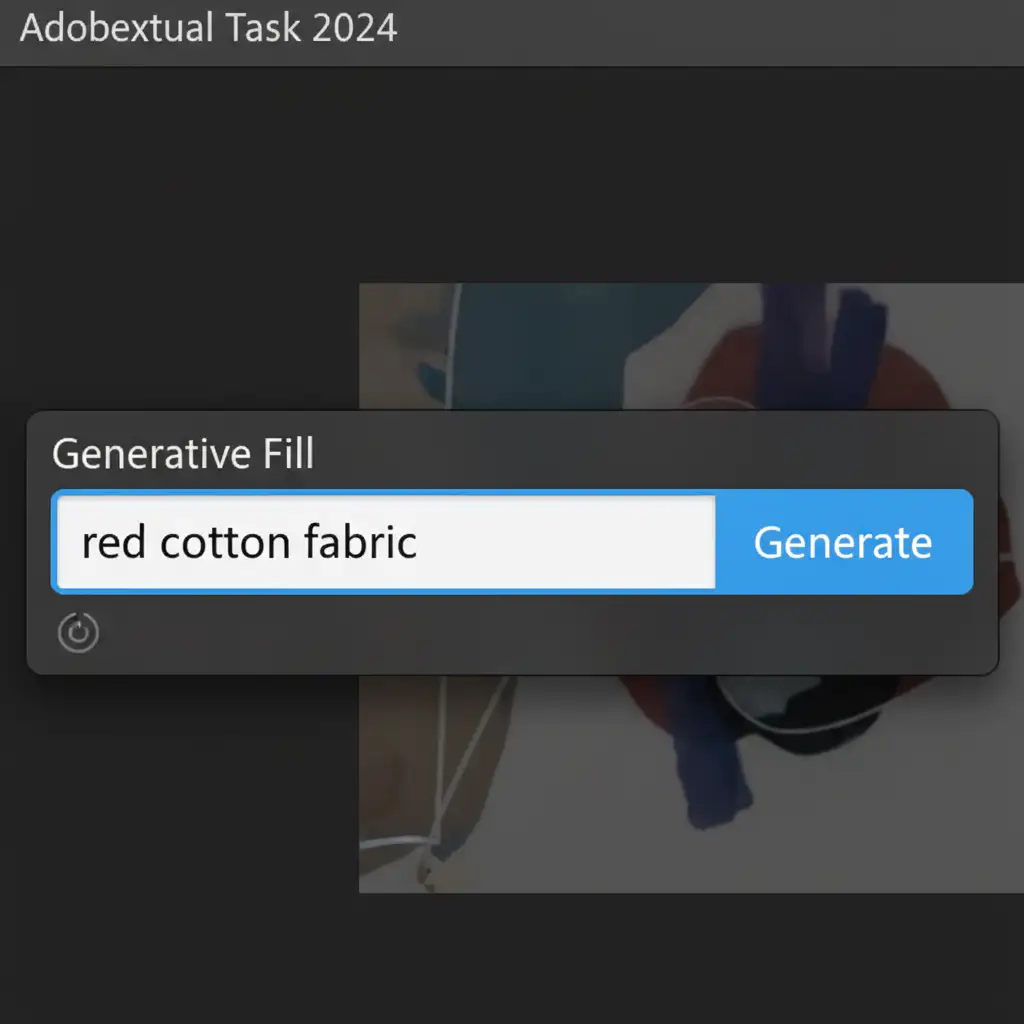
- In the Generative Fill text box, type: red cotton fabric or solid red t-shirt.
By avoiding verbs, you prevent the AI from overthinking the edit. It simply fills the selected area with the texture and color you requested without triggering the safety filters.
Method 2: The Generative Color Fill Layer (The Pro Workaround)
If you are doing a straightforward color swap, you should often bypass Generative Fill completely. AI is computationally heavy and unpredictable; traditional non-destructive masking is fast, accurate, and completely immune to AI guidelines violations.
The Fix:
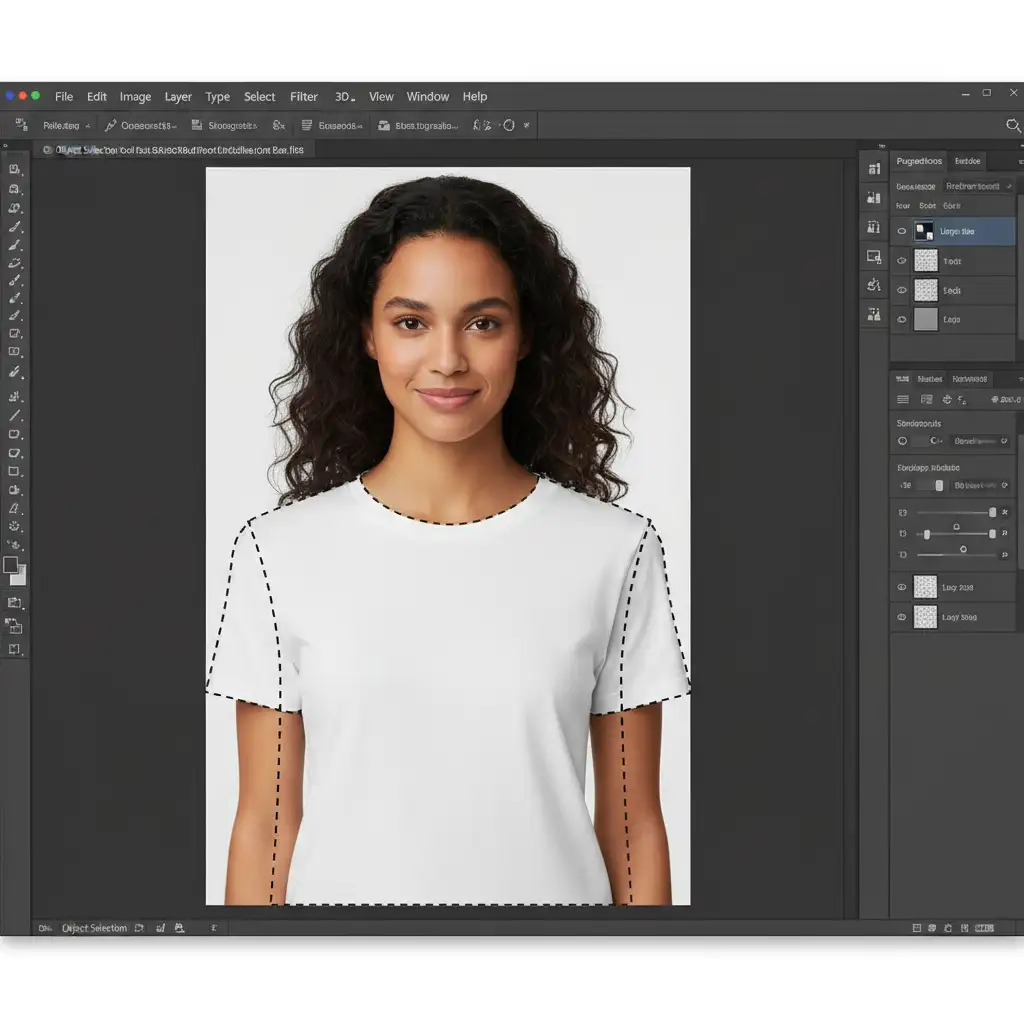
- Select the Object Selection Tool from your toolbar.
- Hover over the garment and click to isolate it. You should see the marching ants clearly wrapping around the clothing.
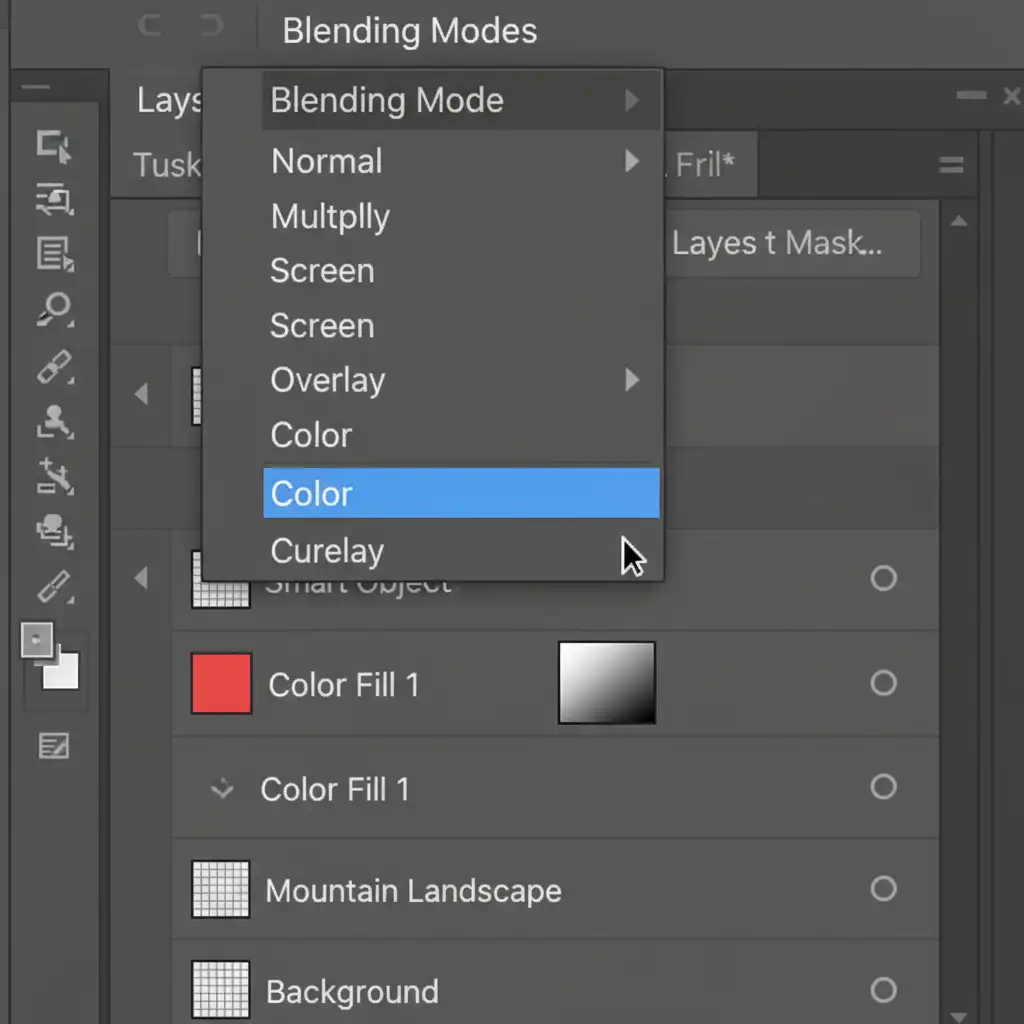
- Navigate to the Layers panel, click the New Fill or Adjustment Layer icon, and choose Solid Color.
- Pick your desired color (e.g., red) and click OK.
- Change the layer’s Blending Mode from ‘Normal’ to ‘Color’ or ‘Multiply’.
This method retains the original texture, highlights, and shadows of the garment without ever pinging Adobe’s servers.
Method 3: Selection Refinement (The Technical Deep-Dive)
If you must use Generative Fill and your noun-based prompts are still being flagged, the issue lies in your selection. The AI safety filters are hyper-sensitive to skin tones. If your selection overlaps even slightly with the model’s neck, arms, or hands, the system will flag the generation.
The Fix:
- Make your initial selection of the garment.
- Open the Select and Mask workspace.
- Look for the Shift Edge slider and contract the edge by -10% to -15% (roughly 1 to 2 pixels).
- Output the refined selection and run your Generative Fill prompt.
By pulling the selection strictly inside the boundaries of the clothing, you guarantee that no skin pixels are sent to the AI for generation, drastically reducing false positives.
Note: Always ensure your Adobe Creative Cloud desktop app is up to date. Adobe frequently patches overly aggressive filter triggers in minor version releases.
Stop Fighting AI—Let the Experts Handle Your E-Commerce Edits
While fixing a Photoshop Generative Fill color change violation is manageable for a single image, troubleshooting AI false positives across a catalog of 500 product photos will destroy your profit margins and deadlines.
Struggling with inconsistent AI edits for your e-commerce catalog? You don’t have to do it alone.
At Image Work India and Cloud Retouch, we specialize in flawless, bulk color correction and professional retouching that AI simply cannot match. Our expert retouchers deliver pixel-perfect color swaps, precise masking, and high-volume image editing tailored for global e-commerce brands.
Stop wrestling with guidelines violations. [Contact Image Work India and Cloud Retouch today] for a free trial, and let us scale your image production with professional precision.



