
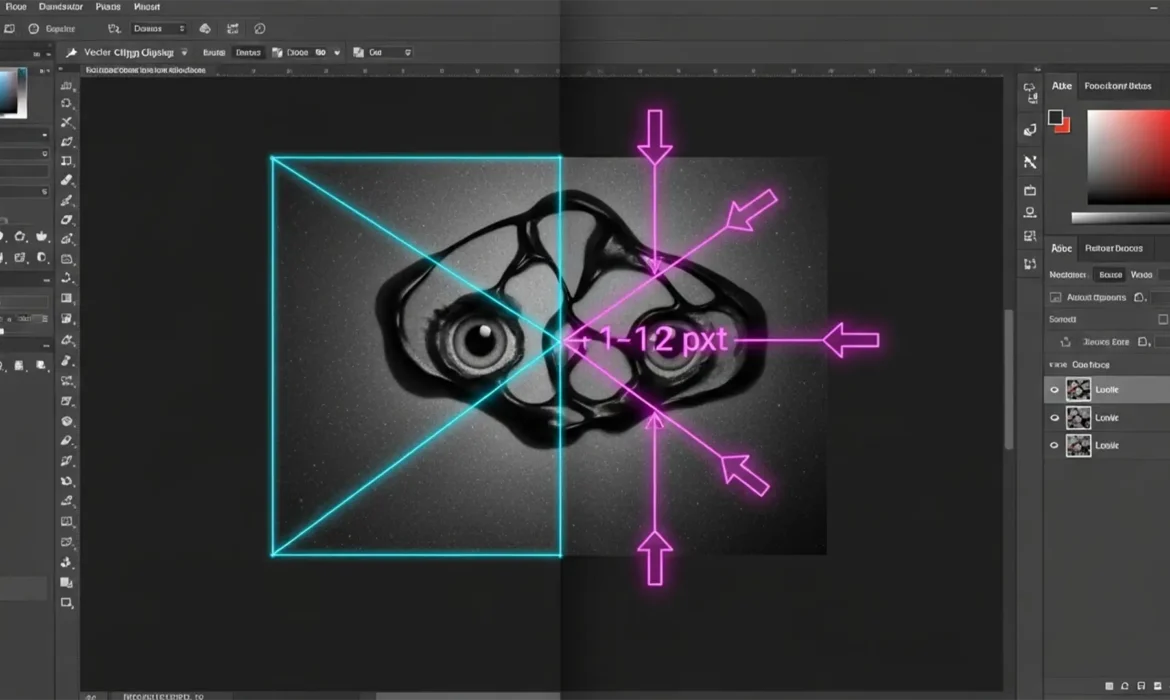
You spend hours perfecting a complex vector path in Illustrator, only to copy it into Photoshop and watch it shift by a maddening 1-2 pixels. This “Illustrator clipping path shifting in Photoshop” issue is a nightmare for designers, especially when working on pixel-perfect e-commerce catalogs or high-end retouching.
In Photoshop v26.x and v27.x (2024/2025), this coordinate shifting usually stems from how Illustrator calculates the mathematical bounding box versus Photoshop’s pixel grid rasterization. Stop pulling your hair out—whether you are dealing with fractional pixels or DPI mismatches, here are three proven, professional fixes to keep your vectors perfectly aligned.
Why Do Illustrator Paths Shift in Photoshop?
Before diving into the fixes, it helps to understand the underlying mechanics of both programs. Adobe Illustrator is a vector-based environment that relies on a mathematical Bounding Box to determine spatial coordinates. Photoshop, on the other hand, operates on a strict Pixel Grid.
When you copy a vector path from Illustrator and paste it into Photoshop, the software attempts to translate those mathematical coordinates into pixels. If your Illustrator Artboard Alignment contains fractional pixel dimensions (e.g., 1080.5 px instead of 1080 px), or if there is a mismatch in your PPI/DPI settings, Photoshop is forced to guess where the path should land. This results in the path shifting by 1-2 pixels, ruining your Vector Mask alignment and causing unwanted Anti-aliasing artifacts when you Rasterize the final image.
Here is how to solve the problem for good.
3 Proven Methods to Fix Illustrator Clipping Path Shifting in Photoshop
Method 1: The Quick Fix – Paste as a Smart Object
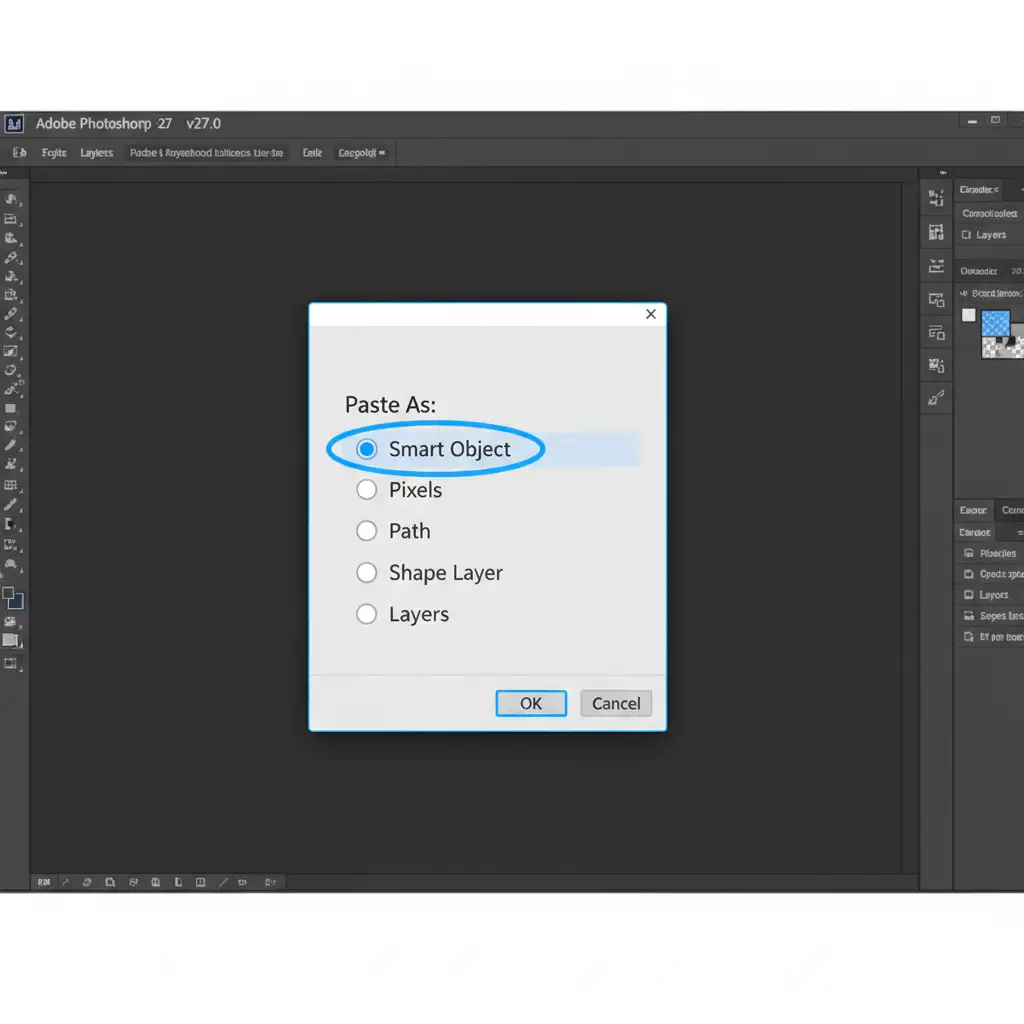
The fastest way to prevent coordinate shifting is to change how you import the data. Instead of pasting your vector as a Path or trying to Paste as Shape, use a Smart Object.
When you paste an Illustrator graphic as a Smart Object, Photoshop encapsulates the original vector data without immediately forcing it to conform to the local pixel grid.
Steps:
- Copy your clipping path in Illustrator (Ctrl/Cmd + C).
- Switch to Photoshop and Paste (Ctrl/Cmd + V).
- In the Paste dialog box, select Smart Object.
- If you need to tweak the path later, simply double-click the Smart Object thumbnail in the Layers panel to edit the perfectly retained coordinates directly in Illustrator.
Method 2: The Pro Workaround – Add an Invisible Bounding Box
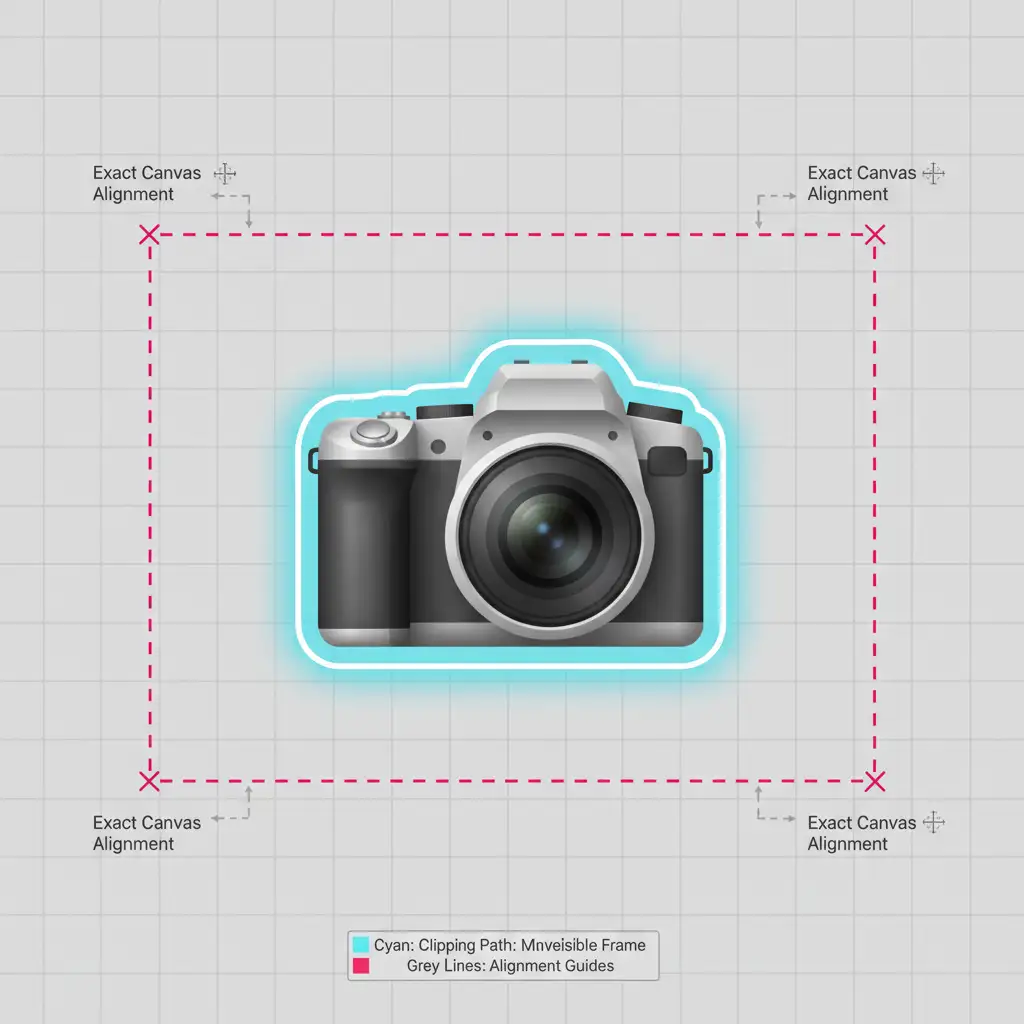
If you absolutely must paste your vector as a standard Path (for example, to create a traditional clipping path for EPS export), the invisible bounding box method is the industry standard for guaranteed alignment.
Because Photoshop centers pasted clipboard elements based on the edges of the copied object, a smaller path will paste into the dead center of the Photoshop canvas, losing its original X/Y placement. By creating an invisible frame that matches your canvas size, you force Photoshop to align the corners perfectly.
Steps:
- In Illustrator, select the Rectangle Tool (M).
- Draw a rectangle that exactly matches the dimensions of your Artboard (e.g., 2000px by 2000px).
- Set the rectangle’s Fill and Stroke to “None” (invisible).
- Select both your invisible rectangle and your clipping path, group them (Ctrl/Cmd + G), and copy.
- Paste into Photoshop. The invisible frame forces exact corner-to-corner alignment, eliminating random path shifts.
Method 3: The Technical Deep-Dive – Align to Pixel Grid and Clipboard Preferences
If you are still experiencing micro-shifts (sub-pixel rendering issues), your Illustrator file likely contains fractional coordinates or misconfigured clipboard settings.
Fixing Fractional Coordinates:
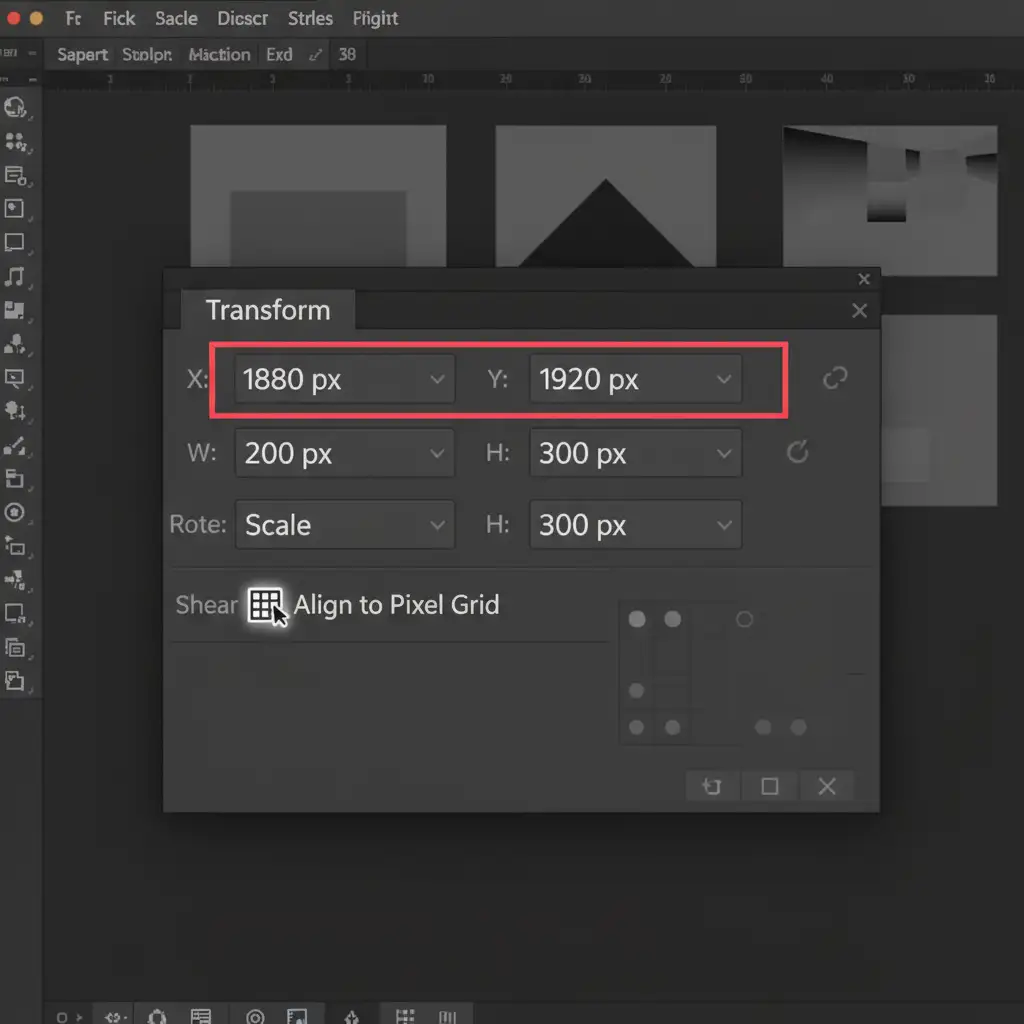
- In Illustrator, open the Transform panel (Window > Transform).
- Select your path and check the X and Y coordinate values.
- If you see decimals (e.g., X: 450.34 px), your path is off the pixel grid.
- Enable Snap to Pixel (View > Snap to Pixel) and manually adjust your X/Y coordinates and Artboard dimensions to whole numbers.
Fixing Clipboard Preferences: Sometimes, the way Illustrator packages data for the system clipboard causes translation errors in Photoshop.
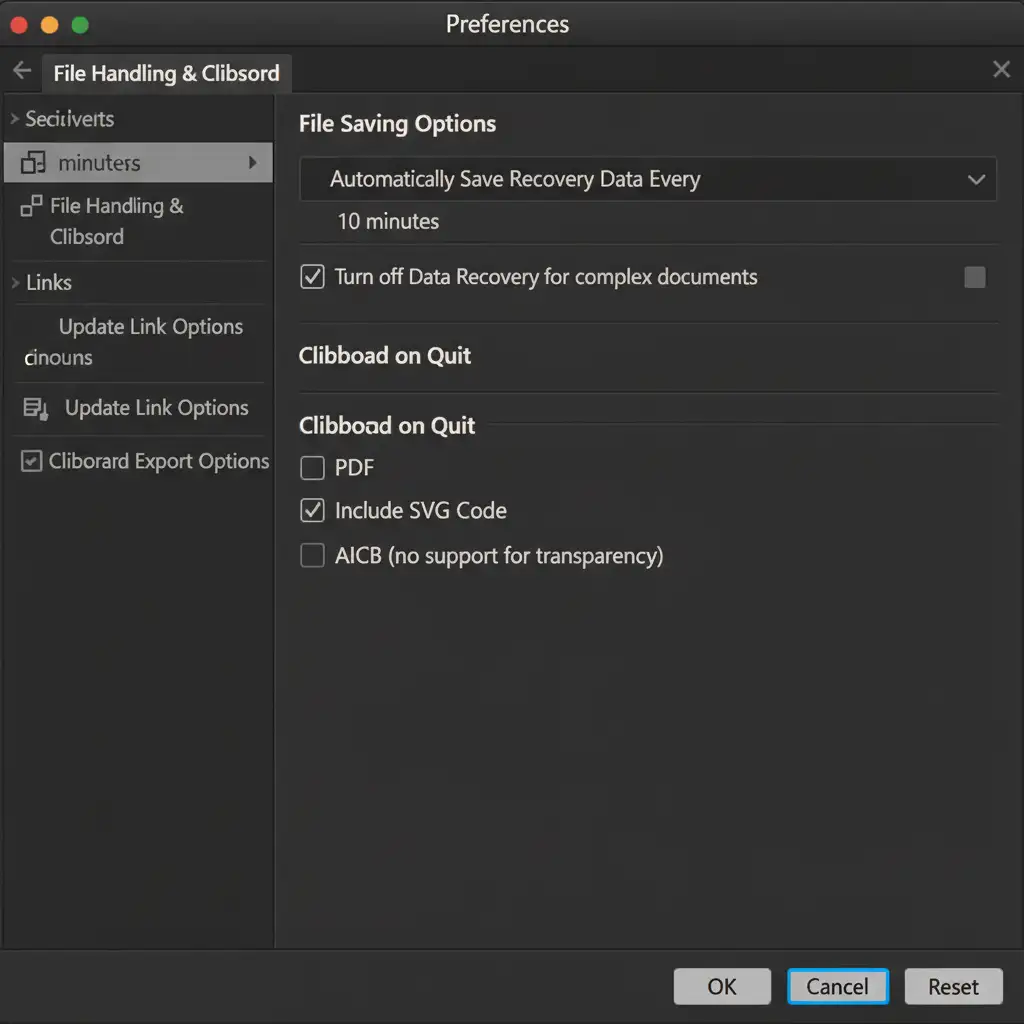
- Navigate to Edit > Preferences > File Handling & Clipboard (Windows) or Illustrator > Settings > File Handling & Clipboard (Mac).
- Under the Clipboard section, ensure that both Include SVG Code and PDF are checked.
- Finally, ensure the document you are pasting into in Photoshop matches the exact PPI/DPI (e.g., 300 PPI) and document dimensions of your Illustrator file.
When Precision Matters: Let the Experts Handle Your Clipping Paths
Dealing with an Illustrator clipping path shifting in Photoshop is frustrating when you are working on a single image, but it becomes a massive bottleneck when processing high-volume e-commerce catalogs. If fractional pixels, bounding box errors, and alignment issues are slowing down your production pipeline, it is time to outsource the heavy lifting.
At Image Work India and Cloud Retouch, our expert post-production teams specialize in flawless, pixel-perfect clipping paths, complex vector masks, and high-end retouching. We ensure absolute precision on every single file, so you never have to worry about shifting paths or misaligned edges again.
Need flawless image editing at scale? Contact Image Work India and Cloud Retouch today, and let us streamline your workflow with industry-leading precision.



