
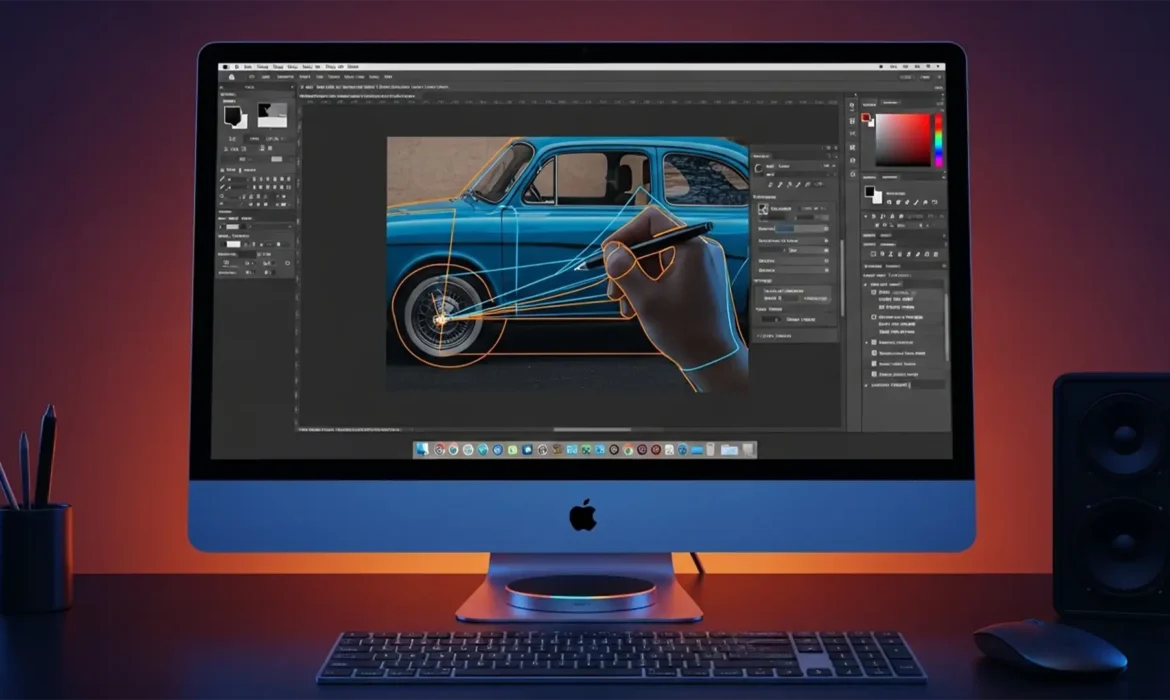
You just updated your Mac, opened Photoshop v25.12, and suddenly your workflow has ground to a halt. Every time you try to draw a precise clipping path, the Pen Tool drags, stutters, and tears across the screen. You place an anchor point, but the visual feedback is delayed by a frustrating fraction of a second.
If you are experiencing this severe input lag, you aren’t alone. This stuttering issue is a known conflict between Adobe’s rendering engine and Apple’s latest OS update. In this guide, we will walk you through the exact Photoshop v25.12 pen tool lag fix macOS Sequoia users need to restore smooth, real-time performance.
Why is the Pen Tool Lagging in Photoshop v25.12?
The root cause of this frustrating lag lies deep within the software’s rendering pipeline. Research into Photoshop v25.12 running on macOS Sequoia reveals a desynchronization between Adobe’s updated GPU acceleration protocols and Apple’s new Metal API implementation.
When you draw a clipping path, the path rendering engine communicates with your hardware to update anchor point placements in real-time. However, the current Metal API integration struggles to process these rapid vector updates efficiently on high-resolution canvases. The result? Visual tearing, missed clicks, and severe input lag that makes professional masking nearly impossible. (Note: This is distinct from older OpenCL rendering issues and requires specific macOS Sequoia workarounds).
Fortunately, you can bypass this communication error by adjusting a few hidden settings.
How to Fix Pen Tool Stutter (3 Proven Methods)
Method 1: The Quick Fix (Disable UI Overlays)
The fastest way to reduce visual tearing is to minimize the rendering overhead on your canvas. UI overlays like rulers and grid snapping force Photoshop to constantly calculate pixel distances while you use the Pen Tool.
- Open your document in Photoshop.
- Press Cmd+R to hide your Rulers (if they are visible).
- Navigate to the top menu bar, click View, and uncheck Snap.
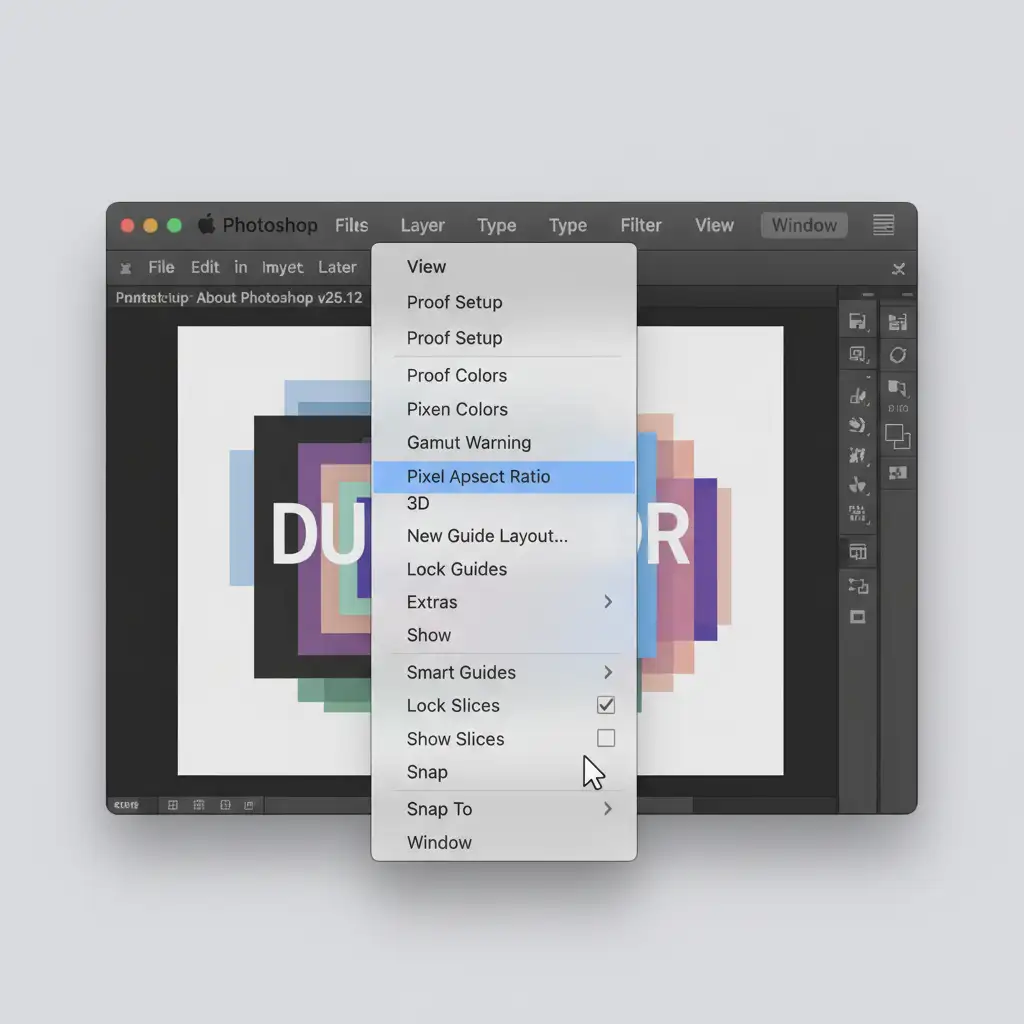
Method 2: The Pro Workaround (Deactivate Native Canvas)
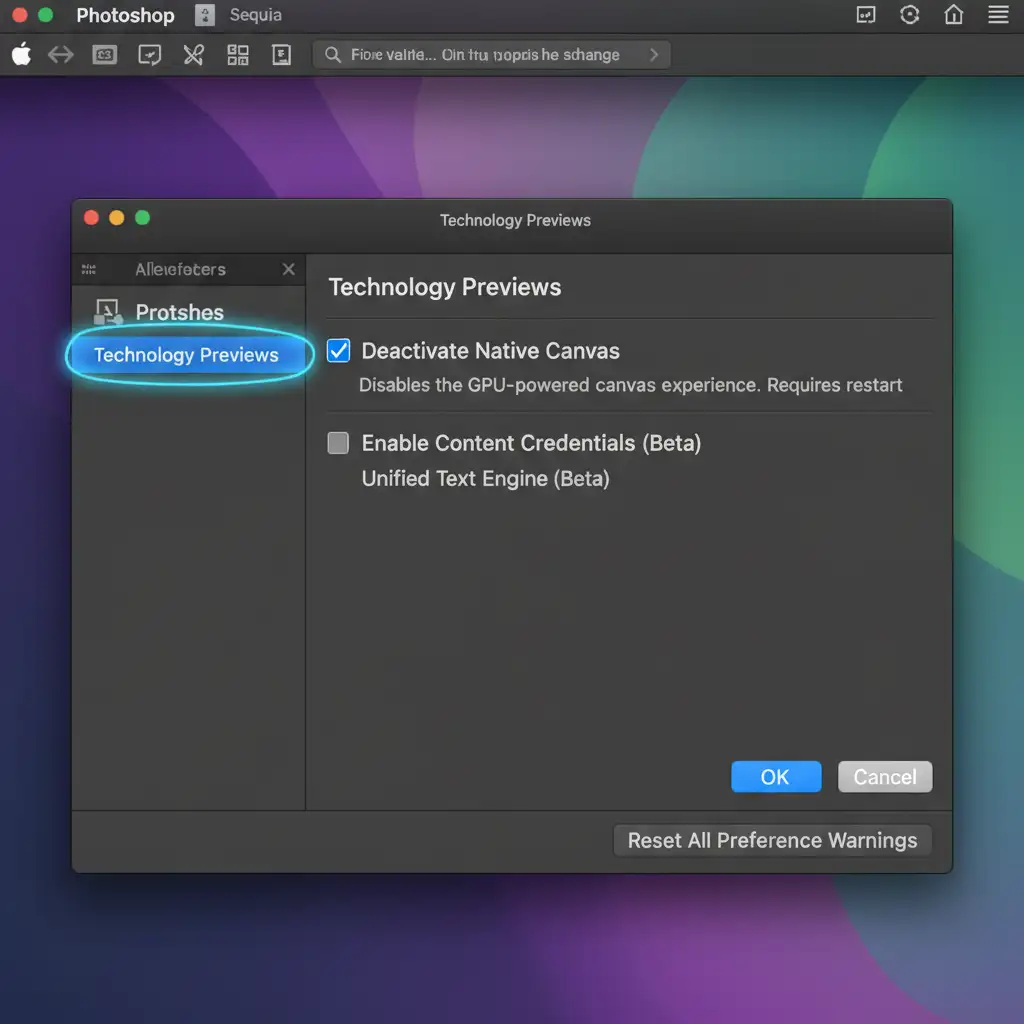
If disabling snapping doesn’t fully resolve the anchor point delay, you need to force Photoshop to use its legacy path rendering system. The “Native Canvas” feature is designed to modernize canvas rendering, but it is the primary culprit behind the Metal API conflict in Sequoia.
- Go to Photoshop > Settings > Technology Previews (or Preferences > Technology Previews).
- Locate the option labeled Deactivate Native Canvas.
- Check the box to enable this deactivation.
- Restart Photoshop completely for the changes to take effect.
Method 3: The Technical Deep-Dive (Optimize GPU and Cache)
For high-volume editors working on massive, multi-layered files, you must optimize your cache levels and history states to prevent the RAM from bottlenecking the GPU acceleration.
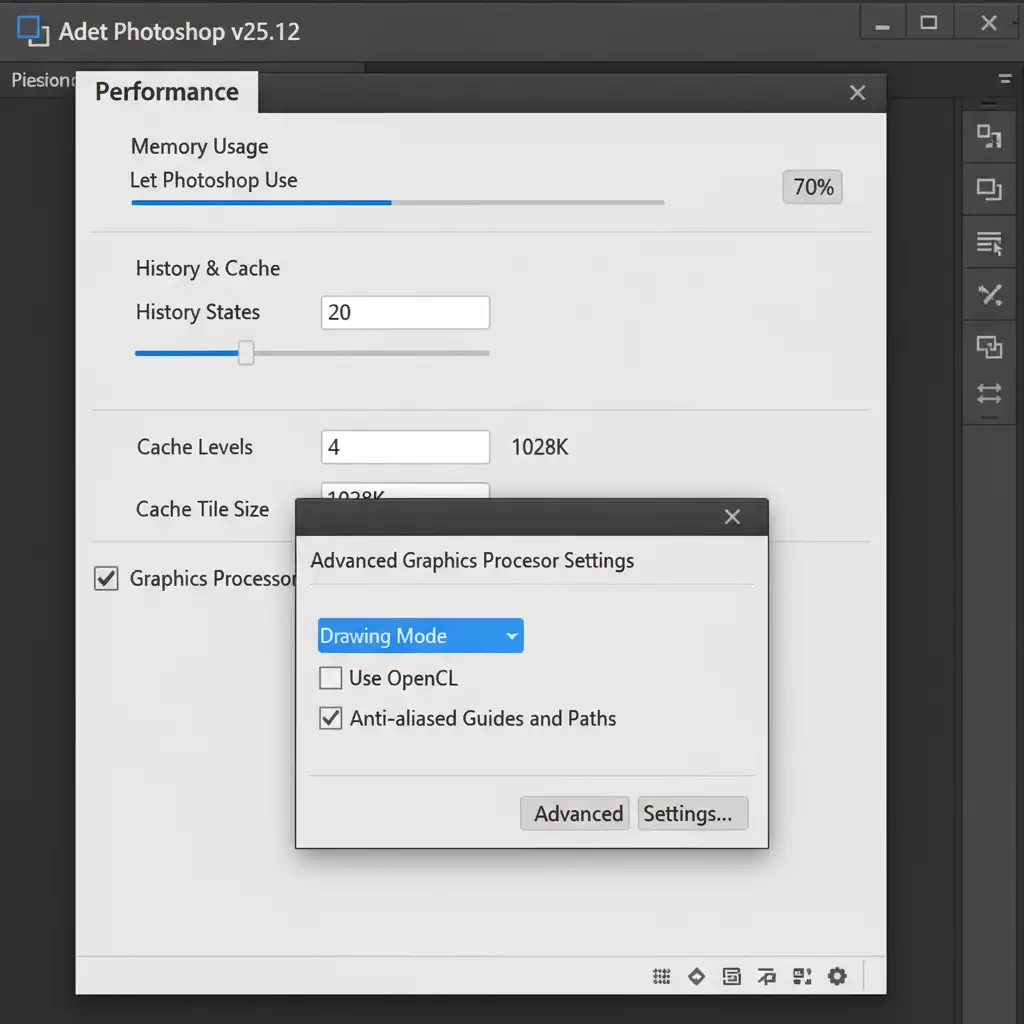
- Navigate to Photoshop > Settings > Performance.
- Under History & Cache, lower your History States to 20 (this frees up significant RAM).
- Set your Cache Levels to 4.
- Click the Advanced Settings button under the Graphics Processor section.
- Change the Drawing Mode from Advanced/Normal to Basic. Click OK.
- Finally, go to the top menu: Edit > Purge > All to clear out your current RAM cache.
Still Struggling with Clipping Paths? Let the Experts Handle It
While these technical tweaks will resolve the Photoshop v25.12 pen tool lag fix macOS Sequoia users desperately need, drawing complex clipping paths remains a tedious, time-consuming task. When you have hundreds of e-commerce product photos or high-end fashion portraits to mask, fighting with software performance is the last thing you should be doing.
Image Work India and Cloud Retouch specialize in pixel-perfect, hand-drawn clipping paths and professional image masking. Whether you need deep-etching, complex hair masking, or bulk background removal, our expert retouching teams deliver flawless results on time, every time.
Stop wrestling with software bugs and focus on growing your creative business. Contact Image Work India and Cloud Retouch today to outsource your high-volume editing and get your time back.



