
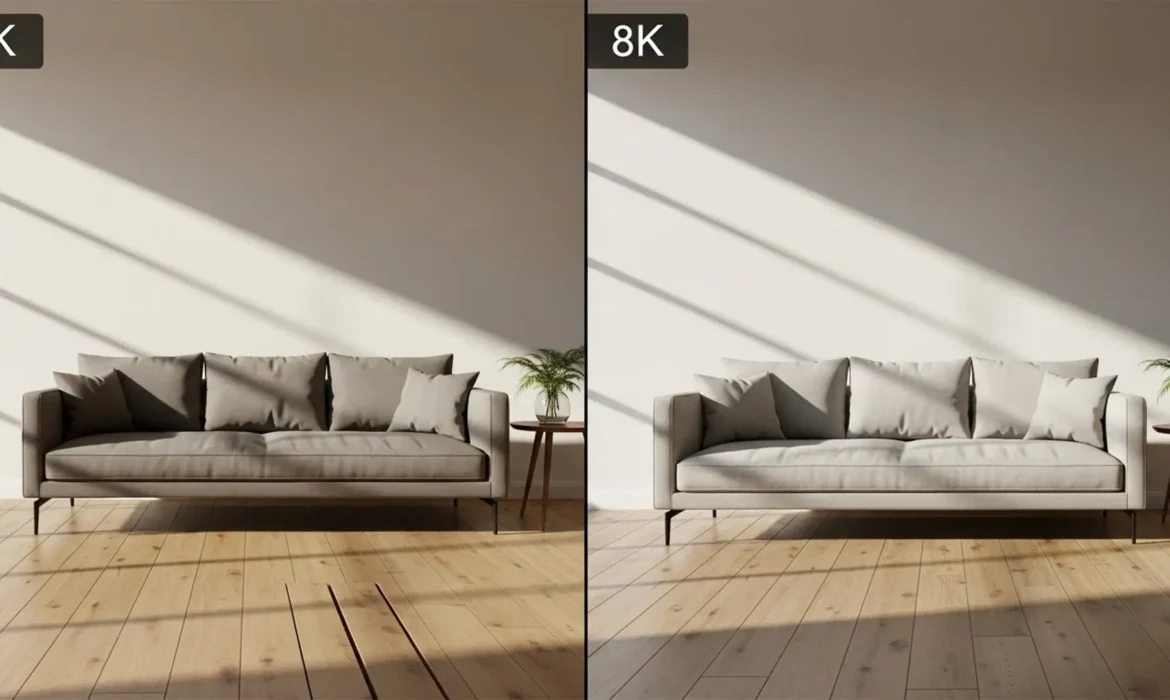
You’ve just placed a stunning piece of 3D or AI-generated furniture into a virtual staging project. The perspective is perfect, the lighting matches the room, but something is glaringly wrong: the piece looks like it’s hovering an inch off the floor.
This “floating sofa” effect is the ultimate giveaway of amateur virtual staging. Standard drop shadows fail completely because they do not mimic real-world lighting physics or accurate light diffusion. If you want to achieve truly realistic contact shadows for furniture staging, you need to stop relying on a single slider.
In this guide, we will break down the professional 3-layer shadow technique used by top-tier retouchers to ground furniture flawlessly.
Why Standard Drop Shadows Fail in Virtual Staging
In Photoshop (especially versions v24.x through v25.x+), the default drop shadow layer style applies a uniform, mathematically flat shadow beneath an object. Real light doesn’t work this way.
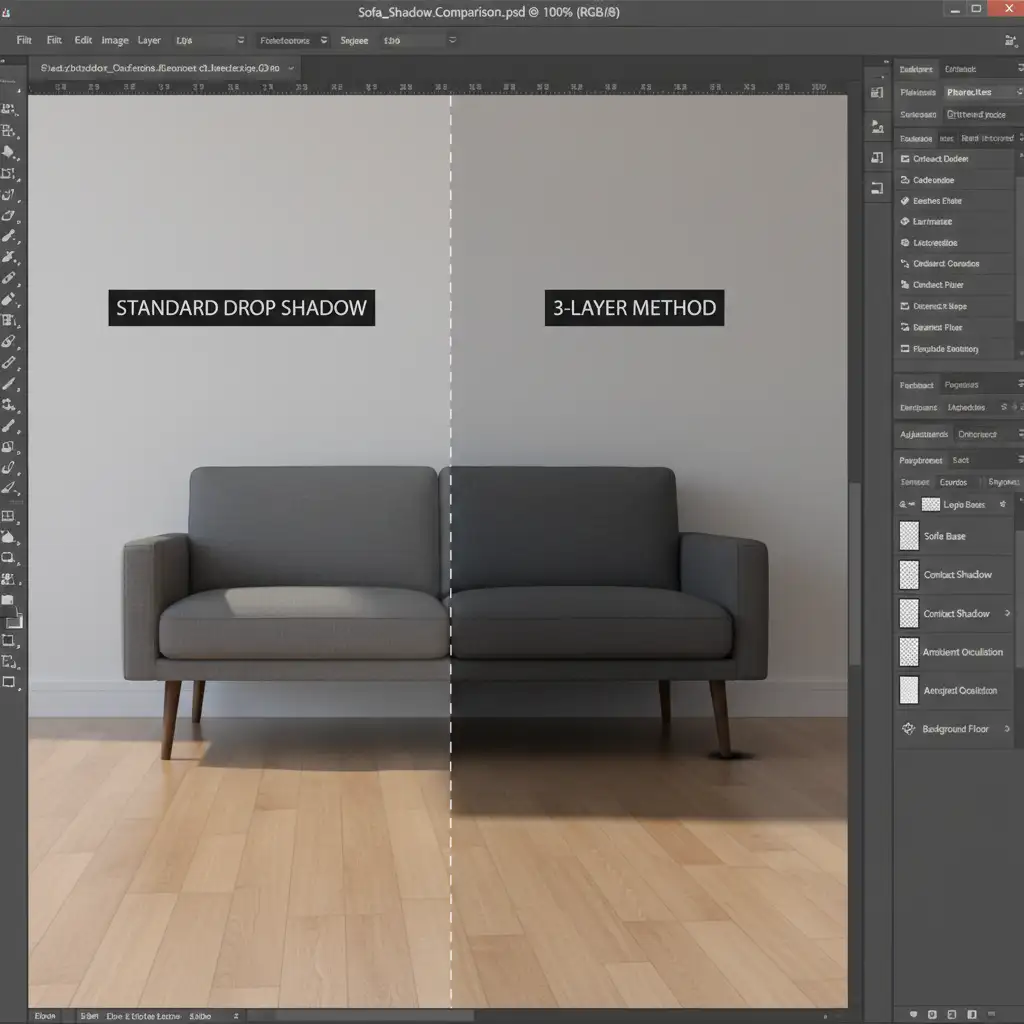
When an object sits on a floor, the shadow isn’t just one density. It consists of multiple tiers based on proximity to the light source and the floor. A single drop shadow lacks the deep, tight darkness where the object physically touches the ground, resulting in the dreaded floating effect.
The Anatomy of a Realistic Shadow
To fix the floating furniture problem, you must separate your shadows into three distinct physical properties:
- The Contact Shadow: The darkest, sharpest point where the furniture physically touches the floor (e.g., directly under the legs of a chair).
- Ambient Occlusion: The soft, medium-density shadow that pools directly under the main body of the furniture where ambient room light struggles to reach.
- The Cast Shadow: The directional shadow created by the primary light source (like a window). This shadow features noticeable opacity falloff and softer edges the further it stretches from the object.
Step-by-Step Fixes for Realistic Contact Shadows
Depending on your timeline and required level of realism, here are three methods to ground your furniture perfectly.
Method A: The Quick Fix (Layer Styles)
If you are on a tight deadline and need a fast improvement over the default settings, you can hack the Drop Shadow tool.
- Open your Drop Shadow layer style.
- Set the Distance to 0, Spread to 10-15%, and Size to 5px. This creates your tight contact point.
- Hit the “+” icon to duplicate the Drop Shadow.
- On the second shadow, increase the Size to 45px and lower the Opacity to create a softer ambient shadow.
Method B: The Pro Workaround (The 3-Layer Method)
This is the industry standard for high-end virtual staging. It requires manual painting but yields flawless results.
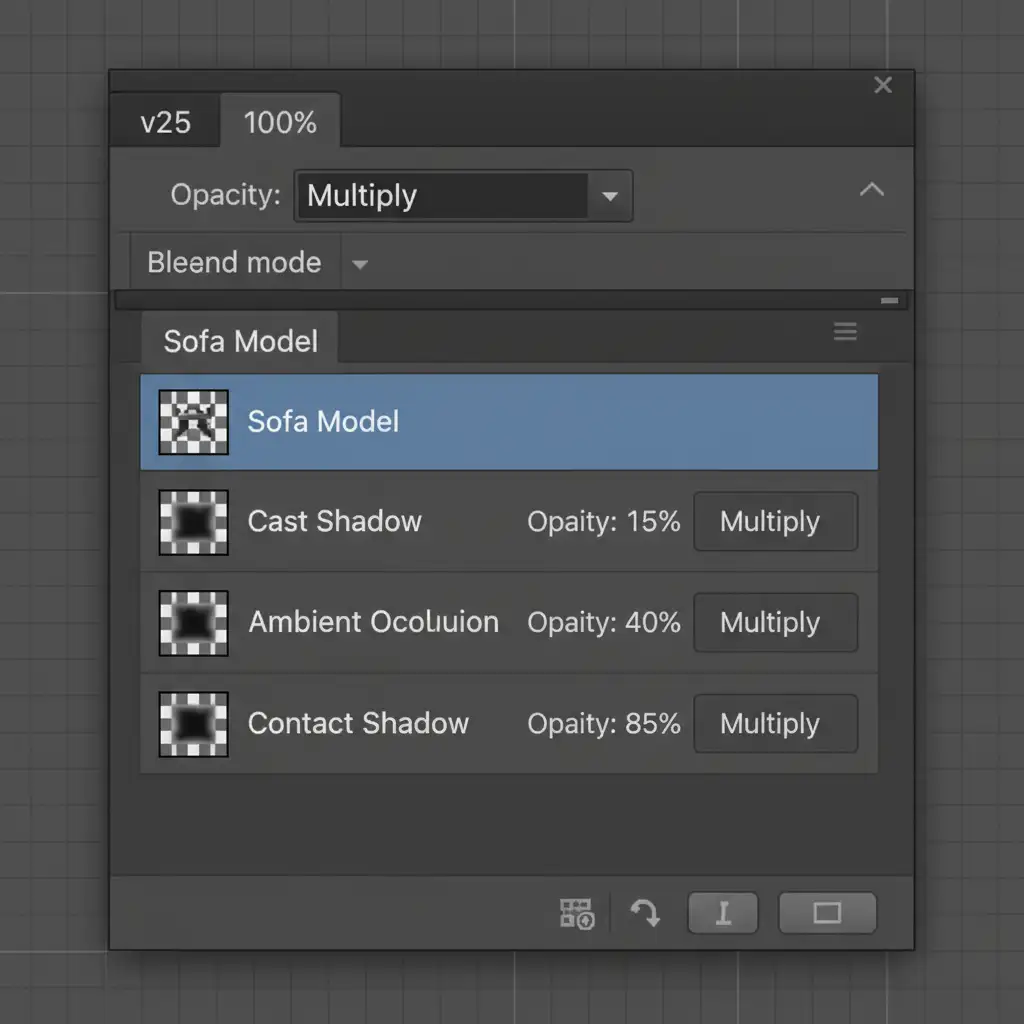
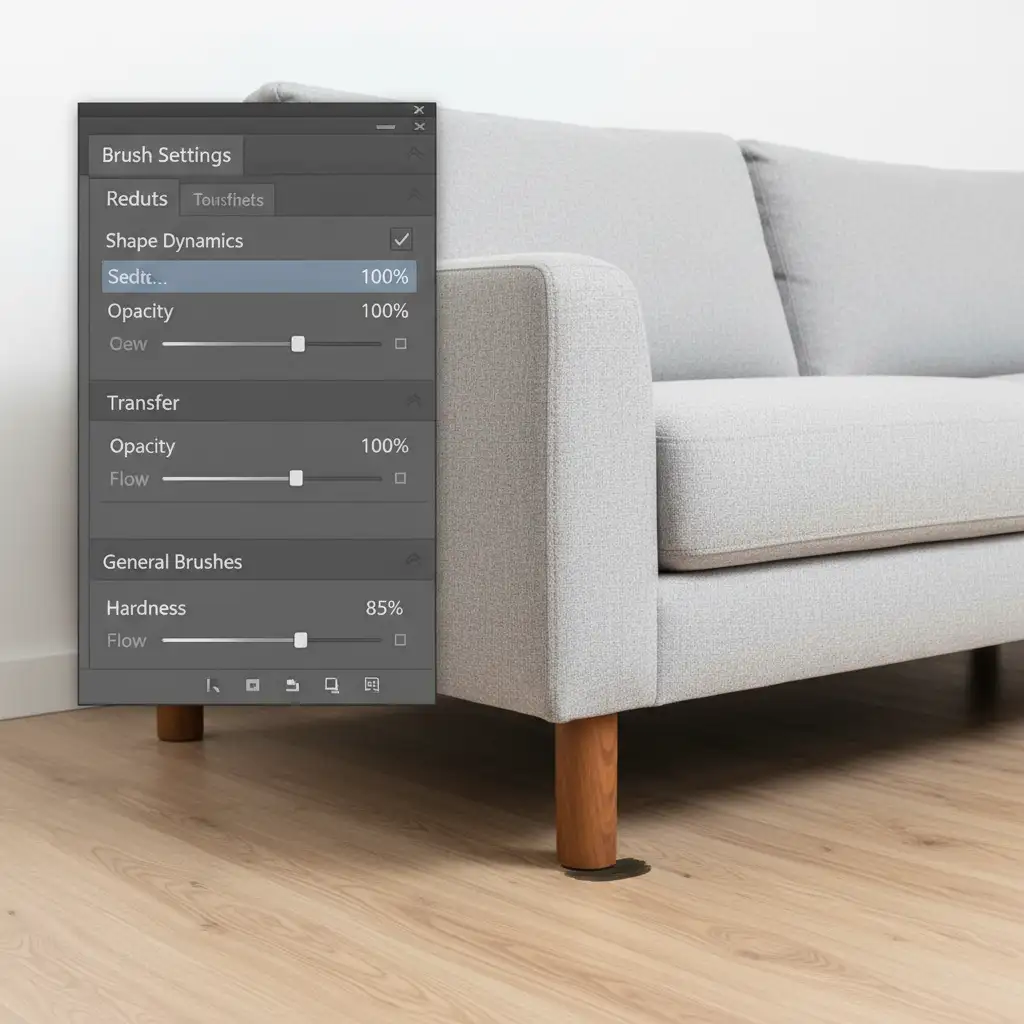
- Layer 1: Contact Shadow Create a new layer beneath your furniture. Using a hard brush (80-90% hardness) with high opacity, paint tightly under the feet or base of the furniture. Set the layer to Multiply blend mode.
- Layer 2: Ambient Occlusion Create a second layer. Use a soft brush (0% hardness) with a medium spread and lower the opacity to about 40%. Paint a broad, soft pool of darkness directly under the mass of the sofa. Set to Multiply.
- Layer 3: Cast Shadow Create a third layer. Paint the general shape of the furniture, then use the Distort/Transform tool to pull the shadow in the direction opposite your main light source. Apply a Gaussian blur and lower the opacity to 10-15%. Set to Multiply.
Method C: The Technical Deep-Dive (Smart Objects & Depth Maps)
For absolute photorealism, especially with complex lighting, you need to simulate accurate light dispersion using blur falloff.
- Convert your extracted furniture layer into Smart Objects.
- Duplicate the Smart Object, fill the duplicate entirely with black, and flip it vertically.
- Move this flipped layer beneath the original furniture to act as your cast shadow.
- Apply a Gradient Mask to this shadow layer so it fades out (opacity falloff) as it stretches further away.
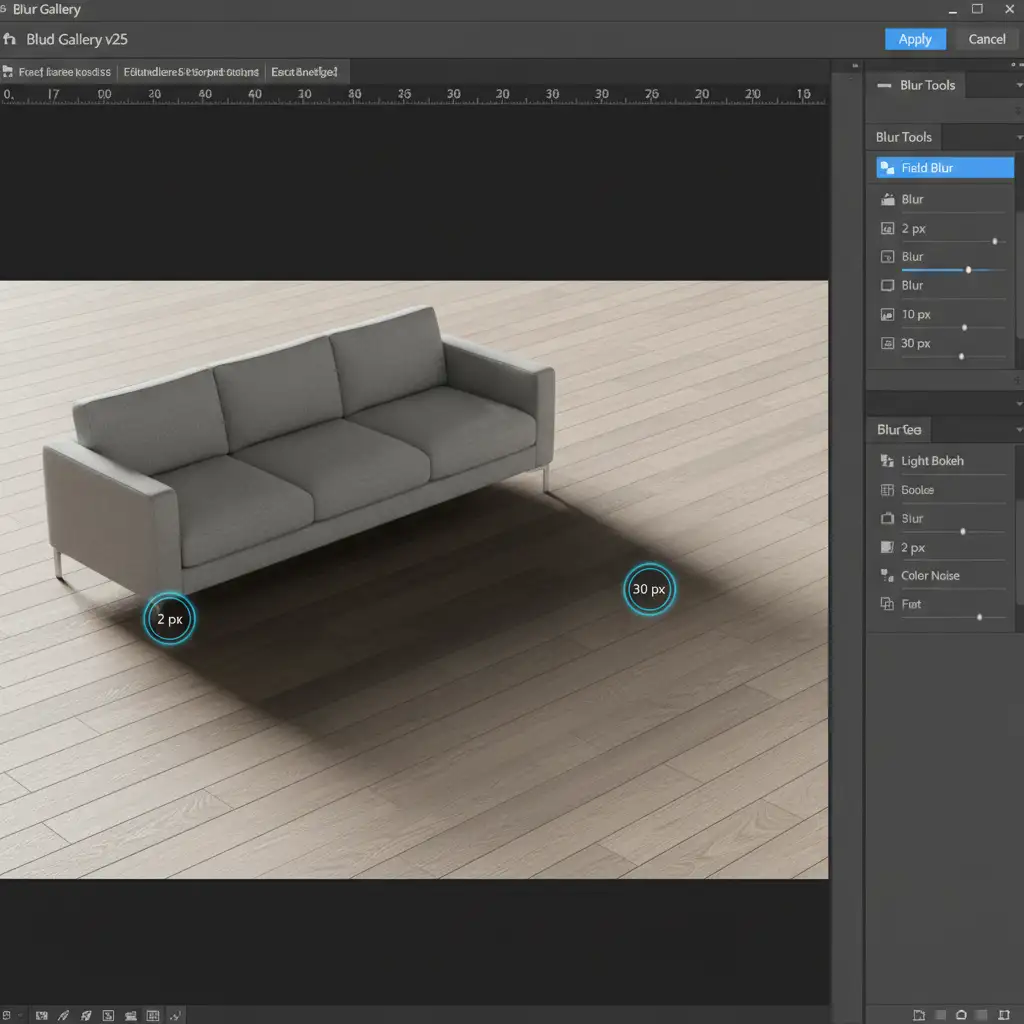
- Go to Filter > Blur Gallery > Field Blur. Place a pin near the furniture with a blur of 2px, and a pin at the furthest edge of the shadow with a blur of 30px. This perfectly replicates real-world light diffusion.
Stop Struggling with Shadows: Let the Experts Handle It
Mastering realistic contact shadows for furniture staging takes a deep understanding of lighting physics, light diffusion, and advanced Photoshop techniques. While the 3-Layer Method will dramatically improve your edits, it is highly time-consuming—especially when you are processing dozens of virtual staging photos for a demanding real estate client.
You don’t have to do it alone. At Image Work India and Cloud Retouch, our team of expert retouchers specializes in pixel-perfect virtual staging and AI furniture integration. We understand the precise nuances of ambient occlusion and cast shadows, ensuring your staged properties look 100% authentic and ready to sell.
Stop wasting hours tweaking drop shadows. Contact Image Work India today, and let us deliver flawless, photorealistic staging that converts viewers into buyers.



