
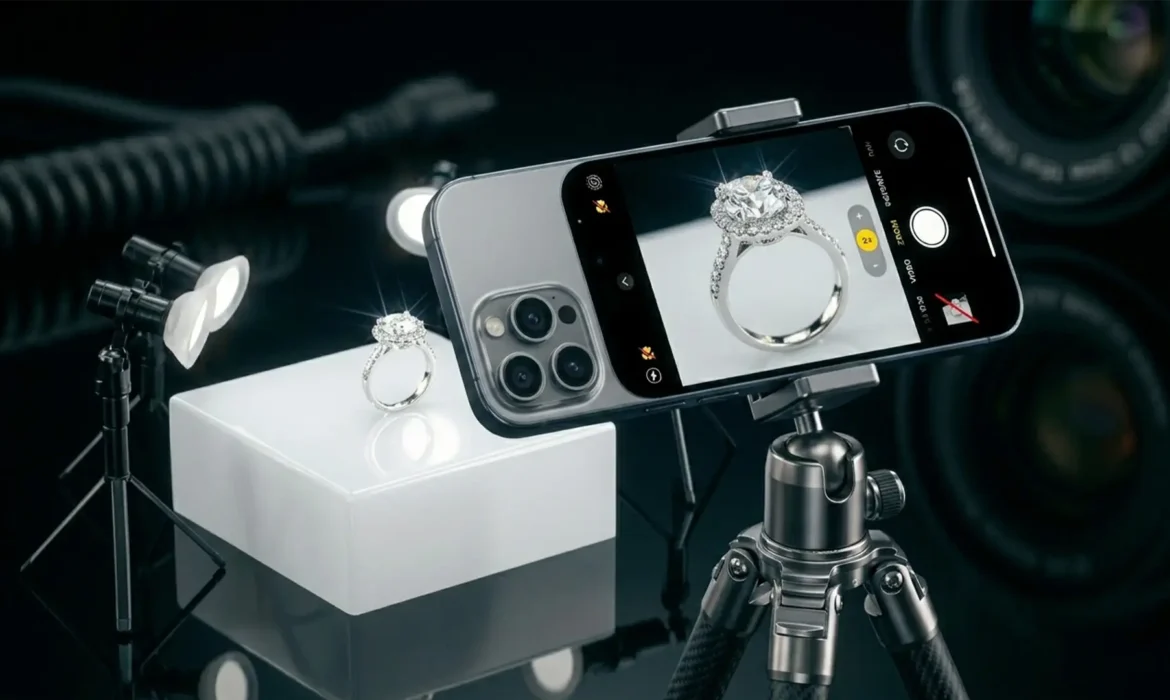
Are you struggling with blurry, distorted, or poorly lit jewelry shots on your new device? You are not alone. When trying to capture intricate details of rings, necklaces, and earrings, the default iPhone 16 Pro macro jewelry photography settings actually work against you. As soon as you move the phone close to a diamond, Apple’s computational photography kicks in, automatically switching lenses and ruining your shot.
To achieve high-end e-commerce results, you must take control of the camera. In this guide, we will show you exactly how to bypass the automatic lens switching, leverage the primary sensor, and capture flawless raw images ready for professional retouching.
The Problem with Default iPhone 16 Pro Jewelry Photography Settings
When you move an iPhone 16 Pro closer than 14cm to a subject, the camera algorithm automatically switches from the main lens to the Ultra Wide lens to utilize its macro capabilities.
While this sounds helpful, the Ultra Wide lens is detrimental to e-commerce jewelry photography. Its shorter focal length introduces edge distortion and spherical aberration, warping the shape of rings and pendants. Furthermore, getting that close to the product physically blocks your studio lighting, causing the phone to cast a dark shadow over highly reflective metals and gems. This forces the camera into relentless focus hunting as it struggles to lock onto the facets of a diamond in poor light.
To capture premium shots, you must force the device to use the primary 48MP Fusion sensor. This maintains optical quality, provides zero distortion, and ensures the accurate color science required for editing gold, silver, and gemstones.
How to Fix It: 3 Steps to Professional iPhone 16 Pro Jewelry Photos
Method 1: The Quick Fix (Disabling Auto-Macro)
The first step is to stop the iPhone from making decisions for you. You need to expose the Auto-Macro toggle in your camera app.
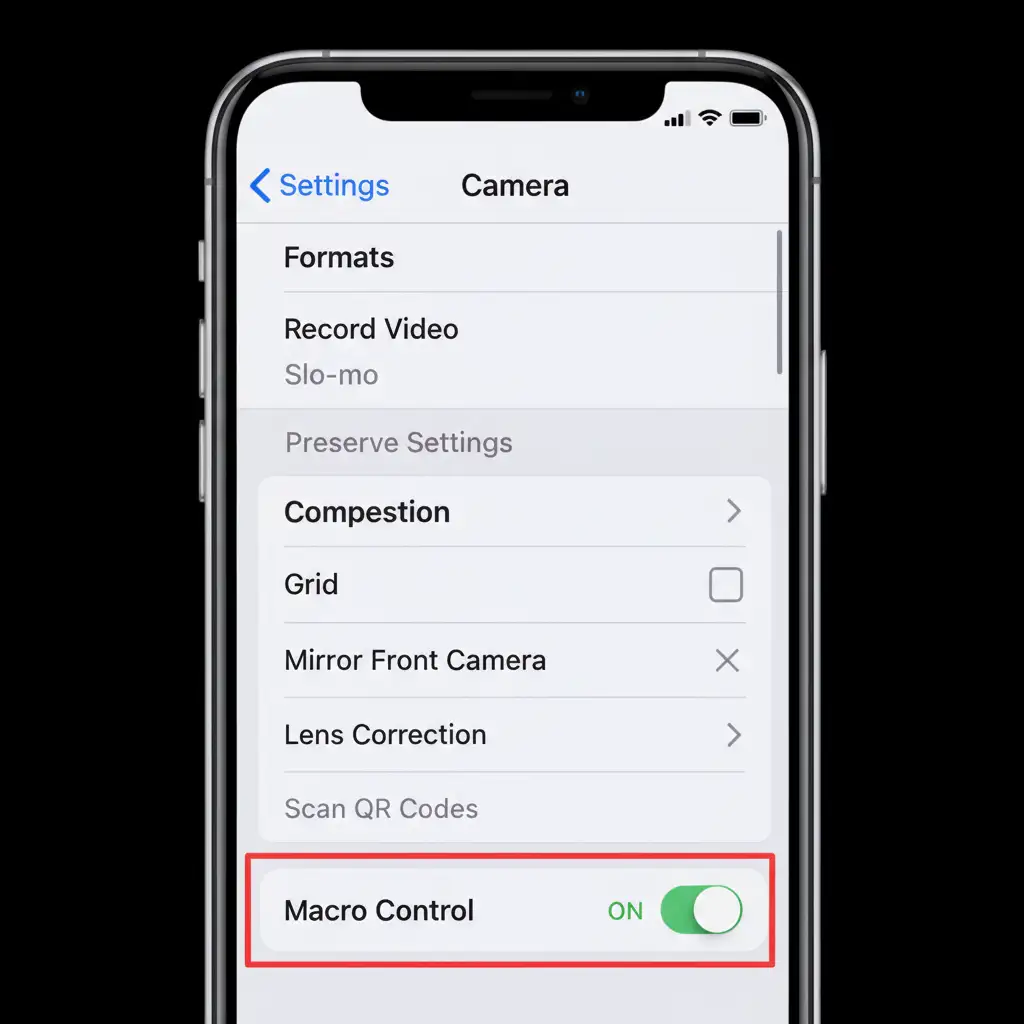
- Navigate to iOS Settings > Camera.
- Scroll down and toggle ON Macro Control.
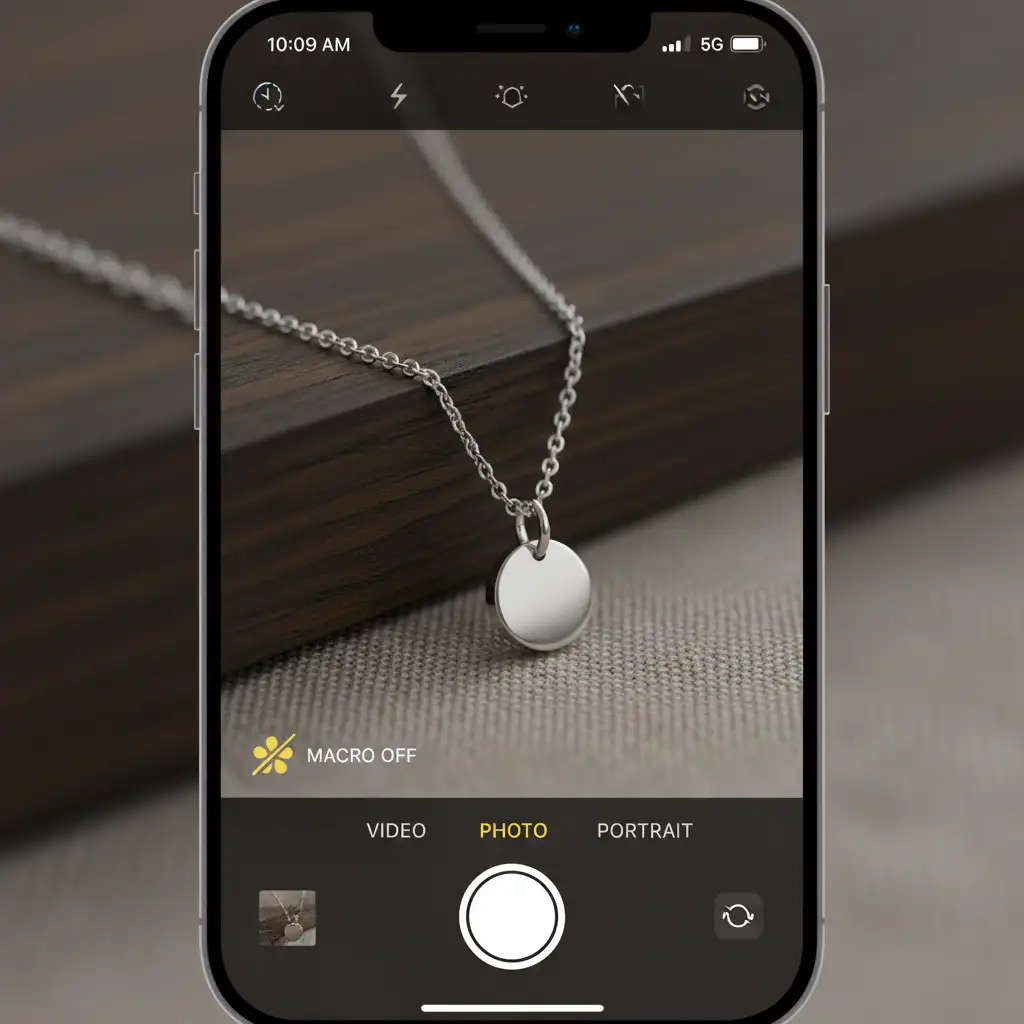
- Open your Camera app and move close to a piece of jewelry.
- A yellow flower icon will appear in the bottom corner of your screen. Tap this yellow flower to disable the automatic Ultra Wide lens switch.
Method 2: The Pro Workaround (2x Sensor Crop)
Now that Auto-Macro is disabled, you might find that the main lens cannot focus if you are too close. The secret to macro jewelry photography on the iPhone 16 Pro is distance combined with optical zoom.
Instead of putting the lens extremely close to the ring, physically move the phone back to 15-20cm away from the subject. Then, tap the 2x zoom option in the camera UI.
This technique utilizes a 12MP sensor crop from the center of the 48MP Fusion sensor. It provides a high-resolution, distortion-free close-up with a beautiful, natural depth of field—all without triggering the inferior macro mode or blocking your light source.
Method 3: The Technical Deep-Dive (ProRAW & Exposure)
To get the absolute best files for your retouching team, you need to maximize your data capture. Standard JPEG or HEIC files compress image data, which can ruin the bright highlights in diamonds.
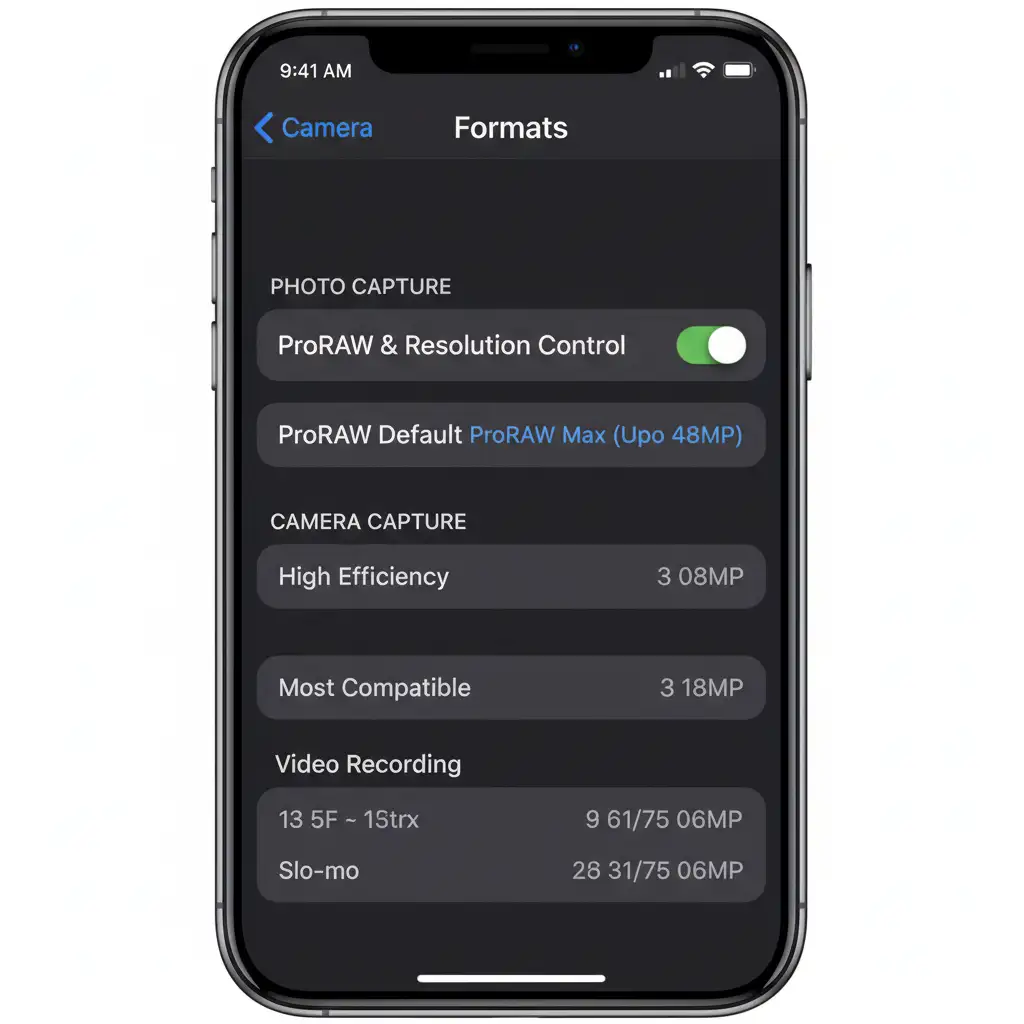
- Navigate to Settings > Camera > Formats.
- Under Photo Capture, enable ProRAW & Resolution Control.
- Tap ProRAW Default and set it to Apple ProRAW Max (up to 48MP).
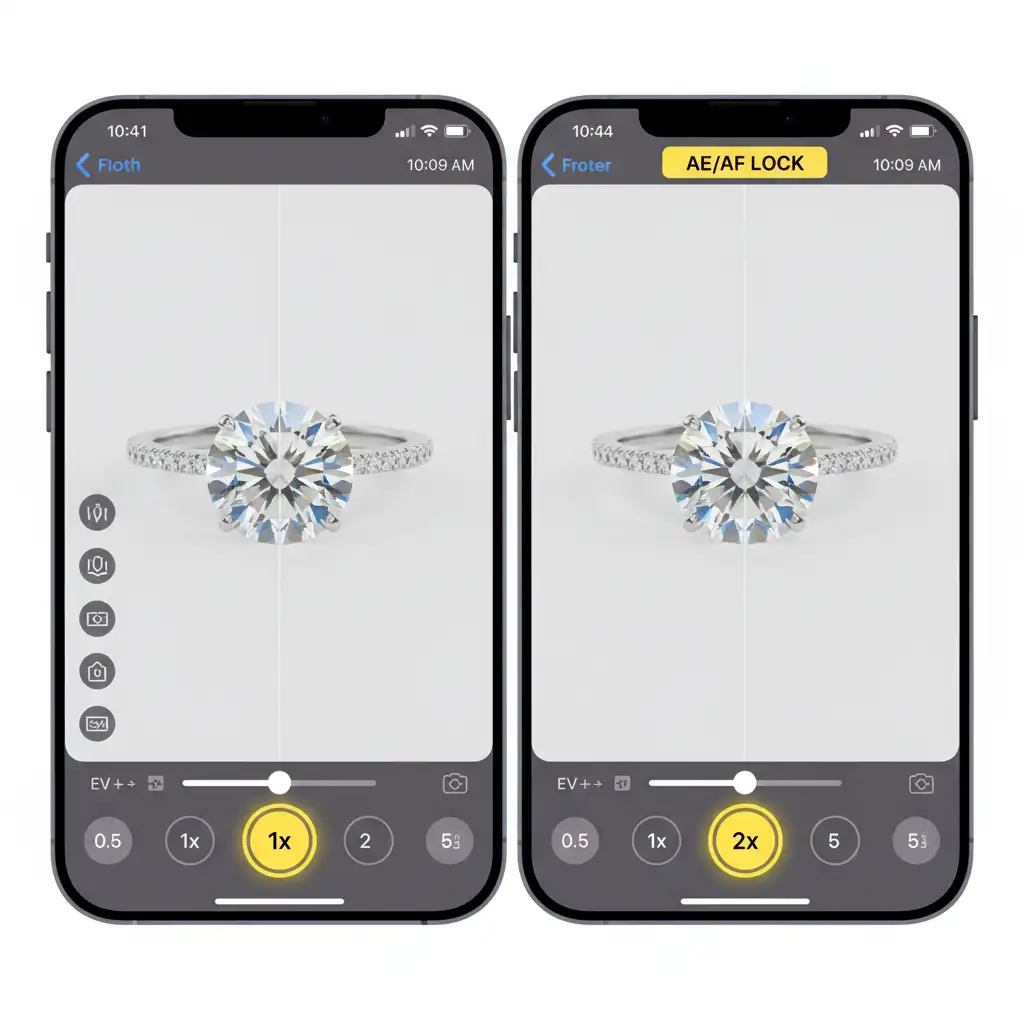
- Inside the camera app, compose your shot using the 2x method.
- Long-press on the jewelry piece to activate AE/AF Lock (Auto Exposure/Auto Focus).
- Manually drag the sun icon (the exposure compensation slider) down slightly.
Darkening the image slightly prevents you from clipping the bright highlights in reflective metals and diamonds, ensuring maximum dynamic range for the post-production workflow.
Why Perfect Source Files Matter for Jewelry Retouching
Mastering your iPhone 16 Pro macro jewelry photography settings is only the first half of the e-commerce equation. Capturing a distortion-free, properly exposed ProRAW file ensures that all the visual data is present. However, raw photography—even from the best smartphone sensor in the world—will still capture microscopic dust, slight metal blemishes, and uneven background lighting.
To convert website visitors into buyers, those raw files must be transformed into flawless, sparkling product images.
Elevate Your E-Commerce Store with Professional Jewelry Retouching
Even with the perfect camera settings, raw jewelry photos need professional polishing. You’ve done the hard work of capturing the image; let us handle the rest.
At Image Work India or Cloud Retouch, we specialize in high-end jewelry photo editing. Our expert retouchers can take your iPhone 16 ProRAW files and provide:
- Meticulous dust and scratch removal from metals.
- Diamond and gemstone enhancement for maximum sparkle and clarity.
- Color correction to ensure accurate gold, rose gold, and silver tones.
- Perfect pure white background extraction with natural shadow creation.
Stop losing sales to unpolished product images. [Contact Image Work India and Cloud Retouch today] to elevate your jewelry photography and make your products shine.



