
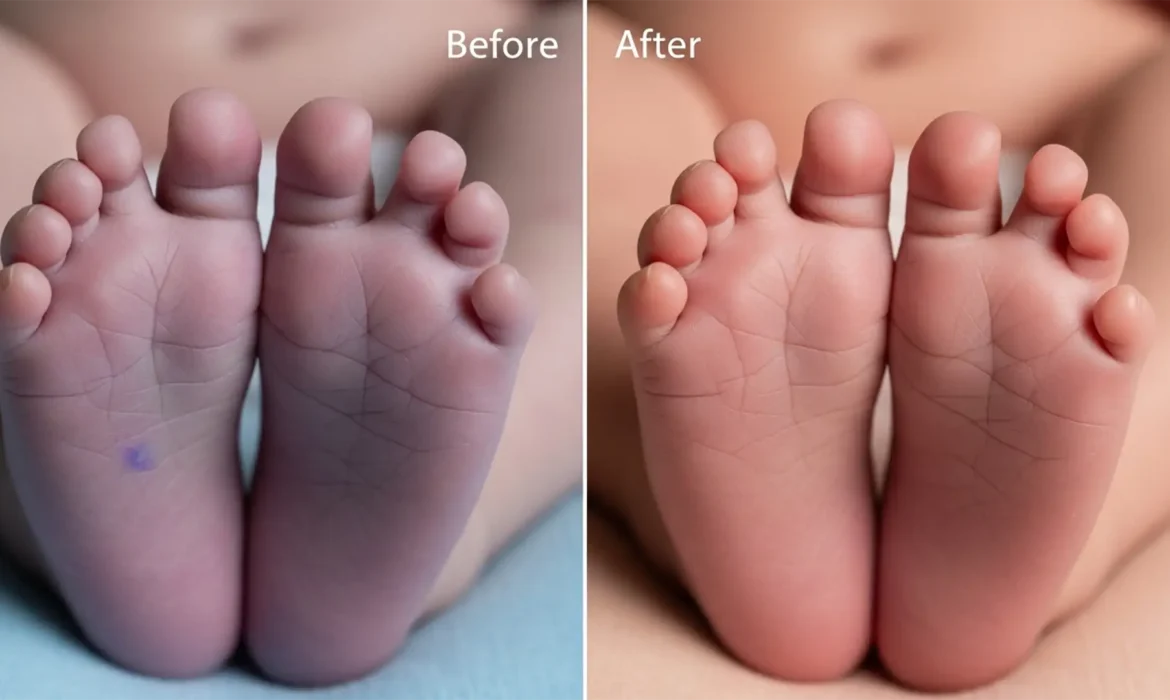
You’ve just wrapped up a beautiful newborn photography session. The poses are perfect, the lighting is soft, but there’s one glaring issue: the purple newborn feet and hands are bright purple. Acrocyanosis (purple/blue extremities) and mottled skin are incredibly common in newborns due to temperature shifts and immature circulation.
However, when it comes to post-production, amateur editors often make the fatal mistake of painting over these areas with a standard brush, completely destroying the delicate skin texture and leaving a flat, plastic look. If you are struggling with fixing purple newborn feet in Photoshop (v24.x – v25.x), you need a non-destructive, color-targeted approach.
Let’s explore three professional methods to neutralize heavy magenta and cyan color casts while preserving 100 percent of the natural skin texture.
Why Newborn Skin Turns Purple (And Why Brushing Fails)
Newborns frequently exhibit poor circulation, resulting in heavy magenta and cyan color casts in their extremities. The core challenge in retouching mottled skin is color correction without texture loss. Directly painting over the skin with the brush tool covers the pores, wrinkles, and fine hairs that give newborn photography its soft, authentic aesthetic.
To achieve professional results, you must utilize non-destructive editing techniques. By using targeted adjustment layers, you can alter the color values beneath the texture rather than painting over the image pixels.
Method 1: The Quick Fix (Hue/Saturation)
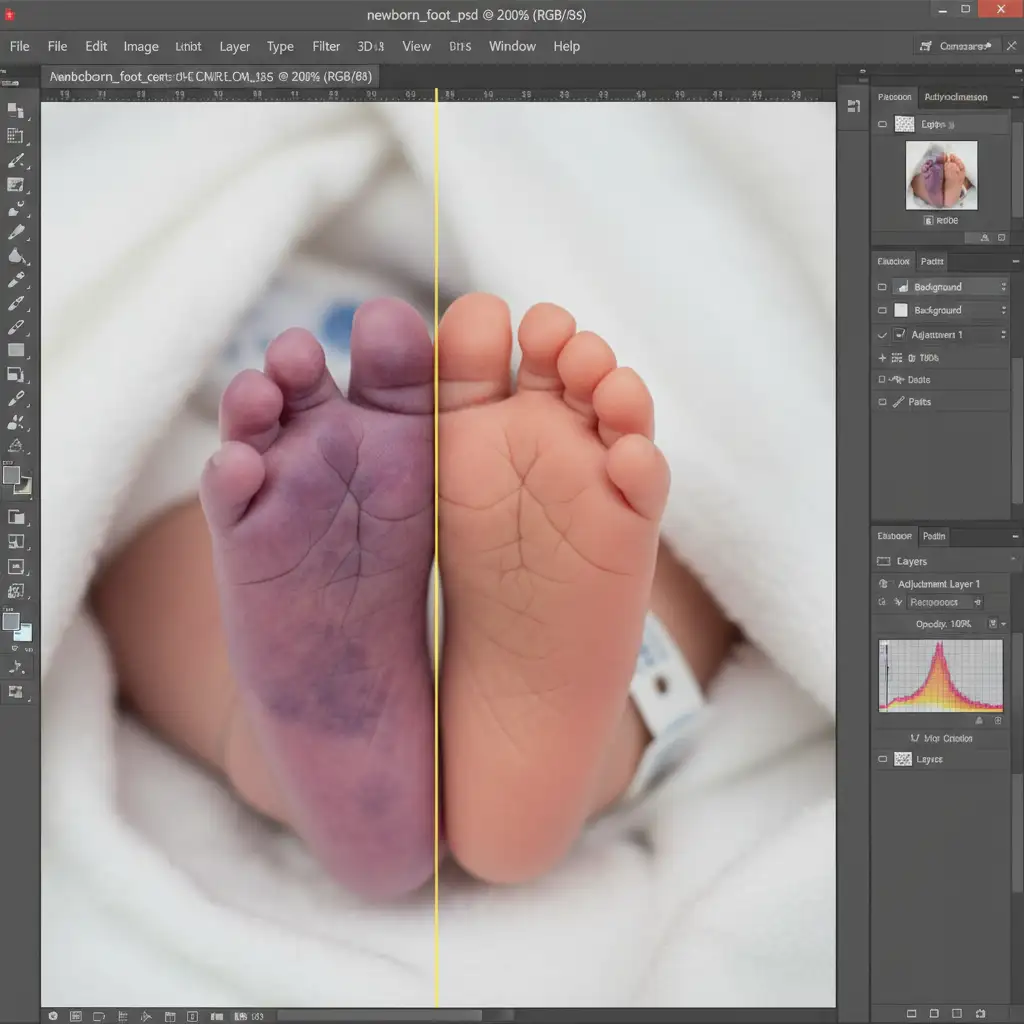
The fastest way to tackle purple feet is by isolating the specific color channels causing the issue. This method is highly effective for mild to moderate acrocyanosis.
Step-by-Step Workflow
- Add an Adjustment Layer: Navigate to your Layers panel and create a Hue/Saturation adjustment layer.
- Target the Problem Colors: In the properties panel, change the channel dropdown from “Master” to “Magentas” or “Blues,” depending on the specific color cast of the feet.
- Adjust the Sliders: Shift the Hue slider slightly to the right (pushing the purples toward red/orange) and lower the Saturation slider until the extreme color cast fades.
- Mask and Paint: Invert the layer mask by pressing Cmd/Ctrl + I (turning it black). Select a soft-edged brush, set your foreground color to white, and paint the effect exclusively over the purple extremities. Ensure proper feathering on your brush to blend the edges seamlessly into the healthy skin.
Method 2: The Pro Workaround (Solid Color Fill)
When dealing with severe mottled skin, shifting hues isn’t always enough. You need to introduce the exact healthy skin tone back into the affected areas. This method relies heavily on accurate skin tone sampling.
Step-by-Step Workflow
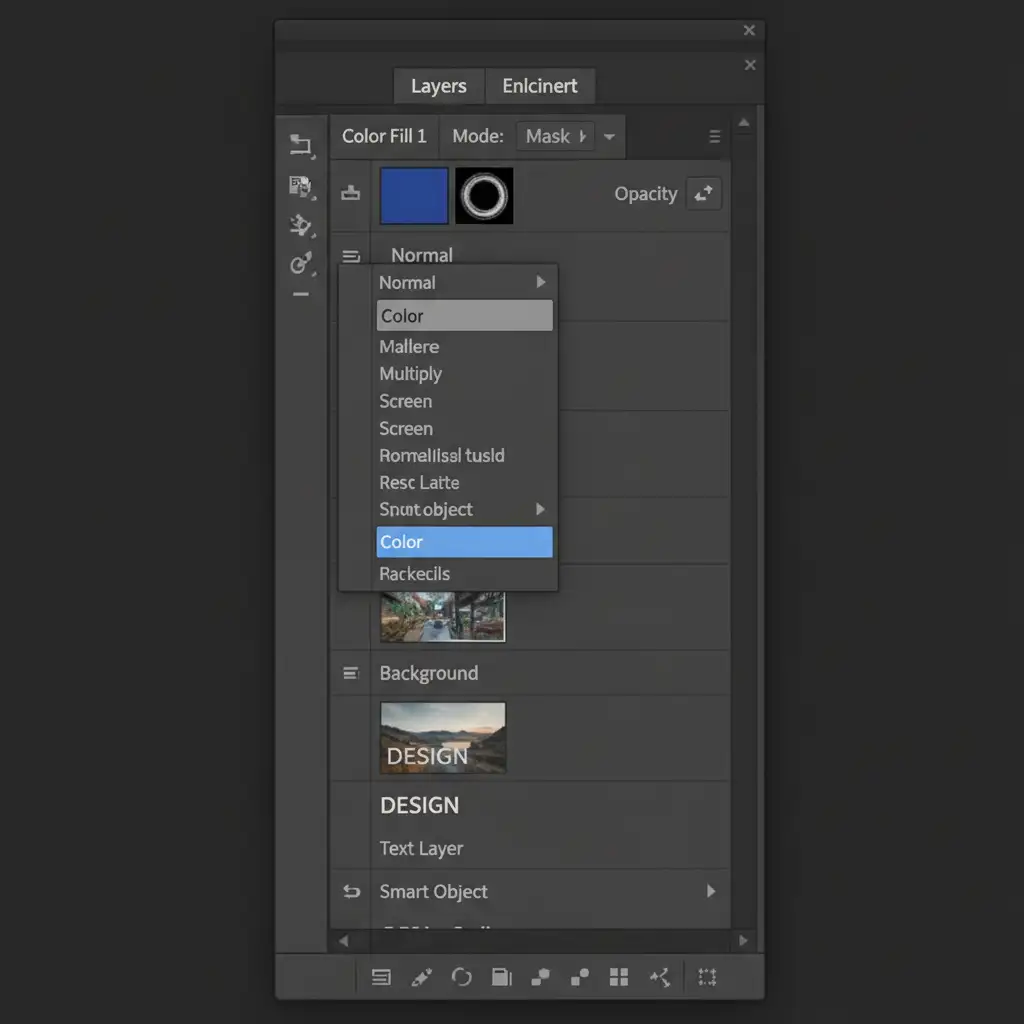
- Create a Fill Layer: Add a Solid Color Adjustment Layer from the bottom of your Layers panel.
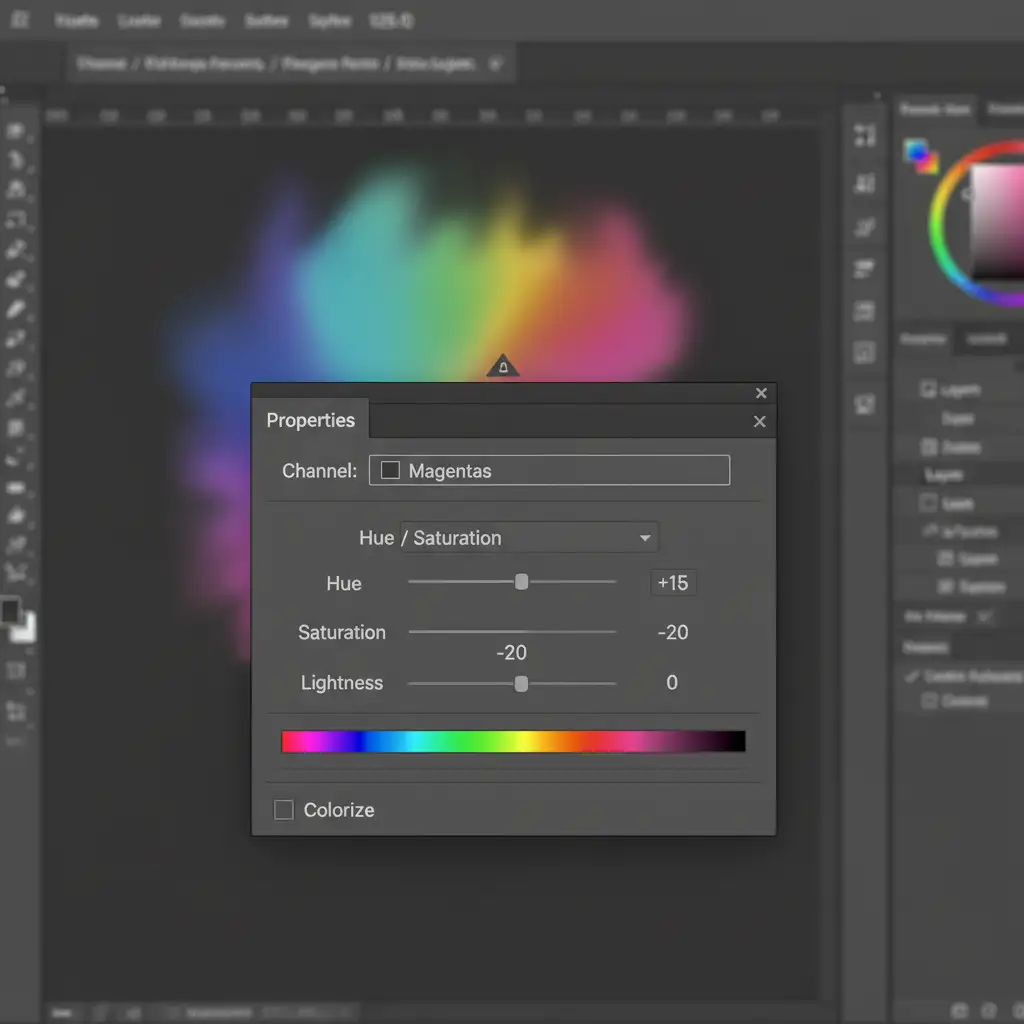
- Sample Healthy Skin: When the color picker appears, use the eyedropper tool to sample a healthy, warm skin tone directly from the baby’s thigh, chest, or forehead.
- Change the Blending Mode: This is the crucial step. Change the layer’s blending mode from Normal to “Color.” This tells Photoshop to apply only the color values of your sampled tone, leaving the underlying luminosity and texture completely intact.
- Brush with Low Opacity: Invert the layer mask (Cmd/Ctrl + I). Select a soft white brush, lower the brush opacity to 20-30 percent, and gently build up the color over the purple feet.
Method 3: The Technical Deep-Dive (Selective Color)
For high-end retouching, Selective Color offers the most granular control. While many advanced retouchers use CMYK curves for color grading, Selective Color utilizes similar CMYK logic in a much more user-friendly interface, making it perfect for neutralizing specific color casts in newborn skin.
Step-by-Step Workflow
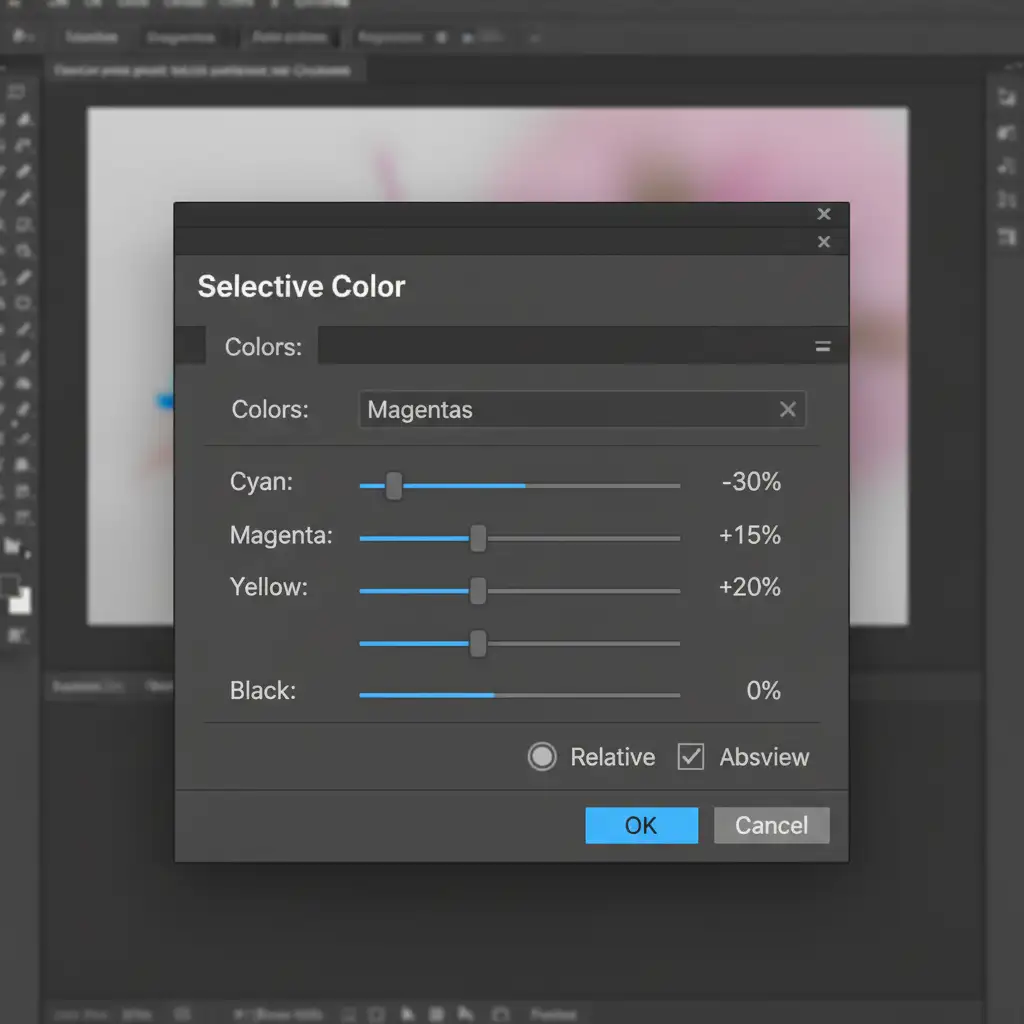
- Add Selective Color: Create a Selective Color Adjustment Layer.
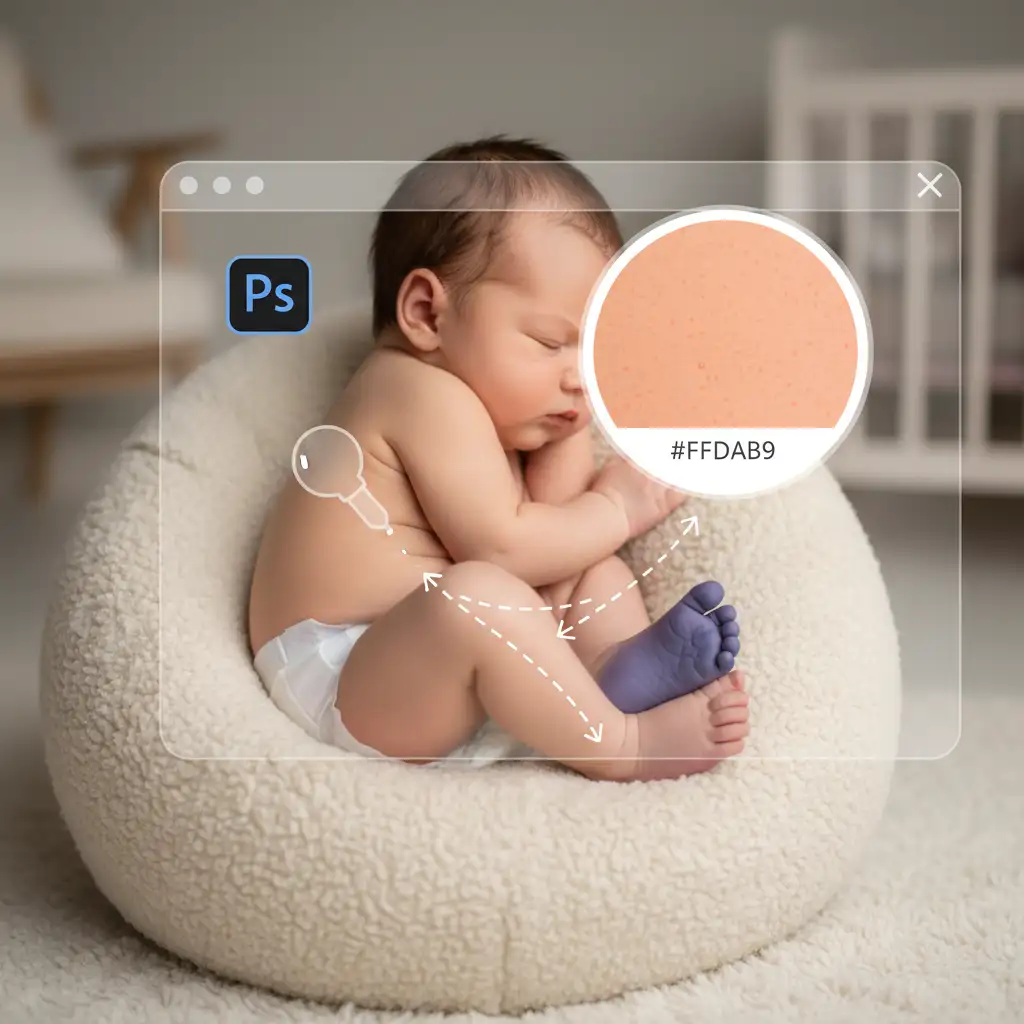
- Target Reds and Magentas: In the Colors dropdown, start with the Magentas channel.
- Neutralize the Cast: Reduce the Cyan and Magenta sliders within this channel to strip away the cool, purple tones.
- Introduce Warmth: Increase the Yellow slider slightly to bring back the natural, buttery warmth of newborn skin. Switch to the Reds channel and make similar, subtle adjustments.
- Apply the Mask: As always, invert the layer mask and paint the correction specifically onto the feet and hands.
Stop Struggling with Newborn Retouching
Fixing purple newborn feet in Photoshop requires patience, a trained eye for color theory, and strict adherence to non-destructive workflows. While these methods guarantee texture preservation, applying them across hundreds of photos from a single newborn session can take hours of tedious masking and slider adjustments.
Don’t want to spend hours fixing mottled skin? Let the experts at Image Work India and Cloud Retouch handle it. We specialize in high-volume, professional newborn photography retouching. From neutralizing acrocyanosis and smoothing flaky skin to perfect backdrop extensions, our team delivers flawless, natural results that keep your clients thrilled and your workflow moving.
Contact Image Work India today to learn how we can streamline your post-production process!



