
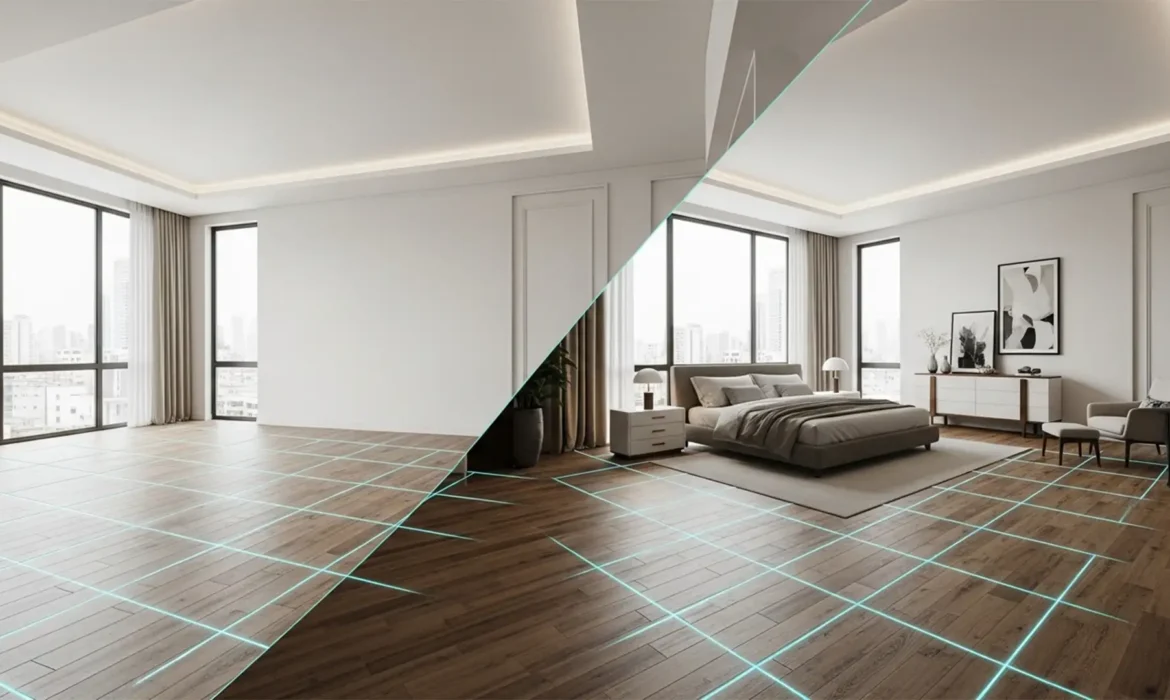
Have you ever looked at a virtually staged real estate photo and immediately noticed something was off? The culprit is almost always incorrect proportions. “Tiny bed syndrome” or awkwardly floating sofas are the fastest ways to kill a property’s appeal and lose a buyer’s trust. When you add digital assets to an empty room, ignoring focal lengths and room depth leads to jarring, fake-looking results.
Mastering scaling furniture for virtual staging accuracy isn’t just about dragging and dropping; it requires precise geometric perspective matching. In this guide, we’ll show you exactly how to lock in perfect proportions using Adobe Photoshop so your real estate composites look 100% authentic.
The Anatomy of a Virtual Staging Fail
In virtual staging, incorrect scaling is the most common giveaway of manipulated real estate photography. This issue stems from mismatched perspective planes. A photographer might shoot a room with a wide 14mm lens, but if you drop in a 3D furniture asset rendered with a 50mm focal length, the visual math breaks down.
Without proper spatial measurement, your staging will lack the necessary orthographic projection needed for seamless composite integration. Fortunately, Adobe Photoshop (v24.x and newer) offers powerful built-in tools to correct these spatial discrepancies.
How to Achieve Perfect Proportions in Photoshop
Here are three professional methods to ensure your furniture assets match the exact dimensions and perspective of your source photography.
Method 1: The Quick Fix Using Perspective Warp
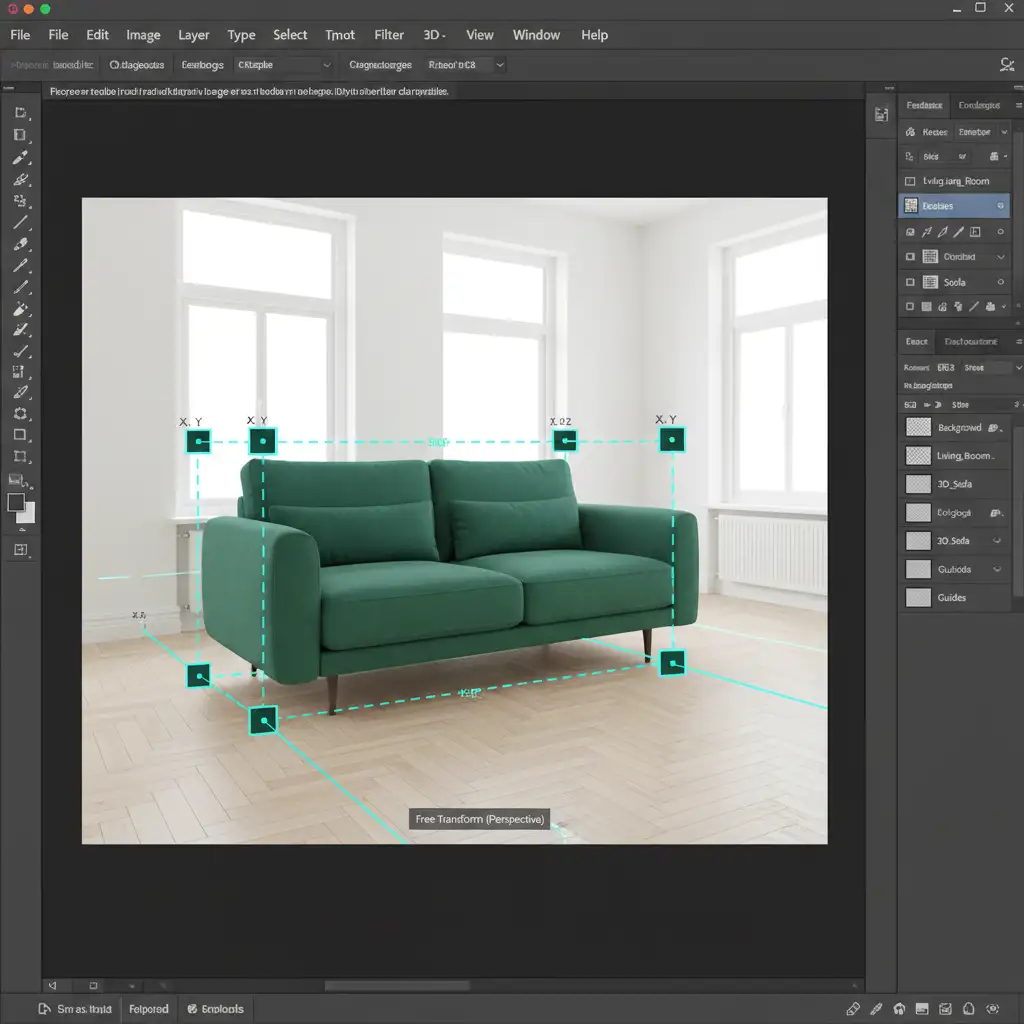
If you need a fast adjustment for a single piece of furniture, the Free Transform tool is your first line of defense.
- Import your 3D furniture asset into your room photo.
- Press Ctrl/Cmd + T to activate the Free Transform tool.
- Right-click inside the bounding box and select Perspective Warp.
- Hold Shift + Ctrl/Cmd and drag the corner nodes to snap the furniture’s base to the room’s baseboards or floor tiles.
Method 2: The Pro Workaround with the Vanishing Point Filter
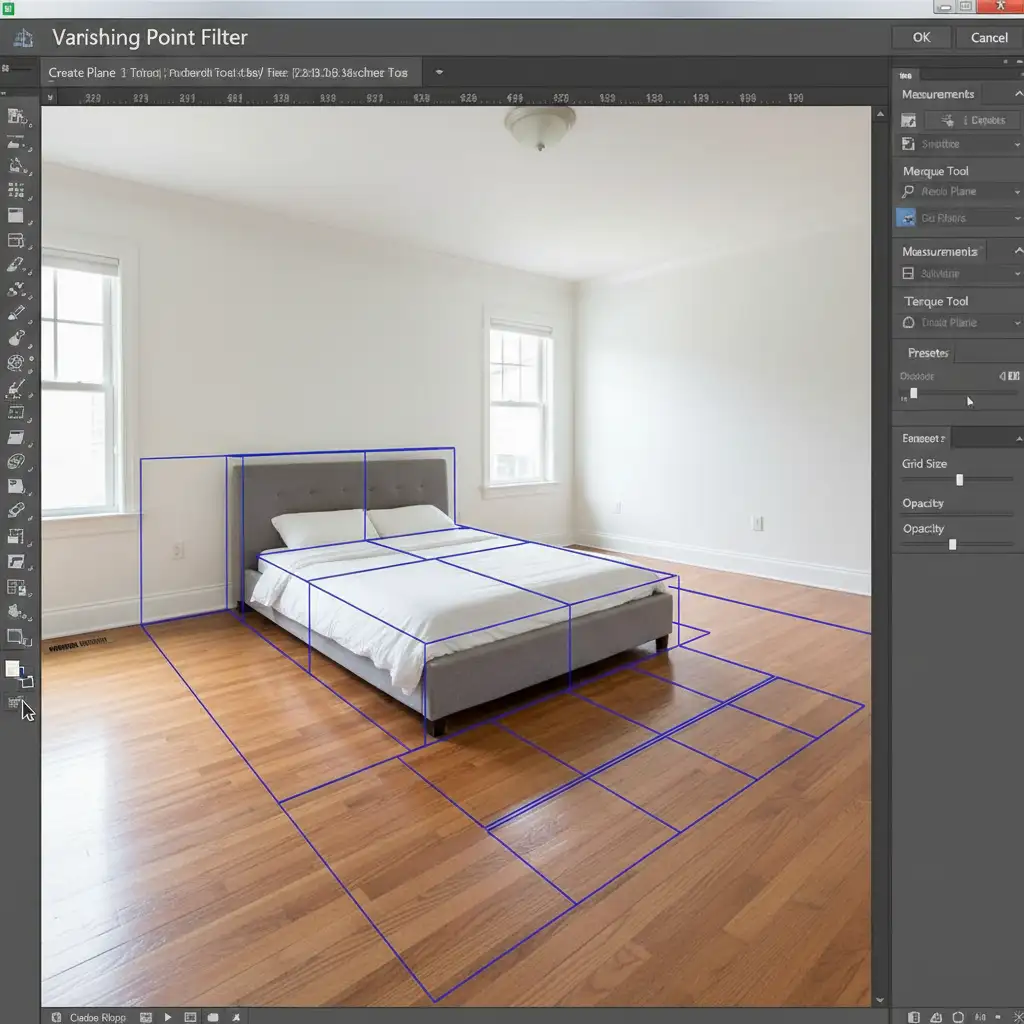
For complex rooms or multiple pieces of furniture, you need to establish a dedicated perspective plane. The Vanishing Point filter is the industry standard for scaling furniture for virtual staging accuracy.
- Copy your furniture asset to the clipboard (Ctrl/Cmd + C) and create a new blank layer.
- Navigate to Filter > Vanishing Point.
- Use the Create Plane Tool to trace a grid along the room’s floor, following the natural grout lines or wall edges.
- Press Ctrl/Cmd + V to paste your furniture asset into the filter window.
- Drag the asset onto your grid. Photoshop will automatically scale and snap the furniture to the established perspective plane, eliminating the “floating furniture” effect.
Method 3: The Technical Deep-Dive (Anchoring to Reality)
To guarantee absolute photorealism, you must base your scaling on known real-world dimensions. This method utilizes Smart Objects and precise measurements.
- Convert your background room layer to a Smart Object.
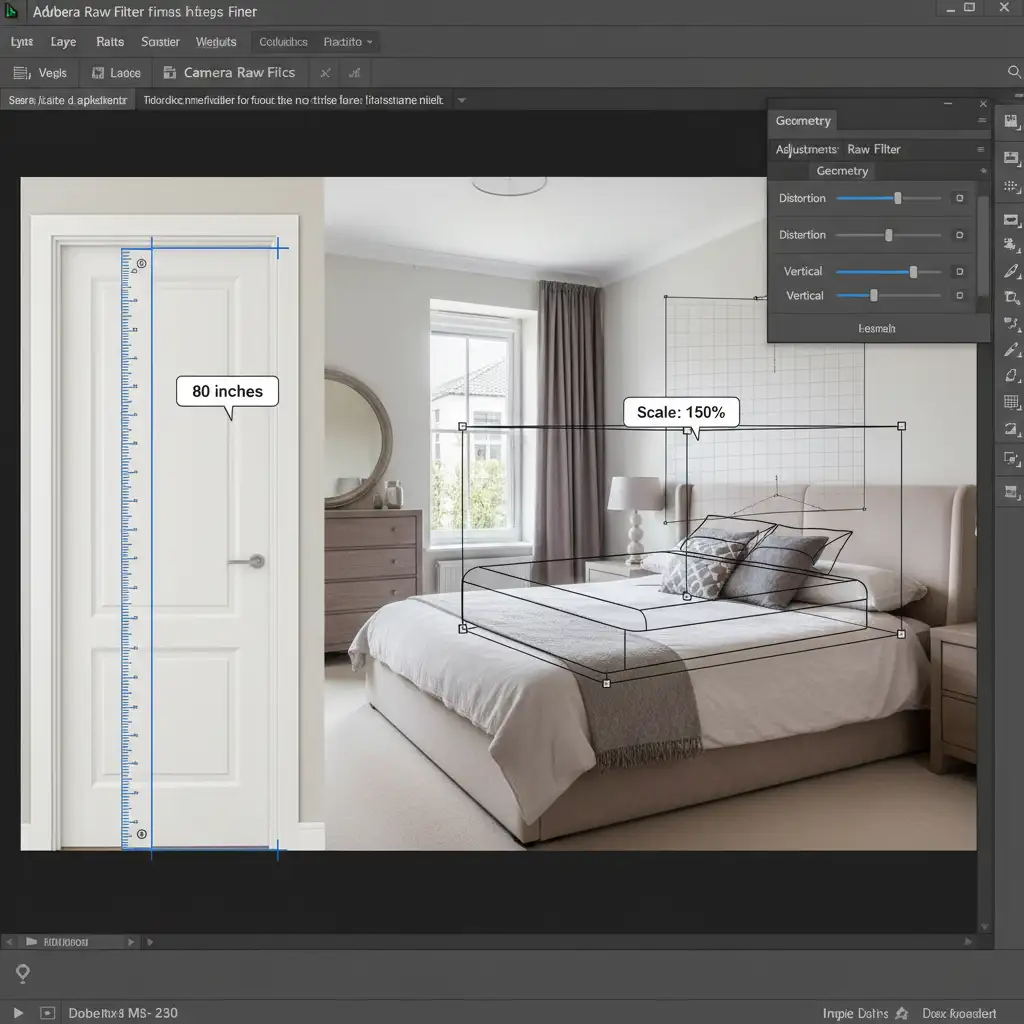
- Open the Camera Raw Filter and use the Geometry panel to correct any underlying lens distortion.
- Import your 3D furniture asset.
- Select the Ruler Tool (I). Find an anchor object in the room with a standard size—such as a standard interior door, which is universally 80 inches tall.
- Measure the doorframe with the Ruler Tool to establish your pixel-to-inch ratio.
- Scale your furniture proportionally based on these real-world dimensions (e.g., if the 80-inch door is 800 pixels tall, a 20-inch high coffee table should be exactly 200 pixels tall).
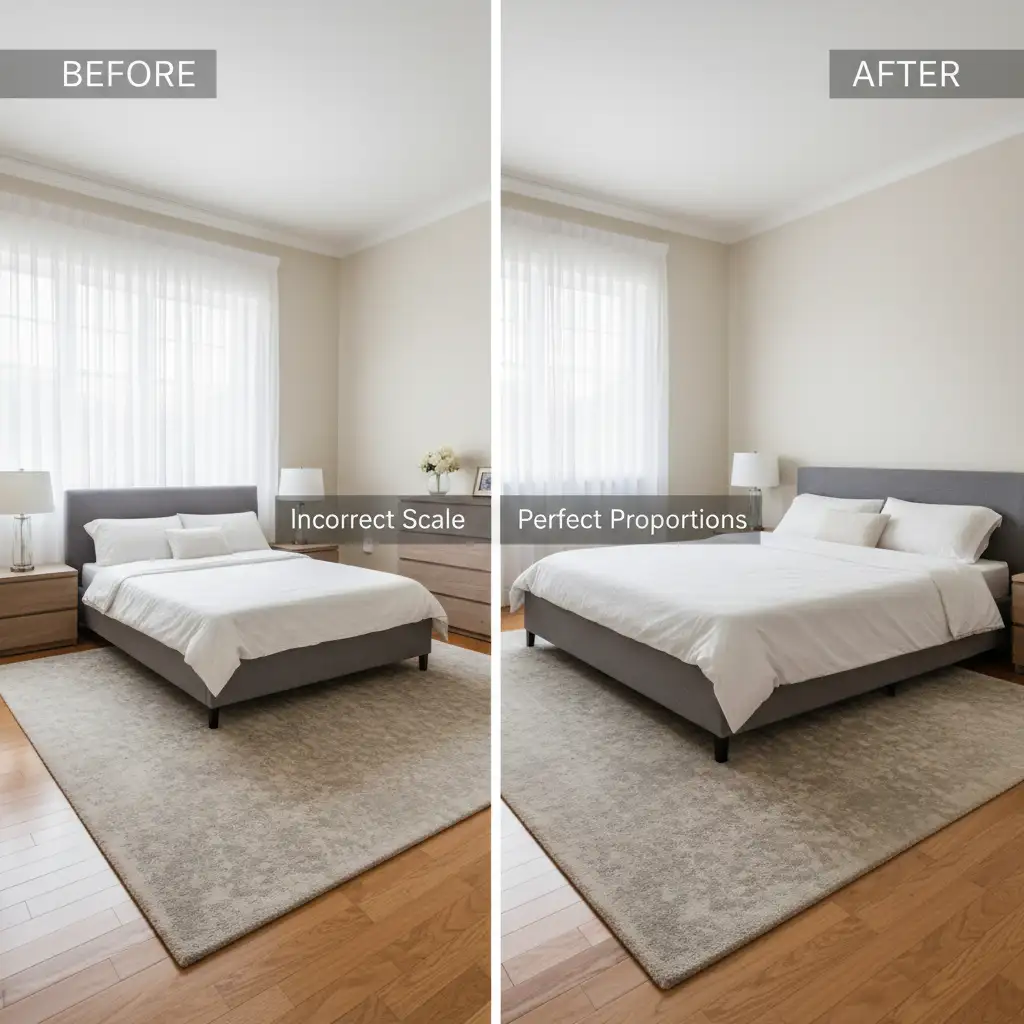
Before and After: The Impact of Accurate Scale
When you apply these techniques, the transformation is night and day. A room that previously looked like a cheap collage suddenly becomes a high-end, inviting space that buyers can actually envision themselves living in.
Stop Losing Buyers to Bad Edits
Mastering the geometry, perspective grids, and spatial measurements required for scaling furniture for virtual staging accuracy takes years of practice. If your virtual staging efforts are resulting in tiny beds, floating sofas, or distorted perspectives, it is costing you real estate deals.
You don’t have to struggle with complex Photoshop workflows. Let the expert retouchers at Image Work India and Cloud Retouch handle the heavy lifting. Our team specializes in complex perspective matching, scale geometry, and photorealistic composite integration. We ensure every piece of digital furniture is perfectly scaled, beautifully lit, and completely indistinguishable from reality.



