
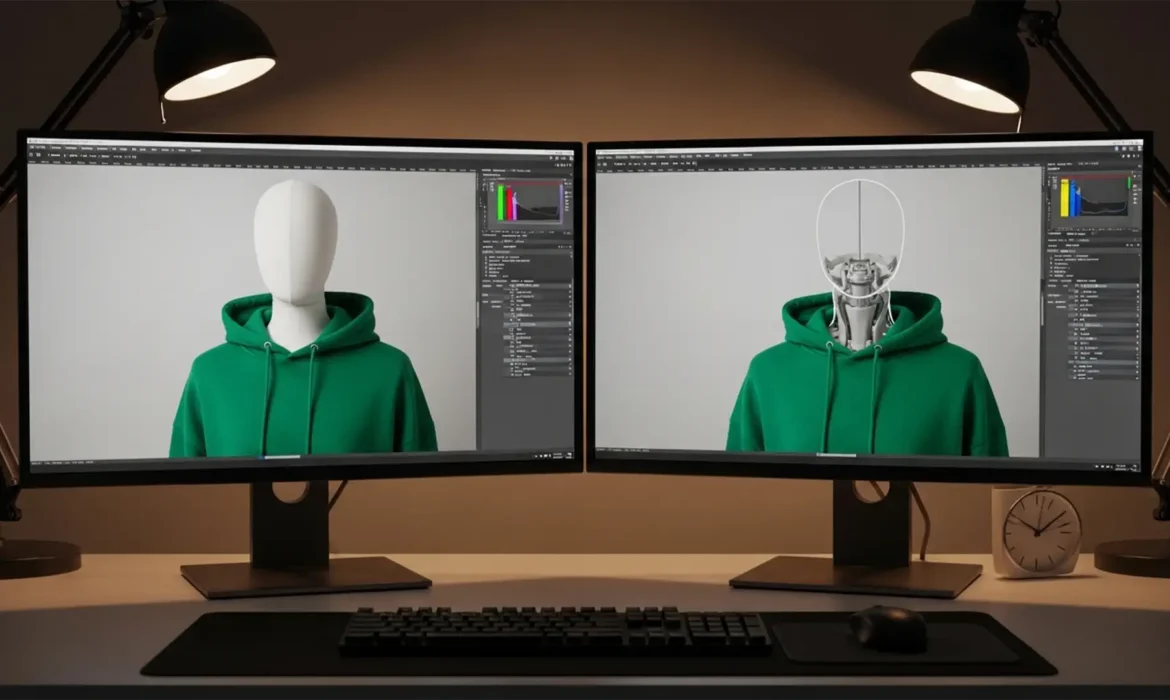
If you manage a high-volume Shopify store or apparel brand, you know the nightmare of processing hundreds of product shots manually. Traditional clipping paths are slow, expensive, and bottleneck your time-to-market. Editors spend countless hours painstakingly cutting out the mannequin, aligning the front with the inner neck, and adjusting the lighting to create a realistic composite image. It drains resources and profit margins.
But what if you could automate the heavy lifting? Welcome to the ultimate AI batch ghost mannequin workflow for apparel. Using Photoshop v25.0 and above, we will show you how to leverage AI subject masking, Generative Fill, and advanced batch droplets to scale your invisible mannequin edits flawlessly.
Why Traditional Ghost Mannequin Edits Are Obsolete
Historically, achieving the perfect ghost mannequin required a photographer to shoot two separate images: the garment on the mannequin, and the garment turned inside out to capture the inner neck label. Editors would then use the Pen Tool to create a manual clipping path, mask out the mannequin, and stitch the two images together.
While accurate, this method is fundamentally unscalable for catalogs containing hundreds of SKUs. By integrating GPU acceleration and AI-driven tools, modern e-commerce studios can reduce processing time by up to 80%.
Prerequisites: Upgrading Your Toolkit
To execute this workflow, you must be running Adobe Photoshop v25.0 or higher. This version introduces the necessary stable builds for advanced Generative AI and refined neural filters required for seamless garment reconstruction.
Method A: The Quick Fix – AI Object Selection and Actions
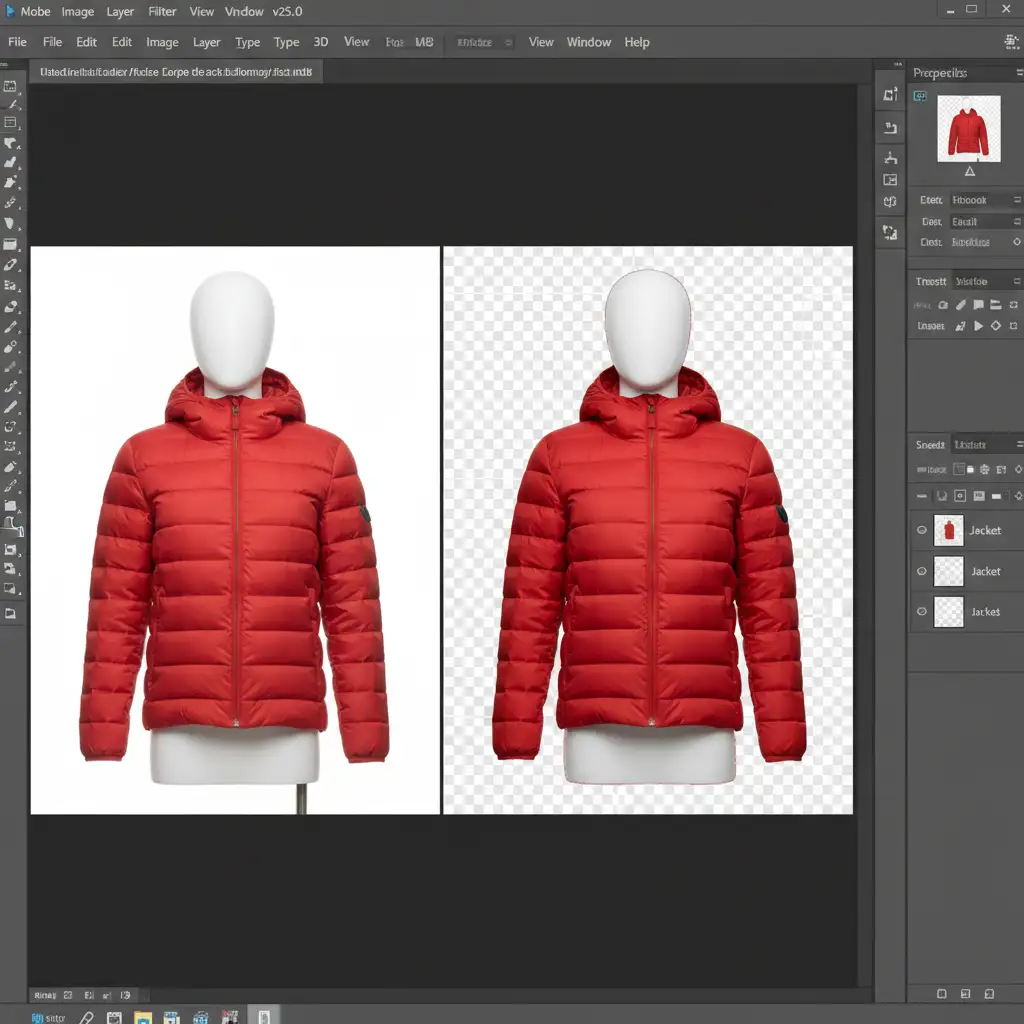
The first bottleneck in the ghost mannequin process is isolating the garment. We can automate this using Photoshop’s AI-powered selection tools recorded into an actionable script.
Automating Background Removal
Instead of drawing a manual clipping path, we will train an Action to recognize the apparel.
- Open a sample mannequin image in Photoshop.
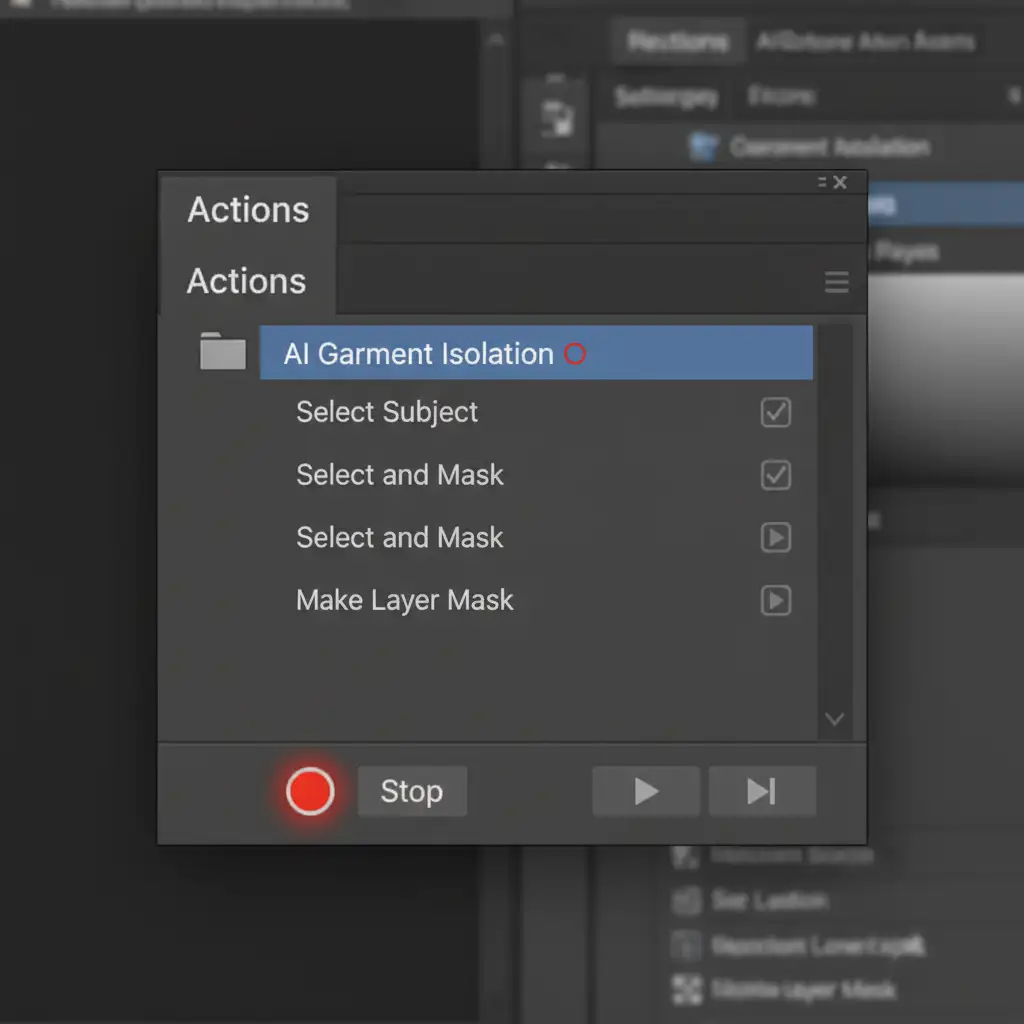
- Open the Actions Panel (Window > Actions) and click “Create New Action.” Name it AI Garment Isolation.
- Select the Object Selection Tool from the toolbar. Ensure “Object Finder” is checked at the top.
- Click “Select Subject.” The AI will automatically detect the garment and ignore the plastic mannequin limbs.
- Apply Mask Edge Refinement to ensure the fabric textures (like wool or frayed denim) are preserved.
- Click the “Add Layer Mask” icon to hide the mannequin and background.
- Stop recording the Action.
Method B: The Pro Workaround – Generative Fill for Neck Joints
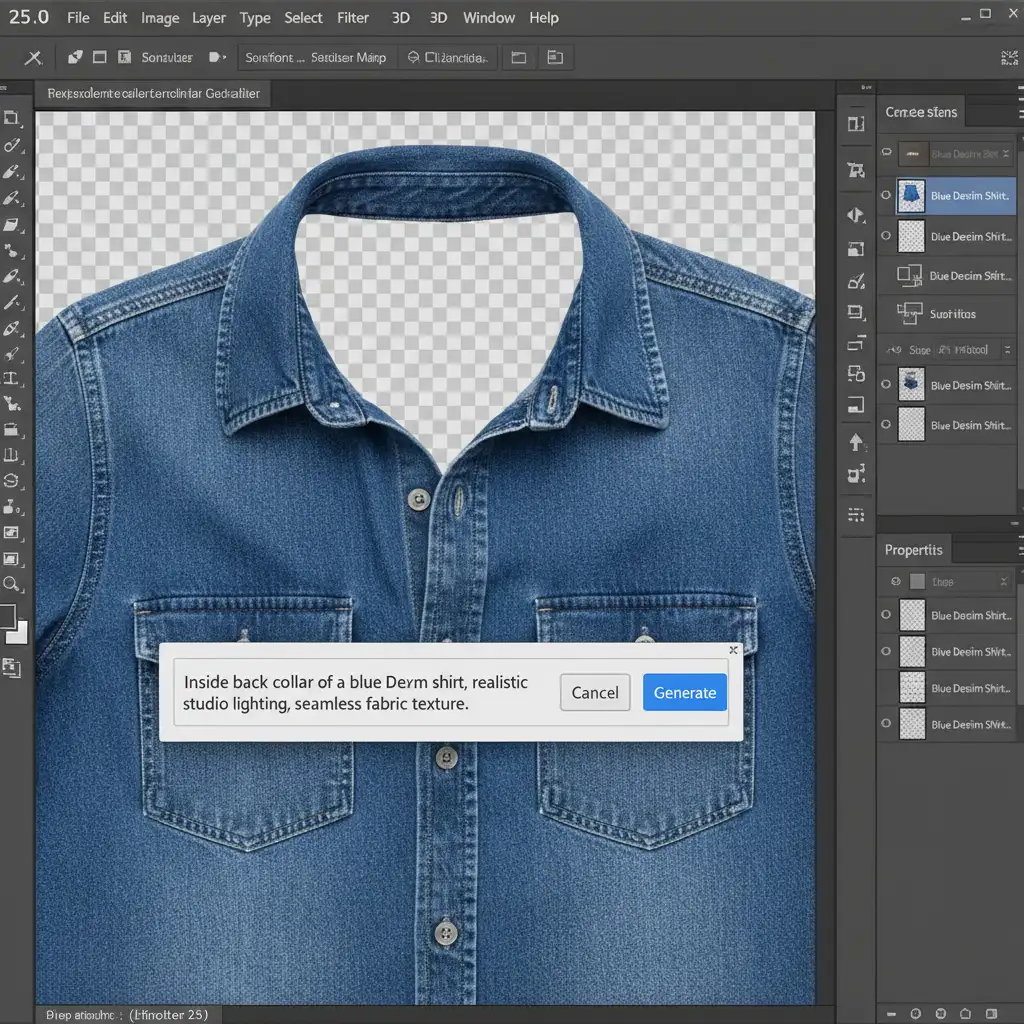
The most challenging part of the ghost mannequin effect is the “neck joint”—the hollow space where the mannequin’s neck used to be, which should display the inside back of the garment and the brand label.
If you don’t have the time to shoot the inner neck separately, AI can synthesize it.
Reconstructing the Inner Neck
- With your isolated garment layer selected, convert it to a Smart Object. This protects the original pixels.
- Use the Lasso Tool to draw a rough selection around the empty collar area where the inner neck should be.
- Click on the contextual taskbar for Generative Fill.
- Type a precise prompt: “Inside back collar of a [color/fabric] shirt, realistic studio lighting, seamless fabric texture.”
- Click Generate. Photoshop will analyze the surrounding fabric and reconstruct a highly realistic inner neck cavity.
- Cycle through the three variations and select the most accurate composite image.
Method C: The Technical Deep-Dive – Batch Processing Droplets
Now that you have your Actions built for isolation and neck jointing, it is time to scale. Applying these steps one by one defeats the purpose. We need to utilize Droplet Actions to process entire folders automatically.
Building Droplet Actions for Scale
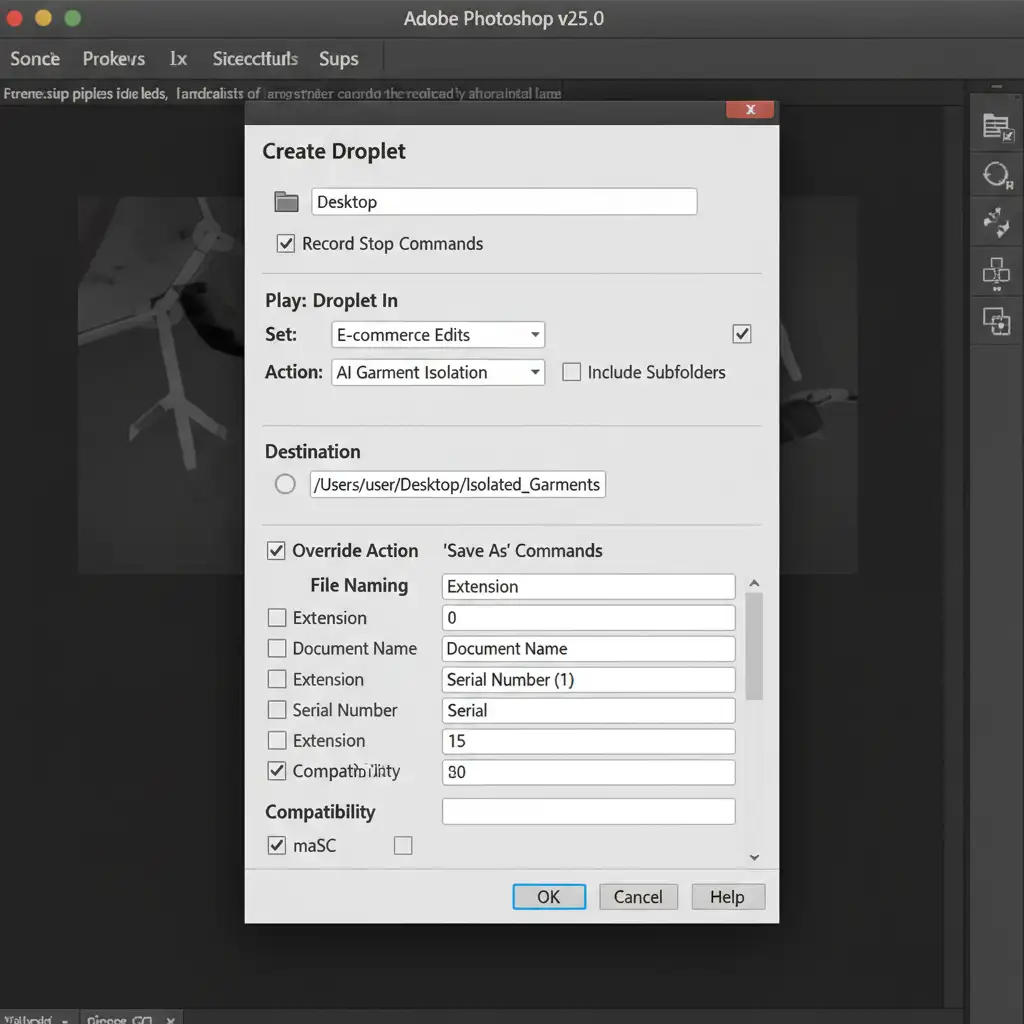
A Droplet packages your Photoshop Action into a standalone executable file. You can drag and drop a folder of 500 raw mannequin photos onto the Droplet, and Photoshop will process them in the background.
- Go to File > Automate > Create Droplet.
- Choose a save location for the Droplet application (e.g., your desktop).
- Under the “Play” section, select the Action Set and the specific AI Garment Isolation Action you created.
- Set the “Destination” to a new folder named Processed Ghost Mannequins.
- Check “Override Action ‘Save As’ Commands” to ensure the files output as web-ready PNGs with transparent backgrounds.
- Click OK.
By leveraging GPU acceleration, your computer will rapidly execute the neural filters across the entire batch, leaving you with hundreds of perfectly isolated garments ready for your Shopify store.
Skip the Hassle: Let Image Work India & Cloud Retouch Scale Your Edits
Building an AI batch ghost mannequin workflow for apparel can save you time, but it still requires technical setup, expensive software subscriptions, and quality control. AI can sometimes generate strange artifacts in the fabric, requiring a trained human eye to fix.
If you need a flawless, scalable solution for your high-volume apparel catalog without the technical headaches, Image Work India and Cloud Retouch are here to help.
Our team of industry professionals specializes in pixel-perfect ghost mannequin edits, complex neck jointing, and high-end apparel retouching. We handle the volume, ensure absolute brand consistency, and deliver web-ready files faster than doing it in-house.
Stop bottlenecking your product launches. Focus on growing your brand and let us handle the pixels. Contact Image Work India and Cloud Retouch today for a free trial of our ghost mannequin services.



