
Imagine this: You’ve just updated to Adobe Photoshop 2025, ready to tackle a massive batch of product photos. You open the software, hit your trusty shortcut, and… nothing happens. You check your Actions Palette, and it’s completely empty, save for the default actions. Your custom automation scripts, meticulously built over the years, have seemingly vanished into thin air.
If your Photoshop 2025 actions were deleted after the update, you’re not alone. This is a notorious workspace migration bug affecting thousands of retouchers, halting batch processing and destroying productivity. But don’t panic-your .atn files aren’t gone forever. In this emergency recovery guide, we’ll show you exactly how to restore your workflow and get back to editing in minutes.
Why Did the Photoshop 2025 Update Wipe Your Settings?
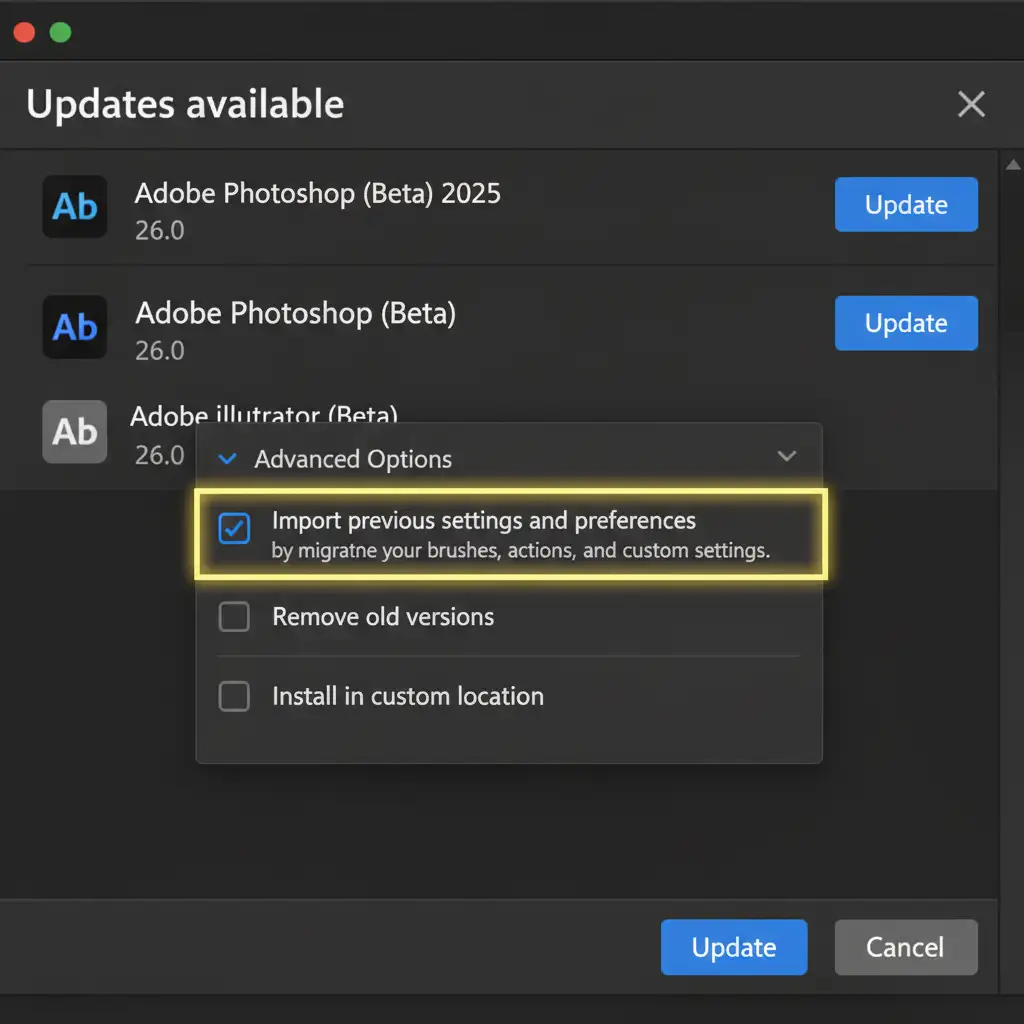
The transition to Adobe Photoshop 2025 (v26.x/v27.x) introduces a strict environment change. Often, custom workspaces, brushes, and actions fail to port over during the Creative Cloud update.
This usually happens for two reasons:
- The ‘Import previous settings and preferences’ checkbox was unchecked during the installation process.
- The Creative Cloud preferences engine failed silently due to OS permission restrictions in your system’s hidden background folders.
When this workspace migration fails, you are greeted with an empty workspace and the dreaded ‘welcome page’ error, leaving you without your crucial automation scripts.
How to Recover Missing Actions in Photoshop 2025
Depending on how your system handles Adobe’s background files, you can restore your actions using one of three methods. Start with the easiest fix before moving on to the technical deep-dives.
Method A: The Quick Fix (Built-In Preset Migration Tool)
Adobe anticipated some migration hiccups and included a manual trigger to force the software to look for your old files.
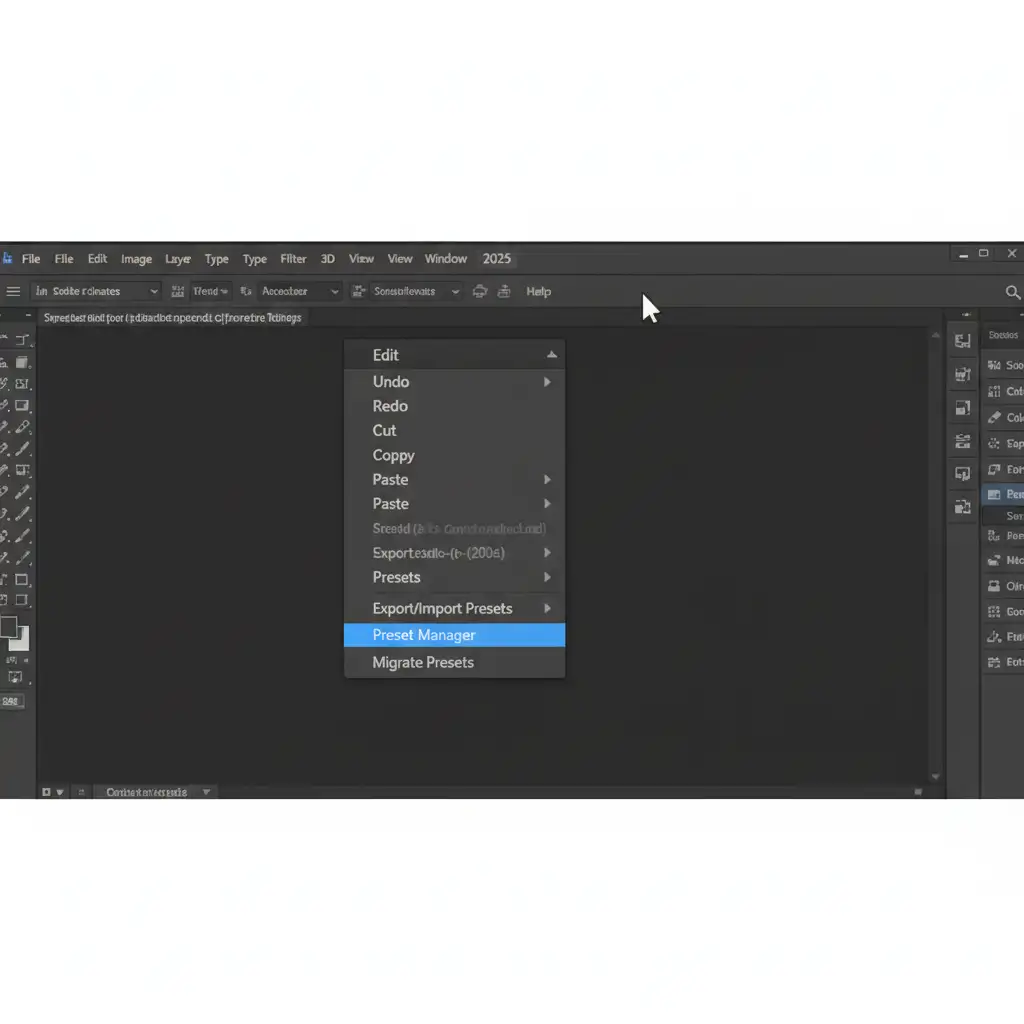
- Open Adobe Photoshop 2025.
- Navigate to the top menu bar and click Edit.
- Scroll down to Presets > Migrate Presets.
- Click Yes when prompted.
Photoshop will automatically scan your previous version folders (like Photoshop 2024) and port your missing .atn files directly into the new 2025 Actions Palette.
Method B: The Pro Workaround (Manual .ATN File Recovery)
If the built-in migration tool fails, your .atn files are likely still sitting safely in your older Photoshop installation folders. You just need to move them manually.
Step 1: Locate the Previous Version Folders
You will need to access hidden system folders.
- For Windows Users: Open File Explorer and navigate to your AppData directory: C:/Users/[YourUsername]/AppData/Roaming/Adobe/Adobe Photoshop 2024/Presets/Actions (Note: If you can’t see AppData, click ‘View’ at the top of File Explorer and check ‘Hidden items’.)
- For Mac Users: Open Finder, hold the Option key, click ‘Go’ in the top menu, and select your Library Application Support folder: ~/Library/Application Support/Adobe/Adobe Photoshop 2024/Presets/Actions
Step 2: Load Actions into Photoshop 2025
- Copy the .atn files from the 2024 folder.
- Paste them into the corresponding Photoshop 2025 folder.
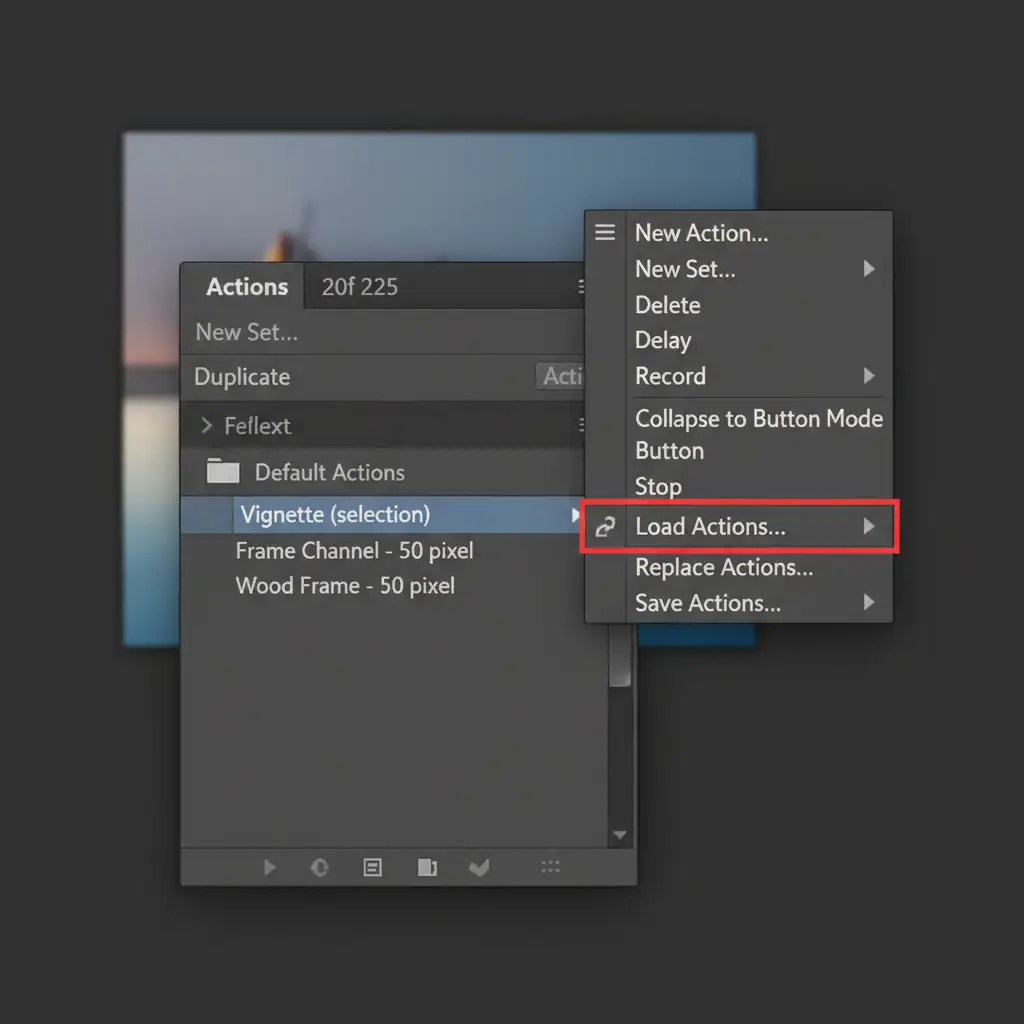
- Open Photoshop 2025, open the Actions Panel (Window > Actions).
- Click the flyout menu (the four horizontal lines in the top right corner of the panel) and select Load Actions.
- Select your newly pasted files to restore your batch processing capabilities.
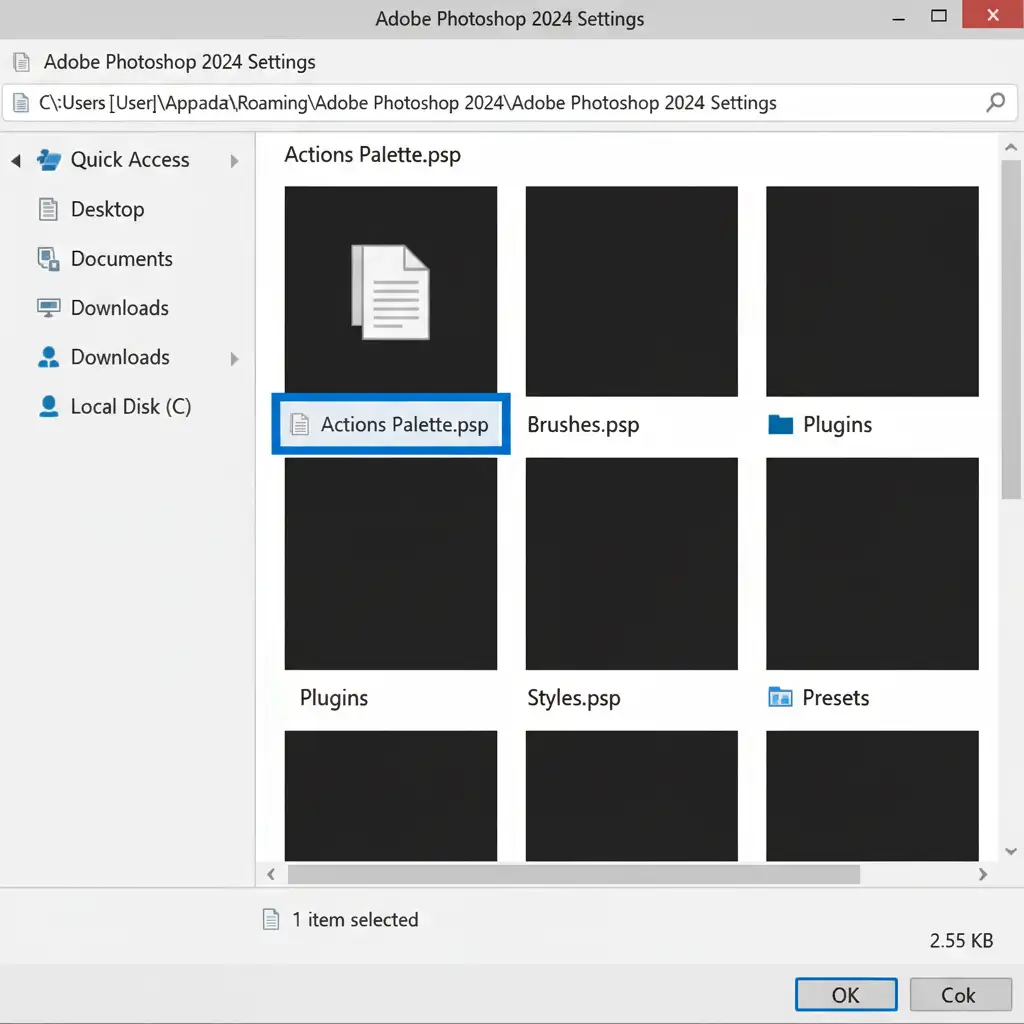
Method C: The Technical Deep-Dive (Restoring Actions Palette.psp)
What if you never actively saved your actions as raw .atn files? If you simply recorded actions directly into the panel and never exported them, Methods A and B won’t work. Your automation scripts are trapped inside a specific settings file: the Actions Palette.psp.
Here is how to resurrect that exact file state:
- Close Photoshop 2025 completely.
- Navigate back to your previous version’s settings folder:
- Windows: C:/Users/[User]/AppData/Roaming/Adobe/Adobe Photoshop 2024/Adobe Photoshop 2024 Settings
- Mac: ~/Library/Preferences/Adobe Photoshop 2024 Settings
- Scroll through the files until you locate Actions Palette.psp.
- Right-click and copy this file.
- Navigate to the Adobe Photoshop 2025 Settings folder in that same Adobe directory.
- Paste the copied file, choosing to Replace the existing file when prompted.
- Relaunch Photoshop 2025. Your Actions Palette will now reflect the exact state it was in before the update.
Stop Wasting Time on Software Troubleshooting
Software updates shouldn’t bring your production pipeline to a grinding halt. If your Photoshop 2025 actions are deleted after the update and you’re staring down a deadline with thousands of images left to process, you don’t have to tackle it alone.
Need to automate thousands of images but lose your actions? Let the expert retouchers at Image Work India and Cloud Retouch handle your bulk editing and automation needs flawlessly. From high-volume e-commerce clipping paths to complex editorial color correction, our teams use enterprise-grade workflows to deliver pixel-perfect results-no matter what Adobe update rolls out.



