
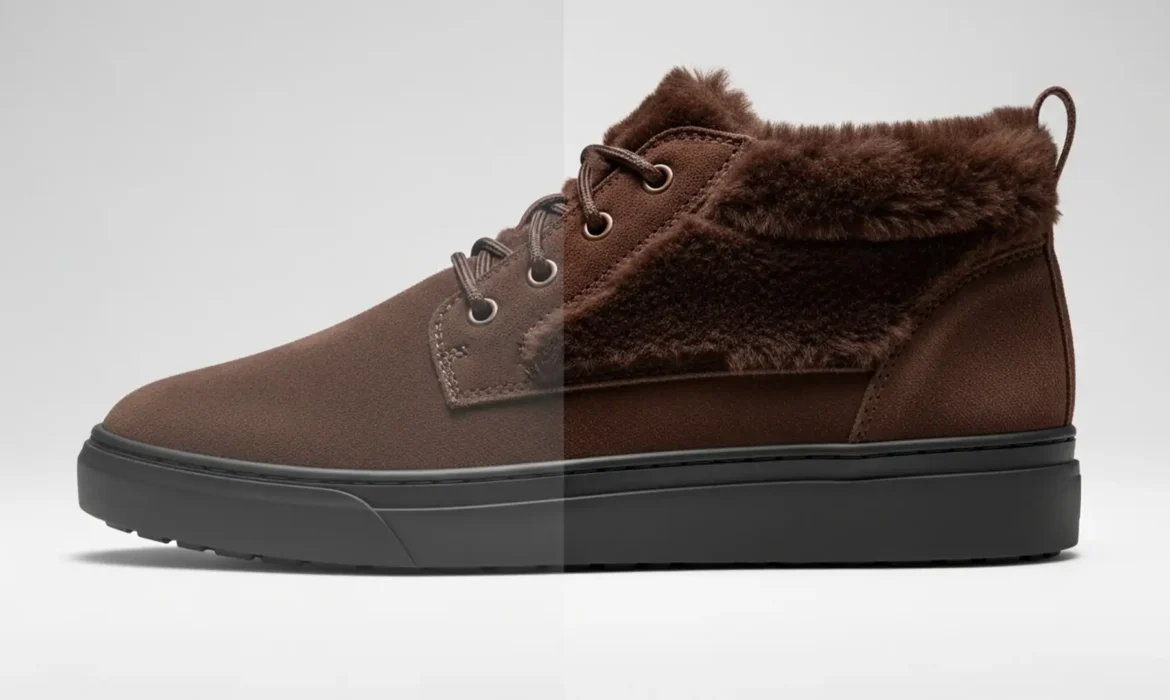
You run a batch of product photos through an AI background remover, and suddenly your premium suede shoes look like they were molded out of cheap plastic. Sound familiar?
While one-click AI tools are incredible for speed, their aggressive edge detection algorithms often destroy the physical micro-contrast of highly textured products. When neural networks smooth out the alpha boundary of fuzzy fabrics, woven knits, or brushed metals, your products lose their authentic feel—and you lose e-commerce conversions.
If you want to stop your products from falling into the uncanny valley, you need to rethink your editing process. Here is how to preserve texture in AI product background removal using a professional hybrid workflow that combines the speed of automation with the precision of manual retouching.
Why AI Destroys Product Textures (The “Plastic” Effect)
Whether you are using Adobe Photoshop v25.x, Photoroom, or Canva, standalone AI tools share a common flaw: aggressive anti-aliasing.
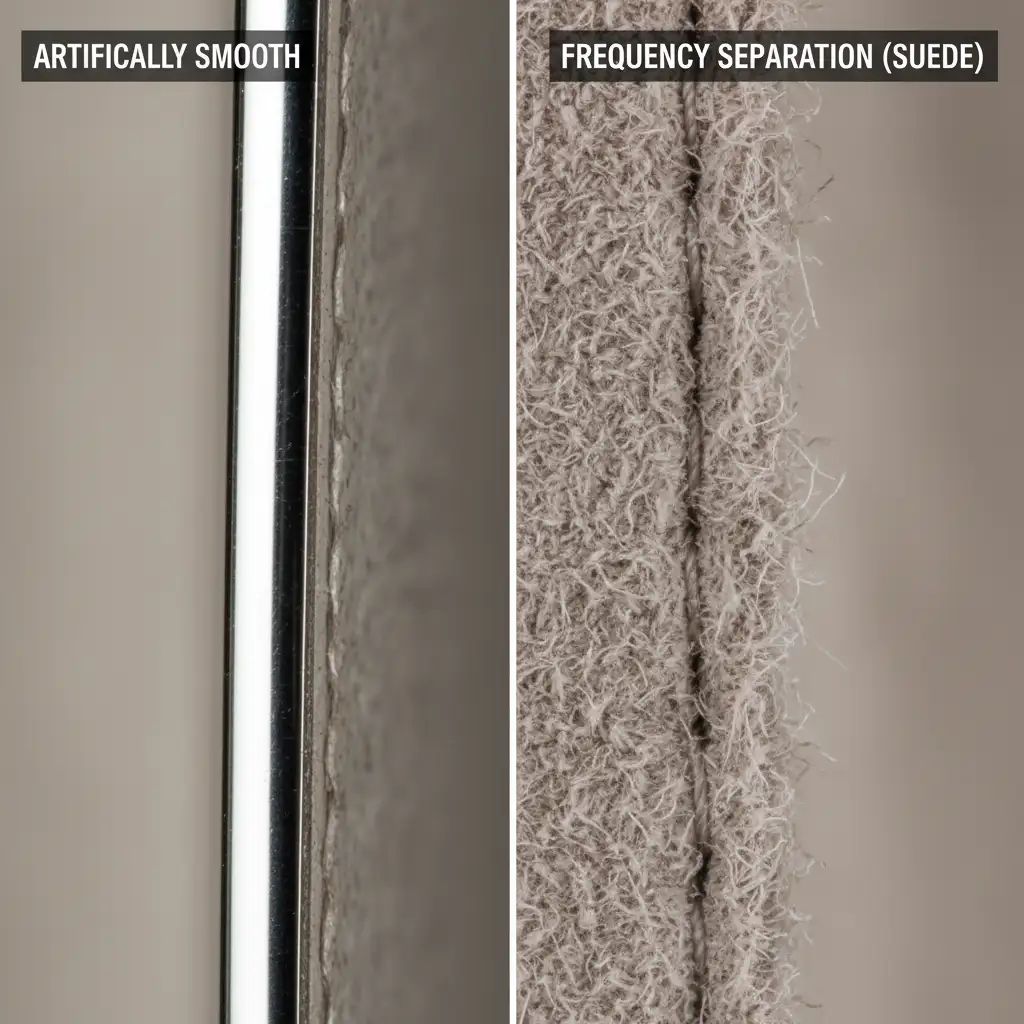
When separating a product from its background, AI algorithms attempt to create a clean, sharp cutout. To achieve this, neural networks average out the pixel values along the alpha boundary. For smooth objects like a ceramic mug, this works perfectly. However, for highly textured products like woven fabrics, suede, fur, or brushed metal, this edge smoothing destroys the fine details. The result is a “plastic” look where the product appears artificially rendered rather than authentically photographed.
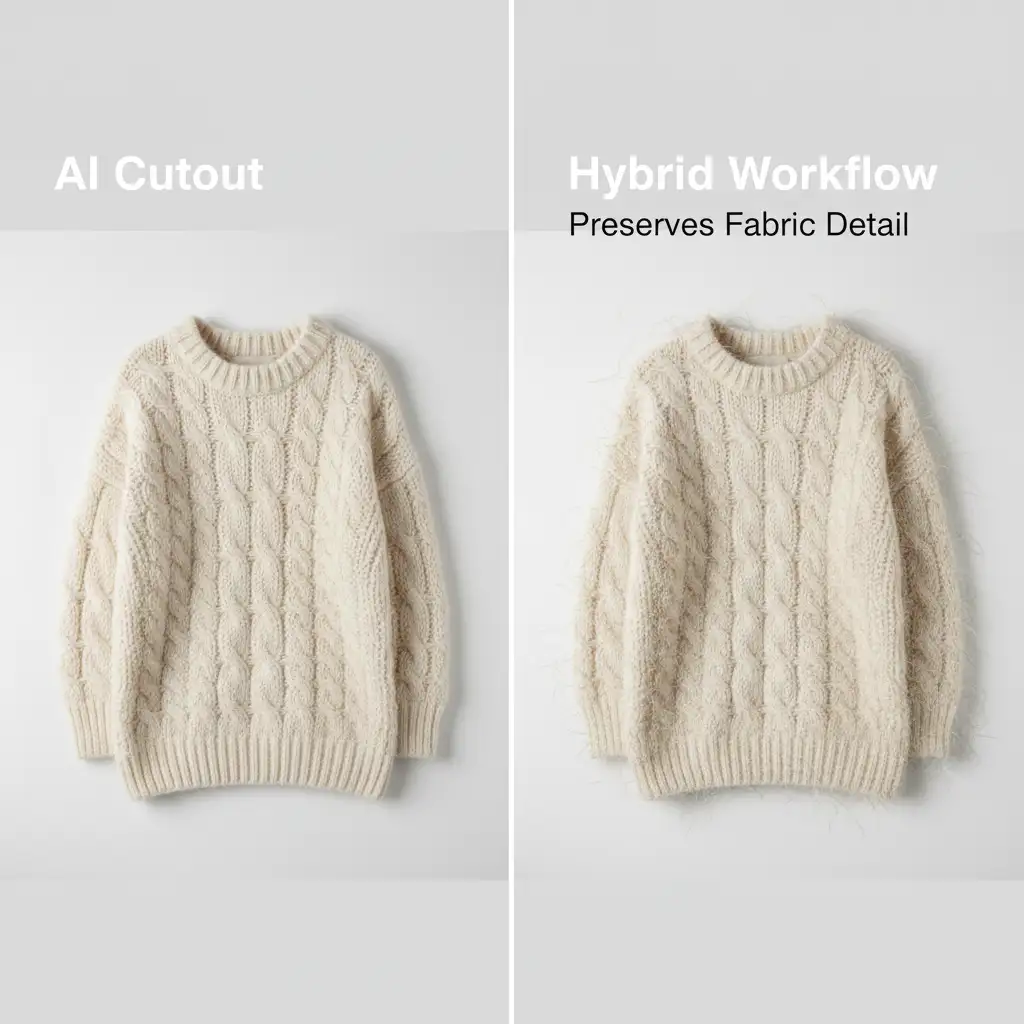
Instead of relying purely on automated tools or attempting to rebuild edges with Generative Fill, professionals use a hybrid workflow. Here are three methods to restore and protect your product’s natural texture.
3 Professional Workflows to Preserve Texture in AI Product Background Removal
Method 1: The Quick Fix (Select and Mask Refinement)
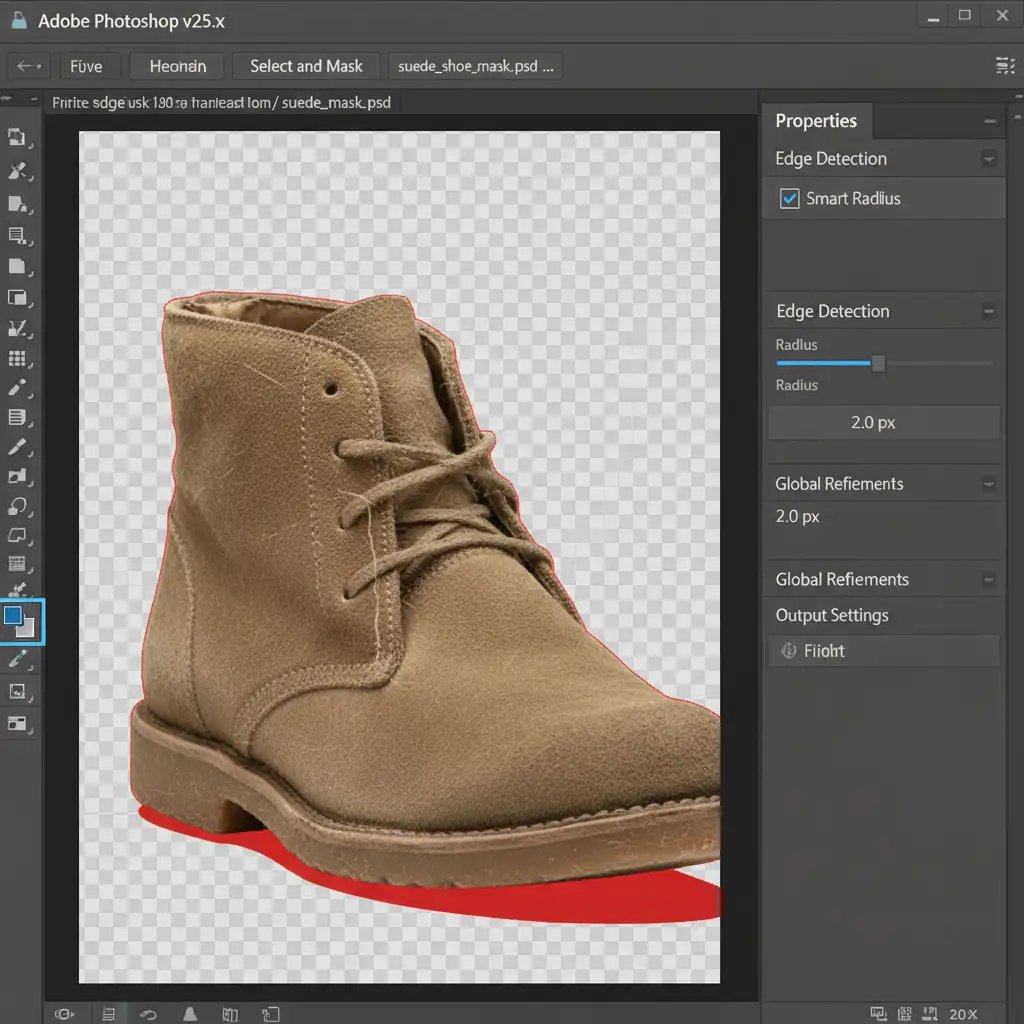
If you need a fast solution within Photoshop, you can force the AI to recalculate the edge without applying heavy smoothing.
- Make your initial selection using Photoshop’s AI Select Subject.
- Once the marching ants appear around your product, open the Select and Mask workspace.
- In the properties panel, enable Smart Radius and set it to a very low value (1-3px).
- Select the Refine Edge Brush Tool and carefully paint over the textured borders (e.g., the fuzz on a tennis shoe or the fray of a denim jacket).
This forces Photoshop to evaluate the micro-contrast at the edge rather than applying a blanket anti-aliasing algorithm.
Method 2: The Pro Workaround (Hybrid High-Pass Restoration)
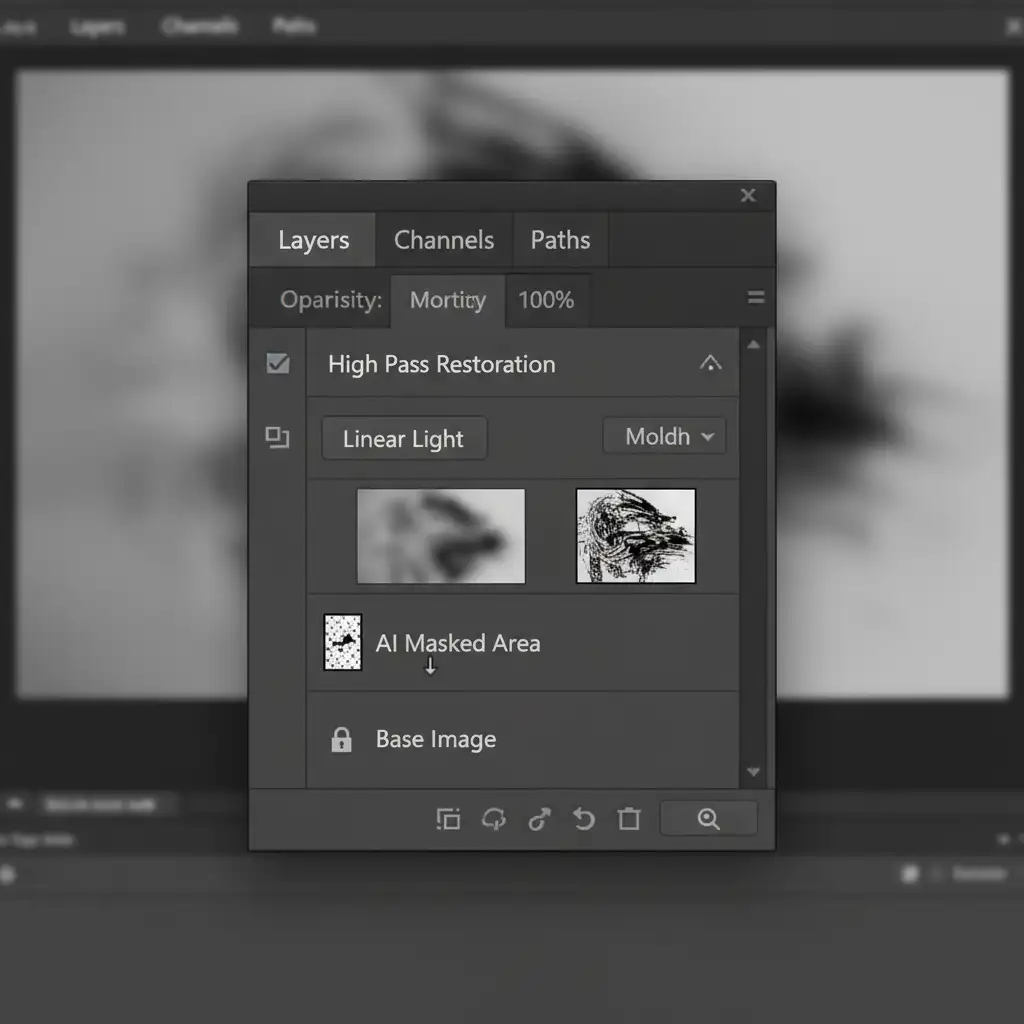
When the AI has already blurred out the edge and you need to physically restore the lost texture, the High Pass filter is your best friend. This method allows you to use fast AI masking while bringing back the original pixel data.
- Duplicate your base product layer twice.
- Apply your automated AI background removal mask to the bottom duplicate layer.
- Select the top duplicate layer and navigate to Filter > Other > High Pass. Set the Radius to approximately 2.0px (just enough to see the texture outlines).
- Change the top layer’s Blend Mode to Linear Light.
- Create a Clipping Mask by holding Alt/Option and clicking between the top and bottom layers.
This technique effectively overlays the original, uncompressed micro-contrast back onto the AI-masked edge, instantly curing the plastic look.
Method 3: The Technical Deep-Dive (Frequency Separation Masking)
For high-end e-commerce clients where perfection is non-negotiable, you must separate the product’s color from its texture before masking. This is the ultimate way to preserve texture in AI product background removal.
- Perform a standard Frequency Separation to divide your image into a Low Frequency layer (Color/Tone) and a High Frequency layer (Texture).
- Apply your AI background removal mask strictly to the Low Frequency layer. The AI can smooth out the color edges all it wants without damaging the texture.
- Move to the High Frequency layer. Because this layer contains only texture data, you must manually mask it. Use precise Channel masking or thresholding to drop out the background.
- By keeping the High Frequency mask manual, you guarantee that 100 percent of the original texture data remains intact at the pixel level.
Scale Your E-Commerce Editing Without Losing Quality
Mastering edge detection, blend modes, and micro-contrast restoration is essential for high-end product photography. However, executing a hybrid High-Pass or Frequency Separation workflow on thousands of SKUs is incredibly time-consuming.
Struggling to maintain product realism while scaling your image production? Let Image Work India and Cloud Retouch handle your high-volume e-commerce editing. Our expert retouching teams utilize a proprietary hybrid AI-to-manual workflow, ensuring your products retain their perfect textures, sharp micro-contrast, and flawless backgrounds every single time.
Stop losing sales to uncanny, plastic-looking product images. Contact Image Work India today to get a free trial of our premium e-commerce image editing services.



