
You are trying to extend the background of a simple e-commerce product shot. You make your selection, hit “Generate,” and wait for the magic to happen. But instead of a clean, seamless background, you are staring at a bizarre, unrequested artifact. If you are dealing with Photoshop 2025 Generative Fill adding random objects to your images, you are experiencing a workflow-killing phenomenon known as AI hallucination.
This issue wastes valuable time, especially when you are processing hundreds of product photos for an upcoming campaign. In this guide, we will break down exactly why Adobe’s latest Firefly engine is misbehaving and provide three proven, step-by-step methods to force the software to do exactly what you want it to do.
Why is Photoshop 2025 Generative Fill Adding Random Objects?
In Photoshop 2025 (v26.x and higher), Adobe integrated the highly advanced Firefly Image 3 Model. While this engine is incredibly powerful for creating scenes from scratch, it introduces a major pain point for professional retouchers: it wants to invent, not just clone.
When you attempt to remove a blemish or extend a background, the AI interprets the empty space within your selection borders (the marching ants). If the selection is too broad, or if your prompt engineering is overly descriptive for a simple task, the engine attempts to generate novel content to fill the void. Instead of sampling the surrounding pixels to create a blank white studio backdrop, it hallucinates—inserting random objects, strange shadows, or bizarre anomalies into your pristine product shots.
Fortunately, you can stop these AI hallucinations by adjusting your workflow.
3 Ways to Fix Generative Fill Hallucinations in Photoshop 2025
Method 1: The Quick Fix – Leave the Prompt Blank
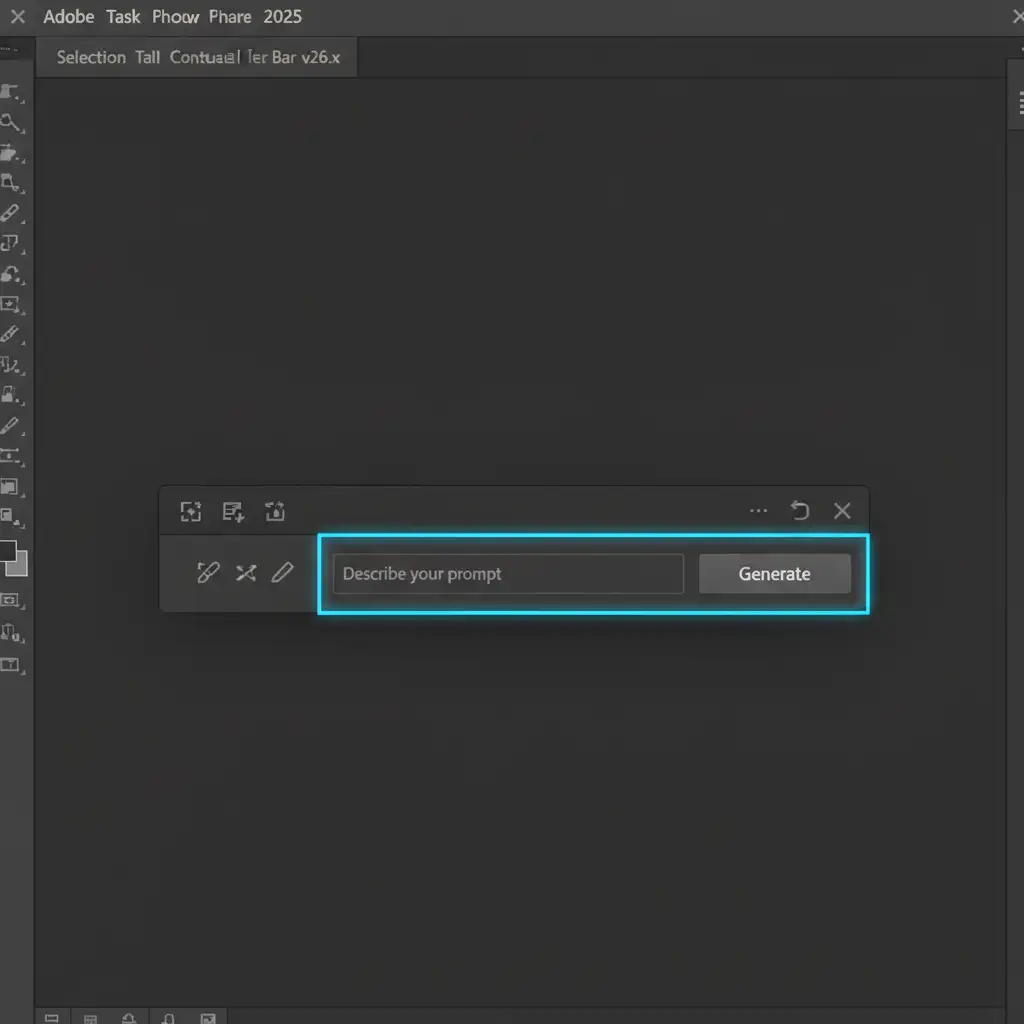
The most common mistake users make is treating the Contextual Task Bar like a chatbot. When trying to remove a speck of dust or clear a background, users often type “remove object” or “clear background.”
To the Firefly Image 3 Model, words like “object” or “background” can trigger the generation of new objects or complex backgrounds.
The Solution: Make your selection and leave the text prompt completely blank. Hitting “Generate” with an empty prompt forces Photoshop to default to context-aware removal, instructing the AI to look exclusively at the surrounding pixels rather than trying to invent new elements.
Method 2: The Pro Workaround – Tighten Your Selection Zone
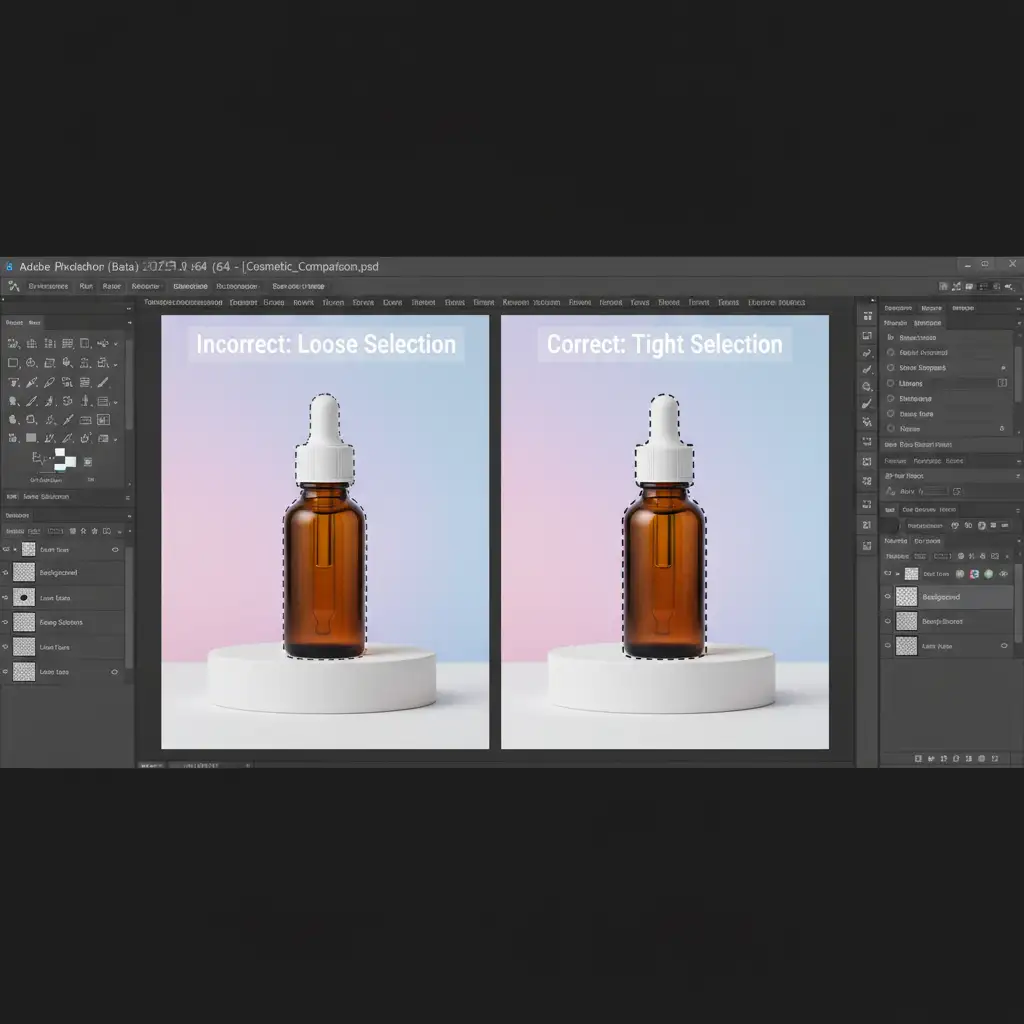
Generative Fill relies entirely on the pixels you select. If you use a massive, sloppy brush or a wide marquee tool to select a small dust spot, you are giving the AI too much blank canvas. It assumes that large empty space is meant for something new.
The Solution:
- Select the Lasso Tool.
- Set a minimal feather (1-2px) in the top properties bar.
- Hug the subject tightly. Leave only a tiny margin between the object you want to remove/extend and the marching ants.
- Generate the fill (again, with a blank prompt).
- If the edges are slightly harsh, embrace non-destructive editing. Use Layer Masking with a soft brush to manually blend the transition into the original image.
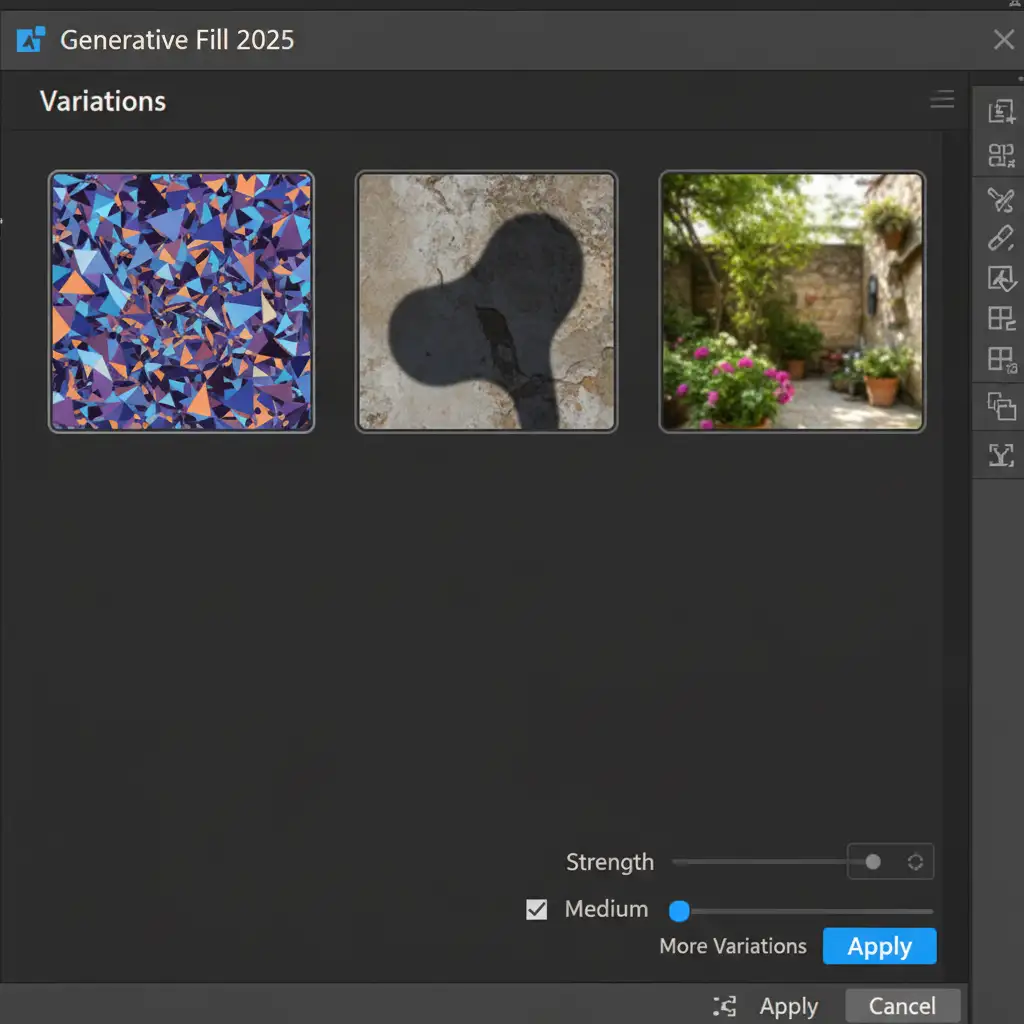
If you still experience issues, check the Variations Panel. Photoshop generates three options per generation; sometimes, the first is a hallucination, but the second or third is clean.
Method 3: The Technical Deep-Dive – Revert to Content-Aware Fill
If you are doing high-volume product photography and cannot afford to gamble on AI hallucinations, the best fix is to bypass Generative Fill entirely.
For pure background extension and blemish removal, legacy tools offer mathematically perfect pixel cloning without the unpredictability of AI.
The Solution:
- Make your selection.
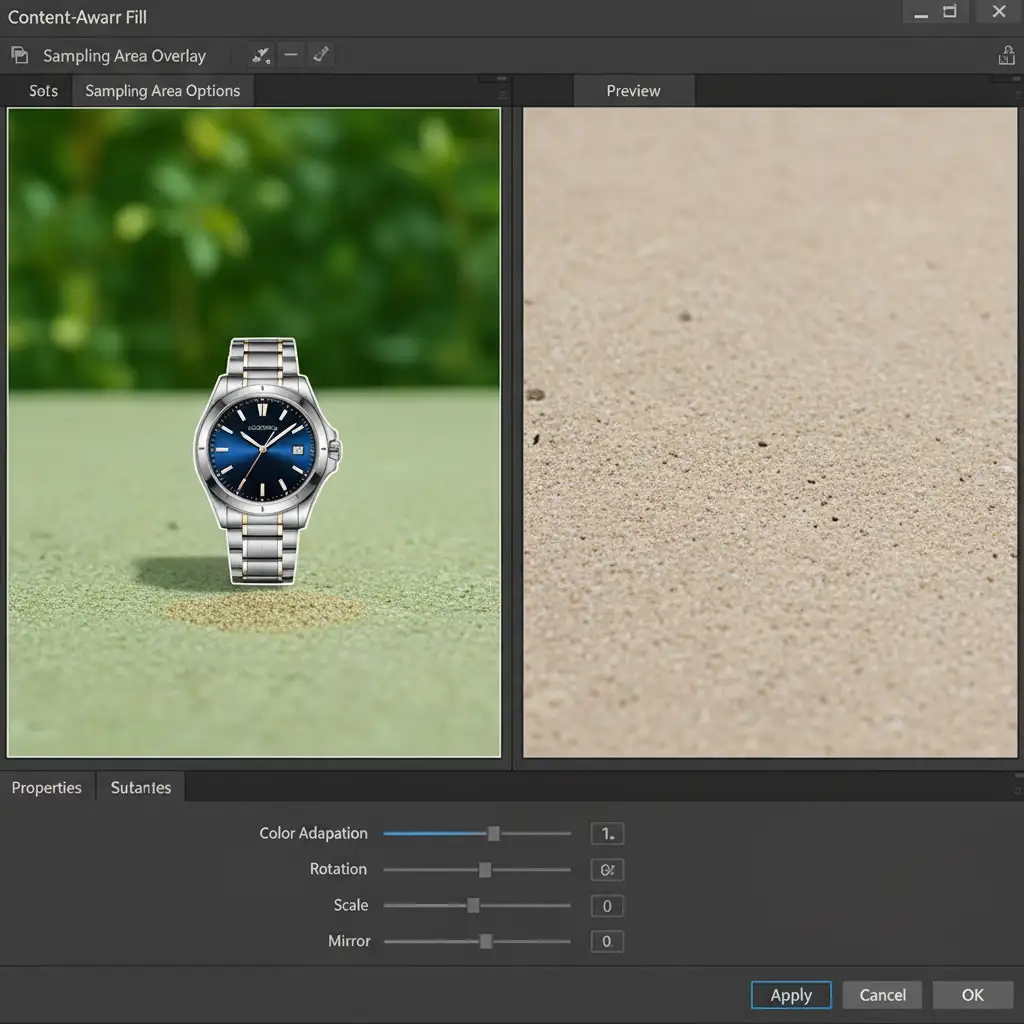
- Navigate to Edit > Content-Aware Fill (do not use the Generative Fill shortcut).
- The Content-Aware Fill workspace will open, displaying a green sampling overlay.
- Use the sampling brush tool to paint away any areas you do not want Photoshop to sample from (like the product itself).
- Output to a New Layer to maintain a non-destructive editing workflow.
By restricting exactly which pixels Photoshop can sample, you guarantee zero random objects are injected into your image.
Stop Fighting AI: Let the Experts Handle Your E-Commerce Retouching
Dealing with Photoshop 2025 Generative Fill adding random objects is a frustrating bottleneck. While these technical workarounds are highly effective, they still require manual intervention, precise selections, and constant babysitting of the Variations Panel. When you are managing hundreds or thousands of SKUs for an e-commerce store, you don’t have time to fight with hallucinating AI.
That is where Image Work India and Cloud Retouch come in.
Our professional retouching teams combine industry-leading software expertise with pixel-perfect, human-driven precision. We don’t rely on unpredictable AI to guess what your product shots should look like. From flawless background extensions and complex clipping paths to high-end blemish removal and color correction, we deliver consistent, ready-to-publish images at scale.
Stop letting software updates slow down your production timeline. Contact Image Work India and Cloud Retouch today to streamline your bulk e-commerce editing and guarantee flawless product photography every single time.



