
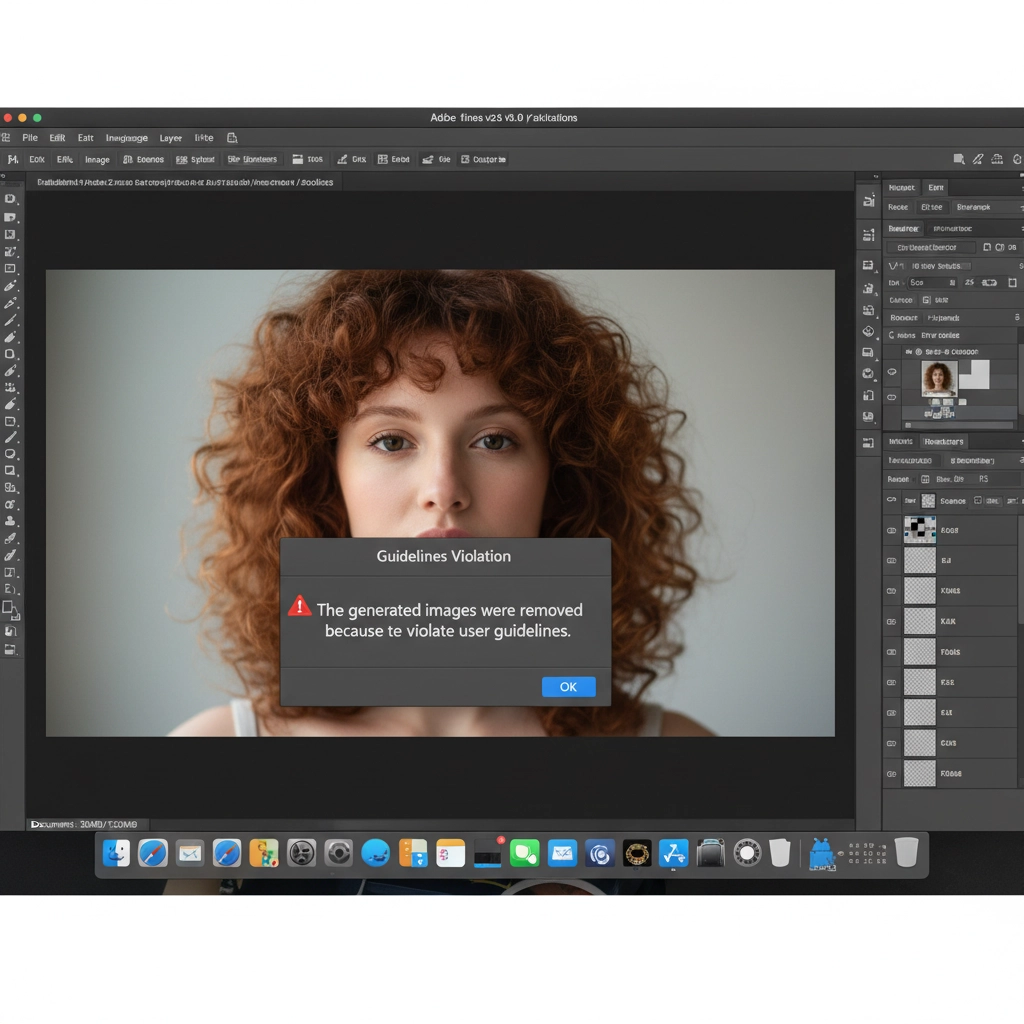
You are mid-workflow on a stunning boudoir or high-end portrait shoot. You grab the Lasso tool, circle a minor skin blemish, hit Generative Fill, and BAM—the dreaded Guidelines Violation error stops you dead in your tracks.
If you retouch skin professionally, you already know the frustration. In Adobe Photoshop v25.0 and newer, the underlying Adobe Firefly image model utilizes incredibly strict NSFW safety filters. It doesn’t matter if you are performing standard professional retouching; if the algorithm detects large areas of unbroken skin tones or specific anatomical contours, it assumes the worst and halts generation entirely.
Professional retouchers cannot afford to let an overzealous algorithm dictate their deadlines. Here is exactly how to bypass Generative Fill skin violations using advanced micro-masking, partial opacity tricks, and hybrid traditional workflows.
Why Does Adobe Firefly Block Skin Edits?
To bypass the filter, you must first understand how it works. Generative Fill does not just look at the pixels inside your Lasso selection; it analyzes the surrounding pixels to understand the environment. This is called the context window.
When retouching boudoir photography or high-end portraits with significant exposed skin, the context window inevitably pulls in large swaths of skin tones. The AI’s safety filter flags this data as a potential policy breach, resulting in a Guidelines Violation.
The secret to bypassing the system is manipulating this context window so the AI cannot recognize the broader subject matter.
Method A: The Quick Fix (Micro-Selections and Blank Prompts)
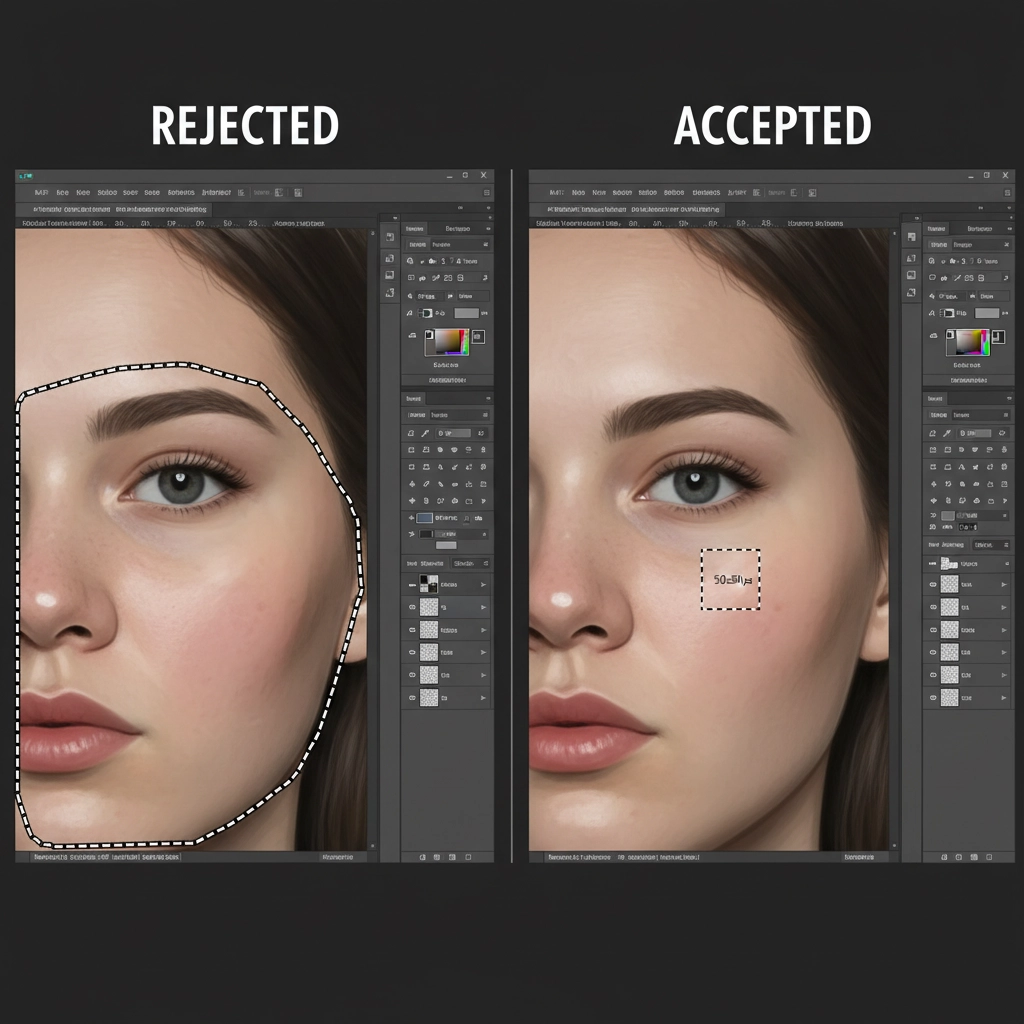
The easiest way to bypass the filter for minor blemish removal or texture cleanup is to starve the AI of context. If you select a large area, the AI has enough data to trigger the filter. If you select a microscopic area, it doesn’t.
Step-by-Step Micro-Masking:
- Zoom In: Zoom into your image at 200% or more.
- Micro-Selections: Instead of selecting a large patch of skin, use the Lasso Tool to make tiny, incremental selections (strictly under 50×50 pixels).
- The Blank Prompt: Click ‘Generate’ on the contextual taskbar without entering any text. Leaving the prompt blank forces the AI to rely solely on the immediate surrounding pixels (which, at 50×50, just look like abstract texture rather than anatomical features).
By keeping the selection area tiny, the AI fails to recognize the “NSFW” context and smoothly fills the area, bypassing the Guidelines Violation entirely.
Method B: The Pro Workaround (Gradient Quick Masking)
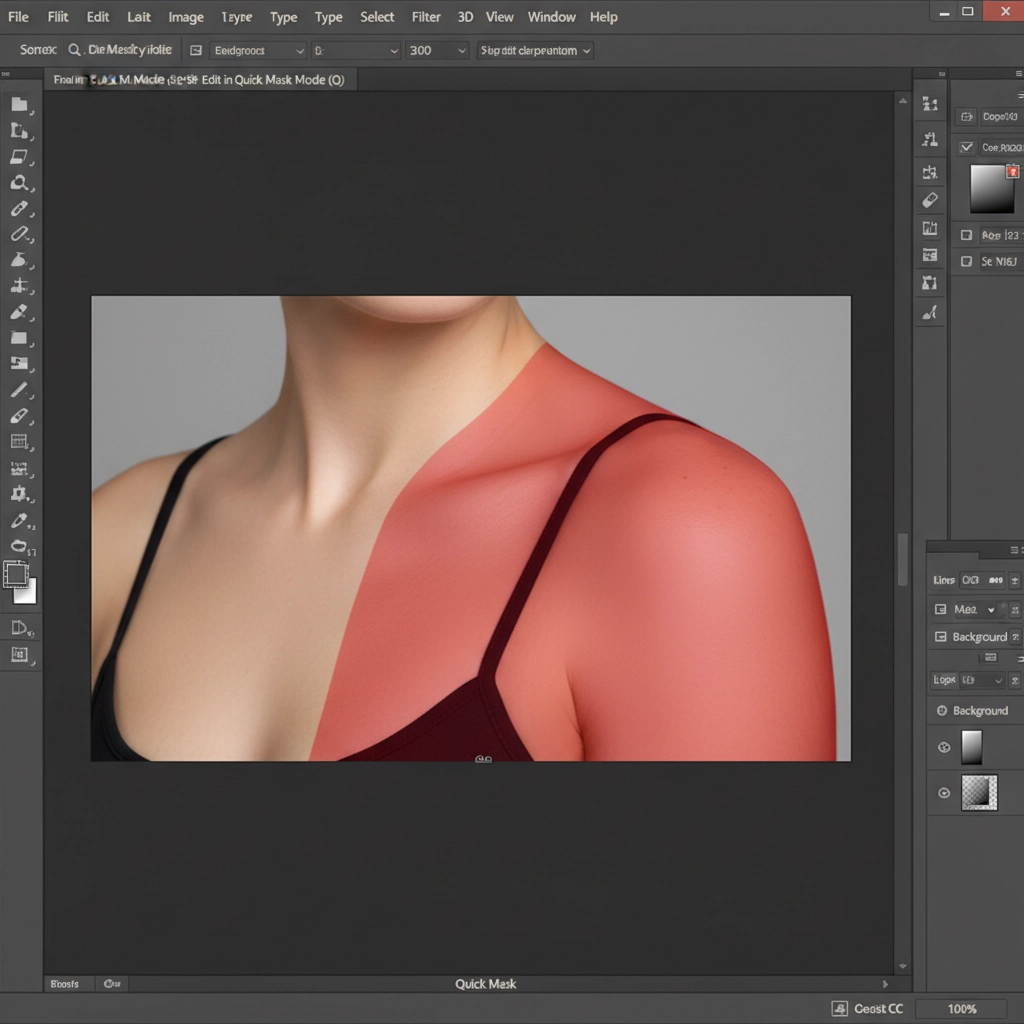
When you need to adjust lighting, blend uneven skin tones, or remove larger distractions on exposed skin, micro-masking is too slow. This is where Quick Mask Mode becomes your best workaround.
The Adobe Firefly algorithm evaluates partial transparency differently than hard selections. By feeding the AI a semi-transparent selection, you can often slip past the strict filters while still achieving flawless texture blending.
How to Execute the Quick Mask Trick:
- Press Q on your keyboard to enter Quick Mask Mode.
- Select the Gradient Tool (G) and apply a black-to-white gradient directly over the target skin area.
- Press Q again to exit Quick Mask Mode. You now have a partial selection (e.g., roughly 30 to 50 percent opacity).
- Run Generative Fill with a blank prompt or a highly specific, non-triggering prompt (like “smooth lighting transition”).
Because the selection isn’t a hard 100% opacity cutout, the AI blends the generated pixels with the original underlying skin, drastically reducing the chances of triggering the NSFW block.
Method C: The Technical Deep-Dive (Hybrid Frequency Separation)
If you are working on high-end editorial, boudoir, or commercial beauty campaigns, you shouldn’t rely solely on AI for skin smoothing anyway. The ultimate way to bypass a Generative Fill skin violation is to combine it with traditional Frequency Separation.
This method isolates the color/tone from the texture, allowing you to use AI only where it is safe to do so.
The Hybrid Workflow:
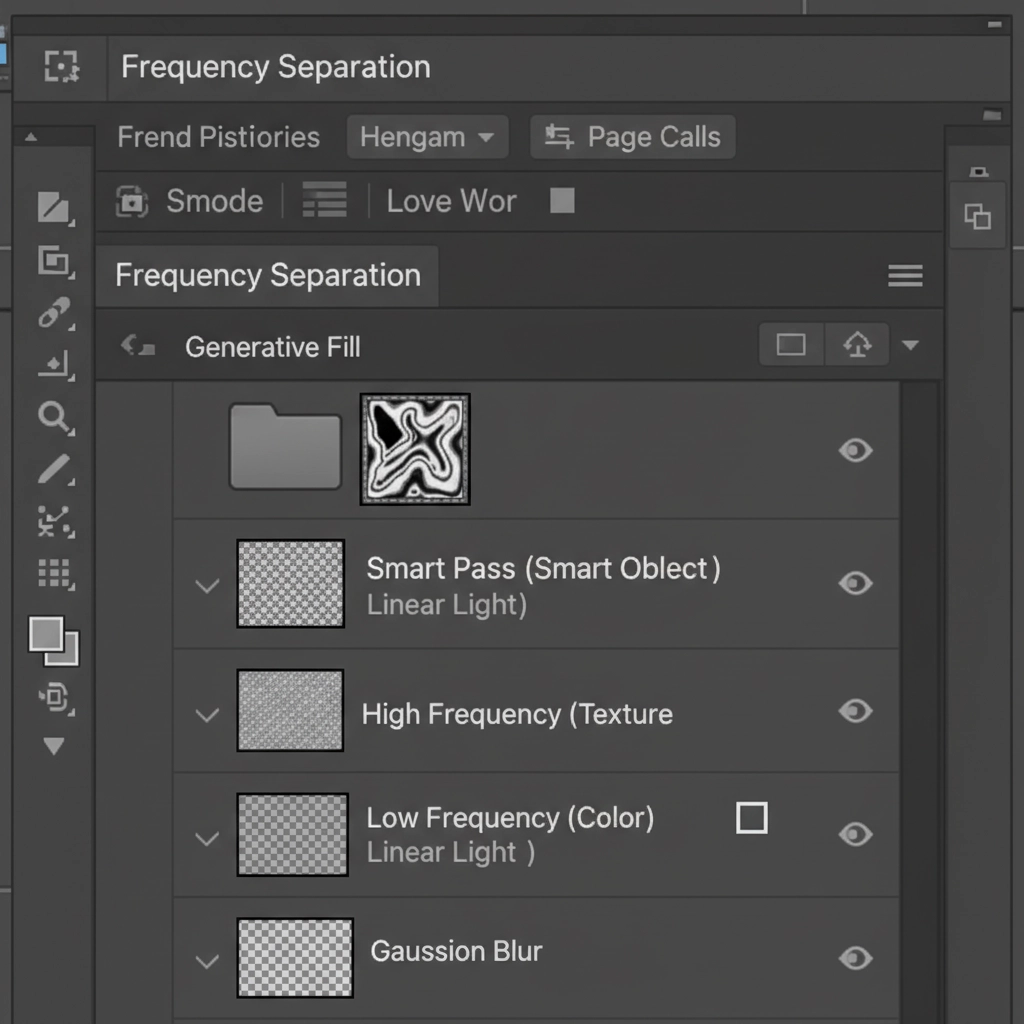
- Setup Frequency Separation: Create your standard Low-Frequency (color/tone) and High-Frequency (texture) layers.
- Smooth Color Manually: Bypass the AI entirely for the core skin smoothing. Use traditional tools like the Mixer Brush or Gaussian Blur on the Low-Frequency layer to even out the skin tones.
- Targeted AI on Texture: Switch to your High-Frequency layer. When you encounter a stubborn blemish or stray hair that traditional cloning can’t fix, make a selection with a strict 1-pixel feathering radius.
- Generate: Run Generative Fill strictly on this texture layer.
Because the High-Frequency layer contains zero color data—appearing as a neutral gray map of pores and lines—the AI’s safety filter has absolutely no skin tones or anatomical context to flag. It behaves exactly like an advanced Content-Aware Fill, seamlessly replicating skin pores without ever triggering a violation.
Stop Fighting the AI—Let the Experts Handle It
Figuring out how to bypass Generative Fill skin violations can save a project in a pinch, but micro-masking and complex layer setups take valuable time away from your core business: shooting and acquiring clients.
When you are dealing with high-volume boudoir galleries, demanding editorial clients, or intricate high-end portraiture, you need flawless results without the technical headaches of battling Adobe’s algorithms.
Image Work India and Cloud Retouch provide world-class, professional photo editing and retouching services. Our team of expert retouchers utilizes advanced, non-destructive techniques—from high-end Frequency Separation to precise Dodge & Burn—ensuring your subjects look stunning, natural, and perfectly polished.
Don’t let AI errors slow down your delivery times. Contact Image Work India today and let our experts handle your high-end skin retouching flawlessly.



