

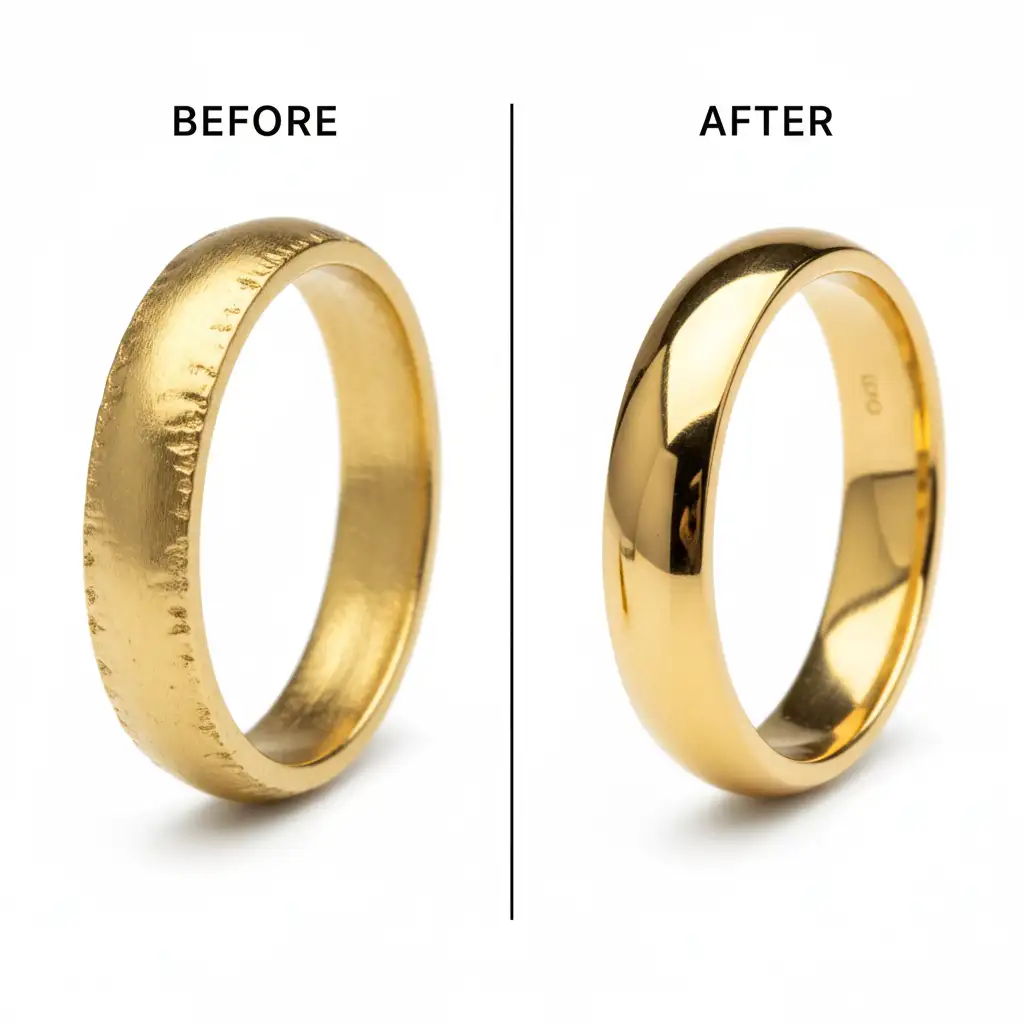
You just shot a flawless e-commerce campaign, but a few rings need their bands extended. You select the area, hit Photoshop’s Generative Fill, and wait for the magic. But instead of a crisp, luxurious gold band, you get a muddy, warped, matte smudge.
If you are struggling with fixing Generative Fill jewelry reflection artifacts, you aren’t alone.
Since Adobe introduced Generative Fill powered by Firefly in Photoshop v25.0, retouching has evolved. However, the AI still fundamentally misunderstands highly reflective surfaces. It struggles to calculate the exact localized contrast and micro-textures required to replicate precious metals, often misinterpreting sharp specular highlights as blurred gradients.
To restore that high-end metallic luster, you need a hybrid workflow. Here are three professional methods to clean up muddy AI artifacts and rescue your jewelry photography.
Method 1: The Quick Fix (Optimized Prompt Engineering)
Most users leave the Generative Fill text box blank when extending backgrounds or objects. When dealing with jewelry, a blank prompt forces Firefly AI to guess the texture, usually resulting in a matte finish.
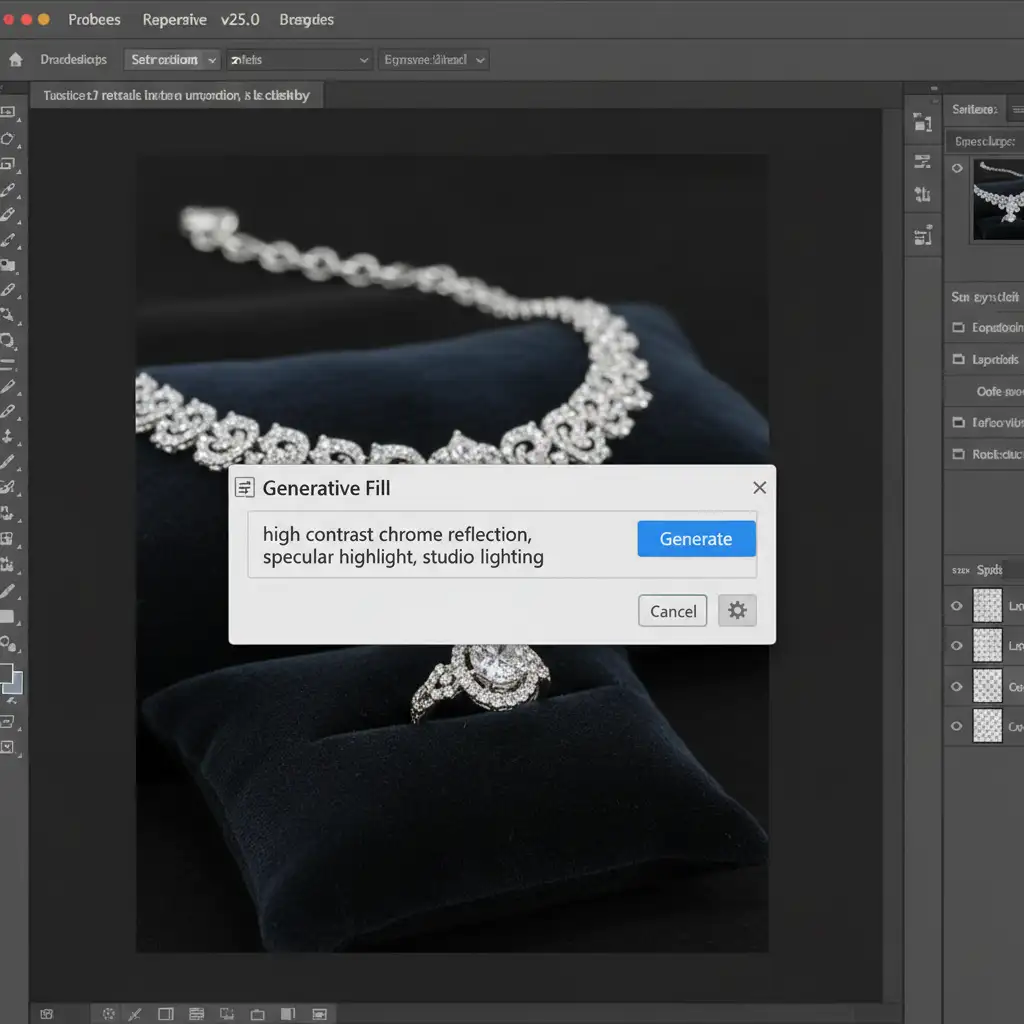
Instead of relying on the AI’s default assumptions, you must guide it using hyper-specific prompt engineering via the Contextual Task Bar.
- Make your selection over the missing or damaged jewelry area.
- Click Generative Fill on the Contextual Task Bar.
- Type a highly descriptive prompt: “high contrast chrome reflection, specular highlight, studio lighting, polished gold.”
- Generate 3 to 6 variations to find the closest match to the original micro-textures.
While this won’t always yield a perfect result, it provides a much stronger base layer for manual retouching than a blank prompt.
Method 2: The Pro Workaround (Frequency Separation)
When prompt engineering isn’t enough, Frequency Separation is the industry-standard technique for fixing Generative Fill jewelry reflection artifacts. This method allows you to keep the AI’s accurate color gradients while replacing its muddy textures with pristine metal data.
- Generate the Base: Use Generative Fill to create the general shape and color of the missing jewelry piece.
- Setup Frequency Separation: Merge a copy of your layers (Ctrl/Cmd + Alt + Shift + E) and run your standard Frequency Separation action to split the image into a Low-Frequency (Color) layer and a High-Frequency (Texture) layer.
- Isolate the Artifact: Identify the muddy AI-generated zone.
- Clone Pristine Data: Select the Clone Stamp Tool (Current Layer only). On your High-Frequency layer, sample a pristine, unedited section of the jewelry’s metal.
- Restore Luster: Carefully paint the crisp micro-textures and specular highlights over the muddy AI artifact.
Because you are only altering the texture layer, the underlying AI color gradients remain intact, resulting in a seamless blend.
Method 3: The Technical Deep-Dive (Clean Plate Compositing)
For high-end e-commerce catalogs where perfection is non-negotiable, you must bypass the AI’s texture generation entirely and use manual clean plate compositing to reconstruct the metal.
- Isolate the Band: Create a duplicate of your working layer. Use the Pen Tool to draw a precise path around the muddy artifact zone, converting it into a selection.
- Apply a Clipping Mask: Create a new blank layer and apply a clipping mask to your isolated shape.
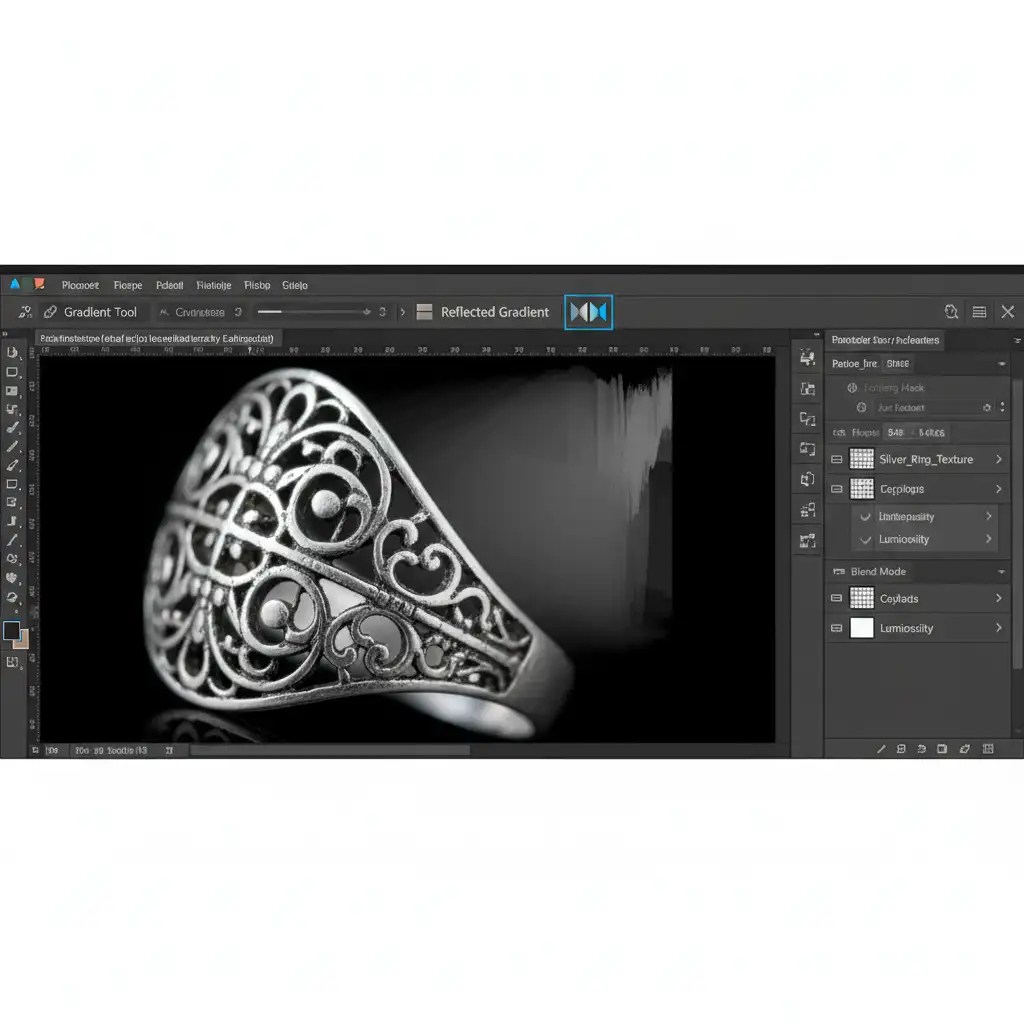
- Reconstruct the Gradient: Select the Gradient Tool. Sample the darkest and lightest colors from the natural metal. Set the gradient style to Reflected.
- Draw the Highlight: Drag the gradient across the clipping mask to create a perfectly straight, sharp specular highlight that mimics polished metal.
- Blend it In: Change the new gradient layer’s blend mode to Luminosity or Soft Light (depending on the base color) and adjust the opacity to blend the manual gradient perfectly with the original metal.
Scale Your E-Commerce Retouching with the Experts
Fixing Generative Fill jewelry reflection artifacts requires a deep understanding of light, localized contrast, and advanced Photoshop compositing. While the hybrid workflows above will save your images, they are incredibly time-consuming—especially when you are processing hundreds of SKUs for an e-commerce catalog.
You don’t have to spend hours manually drawing specular highlights.
At Image Work India or Cloud Retouch, our expert retouchers specialize in high-end jewelry photo editing. We combine cutting-edge AI tools with decades of manual retouching expertise to deliver flawless metallic luster, perfect diamonds, and pristine backgrounds at scale.
Stop letting AI dictate the quality of your catalog. Contact Image Work India and Cloud Retouch today to streamline your post-production workflow and get pixel-perfect jewelry images delivered on time, every time.



