
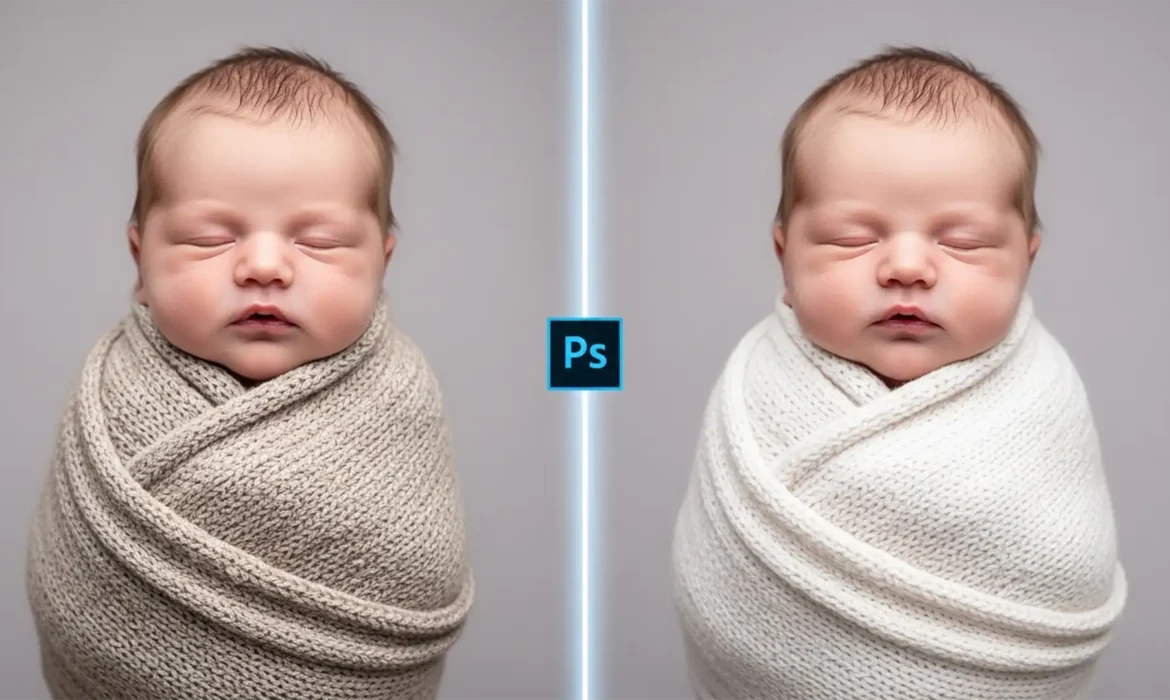
You’ve just captured the perfect newborn swaddles pose. The lighting is soft, the baby is sleeping peacefully, but there is one glaring problem: the baby squirmed, and now the swaddle is a wrinkled, loose, distracting mess.
If you are a newborn photographer, you know the pain of trying to fix messy fabrics in post-production. Traditional tools like the Clone Stamp often destroy the delicate knit textures or warp the baby’s proportions, turning a 10-minute edit into an hour-long nightmare.
Fortunately, Adobe Firefly has changed the game. Using Photoshop Generative Fill for newborn swaddles in Photoshop v25.0 and later allows you to seamlessly recreate realistic fabric folds, knits, and shadows in seconds. Here is the ultimate guide to smoothing out those wraps without losing the organic feel of your portraits.
Why Traditional Retouching Fails on Newborn Wraps
Before the introduction of AI-powered tools, photographers relied heavily on the Clone Stamp and the Patch Tool. While effective for simple background cleanup, these tools struggle with complex fabrics.
When you clone a chunky knit swaddle, the repeating patterns become obvious, destroying the illusion of a natural wrap. Furthermore, aggressive cloning near the baby often results in accidental distortion of delicate fingers, toes, or facial features. Generative Fill solves this by analyzing the surrounding pixels and generating entirely new, context-aware fabric that matches the exact lighting and texture of your scene.
How to Fix Messy Swaddles with Generative Fill
Depending on the severity of the wrinkles and the complexity of the fabric, there are three highly effective methods for utilizing this feature.
Method 1: The Quick Fix (For Minor Wrinkles)
If the swaddle just has a few distracting folds, let the AI do the heavy lifting in a single click.
- Select the Lasso Tool (L) from your toolbar.
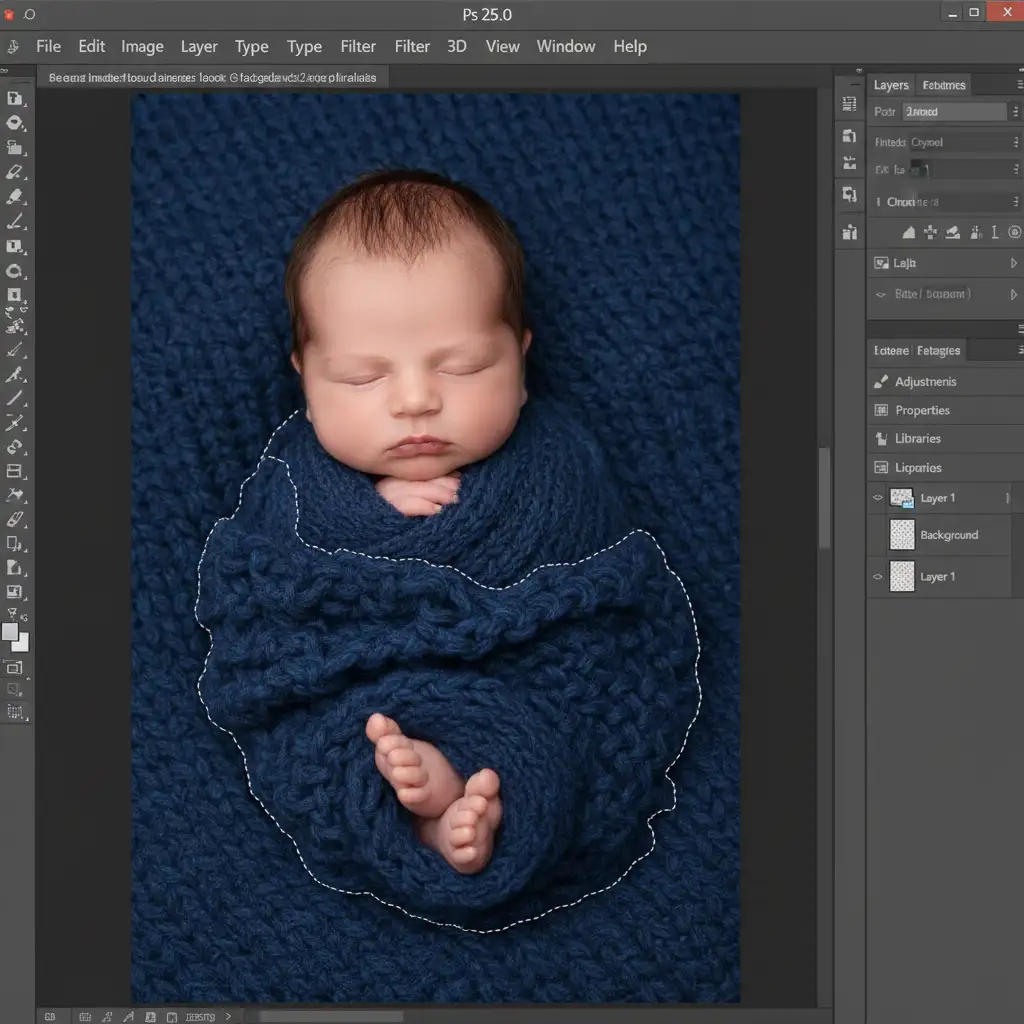
- Draw a loose selection around the messy wrap area. You should see the marching ants outlining the problematic fabric.
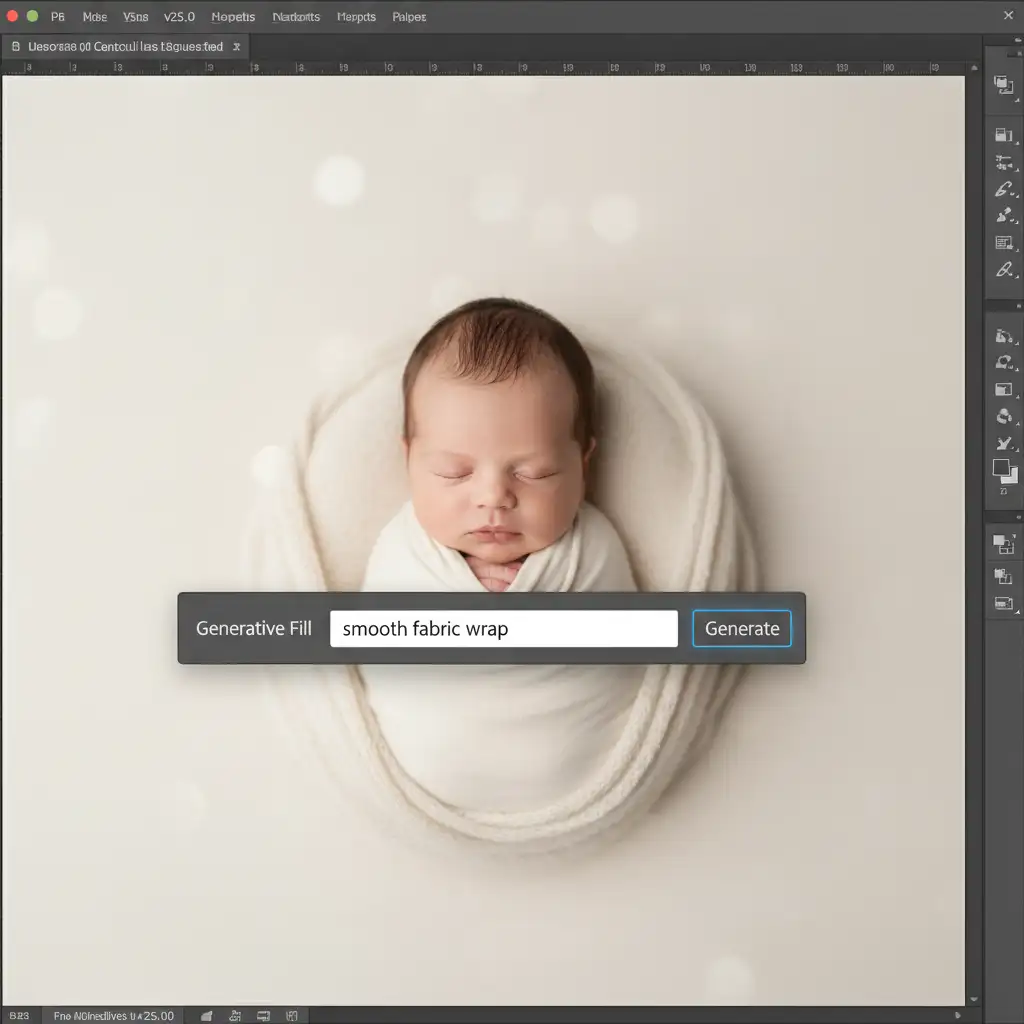
- Locate the Contextual Task Bar floating on your screen and click Generative Fill.
- You can leave the prompt box completely blank to let the AI intuitively blend the surrounding texture, or type “smooth fabric wrap” for more specific guidance.
- Hit Generate and review the Properties panel to select the best of the three variations provided.
Method 2: The Pro Workaround (For Complex Knits)
Sometimes, the AI struggles to perfectly replicate highly complex, chunky knit textures from scratch. In these cases, a hybrid approach yields the best results.
- Begin with the Patch Tool to manually remove the largest, most distracting wrinkles. This gives the AI a cleaner base to work from.
- Next, use the Lasso Tool to make smaller, targeted selections over the remaining micro-details.
- Apply Generative Fill (leaving the prompt blank).
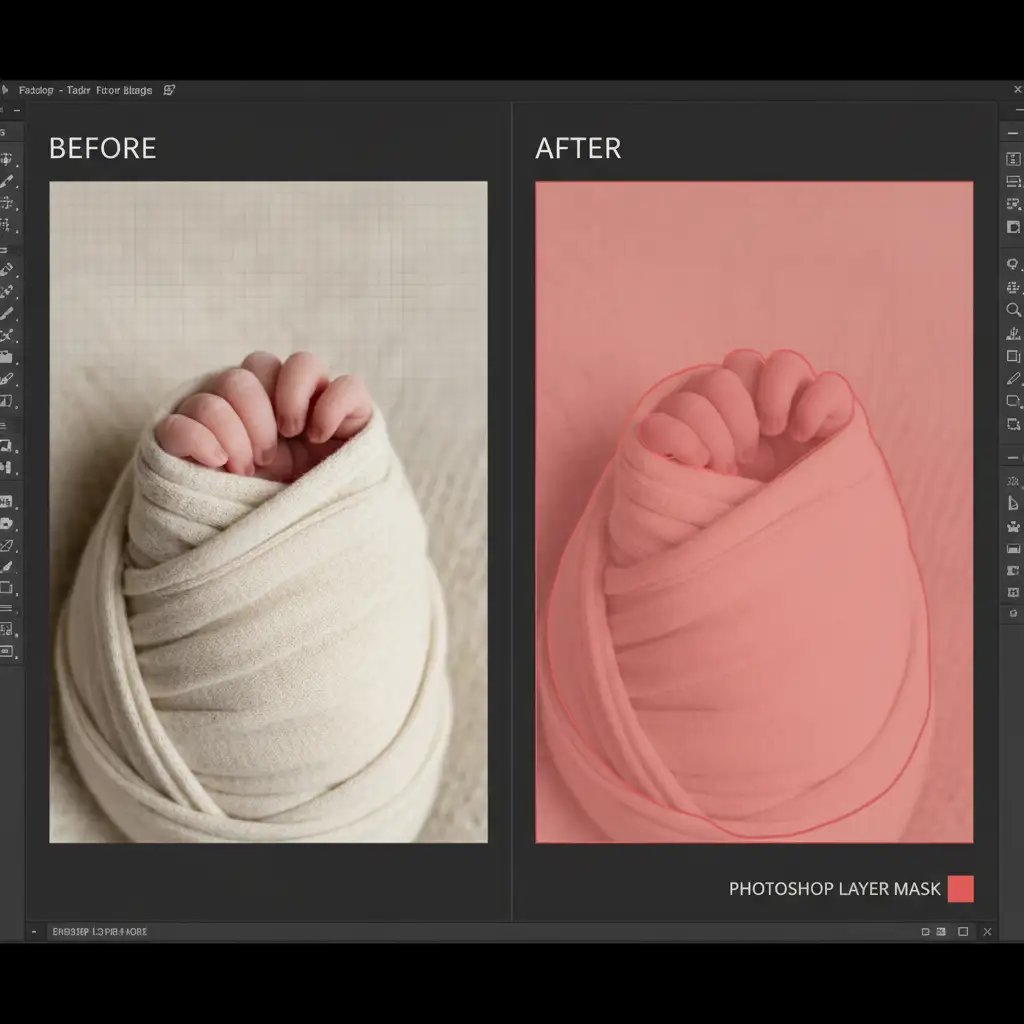
- Because you are working with small patches, you may notice slight edge transitions. Click on the Generative Layer Mask and use a soft, black brush to gently blend the edges for flawless texture blending.
Method 3: The Technical Deep-Dive (For Complete Control)
If you are a perfectionist who wants absolute control over the final output, this non-destructive editing workflow is the industry standard for high-end retouching.
- Duplicate your background layer (Cmd/Ctrl + J).
- Make a large selection over the entire problematic swaddle and apply Generative Fill to smooth it out completely.
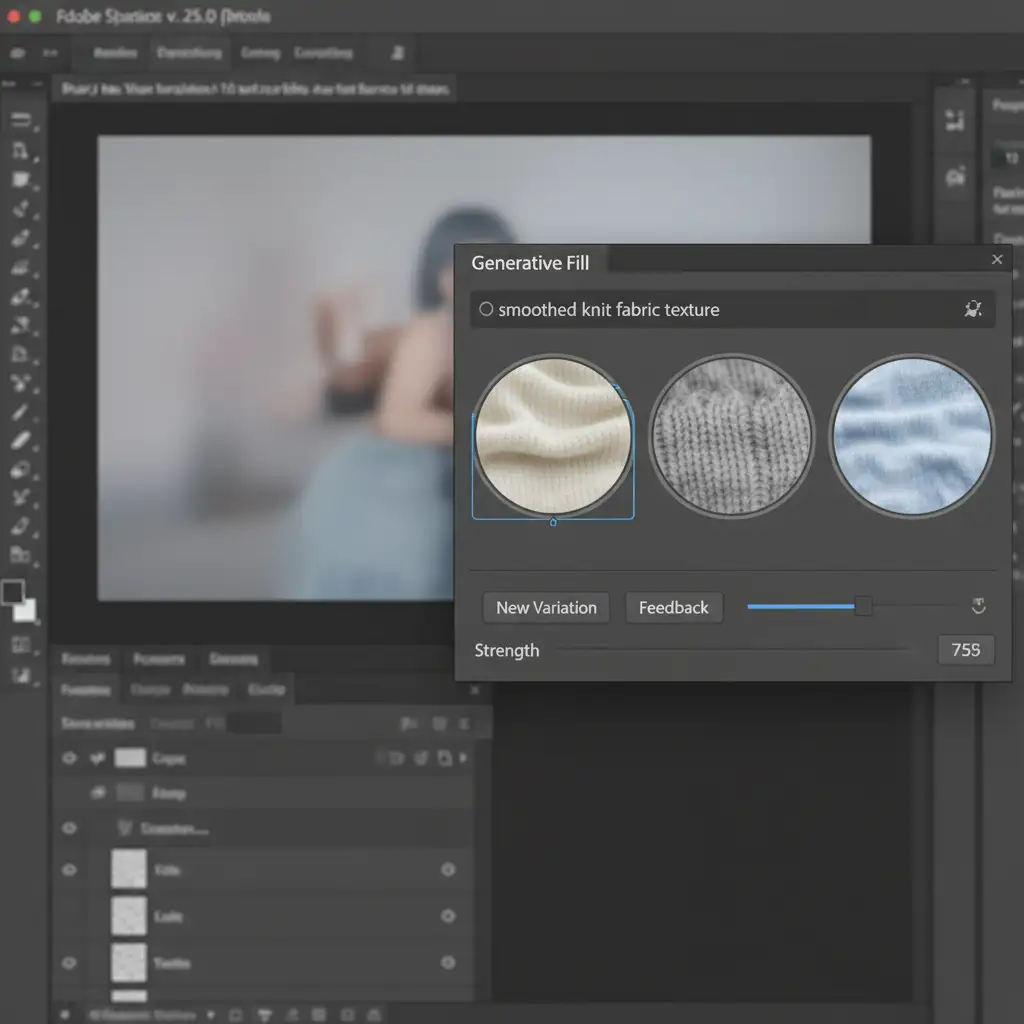
- The result might look too perfect or slightly plastic. To fix this, lower the opacity of the Generative Layer to 80 percent. This allows the original organic texture and grain to bleed through, making the AI generation look incredibly realistic.
- Add a Black Layer Mask to the Generative Layer (Alt/Option + Click the Layer Mask icon) to hide the AI effect entirely.
- Select a soft, white brush and carefully paint only over the distracting wrinkles.
This method ensures you are preserving the baby’s original outline, protecting hidden fingers and toes, and keeping the natural fabric grain intact.
Stop Wasting Hours on Tedious Edits
Mastering Photoshop Generative Fill for newborn swaddles can save you countless hours behind the screen, allowing you to focus on what you do best: capturing beautiful moments. However, even with AI, high-volume newborn editing requires a meticulous eye for detail, color grading, and skin retouching.
Struggling to keep up with tedious newborn edits? You don’t have to do it alone. Outsource your swaddle smoothing, composite creation, and newborn skin retouching to Image Work India and Cloud Retouch. Our team of expert retouchers delivers flawless, studio-quality results overnight, ensuring your clients get breathtaking galleries while you get your free time back.
Contact Image Work India today to learn more about our specialized newborn retouching services!



