
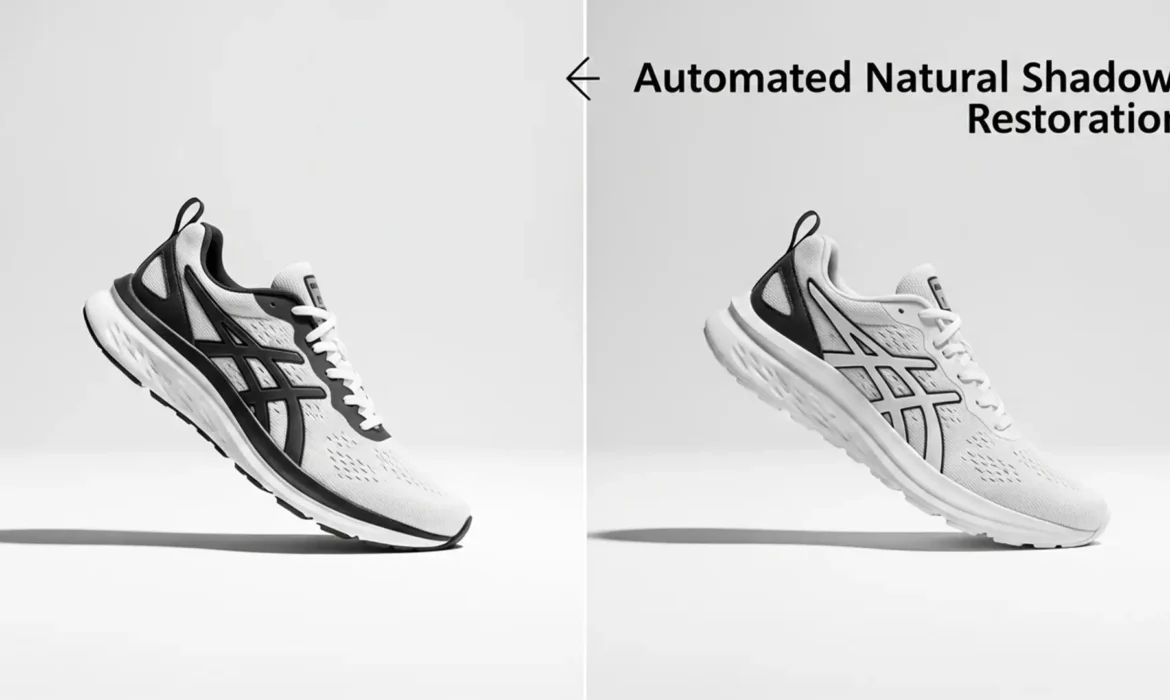
You’ve just spent hours extracting your e-commerce products onto a pure white background (RGB 255,255,255), only to realize they look like they’re awkwardly floating in space. Sound familiar?
Stripping away the original background often takes the natural ground shadow restoration with it. The result? A flat, unnatural product photo that kills consumer trust and conversion rates. Manually painting realistic shadows is incredibly tedious, and trying to salvage the original shadow often leaves ugly grey artifacts around the edges. If you are tired of fake-looking graphics ruining your catalog, it’s time to master automated natural shadow restoration for white backgrounds.
Here is exactly how to fix the floating product problem using Adobe Photoshop 2024 (v25.x) and automated workflows.
Why Your E-Commerce Products Look Like They’re Floating
When selling on Amazon, Shopify, or eBay, a pure white background is mandatory. However, when editors create a clipping path to isolate the product, they frequently discard the floor shadow. Without this shadow, the human eye cannot determine the object’s spatial relationship to the ground, resulting in the dreaded “float.”
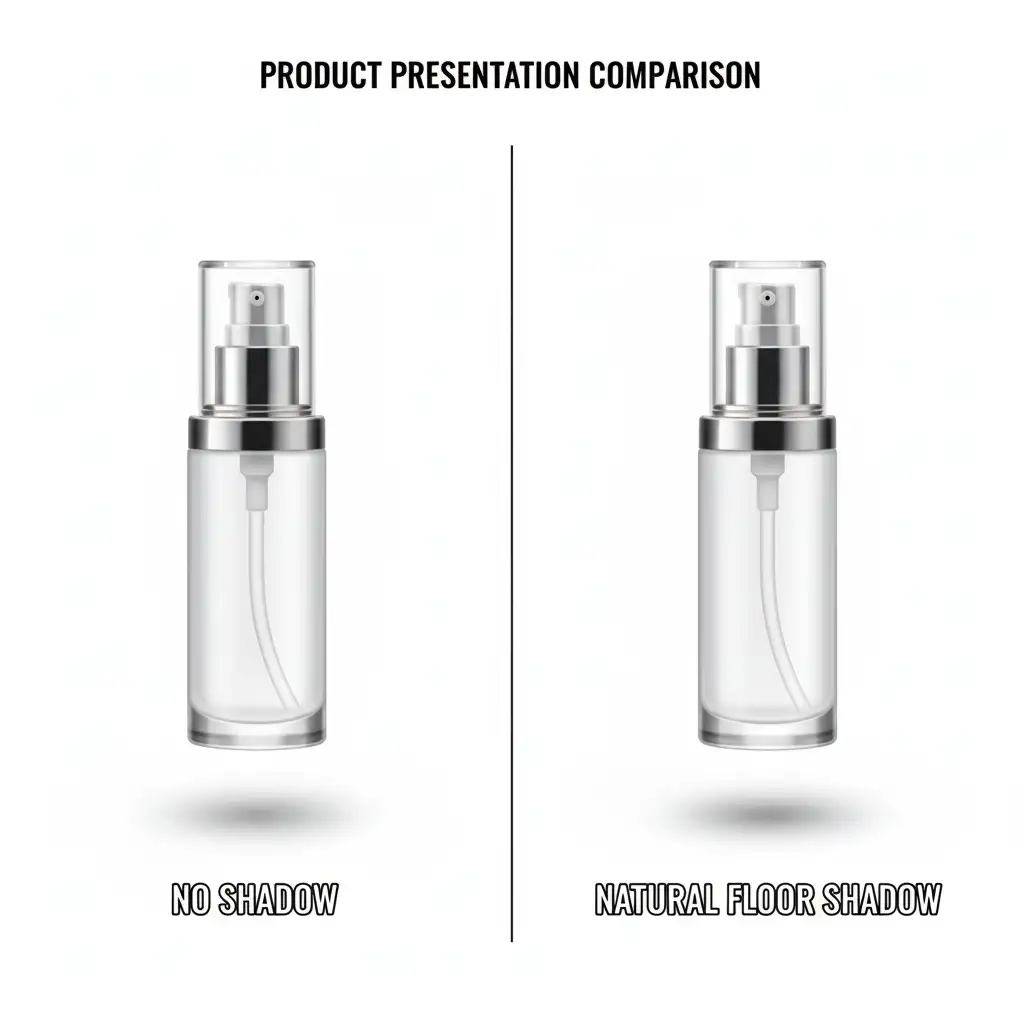
To fix this, you need to either artificially recreate the shadow or extract the original one perfectly. Let’s explore the three best methods, ranging from quick manual fixes to advanced automated solutions.
How to Fix Floating Products in Photoshop 2024 (v25.x)
Method 1: The Quick Fix (Warped Drop Shadow)
If you need a fast, passable shadow for a basic shape, Photoshop’s built-in Layer Styles can do the heavy lifting.
- Open your isolated product layer.
- Double-click the layer to open the Layer Style panel and select Drop Shadow.
- Adjust the settings to mimic a floor shadow: set the angle to match your lighting, increase the distance, and drop the opacity to around 15-20% for a subtle look. Add a slight feathering to soften the edges.
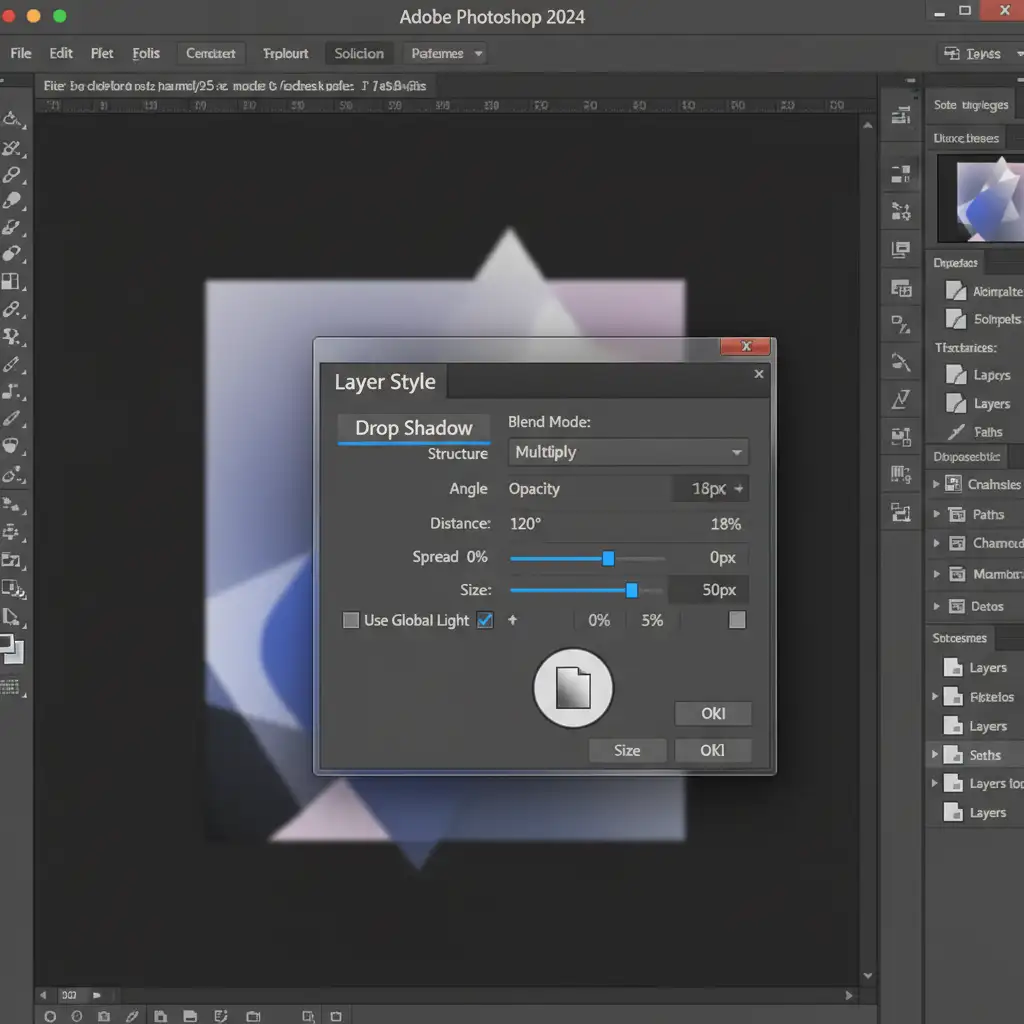
- The Secret Step: Right-click the Drop Shadow effect in your Layers panel and select Layer > Layer Style > Create Layer. This separates the shadow into its own editable layer.
- Press Ctrl+T (or Cmd+T), right-click, and select Perspective or Warp to lay the shadow flat beneath your product. Use a layer mask to fade out the back edge.
Method 2: The Pro Workaround (Original Shadow Extraction)
Creating fake shadows rarely works for complex items like bicycles or transparent bottles. The professional approach involves extracting the actual shadow from the original studio shot.
- Duplicate your original, unedited background layer.
- Apply a High Pass filter (Filter > Other > High Pass) to flatten the lighting variances across the floor.
- Add a Levels adjustment layer. Crush the blacks and push the whites to isolate the exact original shadow from the grey background artifacting.
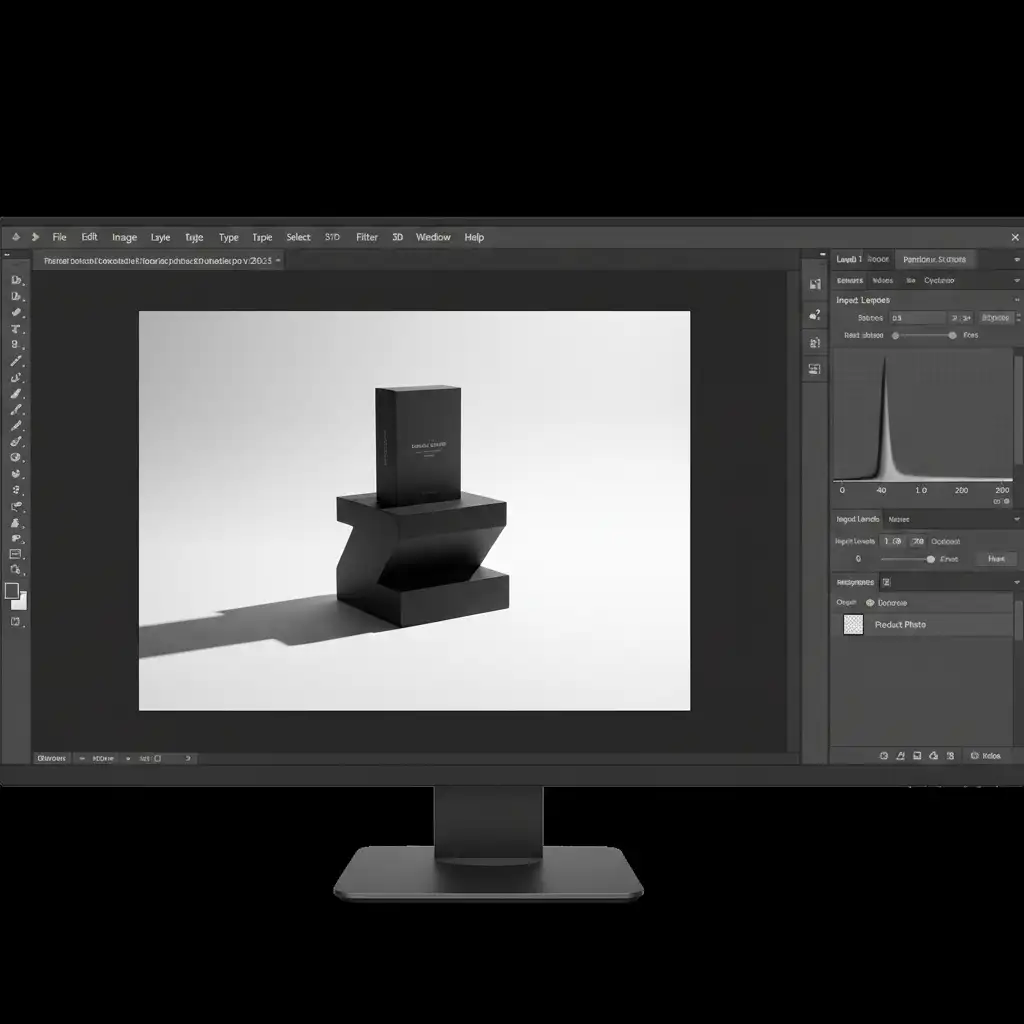
- Change the shadow layer’s blending mode to Multiply blend mode. This renders all the white pixels invisible, leaving only the dark shadow seamlessly blended onto your new RGB 255 background.
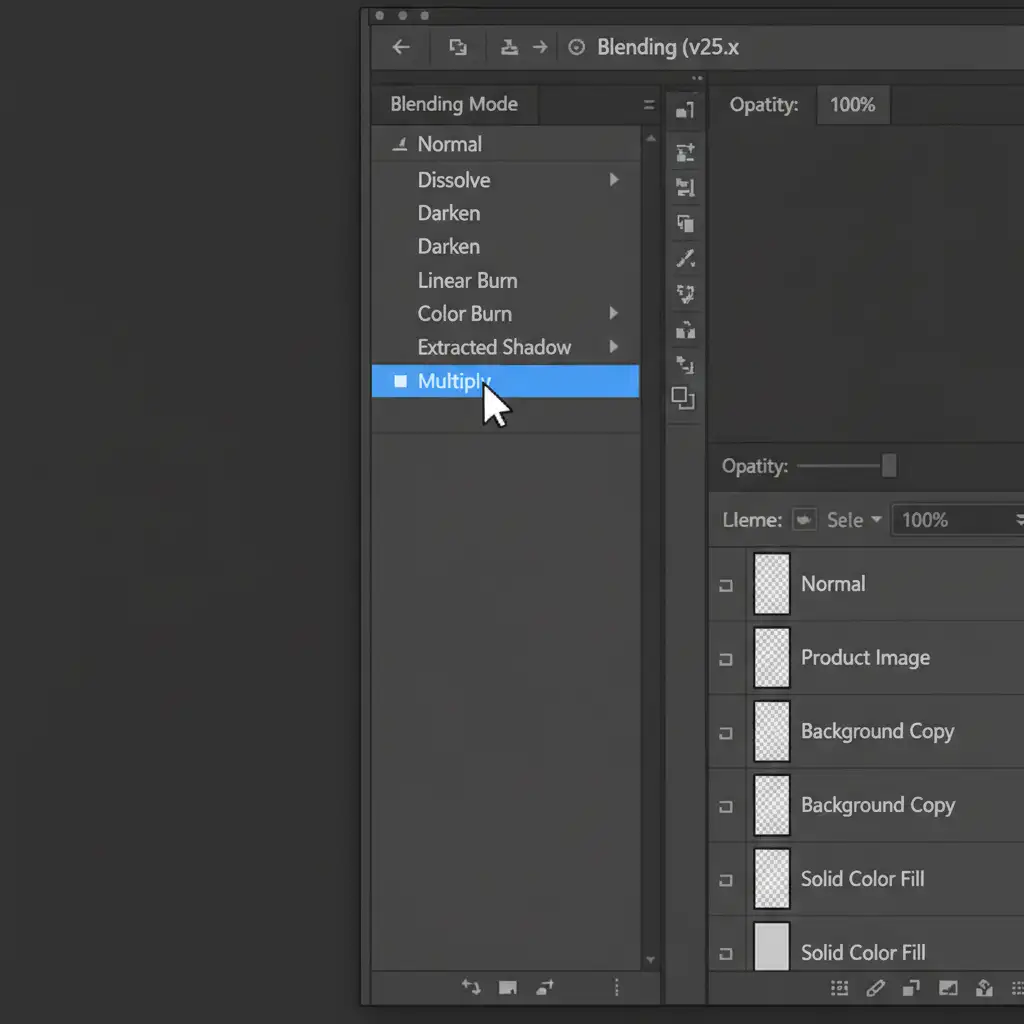
- Add a layer mask and paint with a soft black brush to hide everything except the shadow area directly beneath the product.
Method 3: The Technical Deep-Dive (Automated Natural Shadow Restoration)
Methods 1 and 2 are highly effective for a handful of images. But what happens when you have a seasonal catalog of 5,000 SKUs? Manual extraction becomes an expensive, time-consuming bottleneck.
This is where automated natural shadow restoration for white backgrounds changes the game.
Using AI batch processing and automated scripts, platforms like Cloud Retouch eliminate the manual labor. Here is how the automated technical workflow operates behind the scenes:
- AI Clipping Path Extraction: The API automatically detects the product boundaries and generates a pixel-perfect clipping path, separating the item from the background.
- Luminance Channel Preservation: Instead of discarding the ground data, custom scripts target the luminance channel of the original image, mathematically isolating the shadow’s gradient values.
- Seamless Mapping: The script automatically cleans up edge artifacting and maps the preserved shadow onto a pure white background layer using a programmatic multiply blend mode.
The result is a physically accurate, photorealistic shadow generated in seconds, perfectly standardized across your entire product line.
Scale Your E-Commerce Imagery with Image Work India & Cloud Retouch
Achieving perfect isolation on a pure white background shouldn’t mean sacrificing the realism of your products. While mastering Photoshop’s Layer Styles and blending modes is a great skill, it simply isn’t scalable for growing e-commerce businesses, agencies, or high-volume studios.
Need thousands of product images perfectly shadowed on pure white backgrounds by tomorrow? You don’t have to do it yourself.
Image Work India and Cloud Retouch specialize in flawless, automated, and high-quality shadow restoration. Whether you need precise hand-drawn clipping paths, complex original shadow extraction, or high-volume AI-driven background removal, our expert team and proprietary technology deliver pixel-perfect results at scale.
Stop letting floating products hurt your sales. Contact Image Work India today or upload your batch to Cloud Retouch and let us ground your products with stunning, natural realism.



