
E-commerce managers, we know your biggest headache. You have a massive library of stunning horizontal lifestyle product images, but your marketing team desperately needs vertical assets for Instagram Reels, TikTok, and Pinterest. Cropping ruins the core product’s proportions, and adding blurry borders looks entirely unprofessional. If your team is struggling to manually convert these assets one by one, you are wasting valuable hours and bottlenecking your campaign launches.
Enter batch generative expand for ecommerce banners. By leveraging Adobe Photoshop v25.0+ and Adobe Firefly, you can instantly transform horizontal images into flawless 9:16 vertical masterpieces without AI distortion or unwanted hallucinations. Here is the definitive technical guide to automating this process and reclaiming your time.
The E-commerce Dilemma: Horizontal Photos in a Vertical World
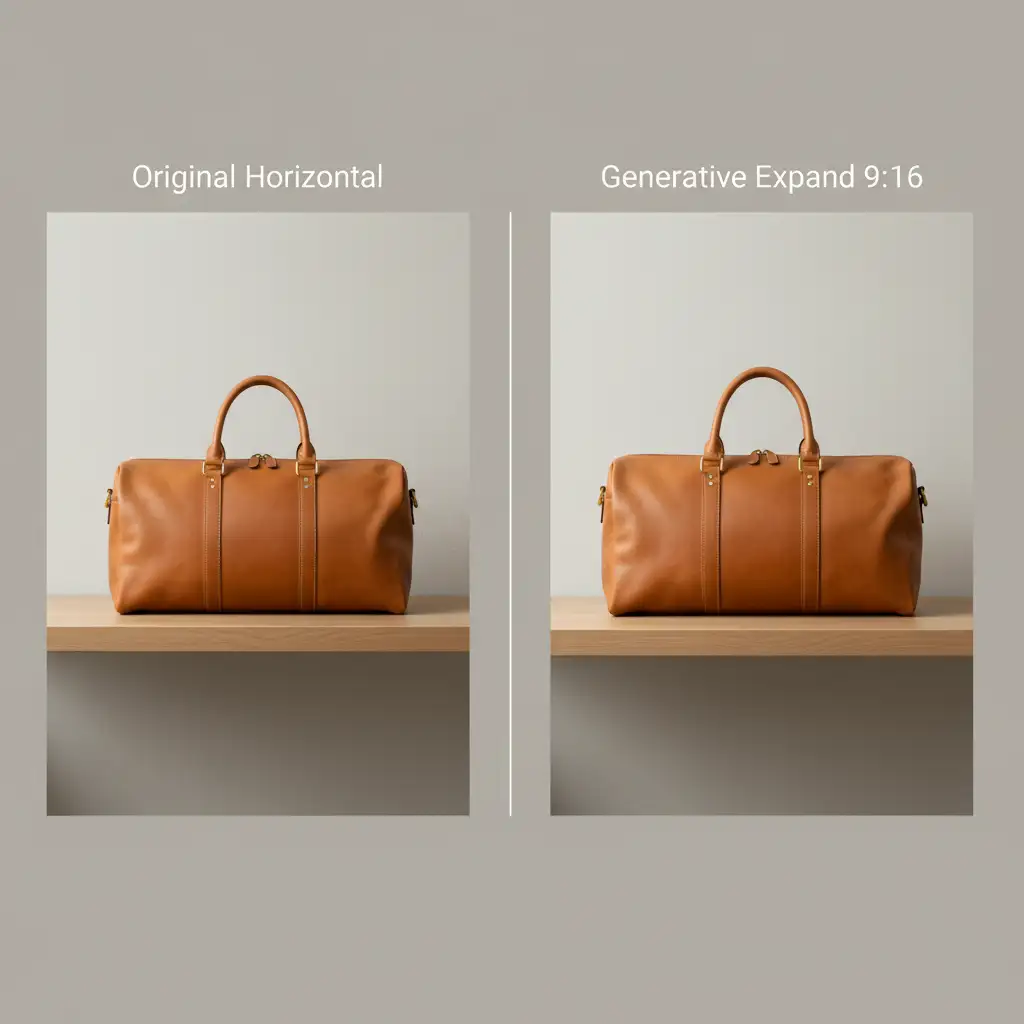
Modern social media advertising is vertical-first. However, traditional e-commerce photography is often shot in landscape (16:9 or 3:2) to fit website hero banners and desktop layouts. Bridging this gap has traditionally required reshoots or heavy manual cloning.
With the introduction of Adobe Firefly into Photoshop’s core toolset, editors can now extend the canvas size and let AI generate the missing environment. The challenge? Doing this accurately across thousands of SKUs.
Here are three tested workflows to master Generative Expand, ranging from a quick manual fix to a fully automated batch processing pipeline.
Method A: The Quick Fix (Manual Generative Expand)
If you only have a handful of images to convert, the built-in Crop Tool workflow is your fastest route. This method ensures your product remains perfectly centered while the AI handles the heavy lifting.
Step-by-Step Instructions:
- Open your horizontal image in Photoshop v25.0 or later.
- Select the Crop Tool (C).
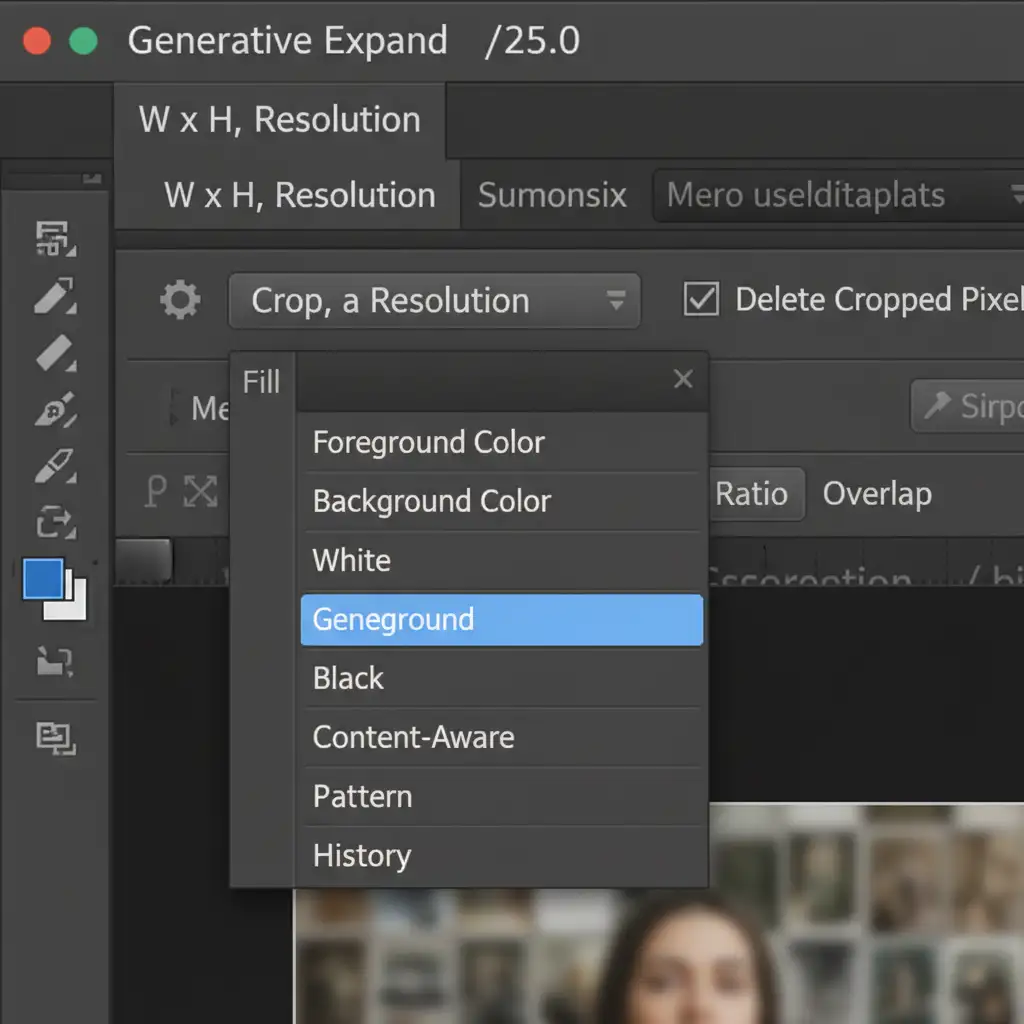
- In the top Options Bar, set the aspect ratio to 9:16.
- Change the Fill behavior dropdown to Generative Expand.
- Drag the crop box vertically to your desired size, ensuring the product is centered.
- Click Generate (leave the prompt box empty). The AI will seamlessly fill the transparent background.
Method B: The Pro Workaround (Batch Processing with Actions)
When dealing with hundreds of images, doing this manually is not an option. You need to create an Action to automate the Generative Fill process across a folder of assets.
Creating the Automation Action:
- Open a sample horizontal image.
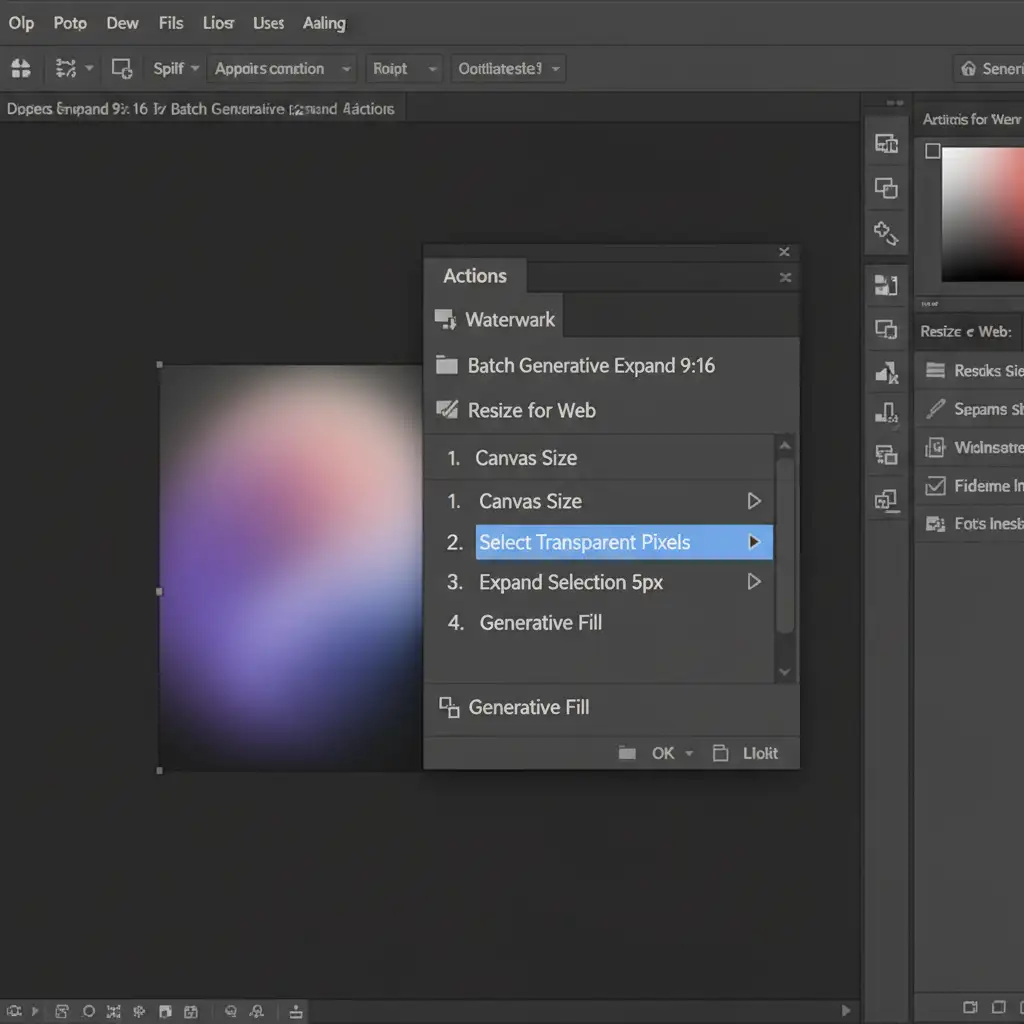
- Open the Actions panel (Window > Actions) and create a new Action named “Vertical Expand 9:16”. Hit Record.
- Go to Image > Canvas Size. Change the units to pixels, uncheck “Relative”, and set the dimensions to 1080×1920 (or your preferred 9:16 resolution). Keep the anchor centered. Click OK.
- Select the Magic Wand Tool (W) and click on the new empty transparent pixels surrounding your image.
- Go to Select > Modify > Expand. Expand the selection by 5 pixels (this slight overlap is crucial for Firefly to blend the edges seamlessly).
- Click Generative Fill on the Contextual Task Bar. Leave the prompt blank and hit Generate.
- Flatten the image (Layer > Flatten Image) and save.
- Stop recording the Action.
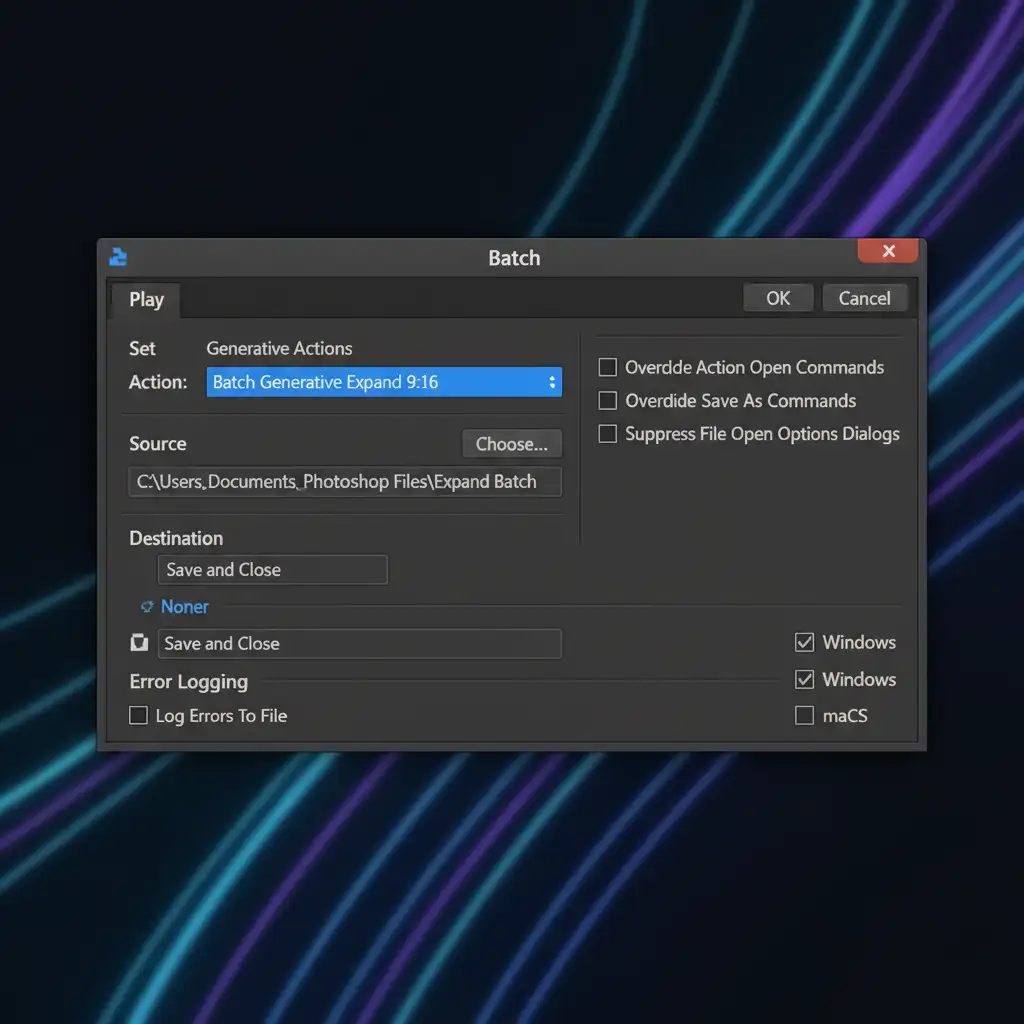
Running the Batch Process:
Once your action is recorded, you can apply it to an entire folder.
- Navigate to File > Automate > Batch.
- Select your newly created “Vertical Expand 9:16” action.
- Choose your Source folder containing the horizontal images.
- Choose your Destination folder and click OK.
Method C: The Technical Deep-Dive (Optimizing for Scale)
Running batch processing with AI generation is highly resource-intensive. If your generational speeds begin to throttle, you need to optimize your hardware utilization and workflow.
Hardware and Cache Optimization
- Enable GPU Acceleration: Ensure Photoshop is utilizing your graphics card. Go to Edit > Preferences > Performance and verify that Use Graphics Processor is checked. This handles the heavy VRAM load required for rendering high-resolution generative outputs.
- Clear the Cache: If Photoshop slows down after processing 50+ images, purge your memory. Go to Edit > Purge > All. Additionally, clear your Camera Raw cache to free up system resources.
Advanced Droplet Workflows
For enterprise-level e-commerce teams, consider using a droplet workflow. You can save your Batch Action as a Droplet (File > Automate > Create Droplet). This creates a standalone application icon on your desktop. You can then use Adobe Lightroom or Image Processor Pro to export bulk resized images directly onto this Droplet, triggering the generative expansion automatically as part of your export pipeline.
Scale Your Visual Content with Image Work India and Cloud Retouch
Mastering batch generative expansion for ecommerce banners is a game-changer for social media marketing. However, even with automated actions, AI can occasionally hallucinate unwanted details, requiring human oversight and manual retouching to ensure strict brand compliance and pixel-perfect quality.
If you have thousands of images that need to be expanded flawlessly for your next campaign, don’t tie up your internal team. Let the experts at Image Work India and Cloud Retouch handle it. We specialize in high-volume, precision e-commerce image editing, combining advanced AI batch processing with meticulous manual quality control.
Contact us today to transform your horizontal product library into ready-to-launch vertical social media assets.



