
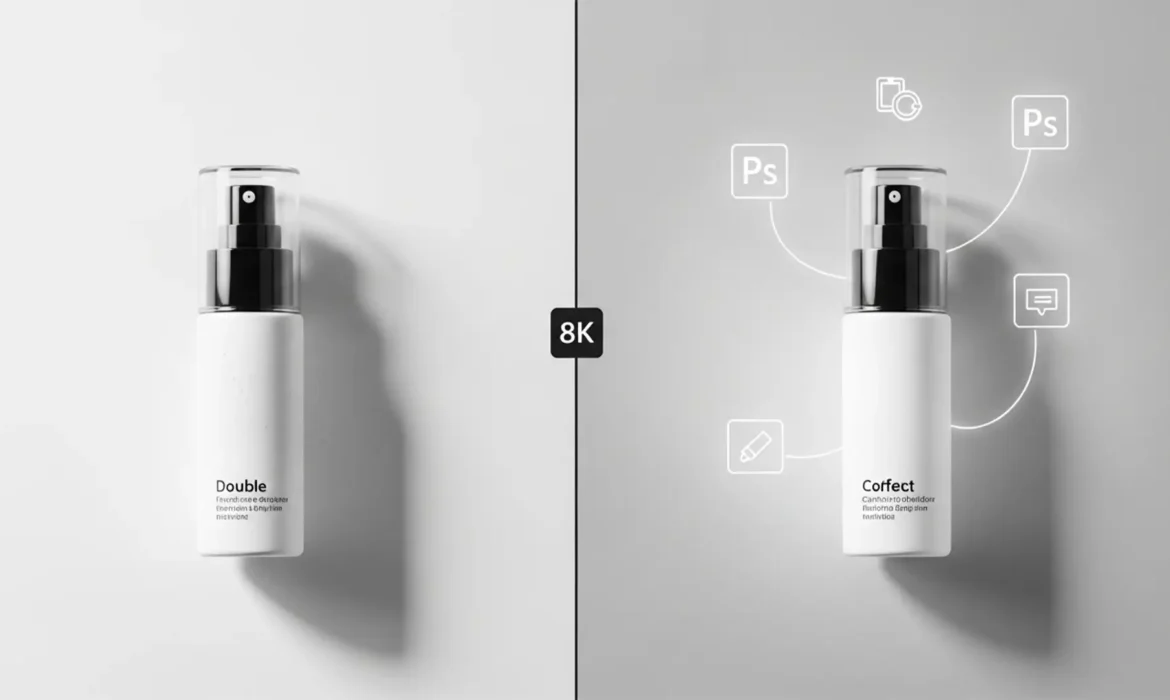
You just used Photoshop’s Generative Fill to expand a product background. It looks great—until you look at the base. Suddenly, your sleek product has three conflicting light sources and a muddy “double shadow.” This physically inaccurate hallucination instantly ruins the commercial realism of your e-commerce shot.
Fixing generative fill shadow artifacts in product photos is currently the biggest headache for retouchers using Photoshop v25.0 and later. Because the AI processes selected pixels without analyzing the true 3D lighting geometry of the unselected product, it frequently misinterprets global light.
Here is exactly how to overwrite these AI lighting hallucinations and restore pixel-perfect realism to your product catalog.
Why Firefly AI Struggles with Global Light
In Adobe Photoshop v25.0+, the Firefly AI engine powers Generative Fill. While incredible for generating textures and extending scenes, it lacks an inherent understanding of ambient occlusion and physical light physics.
When you ask the AI to generate a background, it looks at the edge pixels of your selection. It does not calculate the volume, density, or the primary global light source hitting your product. The result? The AI guesses where the shadow should fall, often creating a fake shadow that directly conflicts with the real highlights on your product, or worse, generating a secondary shadow right next to the original.
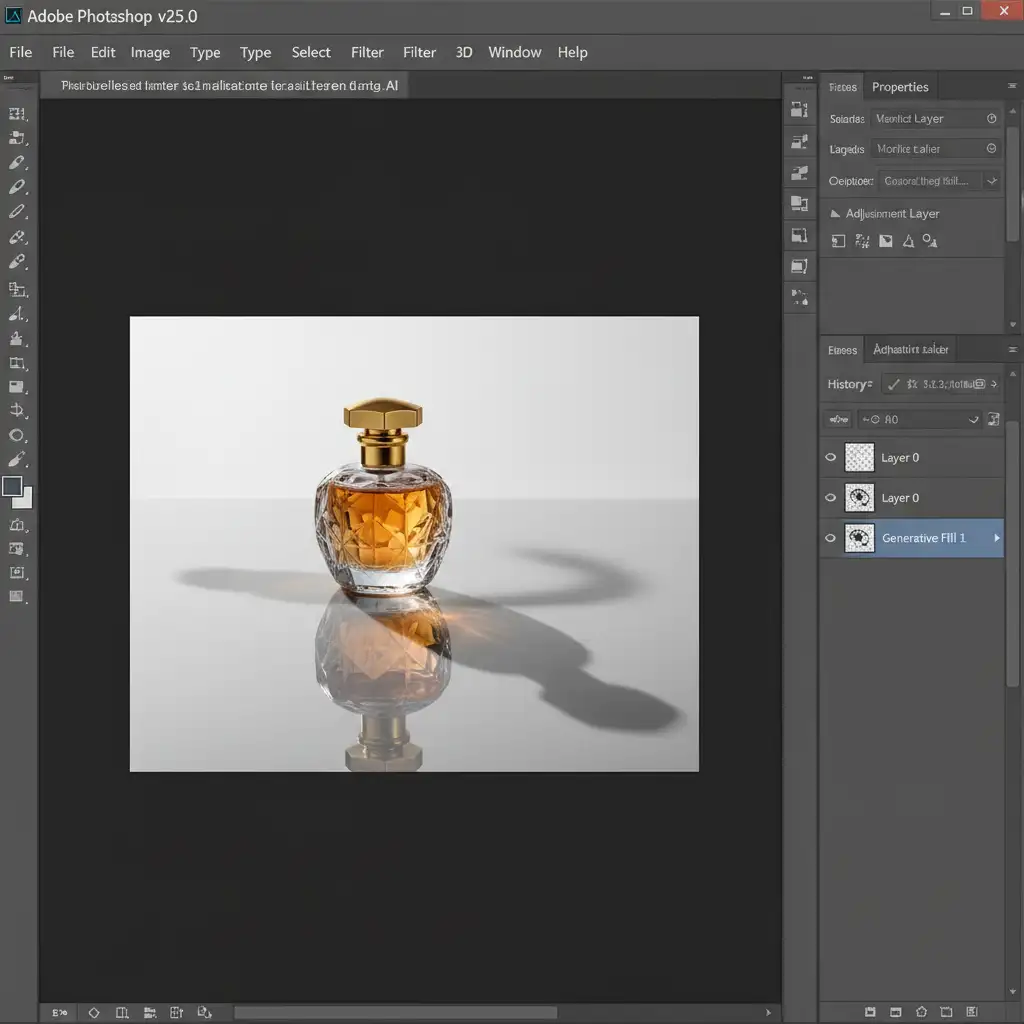
3 Professional Methods to Fix Generative Fill Shadow Artifacts
To achieve true commercial realism, you cannot rely on the AI’s default output. You must take manual control over the contact shadow and lighting geometry.
Method 1: The Quick Fix (Prompt Engineering)
The fastest way to prevent shadow mismatch is to stop leaving your Generative Fill prompts blank. If you leave the prompt empty, Firefly guesses the lighting direction.
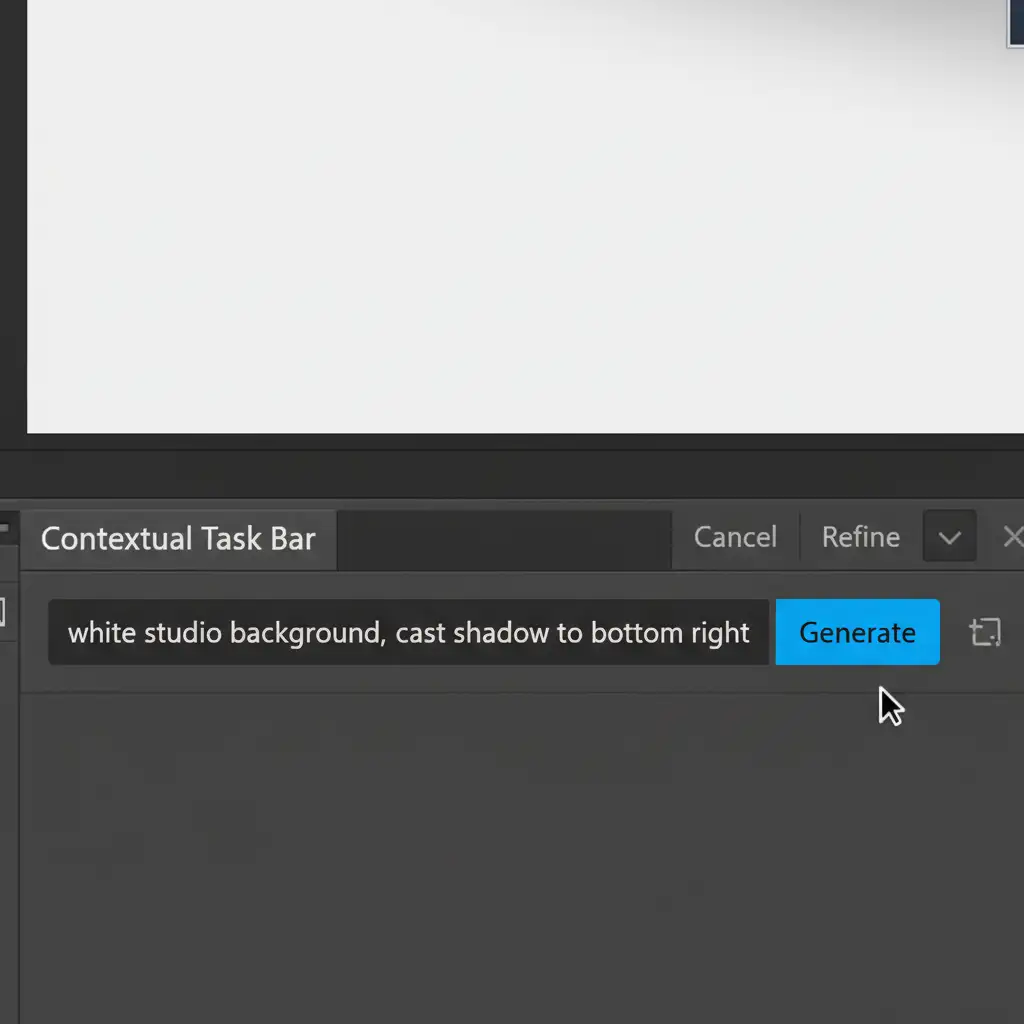
Instead of a blank prompt, explicitly dictate the lighting physics in the contextual task bar.
Steps:
- Make your selection for the background expansion.
- In the prompt box, type: “white studio background, cast shadow to bottom right.” (Ensure the direction matches the actual highlights on your product).
- Generate and cycle through the variations.
Method 2: The Pro Workaround (Multiply Blend Mode)
Prompt engineering isn’t always enough. When the AI still hallucinates, you need to manually reconstruct the shadow using the Multiply blend mode.
Steps:
- Isolate your product onto a new layer.
- Rasterize the AI-generated background layer if you need to make destructive edits, or simply group it.
- Add a layer mask to the AI background layer and paint with a soft black brush to completely hide the fake AI shadow.
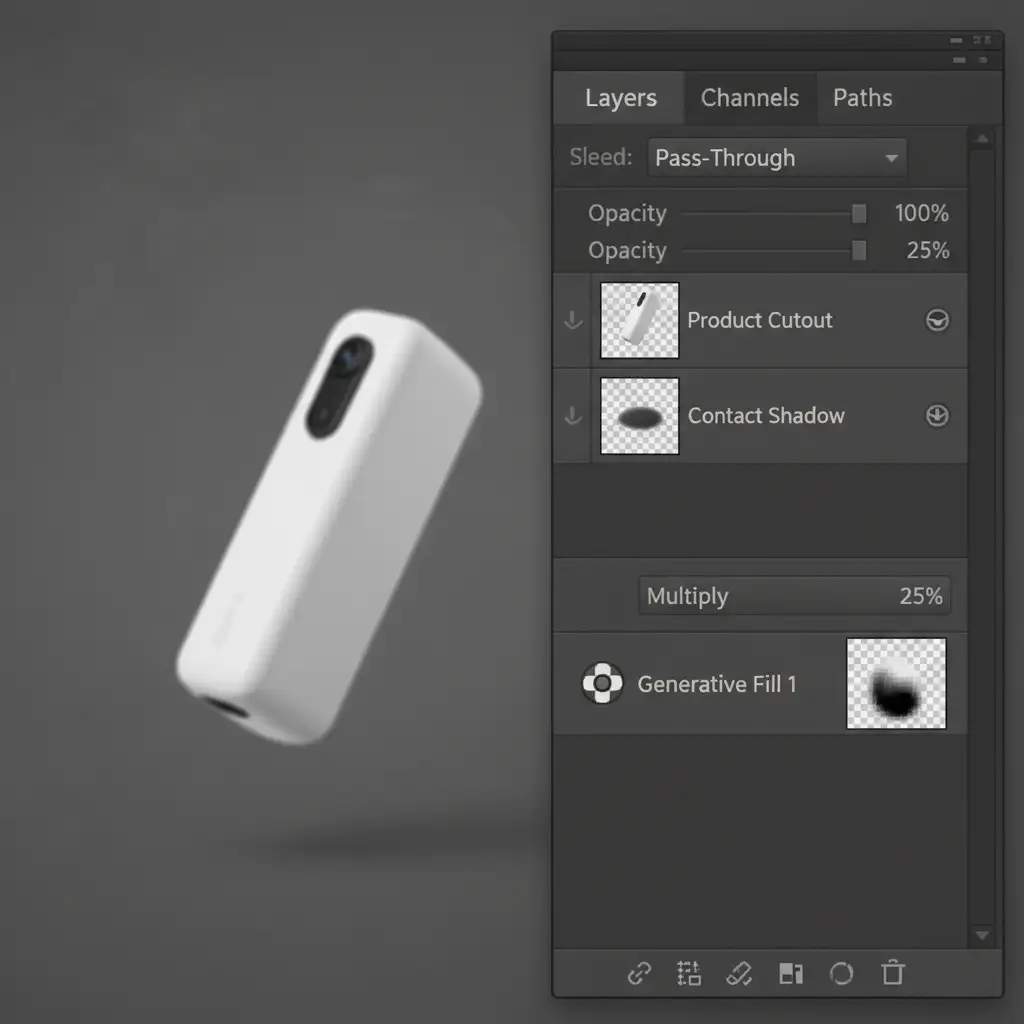
- Create a new blank layer beneath your isolated product.
- Use the Brush or Pen tool to draw a dark shape matching the base of your product.
- Apply a Gaussian Blur to soften the edges, mimicking light falloff.
- Set the layer’s Blend Mode to Multiply and lower the opacity to 15-30%.
This method forces the shadow to interact realistically with the background pixels, grounding the product perfectly.
Method 3: The Technical Deep-Dive (Alpha Channel Recovery)
While some retouchers might try using Frequency Separation to clean up messy shadow textures, the absolute most accurate way to fix generative fill shadow artifacts in product photos is to recover the original lighting geometry using Alpha channel masking.
This technique extracts the real, photographically accurate shadow from your original unedited image and overlays it onto the new AI background.
Steps:
- Hide all AI layers and go to your original background layer.
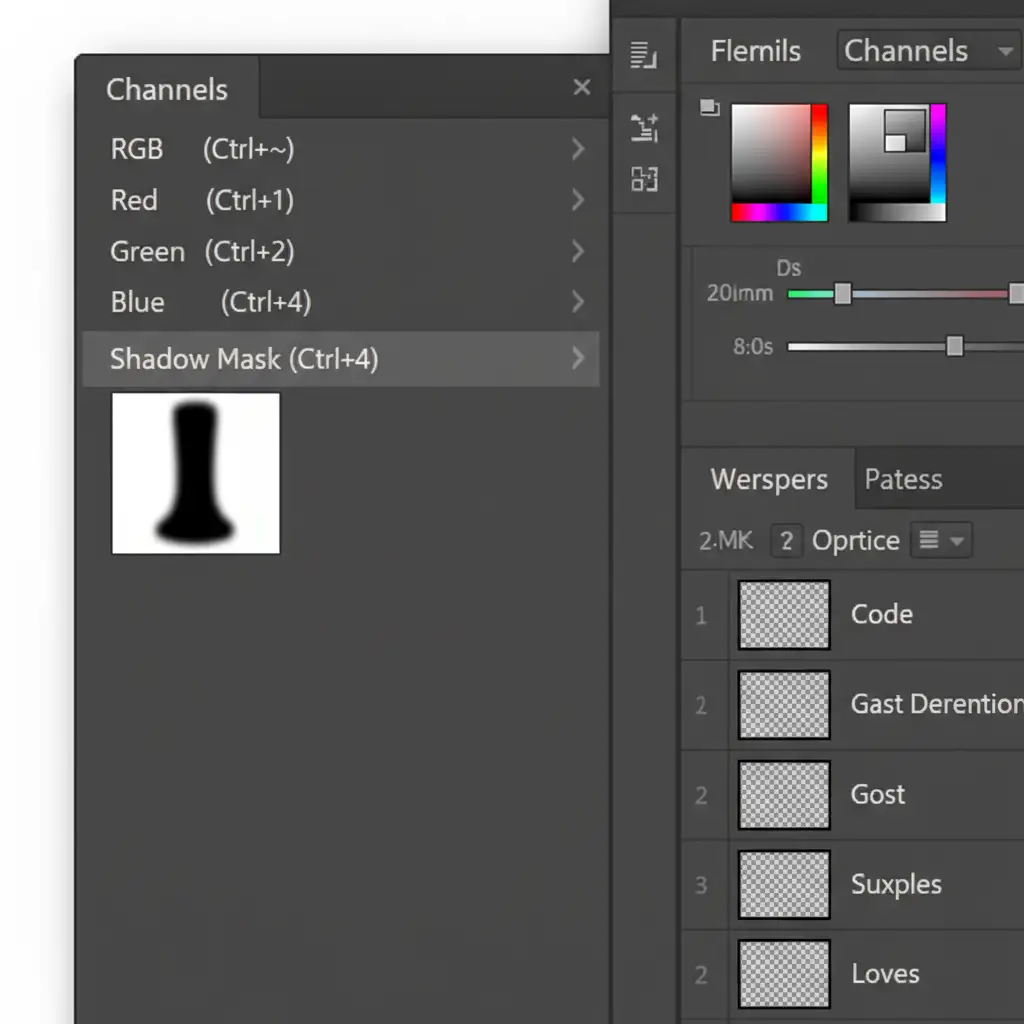
- Open the Channels panel. Click through Red, Green, and Blue to find the channel with the highest contrast between the shadow and the background.
- Duplicate that high-contrast channel.
- Press Ctrl+L (or Cmd+L) to open Levels. Crush the blacks and whites to isolate the real shadow perfectly.
- Ctrl-click (or Cmd-click) the duplicated channel thumbnail to load it as a selection.
- Go back to your Layers panel, turn your AI background back on, and add a Curves adjustment layer.
- The selection will automatically become a layer mask. Pull the curve down to darken the exact shape of your original, physically accurate shadow over the new AI background.
Stop Fighting the AI: Scale Your E-Commerce Editing
Generative Fill is a powerful tool, but when it comes to high-end product photography, “close enough” doesn’t convert shoppers. Fixing generative fill shadow artifacts in product photos manually takes time, deep technical knowledge, and an expert eye for global lighting physics.
If you are processing hundreds of SKUs, you cannot afford to spend 20 minutes fixing AI hallucinations on every single image.
Don’t let unpredictable AI ruin your product catalog.
At Image Work India and Cloud Retouch, our expert retouchers specialize in pixel-perfect, scalable e-commerce photo editing. From flawless clipping paths and organic contact shadows to advanced Alpha channel masking, we guarantee physical accuracy and commercial realism in every shot.
Focus on growing your brand, and let us handle the pixels. Contact Image Work India today for a free trial and see the difference professional retouching makes.



