
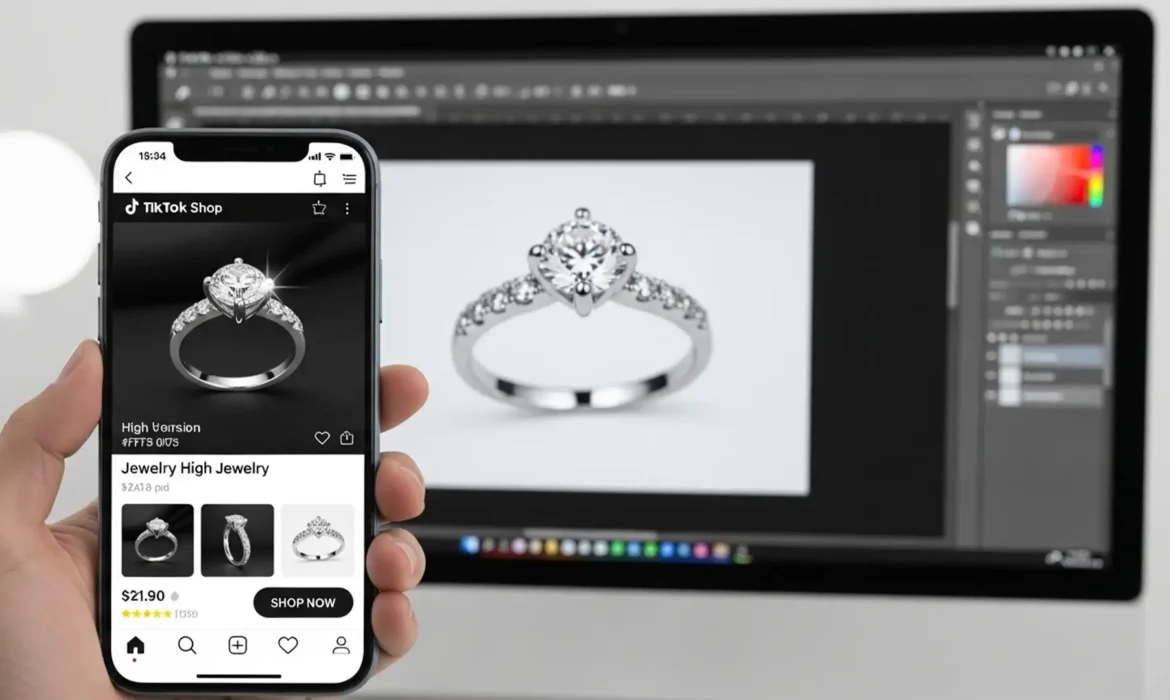
Are your jewelry listings mysteriously losing traffic, or worse, facing outright rejection on TikTok Shop? You are likely dealing with an algorithmic shadowban caused by non-compliant product images. TikTok Shop jewelry enforces aggressive vendor compliance specs, particularly for high-value categories like jewelry. If your images have inaccurate White Balance, misleading color enhancements, or fail to meet the strict 1:1 dimension rules, you risk high return rates and immediate account penalties.
Macro photography exposes every flaw—micro-dust, studio reflections, and scratches—but over-editing can violate TikTok’s “non-misleading” policies. In this guide, we will break down the exact TikTok Shop jewelry image requirements retouching workflow using Adobe Photoshop v25.x to guarantee compliance, boost your conversion rates, and keep your listings active.
Understanding TikTok Shop’s Strict Image Guidelines for Jewelry
Before opening Photoshop, you must understand the exact technical parameters required by the platform. TikTok Shop is optimized for mobile viewing, meaning your images must be lightweight, perfectly cropped, and visually accurate on high-contrast OLED screens.
The core requirements include:
- Aspect Ratio: Mandatory 1:1 Square ratio.
- Pixel Dimensions: Minimum 800x800px, but 1200x1200px is highly recommended to enable high-quality zoom functionality.
- File Size: Strictly under 5MB.
- Formats: JPG, PNG, or WEBP.
- Visual Accuracy: Strict prohibition on misleading enhancements. White Balance must be perfect, and metal/gemstone colors must reflect the physical product to prevent customer returns.
Step-by-Step: Retouching Jewelry for TikTok Shop in Photoshop v25.x
Meeting these guidelines requires a systematic approach. Below are three methods, ranging from quick fixes to professional batch workflows, to ensure your jewelry images are pixel-perfect.
Method A: The Quick Fix (Cropping & Basic Cleanup)
If you have a well-lit photograph that just needs to be prepped for upload, focus on dimensions and basic distraction removal.
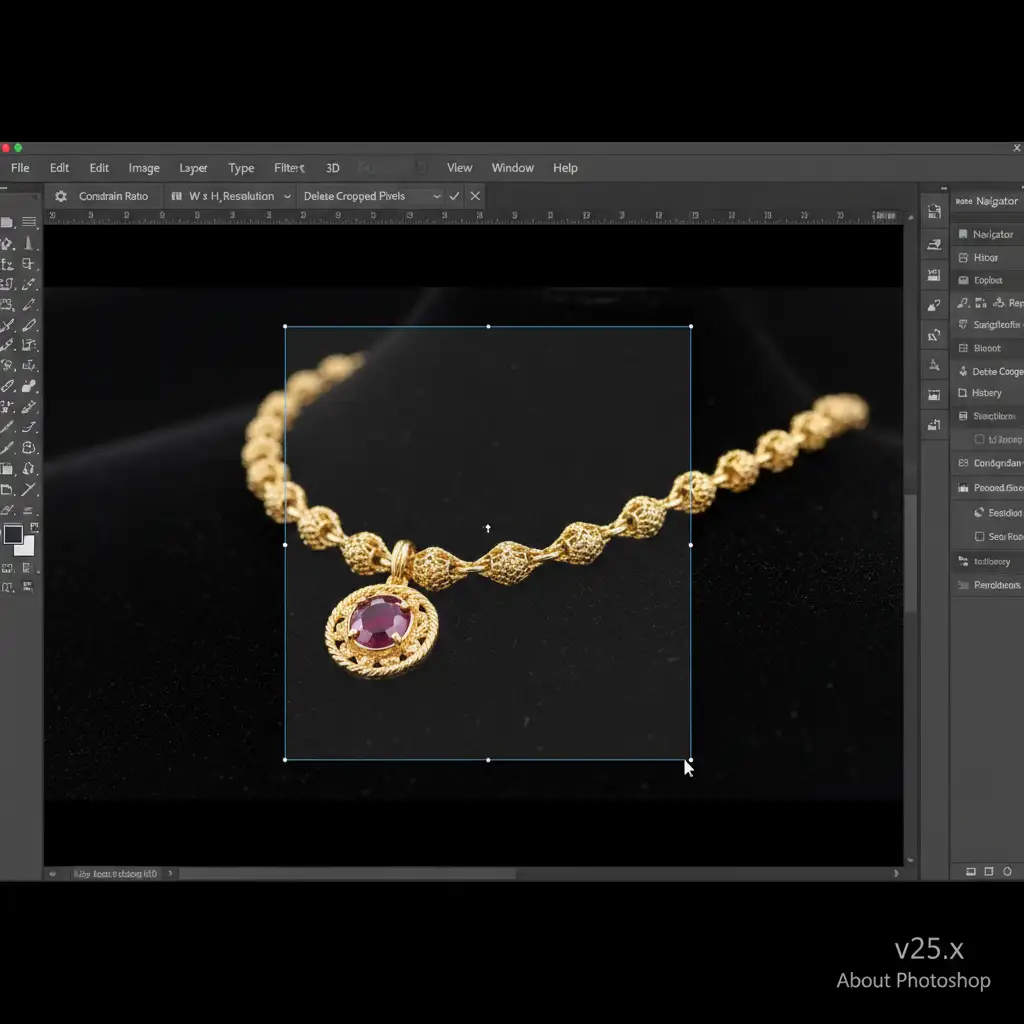
- Set the Aspect Ratio: Select the Crop Tool (C) in Photoshop. In the top options bar, set the dropdown to 1:1 Square. Frame your jewelry dead-center.
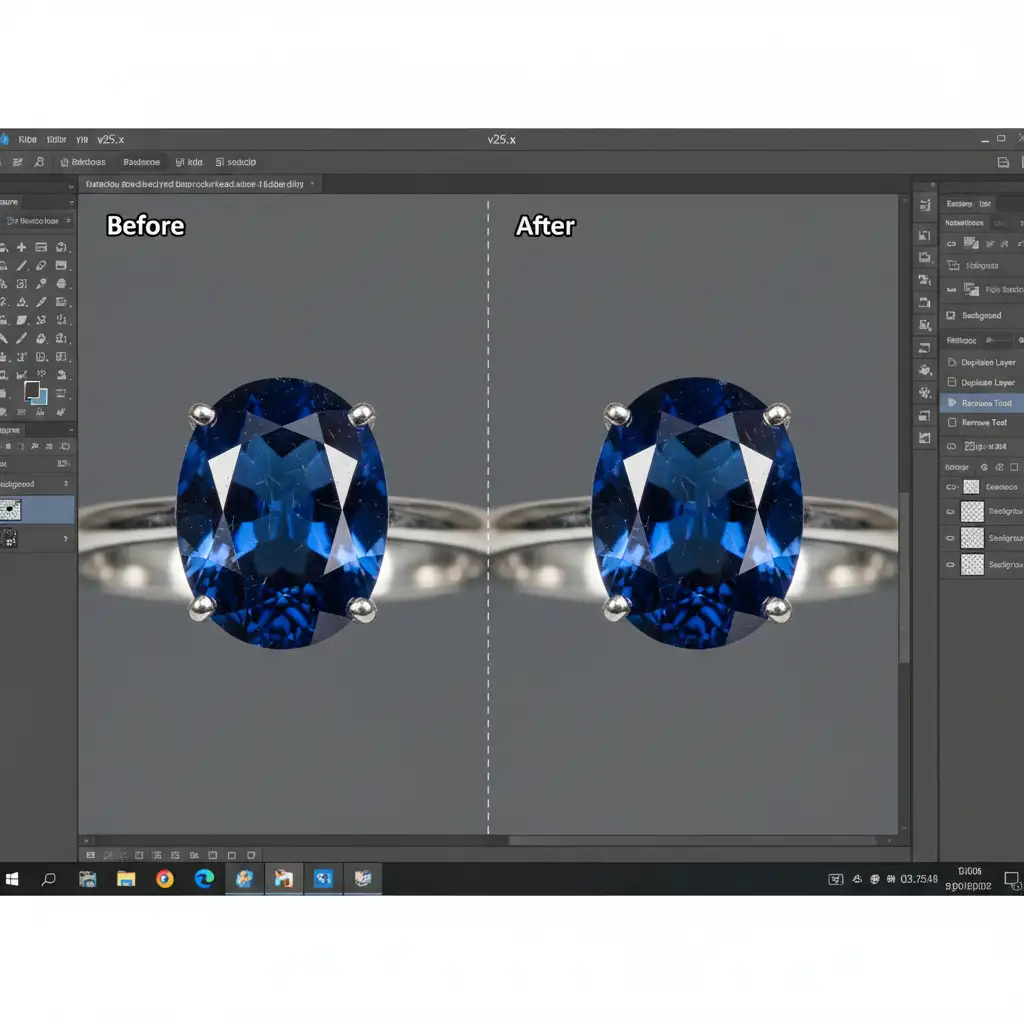
- Eliminate Macro Dust: Macro lenses capture microscopic debris that looks terrible on mobile screens. Select the Remove Tool (J) and brush over Macro Dust, minor scratches, and stray lint. The AI-driven tool will seamlessly blend the background.
- Establish Baseline Color Accuracy: Navigate to Image > Auto Color to neutralize unwanted color casts. Accurate color representation is critical to avoid violating TikTok’s misleading image policy.
Method B: The Pro Workaround (Background Isolation & Realistic Enhancements)
For a truly premium e-commerce presentation, jewelry should be isolated on a pure white background. This removes distracting studio reflections and creates a uniform look across your TikTok Shop grid.
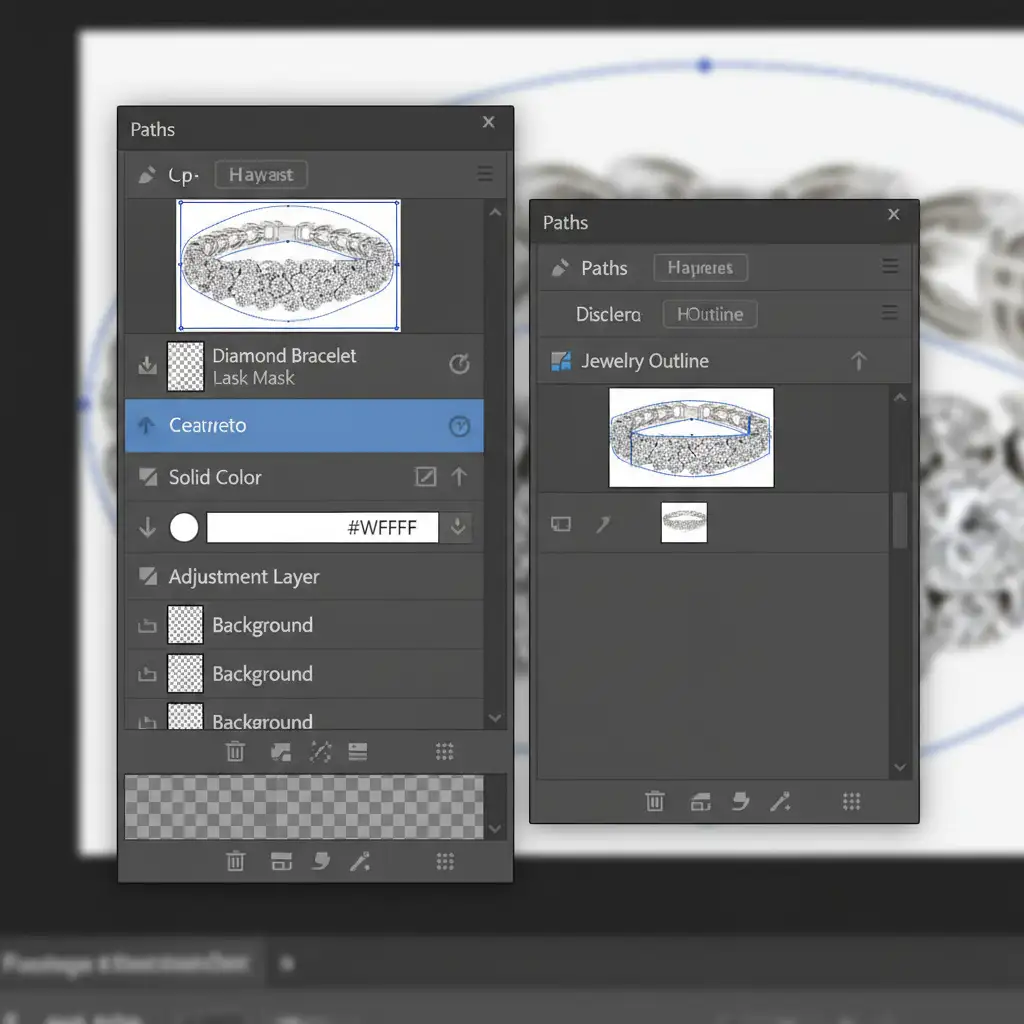
- Create a Clipping Path: Select the Pen Tool (P). Carefully trace the hard edges of your jewelry piece to create a precise Clipping Path. Right-click to make a selection, then mask the jewelry out.
- Apply a Pure #FFFFFF Background: Add a Solid Color adjustment layer below your jewelry and set the hex code to #FFFFFF.
- Enhance Shine Without Distortion: Use the Dodge and Burn tools on a 50% gray layer set to ‘Overlay’. Gently paint with white (Dodge) to enhance the gemstone facets and black (Burn) to deepen the contrast in the metal. This enhances depth without altering the true color of the item.
- Pro Tip: If the metal surface has uneven lighting, use Frequency Separation to smooth the luminosity while retaining the microscopic texture of the metal, keeping the edit looking 100% natural.
Method C: The Technical Deep-Dive (Batch Processing & Export Specs)
If you are a high-volume seller, editing one image at a time is inefficient. Set up a Photoshop Action to automate the final formatting steps, ensuring every file meets TikTok Shop’s technical limits.
- Record a Batch Processing Action: Open the Actions Panel and start recording.
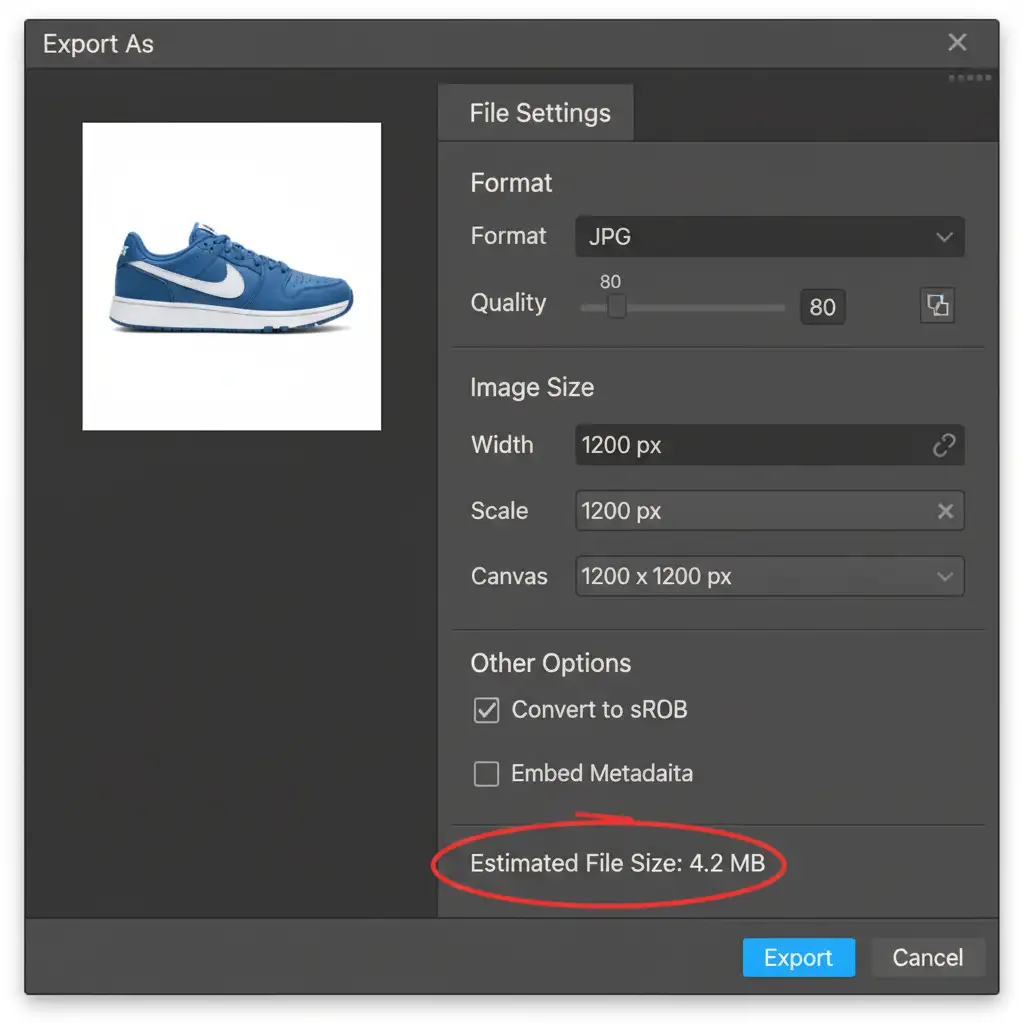
- Resize Pixel Dimensions: Go to Image > Image Size and set the dimensions to 1200x1200px. This guarantees high-resolution zoom capabilities on mobile.
- Convert to sRGB Color Space: Go to Edit > Convert to Profile and select sRGB Color Space. Mobile OLED screens heavily saturate colors; if you leave your image in Adobe RGB or ProPhoto, the colors will shift drastically on a buyer’s phone, leading to “not as described” returns.
- Optimize the Export: Go to File > Export > Export As. Choose JPG. While Lossless Compression (like PNG) is great for quality, it often exceeds file size limits. Adjust the JPG quality slider until the estimated file size indicator shows strictly under 5MB. Stop recording your action. You can now apply this to hundreds of images via File > Automate > Batch.
Video Tutorial: Perfecting Jewelry for TikTok Shop
Need to see this workflow in motion? Watch our quick breakdown of the exact process to get your jewelry listings approved instantly.
Stop Risking Shadowbans: Outsource Your Jewelry Retouching
Mastering TikTok Shop jewelry image requirements retouching takes time, patience, and advanced Photoshop skills. If you miss a speck of macro dust, upload the wrong color profile, or exceed the 5MB limit, your listings suffer.
Don’t let technical image requirements slow down your sales. Let Image Work India and Cloud Retouch handle your high-volume jewelry retouching. Our team of expert retouchers specializes in e-commerce vendor compliance. We guarantee 100 percent compliance with TikTok Shop guidelines, delivering perfectly isolated, color-accurate, and beautifully enhanced jewelry images that drive high-conversion results.
Focus on growing your TikTok Shop audience, and let us handle the pixels. Contact us today for a free trial and see the difference professional retouching makes.



