
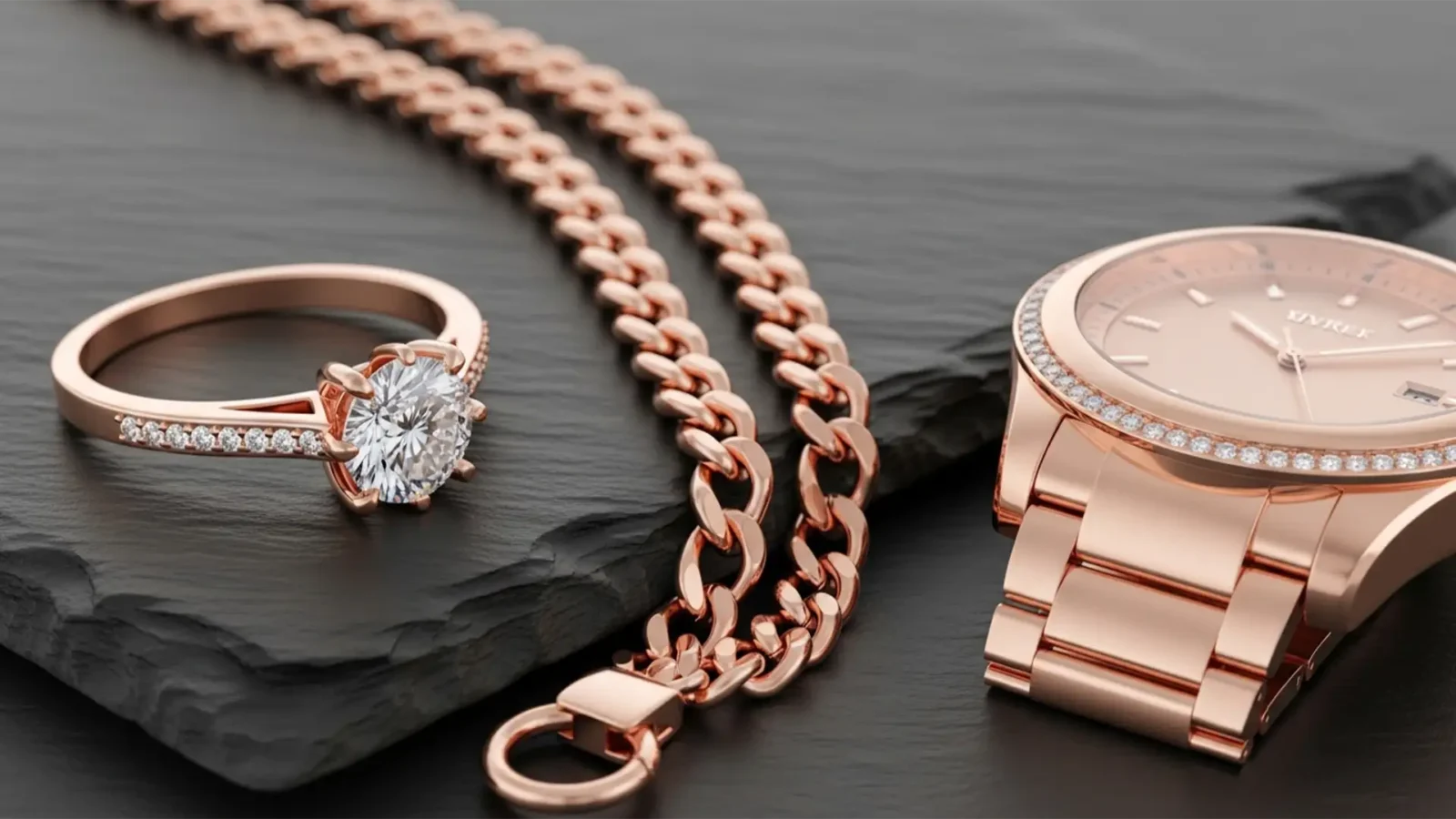
The Luxury Standard: Achieving 100% Rose Gold Color Consistency in Jewelry Retouching
You’ve just received the latest product shots for a luxury jewelry line, but there’s a glaring problem. Half the rings look like cheap copper, and the necklaces look like brassy yellow gold. Matching Rose Gold color consistency across collections is notoriously one of the...
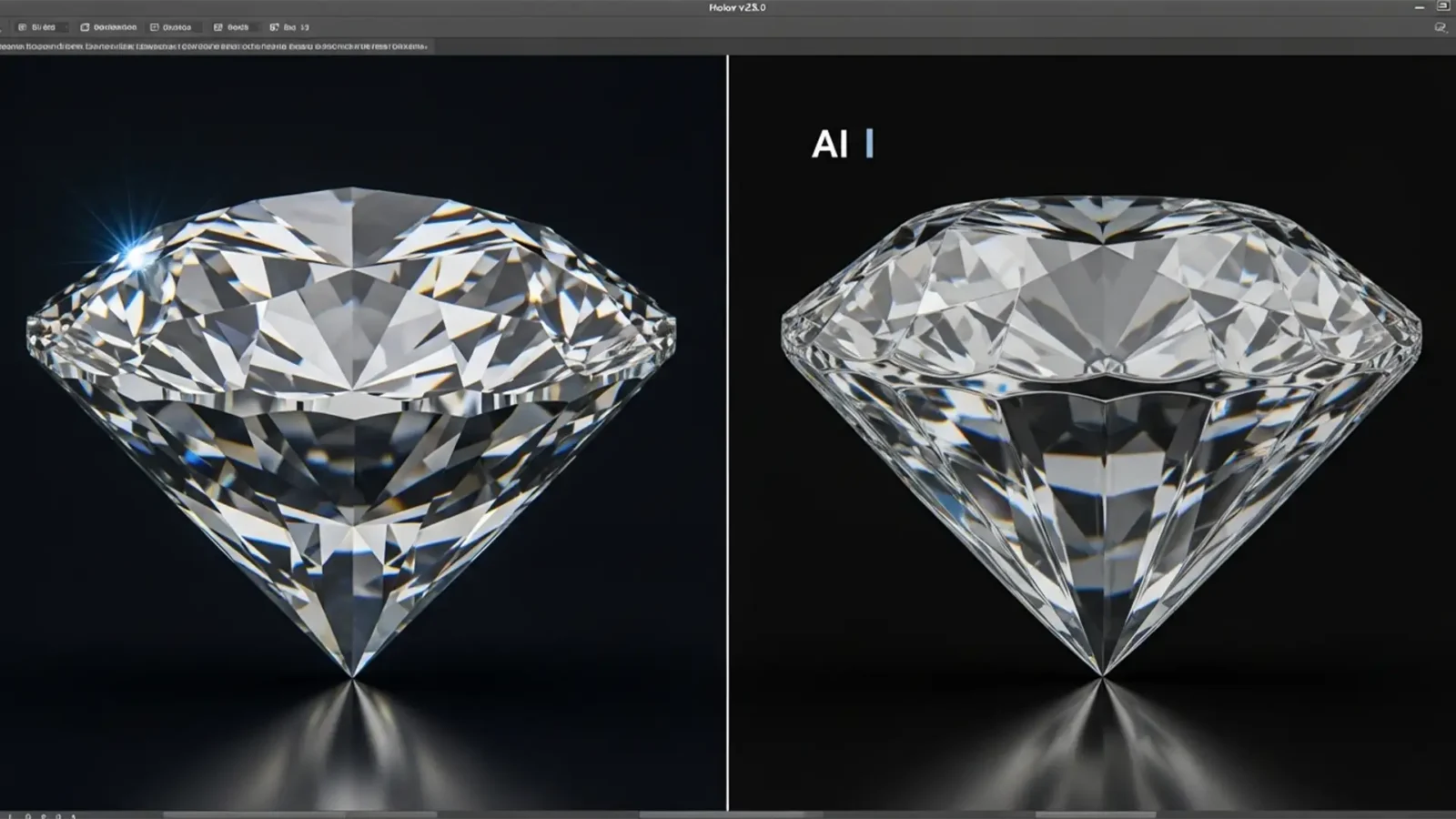
Fix AI Gemstone Distortion in E-commerce Photos
Are you tired of watching your high-end diamonds turn into melted plastic the moment you use Photoshop’s Generative Fill? You are not alone. In e-commerce jewelry photography, utilizing an effective AI gemstone distortion repair workflow is no longer optional—it is a...
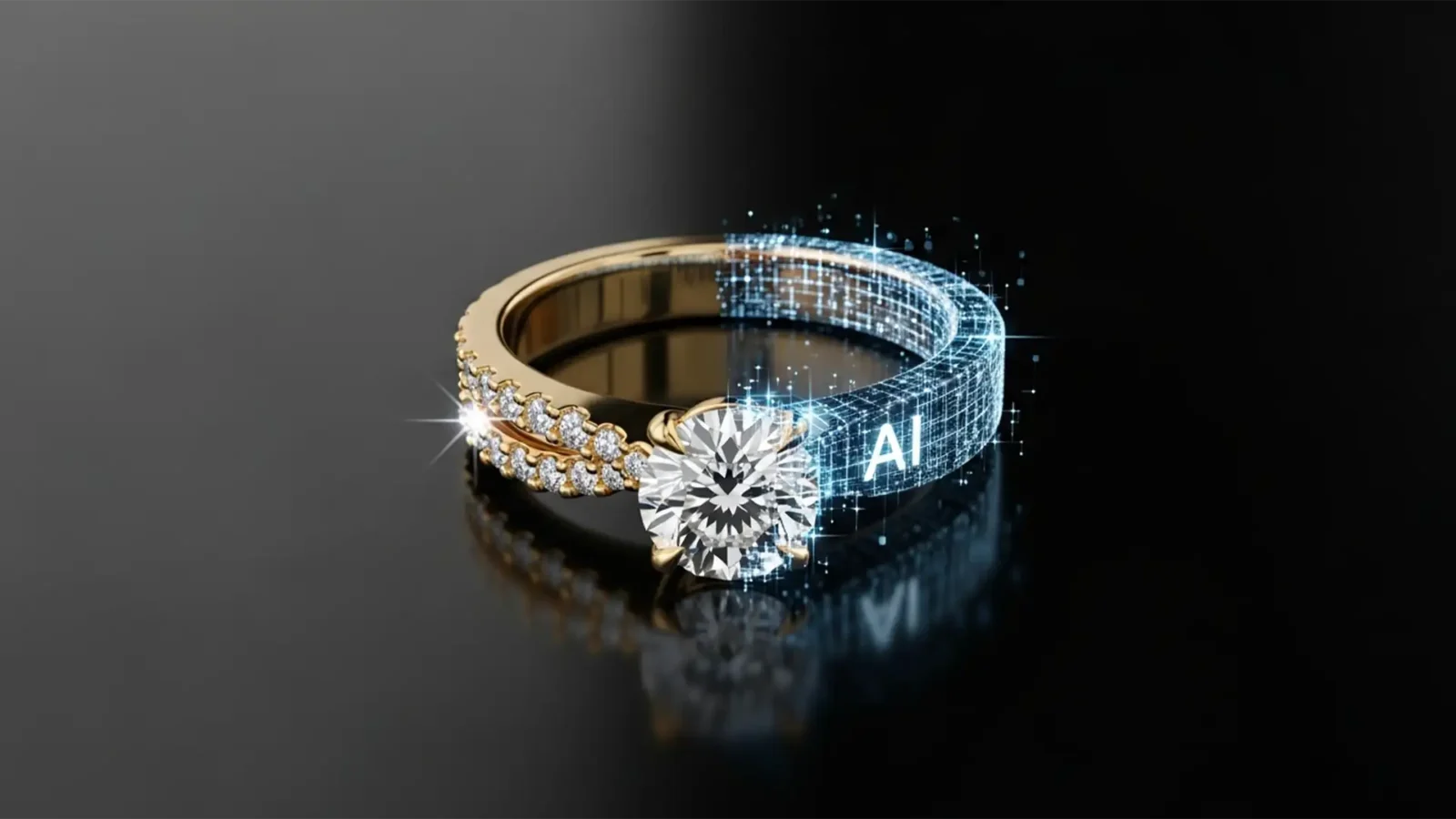
Fix Generative Fill Jewelry Reflection Artifacts
You just shot a flawless e-commerce campaign, but a few rings need their bands extended. You select the area, hit Photoshop’s Generative Fill, and wait for the magic. But instead of a crisp, luxurious gold band, you get a muddy, warped, matte smudge.
If you are struggling...
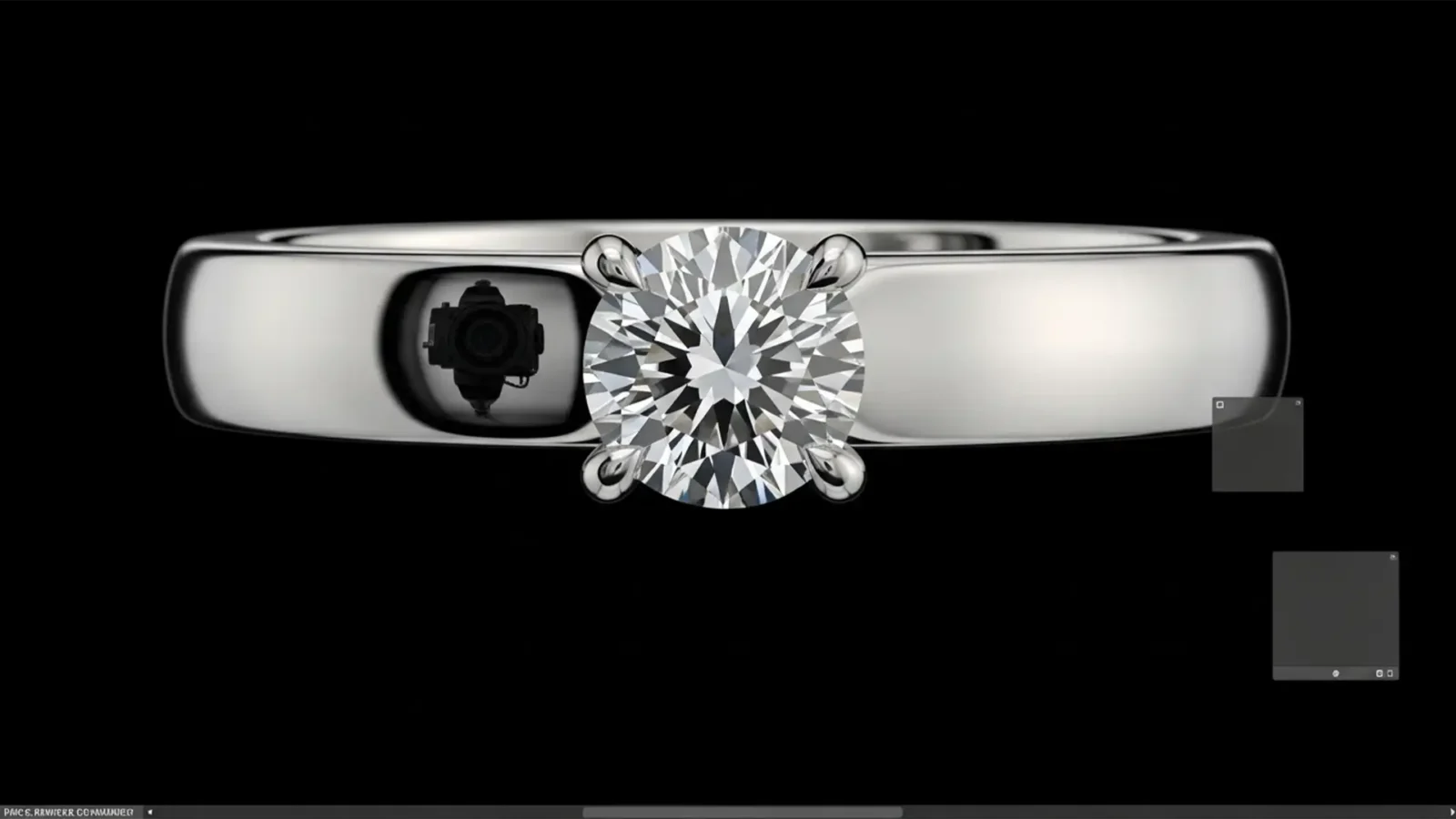
How to Remove Distracting Black Reflections from High-Polish Jewelry Like a Pro
In high-end jewelry photography, high-polish metals like silver, platinum, and rhodium act as perfect mirrors. It is a frustrating reality: you set up the perfect lighting, but that flawless curved metal reflects your camera lens or dark studio surroundings as harsh,...

Hybrid AI Jewelry Retouching Workflow: Scale Perfect Edits
You try to speed up your production using Photoshop v25+ AI tools, but one click of Generative Fill just ruined your diamond facets. The metal reflections look warped, the micro-contrast is completely gone, and unwanted artifacting has destroyed the gemstone’s clarity....
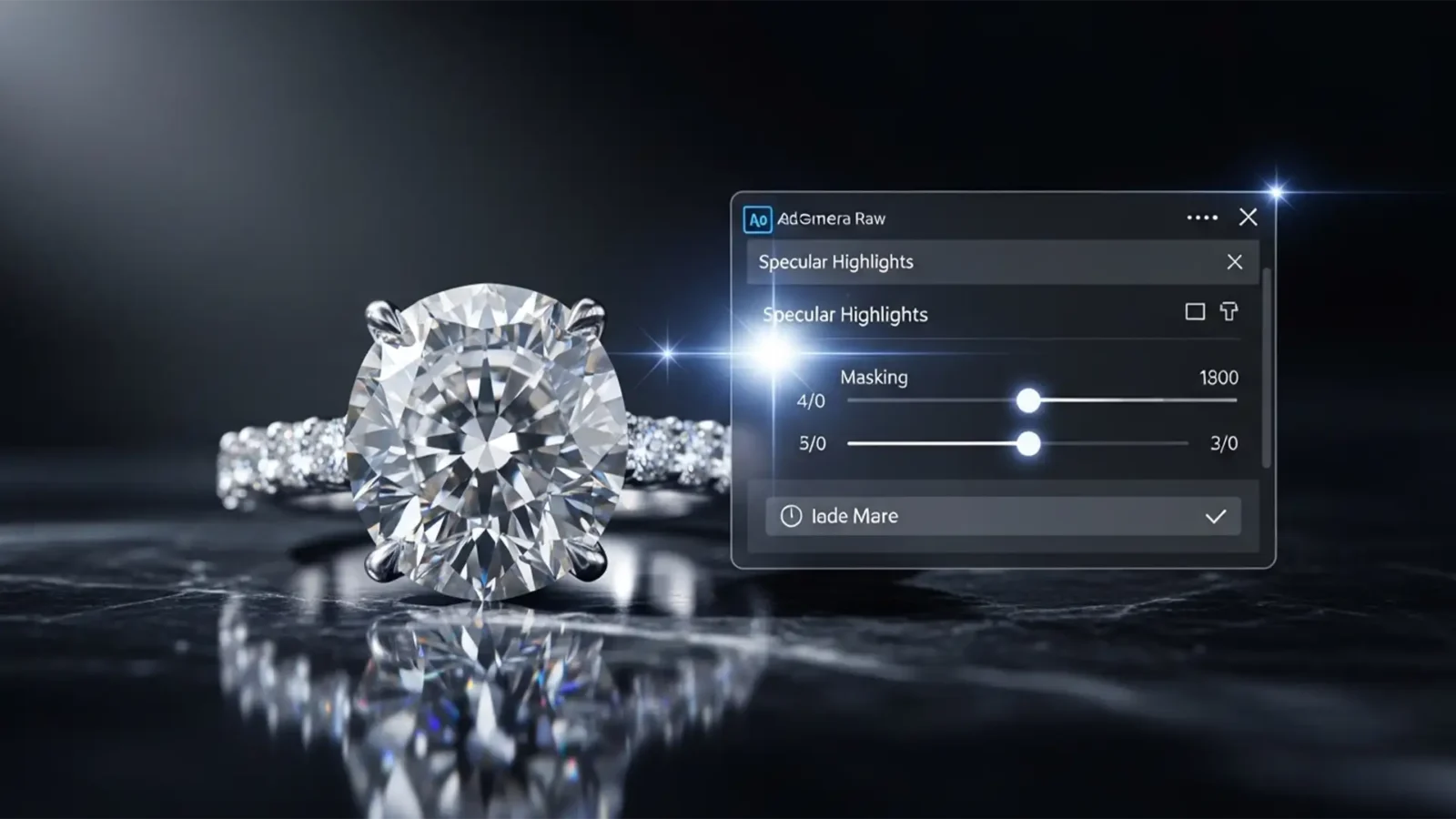
Mastering Photoshop’s New AI Reflection Control for High-Sparkle Diamonds
Nothing ruins a high-end jewelry photo faster than blown-out specular highlights. As a jewelry photographer or retoucher, you know the struggle: you try to pull down the harsh glare on a diamond, and suddenly, the stone looks flat, dull, and lifeless. Historically, making...
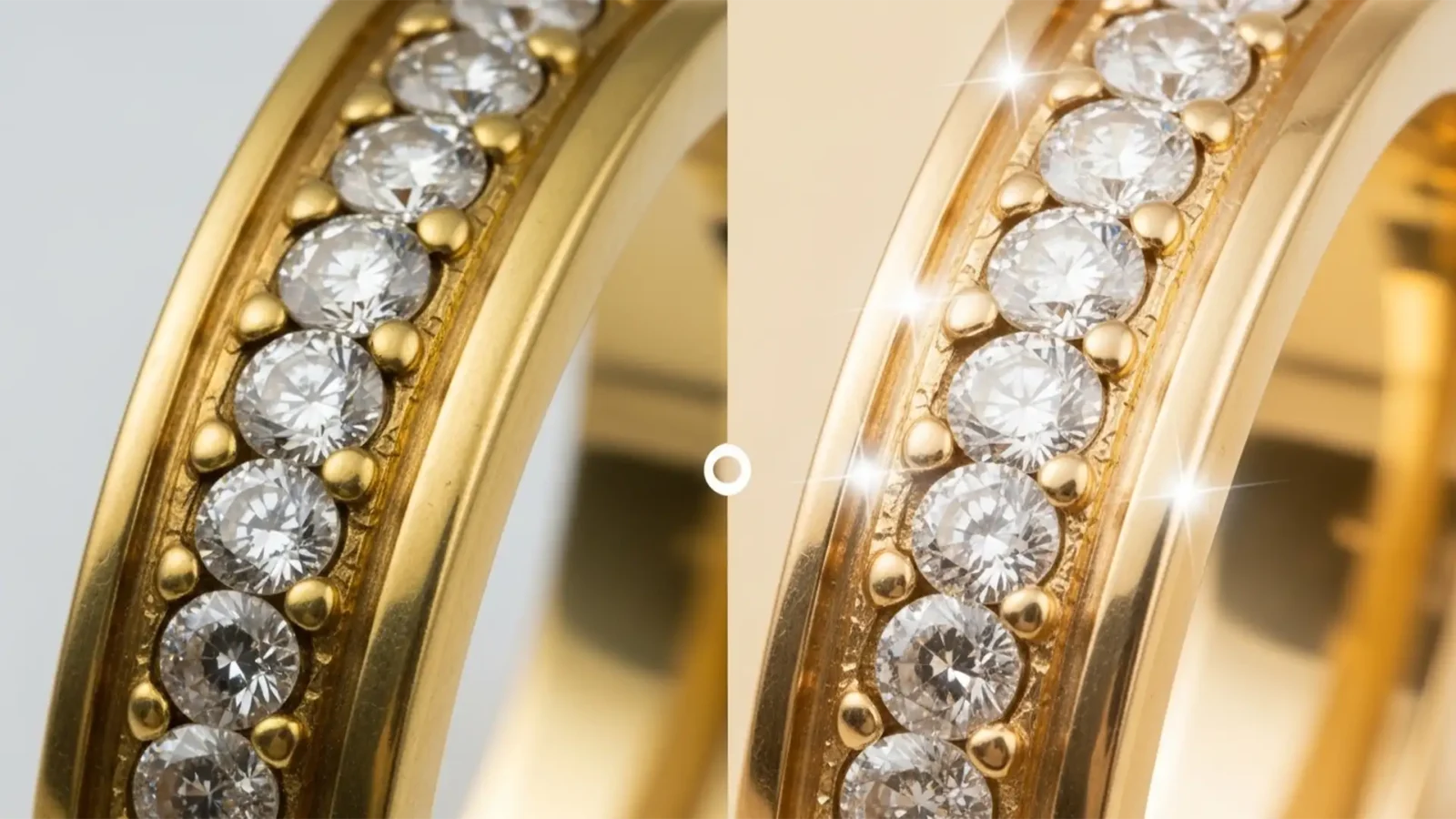
Beyond the Brass: How to Achieve the Cartier Gold Look in Photoshop
Have you ever spent hours shooting high-end jewelry, only to open the files in Photoshop and find the gold looks cheap, brassy, or tinted green? You are not alone. In macro photography mixed lighting, studio reflections often create aggressive color casts on metal surfaces....
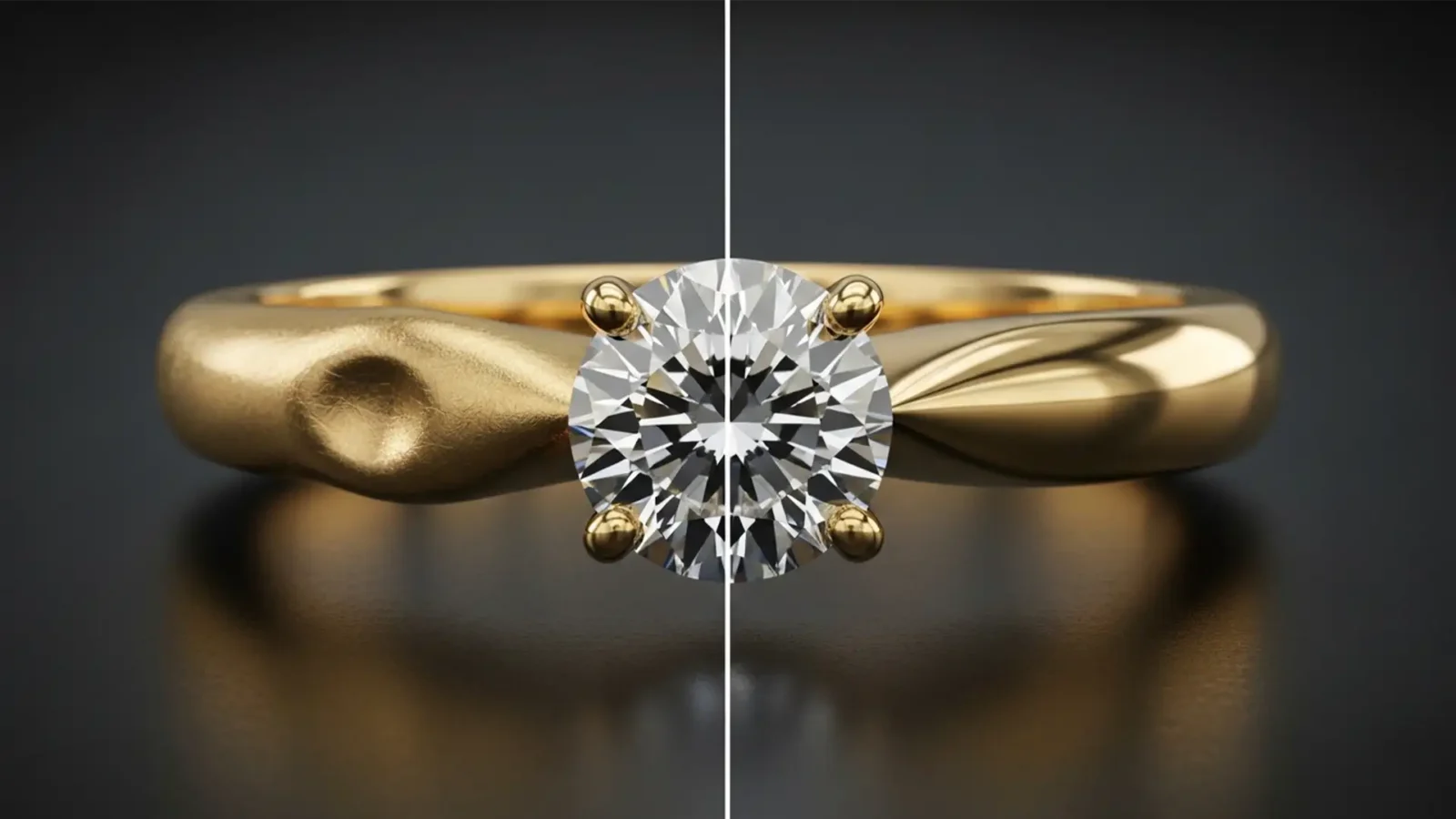
Fix Generative Fill Reflection Artifacts in Jewelry Photos
You just shot a stunning macro photo of an 18k gold ring, but there’s a distracting studio reflection on the band. You circle it, hit Photoshop’s AI prompt, and suddenly—your expensive gold looks like cheap, warped plastic.
If you are struggling with Generative Fill...
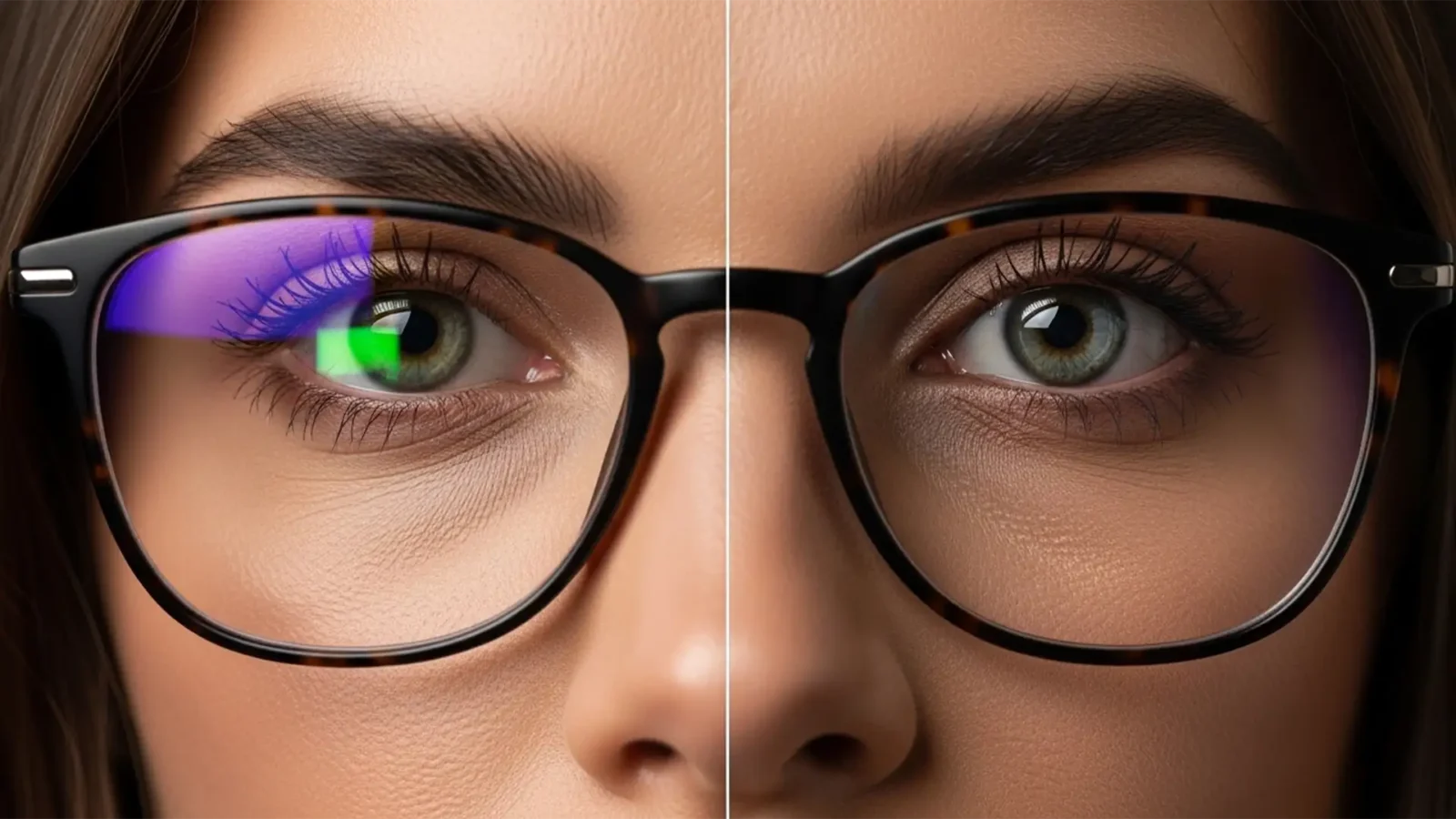
How to Fix Glasses Glare in Overcast Portraits
You’ve just wrapped a beautiful portrait session under perfect glasses glare in overcast skies. But when you load the RAW files, you see it: harsh green and purple glare streaking across your subject’s eyeglasses. Modern anti-reflective lens coatings are notorious for...
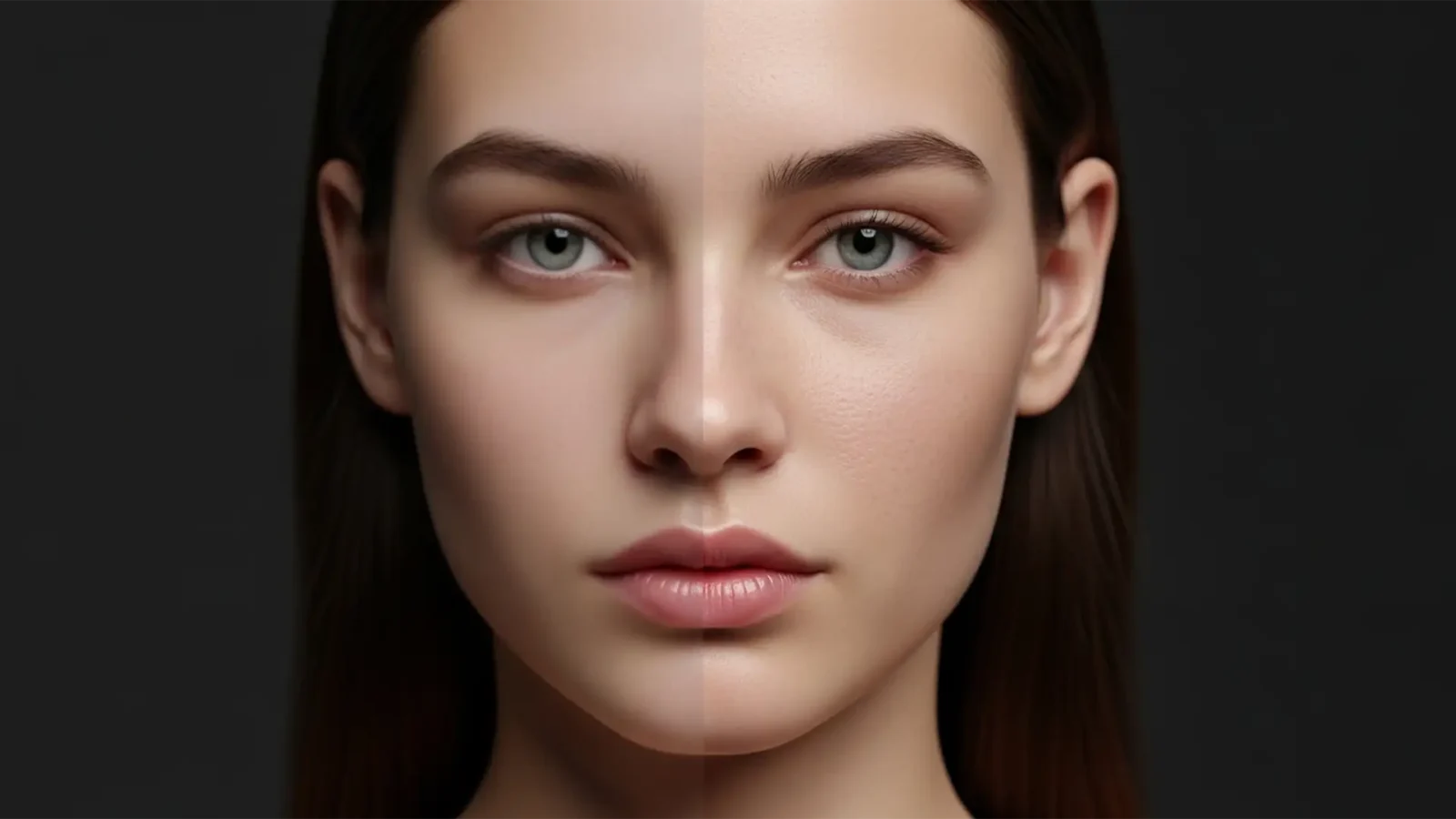
Why AI Skin Smoothing Fails & Natural Retouching Wins 2024
Are you tired of your high-resolution portraits looking like plastic mannequins? In Photoshop v25.x and v26.x, Adobe’s Neural Filters offer a tempting “one-click” solution for skin smoothing. But there is a massive catch. While incredibly fast, these automated...



