
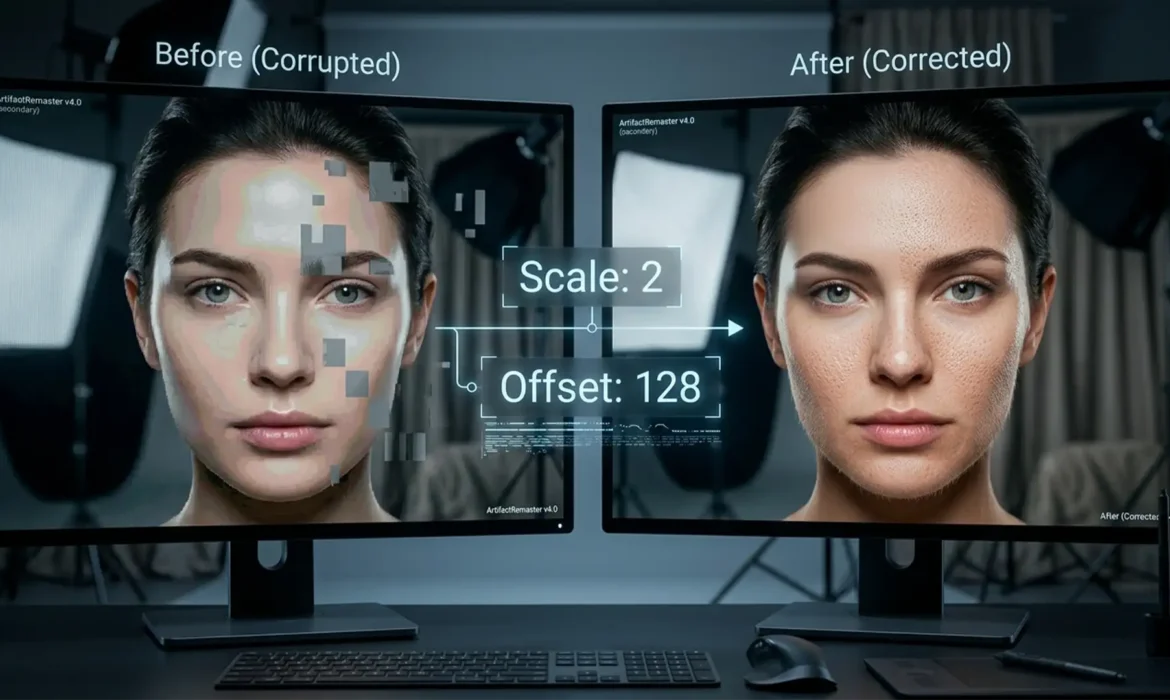
You are in the middle of a high-end retouching session. You run your trusty Frequency Separation action, expecting a perfect split between your low-frequency layer and your high-frequency texture layer. Instead? Your screen fills with harsh banding, incorrect contrast mapping, or a completely blacked-out canvas.
If this sounds familiar, you have just encountered the Photoshop Beta Apply Image bug.
Recent builds of Photoshop Beta (v25.x and v26.x) have introduced a critical pixel math error within the Apply Image tool. For professional retouchers, this bug halts production. Fortunately, there are reliable ways to bypass this glitch and get your workflow back on track. Here is exactly how to fix the frequency separation bug in Photoshop Beta.
What is the Photoshop Beta Apply Image Bug?
Frequency separation relies on precise mathematical subtractions to separate color and tone from texture. To achieve this, retouchers use the Apply Image dialog.
However, in the latest Photoshop Beta versions, the software miscalculates the 16-bit offset and 8-bit subtraction equations. When you attempt to subtract the low-frequency layer (blur) from the high-frequency layer (texture), the Apply Image tool fails to map the grey values correctly. This results in severe visual artifacts, banding, or ruined contrast on your texture layer, making high-end portrait retouching impossible.
Here are the three best methods to fix or bypass this issue.
3 Ways to Fix the Frequency Separation Bug
Method 1: The Quick Fix (16-Bit Equation Adjustment)
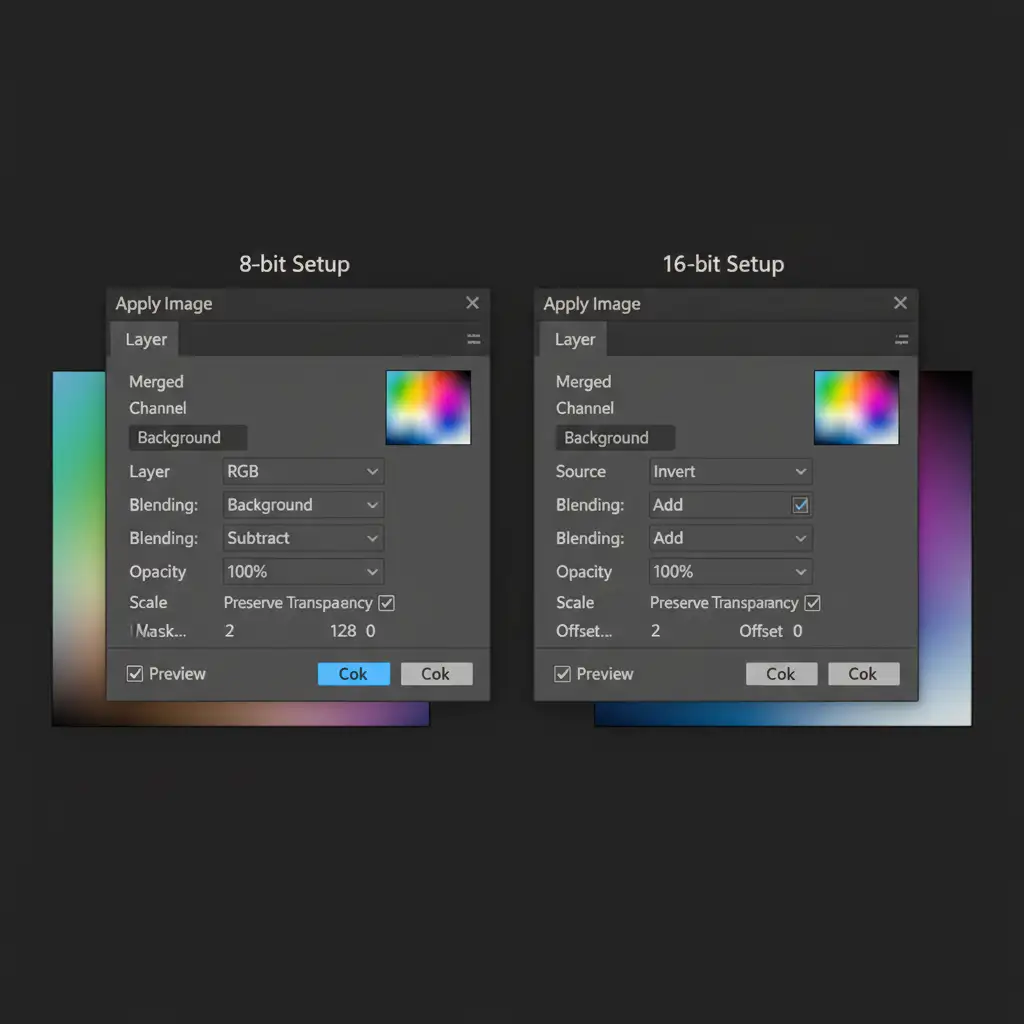
If you are working in a 16-bit workspace, the bug often stems from how Photoshop handles the “Invert” calculation. You can sometimes force the software to recalculate the math correctly by manually verifying your settings and toggling the bit-depth.
- Select your high-frequency (texture) layer and open Image > Apply Image.
- Set the Layer to your low-frequency layer.
- Ensure the Invert box is checked next to the layer dropdown.
- Set the Blending Mode to Add.
- Set Scale to 2 and Offset to 0.
- The Glitch Reset: If you still see banding, temporarily toggle the Preserve Transparency checkbox on and off, or switch your document momentarily to 8-bit and back to 16-bit to force a UI re-render.
Method 2: The Pro Workaround (High Pass Alternative)
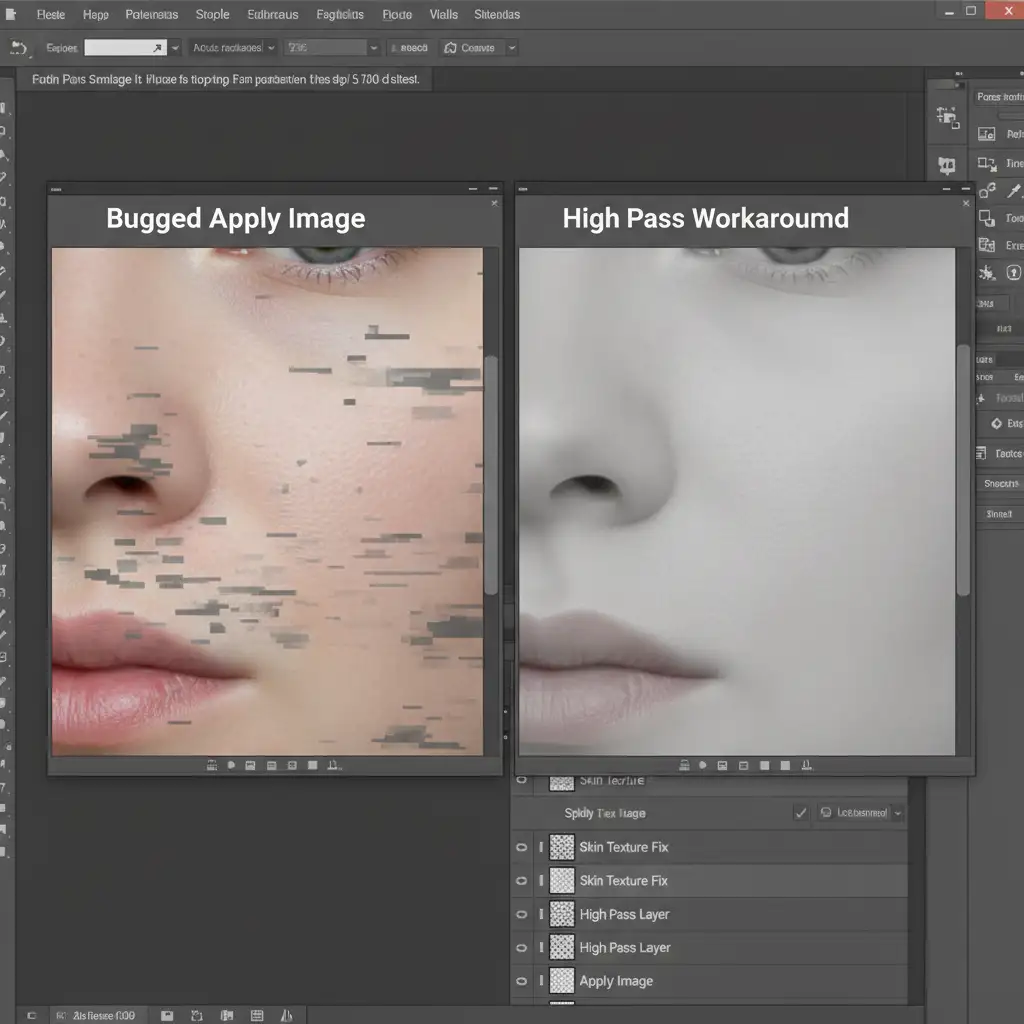
The most foolproof way to avoid the Photoshop Beta Apply Image bug is to bypass the Apply Image tool entirely. You can achieve the exact same mathematical frequency separation using the High Pass filter.
- Duplicate your retouched low-frequency layer and move it above your original low-frequency layer.
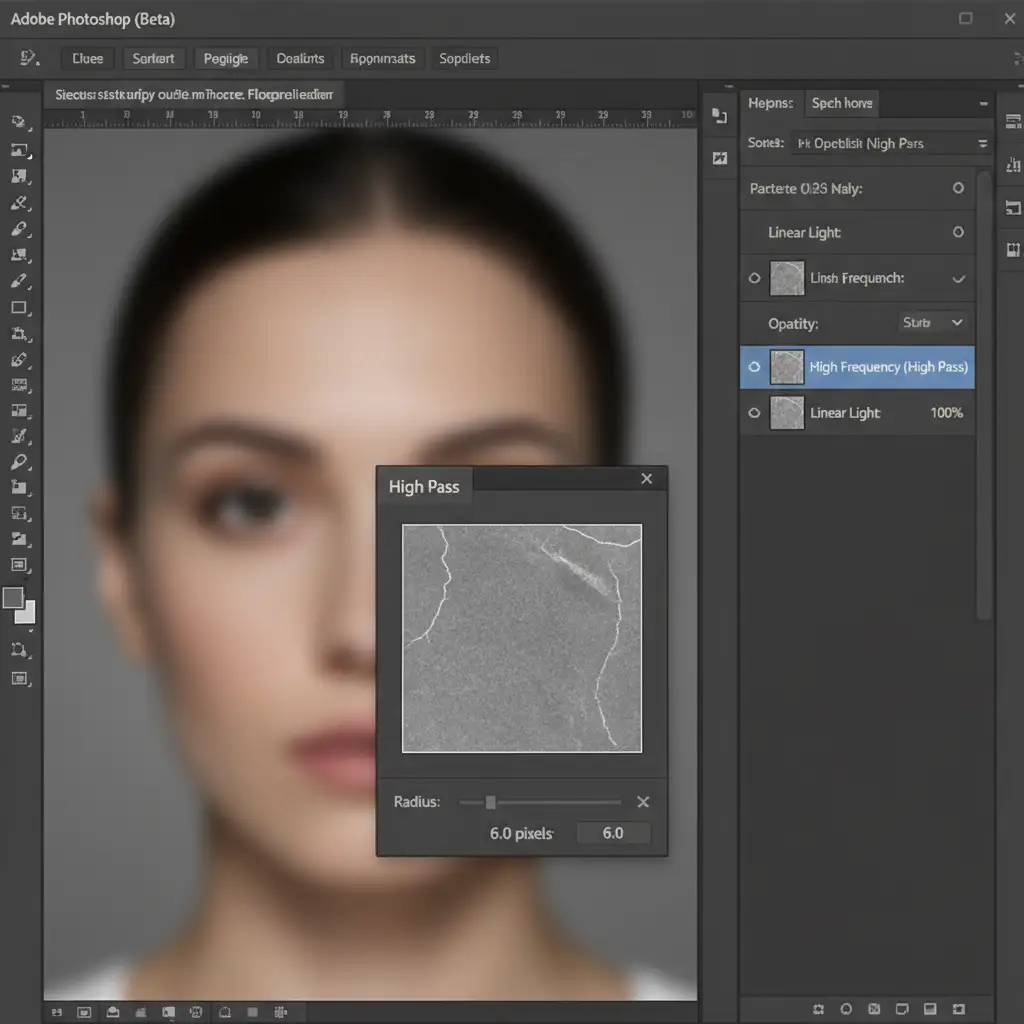
- Go to Filter > Other > High Pass.
- Set the High Pass radius to the exact same pixel radius you used for your initial Gaussian Blur on the low-frequency layer.
- Change the blending mode of this new layer to Linear Light.
This technique perfectly isolates your texture layer without ever touching the bugged Apply Image pixel math.
Method 3: Version Rollback & GPU Settings (Technical Deep-Dive)
If you rely heavily on automated actions that you cannot easily rewrite to use the High Pass method, your best option is to roll back to a stable release or tweak your engine settings.
Disable Native Canvas: Sometimes, the bug is exacerbated by how the GPU renders the canvas.
- Go to Preferences > Performance > Advanced Settings.
- Check the box to Deactivate Native Canvas.
- Alternatively, toggle your GPU Acceleration off and on to force a reset. Restart Photoshop.
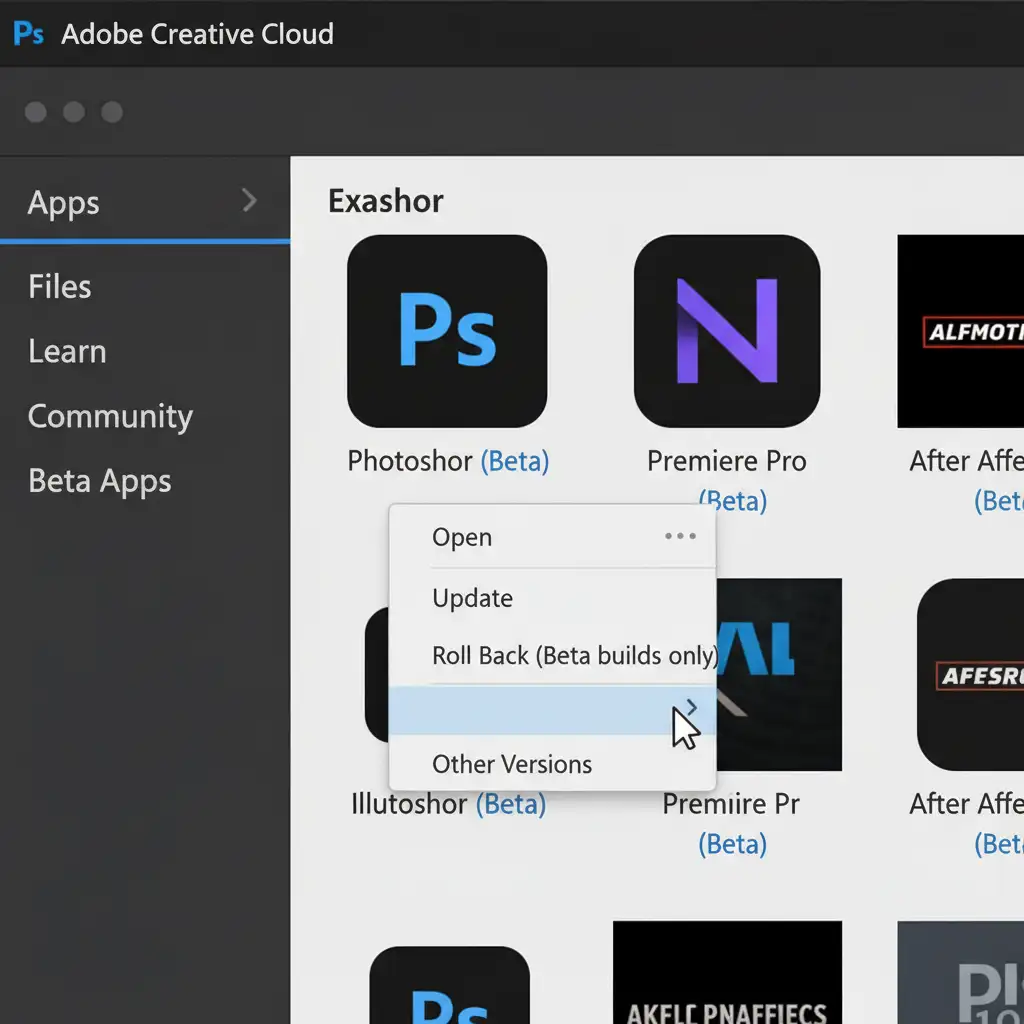
Rollback via Creative Cloud: If the pixel math remains broken, downgrade to a pre-v25.x build.
- Open the Creative Cloud Desktop App.
- Navigate to Beta Apps on the left sidebar.
- Click the three horizontal dots next to Photoshop (Beta).
- Select Other Versions and install the previous stable beta build.
Stop Fighting Software Bugs. Start Delivering Perfection.
Dealing with the Photoshop Beta Apply Image bug frequency separation issue is frustrating, especially when you have tight client deadlines. While these workarounds will save your current project, troubleshooting software glitches takes valuable time away from what you do best: growing your photography business.
Need flawless, artifact-free portraits without the hassle of software bugs? Let Image Work India and Cloud Retouch handle your high-end retouching needs. Our expert team utilizes stable, enterprise-grade workflows to guarantee perfect color grading, dodge and burn, and frequency separation on every single image.
Focus on capturing the perfect shot, and let us deliver the perfect edit. Contact Image Work India today to streamline your post-production workflow.



