
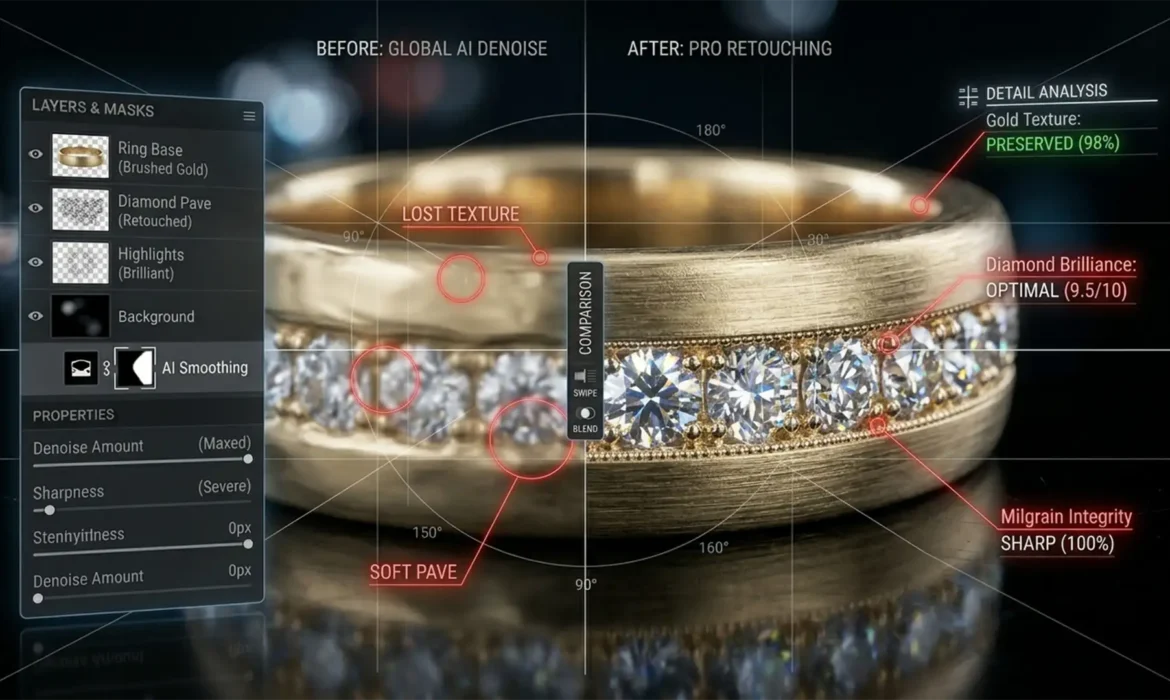
You just shot a stunning campaign featuring high-end brushed gold and diamond rings at a high ISO. To clean up the luminance noise, you run the raw files through the latest AI Denoise feature in Lightroom Classic v12.3+ or Adobe Camera Raw v15.3+. But instead of a crisp, luxurious image, your jewelry looks like it’s made of cheap plastic.
The brushed metal grain is completely gone, the intricate milgrain edges look melted, and the diamond micro-facets have lost their signature sparkle. If you are dealing with AI denoise ruining jewelry textures, you are experiencing a common limitation of automated editing. AI lacks the semantic understanding to differentiate between unwanted camera noise and the essential micro-contrast that gives fine jewelry its authentic, expensive appearance.
Here is exactly why this happens, and three professional retouching workflows to clean up your images while preserving the true value of the jewelry.
The Problem: Why is AI Denoise Ruining Jewelry Textures?
Adobe’s recent AI Denoise updates in Photoshop v25.x+ and Lightroom Classic are incredibly powerful for standard photography. However, the algorithm aggressively targets both luminance noise and color noise by applying complex smoothing patterns.
When applied to jewelry, the AI mistakenly identifies fine manufacturing details—like the grain of brushed platinum or the tiny specular highlights of a diamond cluster—as high-frequency noise. The result is severe AI Denoise artifacts, often referred to as a “plastic” or “over-smoothed” look. To fix this, you must take manual control over how and where noise reduction is applied.
3 Pro Methods to Clean Noise While Preserving Metal Grain
Stop relying on the default slider. Here are three methods, ranging from a quick fix to high-end commercial techniques, to maintain the integrity of your jewelry photography.
Method 1: The Smart Object Opacity Blend (The Quick Fix)
If you need a fast turnaround but want to avoid the plastic look, you can blend the denoised image with the original raw file to bring back natural texture.
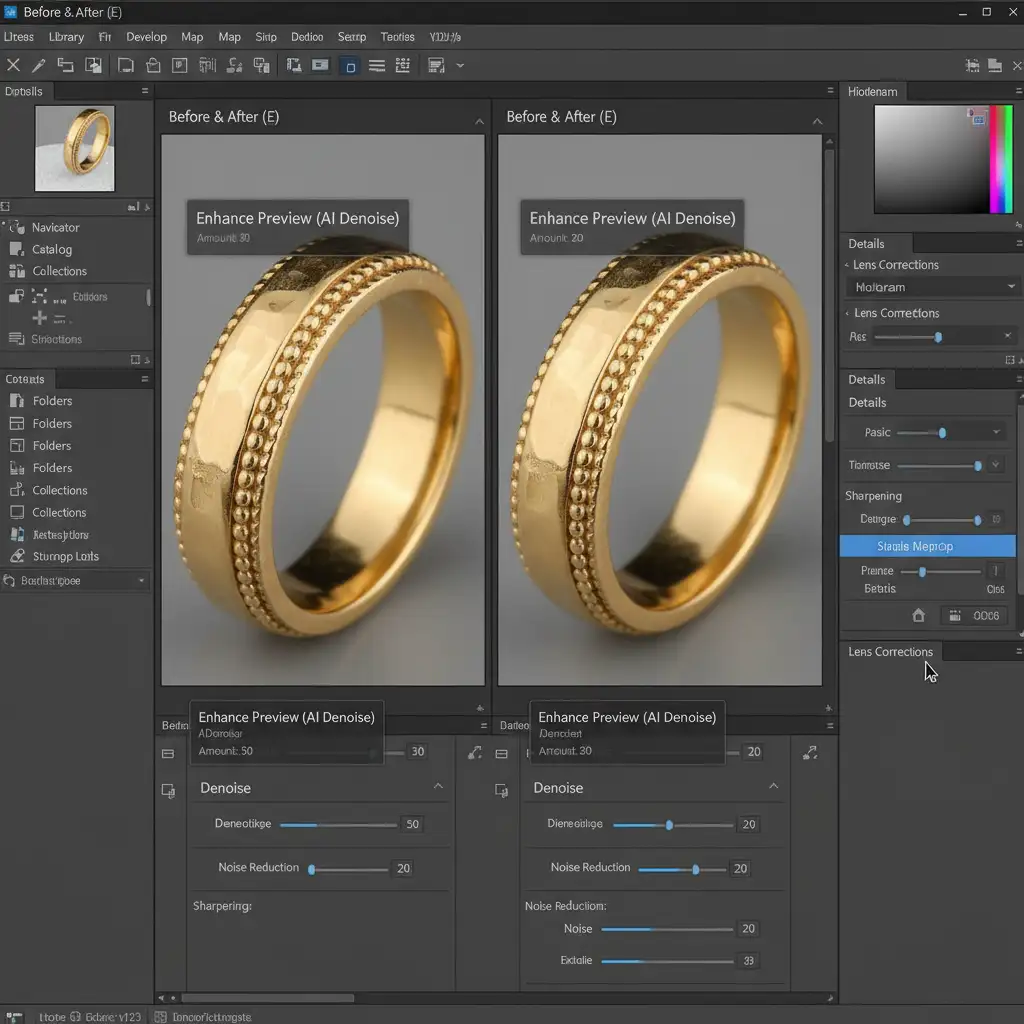
- Reduce the Strength: Open your raw file in Adobe Camera Raw (ACR). Instead of the default 50, apply AI Denoise at a lower strength of 15 to 30.
- Open as Smart Object: Hold the Shift key and click “Open Object” to open the image in Photoshop as a Smart Object.
- Layer the Original: Duplicate the original, un-denoised raw file and place it on a layer directly above your Smart Object.
- Blend: Lower the opacity of the un-denoised layer to about 15-20%.
This technique acts as a subtle surface blur alternative, effectively reducing the heavy luminance noise while allowing the original metal grain and micro-contrast to peek through.
Method 2: Frequency Separation (The Pro Workaround)
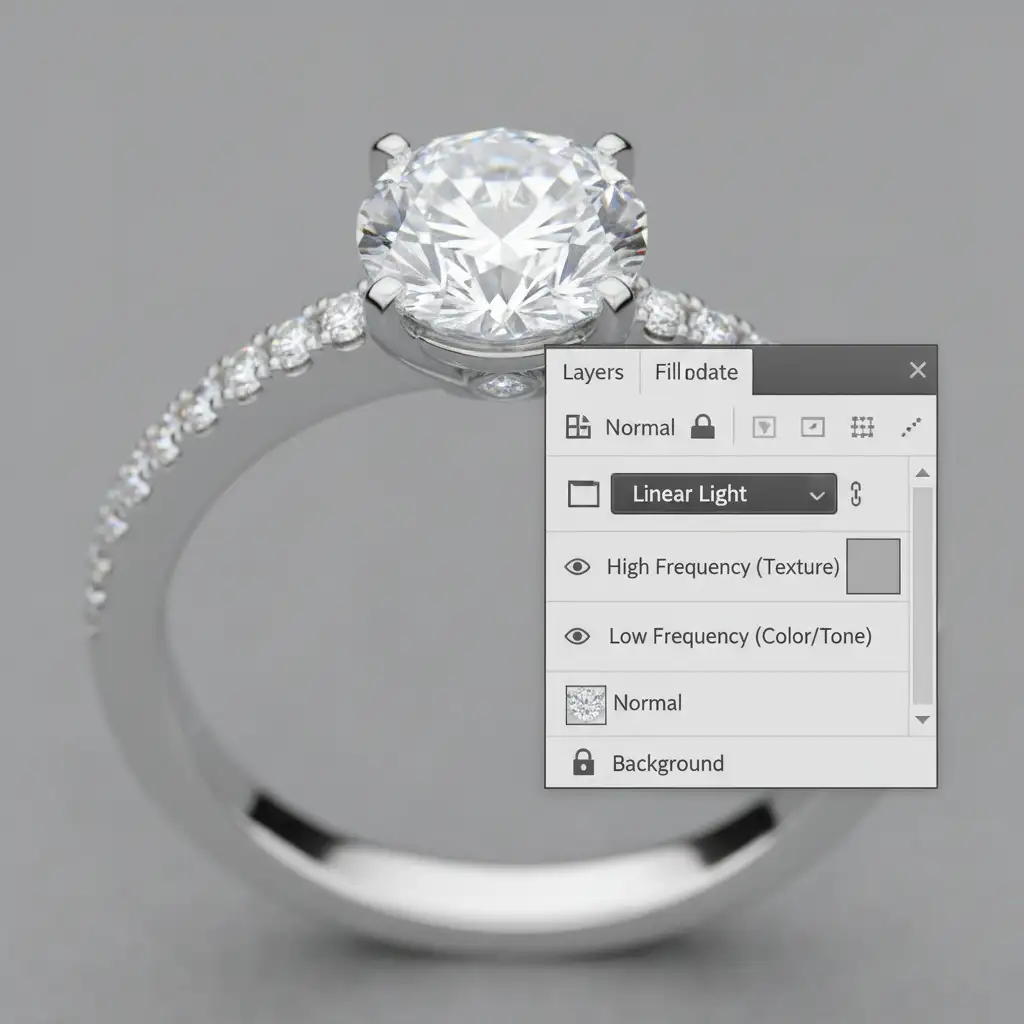
For commercial jewelry retouching, Frequency Separation is the gold standard. This technique allows you to separate the image into two distinct layers: a Low-Frequency layer (containing color, tone, and shadows) and a High-Frequency layer (containing sharp textures, metal grain, and diamond facets).
- Create the Separation: Run your standard Frequency Separation action in Photoshop v25.x+.
- Target the Low Frequency: Select the Low-Frequency layer. This is where color noise and blotchy luminance noise live.
- Apply Denoise: Apply your preferred noise reduction (or a careful Gaussian blur) strictly to this Low-Frequency layer.
Because the high-frequency layer remains completely untouched, the sharp edges of the diamonds and the authentic brushed metal textures are perfectly intact.
Method 3: Targeted Luminosity Masking (The Technical Deep-Dive)
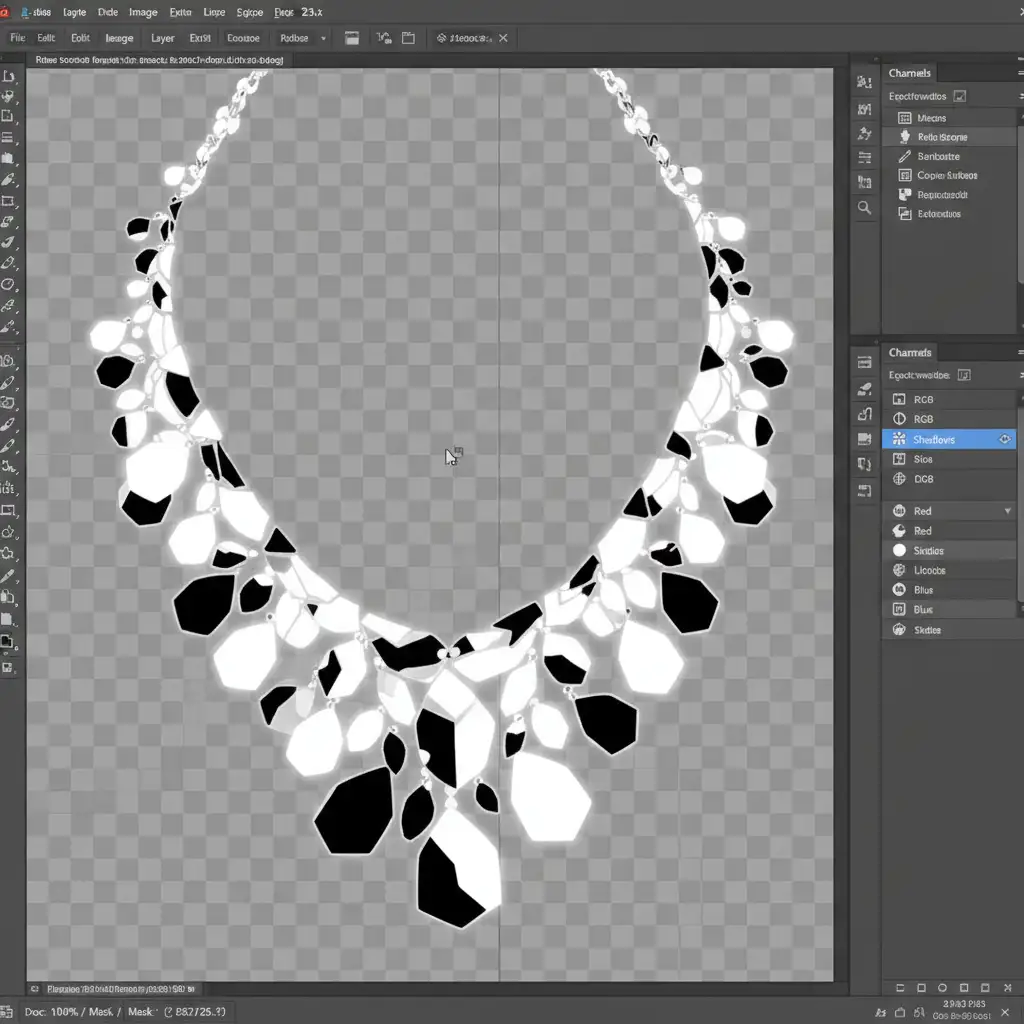
Noise predominantly lives in the shadows and midtones of an image. Specular highlights—the bright reflections that make jewelry look expensive—rarely show visible noise. By using Luminosity Masking, you can protect these bright areas from the denoising algorithm.
- Generate a Mask: Use Photoshop’s Channels panel to create a luminosity mask that specifically targets the darker areas (shadows and lower midtones) of the jewelry piece.
- Invert and Refine: Ensure the mask is completely black (concealed) over the bright highlights, diamond reflections, and crisp metal edges.
- Apply Denoise: Apply your noise reduction through this mask.
The algorithm will now only clean the noisy shadows, leaving the crucial specular highlights and micro-contrast completely unaffected.
Why Human Expertise Beats Automated AI Editing
While AI tools are rapidly advancing, high-end jewelry photography requires a level of precision that algorithms simply cannot replicate. Automated tools cannot tell the difference between a high-ISO artifact and a deliberate milgrain edge. Relying solely on one-click AI denoise will inevitably strip away the natural material value of your products, making expensive pieces look cheap.
Preserving the authenticity, texture, and brilliance of fine jewelry requires a careful, human touch.
Don’t let automated software ruin your commercial photography. If you are struggling with complex retouching workflows, let the experts handle it. At Image Work India or Cloud Retouch, our specialized jewelry retouching teams use advanced techniques like frequency separation and luminosity masking to ensure your pieces look flawless, authentic, and luxurious.
Contact us today to elevate your jewelry imagery with professional retouching that preserves every facet, grain, and highlight.



