
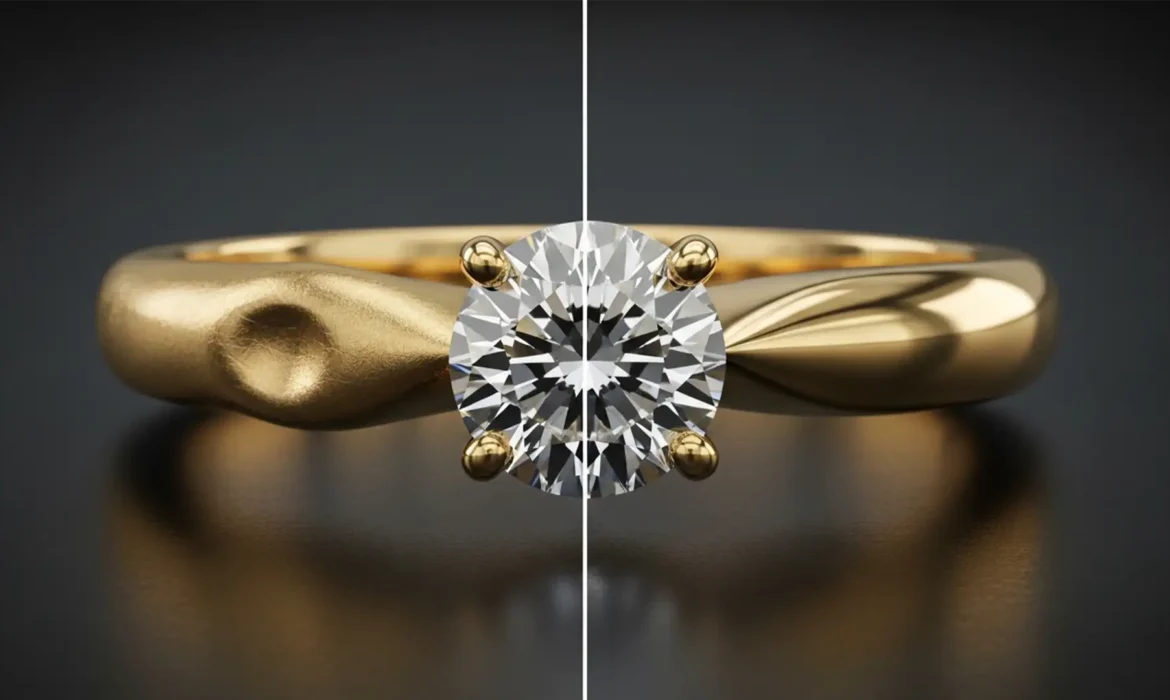
You just shot a stunning macro photo of an 18k gold ring, but there’s a distracting studio reflection on the band. You circle it, hit Photoshop’s AI prompt, and suddenly—your expensive gold looks like cheap, warped plastic.
If you are struggling with Generative Fill jewelry reflection artifacts, you aren’t alone. In Photoshop v25.0+ and the latest Adobe Firefly Image 3 models, the AI frequently hallucinates matte textures when trying to fix specular highlights. It simply lacks the localized context of microscopic metallic grain.
Fortunately, you don’t have to abandon AI entirely. Here is the exact hybrid workflow professional retouchers use to fix these artifacts and maintain flawless metallic surfaces.
Why Adobe Firefly Image 3 Struggles with Jewelry Reflections
Generative Fill is trained on millions of images, but macro jewelry photography presents a unique challenge. Metallic surfaces are entirely defined by how they reflect their environment. When you attempt to remove dust, scratches, or a harsh reflection, the AI tries to “guess” what belongs underneath.
Because it cannot accurately replicate the microscopic scratches and high-frequency texture of real metal, it defaults to a smooth, color-averaged patch. This results in the dreaded “plastic” or warped appearance, especially in high-contrast areas where specular highlights meet deep shadows.
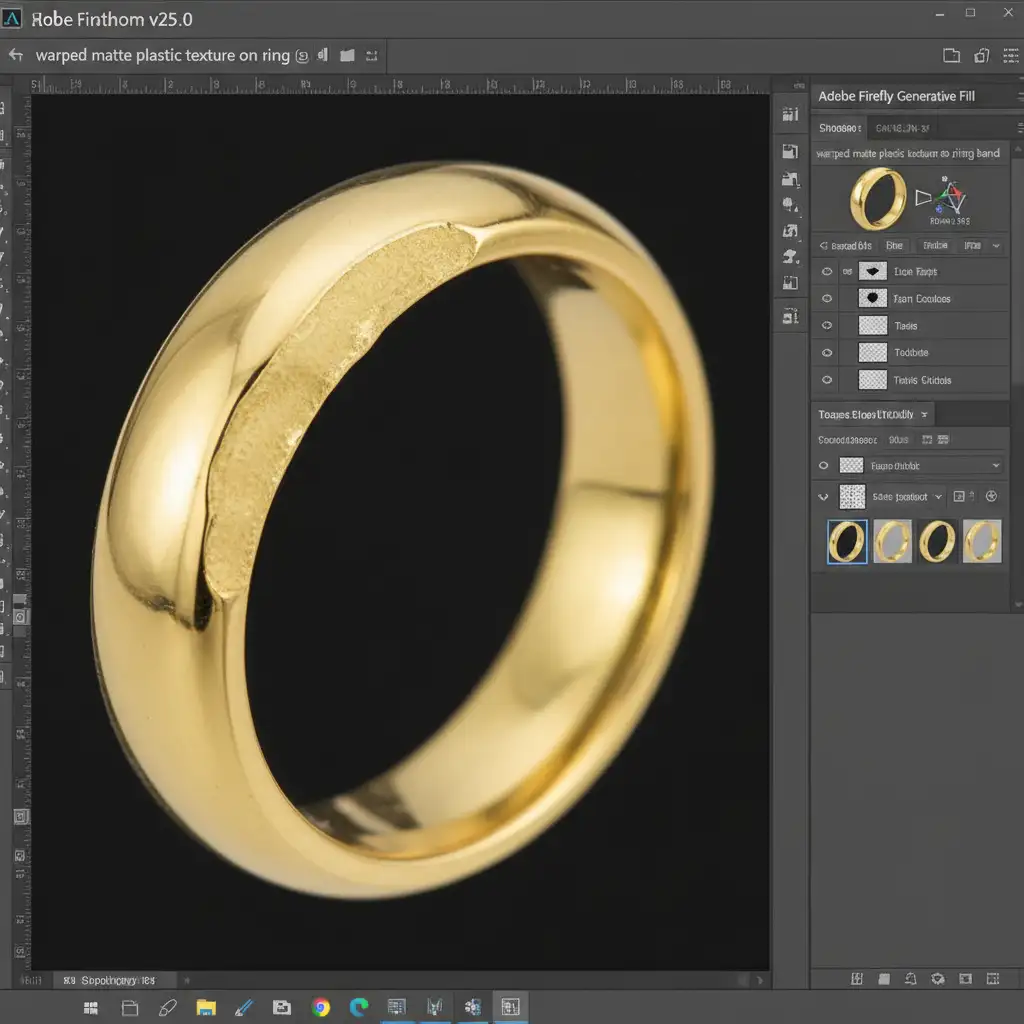
How to Fix Generative Fill Jewelry Reflection Artifacts
To stop AI from ruining your rings, you need to guide it with precise selections, specific prompts, and advanced compositing techniques. Here are three proven methods, ranging from a quick fix to a high-end commercial retouching workflow.
Method 1: The Quick Fix (Refined Selection & Prompting)
The most common mistake users make is leaving the Generative Fill prompt blank and using a soft brush to make their selection. This gives the AI too much freedom to bleed the edges and hallucinate textures.
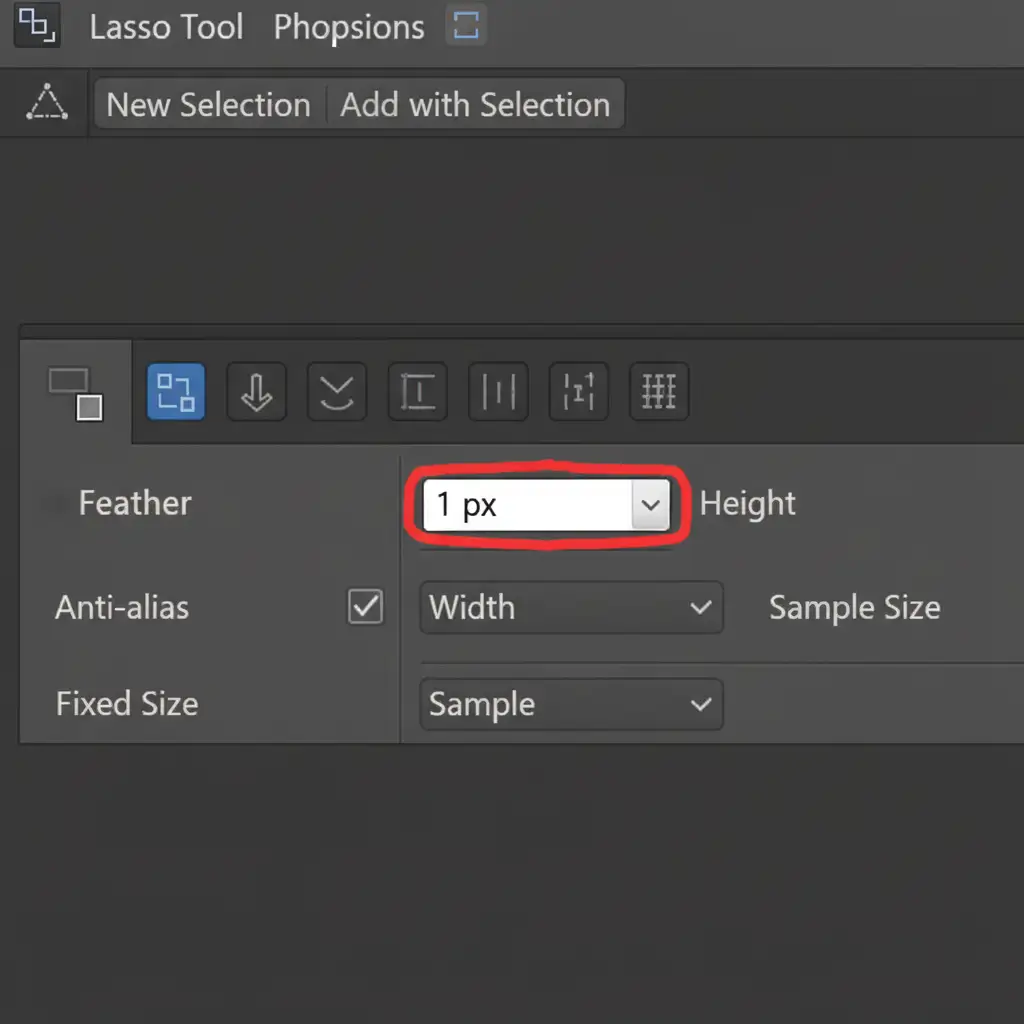
- Tighten Your Selection: Select the Lasso Tool and set a strict 1px feather radius. This forces the AI to respect the hard edges of the metallic reflection.
- Describe the Material: Do not leave the prompt box empty. Type highly specific material descriptors.
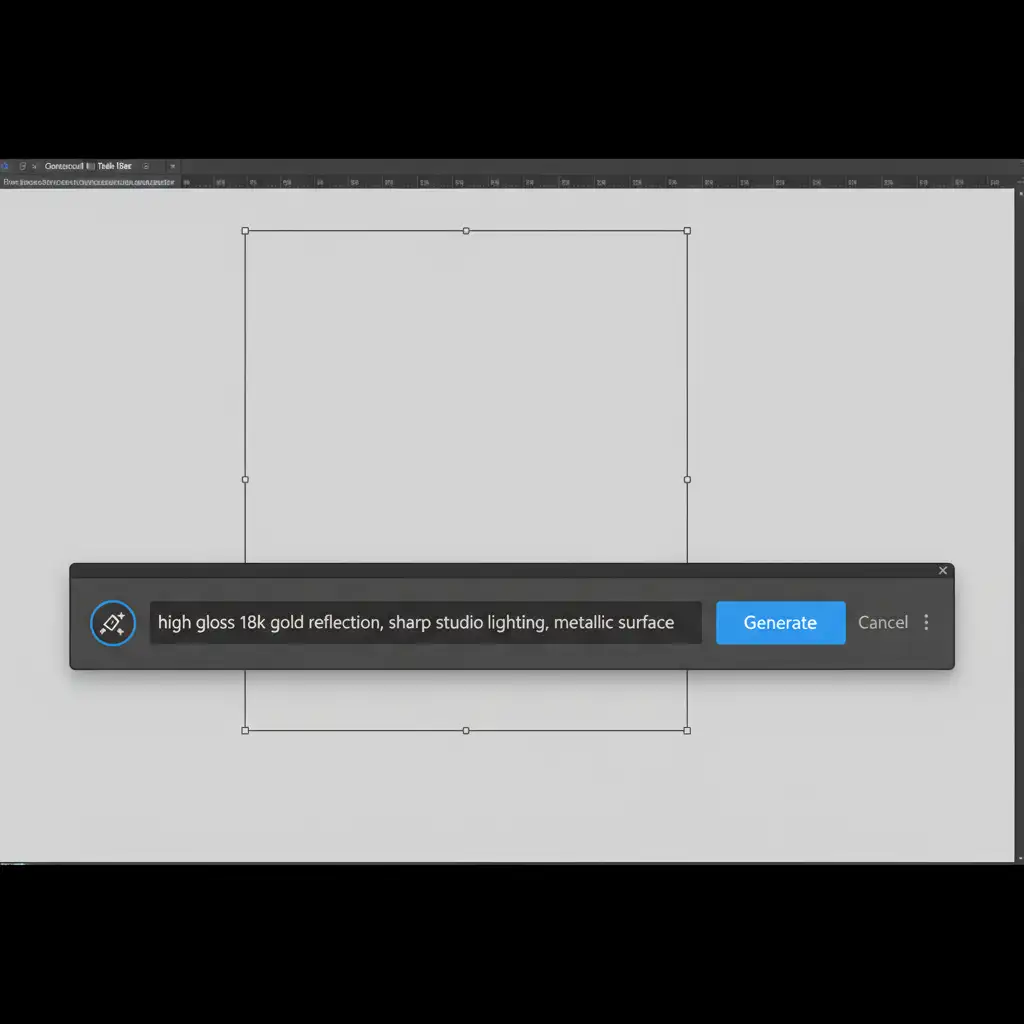
Instead of typing “remove reflection,” use a prompt like: “high gloss 18k gold reflection, sharp studio lighting, metallic surface.”
Method 2: The Pro Workaround (Hybrid Masking)
Even with the perfect prompt, the AI might still generate a slightly matte patch. To fix this, you need to combine the AI’s structural fix with the original image’s texture.
- Run your Generative Fill to fix the base shape or remove the unwanted background element.
- Add a layer mask to your Generative Fill layer.
- Select a soft round brush, set the color to black, and drop the brush opacity to 30%.
- Gently paint over the generated area. This hybrid approach reveals the original sharp metallic highlights and microscopic grain from the base layer while keeping the AI’s color correction intact.
Method 3: The Technical Deep-Dive (Frequency Separation Integration)
For high-end commercial jewelry retouching, you cannot afford any loss of texture. The ultimate solution is integrating Generative Fill with Frequency Separation.
Frequency separation splits your image into two distinct layers:
- High Frequency: Contains only the texture (scratches, metallic grain, dust).
- Low Frequency: Contains only the color, shadows, and luminosity.
The Workflow:
- Run your standard Frequency Separation action.
- Duplicate your Low Frequency layer.
- Make your selection using the Lasso Tool on the duplicated Low Frequency layer.
- Run Generative Fill only on this layer.
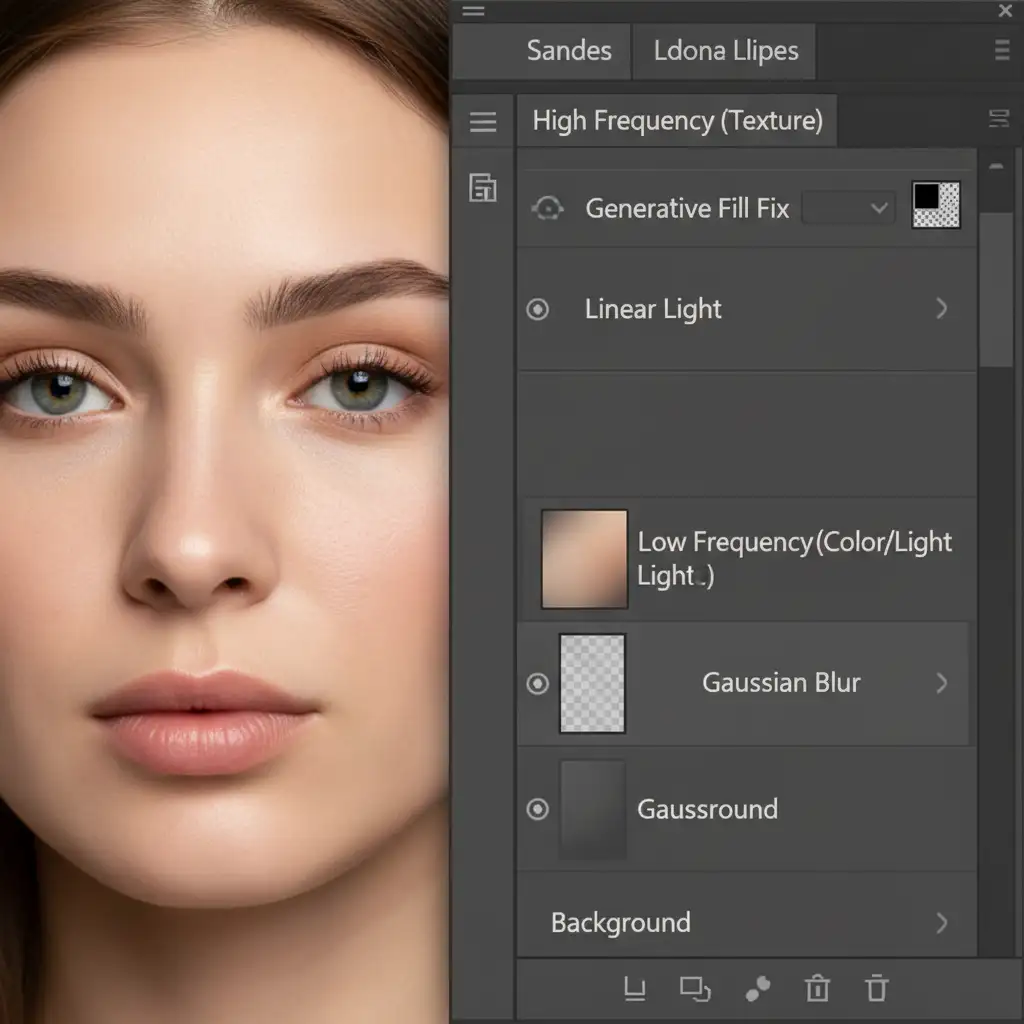
This technique is a game-changer. It forces the AI to fix color pooling and lighting artifacts on the low-frequency layer without touching the crisp, original microscopic scratches on the high-frequency layer.
Advanced Tips for Perfecting Metallic Textures
If you still notice slight discrepancies after running the AI on your low-frequency layer, you can manually refine the results:
- Use the Clone Stamp Tool: On your High-Frequency layer, use the clone stamp tool to copy metallic grain from an unedited part of the ring over any areas that look suspiciously smooth.
- Adjust Blending Modes: If the AI generates a reflection that is too dark, change the Generative Fill layer’s blending mode to Lighten or Screen, and adjust the opacity to blend the luminosity naturally.
Flawless Jewelry Retouching, Delivered.
Fixing Generative Fill jewelry reflection artifacts requires patience, technical skill, and a deep understanding of how light interacts with metal. While the hybrid workflows above will save your images, they can be incredibly time-consuming—especially when you are processing hundreds of product photos for an e-commerce catalog.
Struggling to get flawless metallic reflections with AI? You don’t have to do it alone. Hire the expert retouching team at Image Work India or Cloud Retouch. We specialize in pixel-perfect, high-end jewelry retouching that maintains authentic textures, sharp highlights, and true-to-life colors.
Focus on shooting brilliant photos, and let our professional retouchers handle the heavy lifting. Contact us today to elevate your jewelry imagery.



