
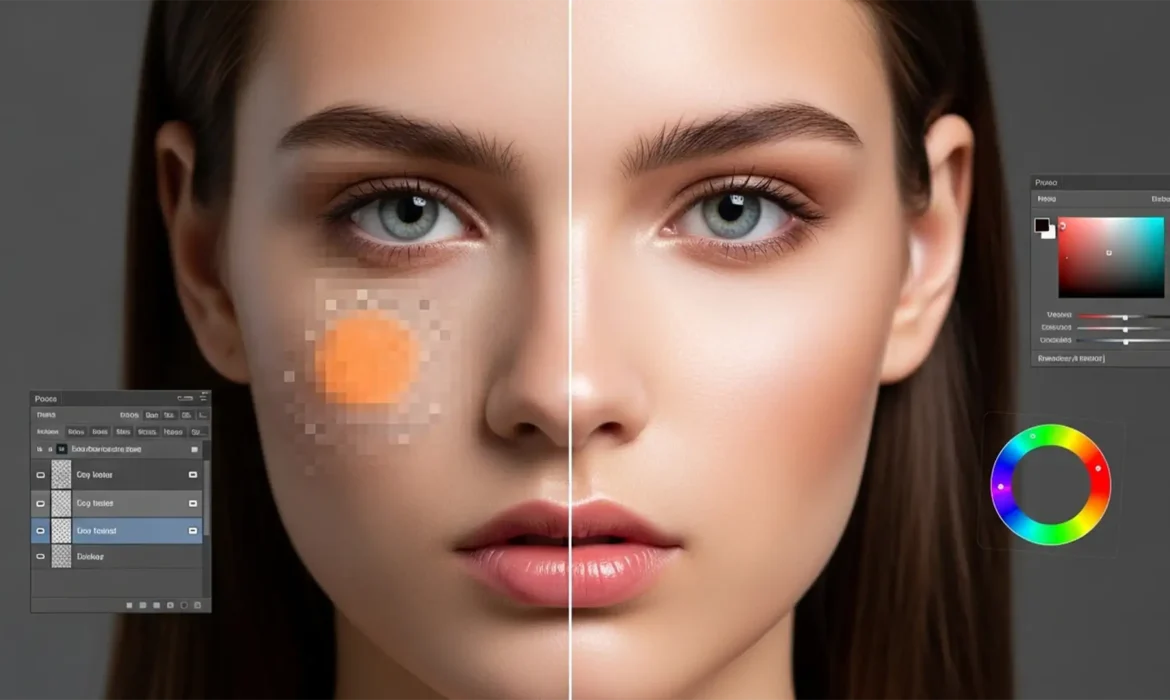
You’ve just framed the perfect portrait, but the crop is too tight. You hit “Generative Fill” in Photoshop to expand the background and shoulders, expecting magic. Instead? You get a patchy, muddy, grayish-orange discoloration that ruins the entire image.
If you are desperately searching for a generative fill skin tone mismatch fix, you aren’t alone. While Adobe’s Firefly AI Model is incredibly powerful, it frequently fumbles the subtle luminosity and dynamic lighting gradients of human skin.
In this guide, we will break down exactly why this happens in Photoshop v25.0 and above, and show you three professional workflows to achieve seamless, non-destructive editing for high-end portraiture.
Why Does Generative Fill Struggle with Skin Tones?
The core problem lies in how the Firefly AI Model interprets pixel data. When you attempt to expand a portrait crop or remove large blemishes, the AI averages the pixel data based on its vast training datasets. It does not accurately read the specific color profile and dynamic lighting gradient of the immediate adjacent pixels on your subject.
Furthermore, your workspace settings can actively sabotage the AI. If your document is set to a wide color gamut like ProPhoto RGB, the AI interpolation can severely misinterpret skin saturation levels. This interpolation failure is exactly what leads to those dreaded gray or overly orange patches.
To fix this, you need a combination of better prompting, targeted color correction, and advanced retouching techniques.
3 Ways to Fix Generative Fill Skin Tone Mismatch
Method 1: The 40% Selection Overlap (Best Preventative Fix)
The easiest way to fix a mismatch is to prevent the AI from guessing in the first place. If you give Photoshop too little surrounding data, it panics and generates generic skin textures.
The Fix Steps:
- Delete your mismatched generation layer.
- Ensure your document working space is set to the sRGB Color Space for more predictable AI color rendering.
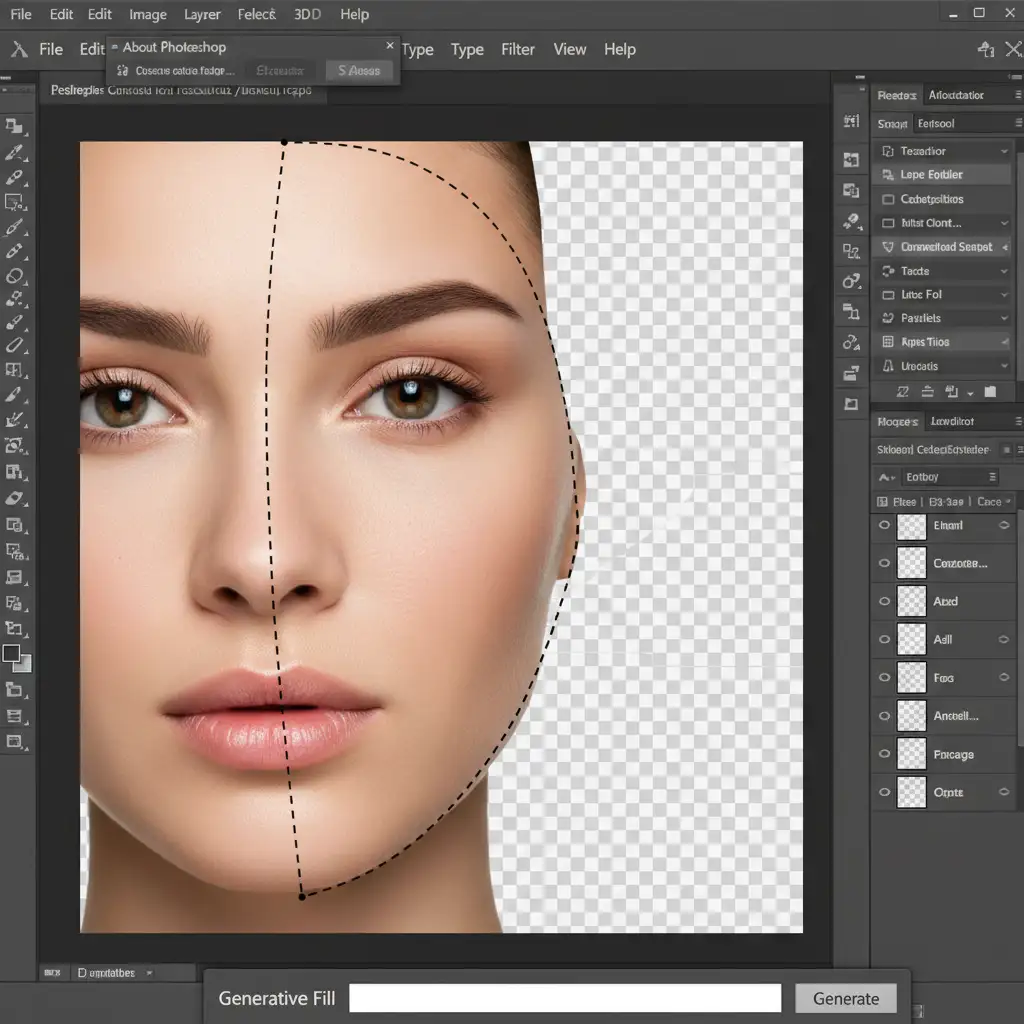
- Re-select the area you want to fill, but ensure your selection overlaps the original, healthy skin by at least 30 to 40 percent. This forces the Firefly AI to sample more source pixels for context.
- Leave the text prompt entirely blank. This forces the tool to default to blending rather than generating a “new” element.
Method 2: Clipped Adjustment Layers (The Quick Color Match)
If the AI generated a great physical texture but the luminosity and color are slightly off, you don’t need to regenerate the image. You just need to restrict your color corrections to the AI patch.
The Fix Steps:
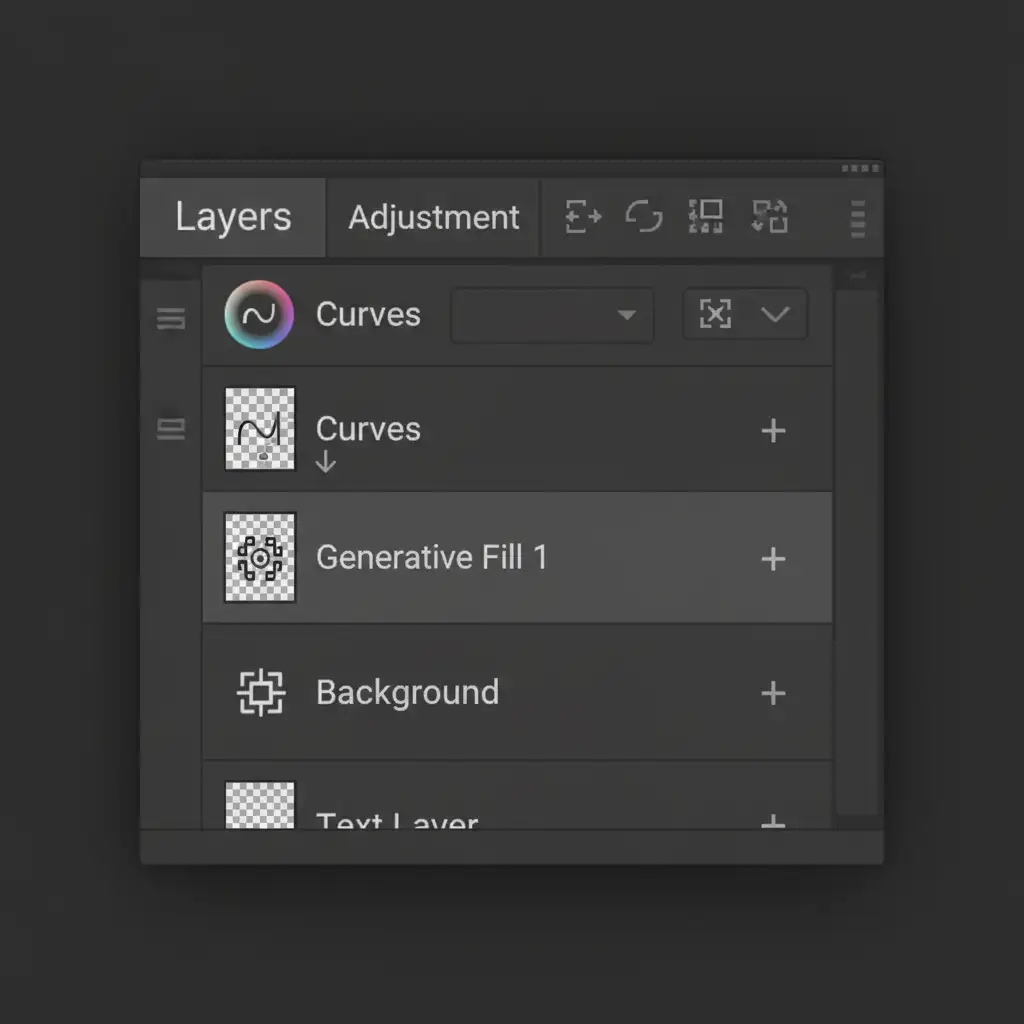
- Open your Layers Panel and add a Hue and Saturation Adjustments layer (or a Curves layer) directly above your Generative Fill layer.
- Hold the Alt/Option key and click exactly on the line between the two layers. This creates a Clipping Mask, ensuring your color tweaks only affect the newly generated pixels.
- Gently adjust the luminosity, and tweak the red/yellow saturation channels until the AI patch blends perfectly into the natural skin.
Method 3: Frequency Separation (The Pro Workaround)
Sometimes, the AI skin texture is flawless, but the color gradient is so muddy that simple adjustment layers won’t cut it. This is where high-end retouchers turn to Frequency Separation.
The Fix Steps:
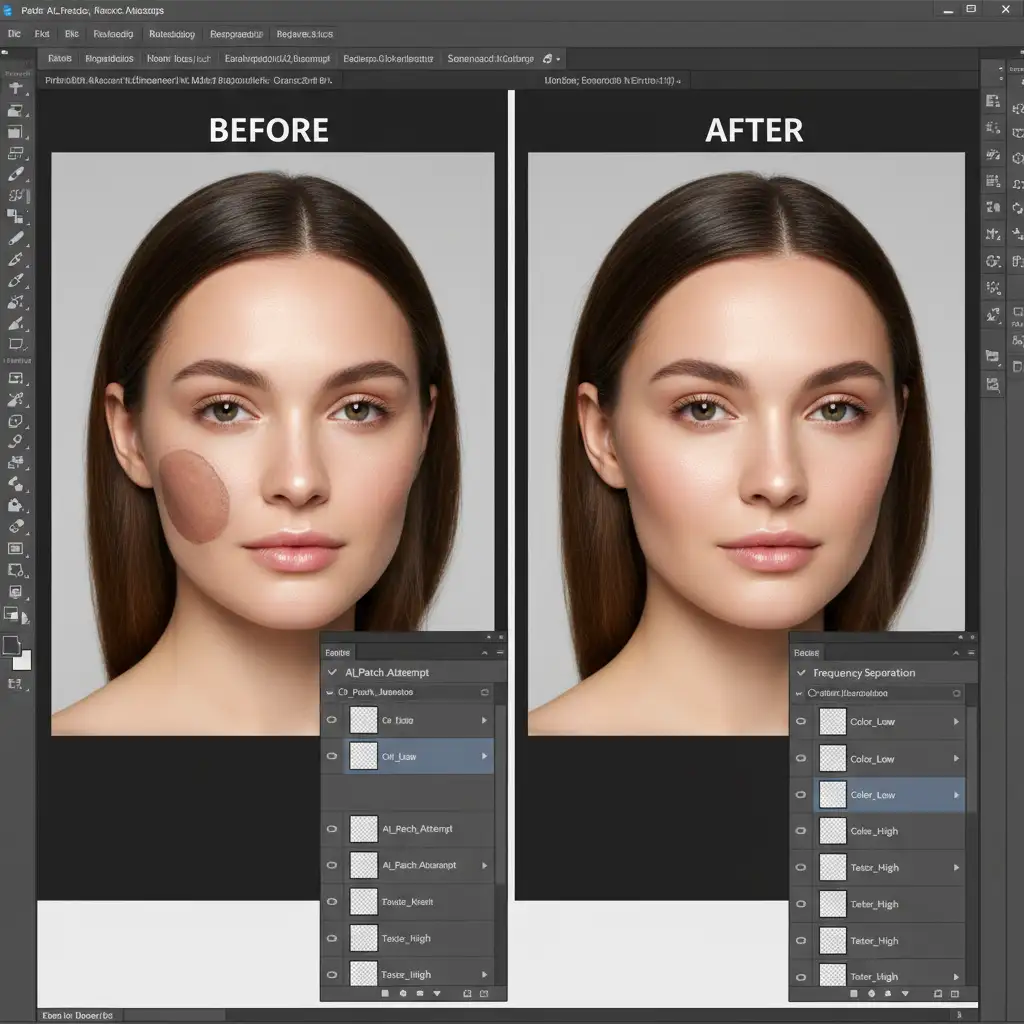
- Duplicate your merged layers (including the AI generation) and separate them into High (texture) and Low (color) frequency layers.
- Select the Mixer Brush Tool.
- Target the Low frequency (color) layer. Use a soft mixer brush to manually pull and blend the original, accurate skin tones over the mismatched AI-generated colors.
- Because the High frequency layer remains untouched, you achieve a seamless color transition without destroying the AI-generated pores and skin texture.
Stop Wasting Hours on Post-Production
Fixing a generative fill skin tone mismatch manually is a great skill to have, but when you are dealing with hundreds of images from a commercial shoot, tweaking clipping masks and running frequency separation actions on every single photo is a massive drain on your time and resources.
Struggling with inconsistent AI skin tones in your high-end portraits? Partner with Image Work India and Cloud Retouch.
Our expert retouchers specialize in pixel-perfect, flawless skin blending for high-volume commercial and editorial photography. We handle the technical heavy lifting—from advanced color profiling to non-destructive skin retouching—saving you hours of post-production. Let us perfect your portraits so you can get back behind the camera. Contact Image Work India today to streamline your retouching workflow.



