
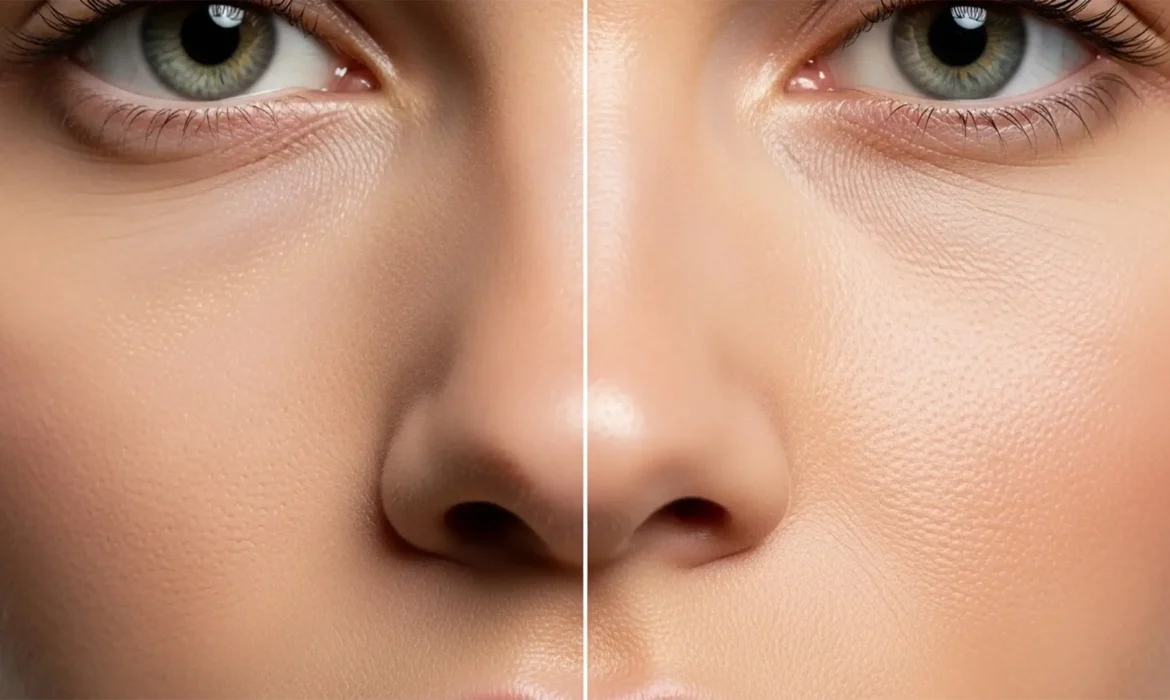
E-commerce and commercial fashion are rapidly shifting to 8K display standards (7680×4320 pixels). If you are still relying on traditional model retouching methods, you are in for a rude awakening. At 8K, extreme pixel peeping reveals every micro-flaw—makeup settling, peach fuzz, and pore anomalies become glaringly obvious. Worse, standard Gaussian Blur techniques create plastic skin and harsh halos that instantly fail quality control on modern ultra-high-definition panels.
To survive this industry shift, you need to master 8K resolution model retouching standards. High-resolution displays demand absolute non-destructive editing. Here is exactly how to upgrade your Adobe Photoshop CC 2024 workflow for flawless skin texture preservation.
The Core Problem: Why Traditional Retouching Fails at 8K
When you scale an image for an 8K commercial display, native pixel integrity is everything. Traditional frequency separation separates your image into color (low frequency) and texture (high frequency). However, using a standard Gaussian Blur for the low-frequency layer destroys edge transitions. At 8K, this results in visible repeating patterns, halo effects around high-contrast edges, and a severe loss of three-dimensional depth.
To meet modern standards, retouching must evolve. Here are three methods to bring your workflow up to 8K specifications.
Method A: The Quick Fix – Upgrading Frequency Separation
If you must use frequency separation for tight turnaround times, you need to change your underlying blur mechanic.
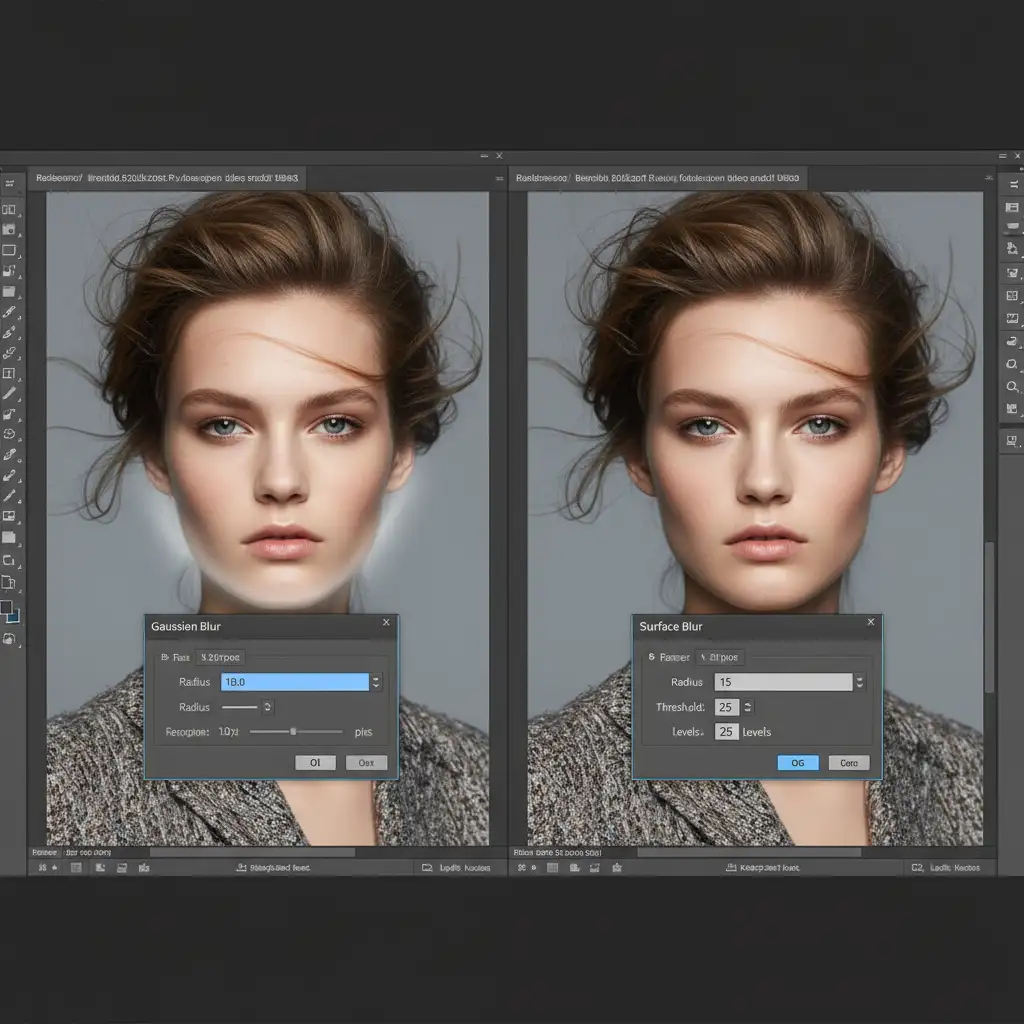
Instead of using a standard Gaussian Blur for your low-frequency layer, switch to Surface Blur or Median. These filters calculate pixel radius differently, preserving edge transitions much better at high resolutions. This simple switch avoids the halo effect common when art directors start pixel peeping your files at 100% zoom.
Method B: The Pro Workaround – Micro-Dodging and Burning
For critical areas like the face, neck, and hands, industry-standard 8K retouching requires you to discard frequency separation entirely. The professional solution is micro-dodging and burning.
This technique manually balances local luminosity without destroying a single pixel of native skin texture.
The Micro-D&B Setup
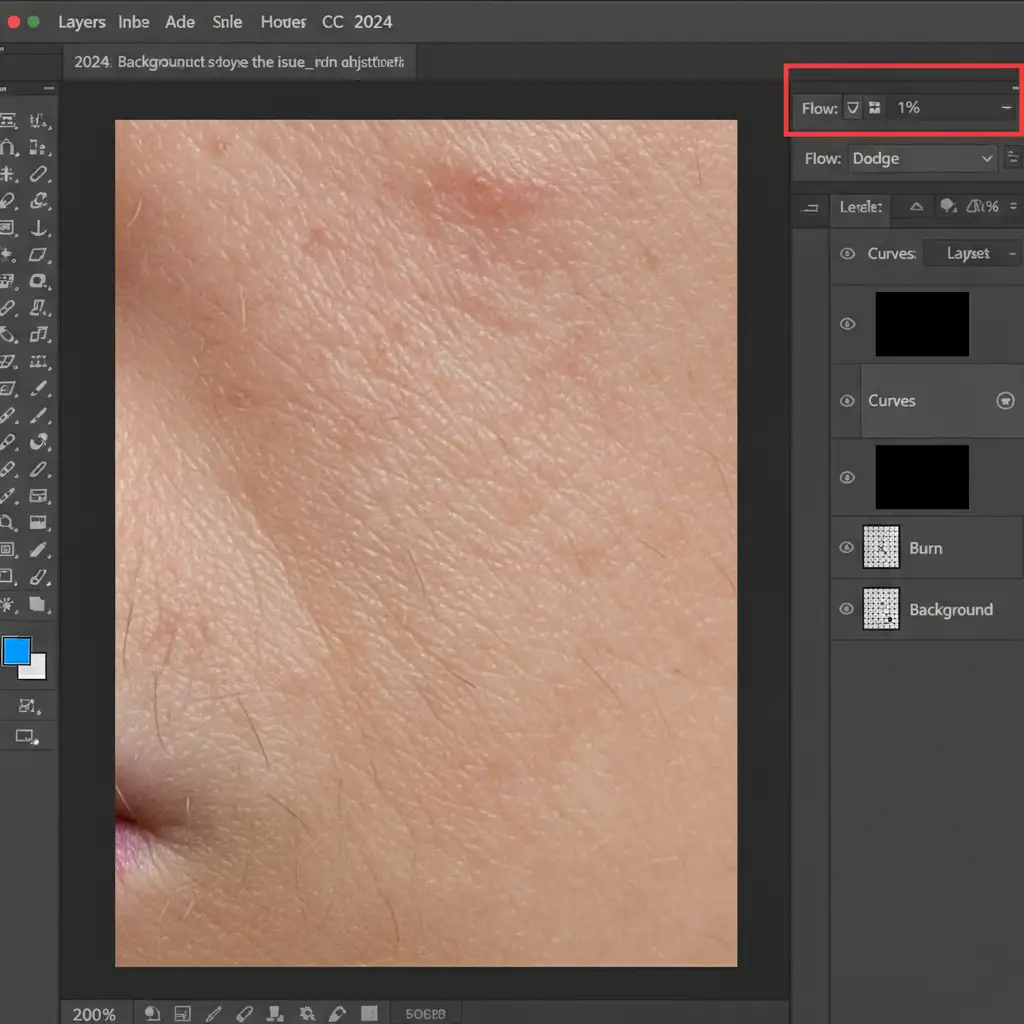
- Create two Curves adjustment layers (name one “Dodge” and pull the curve up; name the other “Burn” and pull the curve down).
- Invert both layer masks to black.
- Zoom your canvas to 200 percent.
- Select a soft brush sized between 1 to 3 pixels.
- Crucial Step: Set your brush Flow to exactly 1%.
By painting white on the respective masks, you are acting as a human luminosity mask, gently smoothing out tonal inconsistencies (blotchy skin, deep pores) while keeping the underlying pixel structure intact.
Method C: The Technical Deep-Dive – 16-Bit Inverted High Pass Workflow
When working with smooth gradients, backdrops, or subtle skin tone transitions, 8K displays will mercilessly expose any banding artifact. To prevent this, your document must be processed in a 16-bit color depth environment.
Step 1: Convert to 16-Bit
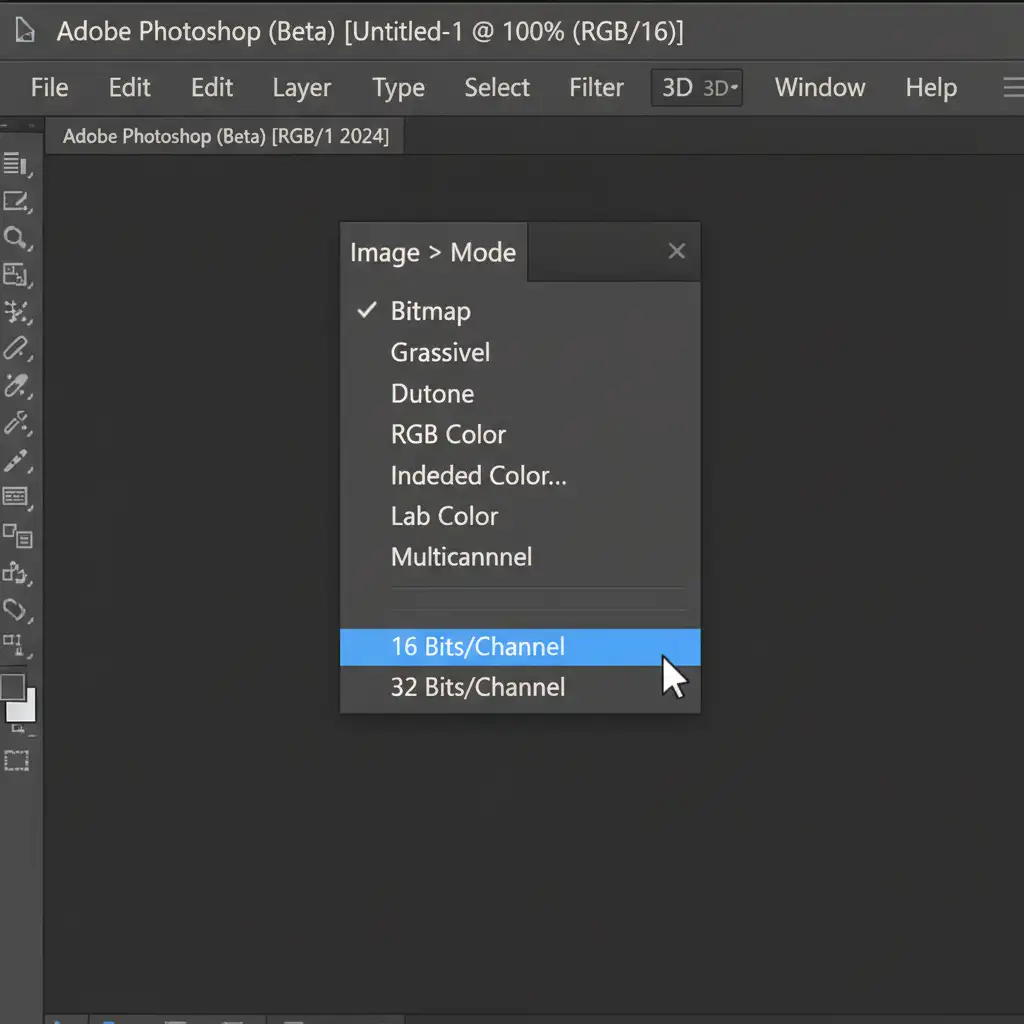
Before applying any advanced filters, navigate to Image > Mode > 16 Bits/Channel. This gives Photoshop exponentially more data to calculate smooth transitions, eliminating gradient stepping.
Step 2: The Inverted High Pass (IHP) Technique
The IHP workflow is the ultimate secret to maintaining the 3D depth of sub-surface scattering on 8K screens.
- Duplicate your merged layer and invert it (Ctrl/Cmd + I).
- Change the blending mode to Linear Light.
- Apply a High Pass filter (radius adjusted until the texture smooths out).
- Apply a Gaussian Blur (typically 1/3 of your High Pass radius).
Step 3: Isolating Midtones with Blend If
If you leave the IHP layer as is, it flattens the image. You must restrict this smoothing effect strictly to the midtones.
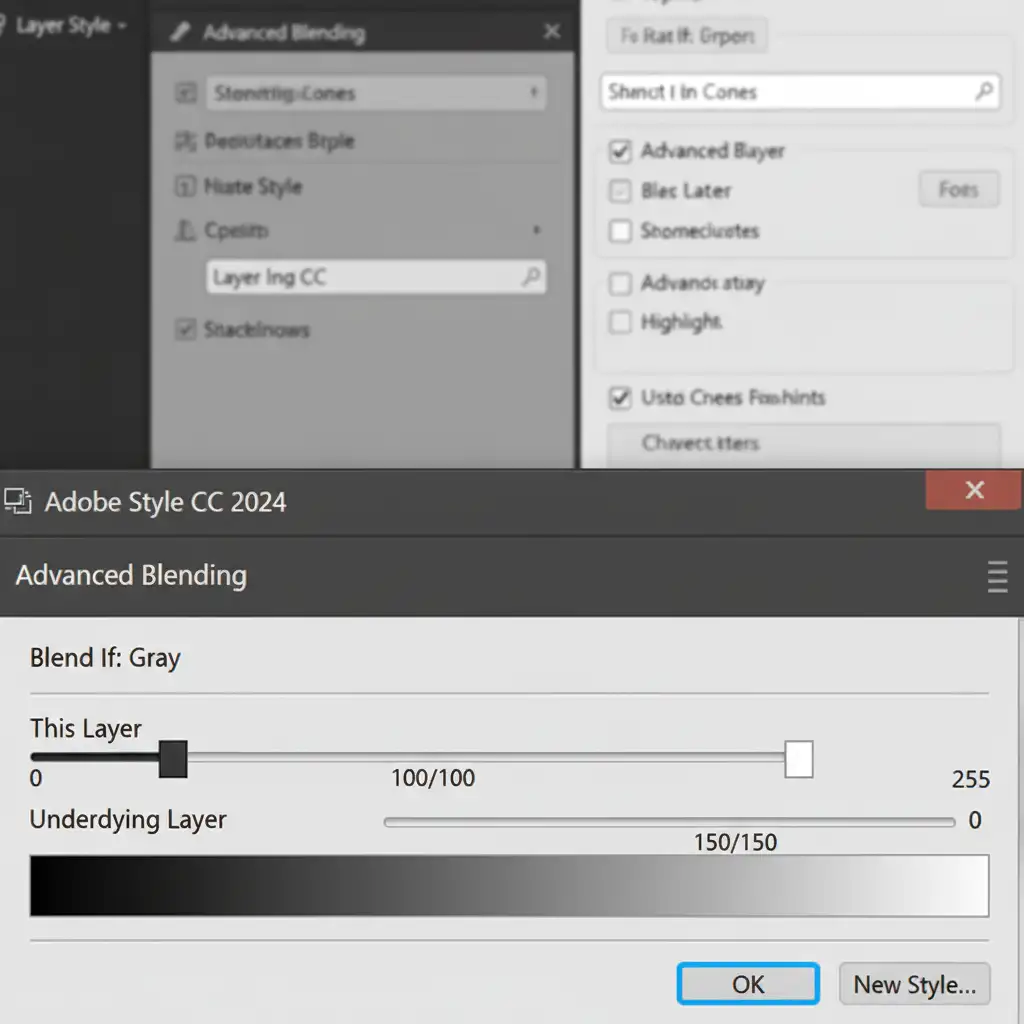
Double-click the IHP layer to open Layer Style. Under the Blend If section (Underlying Layer), hold Alt/Option to split the sliders. Drag the shadow slider inward to protect the darks, and the highlight slider inward to protect specular highlights. This leaves shadows and highlights completely untouched, retaining the natural, luminous quality of the skin.
Scale Your 8K Retouching with Image Work India
Transitioning to 8K resolution model retouching standards requires immense technical skill and, more importantly, time. Micro-dodging and burning a single high-resolution commercial image can take hours. If you are managing an e-commerce catalog or a high-volume fashion campaign, this bottleneck can derail your production schedule.
You don’t have to do it alone.
Image Work India and Cloud Retouch specialize in high-end, scalable commercial retouching. Our team of expert retouchers utilizes strict 16-bit, non-destructive workflows to ensure your imagery stands up to the ultimate pixel-peeping. Whether you need flawless micro-retouching, complex frequency separation upgrades, or bulk image processing that meets 8K display standards, we deliver perfection on time and on budget.



