
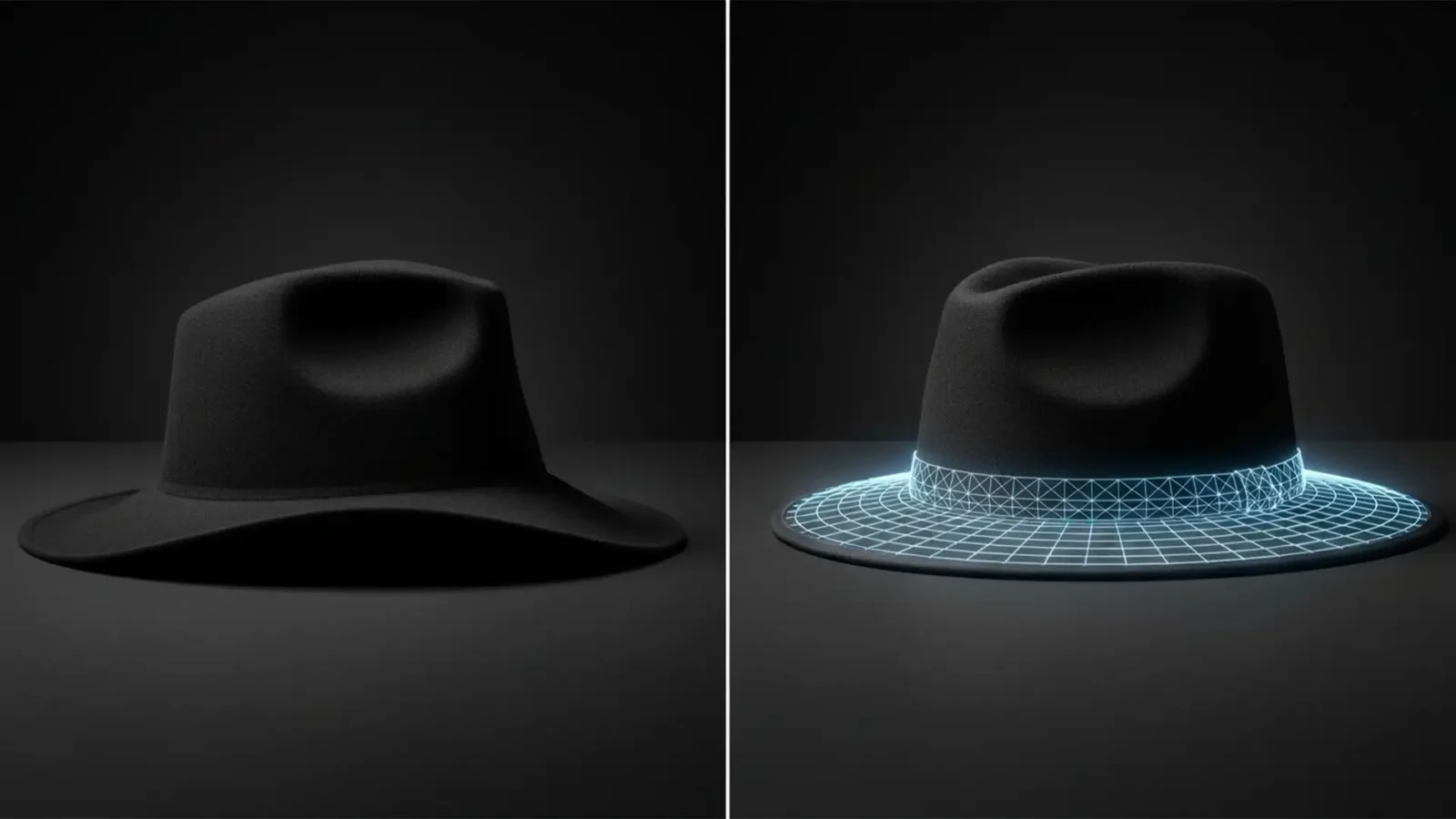
Perfect Brims: A Digital Guide to Hat Symmetry and Shape Correction
Nothing ruins a high-end e-commerce catalog faster than structural distortion in digital hat photography. Due to shipping and handling, hats frequently arrive on set with floppy brims, asymmetrical crowns, and unsightly dents. When retouchers try to fix these issues using...
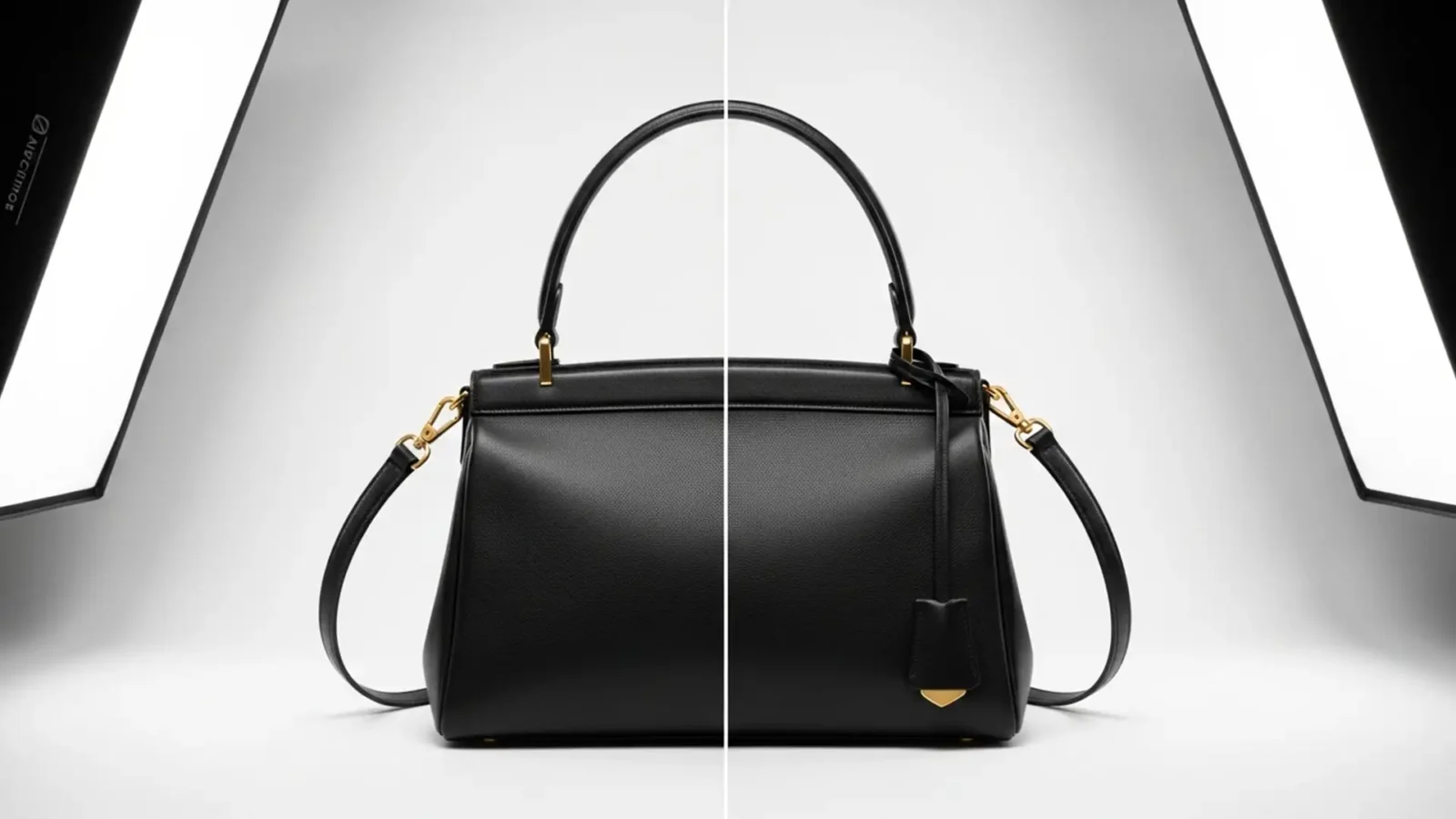
The Perfect Arc: Straighten Bag Straps in Photoshop
You’ve nailed the lighting, the focus is crisp, and the leather looks luxurious. But there’s one glaring issue: the handbag straps are sagging. In high-end e-commerce retouching, floppy, twisted, or asymmetrical straps can instantly make a premium product look cheap and...
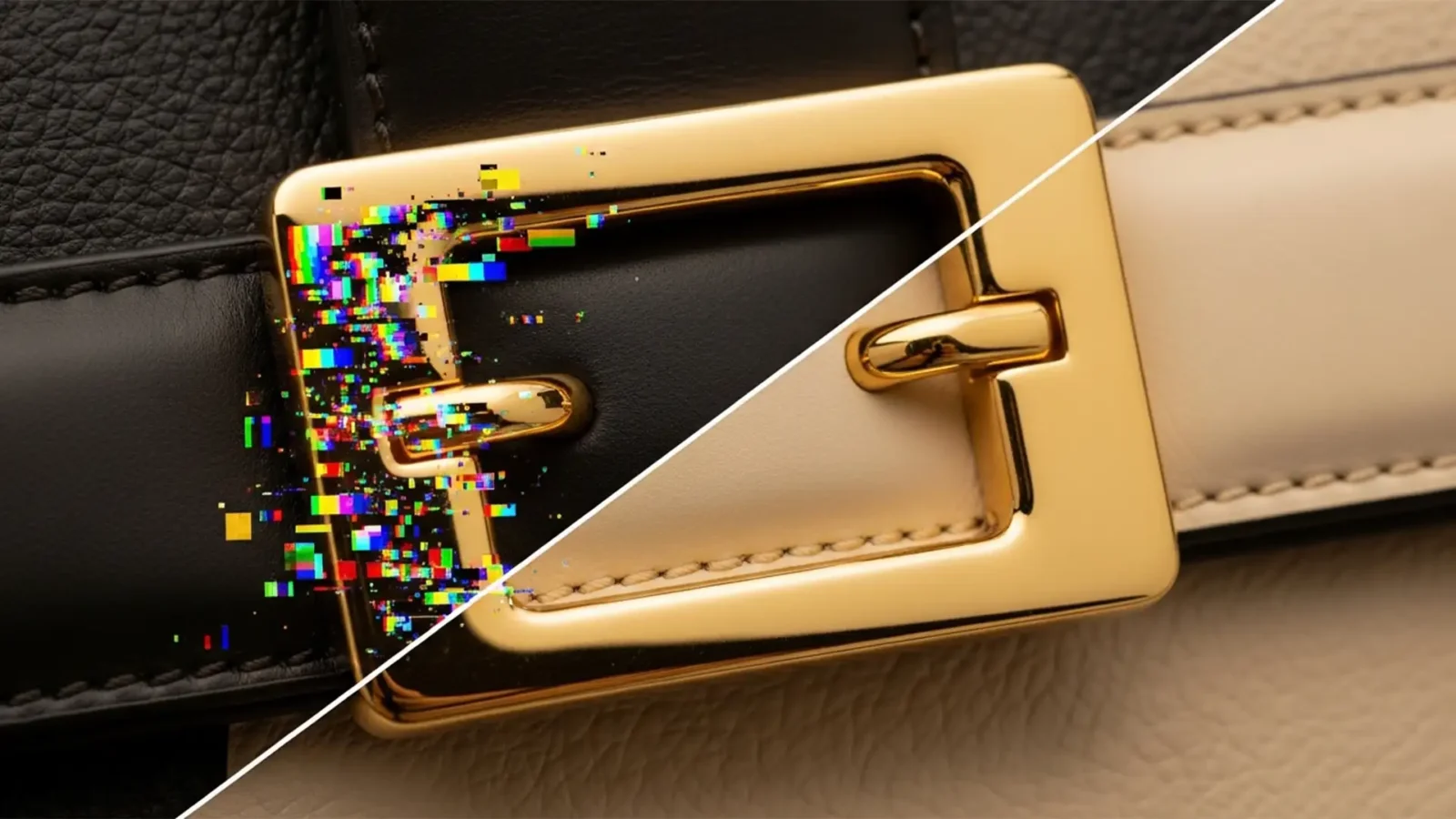
How to Fix Rainbow Artifacts on Bag Hardware in Photoshop
You are finalizing the edits on a luxury handbag, and everything looks perfect—until you zoom in on the metal buckle. You use Photoshop v25.0’s Generative Fill or the Remove Tool to clean up a distracting studio reflection on the hardware. But instead of a pristine,...

Natural Real Estate HDR Photo Editing: The Pro Guide
Are your real estate photos suffering from glowing halos, flattened midtones, and muddy shadows? In the rush to automate workflows, many photographers rely heavily on basic AI tools and automated HDR plugins in Lightroom and Photoshop. The result? An “over-baked,”...
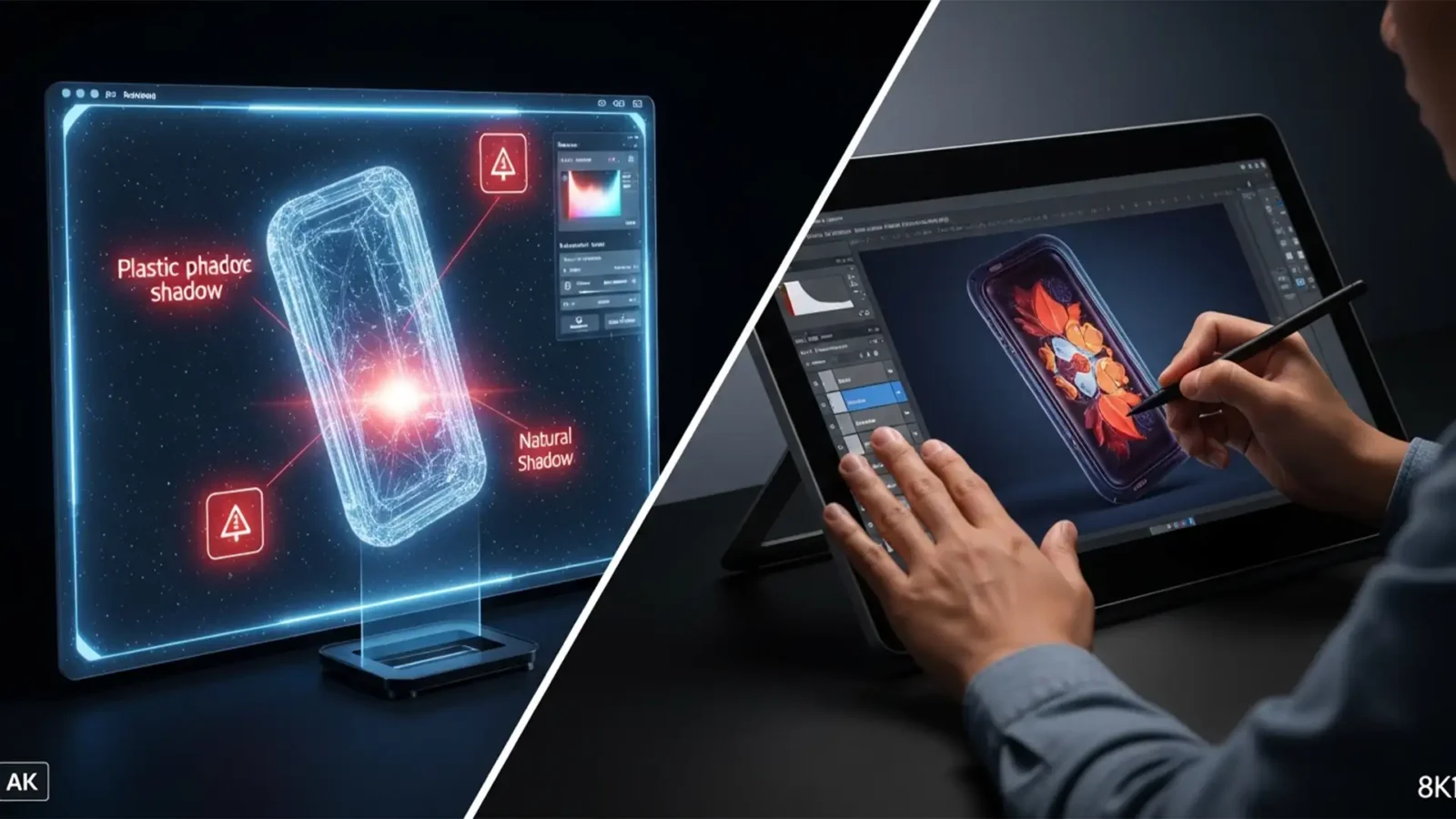
Why Customers Reject AI Product Photos: The Case for Humans
Are your product return rates spiking with “item not as described” claims? You aren’t alone. In 2025, ecommerce brands are tumbling headfirst into the “uncanny valley” of product photography. While tools like Photoshop Generative Fill and...
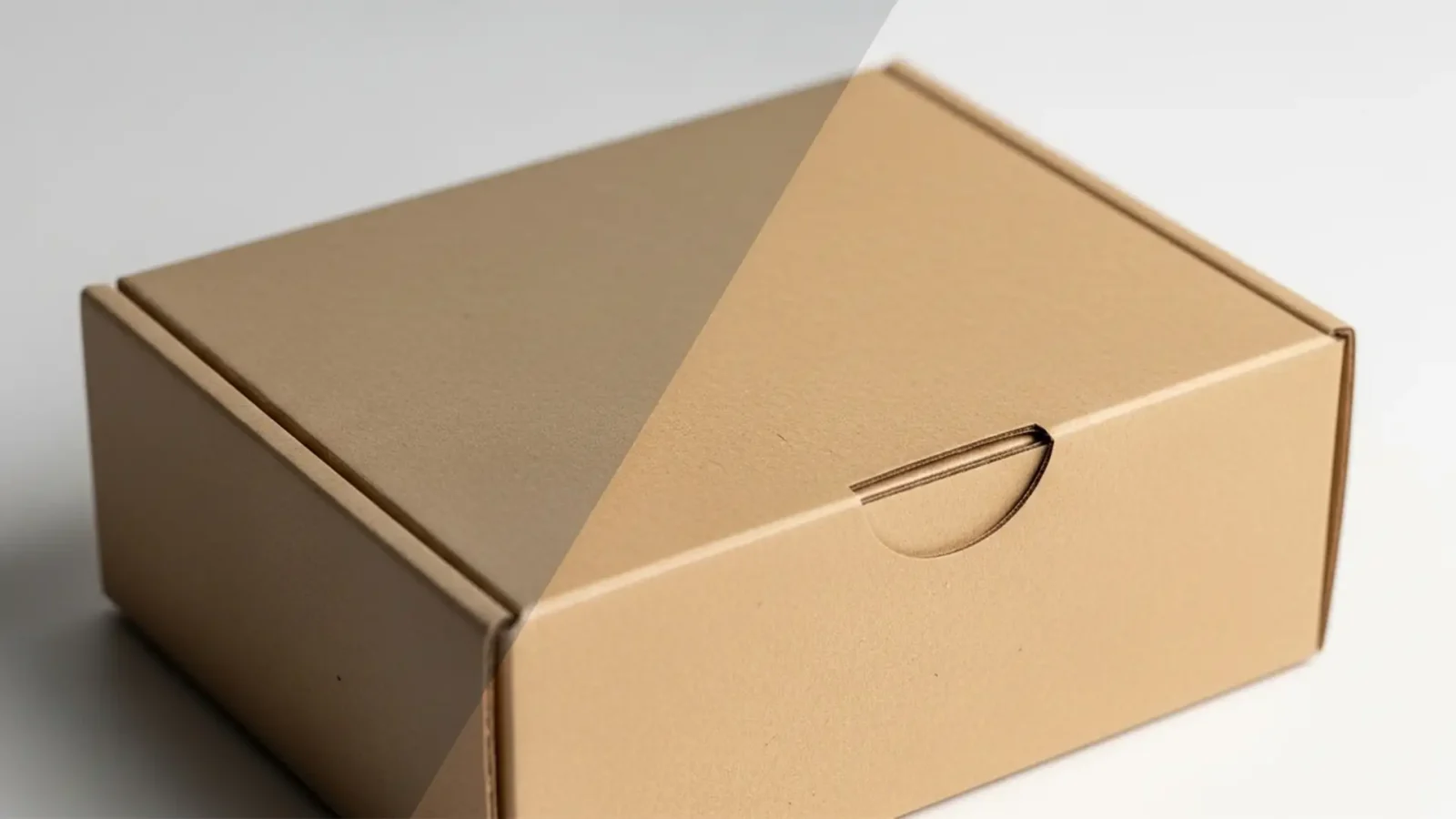
Retouching Recycled Paper: Keep Textures Sharp
Eco-friendly packaging is a massive selling point, but photographing it is a retouching nightmare. You zoom in, and those beautiful, natural kraft paper specks suddenly look like dirty sensor dust. Apply a standard noise reduction or dust-and-scratches filter in Photoshop v24...
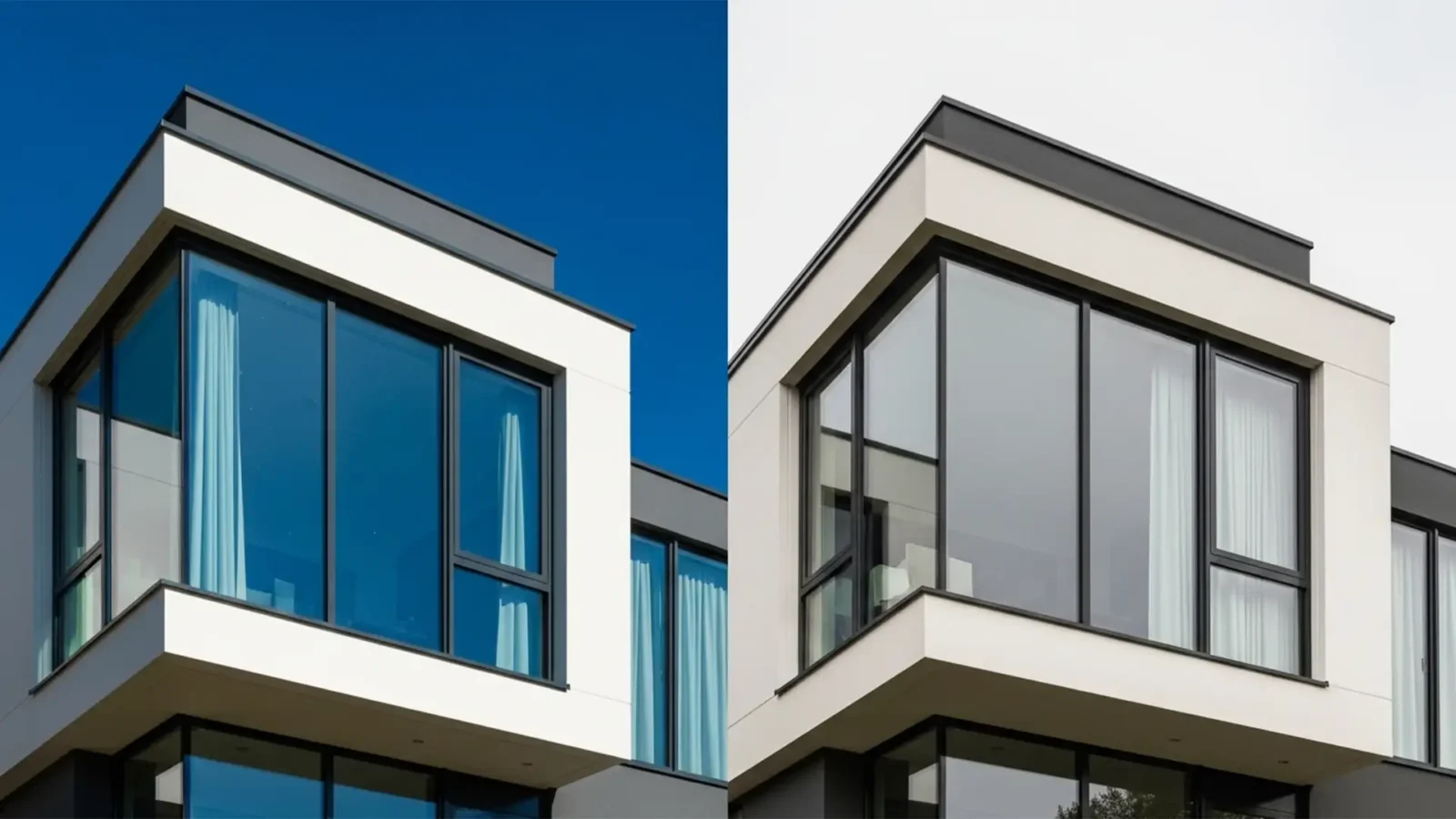
Real Estate Retouching: Fixing Window Reflections After AI Sky Replacement
You have just used Photoshop’s AI Sky Replacement to turn a drab, overcast real estate shot into a stunning golden-hour masterpiece. But when you zoom in on the exterior windows, disaster strikes. Instead of natural reflections, the glass is glowing with an unnatural,...
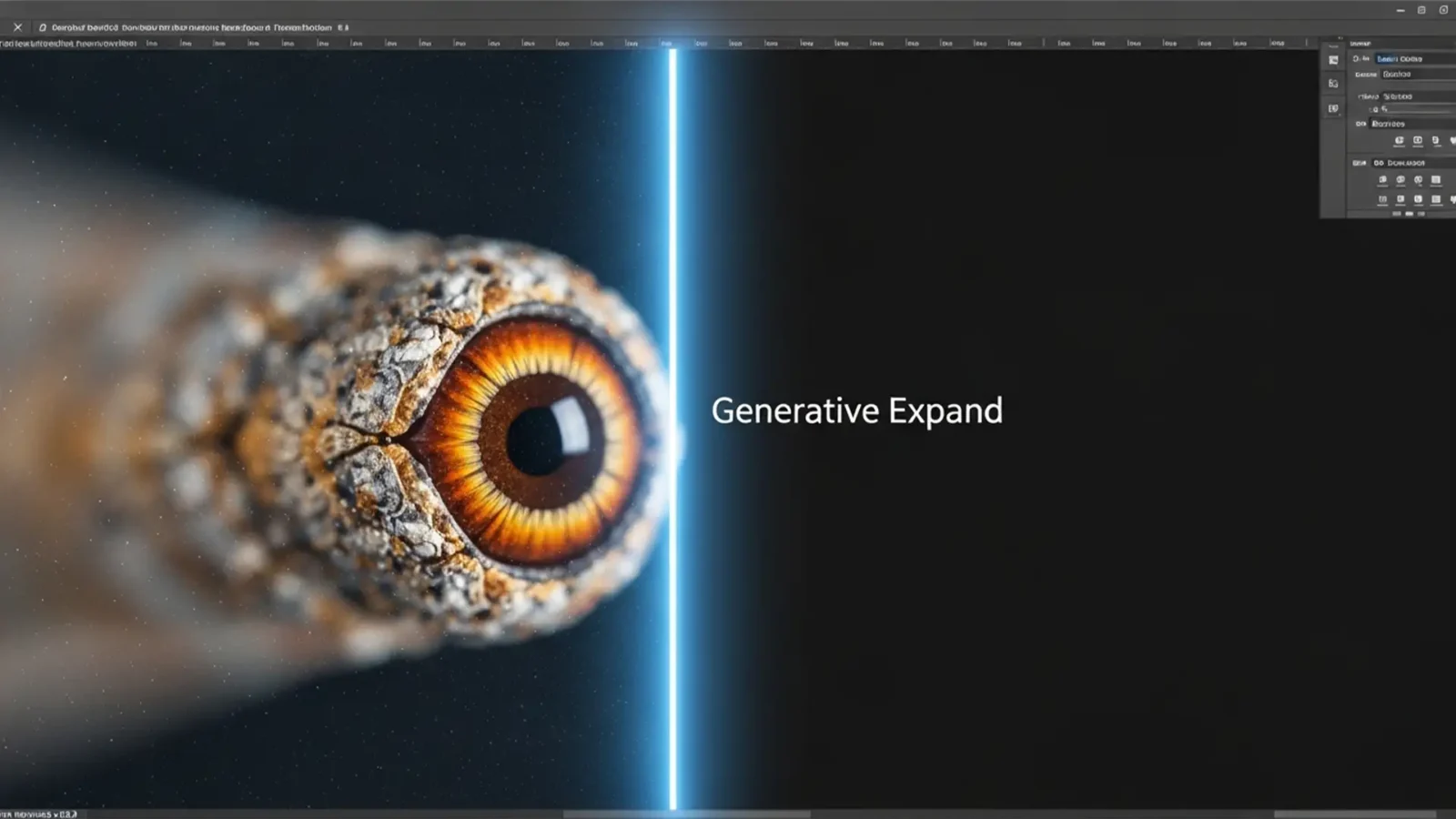
Match Grain in Generative Expand: Seamless Transitions
You’ve just used Adobe Photoshop’s Generative Expand to perfectly resize a tight crop. The composition looks great from afar, but zoom in to 100%, and disaster strikes. There is a glaring, artificial seam where your photograph ends and the AI begins.
Why? Because Adobe...
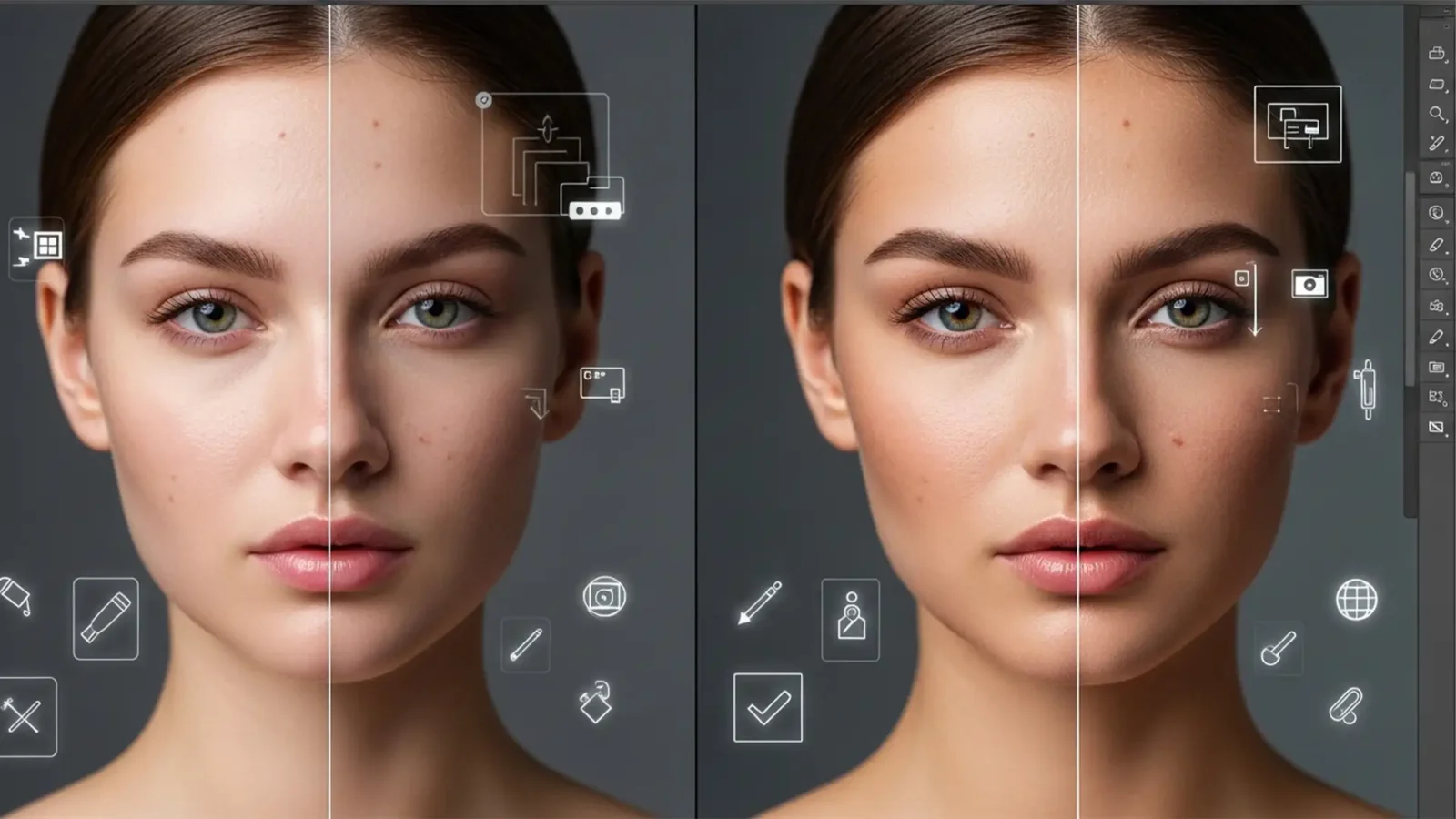
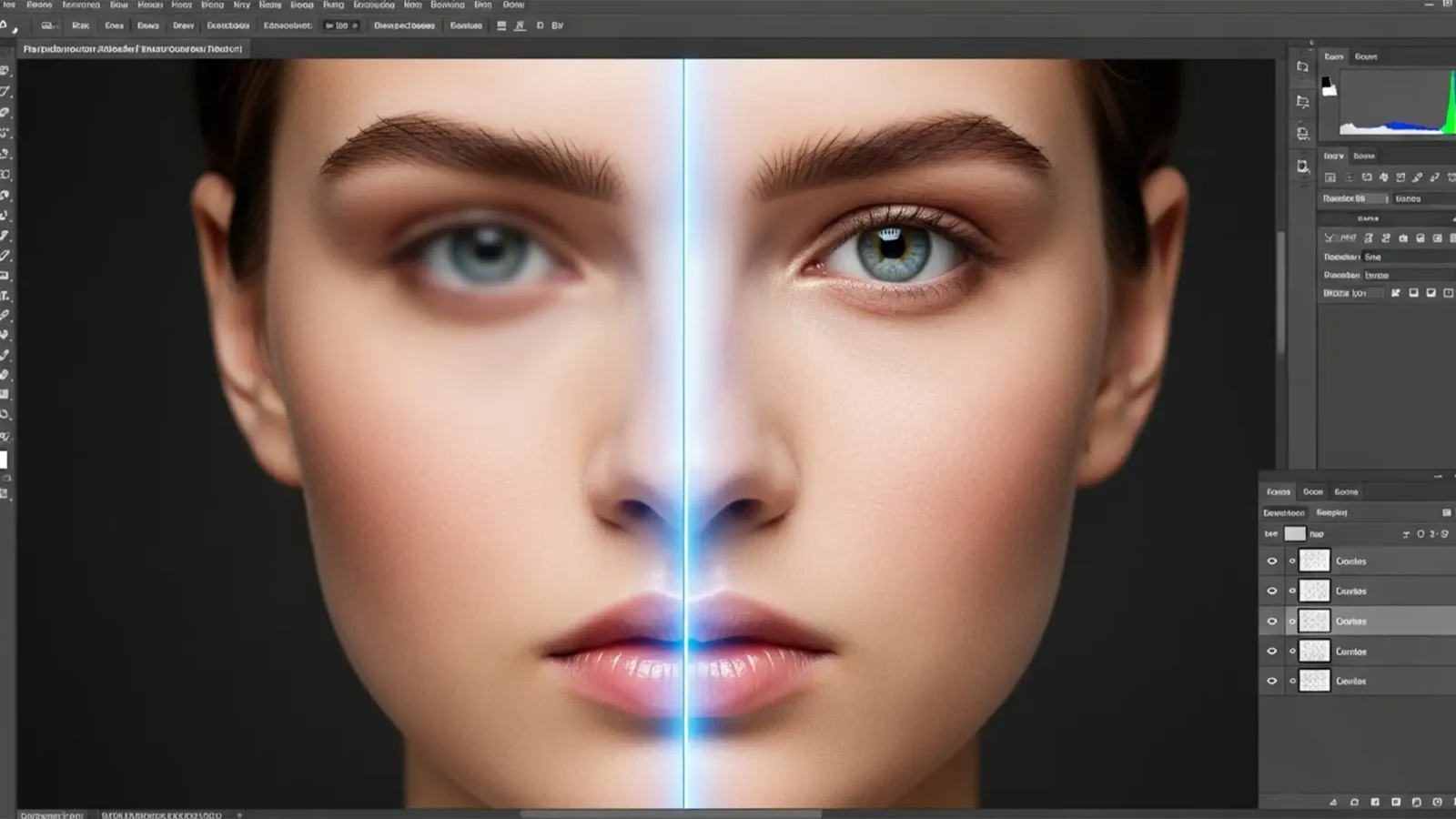
How to Fix Plastic Skin: Recovering Real Pores After Photoshop AI Retouching
You’ve just used Photoshop’s latest Generative Fill or Skin Smoothing Neural Filter to clean up a portrait. The blemishes are gone, but there’s a massive problem: your subject now looks like a plastic mannequin.
In recent versions of Photoshop (v25.0+ and v26.x), AI models...
Photoshop Remove Tool Blurry? 5 Quick Fixes for High-Res Retouching
You just spent hours color-grading a flawless 16-bit file, only to use the Remove Tool and find it left a soft, muddy, low-resolution patch right over your subject’s skin. If you are experiencing this, you are not alone.
In Photoshop 2024 (v25.x), the AI-powered...



