
You are in the middle of a critical color grading session, and suddenly, your workflow grinds to a halt. Finding a reliable Photoshop 2025 color picker not working fix becomes your immediate priority. Whether your Eyedropper tool is inexplicably stuck on grayscale, freezing your entire workspace, or pulling entirely wrong hexadecimal codes, this bug in Photoshop v26.x and v27.x is a massive frustration for professional retouchers.
You aren’t alone. This specific glitch often stems from technical conflicts between the Native OS Picker, dual-monitor display scaling, and Adobe’s updated Advanced Color Engine. Before you waste hours reinstalling the software or clearing your scratch disk unnecessarily, try these proven, technical fixes to get your color palette back on track.
Why is the Photoshop 2025 Color Picker Freezing?
In recent updates, Adobe overhauled how Photoshop interacts with native operating systems to support a wider color gamut and higher-resolution displays. However, this has introduced a few bugs. When the Eyedropper tool samples pixel data, it relies heavily on the Native Canvas and GPU compositing. If there is a miscommunication between your graphics driver and Photoshop’s UI scaling, the color picker will either freeze, sample the wrong layers, or default to black and white.
Fortunately, you can bypass these rendering errors by adjusting a few specific preferences.
5 Ways to Fix the Photoshop 2025 Color Picker Bug
1. Switch to the Adobe Color Picker (The Quick Fix)
The most common culprit behind the freezing issue is the Native OS Picker conflicting with Photoshop’s UI. Forcing the software to use Adobe’s proprietary color engine usually resolves the bug instantly.
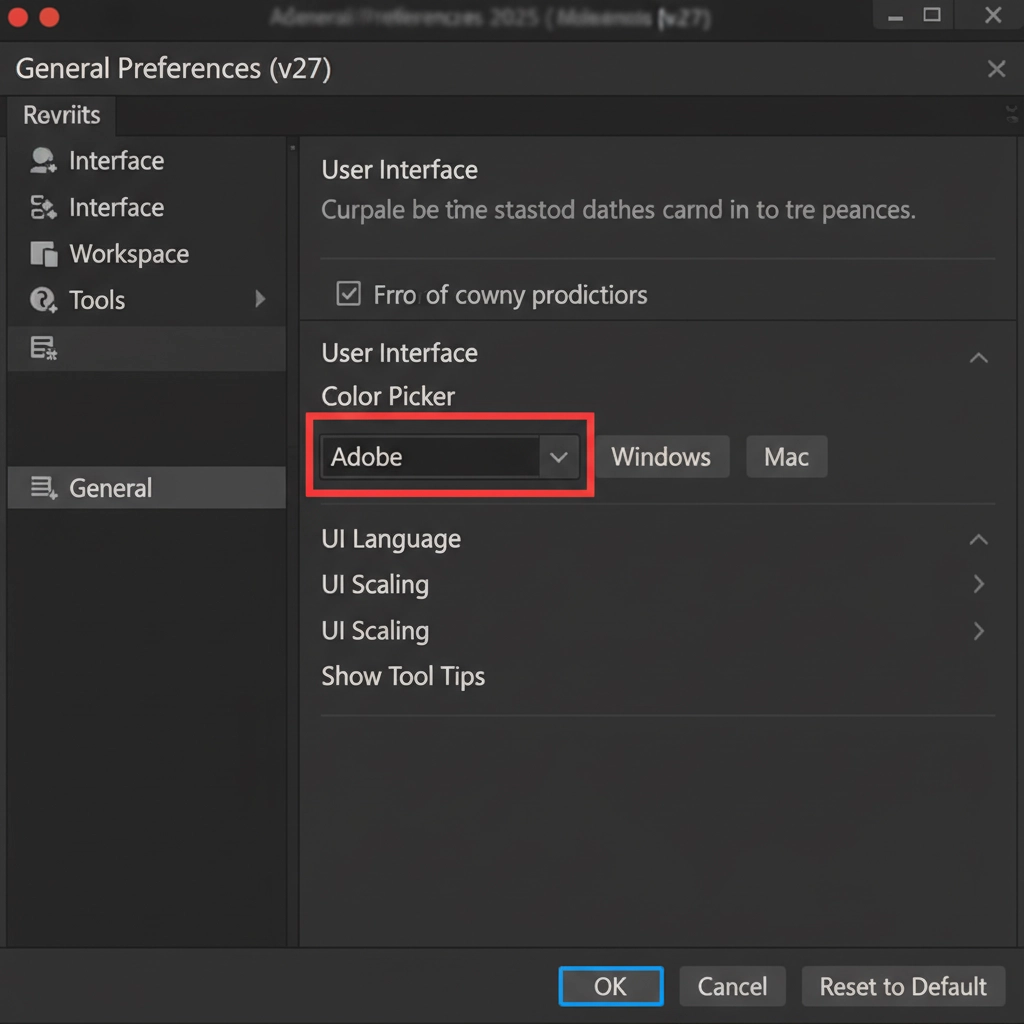
- Navigate to Edit > Preferences > General (Windows) or Photoshop > Settings > General (Mac).
- Locate the Color Picker dropdown menu.
- Change the selection from Windows (or Mac) to Adobe.
- Click OK and restart Photoshop.
2. Reset the Eyedropper Tool
If the Adobe Color Picker is rendering correctly but selecting the wrong hexadecimal code, the tool itself may have cached corrupted settings.
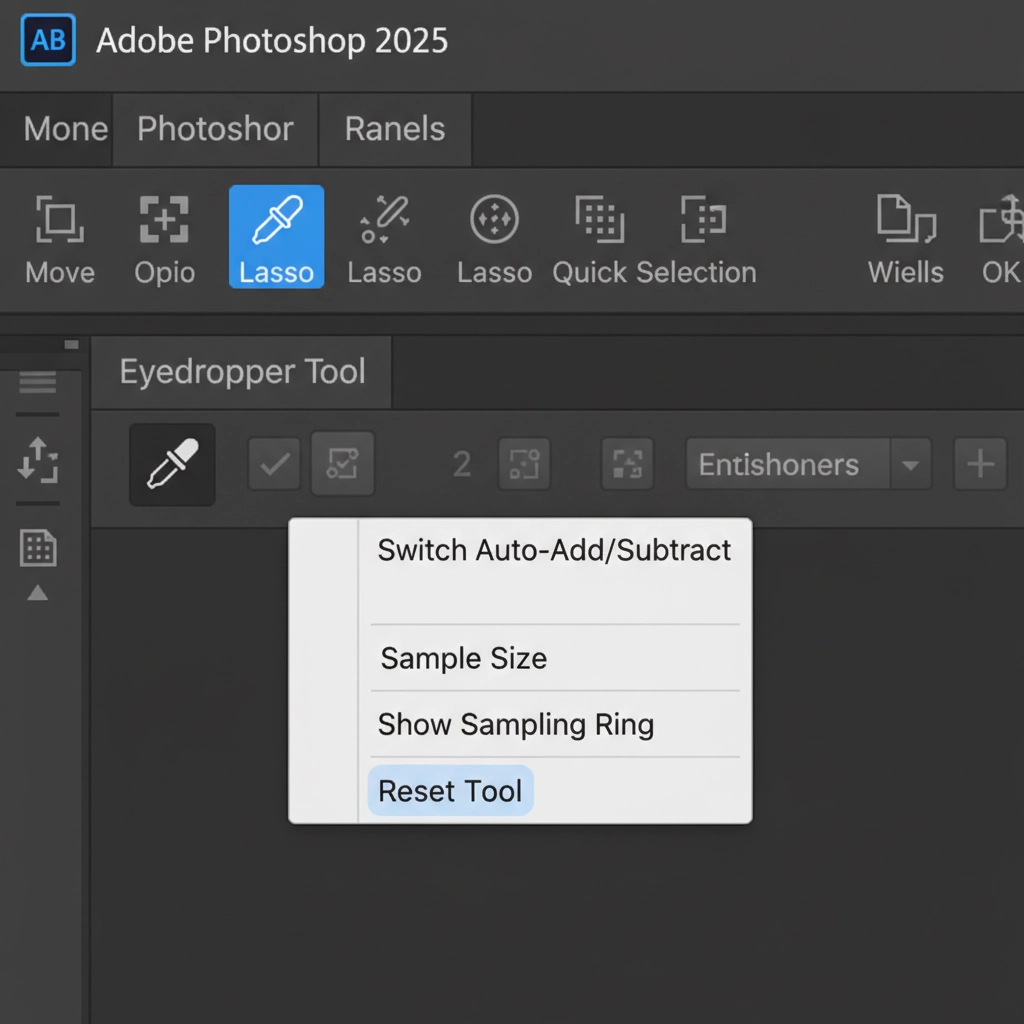
- Select the Eyedropper tool from your left toolbar (Shortcut: I).
- Navigate to the top-left options bar.
- Right-click the Eyedropper tool icon.
- Select Reset Tool from the dropdown menu.
3. Adjust Sample Size and Layers
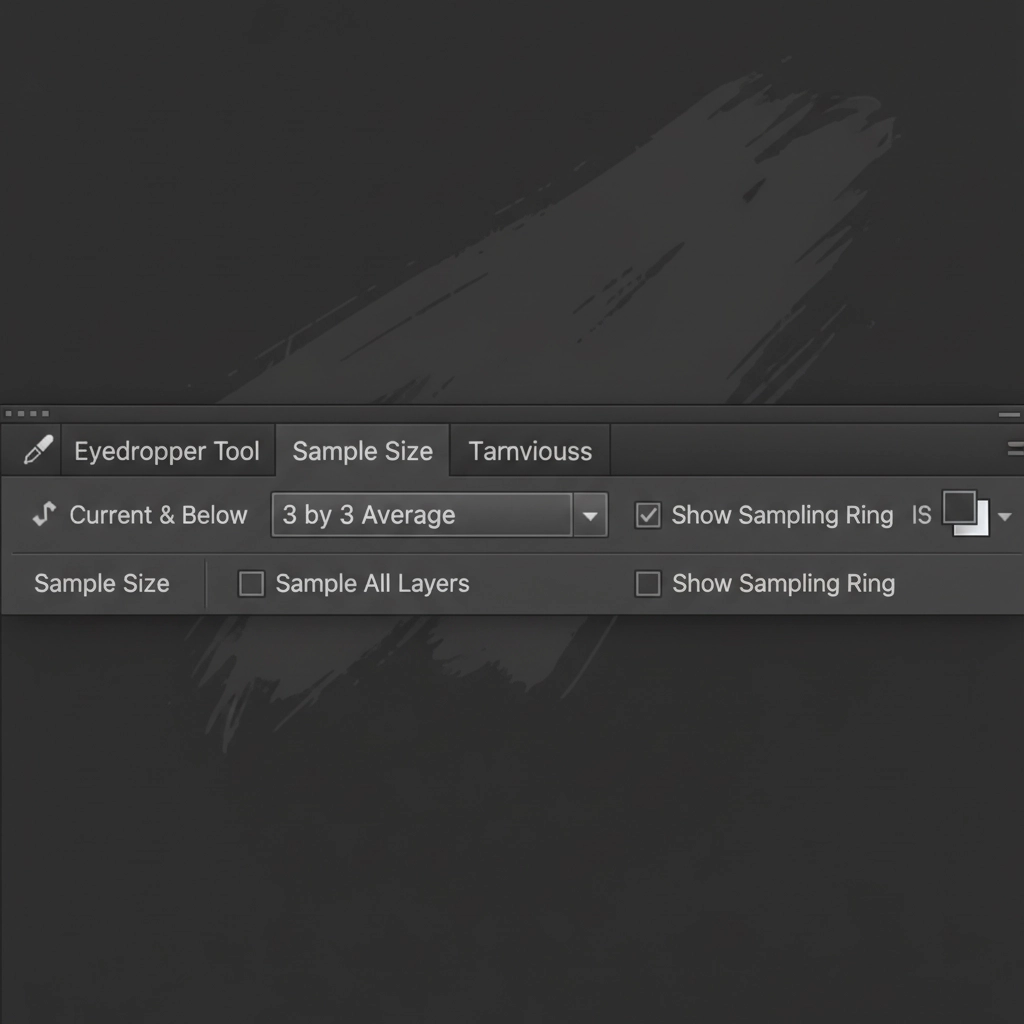
Often, users think the color picker is broken when it is simply sampling a single incorrect pixel (like digital noise) rather than the intended color.
After resetting the tool, look at the top options bar. Ensure that your Sample Size is set to 3×3 Average or 5×5 Average rather than Point Sample. Additionally, verify that the Sample All Layers checkbox is ticked so the tool reads the composite image rather than an empty transparent layer.
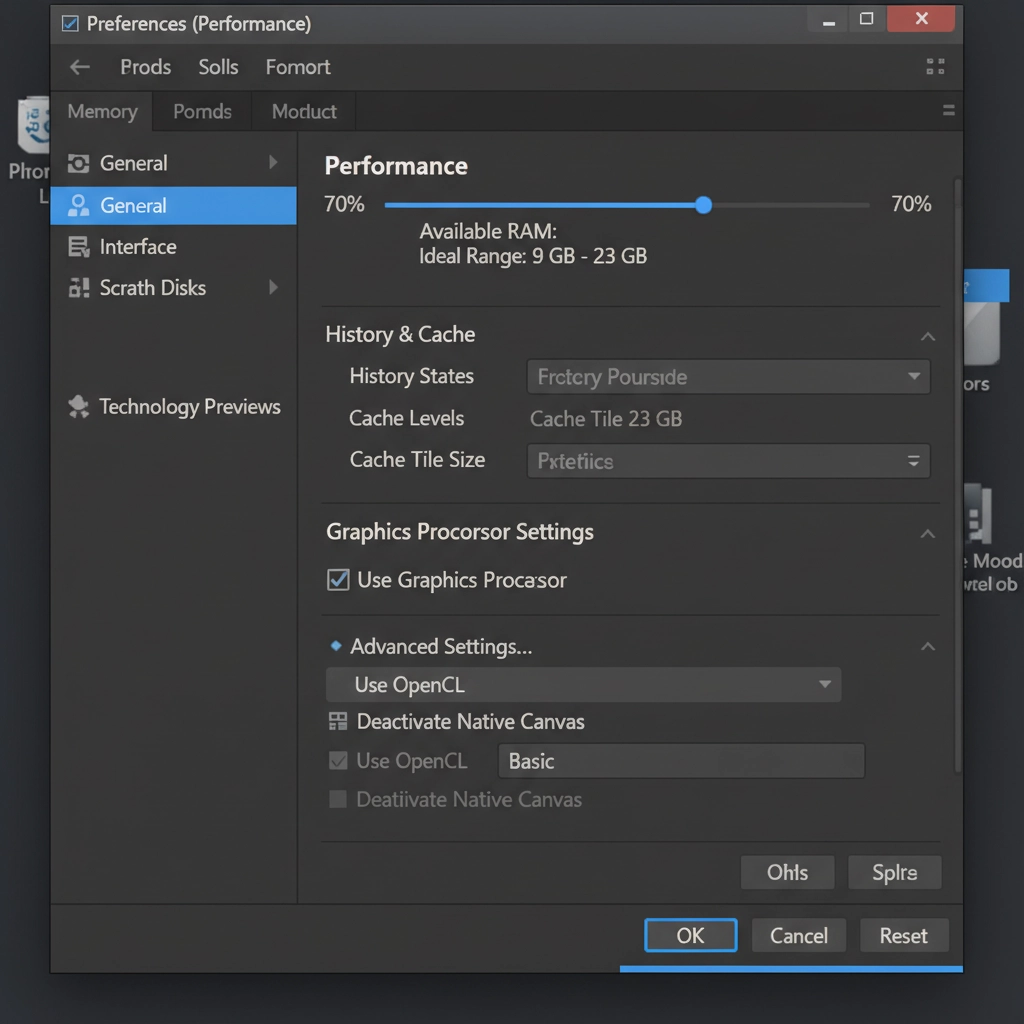
4. Disable GPU Acceleration (The Technical Workaround)
If the color picker window is entirely unresponsive or causing screen flickering, you are likely experiencing a GPU compositing error. Disabling GPU acceleration temporarily will confirm if your graphics driver is the root cause.
- Go to Edit > Preferences > Performance.
- Under the Graphics Processor Settings, uncheck Use Graphics Processor.
- Click OK and restart Photoshop.
If this fixes the color picker, your current graphics drivers are incompatible with Photoshop v27.x. Head to your manufacturer’s website and update to the latest NVIDIA Studio or AMD Pro drivers, then re-enable the GPU for optimal performance.
5. Perform a Hard Preferences Reset
If you have tried all the above and your color picker is still malfunctioning, your core settings file may be corrupted. A complete preferences reset will restore Photoshop to its factory defaults.
To do this, close Photoshop entirely. Hold down Ctrl + Alt + Shift (Windows) or Cmd + Option + Shift (Mac) while clicking the Photoshop icon to launch the application. A dialog box will appear asking if you want to delete the Adobe Photoshop Settings file. Click Yes.
Skip the Troubleshooting: Outsource Your Retouching Workflows
Software bugs like the Photoshop 2025 color picker freezing can destroy your productivity, especially when you have tight deadlines for eCommerce product launches or fashion catalogs. When you need flawless color accuracy and don’t have the time to fight with your software, leave the heavy lifting to the experts.
At Image Work India and Cloud Retouch, our dedicated teams specialize in high-volume, pixel-perfect color correction, clipping paths, and high-end photo retouching. We ensure your product imagery maintains brand consistency across every single pixel, saving you hours of frustration.
Stop wrestling with software bugs. Contact Image Work India today to streamline your post-production workflow and get your images delivered perfectly, every time.



