
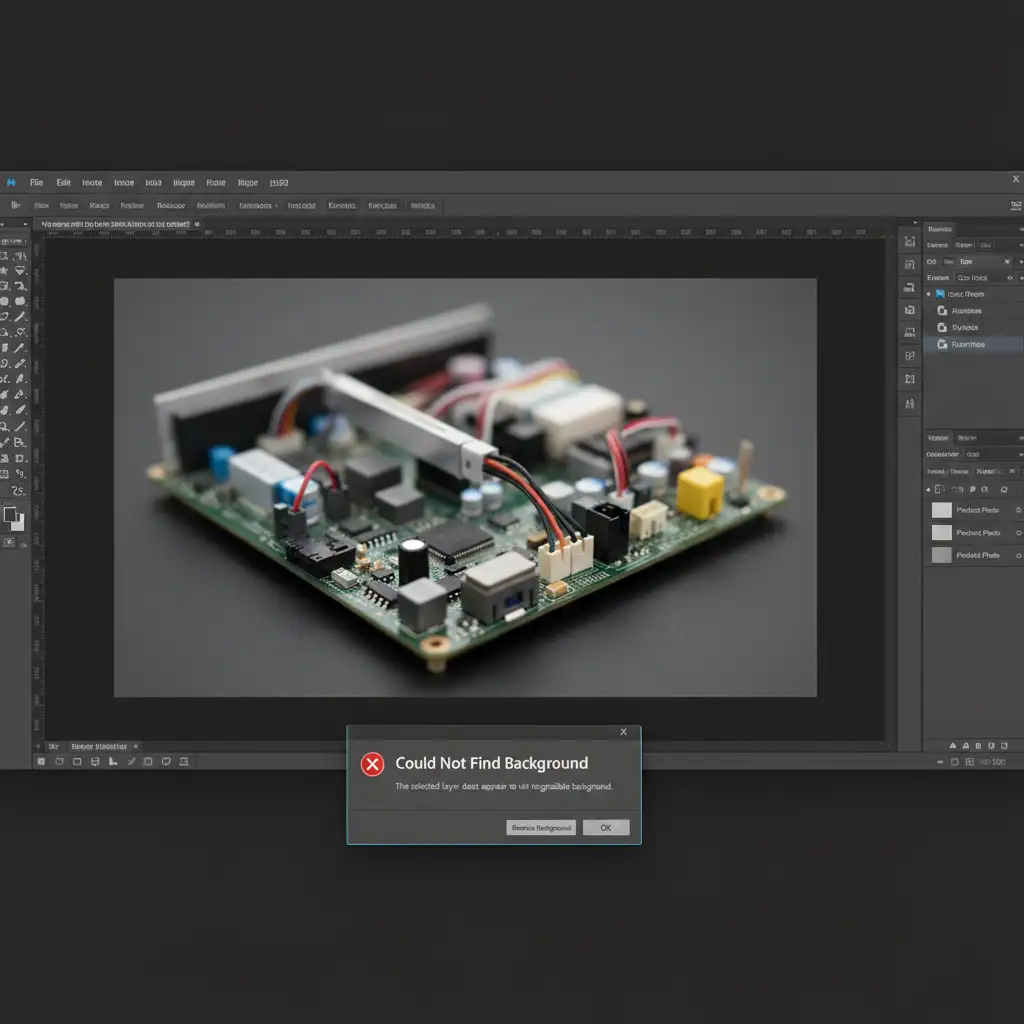
You are on a tight deadline, editing a product photo. You click the highly touted “Remove Background” button on the Contextual Task Bar, expecting instant magic. Instead, you are greeted with an endless loading bar, or worse, the dreaded “Could Not Find Background” error message.
If this sounds familiar, you are not alone. In the Photoshop v25.x and v26.x (2024-2025) updates, Adobe fundamentally changed how AI segmentation works, defaulting to local hardware to save server costs. The result? A widespread Photoshop Remove Background Cloud vs Device processing error that cripples workflows on machines with limited resources.
Here is exactly why your AI tools are failing and the step-by-step methods to fix this processing error permanently.
Why is the Photoshop Remove Background Button Failing?
The core conflict lies in how Adobe Sensei AI processes image data. By default, the latest versions of Photoshop attempt On-device processing. This means the software relies entirely on your computer’s local CPU and GPU to execute the complex segmentation mask required to isolate a subject.
If your system has outdated graphics drivers, an unsupported neural engine, or limited VRAM (under 4GB), the local AI model simply crashes. It lacks the memory to process the image, resulting in the “Could Not Find Background” error. To fix this, we need to force Photoshop to bypass your local hardware and use Adobe’s powerful cloud servers instead.
How to Fix the Photoshop Remove Background Cloud vs Device Processing Error
Method 1: The Quick Fix – Force Cloud Processing (Recommended)
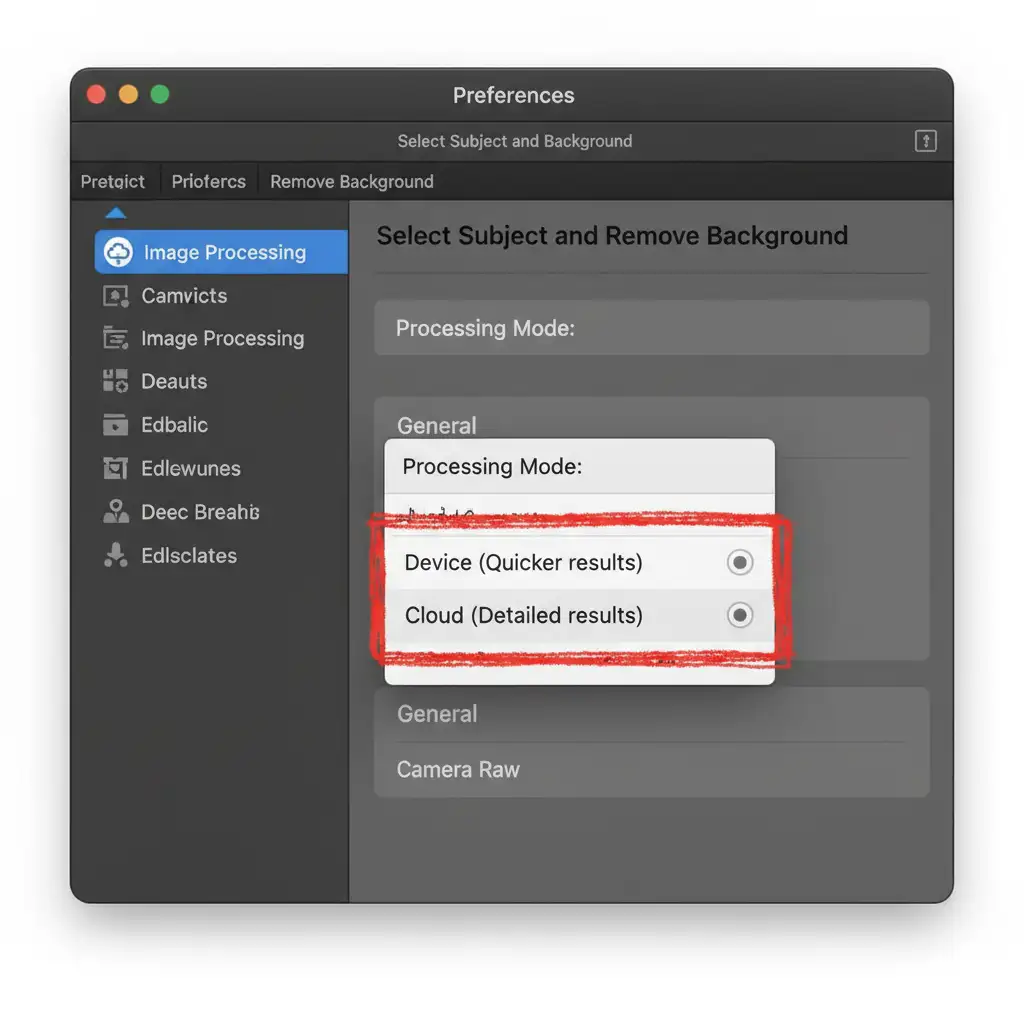
The most reliable way to bypass local hardware limitations is to change your Image Processing preferences. This forces Photoshop to send the image data to Adobe’s servers, which guarantees a much higher success rate for complex edges.
- Open Photoshop.
- Navigate to your preferences:
- Windows: Go to Edit > Preferences > Image Processing.
- Mac: Go to Photoshop > Settings > Image Processing.
- Locate the section labeled Select Subject and Remove Background.
- Click the Processing dropdown menu.
- Change the setting from Device (Quicker results) to Cloud (Detailed results).
- Click OK and restart Photoshop.
Note: Cloud processing requires an active internet connection, but it completely eliminates the VRAM bottleneck causing the error.
Method 2: The Technical Deep-Dive – GPU Optimization & Cache Clearing
If you prefer to use On-device processing (or if Cloud processing is still hanging), the issue is likely a system-level GPU conflict or corrupted cache data interfering with Neural Filters and AI tasks.
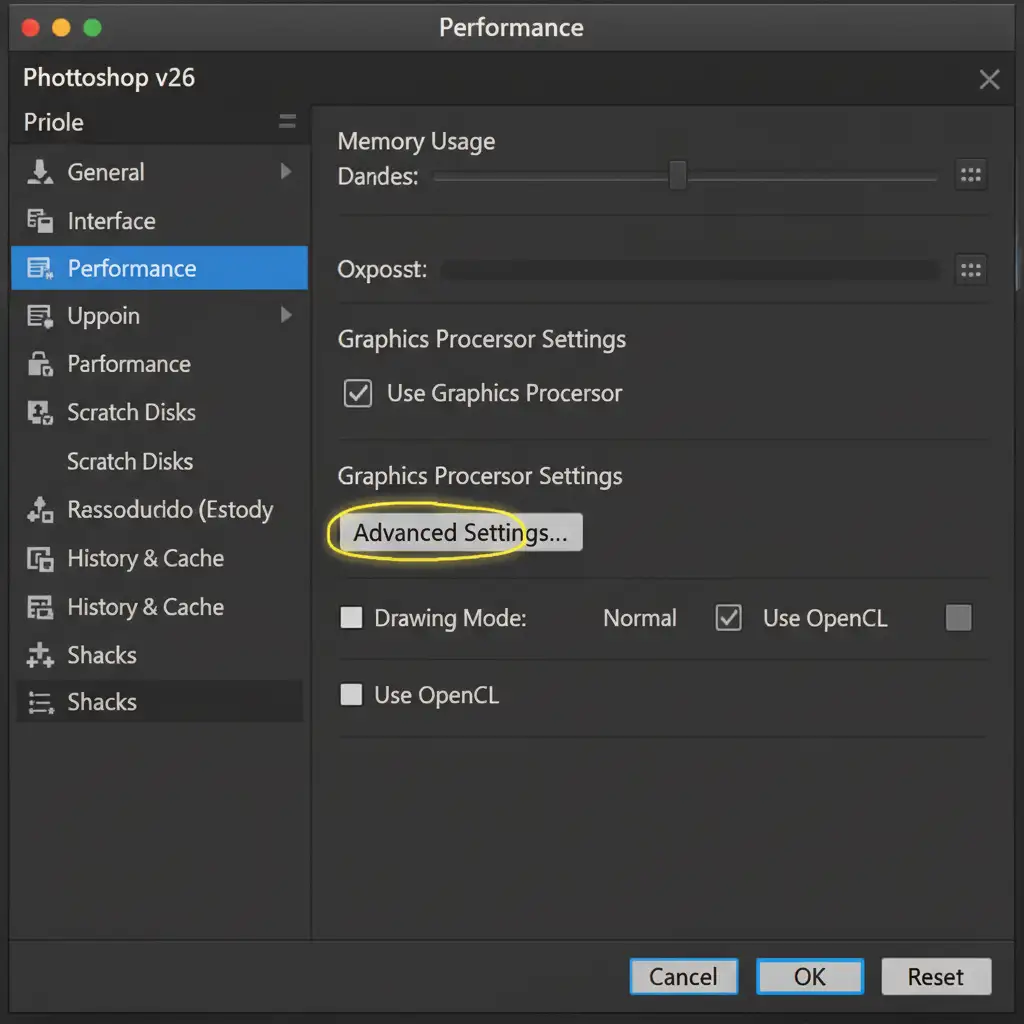
- Enable GPU Acceleration: Go to Edit > Preferences > Performance. Ensure that Use Graphics Processor is checked.
- Advanced Settings: Click the Advanced Settings button within the Performance tab and verify that Use GPU for Image Processing is actively enabled.
- Purge Cache: Corrupted memory often breaks AI tools. Go to Edit > Purge > All to clear out bad cache data.
- Update Drivers: Ensure you are running the latest NVIDIA Studio Drivers or AMD PRO drivers. Standard “Game Ready” drivers often lack the stability required for Adobe’s neural processing.
Method 3: The Pro Workaround – Manual Subject Selection
When the 1-click automated action fails entirely, professional retouchers rely on manual bypasses. Instead of asking the AI to do everything at once, you can break the task down.
- Ignore the “Remove Background” button. Instead, go to the top menu and click Select > Subject.
- Wait for the marching ants (selection outline) to appear around your subject.
- Navigate to your Layers panel and click the Add Layer Mask icon at the bottom (the rectangle with a circle inside).
- If the edges are imperfect—especially around hair or fur—double-click the newly created mask to open the Select and Mask workspace. Here, you can use the Refine Edge brush to manually perfect the cutout.
When AI Fails: The Ultimate Background Removal Solution
Even when you fix the Photoshop Remove Background Cloud vs Device processing error, AI tools are notoriously inconsistent. Cloud processing takes longer, and automated selections frequently destroy fine details like flyaway hair, transparent plastics, or complex jewelry edges. If you are processing hundreds of e-commerce images, relying on AI can result in hours of tedious manual cleanup.
You don’t have to waste your time fighting with software errors.
At Image Work India and Cloud Retouch, we provide flawless, hand-drawn clipping paths and professional background removal services that AI simply cannot match. Our team of expert retouchers guarantees pixel-perfect precision for complex bulk orders, ensuring your product photos meet the highest industry standards without the headache of software troubleshooting.
Stop letting Photoshop errors slow down your production. Contact Image Work India today or try Cloud Retouch to get pixel-perfect background removal delivered fast, reliably, and affordably.



