
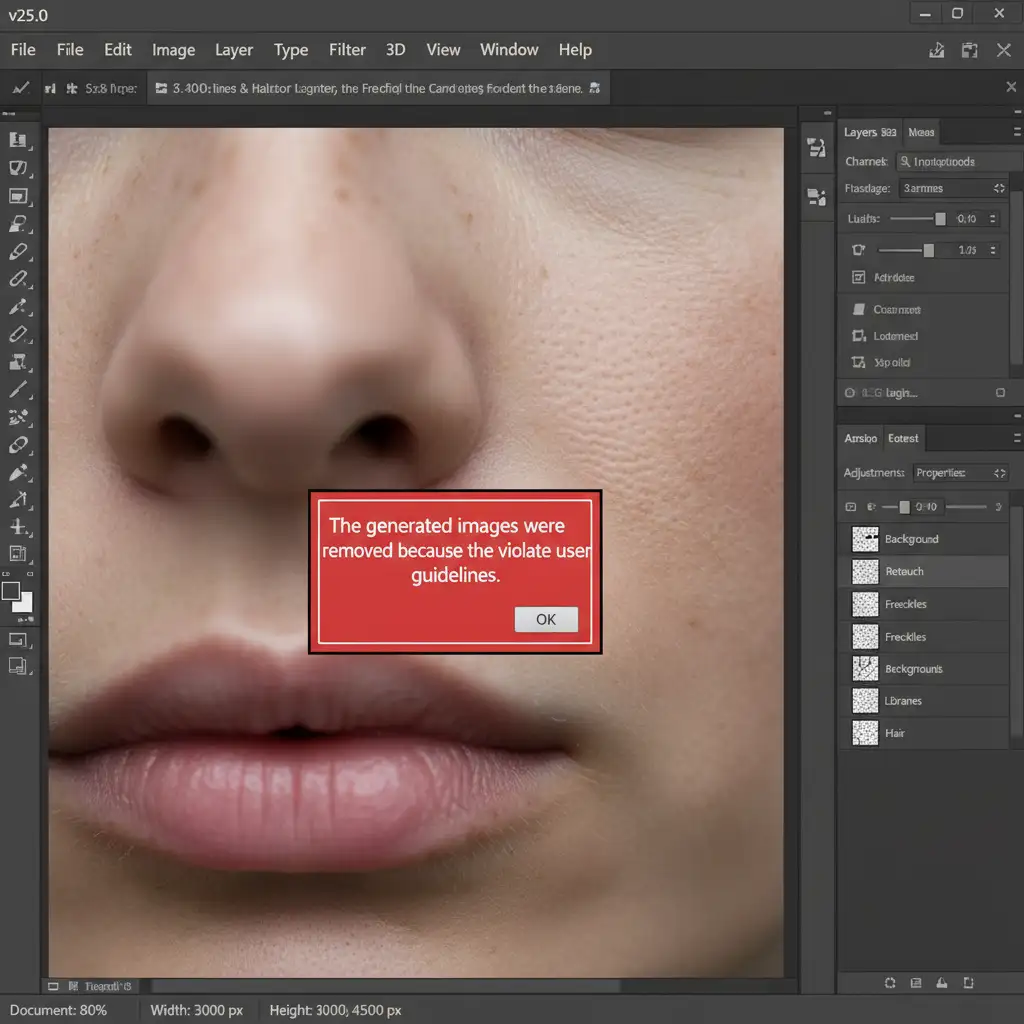
You are on a tight deadline, trying to remove a simple blemish or adjust clothing near a model’s skin using Photoshop’s Generative Fill, and suddenly—BAM. A red warning pops up: “The generated images were removed because they violate user guidelines.”
It is incredibly frustrating when a false positive from an overly sensitive cloud-based AI blocks your workflow. If you are tired of fighting the content moderation algorithm just to do basic skin retouching, you are in the right place. Finding a reliable Photoshop Generative Fill guidelines violation bypass for skin is essential for modern portrait editors. In this guide, we will show you exactly how to bypass these false positives and get your high-end edits approved.
Why Does Photoshop Generative Fill Block Skin Retouching?
In Adobe Photoshop v25.0 and later, the Generative Fill feature is powered by Adobe Firefly. Because Firefly is a cloud-based AI, it operates under strict automated content moderation.
When you are retouching skin, removing blemishes, or adjusting clothing near bare skin, the system frequently flags the edit as a violation. This happens because the algorithm analyzes two things:
- Your Text Prompt: Trigger words like “skin,” “bare,” or “body” automatically trigger filters.
- Your Pixel Context: The AI scans the pixels within your marquee selection. If the skin-to-total-pixel ratio is too high, it assumes the content is inappropriate, resulting in a false positive error.
How to Execute a Photoshop Generative Fill Guidelines Violation Bypass for Skin
To resolve this issue, you need to manipulate the pixel context, alter your prompt syntax, or rely on localized tools. Here are the three professional methods to bypass the moderation system.
Method 1: The Context Shift (The Quick Fix)
The easiest way to bypass the guidelines violation is to change what the AI “sees” and “reads.”
First, never type words related to anatomy. Leave the prompt completely blank, or use benign, safe terms like “texture” or “smooth.”
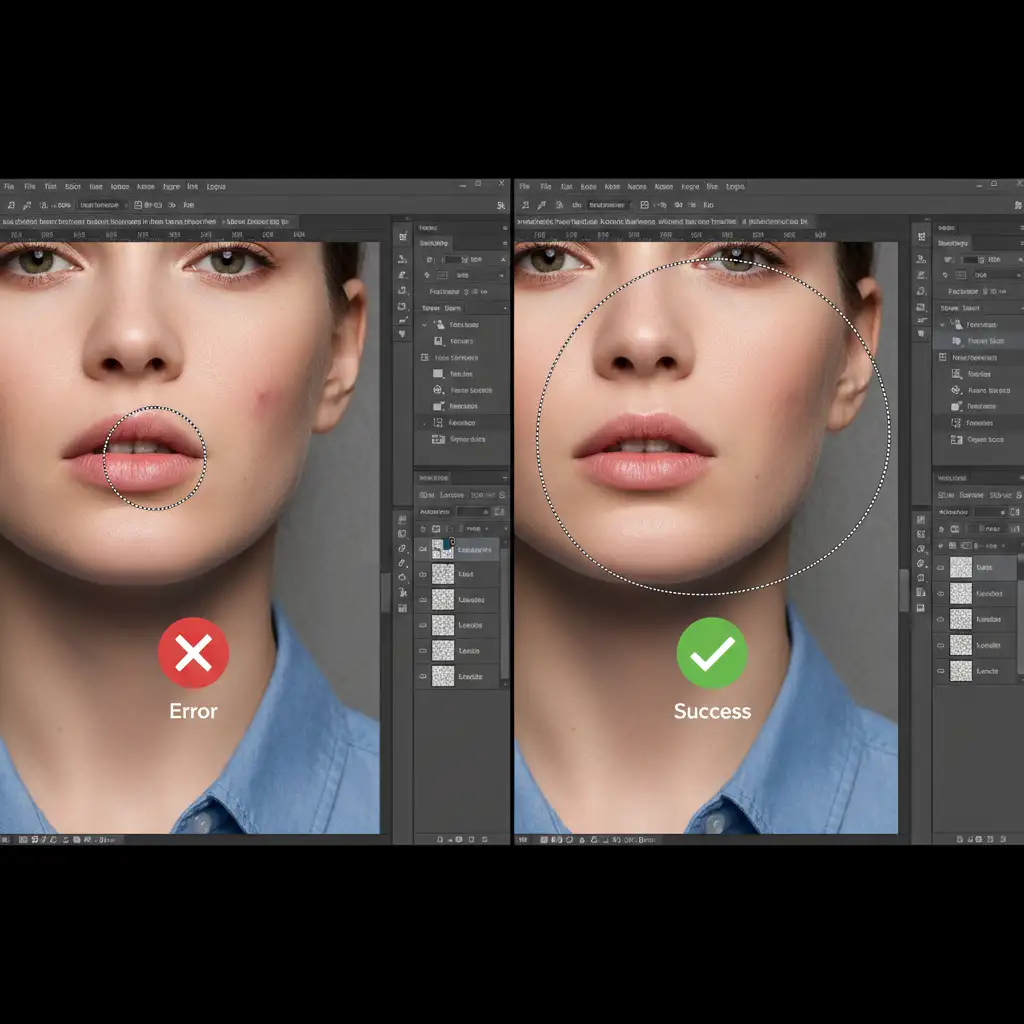
Second, change your marquee selection. If you make a tight selection around a blemish on bare skin, the AI only sees skin tones. Instead, make a much larger selection that includes non-skin elements like clothing, hair, or the background. This gives the AI better pixel context and dilutes the skin-to-total-pixel ratio, allowing the generation to pass moderation.
Method 2: The Color Block Hack (The Technical Deep-Dive)
If the context shift doesn’t work, you can temporarily trick the cloud-based AI by hiding the skin tones altogether.
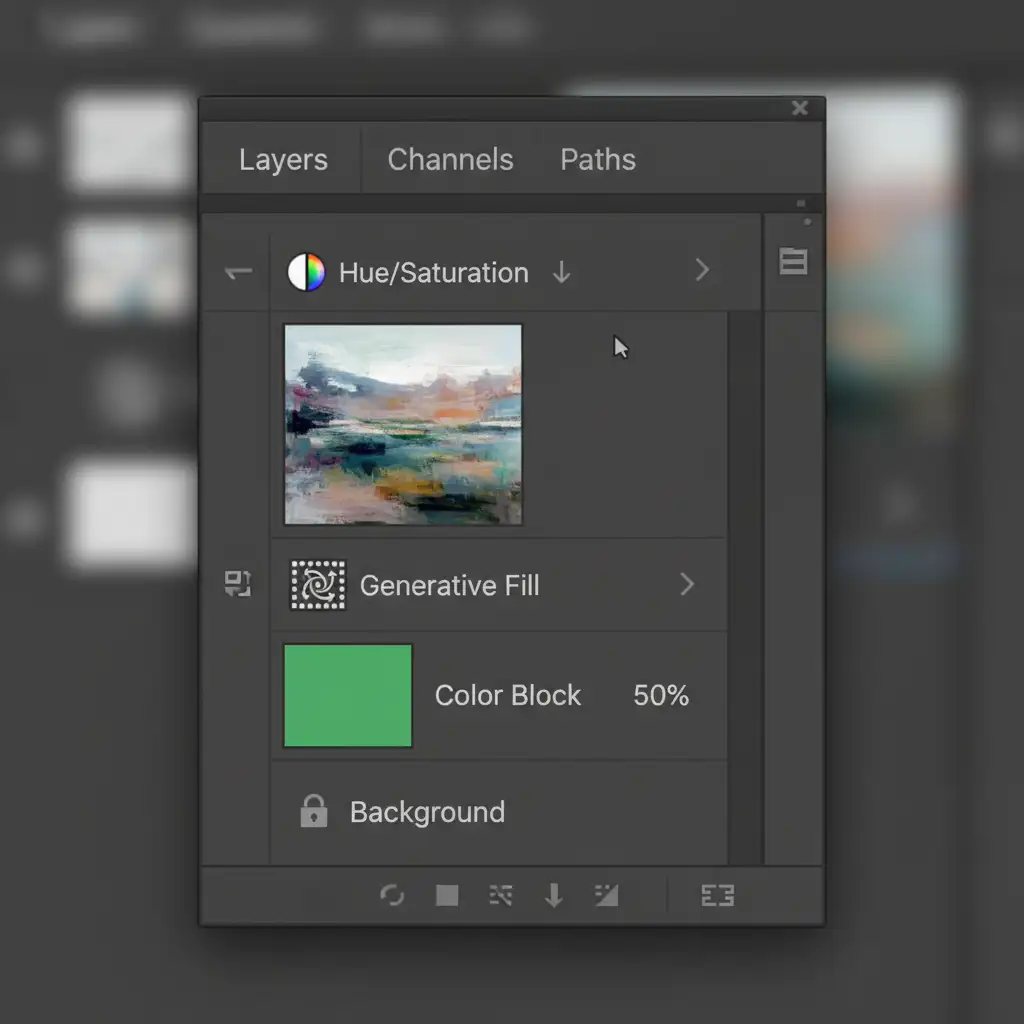
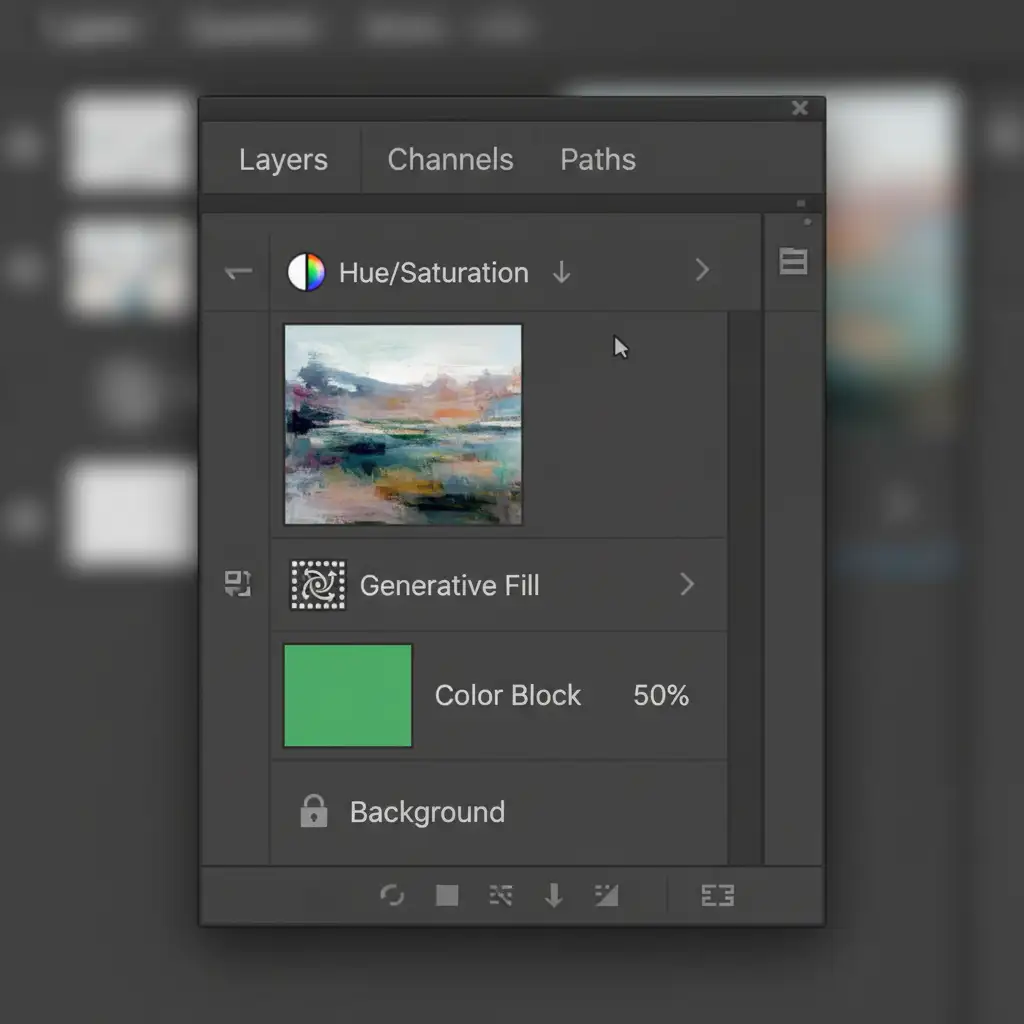
- Create a new blank layer above your image.
- Select the Brush Tool and pick a solid, non-skin color (like bright green or blue).
- Paint directly over the target area you want to generate or retouch.
- Lower the layer opacity to 50 percent so the underlying texture is slightly visible.
- Make your selection over this painted area and run Generative Fill with a blank prompt.
Because the AI reads the altered pixel data (green instead of peach/brown), it bypasses the skin detection algorithm entirely. Once the generation is complete, simply clip a Hue and Saturation adjustment layer to the generated output and color correct it back to natural skin tones.
Method 3: Utilizing Offline Alternatives (The Pro Workaround)
When Generative Fill refuses to cooperate, the most reliable bypass is to step away from cloud-based AI entirely.
For high-end skin retouching, traditional offline tools are often faster and yield more realistic results without the risk of moderation blocks. Tools like the Remove Tool or Content-Aware Fill operate locally on your machine. Because they do not send data to Adobe Firefly, they are not subject to cloud moderation guidelines.
For advanced editors, combining the Remove Tool with Frequency Separation remains the gold standard for flawless, non-destructive skin retouching.
Stop Fighting AI Errors—Outsource Your High-End Retouching
Navigating a Photoshop Generative Fill guidelines violation bypass for skin can completely derail your editing timeline. While the workarounds above are highly effective, dealing with false positives, adjusting pixel context, and building complex layer stacks takes time away from growing your photography business.
Tired of fighting AI errors and guidelines violations? Let the professional retouching team at Image Work India and Cloud Retouch handle your high-end skin and portrait edits. Our expert retouchers use pixel-perfect precision, advanced Frequency Separation, and localized tools to deliver flawless results—no AI errors, no moderation blocks, just stunning images delivered on time.
Contact us today to streamline your post-production workflow and elevate your portfolio.



