
You try to extend a background using Photoshop’s new AI tools, and suddenly your perfectly shaped ecommerce product looks like a melted candle. Sound familiar?
If you are struggling to fix generative fill product warping, you are not alone. When using AI to generate environments for product photography, the algorithm frequently misinterprets the boundaries of your merchandise. Instead of a seamless background, you get stretched logos, distorted proportions, and unusable inventory shots.
This guide breaks down exactly why this happens in Photoshop v25.0+ and provides three professional workflows to protect your product’s original scale and pixel integrity.
Why Does Generative Fill Warp Products?
The core issue stems from how the Firefly Image 2 Model handles edge blending. When you run a Generative Fill prompt, the AI attempts to seamlessly blend the newly generated pixels with the edges of your active selection.
If your product is even partially included inside the marching ants of your selection, the AI assumes you want to alter or extend the product itself. This triggers pixel extrapolation, leading to the warping, melting, or stretching of your merchandise. This phenomenon, known as edge bleed, almost always occurs when users make loose selections or fail to isolate the product onto a protected layer before generating the background.
How to Fix Generative Fill Product Warping (3 Professional Workflows)
To maintain 100 percent original scale and accurate proportions, you must strictly separate the product from the AI generation zone. Here are three ways to do it.
Method 1: The Quick Fix Using the Contextual Taskbar
If you need a rapid solution for simple product shapes, the best approach is to create a tight boundary that forces the AI to stay away from the product’s core pixels.
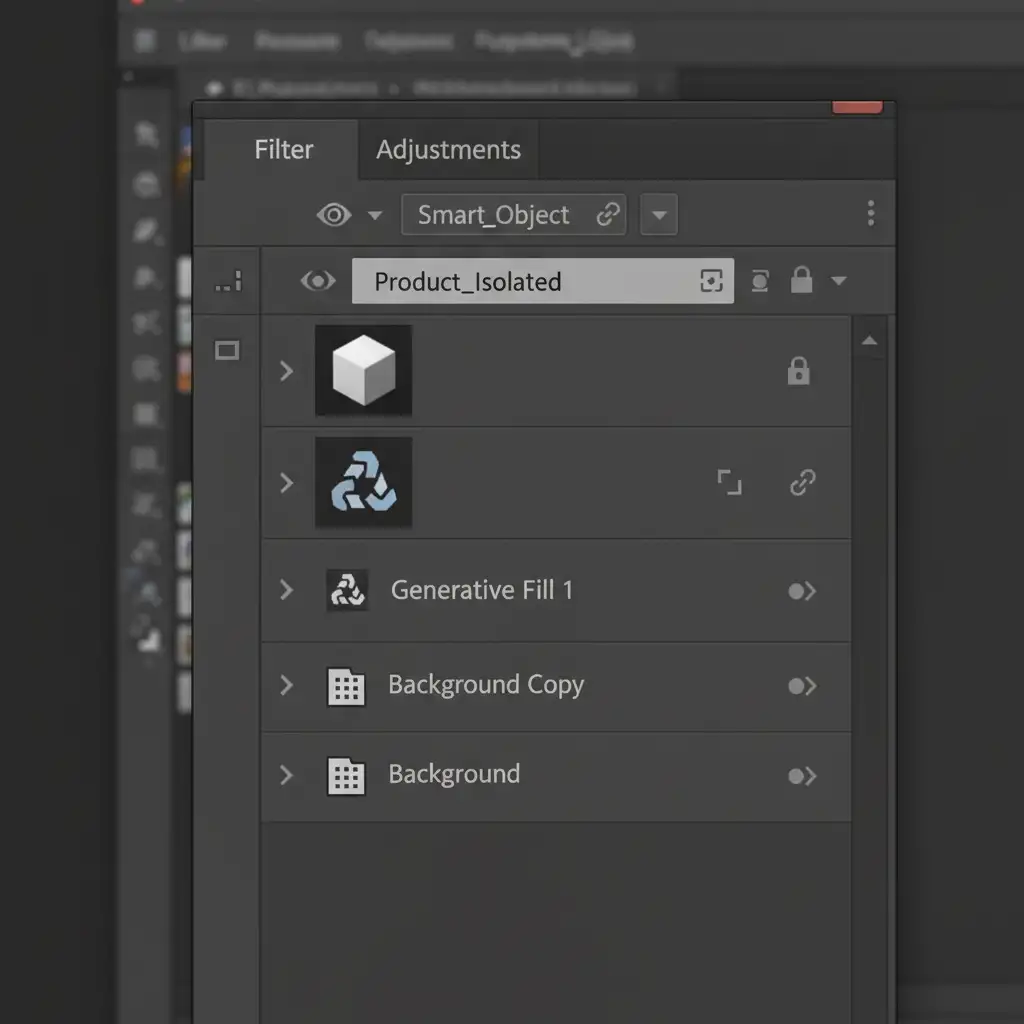
- Open your image and activate the Select Subject tool from the Contextual Taskbar.
- Once the product is highlighted, click the Invert Selection icon (or press Shift+Ctrl+I / Shift+Cmd+I). Now, everything except your product is selected.
- Navigate to Select > Modify > Expand and expand the selection outward by 1 to 2 pixels.
- Apply your Generative Fill prompt. By expanding the inverted selection slightly, you ensure the AI blends the background just outside the product, preventing any distortion.
Method 2: The Pro Workaround with Smart Object Isolation
For high-end ecommerce photo editing where precision is non-negotiable, Smart Object isolation is the safest method. This completely removes the product from the layer where the AI generation occurs.
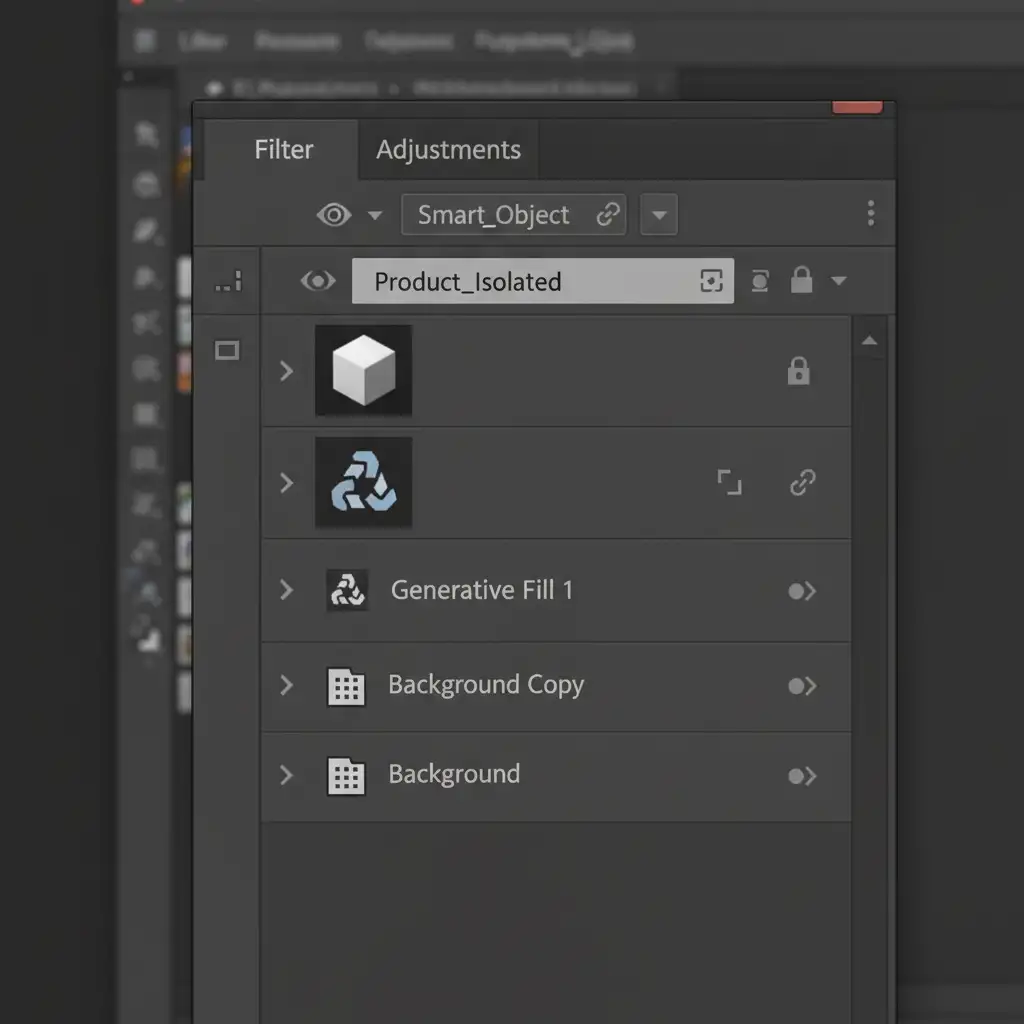
- Select your product perfectly using the Pen Tool or Object Selection Tool.
- Press Ctrl+J (Cmd+J) to duplicate the isolated product onto a new layer.
- Right-click this new layer and select Convert to Smart Object.
- Hide this Smart Object layer by clicking the eye icon in the layers panel.
- Select your original Background layer and run your Generative Fill to extend the scene. (It does not matter if the AI warps the original product on this layer).
- Once the generation is complete, unhide your Smart Object layer. It will sit perfectly on top of the generated background, ensuring zero edge bleed and absolute scale retention.
Method 3: Technical Deep-Dive into Alpha Channel Protection
When dealing with complex edges like fur, transparent plastics, or intricate jewelry, standard selections might fail. In these cases, you need to rely on mathematically precise Layer Masking via Alpha Channels.
- Navigate to the Channels panel and duplicate the channel with the highest contrast (usually Blue or Red).
- Use Levels (Ctrl+L / Cmd+L) to crush the blacks and whites, creating a pure black-and-white silhouette of your product. This is your high-contrast Alpha Channel mask.
- Ctrl-click (Cmd-click) the Alpha Channel thumbnail to load it as a perfect selection.
- Save this selection (Select > Save Selection).
- When running your Generative Fill on the background, apply this saved selection as a layer mask to the Generative layer. This mathematically constrains the Firefly algorithm, forcing it to ignore the protected bounding box of your product entirely.
Scale Your Ecommerce Imagery Without the AI Headaches
Learning to fix generative fill product warping takes time, and executing these precise masking and Smart Object workflows on hundreds of SKUs can bottleneck your entire production pipeline. Generative AI is a powerful tool, but it can be unpredictable and highly manual when strict brand guidelines and exact product proportions are required.
Need pixel-perfect ecommerce images at scale? Don’t leave your inventory to chance. Hire Image Work India and Cloud Retouch for flawless, consistent product photo editing. Our expert retouchers combine advanced AI workflows with meticulous manual masking to deliver perfect backgrounds, accurate colors, and zero product distortion.
Contact Cloud Retouch today to streamline your image editing and get your products market-ready faster.



