
You just used Generative Fill to expand a stunning background for your e-commerce product shot. The lighting is perfect, the textures are flawless, but there’s one massive problem: your brand logo looks like melted plastic. AI diffusion models are incredible at blending pixels, but they are notoriously terrible at preserving rigid typography and vector graphics. This “diffusion model hallucination” destroys brand integrity and ruins otherwise perfect marketing assets. If you are struggling with correcting AI distorted logos on product packaging, you aren’t alone. Here is exactly how to stop AI from warping your text and restore pixel-perfect accuracy to your product photos.
Why AI Ruins Text and Logos (The Technical Problem)
In recent versions of Adobe Photoshop (v25.0+ featuring Adobe Firefly) and other AI compositing tools, preserving typographic and vector elements remains a major limitation. Diffusion models prioritize localized pixel blending over rigid geometric constraints. When the AI attempts to reconstruct or expand an area containing text, it guesses the pixel arrangement based on surrounding textures, leading to severe artifacting.
For e-commerce and brand marketing, this is unacceptable. The technical fix requires a shift in workflow: you must explicitly separate structural brand data (clean vectors or high-res rasters) from the generative AI process.
3 Workflows for Correcting AI Distorted Logos on Product Packaging
Depending on whether you are expanding a background or generating entirely new packaging from scratch, one of these three methods will restore your brand’s integrity.
Method 1: The Quick Fix (Selective Masking)
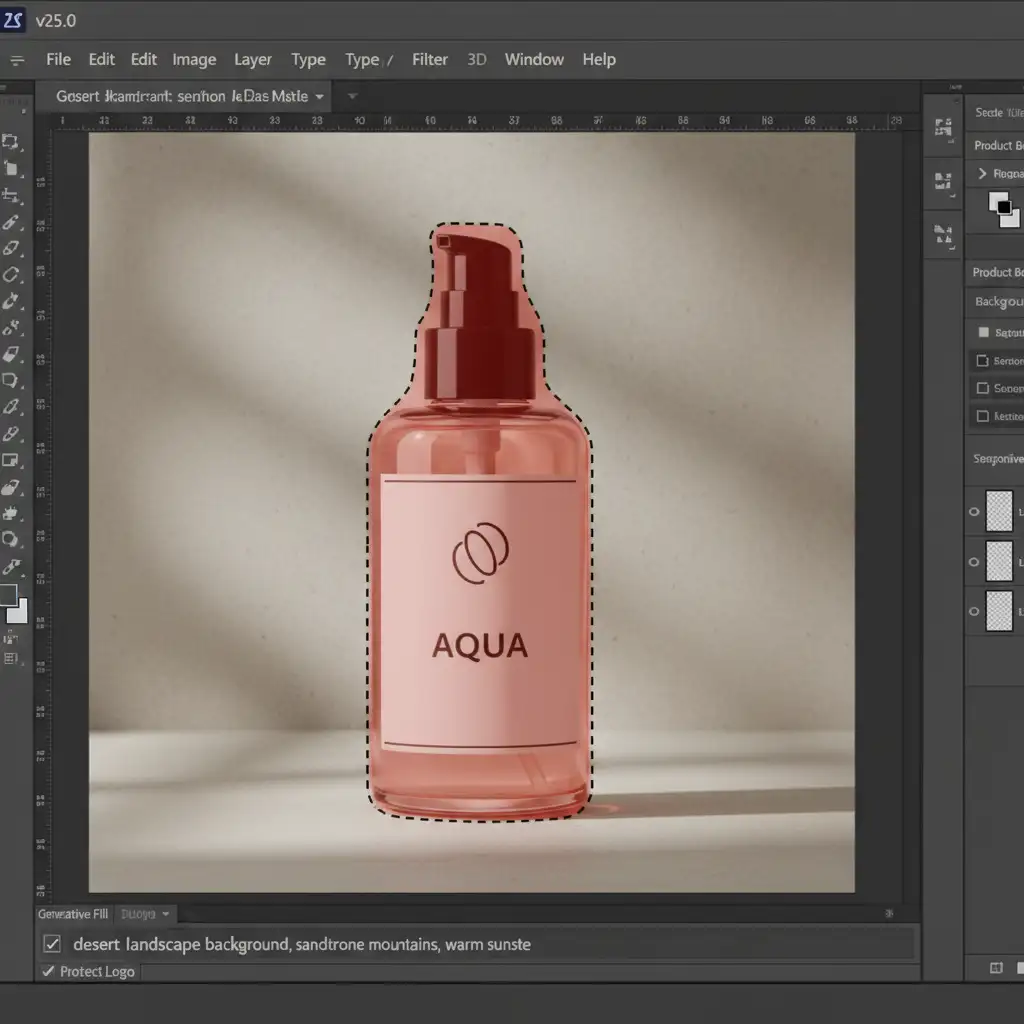
The easiest way to fix a distorted logo is to prevent the AI from touching it in the first place. If you are using Generative Fill to expand a background, strict masking is your best defense.
- Select the Object Selection Tool and click on your product to isolate it.
- Go to Select > Modify > Contract and shrink the selection by 2 pixels. This ensures the edge of your product is safely inside the protected zone.
- Go to Select > Inverse (Shift + Ctrl/Cmd + I).
- You will now see the marching ants surrounding the background, leaving the product untouched.
- Run Generative Fill in the background. The AI will generate new surroundings while your original logo pixels remain perfectly intact.
Method 2: The Pro Workaround (Smart Objects & Perspective Warp)
If the product packaging was fully AI-generated and the logo is already ruined, you need to surgically re-composite a clean version over the hallucinated mess.
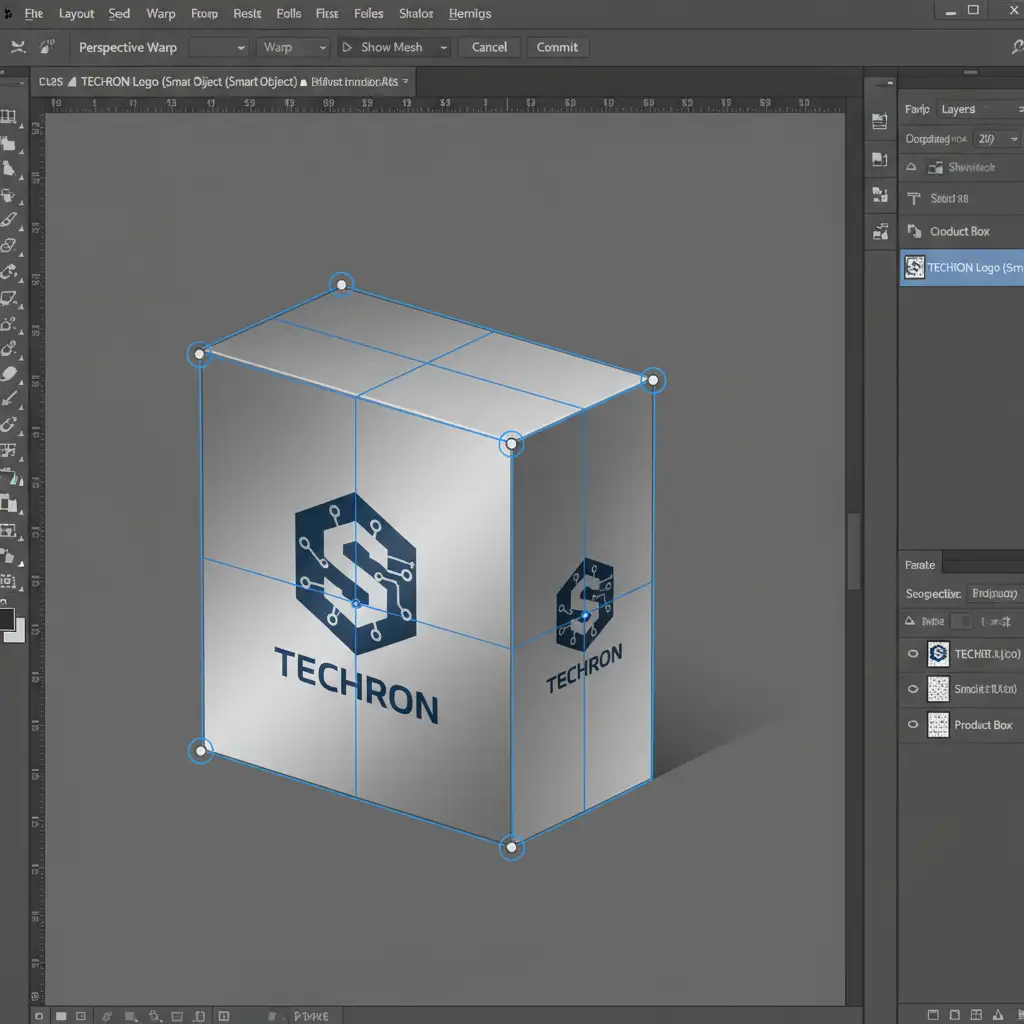
- Drag and drop your original, clean vector graphic into the Photoshop document. It will automatically import as a Smart Object, protecting its resolution.
- Position the flat logo roughly over the distorted AI logo.
- Go to Edit > Perspective Warp.
- Click and drag to draw a layout grid over your flat logo.
- Hit the Enter key to switch from Layout mode to Warp mode.
- Click and drag the corner pins to perfectly match the 3D perspective and vanishing points of the AI-generated packaging. Hit Enter to apply.
Method 3: The Technical Deep-Dive (Displacement Maps & Blend If)
Just pasting a clean logo onto a box often looks fake. To make a clean vector logo blend naturally into AI-generated textures (like cardboard ripples or plastic reflections), you need to use a Displacement Map and advanced layer blending.
- Create the Map: Hide your logo layer. Duplicate your AI base layer, desaturate it (Ctrl/Cmd + Shift + U), apply a slight Gaussian Blur (about 1-2px), and save it as a separate PSD file (e.g., map.psd).
- Displace the Logo: Turn your logo layer back on and make sure it is a Smart Object. Go to Filter > Distort > Displace. Set the scale to 5-10, click OK, and select the map.psd you just saved. Your logo will now warp around the micro-contours of the packaging.
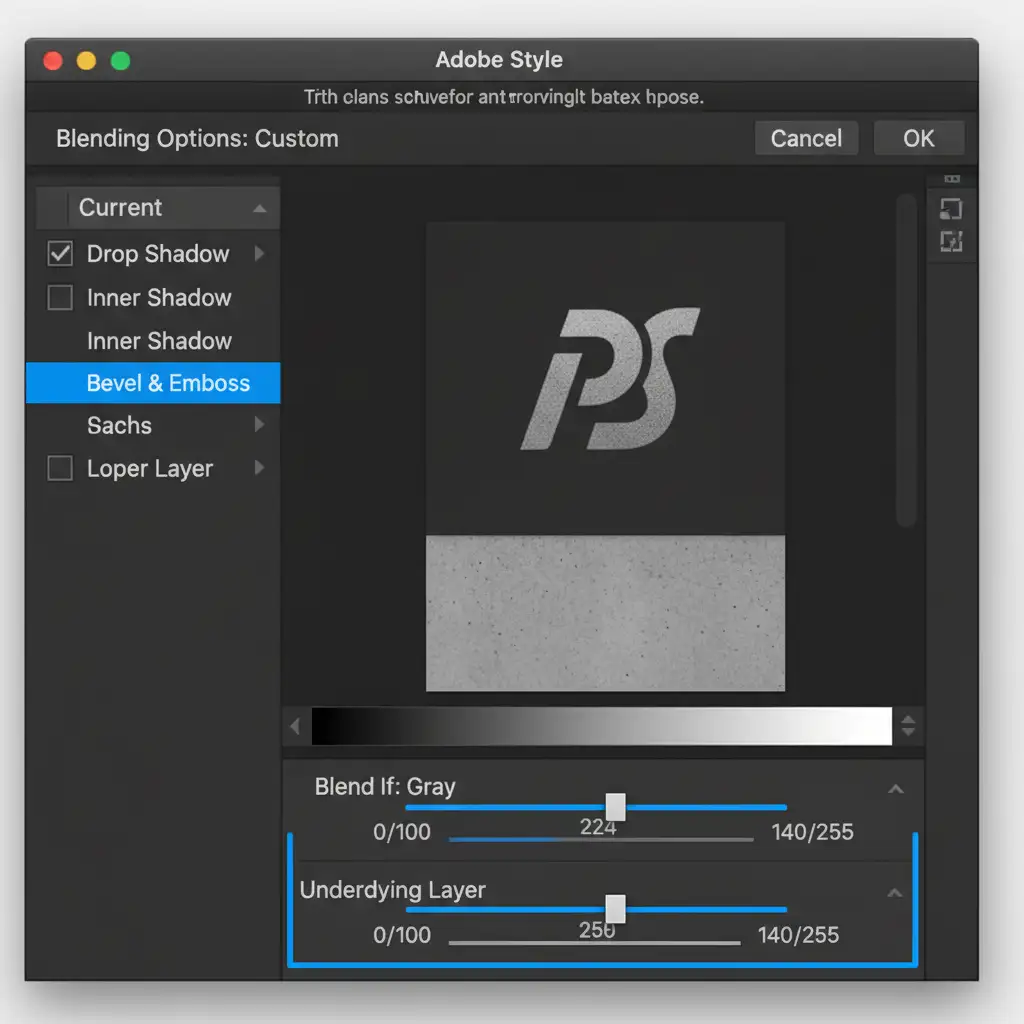
- Blend the Textures: Double-click the logo layer to open the Layer Style dialog box. Look at the Blend If section at the bottom.
- Hold the Alt/Option key and click the white and black triangles on the Underlying Layer slider to split them. Dragging these split sliders will allow the natural highlights and shadows of the AI-generated packaging to shine through the logo, making it look authentically printed rather than digitally pasted.
Stop Fighting the AI: Let the Experts Handle Your Product Photos
Correcting AI distorted logos on product packaging requires a deep understanding of masking, 3D perspective mapping, and advanced blending techniques. While generative AI is a powerful tool for ideation, protecting your brand identity requires a level of pixel-perfect precision that diffusion models simply cannot guarantee.
If you are spending hours trying to fix artifacting, rasterize warped graphics, or clean up AI mistakes, you are losing valuable time.
Hire the experts at Image Work India and Cloud Retouch. We specialize in professional e-commerce photo editing, precise clipping path services, and brand-safe image compositing. Let our team of professional retouchers handle the heavy lifting so you receive flawless, high-converting product images every single time. Contact us today to secure your brand’s visual integrity.



