
Are you tired of paying monthly subscriptions for Shopify optimization apps just to convert your product catalog? Or worse, have you tried to bulk-convert transparent PNGs in Photoshop, only to end up with hundreds of images ruined by a flattened white background?
You are not alone. Since Shopify shifted its algorithm to prioritize Core Web Vitals, serving fast-loading images via the Shopify CDN is mandatory. But Photoshop’s trusty “Save for Web (Legacy)” doesn’t support the next-gen WebP format, leaving many store owners frustrated.
In this technical guide, we will show you exactly how to execute a batch WebP with transparency Photoshop for Shopify workflow—saving you time, preserving your image quality, and keeping your budget at absolute zero.
The Technical Hurdle: Why Do WebP Exports Lose Transparency?
Starting with Adobe Photoshop v23.2, native WebP support was introduced, officially eliminating the need for third-party plugins like WebPShop. However, this update brought a new point of confusion for e-commerce managers.
When standard macro recordings or the default Image Processor are used without precise configuration, Photoshop fails to preserve the 8-bit alpha channel. Instead of maintaining your carefully cut-out backgrounds, the software will rasterize the transparency, replacing it with a solid white background.
To prevent this and achieve lossless compression, you must bypass legacy tools and utilize updated export dialogues. Here are three proven methods to get the job done.
How to Batch WebP with Transparency in Photoshop for Shopify
Method 1: The Quick Fix (Photoshop Actions & Batch Processing)
If you have a folder full of transparent PNGs or PSDs that need to be converted to WebP format, creating a custom Photoshop Action is your most efficient route.
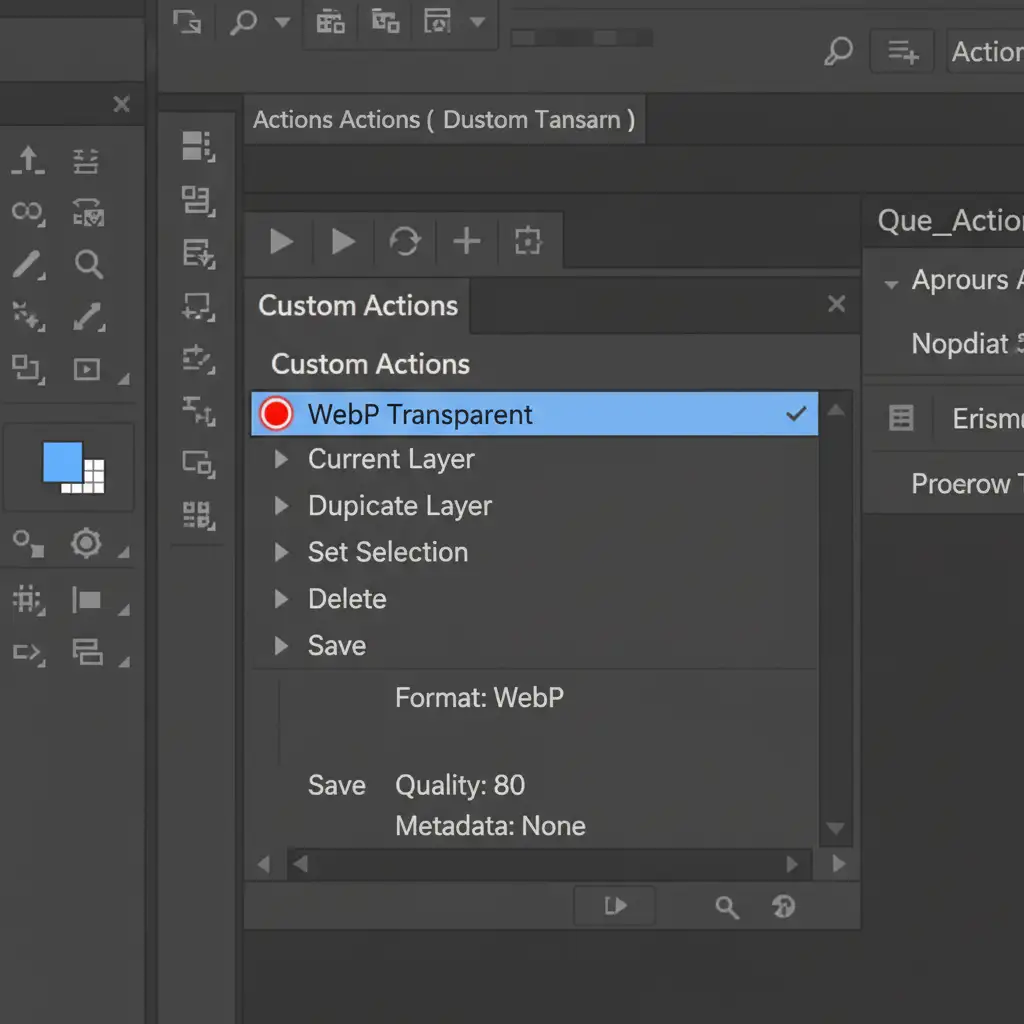
Step 1: Record the Action Open a single transparent product image in Photoshop. Open your Actions panel (Window > Actions) and create a new Action named “WebP Transparent”.
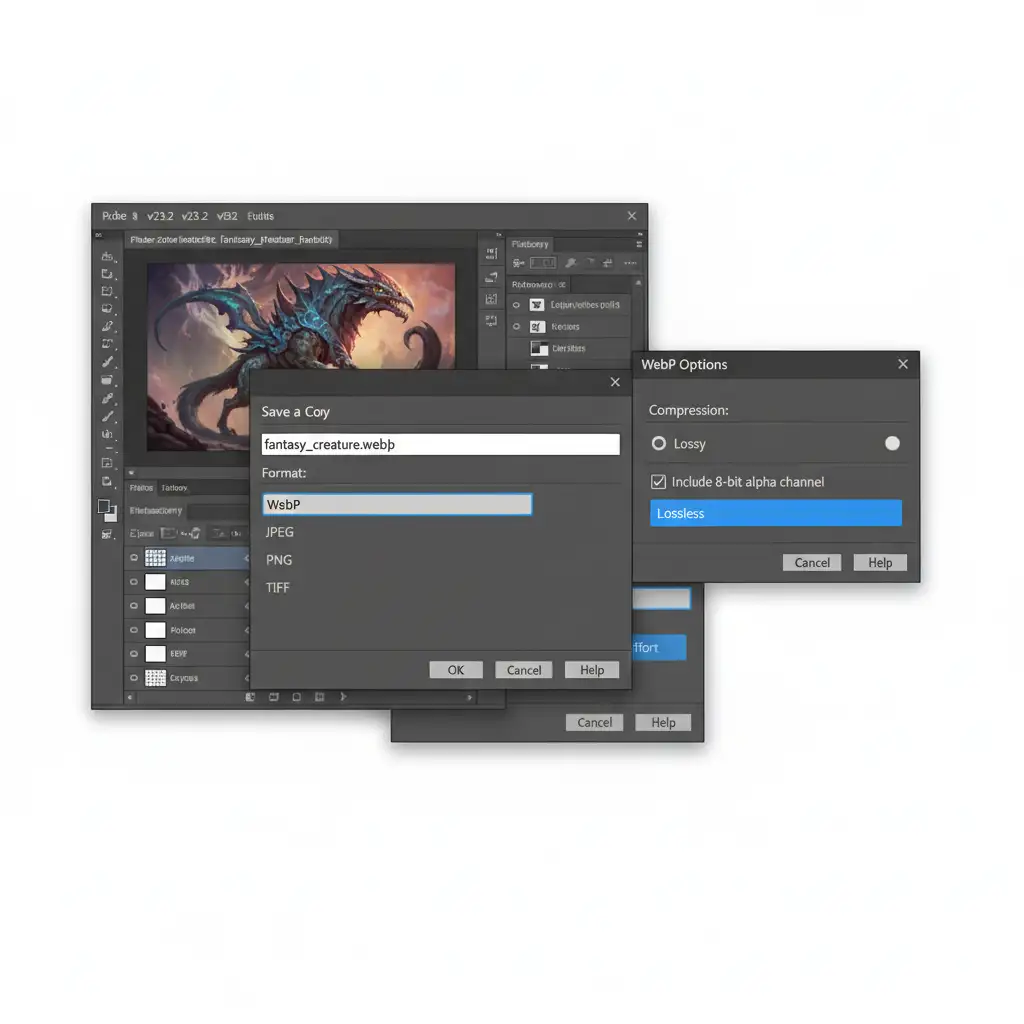
Step 2: Use “Save a Copy” With the recording active, do not use Save As or Save for Web. Instead, navigate to File > Save a Copy.
Choose WebP from the format dropdown. When the WebP Options dialog appears, ensure you select Lossless (or set a specific quality slider depending on your Shopify CDN limits) to preserve the alpha channel. Save the file and hit the Stop button on your Actions panel.
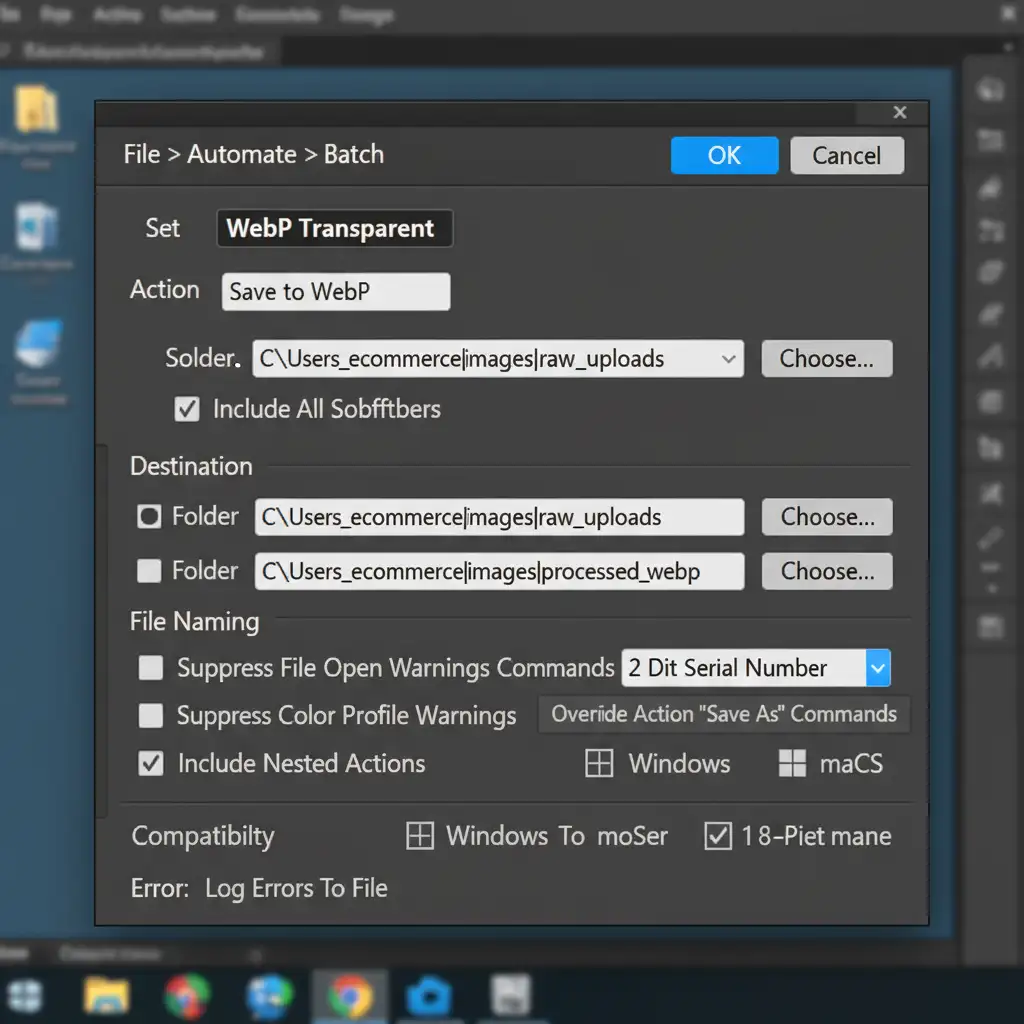
Step 3: Automate the Batch Now, navigate to File > Automate > Batch.
- Source: Select the folder containing your unoptimized transparent images.
- Action: Select your new “WebP Transparent” action.
- Destination: Choose a new output folder.
Click OK, and Photoshop will batch process your entire catalog without flattening a single background.
Method 2: The Pro Workaround (Export As Multiple Layers)
If your workflow involves keeping multiple product variations on separate layers within a single master PSD file, you can bypass the Actions panel entirely.
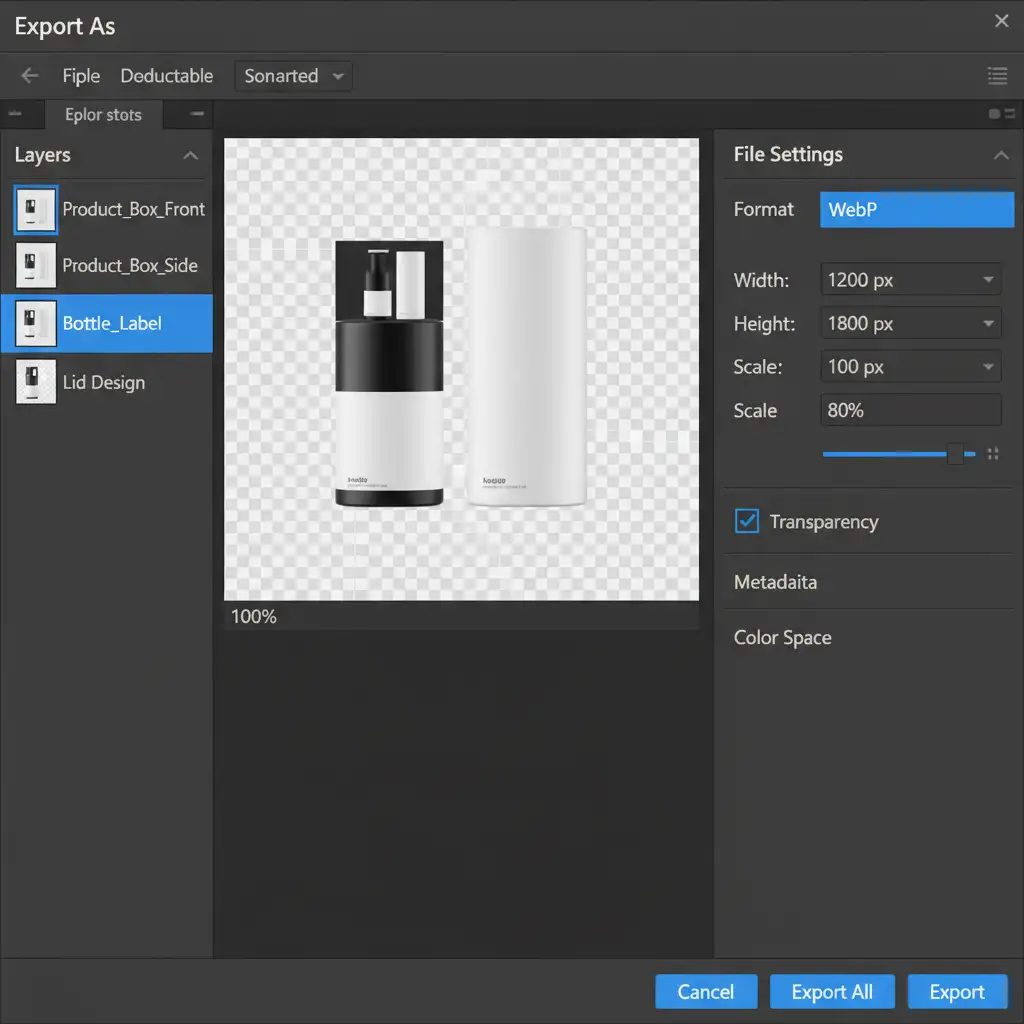
- Open your master PSD and select all relevant product layers in the Layers Panel.
- Right-click the highlighted layers and select Export As.
- In the right-hand menu, set the format to WebP.
- Crucial Step: Ensure the Transparency box is checked.
- Adjust the quality slider (75-80% is the sweet spot for Shopify optimization).
- Click Export to batch save every layer as an individual transparent WebP file simultaneously.
Method 3: The Technical Deep-Dive (Custom JSX Scripting)
For enterprise Shopify stores dealing with nested subfolders and thousands of SKUs, standard UI tools might choke. Advanced users can bypass standard actions by utilizing Custom JSX Scripting.
By writing a script that utilizes the ExportOptionsWebP class, you can force Photoshop to loop through an active document directory, set exact compression parameters, and strictly enforce alpha channel preservation.
Save your code as a .jsx file, and run it via File > Scripts > Browse. This method automates thousands of images seamlessly, ensuring your Core Web Vitals remain in the green without manual oversight.
Stop Wasting Hours on Image Processing
Optimizing your e-commerce imagery shouldn’t require a degree in computer science. While mastering the batch WebP with transparency Photoshop for Shopify workflow is highly valuable, processing tens of thousands of product photos manually drains time away from growing your business.
Struggling to optimize thousands of Shopify product images? Let the experts at Image Work India and Cloud Retouch handle the heavy lifting. From flawless background removal and high-end retouching to bulk WebP conversion for rapid CDN delivery, our professional editing teams deliver pixel-perfect, Shopify-ready images overnight.
Contact Cloud Retouch today to streamline your product photography workflow and boost your store’s page speed instantly!



